Disclosure: As an Amazon Associate, kajuandouglas.com earns from qualifying purchases. Links on this page are affiliate links; they cost you nothing extra. Prices and availability change often, so check the current Amazon listing before you buy.
The best keyboards for accountants finance professionals are not gaming boards with the logos filed off, and they are not the mushy membrane decks that ship free with office PCs. Finance work has a specific physical shape: thousands of number-pad entries, spreadsheet shortcuts fired from muscle memory, long documents reviewed and annotated, and hours of it done in shared rooms where a loud keyboard is a social problem. This guide starts from that work — what a close period actually does to your hands, what Excel rewards, what an open-plan office forgives — and then recommends five keyboards, each verified against Amazon catalogue data before being linked, that fit the profession’s real demands at different budgets and desk setups.
Key takeaways: A real number pad is non-negotiable for data-entry-heavy roles; the only question is whether it is built in or sits in a separate unit. Tactile or well-damped switches protect both speed and accuracy over long sessions. Quiet matters more than finance buyers expect, because finance floors are shared spaces. And wireless multi-device boards earn their keep in hybrid work, where the same keyboard serves a docked laptop at the office and a home desk at night.
Best Keyboards For Accountants Finance Professionals: What Finance Work Actually Demands From a Keyboard
Start with the number pad, because it dominates everything else. An accountant entering invoices, reconciling accounts or building a model touches the pad more in a morning than a gamer touches a spacebar in a week, and the difference between a proper pad — full-size keys, standard layout, a real Enter and Plus key where forty years of muscle memory expects them — and a compromised one is measured in errors per hour. This is why compact keyboards, however fashionable, are the wrong tool for most finance roles, and why this guide’s picks are full-size or near-full-size designs, with one deliberate exception discussed as a system rather than a board.
Next, consider the shortcut layer. Professional spreadsheet work is a keyboard sport: navigation by Ctrl and arrow keys, range selection, formula auditing, format painting, pivot manipulation. A board serves this work when its function row is real and unshared — no Fn-key gymnastics to reach F2 or F4, the two keys spreadsheet users press most — when the navigation cluster is where a standard layout puts it, and when the board offers either sensible media keys or genuine programmability for the handful of macros every finance worker eventually builds. Boards that hide F-keys behind a layer, or that require software to make the top row behave like function keys by default, tax every working day they are owned.
Then there is endurance, in both directions. The keyboard must survive the work — month-end, quarter-end and year-end closes compress a month of typing into days, with coffee, stress and twelve-hour sessions — and the worker must survive the keyboard. Switch feel is an accuracy feature here, not a luxury: a clear tactile event or a well-controlled keystroke reduces doubled and missed digits, and a board that feels vague at hour one feels punishing at hour ten. Sound belongs in the same paragraph. Finance teams sit together, take calls together and concentrate together; a board that announces every entry to the room will be resented by Friday, whatever its other virtues. The comfort dimension runs deeper than noise, and readers who feel it in their wrists should also see the guide to ergonomic mechanical keyboards and wrist comfort, which treats posture and split layouts in full.
Finally, the modern complication: hybrid work. The finance professional’s desk is now two desks, plus a laptop bag, plus occasionally a client’s office. A keyboard that pairs with three devices, charges over the same USB-C cable as everything else, and works identically docked or standalone removes a whole category of friction from that life. Wired boards still have a place — the Das Keyboard in this guide is wired and proud of it — but they belong to single-desk owners. Everyone else should read the wireless picks first.
In this guide
Quick Picks: The Five Boards and Their Jobs
| Keyboard | Layout | Connection | Switch character | Best job |
|---|---|---|---|---|
| Logitech MX Keys S | Full-size, low profile | Bluetooth / Logi Bolt, 3 devices | Quiet, precise scissor-style keys | The hybrid-work default |
| Keychron K5 Max | Full-size, ultra-slim mechanical | Bluetooth, 2.4 GHz, wired | Low-profile tactile (Brown variant) | Mechanical feel, slim case |
| Das Keyboard 4 Professional | Full-size | Wired, USB hub built in | Cherry MX Brown tactile | The permanent-desk purist |
| Keychron V6 Max | Full-size | Bluetooth, 2.4 GHz, wired | Hot-swappable tactile (Brown variant) | Customisable workhorse |
| Logitech MX Mechanical | Full-size, low profile | Bluetooth / Logi Bolt, 3 devices | Low-profile tactile mechanical | Mechanical keys, office manners |
How These Picks Were Chosen
Every board here had to pass the profession’s tests before its brand was considered: a full-size or genuinely usable number pad; a function row that works as a function row; switch options with tactile feedback or demonstrably controlled keystrokes; sound levels a shared office tolerates; and either multi-device wireless or a wired connection with a hub to justify the cable. Boards were then verified in Amazon’s catalogue through the site’s Creators API connection — the exact listings linked below are the listings checked, on 2026-11-23 — and models that could not be verified confidently were left to prose mentions only. Two well-known finance-desk favourites appear in prose rather than as links for that reason: the 96 percent Keychron V5 Max, which squeezes the pad into a shorter case, and Logitech’s G413 SE, a wired mechanical board that serves single-desk users on a budget. Both are discussed where they belong, in the layout section, so the guidance covers them without a link pretending to be a verification.

Logitech MX Keys S — the hybrid-work default
Badge: Best overall for finance professionals
- Layout: full-size with number pad, low profile
- Connection: Bluetooth and Logi Bolt receiver, up to 3 devices
- Keys: spherically-dished scissor keys, smart backlighting
- Battery: USB-C rechargeable
- Software: Logi Options+ with Smart Actions macros
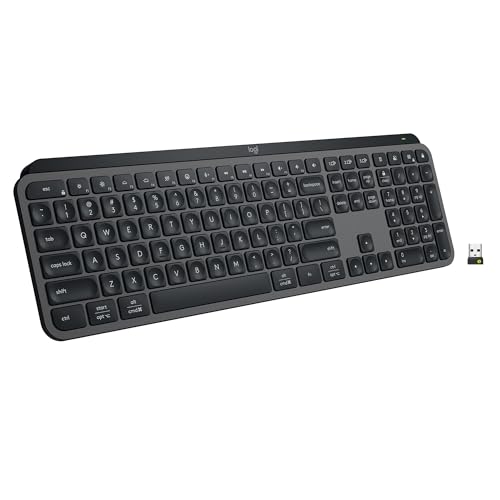
The MX Keys S is the board most finance professionals should buy, and the reason is how completely it matches the job’s shape. The number pad is full-size and conventionally laid out. The dished keycaps centre your fingertips in a way that quietly reduces mis-keys during long entry runs. The backlight wakes as your hands approach and adjusts to the room, which sounds like a gimmick until a late close session in a dim office makes it a genuine aid. It pairs with three devices — office dock, home desk, laptop — and switches between them from a dedicated key, and its Smart Actions let you record the little multi-step routines (open the model, jump to the close checklist, format the paste) that finance work repeats daily.
It is not a mechanical keyboard, and purists should register that plainly: the keys are refined scissor switches, precise and very quiet, but without the travel or the swap-ability of mechanical switches. For most finance users that is a feature — the MX Keys S is the quietest board in this guide and the easiest to live with in a shared room — but typists who already love mechanical feel should read the next three picks first. Battery life is measured in days with the backlight working hard and far longer with it restrained; a weekly top-up habit makes it a non-issue.
- Strengths: superb number pad and key feel for long entry sessions
- Strengths: three-device pairing built for hybrid work
- Strengths: quietest board here; backlight that genuinely helps
- Trade-offs: not mechanical; switches cannot be changed
- Trade-offs: low-profile travel is not for deep-keystroke typists
- Trade-offs: premium price tier among office boards
Best for: hybrid-working accountants and analysts who want one board for every desk. Not suited for: mechanical-keyboard loyalists or single-desk users paying for features they will not use.

Keychron K5 Max — mechanical feel in a slim case
Badge: Best slim mechanical for finance
- Layout: full-size with number pad, ultra-slim
- Connection: Bluetooth, 2.4 GHz, USB-C wired
- Switches: low-profile Gateron mechanical (Brown tactile variant listed)
- Keycaps: PBT
- Software: QMK/VIA remapping
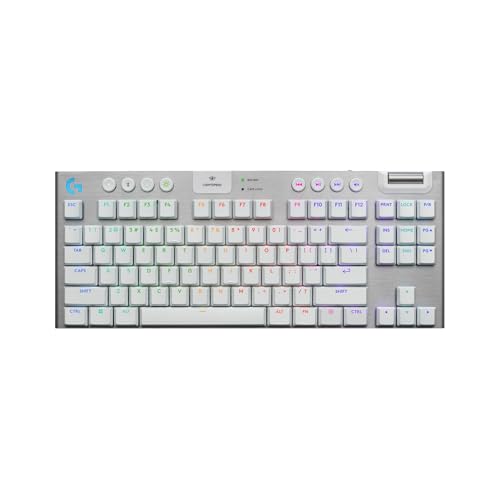
The K5 Max answers the finance worker who wants real mechanical switches without a tall, chunky board dominating the desk. It keeps the full layout — number pad included — in an ultra-slim low-profile case, and the Brown tactile variant listed here gives the gentle bump that helps accuracy without the noise of a clicky switch. Tri-mode connectivity covers the hybrid pattern, and QMK/VIA support means the serious shortcut user can remap keys and build macro layers at the firmware level, where they survive any computer the board is plugged into.
Low-profile mechanical switches are their own feel: shorter travel than standard switches, closer to a premium laptop keyboard with better definition. Some full-depth mechanical devotees find them a halfway house. For a finance desk, though, the compromise is well judged — the board sits flat, wrists stay neutral without a tall front edge, and the tactile event is present where it counts. White backlighting on this variant keeps the aesthetic office-appropriate.
- Strengths: full layout and number pad in a genuinely slim board
- Strengths: tactile low-profile switches balance feel and noise
- Strengths: firmware-level remapping for power shortcut users
- Trade-offs: low-profile travel divides mechanical purists
- Trade-offs: PBT caps on slim boards limit aftermarket choice
- Trade-offs: Keychron’s software polish trails Logitech’s
Best for: finance users who want mechanical definition without desk bulk. Not suited for: buyers who want deep-travel switches or a wrist-rest-height front edge.

Das Keyboard 4 Professional — the permanent-desk purist
Badge: Best wired board for a fixed desk
- Layout: full-size, 104 keys
- Connection: wired USB, with a 2-port USB 3.0 hub in the board
- Switches: Cherry MX Brown tactile
- Case: aluminium top panel
- Extras: oversized volume knob, media controls, foot-bar ruler doubles as tilt
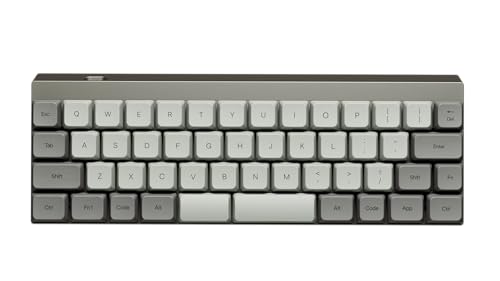
Das Keyboard’s 4 Professional is the board for the accountant whose desk is a place, not a rotation. It is wired, heavy with an aluminium top, and built around Cherry MX Brown switches — the tactile classic that a generation of professionals learned accuracy on. The built-in two-port USB 3.0 hub is more useful in finance life than it sounds: a YubiKey-style security key, a card reader or a USB drive of client files plugs into the keyboard rather than into a dock buried behind monitors. The oversized volume knob and dedicated media keys handle the day’s calls and focus music without touching the function layer, and the famous foot-bar — a ruler that doubles as the board’s tilt mechanism — is the kind of odd, thoughtful detail that owners end up evangelising.
The full story of this brand — including how the 4 compares with the Model S and the Mac-specific MacTigr — is told in the companion Das Keyboard complete guide. Here it is enough to say: if your desk is permanent, your employer allows a wired board, and you value a decade-proof build over wireless tricks, this is the finance keyboard with the fewest apologies attached. The Brown switches are audible in a quiet room, though — tactile, not clicky, but present — so shared-office buyers should weigh the MX Keys S or the K5 Max first.
- Strengths: build quality and switches that suit a decade of closes
- Strengths: USB hub in the board is genuinely useful for security keys and readers
- Strengths: full-size layout with an exemplary number pad
- Trade-offs: wired only; one desk only
- Trade-offs: Cherry Browns are audible in quiet rooms
- Trade-offs: no backlighting on this classic design
Best for: single-desk professionals who buy equipment once and keep it. Not suited for: hybrid workers, quiet-room teams, or anyone who needs backlighting.

Keychron V6 Max — the customisable workhorse
Badge: Best for shortcut builders and tinkerers
- Layout: full-size with number pad
- Connection: 2.4 GHz, Bluetooth, USB-C wired
- Switches: hot-swappable Gateron (Brown tactile variant listed)
- Keycaps: PBT
- Software: QMK programmability via Keychron Launcher
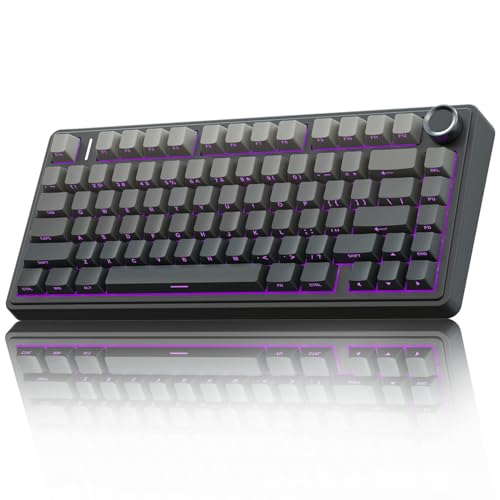
The V6 Max is the finance board for the professional who has opinions. Full-size layout, tri-mode wireless, hot-swappable switches and full QMK programmability add up to a board that can be shaped precisely to a workflow: put the calculator on a key, bind the paste-special-values command where your thumb already rests, build a layer for the reporting package your firm insists on. The Brown variant listed here keeps the sound office-sociable out of the box, and because the switches pull out without tools, an owner who later wants a softer or firmer feel changes the board rather than replacing it.
Against the K5 Max, the trade is profile for depth: the V6 Max is a standard-height board with standard-travel switches, which many typists prefer and which opens the entire aftermarket of standard keycaps and switches. Against the MX Keys S, it trades polish for power — Logitech’s software is friendlier, Keychron’s is deeper. Finance teams standardising on one board for mixed users should pick the Logitech; individuals optimising their own desk should pick this.
- Strengths: deepest customisation in the guide, at firmware level
- Strengths: hot-swap switches make it a multi-year platform
- Strengths: full-size layout with proper number pad and tri-mode wireless
- Trade-offs: standard-height case wants a palm rest for some users
- Trade-offs: software is powerful but less hand-holding than Logitech’s
- Trade-offs: heavier than the slim boards; not a travel board
Best for: power users who build their own shortcut systems. Not suited for: buyers who want the board to simply disappear into the day.
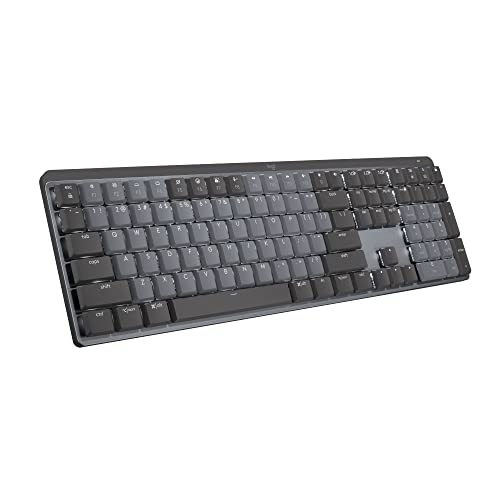
Logitech MX Mechanical — mechanical keys, office manners
Badge: Best mechanical for shared offices
- Layout: full-size with number pad, low profile
- Connection: Bluetooth and Logi Bolt, up to 3 devices
- Switches: low-profile tactile mechanical (variant listed)
- Backlight: smart auto-adjusting
- Battery: USB-C rechargeable
The MX Mechanical exists for the buyer torn between this guide’s first pick and its mechanical rivals: it keeps the MX family’s multi-device wireless, smart backlighting and low-profile full-size layout, but puts low-profile mechanical switches under the keys, in a tactile variant that gives a defined bump at a noise level an open-plan office accepts. For a finance team lead equipping a pod of analysts, it is arguably the most diplomatic board here — mechanical enough to satisfy the enthusiasts, quiet enough to protect the room.
Its compromises mirror the K5 Max’s: low-profile travel is a middle path, and Logitech’s low-profile switches are not hot-swappable, so the feel you buy is the feel you keep. What you get in exchange is the most finished ownership experience in the guide — pairing that never argues, battery reporting that is honest, and a board that looks at home in a client meeting. Readers weighing it against its scissor-key sibling should decide on one question: do you want the mechanical event under your fingers, or the quietest possible key? Both answers are respectable; the boards are the two halves of it.
- Strengths: mechanical tactility at shared-office volume
- Strengths: Logitech’s pairing, backlight and battery polish
- Strengths: full-size layout with a proper pad
- Trade-offs: switches are not swappable; feel is fixed at purchase
- Trade-offs: low-profile travel, again, is a compromise
- Trade-offs: costs more than the Keychron mechanicals
Best for: shared-office teams and hybrid workers who want mechanical feel without mechanical noise complaints. Not suited for: tinkerers, or buyers who want full-depth switches.
The Layout Question: Full-Size, 96 Percent, or Compact Plus a Separate Pad
Three architectures compete for the finance desk, and the choice between them is the most consequential one in this guide. The classic full-size board — every pick above — puts the pad under your right hand with zero compromise and zero setup. It is the right answer for a fixed desk with room on it, and the wrong answer only when the desk or the travel pattern says otherwise. The 96 percent layout, represented in prose by Keychron’s V5 Max, compresses the board by merging the navigation cluster into the main block while keeping the pad; it buys back several centimetres of mouse room and suits smaller desks, at the cost of a short adjustment period while your fingers relearn where Delete and the arrows live. For most finance users the adjustment is a week, not a deal-breaker, and the space saving is real.
The third architecture is the modular one: a tenkeyless or compact board for the main typing position, plus a separate wireless number pad placed where your hand wants it — right side for traditionalists, left side for mouse-heavy analysts who would rather keep the mouse close and enter numbers with the left hand, a trick long beloved by power users that no fixed board can offer. The modular route costs more and adds a second device to charge, but it is the only setup that adapts to the worker instead of the reverse, and for hybrid workers it has a hidden benefit: the pad stays home while the compact board travels. The travel side of that life is covered properly in the best travel keyboards for laptops and mobile work.
Whichever architecture you choose, hold one line: do not accept a board whose number pad is an afterthought of half-size keys, a shared layer, or a touchscreen gimmick. In finance, the pad is a production tool. The rest of the keyboard is negotiable; the pad is not.
A Quarter-End Close, Hour by Hour: Where These Boards Earn Their Money
Picture the last three days of a quarter. The board that seemed fine in a normal week now faces the profession’s stress test, and the differences between this guide’s picks stop being theoretical. Morning one is reconciliation volume: hundreds of pad entries an hour, where the MX Keys S’s dished caps and the Das Keyboard’s Cherry Browns both shine in different dialects — one by centring your fingers quietly, the other by confirming every entry with a tactile event you can trust without looking. Accuracy features are invisible until this morning; then they are the whole product.
Afternoon is spreadsheet surgery: auditing a model built by someone who has left the firm, tracing precedents across sheets, rebuilding a broken subtotal. This is F2-and-F4 work, navigation-cluster work, and it is where boards with real function rows and standard clusters repay their design conservatism, and where the V6 Max’s programmability starts to look like a professional advantage rather than a hobby — the auditor who has bound trace-precedents and paste-values to single keys simply moves faster. Evening is the review document: long-form typing, comments, tracked changes, where switch fatigue becomes the story and the low-profile boards’ shorter travel earns its advocates. And through all of it, the close runs on calls — which is where the quiet boards protect your welcome in the room, and where a volume knob, of all things, becomes a professional tool for riding background music and call volume without breaking flow. A keyboard for this profession is not bought for the average Tuesday. It is bought for these three days, four times a year, plus tax season.
Setting Up for Spreadsheet Speed: A Practical How-To
Whatever board you buy, an hour of setup multiplies its value. First, set the function row to behave as function keys by default — in the board’s software or your operating system — so F2 edits a cell and F4 cycles references without an Fn modifier; this single setting is worth more than any hardware upgrade for a spreadsheet user. Second, learn and then drill the core navigation set until it is reflexive: Ctrl with the arrow keys to jump data regions, Ctrl+Shift with arrows to select them, Ctrl+Page Up and Page Down to move between sheets. Third, if your board supports macros, build exactly three to start — paste values only, insert today’s date in your firm’s format, and your most-used number format — because three macros you use hourly beat thirty you forget. Fourth, position the number pad so your forearm rests parallel to the desk with your wrist straight; a pad you reach and twist for is an error source, and the angle question is treated fully in flat vs angled keyboards for typing. Fifth, set your keyboard’s repeat rate sensibly in the operating system — finance navigation involves a lot of held keys, and a repeat setting matched to your habits turns scrolling a ledger from a chore into a glide.
Common Mistakes Finance Buyers Make
The classic mistake is buying a compact keyboard for its looks and discovering, at the first close, that the number pad was load-bearing. The second is choosing clicky switches for the satisfaction of the sound and becoming the most unpopular person in the finance pod within a week — tactile and clicky are different things, and this profession wants the first. The third is ignoring the function-row behaviour until it bites: a board that ships with media keys primary will cost you a small tax on every F2 press until you find the setting. The fourth is buying a wired board for a hybrid life, or a Bluetooth-only board for a desk where the firm’s dock and security policy make a receiver-based connection the reliable one. And the fifth is treating the keyboard as a commodity to be expensed at the lowest line: the board is the tool your hands use for every billable hour of the year, and the difference between the cheapest acceptable board and the right board amortises to nothing across a single quarter-end.
The Ergonomics of Eight Hours a Day
Finance is a high-repetition profession, and the keyboard is where that repetition lands. The ergonomic basics for this work are unglamorous and effective. Keep the board’s front edge low or use a palm rest so your wrists rest in a neutral line rather than bending upward toward a tall case — this is the practical advantage of the low-profile boards in this guide, and the reason standard-height boards like the V6 Max reward pairing with a rest. Keep the number pad work centred: if your entries pull your right arm outward all day, your shoulder files the complaint by evening, which is the ergonomic argument behind both the 96 percent layout and the separate-pad-on-the-left arrangement. Take the micro-breaks the close period tries to deny you; no keyboard, however good, repeals physiology. And treat persistent wrist or forearm discomfort as a signal to change the setup — tenting, splitting or repositioning — rather than as a cost of the profession. The keyboards in this guide were chosen partly on these grounds: nothing here forces an extreme wrist angle, and the two low-profile Logitech boards and the K5 Max are specifically kind to neutral posture.
There is a subtler ergonomic point in switch choice. A switch that requires forceful bottoming-out to register reliably teaches your fingers to strike hard, thousands of times a day. A switch with a clear tactile event — or a scissor key with a defined landing, like the MX Keys S — lets your fingers learn to press only as far as the actuation point and no further. That economy of force is invisible in a showroom and decisive across a career, and it is one more reason this guide steers finance buyers toward tactile definition and away from vague, mushy key feel at any price.
Security, IT Departments and Other Realities Nobody Puts in Reviews
Professional keyboards live inside organisations, and organisations have rules. Three practical realities deserve a place in a buying decision. First, connection policy: some firms restrict Bluetooth on managed machines for security reasons, which makes a receiver-based board — Logi Bolt on the Logitech picks, the 2.4 GHz dongle on the Keychron boards — the compliant choice, while a Bluetooth-only board would be an expensive paperweight. Check your firm’s policy before ordering, not after. Second, encryption and approved peripherals: finance handles sensitive data, and some employers maintain approved-device lists; the major brands in this guide are the ones most likely to appear on them, which is a quiet argument for Logitech and Das Keyboard in corporate settings and for discussing a Keychron purchase with IT before it arrives. Third, the mundane matter of spares: a firm that standardises on one board can keep a spare in a cupboard and swap a failed unit in minutes during a close — a resilience argument that never appears in spec sheets and matters enormously on the one day a keyboard dies at 9 a.m. on the last day of the quarter.
None of this should scare an individual buyer away from any pick here. It should simply be priced into the decision, the same way the adjacent creative professions price their own constraints — the transport controls and silence that drive the picks in the best keyboards for music production and audio engineers and the macro demands behind the best keyboards for video editors and content creators are the same kind of professional reality, wearing different clothes.
What the Tiers Buy: A Category Framing
Finance keyboards sort into three broad tiers, and knowing what each tier actually buys prevents both overspending and false economy. The entry tier is dominated by competent wired boards and basic wireless ones: real layouts, acceptable switches, minimal software. It serves a single desk adequately, and its boards are the right answer for a spare, a hot-desk pool or a very tight budget. The mid tier — where the Keychron picks in this guide live — adds tri-mode wireless, hot-swappable or low-profile mechanical switches, firmware-level customisation and PBT keycaps; this is the tier where a keyboard becomes a multi-year professional tool rather than a peripheral. The premium tier, represented by the Logitech MX boards and the Das Keyboard, buys finish and ecosystem: smarter backlighting, better pairing software, security-receiver standards, aluminium and decade-grade build. Nothing in the premium tier types numbers faster than the mid tier. What it buys is the absence of friction — pairing that never argues, support that answers, a board that looks correct in front of a client. Professionals who bill by the hour can do that arithmetic themselves; the honest summary is that the mid tier is the value peak and the premium tier is the friction-free peak, and both are defensible places to land.
One more framing note for buyers cross-shopping the enthusiast world: the sound-tuned boards covered in the Aula keyboards guide include a number-pad model that tempts finance buyers on price and feel. It is a legitimate budget route into mechanical typing, with the caveat that its software and support sit a tier below the boards recommended above — a fair trade for a home desk, a harder one for a firm’s front line.
Two Desks, One Keyboard: Setting Up the Hybrid Pattern Properly
Because so many finance professionals now split the week between an office and a home desk, the hybrid setup deserves its own walk-through. The goal is a keyboard that behaves identically in both places, so your muscle memory never has to ask which desk it is at. Step one: choose one board and commit to it — the multi-device picks in this guide exist precisely so that “one board” is practical. Pair slot one to the office setup (ideally through the receiver in the office dock, so the connection is live the moment the laptop docks), slot two to the home setup, and slot three, if you use it, to the laptop’s own Bluetooth for working away from both desks. Step two: standardise the surrounding geometry. A number pad that sits at a different distance at home than at the office will produce a week of small errors twice a week; measure your office layout once and mirror it at home, including palm rest and board angle. Step three: decide where the board lives in transit if it travels with you — the slim boards in this guide ride in a laptop bag far more happily than the standard-height ones, which is a genuine point in the K5 Max’s and MX Keys S’s favour — or, if the budget allows, keep a second identical board at the second desk and let the pairing slots handle the switching. Step four: make charging location-independent by keeping a USB-C cable at both desks; the board’s battery then never becomes a reason a work-from-home day starts with a dead keyboard.
The payoff of this discipline is larger than it sounds. Finance work runs on trained hands: the auditor who can enter a trial balance without looking, the analyst whose formatting shortcuts fire without thought. Every environmental difference between desks taxes that automaticity, and the keyboard — the one tool both desks share — is the cheapest place to eliminate the differences. Firms that issue identical boards for office and home are not being generous; they are buying back the productivity that mismatched equipment quietly steals.
When to Replace a Keyboard: The Signs Finance Users Ignore
Keyboards rarely die dramatically; they decay, and because the decay is gradual, professionals adapt to faults they would never accept in a new purchase. The clearest sign is chatter — a key that registers twice — which in finance is not an annoyance but an integrity risk: a doubled digit in an entry is a reconciliation hunt waiting to happen, and a board that chatters on any frequently used key should be replaced or, if it is a hot-swappable board like the V6 Max, cured in a minute by swapping that one switch. The second sign is a number pad key that has gone vague or intermittent; pad keys wear fastest in this profession precisely because they work hardest, and an unreliable pad key undermines the trust the whole setup depends on. The third sign is ergonomic drift: a board whose tilt foot has broken, whose palm rest has worn slick, or whose key legends have faded on the home row is changing your posture and your accuracy in small ways that compound. The fourth is organisational: a board that cannot meet a new security policy, or whose battery no longer survives a work week, has reached the end of its professional life even if it still types.
Replacement timing has a finance-flavoured logic of its own: never change keyboards in the last week of a quarter. New boards — even better boards — impose an adjustment period measured in days, and the close is the worst possible classroom. Buy in the quiet weeks, learn the board on ordinary work, and let the close be the victory lap rather than the first rehearsal. It is the same discipline the profession applies to software changes and new hires, applied to the humblest tool on the desk — which is, on inspection, the tool the desk’s work physically passes through.
The Skill Half of the Equation: Number-Pad Technique
Hardware is only half of data-entry speed; the other half is a technique most finance workers were never formally taught and instead absorbed unevenly. Proper pad technique assigns the fingers a home position — index on 4, middle on 5, ring on 6, with the 5 key’s raised nub as the anchor your middle finger finds without looking — and keeps the thumb responsible for 0 and the pinky for Enter and Plus. The point of the system is not elegance; it is that your eyes never leave the source document, which is where entry errors are actually prevented. A keyboard serves this technique when its pad follows the standard geometry exactly, when the 5 key carries a tactile marker, and when the keys’ actuation is consistent enough that your fingers can trust a press they did not watch. Every board in this guide meets those conditions, which is not a coincidence — they were selection criteria — but buyers comparing other models should test the pad specifically rather than the letter keys, because a board can type beautifully and still carry a compromised pad of non-standard spacing or half-height top-row keys.
Building the skill is a matter of weeks of deliberate practice: ten minutes a day of eyes-on-document entry, prioritising accuracy over speed, because speed follows accuracy and the reverse is not true. Professionals who make this investment routinely find it worth more than any single equipment upgrade in this guide — and then find, happily, that good equipment multiplies it, because a pad with clear tactile feedback confirms entries your technique has already made correctly. Buy the board and learn the technique; the profession rewards the combination every working day.
One Purchase, Walked Through: Matching the Picks to Real Buyers
Abstract criteria land better with faces on them, so here are the five picks matched to the buyers they actually fit. The senior accountant at a mid-size firm, hybrid three days in the office, whose work is review-heavy and entry-moderate: the MX Keys S, because the pairing, the quiet keys and the backlight serve every part of that week and the pad is there when the close demands it. The junior analyst eighteen months out of university, building speed and living in models: the V6 Max, because the programmability grows with their shortcut ambitions and the hot-swap switches make the board a five-year platform rather than a starter peripheral. The practice owner with a permanent desk, a door that closes and a deep suspicion of batteries: the Das Keyboard 4 Professional, wired, hubbed and built like the furniture. The financial controller who splits time between two sites and a laptop bag: the K5 Max, slim enough to travel, tactile enough for accuracy, and equally at home on Bluetooth or its dongle. And the team lead equipping a pod of six in an open-plan office, balancing morale against budget: the MX Mechanical, mechanical enough to please the enthusiasts on the team, quiet enough to protect everyone else in the room. None of these matches is the “best keyboard” in the abstract — each is the best keyboard for a described working life, which is the only kind of best this profession should buy.
Cleaning and Care: Keeping a Professional Board Professional
A finance keyboard accumulates the evidence of its working life — coffee proximity, desk lunches during close weeks, the dust of a shared office — and a small amount of care protects both its function and its dignity in front of clients. Weekly, turn the board off or unplug it and work a soft brush or a can of air along the rows; crumbs under a number-pad key are a real cause of the vague, unreliable keypress that users misdiagnose as switch failure. Monthly, wipe the keycaps with a cloth barely dampened with water or a mild cleaner, taking care with printed legends; the PBT caps on the Keychron boards tolerate this indefinitely, while any board’s caps will eventually polish shiny at the home positions, which is cosmetic rather than functional. Once or twice a year, owners of boards with removable caps can pull the most-used keys — the pad, the vowels, Enter and the spacebar — and clean beneath them properly, a ten-minute job that restores a surprising amount of the board’s original feel. If a keyboard stops responding entirely at any point, do not assume the worst: work through the diagnostic sequence in the fix keyboard not working troubleshooting guide before replacing anything, because mode switches, flat batteries and sleeping receivers account for most “dead” boards. A professional tool deserves professional upkeep, and the boards in this guide were all chosen to reward it with long service rather than punish it with fragility.
Final Recommendation, by Role
| Your role and setup | Buy this | Why, in one line |
|---|---|---|
| Hybrid accountant, mixed entry and review | Logitech MX Keys S | The complete hybrid package with the profession’s best pad manners |
| Analyst building a shortcut-driven workflow | Keychron V6 Max | Firmware-level customisation on a full-size, hot-swap platform |
| Permanent desk, wired preference, long horizon | Das Keyboard 4 Professional | Decade-grade build with a hub your security key will live in |
| Multi-site or travelling finance professional | Keychron K5 Max | Full layout and tactile switches in a bag-friendly slim case |
| Team lead equipping a shared-office pod | Logitech MX Mechanical | Mechanical feel at a volume the whole room can live with |
If you read nothing else in this guide, read this: the differences between these five boards are differences of dialect, not of competence. Every one of them has a proper number pad, honest function keys, key feel that supports accuracy, and a connection pattern suited to professional life — because those were the gates they had to pass to appear here. What remains is matching the dialect to your desk: your sites, your room, your hands, your firm’s policies. A buyer who works through those four variables will land on the right board in this list with confidence, and will then — this is the part the profession understands instinctively — stop thinking about the keyboard entirely and get back to the numbers, which is where a finance professional’s attention belongs. The best keyboard for this work is the one that disappears into it, four closes a year, for years.
A Note on Tax Season, the Profession’s Other Peak
Everything this guide has said about the quarter-end close applies with interest to tax season, when entry volume, client documents and hours all peak at once and when many practitioners work from a home office that doubles as a client-facing space. Two tax-season specifics are worth planning for. First, document handling: preparers move constantly between paper source documents and the screen, which means the eyes-up, pad-by-touch technique described earlier earns its highest return of the year, and a board with a marker nub on the pad’s 5 key and consistent actuation is not a luxury but an error-control system. Second, endurance of the equipment itself: a board that will be typed on for ten hours a day, six days a week, for two months should be bought in the autumn, broken in on ordinary work, and — if it is wireless — placed on a charging rhythm that the season’s chaos cannot disrupt. Practitioners who treat the keyboard as part of their season preparation, alongside software updates and engagement letters, start January with one less variable to worry about.
Frequently Asked Questions
Do accountants really need a mechanical keyboard?
Need is too strong a word — the MX Keys S in this guide is not mechanical and tops the list — but mechanical boards offer two real advantages for finance work: a defined tactile event that supports entry accuracy, and switches that can be replaced or changed as taste and wear dictate. Treat mechanical as a strong preference to evaluate, not a requirement.
Full-size or a separate number pad: which is better?
For a fixed desk, a built-in full-size pad is simpler and cheaper. A separate pad wins when desk space is tight, when you want the mouse closer, when you prefer entering numbers left-handed, or when you travel with a compact board and leave the pad at home. Both are professional setups; the wrong answer is a compromised pad squeezed into a compact board.
Which switch type is best for spreadsheet work?
Tactile switches are the finance default: the bump confirms each keystroke without the noise of a click, which protects both accuracy and office relationships. Quiet linear or low-profile tactile switches suit very quiet rooms. Clicky switches belong in private offices only.
Is wireless reliable enough for professional finance work?
Yes. Modern Bluetooth and receiver-based connections from the major makers are stable for office work, and multi-device boards are built exactly for the docked-laptop pattern finance now uses. Keep a charging habit — a weekly top-up — and keep the cable in the drawer for the day you forget; every wireless board here also works wired.
What should a finance team buy when equipping a whole pod?
Standardise on one of the quiet, low-maintenance boards — the MX Keys S for a uniform non-mechanical fleet, or the MX Mechanical if the team wants mechanical feel — because identical boards simplify support, spares and hot-desking. Reserve the customisable boards like the V6 Max for individuals equipping their own desks.
How much does backlighting matter for finance work?
More than expected during close periods, when work runs into dim evenings, and less than vendors claim the rest of the year. Smart backlighting that wakes on approach, as on the Logitech boards, is the useful kind; elaborate RGB effects are a gaming feature that finance buyers can safely ignore and should not pay extra for.
Choose by the close period, not the catalogue photo: a real number pad, honest function keys, tactile or well-damped keystrokes, office-appropriate sound, and a connection pattern that matches your working life. The five boards above each embody that formula in a different dialect — pick the dialect that sounds like your desk, and your hands will thank you four times a year.