Disclosure: As an Amazon Associate, kajuandouglas.com earns from qualifying purchases. Links on this page are affiliate links; they cost you nothing extra. Prices and availability change often, so check the current Amazon listing before you buy.
The best keyboards for video editors content creators are editing instruments first and typing instruments second. Timeline work has its own physics: a jog wheel’s worth of J-K-L shuttling, blade and ripple shortcuts fired in bursts, markers dropped on beats, and long stretches where one hand drives the keyboard while the other never leaves the mouse or the pen. Add the creator’s second job — scripting, titling, community replies, the endless metadata of publishing — and the keyboard has to serve two professions from one desk. This guide maps those demands, then recommends five keyboards, each verified against Amazon catalogue data before being linked, spanning a dedicated printed editing board, customisable mechanical platforms and the quiet all-rounders that suit a creator’s whole working day.
Key takeaways: Decide first whether you want the shortcuts printed on the keys or programmed into them — that single choice splits this guide in two. Shuttle-style editing rewards boards with real function rows, honest clusters and either a pad or a macro layer. Creators who also write all day should weight typing comfort as heavily as editing features. And wireless multi-device boards quietly solve the creator’s two-machine problem: the edit rig and the streaming or admin laptop.
Best Keyboards For Video Editors Content Creators: What Timeline Work Asks of a Keyboard
Watch an experienced editor work and the keyboard almost disappears — which is precisely the point. The left hand lives over the editing cluster, shuttling with J, K and L, tapping I and O for in and out points, blading with a shortcut, rippling with another, while the right hand scrubs, drags and adjusts. Fluency at that speed requires three things from the hardware. The home-row geography must be standard, because the whole choreography is muscle memory that cannot pause to look. The function row must be real, because every major editing application parks essential commands there. And the board must not demand attention — no pairing dramas, no mode confusion, no software update ambushing a deadline render.
The number pad divides editors the way it divides audio engineers. In the applications descended from broadcast editing, the pad is a timecode-entry and transport tool, and editors raised on it type timecode the way accountants type figures — without looking, at speed. In the creator-native applications, the pad matters less and desk space matters more, because the second monitor, the graphics tablet and the control surface are all bidding for the same territory. This guide’s picks span the divide deliberately, and each review says plainly which camp it serves. The adjacent profession of audio makes the same trade for its own reasons, as the companion guide to the best keyboards for music production and audio engineers shows — the two crafts share a desk philosophy even where their shortcuts differ.
Finally, the creator’s keyboard has a second shift. The same board that cuts the video writes its title, description, pinned comment and community posts, answers the sponsor’s email and drafts the next script. A board chosen only for editing — printed legends, exotic layout — can be a mediocre writing tool, and a board chosen only for writing can leave editing features on the table. The picks below are judged on both shifts, and the dedicated editing board in the list is recommended with its writing trade-offs stated openly rather than discovered by its buyer.
In this guide
Quick Picks for the Edit Desk
| Keyboard | Layout | Connection | Character | Editing job |
|---|---|---|---|---|
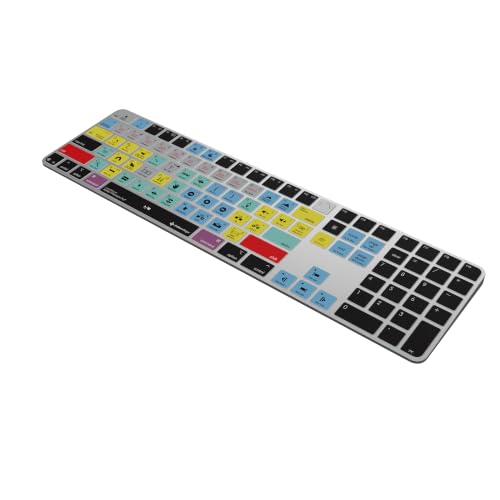
| Editors Keys Premiere Pro Keyboard (wireless) | Full-size with pad | Wireless | Printed colour-coded shortcut keys | The dedicated Premiere cutting board |
| Logitech MX Keys S | Full-size, low profile | Bluetooth / Logi Bolt, 3 devices | Quiet, precise, Smart Actions macros | The creator’s all-day board |
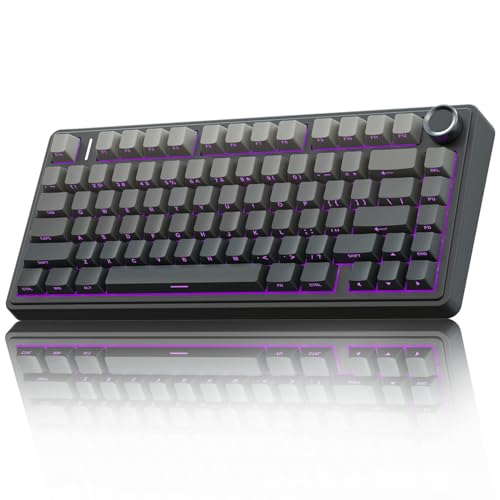
| Keychron K8 Pro | Tenkeyless | Bluetooth, wired | Hot-swappable tactile, QMK layers | The programmable editing platform |
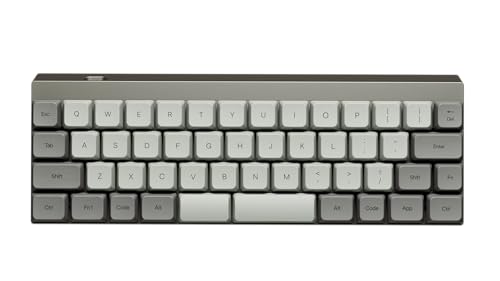
| Das Keyboard 4 Professional | Full-size | Wired with USB hub | Cherry MX Brown, volume knob | The permanent suite fixture |
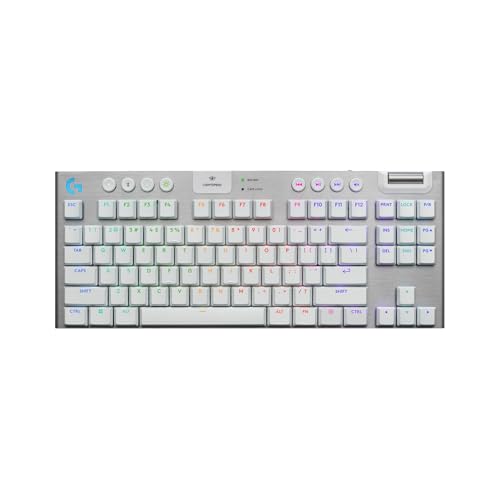
| Logitech G915 X LIGHTSPEED TKL | Tenkeyless, low profile | 2.4 GHz, Bluetooth, wired | Fast low-profile mechanical, programmable G-keys heritage | The fast, compact edit-and-stream board |
How the Picks Were Chosen
The gates were: standard geography for muscle memory; a genuine function row; either a number pad, a serious macro system, or printed shortcuts — at least one editing accelerant per board; sound levels a creator can record voiceover beside; and layouts spanning full-size and tenkeyless. Each linked board was verified in Amazon’s catalogue data via the site’s Creators API connection on 2026-11-23. Two categories are handled in prose rather than as links, on purpose: jog-and-shuttle control surfaces, which are wonderful and are not keyboards, and generic printed overlay skins, which are a learning aid discussed in the setup section rather than a board recommendation.

Editors Keys Adobe Premiere Pro Keyboard (Wireless) — the dedicated cutting board
Badge: Best for Premiere Pro editors who want shortcuts printed
- Layout: full-size with numeric keypad
- Connection: wireless
- Keys: colour-coded, printed Premiere Pro shortcut legends
- Extras: fingerprint sensor (per listing), US English layout
- Audience: Premiere Pro editors, learners and facilities
This is the specialist instrument in the guide: a full-size wireless keyboard whose keys carry Premiere Pro’s shortcut language in colour-coded print, so the command you need is visible at the moment you need it. For an editor learning Premiere, an assistant being trained, or a professional whose editing is bursty — intense cutting weeks separated by other work, so fluency never quite sets in — the printed board compresses the learning curve in a way no reference card quite matches, because the reference is the tool. The full-size layout keeps the pad for timecode entry, and the wireless connection keeps a client-facing edit suite free of cable clutter.
The trade-offs are the honest price of specialisation, and they should be bought knowingly. The legends are Premiere’s; your other applications wear another program’s labels, which is somewhere between irrelevant and irritating depending on how many applications your day spans. The underlying keyboard is a vehicle for the printing rather than a premium typing instrument, so creators who write for hours daily may prefer it as a second, editing-only board beside a generalist — a pattern suites have used for years. And fluency, when it arrives, makes the printing redundant, which is not a flaw so much as the product succeeding at its job.
- Strengths: the fastest route to Premiere shortcut fluency
- Strengths: full-size layout with pad for timecode work
- Strengths: wireless keeps the suite desk clean
- Trade-offs: legends serve one application only
- Trade-offs: typing feel is ordinary next to the mechanical picks
- Trade-offs: value fades as your hands memorise the map
Best for: Premiere editors learning, returning, or training others. Not suited for: multi-application creators who want one board to be everything.

Logitech MX Keys S — the creator’s all-day board
Badge: Best all-rounder for creators
- Layout: full-size with number pad, low profile
- Connection: Bluetooth and Logi Bolt, up to 3 devices
- Keys: quiet scissor keys, smart backlighting
- Software: Logi Options+ with Smart Actions macros
- Battery: USB-C rechargeable
Most creators are not full-time editors; they are writer-editor-publisher hybrids, and the MX Keys S is the board shaped like their day. Editing hours are served by the full-size layout, the pad for timecode, and Smart Actions macros that can chain the repetitive publishing sequences — the export preset dance, the upload metadata routine — into single keys. Writing hours are served by the best quiet typing feel in this guide. Recording hours are served by keys quiet enough to type beside a microphone while a voiceover session runs. And the three-device pairing quietly solves the creator’s standard topology: edit workstation on one slot, streaming or admin laptop on another, tablet on the third.
Its editing-specific limits are real: no printed shortcuts, obviously, and its macros, while friendly, are software-bound rather than firmware-deep. Editors who want to rebuild the keyboard around their NLE should read the K8 Pro next. But as the single board for a one-person production company, the MX Keys S’s combination of quiet, polish and all-day comfort is the benchmark the others are measured against in this guide.
- Strengths: serves editing, writing and recording shifts equally well
- Strengths: friendly macro system for publishing routines
- Strengths: three-device pairing fits creator desk topology
- Trade-offs: not mechanical; feel is fixed
- Trade-offs: macros live in software, not firmware
- Trade-offs: full-size width on tablet-and-surface desks
Best for: solo creators and small teams doing everything from one desk. Not suited for: editors who want firmware-level keymap control.

Keychron K8 Pro — the programmable editing platform
Badge: Best for editors who build their own keymaps
- Layout: tenkeyless
- Connection: Bluetooth, USB wired
- Switches: hot-swappable Gateron G Pro Brown (variant listed)
- Software: QMK/VIA remapping, macros and layers on the board
- Extras: Mac and Windows keycaps included
Where the Editors Keys board prints the map, the K8 Pro lets you write your own — and for professional editors whose speed lives in customisation, that is the stronger offer. QMK layers turn the tenkeyless layout’s apparent loss (the pad) into a design space: hold a layer key and the right hand becomes a pad, a transport cluster or a bank of editing macros, positioned exactly where your choreography wants them. Because the map is firmware, it survives moving between the suite machine and your own laptop unchanged. The Brown tactile switches keep long cutting sessions defined without clicky noise, and hot-swap sockets mean the feel can evolve with your preference.
The costs are the learning curve and the missing physical pad — timecode typists who enter numbers by touch all day should stay with a full-size pick, or budget for the separate-pad arrangement. Bluetooth-only wireless is a non-issue for editing work, and the board runs wired happily at a fixed desk. Editors crossing over from audio will recognise the philosophy immediately: it is the same firmware-first argument the music guide makes, applied to timelines instead of tracks.
- Strengths: deepest editing customisation available in a keyboard
- Strengths: layers replace the pad on your own terms
- Strengths: hot-swap platform grows with your workflow
- Trade-offs: no physical number pad for timecode entry
- Trade-offs: an evening of setup before the speed arrives
- Trade-offs: Bluetooth-only wireless
Best for: professional editors who treat keymaps as craft. Not suited for: timecode-by-touch editors or plug-and-play buyers.

Das Keyboard 4 Professional — the permanent suite fixture
Badge: Best wired board for a fixed edit suite
- Layout: full-size, 104 keys
- Connection: wired USB, built-in 2-port USB 3.0 hub
- Switches: Cherry MX Brown tactile
- Signature feature: oversized volume knob
- Case: aluminium top panel
A professional edit suite is a room that must work for any editor who sits down in it, and the Das Keyboard 4 Professional is built for that standard: completely conventional layout, full pad, wired so it never sleeps or pairs with the wrong machine, and heavy enough to stay planted through an aggressive cutting session. The volume knob earns its place in suite life — client playback levels, reference checks, the quick dip when a producer starts talking over the mix — and the built-in USB hub is where client drives and license dongles naturally land. The brand’s wider range is covered in the Das Keyboard complete guide; within this guide, the 4 Professional is the safe pair of hands.
Its compromises are a fixed desk’s compromises: no wireless, no backlight for dark suites (a genuine miss during late finishing sessions, worth weighing), and tactile switches that are audible in a quiet room, though a suite’s monitoring environment makes that less relevant than in a recording space. For a home creator desk that doubles as everything else, the MX Keys S is the more flexible buy; for a room whose job is editing, this is the fixture.
- Strengths: absolutely standard layout for any editor who sits down
- Strengths: knob and hub are suite-grade conveniences
- Strengths: build quality for a decade of deadlines
- Trade-offs: wired only, one room only
- Trade-offs: no backlighting for dark finishing suites
- Trade-offs: switches audible in silent rooms
Best for: dedicated edit suites and permanent desks. Not suited for: creators who cut in more than one location.

Logitech G915 X LIGHTSPEED TKL — the fast, compact edit-and-stream board
Badge: Best for creator-gamers and stream setups
- Layout: tenkeyless, low profile
- Connection: LIGHTSPEED 2.4 GHz, Bluetooth, USB wired
- Switches: low-profile mechanical, tactile variant listed
- Keycaps: double-shot PBT
- Extras: media controls, aluminium case, RGB
A large slice of the creator economy edits by day and streams or games by night, often from the same chair, and the G915 X TKL is the board that refuses to make them choose. Its gaming pedigree brings a fast, reliable 2.4 GHz link and low-profile mechanical switches with a tactile option that suits editing bursts; its tenkeyless footprint leaves room for the stream deck, tablet or control surface that shares the desk; and its tri-mode connectivity flips between the edit rig and a second machine without a cable swap. Logitech’s software supports per-application profiles, so the board can present one personality to the NLE and another to the game.
For pure editing it concedes ground to the specialists: no pad, no printed shortcuts, and customisation that is good rather than firmware-deep. Its case for a place here is the hybrid creator’s reality — one desk, two careers — and judged on that brief it is the most complete board in the guide. The wireless performance questions behind its link are treated fully in are wireless keyboards good for gaming, for readers who want the latency analysis behind the reassurance.
- Strengths: one board for editing, streaming and gaming shifts
- Strengths: excellent wireless link and multi-device behaviour
- Strengths: tenkeyless space for tablets and surfaces
- Trade-offs: no number pad for timecode entry
- Trade-offs: gaming aesthetic may not suit client suites
- Trade-offs: premium pricing
Best for: creators who edit and stream or game from the same desk. Not suited for: traditional suite editors or pad-dependent workflows.
Printed, Programmed or Memorised: The Three Roads to Shortcut Fluency
Every fast editor arrived by one of three roads, and choosing yours consciously is the real buying decision inside this guide. The printed road — the Editors Keys board — front-loads the learning into the tool itself: zero setup, immediate guidance, and a ceiling that arrives when fluency makes the legends invisible to you. It is the right road for learners, occasional editors and trainers, and its weakness is simply that the tool stops teaching once you have learned. The programmed road — the K8 Pro’s layers, the MX Keys S’s Smart Actions — asks an evening of design work and pays it back for years: your shortcuts live where your hands want them, including the commands the application never gave a key to, and the map is yours rather than the manufacturer’s. Its weakness is that it must be maintained — applications update, workflows evolve, and an unmaintained keymap slowly becomes a museum of how you used to edit. The memorised road — a standard board, the application’s stock shortcuts, and deliberate practice — has no ceiling and no shortcuts, in both senses: it is the slowest to build and the most portable, because stock fluency works at any desk in any facility on earth. Most professionals end with a blend: stock fluency as the foundation, a handful of personal macros for their own repetitive chains, and printed references only while learning something new. The boards in this guide were chosen so that each road has a worthy vehicle, and the honest advice is to pick the road before the board — the board follows from it.
Setting Up an Editing Keymap: A Practical Method
Whichever board you choose, the setup method that works is an audit, not an inspiration. Edit a real project for a day with a notebook beside you — physical or digital — and tally every command you use more than a few times and every multi-step sequence you repeat. That tally is your personal shortcut economy, and it will surprise you: most editors discover their top ten commands account for the overwhelming majority of their keystrokes, and that two or three tedious sequences — an export chain, a caption routine, a multicam setup — consume a disproportionate share of their menu time. Assign the sequences to macros first, because they are pure profit. Then look at the top commands and ask only whether any of them sits awkwardly for your hand; leave the comfortable ones on their stock keys, because retraining a working reflex to save nothing is waste. Add a layer or a macro bank for the second tier — the weekly commands — and stop there. A keymap with twelve thoughtful assignments outperforms one with sixty forgotten ones. Save or export the result the day you build it, and revisit it after the first real project, because the audit’s predictions and the timeline’s reality always differ slightly, and the second version of a keymap is the one you will keep for years.
The Second Monitor Problem: Desk Layouts for Creator Desks
Creator desks fail geometrically before they fail electronically: two monitors, a laptop, a tablet, speakers, a microphone arm and a keyboard all want the same front metre. The layout principles that rescue them are few and learnable. Centre the keyboard on the monitor you edit on, not on the desk — an off-centre board twists your posture toward the second screen all day. Keep the keyboard’s width honest against the tablet’s needs: if a graphics tablet shares the desk, a tenkeyless board lets the tablet sit at a natural right-hand angle instead of exiled to a drawer, which is the unglamorous reason so many working editors run TKL boards despite loving the pad. Solve the pad’s absence, if you feel it, with placement rather than size: a separate pad or a layer, positioned where your hand actually rests, beats a full-size board shoving the tablet aside. Route the microphone arm over the desk’s rear corner so its arc never crosses the keyboard’s airspace. And give the board a home position marked by habit — the same spot every morning — because editing fluency is partly spatial, and a keyboard that migrates ten centimetres a day taxes the muscle memory this whole guide is trying to build.
Common Mistakes Creators Make With Keyboards
The first is buying the gaming flagship for the edit desk because it photographs well on the setup posts — then discovering its software fights the NLE, its switches soundtrack every voiceover, and its macro system serves games rather than timelines. The second is the mirror error: treating the keyboard as beneath consideration, editing for years on the mushy board that came with the computer, and attributing the resulting slowness to talent. The third is over-customising on day one — sixty macros, four layers, a keymap that requires its own documentation — and abandoning the system within a month because maintaining it became a second job. The fourth is ignoring the writing shift: creators type more words than editors in many workflows, and a board bought purely for its editing legends can make scripting and community work quietly miserable. The fifth is forgetting the second machine: a creator with an edit rig and a laptop who buys a single-device wired board has purchased a daily cable ritual along with it. Every one of these mistakes is a mismatch between the board and the buyer’s actual week, which is why this guide began with the week rather than with the products.
Three Creator Workflows, Three Different Right Answers
The YouTube-first creator edits in long, self-directed sessions, publishes on a schedule that punishes friction, and writes as much as they cut. Their bottleneck is rarely raw editing speed — it is the total throughput of a one-person production line, from timeline to title to thumbnail brief to community post. For this workflow the MX Keys S is the centre of gravity: macros for the publishing chain, comfort for the writing shift, quiet for the voiceover recorded at the same desk, and multi-device pairing for the laptop that handles everything the edit rig should not be interrupted for. The client editor — freelance or suite-based — cuts other people’s footage to other people’s deadlines, often on machines that are not theirs. Their currency is portability of skill: stock fluency, standard layouts, and either a board that matches every suite’s expectations (the Das Keyboard pattern) or a firmware board that carries their environment with them (the K8 Pro pattern). Printed boards serve this workflow mainly in the training phase. The streamer-editor hybrid produces live content and then mines it for edited pieces, so the desk must perform in both modes without a rebuild: the G915 X TKL’s per-application profiles and compact footprint exist for exactly this chair, and its wireless link keeps the live desk visually clean in a way that matters when the desk itself is content. None of these workflows is the generic “video editor” of a catalogue page, which is why generic recommendations so often miss: name your workflow first, and the shortlist in this guide narrows itself.
Colour, Captions and the Keyboard’s Supporting Roles
Two phases of production lean on the keyboard in ways the cutting-focused sections understate. Colour grading is a precision discipline performed in a darkened room, often with a dedicated panel — and the keyboard’s role becomes supporting but constant: naming nodes and versions, driving scopes and galleries by shortcut, and entering values numerically, which is one more argument for a real pad or a well-designed layer in a grading-leaning practice. It is also the phase where a backlight stops being decoration: in a room dark enough for accurate colour judgement, a board you cannot see is a board you must memorise completely, and the smart, proximity-waking backlight on the Logitech boards earns a professional mention here rather than a lifestyle one. Captioning and subtitling, the second phase, is typing work wearing an editor’s clothes: high-volume text entry synchronised to playback, with transport control woven through it. Caption-heavy creators should weight the writing-shift scores in this guide as heavily as the editing ones, keep the transport keys where the left hand can run them without disturbing the typing posture, and treat a quiet board as a kindness to the very ears doing the synchronisation. A keyboard guide that only imagines the glamorous middle of the workflow — the cut itself — underserves the hours at its edges, where much of a creator’s actual week is spent.
Posture and Hands Across a Deadline Week
Editing is a deadline profession, and deadline weeks are when hands complain. The keyboard’s contribution to surviving them is mostly negative space: nothing about it should force a posture you pay for later. Keep the board centred on your editing monitor so your shoulders stay square during the long shuttle sessions. Keep its front edge low or rested, so your wrists float neutral rather than cocked upward over a tall case — the low-profile boards in this guide have a genuine ergonomic argument here, and standard-height boards answer it with a palm rest. Alternate the labour: editing naturally divides between keyboard bursts and mouse or pen work, and a deadline week goes better when you let those modes rotate instead of grinding one for six hours. And treat persistent wrist or forearm discomfort as information about the setup, not as a toll the profession charges — the fuller treatment of split and ergonomic layouts lives in ergonomic mechanical keyboards and wrist comfort, and readers whose work includes long travel between desks will also find the portability logic in the best travel keyboards for laptops and mobile work relevant to keeping one consistent setup everywhere.
When the Application Updates and Your Keymap Breaks
Every editor with a customised setup eventually lives through the same small disaster: the NLE releases a major update, defaults shift, a command moves, and a carefully built keymap is suddenly a map of a country that no longer exists. The professionals handle this with process rather than grief. Keep your customisations documented outside the tools themselves — a simple list of what you changed and why — because re-implementing a documented map takes twenty minutes while reconstructing an undocumented one takes a project. Keep the changes shallow where you can: a setup built on stock shortcuts plus a dozen additions survives updates far better than one built on a wholesale rearrangement, which is the practical core of the audit method described earlier. Export firmware maps and software profiles before updating anything, and treat major application updates the way facilities treat them — not on a deadline week, not mid-project, and with the previous version’s installer still available. And when something does break mid-project, the recovery order matters: check the application’s own keyboard settings first, then the board’s mode and layer state, then the operating system’s input settings — the same disciplined sequence, applied to a keyboard that has stopped responding entirely, is laid out in the fix keyboard not working troubleshooting guide. The deeper lesson is that a keymap is a living document of your workflow, and the editors who treat it that way — versioned, backed up, pruned — are the ones whose speed survives their software.
The Economics of a Creator’s Keyboard
Creators are businesses, and a keyboard purchase deserves the same unsentimental arithmetic as any other production expense. The honest unit is not the purchase price but the cost per finished video across the board’s working life, and by that measure even the premium boards in this guide are trivially cheap: a board that serves a channel for three years of weekly uploads costs less per video than the coffee consumed while editing one of them. What that arithmetic justifies is buying for fit rather than for minimum price — the wrong board’s tax is paid in minutes per session, in retrained muscle memory when it is replaced early, and in the small daily friction that compounds across hundreds of uploads. It also justifies the opposite discipline at the other end: a beginning creator with ten videos published does not yet know their workflow well enough to buy its final keyboard, and the correct first purchase is a competent mid-tier board — the MX Keys S pattern of quiet versatility — from which an informed second purchase can later be made. Buy once, but only once you know what you are buying for; until then, buy versatile. That sequencing, more than any single product choice, is how professional setups actually get built.
Learning to Edit Fast: The Practice Nobody Sells
Since this guide has argued that fluency matters more than hardware, it owes the reader the method for building it. Editing speed is a trained skill with a known shape: it grows in plateaus, it responds to deliberate practice rather than mere hours, and its biggest gains come from eliminating mouse trips rather than from pressing keys faster. A regimen that works, borrowed from how suite assistants have always been trained, runs in three movements. First, the keyboard-only project: cut one entire short project without touching the mouse for timeline operations, slowly and with the shortcut chart open, because the discomfort of that day teaches your hands the map faster than a month of mixed practice. Second, the weekly drill: ten minutes, a few times a week, repeating the twenty commands your audit identified as your economy — shuttle patterns, blade-and-ripple chains, marker routines — at a speed slightly beyond comfort, because fluency is built at the edge of it. Third, the review: watch a screen recording of your own editing once a month and count the hesitations, the menu trips, the moments your eyes drop to the keyboard; each one is a specific, fixable item, and the count falls steadily when it is measured. None of this requires a purchase, which is exactly why it is under-taught — but paired with the right board from this guide, it is the difference between owning editing equipment and being an editor.
Accessories That Complete the Editing Desk
A keyboard does not work alone, and three companions multiply its value without competing with it. A palm rest matched to your board’s height turns long scripting and captioning sessions from a wrist negotiation into a non-event, and costs less than any other upgrade in this guide’s orbit. A simple printed or digital shortcut reference for your application — kept visible, not filed — accelerates the learning phase more honestly than any gadget, and retires itself naturally when your hands stop consulting it. And a small, dedicated macro pad or control surface, added after the keyboard foundation is fluent, absorbs the commands your keymap outgrew; the ordering matters, because a surface bought before keyboard fluency becomes an expensive way to avoid learning the tool you already own. Creators tempted by elaborate desk overhauls should sequence them in that order — board, reference, rest, then surface — and let each layer prove itself in real projects before buying the next. The desk that results will look unremarkable in photographs and feel remarkable at deadlines, which is the correct priority for equipment that exists to make videos rather than to be in them.
What Editors Get Wrong About “Pro” Keyboards
A persistent piece of folklore holds that professional editors use exotic hardware, and that buying the exotic hardware is a step toward professionalism. The reality visible in working suites is almost the opposite: professionals converge on standard, durable, replaceable equipment, because their speed lives in trained hands rather than in the tool, and because a tool that cannot be replaced by tonight cannot be trusted with tomorrow’s deadline. The genuinely professional traits in a keyboard are unglamorous — a layout every editor recognises, keys that behave identically in year three as in week one, a connection that never becomes the story of a session, and a supply chain that can put an identical board on the desk within a day. Measured against those traits, the boards in this guide qualify in different dialects: the Das Keyboard by construction, the MX Keys S by ecosystem, the K8 Pro by the portability of its firmware brain, the Editors Keys board by its teaching value in facilities that train, and the G915 X by serving the hybrid desks where modern production actually happens. Buyers should be suspicious of any keyboard — at any price — whose professional claim rests on appearance, on specifications no editing task can expose, or on the endorsement of someone whose editing they have never watched. Professionalism in this purchase is a property of the fit between tool, workflow and hands, and it cannot be bought off a shelf labelled “pro”.
The Verdict in One Pass
If the whole guide must collapse into a decision tree, it is this. Learning Premiere, or teaching it: the Editors Keys board, and graduate when the legends stop teaching you. One desk, every job, a business to run: the MX Keys S. A professional editor with a personal workflow and the will to encode it: the K8 Pro, with an evening invested and a backup exported. A fixed suite that must serve any editor who walks in: the Das Keyboard 4 Professional. A creator whose desk is also a stream station and a gaming rig: the G915 X TKL. Behind each branch sits the same foundation — standard geography, honest function keys, a considered answer to the number-pad question, and sound your recordings can live with — and in front of each branch sits the same multiplier: an audited keymap, a centred desk and a practice habit. Get the foundation right and the branch matters less than the marketing of any of these boards would have you believe; get the multiplier right and it matters less still. That is not a dismissal of the choice — it is the reason the choice can be made calmly, on fit, without fear that a wrong branch ruins the work. The work was never in the keyboard. The keyboard is how the work gets out of your hands and onto the timeline, and the five boards above all do that job honourably.
Renting the Suite vs Owning the Desk: A Last Consideration
One population remains unaddressed by the recommendations so far: editors who regularly hire facilities or hot-desk in production companies, where the keyboard is provided and the provided keyboard is, with statistical certainty, mediocre. For these editors the keyboard decision is not which board to buy but what to carry. The portable answers in this guide — the K8 Pro with its firmware-resident keymap, the K3-class compact boards in the wider market, even a personal printed reference — share one philosophy: bring your environment with you, because the room will not provide it. A firmware keymap on a board you own converts an unfamiliar suite into your suite within minutes, and a personal board that travels in a sleeve guarantees your hands the geography they trained on. Facilities work also reframes the printed-board question: a printed board you carry teaches nothing to a room you visit once, but as your own travelling board it guarantees the reference is always under your fingers. The editors who thrive in hired rooms are systems thinkers about exactly this layer — they standardise what they can carry, stay fluent in the stock shortcuts for what they cannot, and never let a strange desk’s keyboard be the reason a session starts slowly. It is the fitting final lesson of this guide: the keyboard is the one part of the edit suite that fits in a bag, and professionals treat that portability as a feature to be used, not a coincidence to be ignored.
Care and Feeding of an Edit-Desk Keyboard
Edit desks accumulate a specific grime — the dust of a room that is rarely daylit, the residue of deadline meals eaten over the keys — and a keyboard’s editing precision degrades with its cleanliness in ways editors misattribute to age. A key that begins to miss or double is more often dirty than dying: brush and air the board weekly, wipe the caps monthly, and give removable-cap boards a proper under-cap clean each quarter, paying attention to the spacebar and the shuttle cluster, which absorb the most use. Keep the charging or cable situation boring — a board that dies mid-render-review because its battery was managed by optimism is a parable told in every suite eventually — and keep the board you replaced, however humble, in a drawer as the spare that turns a failure into a two-minute swap. Finally, protect the investment in your keymap the way you protect project files: exported, backed up, and documented, because the map is worth more than the board it lives on, and the day you replace the board is the day that becomes obvious.
A Short Word on Keyboards for Live Production
One neighbouring discipline deserves a paragraph before the questions: live production — the streaming and broadcast environment where editing decisions happen in real time, in front of an audience. The keyboard’s role there is unforgiving in a specific way: there is no undo for a mistimed scene switch, and the board must be operable by touch, in peripheral vision, while its operator watches the programme feed. Live producers therefore favour standard layouts over clever ones, dedicated keys over layers for anything time-critical, and either wired connections or proven gaming-grade wireless — the analysis in the wireless explainer applies here with the stakes raised. If your creator work includes live production, treat the time-critical commands as a separate design problem from your editing keymap: give them physical, findable, single-press homes, and rehearse them the way you would rehearse any other part of a live show. The board that serves the edit suite all week can serve the live desk too, but only if its live layer is designed as deliberately as its editing one.
What Changes When You Edit for Someone Else’s Channel
Freelance editors who cut for multiple clients face a version of the facility problem with a twist: every client has a house style, a preferred application version and a folder discipline, and the editor’s keyboard setup must flex between them without carrying one client’s habits into another’s project. The practical answer is profiles with names — a keymap layer or software profile per client or per application, built on the same stock foundation, differing only where the client’s workflow genuinely differs. Firmware boards make this elegant, with layers switchable at the desk; software-profile boards make it manageable, with the profile following the application in focus. What does not work is a single maximally personal setup imposed on every project: the editor becomes fast in their own dialect and slow in everyone else’s, which is the opposite of what clients are paying for. Keep the foundation stock, keep the personal layer thin and documented, and the keyboard becomes the one constant in a working life of variable projects — which is, in the end, the professional definition of a good tool.
Frequently Asked Questions
Are printed shortcut keyboards worth it for video editing?
For learning an application, returning to it after a break, or training assistants, yes — the printed board compresses the memorisation phase significantly. For an already-fluent editor, the value is mostly spent, and the money is better directed at a programmable or premium generalist board. Many suites keep one printed board as the training and assistant station, which is the pattern this guide recommends.
Do video editors need a number pad?
Editors who enter timecode numerically — a habit from broadcast-style applications — should keep a real pad, whether built into a full-size board or as a separate unit. Editors in creator-native applications, whose timecode work is mostly visual, can trade the pad for desk space without losing speed. Audit your own last project: if your right hand rarely left the mouse for numbers, you are in the second group.
What is better for editing: macros or layers?
They solve different problems. Macros compress multi-step sequences into one press and suit publishing and export routines. Layers relocate whole clusters of commands under your hands and suit the editing vocabulary itself. A mature setup uses both — macros for sequences, a layer for the second tier of commands — and the K8 Pro’s firmware approach supports both in one board.
Can one keyboard serve editing, streaming and gaming?
Yes — that hybrid is exactly the G915 X TKL’s brief in this guide, and per-application profiles let the board present different personalities to each task. The compromise is depth: a hybrid board will not out-edit a dedicated printed board or out-customise a firmware platform. For creators whose income spans all three activities, the compromise is usually the right economics.
How loud is too loud for recording voiceovers at the edit desk?
If your microphone can hear your keyboard on playback at normal listening levels, it is too loud for recording at the same desk — clicky switches fail this test immediately, tactile mechanicals are borderline depending on the room, and quiet scissor or damped boards pass it comfortably. The practical fix used in many creator setups is to type on the quiet board during recording and keep editing bursts for playback moments.
Should I get a control surface instead of a better keyboard?
After, not instead. A jog-and-shuttle surface transforms the feel of timeline navigation and colour work, but the majority of editing commands, all naming and searching, and the creator’s entire second shift of writing still run through the keyboard. Upgrade the keyboard first, build the keymap, and add the surface when the keyboard foundation is no longer your bottleneck.
Choose your road first — printed, programmed or memorised — then match the board to your application’s habits and your desk’s geometry. The five picks above cover the profession from the training suite to the hybrid stream desk; set up the keymap with an honest audit, keep the desk layout centred on the screen you cut on, and the keyboard will fade into the work, which is where every good editing tool belongs.