Disclosure: As an Amazon Associate, kajuandouglas.com earns from qualifying purchases. Links on this page are affiliate links; they cost you nothing extra. Prices and availability change often, so check the current Amazon listing before you buy.
Razer mechanical keyboard switch types confuse people for a simple reason: the names describe colours, but the colours hide three completely different technologies. Under one brand you will find conventional mechanical switches with metal contacts and springs, optical switches that register a keystroke with a beam of light, and analog optical switches that measure how far a key has travelled rather than merely whether it was pressed. A Razer Green, a Razer Yellow and a Huntsman analog switch may all sit under identical-looking keycaps, yet they behave differently, sound different, wear differently and — crucially — they are not interchangeable. You cannot pull the switches out of most Razer boards and drop in a different Razer family, because each family belongs to its own keyboard line.
This guide untangles the whole family tree. It explains what each Razer switch type does, which keyboards carry it, who each one suits, and where you can actually buy the switches themselves. Two of the families — the current-generation Yellow linear and Orange tactile — are sold as standalone replacement packs, and those packs are linked below with their official product images. The Green clicky switch is a special case: Razer does not sell a full retail pack of Green switches, so the only verified switch-level listing is a small third-party replacement listing, and this guide labels it exactly that way rather than dressing it up as something grander. The Purple optical switch, meanwhile, has no verified standalone listing at all, so it is covered in prose only. Everything else — the keyboards that carry each switch family — is linked so you can see the switch in the product it was designed for.
Key Takeaways
- Razer switch types fall into three technologies: mechanical (Green, Orange, Yellow), optical (Purple clicky, Red linear), and analog optical (Huntsman line), and the families are not cross-compatible.
- Green is the clicky mechanical switch, Orange is the tactile one, and Yellow is the fast, quiet linear — the current Gen-3 versions of Yellow and Orange are sold as standalone packs.
- There is no official retail pack of Razer Green switches; the verified listing in this guide is a two-piece third-party replacement set, useful for repairs rather than full builds.
- Analog optical switches in the Huntsman V3 Pro line add adjustable actuation and rapid trigger, which no conventional Razer mechanical switch can offer.
- Because most Razer keyboards are not hot-swappable in the enthusiast sense, choosing a Razer switch type usually means choosing the keyboard that carries it.
Where can you buy Razer switches on their own?
The honest answer is: only some of them, and only in some forms. Razer sells its Gen-3 Yellow linear and Orange tactile switches as boxed replacement packs through Amazon, and those are the two listings a customiser or repairer will reach for most often. Green clicky switches appear only through a small third-party replacement listing — two switches at a time, intended for fixing a board rather than building one. The optical families, Purple and the analog optical switches in the Huntsman range, are not sold as loose switches in any verified listing we could stand behind; if you want those switches, you buy the keyboard built around them. That is why the pick list below mixes switch packs and complete keyboards: for Razer, the keyboard often is the switch purchase.
In this guide
Quick picks: the Razer switch families at a glance
| Switch family | Feel | How you buy it | Best suited to |
|---|---|---|---|
| Razer Yellow (Gen-3) | Linear, smooth, quiet for a mechanical switch | Standalone pack or BlackWidow V4 X | Fast-paced gaming, shared rooms |
| Razer Orange (Gen-3) | Tactile bump, no click bar | Standalone pack, 36 pieces | Typing feedback without the noise |
| Razer Green | Tactile with a deliberate click | Two-piece third-party replacement, or BlackWidow V4 | Click lovers, solo gaming rooms |
| Razer Purple optical | Clicky, light-driven actuation | Prose only — inside optical Huntsman boards | Speed with a click, legacy Huntsman fans |
| Analog optical (Huntsman V3 Pro) | Linear travel with adjustable actuation | Huntsman V3 Pro Mini and its siblings | Competitive players using rapid trigger |
Read the table as a map rather than a ranking. Razer does not make a bad switch in this list; it makes switches aimed at different ears, fingers and games. The sections that follow take each family in turn, starting with the two you can buy in a box.

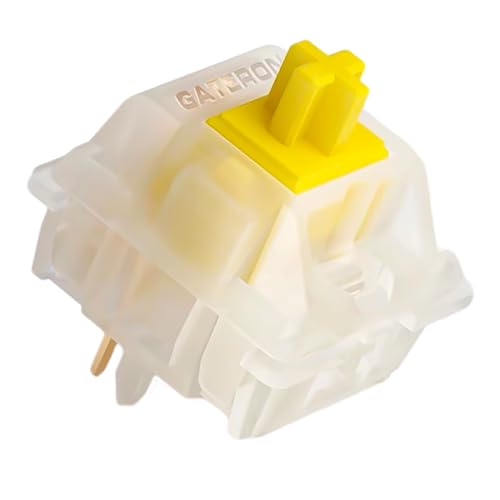
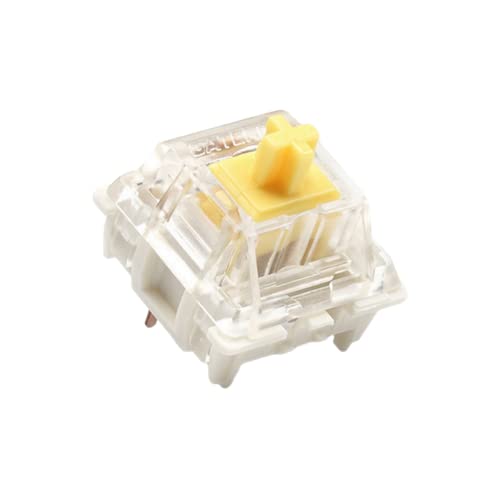
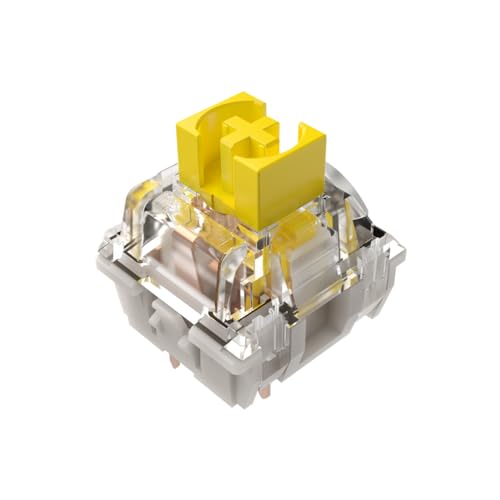
Razer Yellow Linear Switch, Gen-3 — the fast, quiet mechanical option
Badge: Best Razer mechanical switch for gaming, and the easiest Razer switch to buy on its own.
- Type: linear mechanical, third generation
- Housing: clear, with an LED lens for backlighting
- Connector: 3-pin
- Rated life: 100K strokes as stated in the listing title — read that figure as the pack’s own headline claim and treat any switch as a consumable over years of play
- Character: smooth travel, no bump, no click, dampened return
The Yellow is the switch Razer builds its gaming reputation on. A linear switch has no tactile bump and no click mechanism: press it and the stem travels in one smooth motion until it bottoms out, which makes repeated presses — strafing, ability spamming, rapid double-taps — feel consistent from the first press to the five-hundredth. The Gen-3 version adds sound dampening inside the housing, so the Yellow is noticeably quieter than the raw linears of earlier Razer boards, though “quieter” is relative: a bottomed-out keycap still makes a sound, and a metal desk still amplifies it. What the dampening removes is the harsh clack, leaving a softer, lower thock that roommates tolerate far better.
Because this pack exists at all, it changes what a Razer owner can do. A BlackWidow owner with a worn or chattering W key can replace individual switches instead of the whole board, and an enthusiast with a compatible 3-pin hot-swap board can sample Razer’s gaming linear without buying a Razer keyboard. The clear housing with its LED lens means shine-through lighting stays bright, which matters more than it sounds on a board whose lighting is half its personality.
Strengths
- Smooth, consistent linear travel that suits fast repeated inputs
- Built-in dampening softens the landing compared with older Razer linears
- Sold as a genuine standalone pack, so repairs and small builds are possible
Trade-offs
- No tactile feedback, so heavy-fingered typists may bottom out hard and make typos
- 3-pin design fits many boards but not every socket and plate combination
- Still a mechanical contact switch, so it cannot offer rapid trigger or adjustable actuation
Best for: competitive and fast-paced gamers, streamers who want a quieter mechanical board, and Razer owners repairing a favourite keyboard. Not suited for: typists who rely on a tactile bump to know a key has registered.

Razer Orange Tactile Switch, Gen-3 — feedback without the click
Badge: Best Razer switch for people who type as much as they play.
- Type: tactile mechanical, third generation
- Actuation: 2.0mm at 50g, as stated in the listing title
- Housing: transparent, box-style cross stem
- Connector: 3-pin
- Pack: 36 switches
The Orange is the diplomat of the Razer family. Its stem has a tactile bump — a small, deliberate resistance partway down the press that tells your finger the keystroke has registered — but there is no click bar, so the board confirms the press to your hand without announcing it to the room. That combination is why tactile switches are the default recommendation for mixed-use desks: the bump reduces the need to bottom out every key, which softens typing over long documents, and in games it gives movement and ability keys a defined, repeatable feel.
Razer’s execution here is firmly in the modern style. The box-style cross stem steadies the keycap, reducing the wobble that makes tall keycaps feel loose, and the transparent housing keeps backlighting even. The stated 2.0mm actuation point at 50g places the Orange in the familiar middle of the tactile market — neither a featherweight speed switch nor a heavy enthusiast tactile — which is precisely where a switch that has to serve spreadsheets at nine and shooters at nine in the evening ought to sit. Thirty-six switches will cover a compact board’s alpha cluster or serve as a generous repair reserve for a larger one.
Strengths
- Clear tactile confirmation without click noise, safe for offices and calls
- Box-style stem keeps keycaps stable and reduces wobble
- Genuine standalone pack in a useful 36-piece count
Trade-offs
- The bump is moderate; enthusiasts who love a strong, rounded tactility may find it polite
- A 36-piece pack will not fill a full-size board in one purchase
- Tactile switches reveal their bump less at very fast gaming tempos
Best for: hybrid worker-gamers, writers who game, and anyone who found clicky switches too loud but linears too vague. Not suited for: players who want the absolute fastest, feedback-free keystroke for rhythm or FPS play.

Razer Green replacement switches, two pieces — the clicky repair option, honestly labelled
Badge: Best for repairing a clicky Razer board — and only for that.
- Type: clicky mechanical, tactile with an audible click
- Format: two replacement switches, third-party seller listing
- Connector: 3-pin, RGB SMD style as described in the listing
- Named fit in the listing: Razer BlackWidow Lite and other boards using the same switch format
- Character: crisp bump, deliberate click, the classic Razer sound
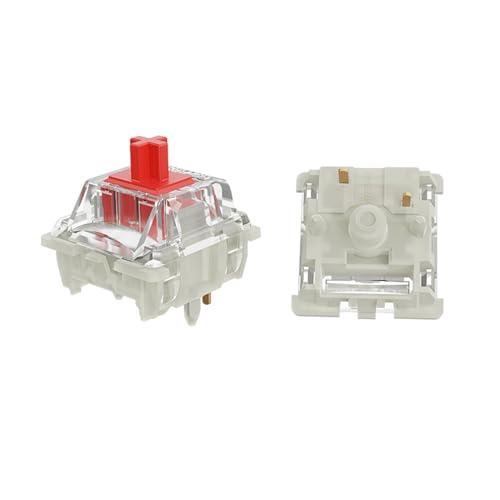
Here is the part of the Razer range that product pages rarely explain plainly: Razer does not sell its famous Green clicky switch as a proper retail pack. If a Green switch on your BlackWidow starts double-firing or loses its click, your verified route on Amazon is a small replacement listing like this one — two switches from a third-party seller, described as Razer Green RGB SMD switches. That is a perfectly reasonable thing to buy for a repair. It is not a sensible way to equip a whole keyboard, and any guide that presents a two-piece repair listing as though it were a builder’s pack is misleading you.
As a switch, the Green remains the signature Razer feel: a tactile bump paired with a click mechanism, so the keystroke is confirmed twice, once to the finger and once to the ear. Typists who learned on clicky boards often find they type more accurately on Greens because the click discourages half-presses. The same quality makes the Green the worst possible choice for shared spaces — it is, by design, a small noisemaker fitted to every key. Buy this listing to resurrect a beloved clicky board, and check the listing’s stated compatibility against your exact model before ordering, because Razer has shipped several switch formats across the BlackWidow generations.
Strengths
- Lets you repair a clicky board instead of replacing the whole keyboard
- Restores the original Green feel and sound on the keys you fix
- Small purchase, so a tentative repair costs little commitment
Trade-offs
- Third-party replacement listing, not an official Razer retail pack
- Two switches at a time is useless for a full build or conversion
- Clicky switches are unwelcome in offices, calls and shared bedrooms
Best for: BlackWidow owners fixing one or two failed clicky keys. Not suited for: builders who need dozens of Green switches, or anyone whose keyboard is heard by other people.

Razer BlackWidow V4, Green switches — the clicky switch in its flagship home
Badge: Best full keyboard for buyers who want the Green click in a modern flagship.
- Switches: Razer Green, tactile and clicky
- Extras: six dedicated macro keys, magnetic wrist rest
- Keycaps: doubleshot ABS
- Lighting: Chroma RGB
- Feature noted in the listing: Snap Tap for prioritised paired inputs
If the Green switch is the feel you want across a whole board, the realistic purchase is a keyboard that ships with Greens fitted, and the BlackWidow V4 is the current flagship expression of that idea. The clicky switches sit in a board built unapologetically for gaming: dedicated macro keys down the left side for MMO and strategy bindings, a magnetic wrist rest for long sessions, and Razer’s Chroma lighting throughout. Snap Tap, the firmware behaviour that prioritises the most recent of two opposing movement inputs, is the kind of feature that matters in competitive shooters, where counter-strafing speed is a genuine mechanical skill.
Choosing the V4 is also a decision about your room. A full board of Greens is gloriously audible — every keystroke lands with a snap that many players find energising and that everyone else in earshot will have an opinion about. The doubleshot ABS keycaps keep legends from wearing away, though ABS will develop a shine over years where PBT would not. Treat this keyboard as the reference implementation of the Green switch: the switch type and the board were designed for each other, and it shows in the consistency of the click from the alpha cluster to the number pad.
Strengths
- The authentic Green click across a full flagship layout
- Macro keys and Snap Tap serve serious gaming use
- Magnetic wrist rest included for long-session comfort
Trade-offs
- A full board of clicky switches is loud for everyone nearby
- ABS keycaps will shine with heavy use over time
- Buying a keyboard is a bigger commitment than buying a switch pack
Best for: solo-room gamers who love clicky feedback and want macro keys. Not suited for: shared offices, streamers with sensitive microphones, or quiet households.

Razer BlackWidow V4 X, Yellow switches — the linear switch in a full-size frame
Badge: Best full keyboard for linear-switch gamers who still want macro keys and media controls.
- Switches: Razer Yellow, linear and silent-leaning
- Extras: six dedicated macro keys, roller and media controls
- Keycaps: doubleshot ABS
- Lighting: Chroma RGB
- Feature noted in the listing: Snap Tap support
The V4 X answers a fair question: what if you want the BlackWidow flagship formula but with the fast, quiet Yellow linear instead of the clicky Green? This is that board. The Yellow switches give it a completely different personality — keystrokes glide rather than snap, the room stays calmer, and rapid repeated inputs feel smoother — while the surrounding hardware keeps the gaming brief: macro keys for bindings, a roller for quick volume adjustment, and dedicated media controls so you never alt-tab to change a track.
For many buyers this will be the most sensible BlackWidow. Linear switches forgive the frantic, imperfect keystrokes of real gameplay better than clicky ones, and the absence of a click makes the board usable on voice calls without your team hearing every strafe. The trade is the one linears always make: with no bump to confirm actuation, some typists press harder than necessary and bottom out constantly until their fingers learn the board. Give it a week; most adapt, and those who do rarely go back.
Strengths
- Yellow linears in a full-featured flagship layout
- Roller and media controls are genuinely useful day to day
- Quiet enough for calls and shared rooms, unlike the Green version
Trade-offs
- No tactile confirmation for typing-heavy users
- ABS keycaps rather than PBT at this tier
- full-size footprint demands desk space
Best for: gamers who want a quiet flagship with macros and media controls. Not suited for: writers who need tactile feedback, or small desks.

Razer Huntsman V3 Pro Mini — the analog optical switch, explained by its keyboard
Badge: Best for competitive players who want adjustments no mechanical switch can make.
- Switches: Razer analog optical, light-based actuation
- Adjustable actuation and rapid trigger, per the listing
- Format: 60 percent, wired, esports-focused
- Keycaps: doubleshot PBT
- Extras: Snap Tap, dual-purpose mod keys, high polling as described in the listing
The Huntsman line is where “Razer switch types” stops meaning springs and contacts. An analog optical switch watches the stem interrupt a light beam and measures how far it has travelled, so the keyboard can register a press at a hair-trigger depth, reset the key the instant you begin to release it — the rapid trigger behaviour competitive players prize — and even report partial travel the way a controller trigger does. None of that is possible with the Green, Orange or Yellow, whose contacts are simply open or closed.
The V3 Pro Mini packages that technology for esports: a 60 percent wired board with doubleshot PBT keycaps, adjustable actuation set per key in software, and dual-purpose modifier keys to recover the keys the compact layout omits. The honest cautions belong here too. Analog features only shine in games and habits that use them; a casual player may never feel the difference rapid trigger makes, and the compact layout is a real adjustment for anyone who lives on arrow keys and a number pad. But as a demonstration of where Razer’s switch technology has gone beyond the mechanical era, nothing else in the range comes close.
Strengths
- Adjustable actuation and rapid trigger for competitive play
- Optical actuation removes contact wear and debounce delay from the equation
- PBT keycaps and a compact esports format built for travel to events
Trade-offs
- 60 percent layout omits dedicated arrows, function row and number pad
- Analog advantages are wasted on players who never adjust the settings
- Switches are not sold separately, so the keyboard is the only route in
Best for: competitive FPS players and esports-focused users who will tune actuation per key. Not suited for: spreadsheet work, casual players, or anyone who needs a number pad.
What about the Razer Purple optical switch and the older Red?
Two members of the family deserve an explanation even though neither has a verified standalone listing to link. The Razer Purple is an optical clicky switch from the original Huntsman generation: it pairs a tactile click with light-based actuation and a stabiliser bar around the stem, and it was many players’ first taste of a clicky switch that felt faster than the mechanical Greens. It survives in the affections of Huntsman owners, but Razer’s optical line has since moved toward analog switches, and the Purple is not sold as a loose switch pack — treat it as a prose-only member of the family: know what it is, and know that buying it means buying a keyboard built with it.
The older Razer Red linear, from the earlier Huntsman era, played the same optical-linear role that analog switches now occupy, and Razer’s first-generation mechanical Red-equivalents are similarly historical. The practical lesson is generational: Razer’s current range is Gen-3 mechanical switches on one side and analog optical switches on the other, with the Purple and Red as the bridge between them. If a listing for a “Razer switch” does not say which generation or technology it belongs to, that vagueness is itself a reason to pause. The comparison thinking in the wider Razer keyboard range compared shows how these switch choices ripple through whole lineups, and whether Razer keyboards are worth it puts the brand’s pricing in context.
How do Razer switch types actually differ under your fingers?
Strip away the marketing and three variables decide how a Razer switch feels. The first is the force curve: whether resistance builds smoothly (linear), rises over a bump (tactile), or rises, clicks and releases (clicky). The second is actuation — where in the travel the press registers — which is fixed on the mechanical switches and adjustable on the analog optical line. The third is the return: how the switch resets, which is where rapid trigger changes the game by resetting on upward movement rather than at a fixed point. Sound follows from those mechanics. The Green adds a click mechanism and therefore a click; the Yellow removes every interruption and adds dampening, so only the keycap’s landing and return remain; the Orange keeps the bump but silences the announcement.
There is also a durability story that differs by technology. Mechanical switches rely on metal contacts that physically meet, so their failure mode over years of use is contact wear and the double-firing chatter that comes with it. Optical switches register with light, so there is no contact to wear in the same way, though their housings, stems and springs still age mechanically. Neither technology makes a keyboard immortal; they simply fail differently, which is why replaceable switch packs — like the Yellow and Orange above — are worth valuing when you choose a board. If you are weighing Razer against the broader market, how to choose a mechanical keyboard walks through the same decisions brand-neutrally.
How should you choose between Razer switch types?
Start with your room, not your game. If anyone else can hear your keyboard — a partner, a flatmate, a baby, a meeting — remove the Green from consideration immediately and let the Yellow and Orange fight it out. Next, ask what your fingers need: players of fast, repetitive games generally settle fastest on linears, while people who type long documents usually make fewer errors on a tactile bump. Then ask whether you will tune anything. Adjustable actuation and rapid trigger are powerful only if you actually open the software and set them; if you know you will not, a Gen-3 mechanical board will serve you just as well for less fuss.
Finally, think about the exit strategy. A board whose switches are sold as packs — the Yellow and Orange route — is a board you can repair key by key. A board built around optical or analog switches is a board you replace as a unit when it eventually tires. Neither answer is wrong, but they suit different budgets and different relationships with gear. The guides at Razer keyboard lineup explained and the BlackWidow V4 75 reviewed go deeper on specific models once the switch type is settled.
How do you replace a Razer switch with a pack switch?
Step 1: Confirm your board accepts replacement switches
Check your exact model’s documentation first. Some Razer boards use sockets that accept the 3-pin Gen-3 packs; others have soldered switches, and forcing the issue on a soldered board becomes a soldering job, not a swap. The replacement route described here assumes a board designed for it, or a repair you have already decided to attempt with the right tools.
Step 2: Pull the keycap, then the switch, straight up
Remove the keycap with a puller, then grip the switch with a switch puller on its release tabs and draw it straight out of the plate. Wiggling side to side bends pins and sockets; patience and a vertical pull are the whole technique. Photograph the board first if you are replacing several switches, so the replacements land in the right positions.
Step 3: Seat the new switch with pins aligned
Line up the two metal pins with the socket holes before you press — a pin folded under the housing is the most common cause of a “dead” new switch. Press firmly until the housing clips home, refit the keycap, and test the key repeatedly, including at the edges of the cap, before you move on.
Step 4: Keep the spares somewhere sensible
A switch pack’s real value is the switches you do not use today. Keep the remainder dry and dust-free, and the next failed key becomes a five-minute repair instead of a shopping trip. This is the quiet advantage of the Yellow and Orange packs over every optical board in the range.
What mistakes do people make with Razer switch types?
The classic error is assuming the colour names transfer across brands — a “yellow” switch from another maker may be heavier, lighter or entirely different in character from Razer’s Yellow. Buy by feel description and technology, not by colour. A second mistake is buying a two-piece replacement listing expecting to convert a whole keyboard; read pack quantities as carefully as switch types. A third is ordering switches for a board that cannot accept them, because the board’s switches are soldered or use a different socket format. And a fourth, quieter mistake is choosing a clicky board for a shared space because a review made it sound exciting: excitement is easy to hear through a wall at midnight.
There is also a buying-order mistake worth naming. Because Razer’s optical and analog switches cannot be bought separately, some shoppers buy a switch pack first and a board second, then discover the pack’s technology and the board’s technology do not match. Decide the technology first — mechanical, optical or analog — then the feel within it, then the specific product. The sibling guides silent switches explained and the best switches for gaming help with the feel decision once the technology is chosen.
Final recommendation
For most gamers, the Gen-3 Yellow is the Razer switch to start with: fast, forgiving and quiet enough for real life, and uniquely repairable thanks to its standalone pack. For mixed typing and gaming, the Gen-3 Orange adds the tactile confirmation that keeps long documents accurate. The Green remains a joy in a room of your own and a menace anywhere else — buy the BlackWidow V4 if you want it everywhere, and the two-piece replacement listing only if you are fixing a board you already love. And if your ambitions are competitive in the modern sense, skip the mechanical family entirely and look at the Huntsman V3 Pro Mini, whose analog optical switches do things no spring-and-contact switch can imitate. Choose the technology first, the feel second, and the product last, and the Razer range stops being confusing.
One last piece of advice for anyone still torn between two families: buy the smaller commitment first. A single pack of Yellow or Orange switches tells you more in an evening of typing than a month of reading comparisons, including this one, because switch feel is ultimately personal data that only your fingers can collect. Razer’s range is small enough to understand completely — three mechanical feels, an optical heritage, and an analog frontier — and once you know which of those worlds your hands prefer, every future keyboard decision, Razer or otherwise, becomes dramatically easier.
How did Razer’s switch range evolve into these types?
Understanding the generations explains the names that listings throw around. Razer’s earliest mechanical boards used switches made for Razer by partners, built around the same three-feel formula — clicky, tactile, linear — that the company still uses. The optical era began with the first Huntsman boards, where light-based actuation promised speed and removed the contact-debounce delay that mechanical switches need to avoid double inputs. The Purple clicky optical and the Red linear optical belonged to that wave. Then came the analog step: if a switch can see light, it can also measure shadow, and measuring shadow means measuring travel. The Huntsman V2 and V3 generations turned that insight into adjustable actuation and rapid trigger, while the conventional BlackWidow line consolidated around the Gen-3 mechanical switches sold in the packs above.
Why does this history matter to a buyer today? Because secondhand listings and old stock still carry the earlier generations, and a “Razer switch” from 2016 is not the same product as a Gen-3 switch even when the colour matches. The Gen-3 mechanicals added the dampening and refinement that older Razer linears were criticised for lacking. When you read any listing, hunt for the generation and the technology before the colour: Gen-3 mechanical, optical, or analog optical. Those three phrases tell you more than Green, Orange or Yellow ever will on their own.
Which Razer switch type suits which game genre?
Different games stress a switch differently, and matching the switch to the genre prevents the familiar regret of a board that feels wrong for the title you play most. Fast-paced shooters reward the Yellow and the analog optical switches: movement keys are pressed and released hundreds of times a match, and a linear’s smooth travel — or rapid trigger’s instant reset — keeps those inputs crisp without a bump interrupting the rhythm. Fighting games are a subtler case; some players like a tactile bump to confirm a special move’s final input, while others find any interruption slows a combo, so the Orange and Yellow both have genuine partisans there.
Real-time strategy and MOBA play sit comfortably on any of the three mechanical feels, because the inputs are frequent but rarely at the frantic edge; the deciding factor becomes the sound your microphone and your household can live with. Rhythm games, where a key must register and reset in tight repeating patterns, are where analog rapid trigger earns its keep most visibly after shooters. And for the growing number of players who spend their evenings in story-driven games, the honest answer is that the switch type matters least of all — choose the one your fingers enjoy, because the game will never test the difference.
What do Razer switch types sound like in a real room?
Sound is where specifications go to die, because a switch’s noise in your room depends on the keycaps, the case, the desk and the wall behind you as much as on the switch itself. Still, the ordering is reliable. The Green is the loudest by a wide margin: the click is a designed feature, sharp and high-pitched, and it carries through doors. The Orange removes the click, leaving the thock of the bump and the landing — present in the room, rarely a problem beyond it. The Yellow, with its dampening, is the softest of the mechanical three, though a heavy typist bottoming out hard can still make it clatter. Optical and analog boards sound like the keycaps and case they are built with, since the switch itself contributes little beyond the landing.
Two practical consequences follow. First, if you record or stream, test your microphone against your board before blaming the switch: mic placement and gain often matter more than the family you chose. Second, if you are choosing for an office, remember that colleagues judge the sharpest sound, not the average — one clicky board in a quiet room defines the room’s noise floor for everyone, which is why the Orange exists.
How long do the different Razer switch types last, and how do they fail?
Every switch is a wearing part, but the families wear differently. Mechanical switches fail at the contact: years of presses can produce chatter, where one press registers twice, or a dead key where it registers not at all. The repairable design of the Yellow and Orange packs turns that failure into a minor event. Optical switches remove the contact from the equation, so their electronic registration tends to outlast the mechanical parts around them — stems loosen, springs tire, housings pick up dust — and when an optical board does fail, the repair is a board-level matter rather than a five-minute swap.
Lifespan numbers in listings should be read as laboratory claims rather than promises about your desk. How you type matters more: a player who slams movement keys will age those four switches years ahead of the rest of the board, which is another argument for choosing a board whose hardest-worked keys can be replaced. Rotating switches between high-wear and low-wear positions is an old enthusiast trick that works on any swappable board, and it costs nothing but ten minutes.
Can you mix Razer switch types on one board?
On a compatible hot-swap board fitted with the mechanical packs, yes — and mixed layouts are more sensible than they sound. A common arrangement puts Yellow linears under the movement cluster, where smoothness matters most, and Orange tactiles under the alphas, where the bump helps typing accuracy. Some players keep one deliberately different switch under a key they must never press accidentally. What you cannot mix is technologies: an optical board will not accept mechanical switches, and an analog board’s switches belong to that board alone. Mixing also changes sound key by key, which some people find charming and others find maddening — try a mixed row before committing a whole board to the idea. If building and modifying boards is the direction you are heading, building your first custom keyboard covers the wider world beyond one brand’s range.
How do Razer switch types compare with the wider switch market?
Step outside the Razer catalogue and the same three feels appear under other names: clicky, tactile and linear are industry-wide categories, and enthusiast brands offer dozens of variations within each. What Razer adds is integration and focus. Its mechanical switches are tuned for gaming first — the Yellow’s dampened speed and the Orange’s moderate bump are mainstream-friendly choices rather than exotic ones — and its optical and analog lines are tied tightly to Razer’s own keyboards and software. The enthusiast market, by contrast, sells switches as components for boards you assemble yourself, with a far wider spread of spring weights, materials and sounds, including silent switches that Razer’s own range largely leaves to others.
Neither approach is automatically better. A player who wants a board that works brilliantly out of the box, with the switch decision made by a gaming company, is well served by Razer’s range. A hobbyist who wants to choose every component will find the Razer packs a starting point rather than a destination. The useful question is which kind of buyer you are this year — plenty of people start with a BlackWidow and end up, a year later, reading guides like advanced keyboard modding techniques with a switch puller in hand.
Three buyers, three Razer switch decisions
Consider a competitive shooter player sharing a flat with two friends. The analog Huntsman tempts her, and rapid trigger genuinely suits her game, but the board she can justify today is the BlackWidow V4 X: the Yellow linears keep her movement keys fast, the macro keys take her bindings, and the quieter switches keep the peace in the flat. Her decision is a compromise, but an informed one — she knows exactly which feature she is deferring.
Consider a programmer who games twice a week. He types ten times more than he plays, so the Orange’s tactile bump is his switch, and the standalone pack matters to him for a different reason: when a key eventually tires, he can fix the board on his desk in minutes rather than shopping for a replacement during a work week. His spare switches live in the same drawer as his spare cables.
Consider a student whose childhood keyboard was a clicky one and whose dorm room is entirely his own. The Green is not a compromise for him at all — it is the point. He buys the BlackWidow V4, enjoys every audible keystroke, and understands the single condition attached: if he moves into a shared house next year, the keyboard conversation happens again. Matching the switch to the room, the work and the game, in that order, is the whole method of this guide in three stories.
What do actuation force and travel distance mean for Razer switches?
Two numbers follow every switch around, and Razer’s range illustrates both well. Actuation force is how hard you must press before the key registers — the Orange’s listing states 50g at its 2.0mm actuation point, a middleweight figure that resists resting fingers without tiring them. Travel distance is the full depth of the press from rest to bottom-out, which is always longer than the actuation point: a key registers partway down, then continues to the landing. That gap is why fast players can register a press without slamming the key, and why a switch can feel responsive even though its full travel is unremarkable.
The analog optical switches rewrite this vocabulary. Because they measure travel continuously, their “actuation point” is a setting rather than a physical fact — shallow for hair-trigger movement keys, deeper for a key you must never brush accidentally, such as a grenade bind or a push-to-talk you keep knocking. When you compare Razer switch types, compare like with like: a fixed 2.0mm actuation on a mechanical switch and a user-set actuation on an analog switch are different kinds of specification, and the second is only better if you use the freedom it gives you.
How do you look after Razer switches once you own them?
Care is unglamorous and effective. Keep crumbs and dust out with a cover or a weekly shake-and-brush routine, because grit inside a housing is the fastest route to a scratchy stroke. If a mechanical key begins to chatter, note which key it is — on a pack-compatible board, swapping that one switch for a spare settles whether the switch or the board is at fault, and that diagnosis alone is worth the price of keeping spares. Spilled drinks are the emergency case: power down, pull the keycaps, and let everything dry completely before testing, because a switch tested while damp can short a board that would have survived.
Optical and analog boards ask for a lighter touch: their registration does not depend on contacts, so contact cleaner rituals from the mechanical era do not apply, and opening housings you cannot buy replacements for is a risk without a reward. For all families, the cheapest longevity habit is simply not bottoming out with full force on every press — a habit the tactile Orange quietly trains, and one more reason it converts so many heavy-handed typists.
How can you read a Razer switch listing without being misled?
Marketplace listings for Razer switches reward a sceptical eye, because the colour names are shared, the generations are easy to blur, and third-party sellers range from excellent to careless. Work through four checks. First, the technology: does the listing say mechanical, optical or analog, and does that match the board you own? Second, the generation: Gen-3 mechanical packs are the current ones, and a listing that will not state a generation may be selling older stock at current prices. Third, the seller and the pack: is this an official Razer pack, or a third-party replacement listing like the two-piece Green set in this guide — legitimate for repairs, but a different product from a retail pack, and worth buying only with that understanding. Fourth, the pin format: 3-pin and 5-pin switches are not freely interchangeable without checking your board’s sockets and plate.
Apply the same discipline to complete keyboards. A BlackWidow’s name tells you the family, not the switch: the V4 and V4 X in this guide share a surname and a layout philosophy while carrying opposite switch personalities, one clicky and one linear. The switch is always in the listing’s detail, never in the headline, and the two minutes spent confirming it are the difference between a board that delights you and a board you return. When in doubt, the switch packs themselves — Yellow and Orange, clearly specified — are the safest purchases in the whole range, because what they are is exactly what the box says.
Frequently asked questions
Are Razer switch types interchangeable between keyboards?
Generally, no. The mechanical, optical and analog optical families belong to different keyboard lines with different sockets and electronics. Even within the mechanical family, check your exact board’s format and pin count before buying a pack; the Gen-3 packs are 3-pin designs intended for compatible boards and repairs.
Which Razer switch type is quietest?
The Yellow linear is the quietest of Razer’s mechanical switches thanks to its smooth travel and internal dampening, and it is the one to choose for shared rooms and calls. Optical switches avoid contact noise but their keycaps still land audibly; no full-size mechanical board is silent, only quieter.
Why is there no full pack of Razer Green switches?
Razer sells its Green-switch keyboards as complete products and offers the Gen-3 Yellow and Orange as standalone packs, but a full retail Green pack is not part of the verified range. The available route is a small third-party replacement listing of two switches, which suits repairs rather than builds.
What is the difference between Razer optical and analog optical switches?
A standard optical switch registers a press when the stem breaks a light beam — it is still an on-or-off event, just a fast and wear-free one. An analog optical switch measures how far the stem has travelled, enabling adjustable actuation points, rapid trigger resets and partial-travel inputs in supported games.
Which Razer switch is best for typing?
The Orange tactile is the usual answer: its bump confirms each press without a click, which reduces errors and bottoming-out over long documents. Some typists prefer the Green’s click for its unmistakable confirmation, but only in spaces where the noise is welcome.
Do Razer switches work for long typing days as well as gaming?
Yes, with the right family chosen. The Orange tactile was designed for exactly that mixed life, and the Yellow’s smooth, dampened stroke is easy on the fingers across a long day for people who type with a light touch. What matters most over long sessions is not the brand but the match between the switch’s resistance and your typing weight — a switch you fight all day is the wrong switch, whatever its gaming pedigree, so let comfort arbitrate if your desk serves both work and play.
Can I put Razer Yellow switches in a non-Razer keyboard?
The Gen-3 packs use a standard MX-style cross stem and 3-pin format, so they fit many hot-swap boards built for that format. Compatibility is never guaranteed across every plate and socket design, so confirm your board’s pin and socket specification before ordering a full set.