Disclosure: As an Amazon Associate, kajuandouglas.com earns from qualifying purchases. Links on this page are affiliate links; they cost you nothing extra. Prices and availability change often, so check the current Amazon listing before you buy.
The Best USB C Keyboards
Searching for the best usb c keyboards usually starts with a small frustration: a drawer of incompatible cables, a laptop with only oval ports, a monitor hub that wants one connector standard, or a beloved older keyboard whose fixed lead belongs to another era. USB-C solves the plug problem with a reversible connector that carries the keyboard’s signal and, on wireless models, also handles charging through the same socket — one cable for the desk, one for the bag, no orientation dance in the dark under a monitor stand.
Yet the connector alone does not make a keyboard worth buying, which is why this guide treats USB-C as the entry ticket rather than the prize. Every pick below has its USB-C or Type-C connection confirmed in its verified listing title, and then earns its place on entirely separate merits: magnetic switches with adjustable actuation for competitive play, low-profile portability for people who type in three places a week, a knob-and-screen-free gaming board with optical switches, an ortholinear kit for the ergonomically curious, and a pink-accented wireless 75 percent board that proves a practical connector can still have personality.
Read the picks as five different answers to five different desks. A tournament player, a travelling writer, and a programmer nursing wrist habits do not need the same keyboard merely because all three need the same plug. The buying sections after the reviews will help you sort polling behaviour, detachable versus fixed leads, charging expectations for wireless boards, and the hub and adapter realities that decide whether a USB-C keyboard simplifies your setup or merely relocates its complexity.
Where to Buy and How the Picks Were Chosen
Verification for this roundup followed a stricter rule than usual: the connector itself had to be provable. Each linked keyboard’s verified listing title states USB-C or Type-C explicitly, so no board appears here on the strength of a photograph of its port. Models whose connection could not be confirmed that way were excluded regardless of reputation, because a guide organised around a connector cannot afford guesses about connectors.
Beyond that gate, selection favoured genuine variety of purpose over five near-identical gaming boards. Switch technology spans magnetic Hall effect, low-profile mechanical, and optical; layouts span full tournament tenkeyless, compact 75 percent, and ortholinear; connectivity spans wired-only performance boards and tri-mode wireless travellers. Prices are handled through Check price on Amazon links throughout, because switch variants and colourways move the figures too often for printed numbers to stay honest.
In this guide
Quick Picks
- Best USB-C board for competitive play: SteelSeries Apex Pro Gen 3 — magnetic OmniPoint switches with adjustable actuation, rapid trigger, an OLED display, and PBT caps over a USB-C connection.
- Best USB-C board for travel and mixed work: NuPhy Air75 V2 — a slim low-profile 75 percent board with Bluetooth, 2.4 GHz, and USB-C modes, in white with Gateron Brown switches.
- Best USB-C board with a playful desk presence: NuPhy Halo75 V2 — an 83-key hot-swappable wireless 75 percent board in pink with Lemon switches, Bluetooth, 2.4 GHz, and USB-C.
- Best USB-C board for the ergonomically curious: YMDK Idobao ID75 Ortholinear Kit — a 75-key ortholinear kit in anodised aluminium with hot-swap sockets, VIA support, and a Type-C PCB.
- Best USB-C optical board for speed-focused players: Razer Huntsman V2 TKL — a tenkeyless optical board with linear switches, sound dampeners, high polling, and a detachable Type-C cable.
Detailed Reviews
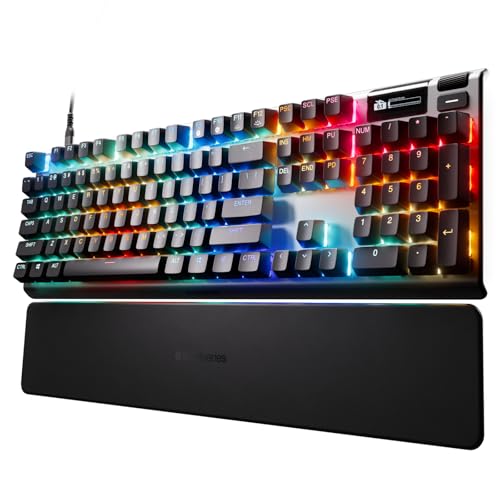
SteelSeries Apex Pro Gen 3 — Best USB-C board for competitive play
The Apex Pro Gen 3 is what happens when a keyboard treats its switches as software. Its magnetic OmniPoint switches sense how far each key has travelled rather than waiting for a fixed contact, so actuation can be set shallow for instant game inputs or deeper for typing days when accidental presses cost paragraphs. Rapid trigger — keys resetting the moment they begin rising rather than at a fixed point — changes strafing and counter-movement in shooters in a way players describe as the board reading intentions earlier, and the protection mode and rapid tap features in the listing show how far that software layer now extends.
Around that technology sits a full-size tournament-grade package: an OLED display that surfaces settings without opening an application, PBT keycaps that resist the shine which develops on heavily used WASD clusters, and RGB that can be tied to games or muted for work. The USB-C connection is wired and performance-minded here — this is a board that lives on one desk, plugged into one machine, optimised for the lowest-friction path between finger and server. Buyers wanting wireless freedom should look at the NuPhy picks below instead.
At a glance:
- Connection: USB-C, wired
- Switches: OmniPoint 3.0 HyperMagnetic, adjustable actuation
- Features: rapid trigger, OLED display, game-ready presets
- Keycaps: double-shot style PBT with RGB
Strengths
- Adjustable actuation suits both gaming and typing days
- Rapid trigger gives competitive movement a real edge
- OLED and presets reduce trips into software
Trade-offs
- Wired only, so the desk is its permanent home
- Feature depth takes time to configure well
- Magnetic switches feel different from classic mechanical ones
Best for: serious competitive players who want per-game actuation tuning from a USB-C wired board.
Not suited for: travellers and multi-device users who need wireless modes more than actuation experiments.

NuPhy Air75 V2 — Best USB-C board for travel and mixed work
The Air75 V2 is built around a life that happens in more than one place. Its low-profile body slides into a laptop sleeve’s neighbourhood without turning the bag into luggage, its feet and case keep the typing angle civilised on café tables, and its three connection modes map neatly onto real itineraries: the 2.4 GHz receiver for the home desk, Bluetooth for the laptop and tablet, and USB-C wired mode that also charges the battery while you work in a hotel room with exactly one free socket.
The Gateron Brown switches in this listing give a gentle tactile bump suited to long writing and coding sessions, and the low-profile keycaps shorten each stroke in a way laptop migrants often find immediately familiar while mechanical purists may need a week to judge fairly. White styling with RGB backlighting keeps it presentable in a client meeting and playful at midnight. Among USB-C boards it is the pick that treats the connector as part of a portability system rather than as a gaming specification, and that coherence is why it anchors the travel end of this roundup.
At a glance:
- Layout: 75 percent, low profile
- Connection: Bluetooth, 2.4 GHz, and USB-C wired
- Switches: Gateron Brown in this listing
- Compatibility: Windows, macOS, and Linux stated
Strengths
- Genuinely portable without feeling like a toy
- Three connection modes cover desk, laptop, and tablet
- USB-C wired mode doubles as the charging path
Trade-offs
- Low-profile feel divides mechanical keyboard traditionalists
- Compact layout asks laptop-style layer habits
- Brown tactility is subtle for lovers of a strong bump
Best for: writers, developers, and students who type in several places and want one board for all of them.
Not suited for: a fixed-desk tournament player who will never use its portability or wireless modes.

NuPhy Halo75 V2 — Best USB-C board with a playful desk presence
The Halo75 V2 makes no attempt to hide at the office end of the desk. Its pink finish and rounded, toy-like case design announce themselves, and its Lemon switches give each keystroke a light, springy character that suits the board’s personality. Beneath the styling sits a thoroughly modern specification: hot-swappable sockets for the day your switch taste changes, three connection modes including USB-C, and a full 83-key 75 percent layout that keeps arrows and a function row within reach without layers for daily work.
That combination — expressive outside, competent inside — fills a real gap in the USB-C market, where capable boards often arrive in black, grey, or black again. The Halo suits a desk that is also a creative space: streaming corners, art studios, and bedrooms where the keyboard is part of the room’s colour story. Its wireless modes free the surface for drawing tablets and notebooks, while the wired USB-C mode stands ready for gaming sessions or charging. Personality here is not a substitute for function; it is function wearing the outfit its owner actually wanted.
At a glance:
- Layout: 75 percent, 83 keys
- Connection: Bluetooth, 2.4 GHz, USB-C
- Switches: Lemon 55gf in this listing, hot swappable
- Lighting: RGB backlit
Strengths
- Distinctive pink design in a sea of black boards
- Hot-swap sockets future-proof switch taste
- Tri-mode connection suits tidy, flexible desks
Trade-offs
- The styling will not blend into a conservative office
- Light switches may feel eager for heavy-handed typists
- 75 percent layout still omits a number pad
Best for: a creative desk that wants colour, wireless tidiness, and honest gaming ability in one board.
Not suited for: a buyer furnishing a formal corporate workstation or needing a built-in number pad.

YMDK Idobao ID75 Ortholinear Kit — Best USB-C board for the ergonomically curious
The ID75 rearranges the keyboard’s geography. Instead of the staggered rows inherited from typewriter linkages, its keys stand in straight columns, so fingers travel vertically without the diagonal reaches that staggered layouts impose — a change some typists credit with calmer hands and many describe as relearning to type for a fortnight. As a kit, it arrives as case, plate, and PCB, inviting you to choose switches and caps and to build the board as an experiment you conduct on your own habits.
Its Type-C connection and VIA firmware support make that experiment practical: VIA lets you remap keys from a friendly interface, which matters enormously while you discover where an ortholinear brain wants its arrows, modifiers, and symbols to live. The aluminium case gives the finished board a planted, serious feel that belies its experimental layout. This is the pick for the reader whose interest in USB-C is really an interest in building a keyboard around their hands rather than around convention, and who accepts a learning curve as part of the purchase.
At a glance:
- Layout: 75 keys in an ortholinear grid
- Case: anodised aluminium, black
- Firmware: VIA support stated in the listing
- Connection: Type-C PCB, hot-swappable kit
Strengths
- Straight-column layout rewards ergonomic experimentation
- Aluminium case gives a substantial finished board
- VIA remapping supports the layout learning process
Trade-offs
- Ortholinear typing demands a real adaptation period
- Kit format means switches and caps are separate buys
- Grid layout can frustrate shared or borrowed use
Best for: a curious builder or programmer willing to retrain their fingers for a straighter layout.
Not suited for: anyone who must type at full speed tomorrow morning on an unfamiliar board.
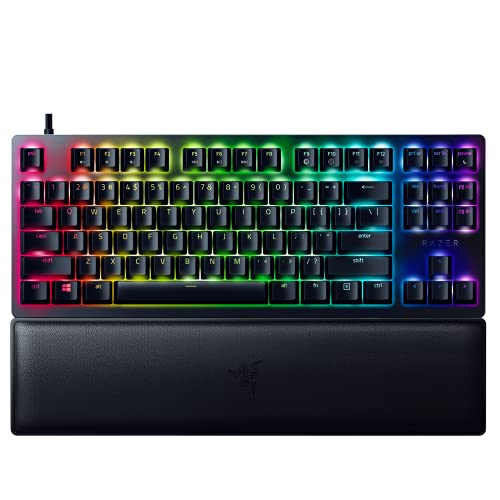
Razer Huntsman V2 TKL — Best USB-C optical board for speed-focused players
Optical switches actuate with light rather than metal contacts, and the Huntsman V2 TKL builds its whole proposition on that speed story: linear optical switches for an uninterrupted stroke, a high polling rate that reports to the computer far more often than standard boards, and sound dampeners that keep the experience from turning harsh. For players whose games reward the earliest possible registration and whose hands prefer a smooth, bump-free travel, this is a coherent and focused machine.
The detachable Type-C cable deserves specific praise in a USB-C guide, because detachability is where the standard’s promise becomes practical. A fixed cable that frays ends a keyboard’s career; a detachable one ends a cable’s career, and replacements are everywhere. Detachability also makes the board packable for LAN events and easy to share between a desktop and a laptop dock. Add doubleshot PBT caps and an included wrist rest, and the Huntsman presents itself as the traditionalist’s performance pick: no magnetic experiments, no low-profile compromises, just a fast optical tenkeyless done thoroughly.
At a glance:
- Layout: tenkeyless
- Switches: linear optical Gen2 with sound dampeners
- Cable: detachable Type-C
- Extras: doubleshot PBT caps and wrist rest in the listing
Strengths
- Optical actuation is fast and consistent
- Detachable Type-C cable is replaceable and packable
- Dampeners keep the linear stroke civilised
Trade-offs
- Linear-only feel will not satisfy tactile fans
- Wired design ties it to one desk at a time
- Optical switches cannot be swapped like MX switches
Best for: an esports-leaning player who wants optical speed with a practical detachable cable.
Not suited for: a switch experimenter who expects to change switch types on a whim.
What USB-C Actually Changes, and What It Does Not
A USB-C connector carries the same keyboard data as the older standards it replaces; your computer cannot tell a heroic keystroke from a humble one by the plug’s shape. What changes is everything around the signal: reversibility, so the plug fits first try in poor light; universality, so one cable serves the keyboard, the phone, and the monitor on a modern desk; and detachability, which turns the most failure-prone part of a wired keyboard into a replaceable accessory. Judge USB-C as a quality-of-life upgrade to the connection layer, not as a performance feature, and marketing claims will sort themselves.
On wireless boards the connector takes a second job as the charging port and the wired fallback, and that triple duty is where the standard genuinely transforms ownership. One cable on the desk charges the board overnight, carries it through a gaming session when the battery fades mid-evening, and rescues you when a receiver is left in another machine. When you shop wireless, confirm the USB-C port does all three jobs; a rare few boards charge by one standard and connect by another, recreating the two-cable mess the purchase was meant to end.
Adapters deserve a paragraph of realism. A USB-C keyboard plugged into an older USB-A machine through a passive adapter generally works, because the keyboard’s data needs are modest, but hub behaviour varies: some docks pass keyboards flawlessly, others introduce a sleepy wake-up delay after the machine idles. If your setup runs through a hub or dock, treat the first week as a compatibility trial and keep the direct-port option in mind before blaming the board. custom USB cables for your keyboard explores the cable side of that ecosystem for readers who enjoy finishing the details.
Polling, Latency, and the Numbers Players Ask About
Polling rate describes how often a keyboard reports its state to the computer, and high-polling boards such as the Huntsman above market that frequency as a competitive edge. The honest framing is that polling is one small term in a latency chain that also includes switch sensing, firmware scanning, the game’s own input handling, and your display. Upgrading one term while the others dominate yields diminishing returns, which is why polling should break ties between otherwise equal boards rather than headline a purchase for a casual player.
Wireless latency has matured past the point where blanket suspicion makes sense. A well-implemented 2.4 GHz connection on boards like the NuPhy picks is entirely serviceable for competitive play at most levels, while Bluetooth remains the mode for typing, tablets, and battery thrift. The practical rule is to game on the receiver or the wire and write on Bluetooth, letting each mode do the job it was designed for, instead of demanding one mode excel at everything.
Actuation technology now matters more than raw reporting speed for most players. Magnetic boards let you move the actuation point itself, optical boards remove mechanical contact bounce from the equation, and classic mechanical boards offer the widest feel catalogue. Choose the sensing technology that matches your game’s demands and your fingers’ preferences first, then let connector and polling confirm the choice rather than lead it.
Detachable Cables, Fixed Cables, and Desk Reality
A detachable cable changes how a keyboard lives. It can be unplugged for cleaning without dragging a lead across the desk, swapped for a coiled or coloured cable that matches a setup’s theme, replaced inexpensively when it frays, and left behind when the board travels so the bag carries one universal spare. Fixed cables are not a scandal — they are one less connector to loosen — but in a guide organised around USB-C, detachability is the feature that converts the standard from a port shape into a system.
Cable routing interacts with layout in ways product photos hide. A port centred on the board’s rear edge suits a monitor-stand desk; a left-side port suits a setup where the machine sits to the left; a deeply recessed port may refuse chunky aftermarket connectors. Before ordering a custom cable for any board here, check the port’s placement and recess depth against the connector housing, because the prettiest cable in the hobby is useless if its housing cannot physically enter the socket.
Finally, keep one known-good plain cable in the drawer whatever else you buy. Coiled aviator cables and handmade leads are pleasures, but when a board misbehaves you want a boring, trusted cable for diagnosis, so the fault can be isolated to board, cable, or computer in one swap. Troubleshooting with only decorative cables in the house is how small mysteries become long evenings.
Comparison Table
| Pick | Key fact | Best for |
|---|---|---|
| SteelSeries Apex Pro Gen 3 | Connection: USB-C, wired | serious competitive players who want per-game actuation tuning from a USB-C wired board. |
| NuPhy Air75 V2 | Layout: 75 percent, low profile | writers, developers, and students who type in several places and want one board for all of them. |
| NuPhy Halo75 V2 | Layout: 75 percent, 83 keys | a creative desk that wants colour, wireless tidiness, and honest gaming ability in one board. |
| YMDK Idobao ID75 Ortholinear Kit | Layout: 75 keys in an ortholinear grid | a curious builder or programmer willing to retrain their fingers for a straighter layout. |
| Razer Huntsman V2 TKL | Layout: tenkeyless | an esports-leaning player who wants optical speed with a practical detachable cable. |
Step by Step: Set Up a USB-C Keyboard for a Clean, Reliable Desk
Step 1: Choose the primary connection mode deliberately
Decide on day one whether this board lives wired, on a 2.4 GHz receiver, or on Bluetooth, and set up that mode properly instead of drifting between all three. Wired players should route the cable so it never drags against the mouse area; receiver users should place the dongle on a short extension near the board rather than buried behind a metal case; Bluetooth users should pair to the main machine first and name the connection so future devices do not create a guessing game.
Step 2: Update firmware and set your baseline options
Connect by cable for any firmware update, whatever your daily mode will be, because a wired update cannot be interrupted by a sleepy radio. Then set the sensible baselines: your preferred backlight behaviour, any actuation adjustments on magnetic boards, and the function-layer layout for media keys. Boards like the Apex Pro reward an hour of this attention disproportionately, since their headline features live entirely in settings most owners never open.
Step 3: Position the board and rest for your hands, not the photograph
Centre the alphanumeric block in front of your body rather than centring the whole board, especially with tenkeyless and full layouts whose extra columns pull the typing position leftward. Set the wrist rest, where one is included as with the Huntsman, so your hands float or graze rather than plant and pivot, which keeps wrists straighter through long sessions. A keyboard centred for a camera is frequently a keyboard centred against its typist.
Step 4: Test the board in the applications that motivated the purchase
Play the game, write the document, and run the video call before declaring success. Check that media keys reach the right application, that the function layer behaves in your code editor, and that the board wakes your machine from sleep the way you expect through your actual hub or dock. Compatibility truths live in your specific chain of equipment, and the first day is the cheapest time to learn them while returns remain painless.
Step 5: Label the spare cable and store the receiver with intent
Receivers vanish into the same dimension as single socks, so give yours a home: a small dock on the desk, a labelled pouch in the bag, or a spare port it never leaves. Store the board’s original cable with it rather than adopting it for phone duty, so the keyboard’s complete kit survives intact. Future you, setting up in a hotel or a new flat, will be quietly grateful for this unglamorous ten minutes. are wireless keyboards good for gaming answers the mode questions that follow from here.
Common Mistakes to Avoid
Buying the connector and ignoring the switch
A USB-C port on a board whose switches you dislike is a well-connected disappointment you will use ten thousand times a day. Decide switch type, layout, and size first, from your games and your typing, and let USB-C act as the filter applied afterward. Every pick in this guide was chosen to make that order painless by offering a genuinely different switch story behind the same connector.
Assuming every USB-C cable in the house is equal
Charge-only cables, cables with data wires omitted, and damaged leads all produce the same mystery: a board that charges but will not type, or types but drops out under a desk’s vibration. When a wired board misbehaves, swap in a known data-capable cable before suspecting the keyboard. The connector standard unified the plug, not the quality or wiring of everything sold with that plug.
Running a wireless board on Bluetooth for competitive gaming
Bluetooth is engineered for convenience and battery life across many device types, not for the tightest input path, and using it for ranked play because pairing was easy is a self-inflicted handicap. The receiver exists for exactly this purpose; plug it in, place it near the board, and keep Bluetooth for the tablet and the sofa laptop where its virtues shine.
Forgetting that hubs and docks are part of the keyboard’s life
A board tested directly into a laptop may behave differently through a bargain hub: delayed wake, missed first keystrokes, or a receiver competing with other radios in a crowded dock. If your desk runs through a hub, include it in your testing and budget for a better hub before blaming a good keyboard. The chain is only as well-behaved as its least considered link.
USB-C Across a Whole Desk: Keyboards in a One-Cable Setup
The deeper promise behind a USB-C keyboard is not the keyboard at all; it is the desk where the monitor, laptop, phone, and peripherals finally share one connector language. In that setup a single cable from monitor to laptop can carry video out and keyboard data back through the monitor’s hub, and the keyboard’s own detachable lead becomes one tidy segment of a chain rather than a proprietary lifeline. Readers building toward that desk should value the detachable-cable picks here most, because they are the boards that join such a chain without adapters or apologies.
That vision also explains why port placement matters more each year. A keyboard feeding a monitor hub wants its port where the cable run to the screen is shortest and least visible; a keyboard travelling between home and office docks wants a port that tolerates daily plugging without loosening. Neither need is exotic, yet both are decided by millimetres of design that spec sheets rarely celebrate — one more reason this guide reads listings for what they reveal about physical life, not only for headline features.
Even in a one-cable desk, keep the humility of a spare. Hubs fail, cables get borrowed, and a keyboard that can fall back to Bluetooth or a receiver, as the wireless picks here can, keeps a workday alive while the chain is repaired. Resilience is a specification too, written in connection modes rather than in switches, and the boards that offer several ways to reach the computer are quietly the most professional tools in this roundup.
How the Connector Replaced a Generation of Keyboard Habits
Older enthusiasts remember PS/2 adapters kept for legacy boards, mini-USB leads that fitted one way and punished haste, and proprietary wireless dongles whose loss retired otherwise healthy keyboards. USB-C’s arrival in the keyboard world was less a revolution than a collective exhale: one reversible plug, shared with the rest of a modern desk, cheap to replace and easy to lend. The picks in this guide are all citizens of that calmer era, and part of their value is simply that none of them will strand you with an orphaned connector.
The standard also enabled the custom-cable culture that now decorates enthusiast desks — coiled leads, aviator connectors, colour-matched housings — because a detachable universal port is an invitation to personalise. That culture is optional garnish, yet it signals something real: when a connection becomes a standard, creativity moves to its surface. A first-time buyer benefits without participating, since the same standard guarantees the plain replacement cable in any electronics shop will fit the board bought today.
Choosing Between the Five Picks by Week, Not by Specification
Imagine your actual week. If it contains ranked matches most evenings, the Apex Pro or the Huntsman will spend that week earning their specialisation, and their wired nature will never once inconvenience a life lived at one desk. If the week contains trains, cafés, and a tablet on a sofa, the Air75 will be used in all of those places while a tournament board watches from home, and used beats excellent in every honest accounting of value.
If the week is creative work at a beloved desk, the Halo’s colour and wireless tidiness shape your mood daily in ways a benchmark cannot capture, and mood is a legitimate engineering requirement for a space you create in. And if the week contains an itch to rebuild your typing from first principles, the ID75 converts that itch into a project with a beginning, a learning curve, and a genuinely different keyboard at the end. Specifications describe boards; weeks describe owners, and matching the second is the entire art of the purchase.
Charging Habits for Wireless USB-C Boards
A wireless board’s battery life is measured in weeks, which creates a peculiar ownership risk: the charge cycle is so infrequent that no habit forms around it, and the battery chooses its empty moment during your most important session. The cure is a ritual tied to something else — plug the board in on the same evening you water plants, back up photos, or clean the desk — so the cable comes out on a schedule rather than in a crisis. USB-C makes that ritual painless because the cable already lives on the desk for other devices.
Learn your board’s low-battery language before it matters. Some boards blink a key, some change an indicator’s colour, and some simply begin dropping the connection in a way that impersonates a radio fault. The first unexplained wireless misbehaviour on a board that has not been charged in living memory should be treated as a battery message until proven otherwise, and the wired USB-C mode exists precisely so that lesson never costs you a match or a deadline.
Battery care for these boards is refreshingly undemanding: they sip power, tolerate partial charges, and do not need the anxious full-cycle rituals of older battery chemistries. Avoid leaving a board plugged in for months as a permanent wired conversion if you value its battery, but equally avoid inventing stress about a device designed to be charged occasionally and forgotten. The engineering goal of a tri-mode board is that power becomes boring, and a monthly plug-in is all the attention it asks.
USB-C and the Shared Computer: Households, Hot Desks, and Borrowed Machines
In a household where one computer serves several people, a USB-C keyboard earns goodwill by being instantly movable: unplug from the family desktop, plug into a child’s laptop for homework, return it without a driver, a pairing ritual, or a missing receiver. Wired certainty is underrated in shared environments, where Bluetooth pairing lists fill with forgotten devices and the question of whose profile is active can stall a simple task. The humble cable remains the fastest identity system ever designed — whoever holds it, types.
Hot-desking workplaces sharpen the same point. A personal USB-C board carried between office docks gives a worker their own switches, layout, and hygiene at any seat, plugging into whatever the desk provides without negotiating with a facilities department. The travel picks in this guide were chosen partly for that life: a board that lives in a bag, speaks USB-C to every dock, and falls back to Bluetooth when a dock’s ports are all occupied is a professional tool disguised as an enthusiast purchase.
Borrowed machines expose one more connector virtue: no software. A USB-C keyboard presents itself as a standard keyboard to almost any host, so it works on a friend’s computer, a library machine, or a fresh operating system install before any configuration application exists. In a hobby that loves companion software, that driverless universality is worth remembering — the board’s most important compatibility feature is the one that requires nothing from the computer at all.
What to Check in the First Week of Ownership
Day one is for the obvious: every key registering, the cable seating firmly, the wireless modes pairing, and the backlight behaving. Day three is for the subtler truths — whether the board wakes your sleeping machine cleanly through your actual hub, whether the function layer matches the promises in your editor, and whether the cable’s routing still pleases you after real mouse movement rather than a staged photograph. Most disappointments with good keyboards are actually disappointments with an untested chain of accessories, discovered too late to return the wrong link.
By the end of the first week, deliberately rehearse the failure modes. Let the wireless board run low and switch to its cable mid-task. Unplug the receiver and re-pair from scratch. Move the board to a second machine and back. Each rehearsal converts a future emergency into a remembered routine, and each takes under a minute while you are calm. Owners who perform these small drills stop fearing their equipment, which is the unspoken goal of every setup guide ever written.
Keep the packaging until that week ends, not from pessimism but from professionalism: returns and exchanges are painless with a box and miserable without one. If the board has earned its place by then — and the picks here were chosen so that it should — recycle the box with the satisfaction of a decision properly closed, and file the spare cable, receiver, and manual together where the next setup day can find them.
The Environmental Footnote Every Cable Drawer Tells
Every household owns a drawer of orphaned leads from dead standards, and each one represents a device retired early because its connection became awkward rather than because its work was done. Keyboards bought on a universal standard resist that fate: the board remains welcome on new machines, its cable remains replaceable from any shop, and its useful life stretches to match its mechanical life, which for a good switch is measured in many years. Choosing USB-C is, among its other virtues, a small vote against the drawer.
That longevity argument strengthens the case for buying the board you actually want within this connector class rather than the cheapest citizen of it. A keyboard is touched more than almost any object you own, and a satisfying one on a durable standard will outlast several computers. The picks above span budgets deliberately, yet each was chosen to be a board an owner keeps — because the greenest, thriftiest keyboard is the one that never needs replacing.
A Note for Mac, Linux, and Mixed-Platform Desks
Mixed-platform households should read listings for explicit operating-system support, as the Air75 V2 does in naming Windows, macOS, and Linux together. The typing itself will work almost anywhere, but the details live in modifier legends, media-key behaviour, and whether a configuration application exists for your system at all. A board whose keymap can be set from a web tool or stored on the device itself travels between platforms with its personality intact, while a board configured by one operating system’s application becomes a guest on every other machine.
Physical legend swaps matter too: a board used on both a Mac in the morning and a Windows machine at night will be kinder with swappable modifier caps or a platform switch that remaps them in hardware. None of that changes the USB-C story — the plug is admirably neutral — but neutrality at the connector makes the platform details above it the deciding layer, and this guide’s travel pick was chosen with exactly that layered life in mind.
The Last Word on a Small Plug
It is easy to mock a guide organised around a connector, until the evening a cable fails before a deadline and the replacement is the same one that charges your phone, or the morning a new laptop arrives with only oval ports and every peripheral you own still fits. Standards are invisible when they work, and USB-C now works across the whole desk. Buy the board whose switches, layout, and wireless manners suit your life, insist that it speak this standard as every pick here verifiably does, and then enjoy the rare pleasure of never thinking about the plug again.
If a single sentence must carry the recommendation, let it be this: the connector gets a keyboard connected, but the board behind the connector is what your hands will judge ten thousand times a day — choose that board with care, and let USB-C simply guarantee it a welcome on every desk your future contains.
Desk Tour Evidence: How Owners Actually End Up Using These Boards
Ask owners of tri-mode boards how they really use the modes and a pattern emerges that no spec sheet predicts: the receiver lives permanently in the main machine, Bluetooth belongs to whichever tablet or laptop is currently favoured, and the cable appears mainly for charging and for the occasional firmware evening. That settled division of labour is a sign of a healthy setup, because each mode has stopped competing and started specialising. When you set up any wireless pick from this guide, aim directly for that division rather than treating the modes as interchangeable novelties to rotate for variety.
Wired-board owners develop an equally predictable ritual: the cable becomes part of the desk’s geography, routed once with care and then forgotten, and the board’s immobility turns into a virtue — it is always exactly where the hands expect, at the angle the wrists prefer, with its settings undisturbed by travel. Competitive players in particular defend that permanence, and a USB-C wired board honours it while still allowing the board to visit another machine in seconds when a tournament, a repair, or a friend’s setup calls.
Whichever ritual becomes yours, write nothing down and change nothing for the first month; a connection setup, like a keymap, needs a settling period before its genuine annoyances can be distinguished from the simple unfamiliarity of a new object on a familiar desk.
After that month, fix the one annoyance that survived — a cable that crosses the mouse path, a receiver hidden behind metal, a Bluetooth slot assigned to the wrong machine — and the desk will usually stay solved for years.
That patience, applied to a well-chosen board, is the difference between a desk that constantly requests attention and a desk that quietly returns it to the work, the game, and the people the work and the game are ultimately for.
Choose once, choose well, keep one honest spare cable in the drawer, and type onward in lasting, well-earned peace.
Final Recommendation
Let your dominant use cast the deciding vote. Competitive players should take the Apex Pro Gen 3 for its adjustable magnetic switches or the Huntsman V2 TKL for optical speed with a detachable cable; mobile workers should take the Air75 V2 and never think about connections again; expressive desks belong to the Halo75 V2; and the ID75 waits for the builder who wants the keyboard itself to be a project. Every one of them arrives through the same small oval plug — the differences that matter are everything the plug connects you to.
Frequently Asked Questions
Is USB-C faster than USB-A for a keyboard?
For keyboard data, no meaningful difference exists, because a keyboard’s information flow is tiny beside either standard’s capacity. USB-C’s advantages are reversibility, universality across modern devices, detachable-cable ecosystems, and its charging role on wireless boards. Anyone selling the connector itself as a gaming performance feature is decorating a spec sheet; judge boards on switches, firmware, and build, with the connector as a welcome convenience.
Can I use a USB-C keyboard with a computer that only has USB-A ports?
Generally yes, through a simple adapter or a cable with USB-A at the computer end, because the keyboard speaks a modest, standard protocol that older ports handle comfortably. Test wake-from-sleep behaviour through your specific adapter or hub, since that is where quirks occasionally appear, and keep one direct cable in reserve for troubleshooting. The board will not gain or lose typing quality through the adapter; it is a plumbing question, not a performance one.
Why do some USB-C keyboards in this guide cost so much more than others?
The connector is the cheapest thing on them. Price follows switch technology, case materials, wireless engineering, and features such as magnetic sensing, displays, and high polling — the qualities this guide’s reviews actually compare. A basic USB-C board and the Apex Pro share a plug the way a bicycle and a motorcycle share a wheel shape; the machinery behind the shared part is where the money lives, and where your decision should live too.
Should a wireless keyboard’s USB-C port also work as a wired connection?
Ideally, yes, and you should confirm it before buying any wireless board, including checking the NuPhy-style tri-mode listings here where USB-C is named among the connection modes. A port that only charges leaves you stranded when the battery dies mid-session or the receiver goes missing; a port that also carries data turns the charging cable into a complete backup connection. That single specification quietly separates thoughtful wireless boards from merely portable ones.
Do I need a special cable for high-polling or magnetic keyboards?
No exotic cable is required: a sound, data-capable USB-C cable carries what these boards send, because even high polling rates are modest data. What matters is cable integrity and connector fit, particularly in recessed ports where bulky housings may not seat fully. If a performance board behaves erratically, suspect a damaged or charge-only cable first — it is the cheapest component in the chain and the most frequently guilty.
Will USB-C keyboards work with phones and tablets?
Wired USB-C boards generally work with phones and tablets that support USB keyboards, and Bluetooth models such as the NuPhy picks pair even more naturally for typing on the go. Expect the host device to control details like layout language and shortcut behaviour, and expect gaming features and configuration software to remain computer territory. For travel typing, the combination of a slim board, Bluetooth for the tablet, and one USB-C cable for everything is exactly the modern setup this guide’s travel pick was chosen to serve.
Does the quality of a USB-C cable change how a keyboard behaves?
For ordinary typing, almost any sound cable works, because a keyboard asks very little of the connection. Problems begin with cables that were made mainly for charging phones: some carry power happily yet have poor shielding, loose plugs, or data lines that misbehave at higher polling demands, producing a board that connects, disconnects, or feels inconsistent. Length matters at the margins too, so an unusually long run draped past power bricks and monitor cables is a worse bet than a shorter, tidy route. Decorative coiled and aviator cables are fine when they are properly made, but the connector and coil add failure points worth checking first if a board starts dropping out. The practical test is substitution: if a keyboard acts strangely, try the plain cable supplied in its box before blaming firmware or the board itself. Keep that known-good cable in your desk drawer permanently, because it turns every future connection mystery into a two-minute comparison.
How should I manage one USB-C keyboard shared between two computers?
Decide whether the keyboard changes desks or only changes machines. If both computers sit at the same desk, a simple USB switch or a hub with a host toggle lets you move the board between them with one press, sparing the keyboard socket the daily wear of unplugging and replugging. Keep the switch within easy reach and label its outputs, because pressing the wrong host and typing a password into the wrong machine is a rite of passage best avoided. If the keyboard genuinely travels between rooms, choose a model with a second wireless mode and leave the cable behind: type wired at your main desk, then wake the wireless connection at the other machine without carrying leads. Whichever route you take, keep the port itself clean and support the plug when you move the board, since a wobbled socket on the keyboard is far more annoying to repair than any cable is to replace.