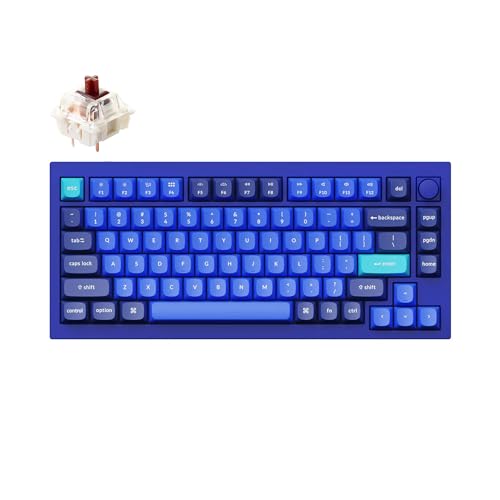
Disclosure: As an Amazon Associate, kajuandouglas.com earns from qualifying purchases. Links on this page are affiliate links; they cost you nothing extra. Prices and availability change often, so check the current Amazon listing before you buy.
The best keyboards for linux users are not the ones with a penguin on the box. They are the ones whose features live in the keyboard rather than in a Windows-only configuration app: firmware you can programme from any operating system, layouts that respect the Unix tradition, connections that behave identically on a fresh install, and media keys that do not require a proprietary driver to exist. Linux will accept almost any keyboard as a typing device — the kernel’s HID support sees to that — but there is a wide, daily-felt gap between a board that merely types on Linux and one that was designed to be configured, remapped and trusted there. The six boards in this guide live on the right side of that gap.
They divide by philosophy. Three Keychron boards carry the QMK/VIA flag — open firmware, browser-based configuration, hot-swappable everything — at three weights of build and budget. The HHKB carries the Unix layout tradition itself, the board designed around the hands of programmers who live in terminals and editors with modal religions. The Leopold and the Das Keyboard represent the no-nonsense professional school: fixed, excellent switches, superb keycaps, and nothing to configure because nothing needs configuring. Between the six, every kind of Linux user — tinkerer, traditionalist, minimalist — has a home board.
Key takeaways: On Linux, the configuration story is the product: QMK/VIA boards are programmed from a browser and remember everything onboard, while app-dependent boards strand their features on another operating system. Every pick here works fully the moment it is plugged in. And the Unix-layout question — where Control lives, what the HHKB deletes — matters more to terminal-heavy users than any switch choice. Check the function-row default and the OS toggle on any board you consider, pair Bluetooth by slot on dual-boot machines, and test the pre-boot contexts — firmware setup, disk unlock, virtual console — on the first evening rather than the first emergency.
Where to buy and how this guide handles best keyboards for linux users
Every keyboard below was confirmed in this site’s verified catalogue data, and each review closes with a Check price on Amazon link to that exact listing. Several of these boards are sold in multiple switch, colour and layout variants under one page — Keychron especially — so read the selected options on the listing as carefully as the headline, and match them against the variant each review describes. Where a feature depends on firmware or software, the reviews say where that configuration lives: on the board, in a browser tool, or in an operating system you may not run.
A note on testing philosophy for this guide. Linux compatibility was judged at three depths: does it type (everything does), does it fully function — media keys, backlight control, NKRO behaviour, Bluetooth pairing across reboots and dual-boot machines — and can it be configured without leaving Linux. The third depth is where most mainstream gaming boards quietly fail their Linux buyers, stranding remapping and firmware updates behind a Windows application. All six picks pass the third depth by one of two honourable routes: open configuration, or nothing that needs configuring.
In this guide
Quick picks: Best Keyboards For Linux Users
Six boards, three philosophies, one penguin-friendly desk and zero required downloads, accounts, borrowed laptops, virtual machines or guest sessions on another operating system. If you already know whether you are a tinkerer, a traditionalist or a minimalist, this shortlist is the fast lane; the reviews underneath argue each placement in detail, and the framework sections after them cover the Linux-specific questions the whole category raises.
- Keychron Q1 — the aluminium QMK flagship: gasket-mounted, hot-swappable, endlessly programmable.
- Keychron K8 Pro — the wireless QMK tenkeyless, with Bluetooth for the multi-machine desk.
- Keychron V1 — the value QMK board: the full open-firmware experience at the friendly tier.
- HHKB Professional Hybrid Type-S — the Unix tradition incarnate: Topre switches, Control beside A, Bluetooth and silence.
- Leopold FC750RBT — the fixed-switch connoisseur’s TKL: Cherry MX, double-shot PBT, Bluetooth, zero software.
- Das Keyboard 6 Professional — the full-size professional: Cherry MX Brown, a USB-C hub and a volume knob, all driver-free.
How the picks were chosen
The filter for this guide was applied in the order a Linux user feels it. First, configuration independence: boards whose remapping, macros and lighting live in open firmware or onboard controls were preferred absolutely, and boards requiring a proprietary desktop application were excluded even when their hardware was excellent — a Linux guide that recommends Windows homework has failed at its only job. Second, layout respect: boards had to offer sane modifier arrangements and, ideally, a hardware Mac/Windows toggle whose Linux behaviour is the Windows behaviour, since that is the mode where the function row behaves as F-keys by default.
Third came the ordinary virtues, judged strictly: switch quality and choice, keycap material, build, and connection reliability across the way Linux machines actually live — docks, KVM switches, dual-boot setups, suspend and resume cycles. Bluetooth boards were checked for the pairing manners that matter in this world, like remembering multiple hosts and surviving a dual-boot’s identity confusion. What survived is deliberately not six variations of one idea: the open-firmware school, the Unix-layout school and the fixed professional school each got their strongest representatives, because Linux users disagree about everything except that their keyboard must respect them.
The picks in detail
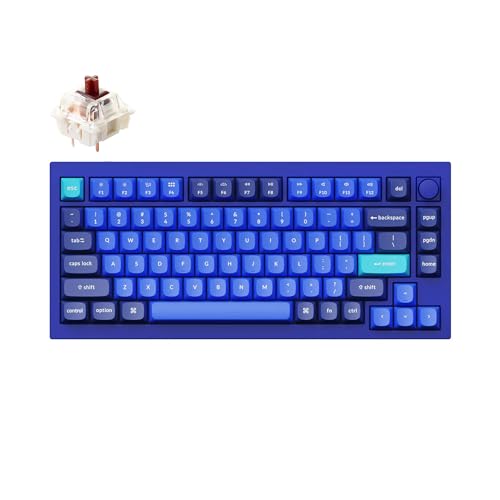
Keychron Q1 — Best Linux board overall
At a glance: 75 percent wired layout; CNC aluminium frame; double-gasket mount; QMK/VIA firmware; hot-swappable Gateron G Pro Brown switches in this variant; south-facing RGB; Mac/Windows toggle.
The Q1 is what happens when the custom keyboard scene’s values are manufactured properly: a heavy CNC aluminium case, a double-gasket mount that lands each keystroke softly, hot-swappable sockets, and QMK firmware with VIA configuration — the open stack that makes a keyboard truly yours on any operating system. On Linux this matters concretely. You remap in a browser-based tool or flash from the command line with the same tooling the firmware’s own community uses; every layer, macro and tap-hold lives on the board; and the machine in front of you becomes irrelevant, which is the deepest form of compatibility there is.
The 75 percent layout keeps the function row and arrows while surrendering the number pad, and the hardware Mac/Windows switch on the rear selects the modifier legends’ behaviour — Linux users live in the Windows position, where F-keys are F-keys and the Super key is where a lifetime of shortcuts expects it. The Gateron G Pro Brown switches in this variant give a gentle tactile bump suited to long terminal sessions, and because the sockets are hot-swappable, that choice is a preference rather than a sentence: linears for the gaming partition, a heavier tactile for the spacebar, all changed with a puller in minutes.
The honest costs: the board is wired-only and heavy enough to be a desk fixture rather than a traveller, and its aluminium case gives it a firm, bright-edged sound that gasket foam softens but does not silence. The price positioning is flagship within its brand. None of that argues against the verdict for the Linux user who customises: this is the board whose every promise is kept by open firmware, and in this category that is the promise that outlives all the others.
Strengths
- QMK/VIA open firmware — configure from Linux, store everything onboard
- CNC aluminium case and double-gasket mount feel genuinely premium
- Hot-swappable sockets make switch choice reversible
- Hardware OS toggle with a proper Windows/Linux mode
- 75 percent layout keeps F-row and arrows for terminal work
- Strong community support and documentation
Trade-offs
- Wired only, and heavy — a desk fixture, not a traveller
- Flagship positioning within the Keychron range
- Aluminium case sound is firm rather than quiet
Best for: Linux users who remap, layer and customise — the open-firmware flagship.
Not suited for: Buyers who need Bluetooth or a board that travels.

Keychron K8 Pro — Best wireless QMK board
At a glance: Tenkeyless layout; QMK/VIA programmable; Bluetooth and wired modes; hot-swappable Gateron G Pro Brown switches in this variant; RGB; Mac/Windows/Linux compatible.
The K8 Pro takes the Q1’s open-firmware argument and gives it back its freedom of movement. It is a tenkeyless board — the layout most terminal-and-editor users actually want, with a full function row and navigation cluster — running the same QMK/VIA stack, so every layer and macro is configured from your Linux browser and stored on the board. Bluetooth covers the wireless desk and pairs with multiple machines, which in Linux households usually means a workstation, a laptop and a small server’s occasional console; wired mode covers flashing, gaming and the zero-doubt days.
For dual-boot users the K8 Pro’s manners deserve specific praise: onboard configuration means the board you tuned under Linux is the same board under the other system, and the OS toggle keeps modifier behaviour straight on both sides of the reboot. The Gateron G Pro Brown variant listed here balances typing tactility with gaming politeness, the sockets are hot-swappable for the inevitable experiments, and the board’s sound and feel sit a clear tier above the budget wireless crowd — this is a tool built for eight-hour days, and it behaves like one across suspend, resume and dock cycles.
Against the Q1 you trade the aluminium case for plastic-and-frame construction and the gasket flagship feel for a more conventional deck — noticeable, and honestly priced. Bluetooth is the wireless ceiling here; there is no 2.4 GHz receiver mode, so latency purists and BIOS-stage tinkerers will live on the cable, which the board happily accepts. For the Linux user whose desk hosts several machines and whose configuration must follow them, the K8 Pro is the balanced answer: open where it counts, wireless where it matters.
Strengths
- Full QMK/VIA configuration with Bluetooth multi-host pairing
- Tenkeyless layout suits terminal and editor work perfectly
- Onboard settings survive dual-boot and machine changes
- Hot-swappable sockets and a good stock tactile variant
- Wired mode for flashing, gaming and BIOS work
- Solid, work-grade build and sound
Trade-offs
- No 2.4 GHz receiver mode — Bluetooth or cable only
- Construction a tier below the aluminium Q1
- Battery life demands a charging rhythm for heavy users
Best for: Multi-machine Linux users who want open firmware without the cable.
Not suited for: Latency purists who want a 2.4 GHz gaming radio.

Keychron V1 — Best value QMK board
At a glance: 75 percent wired layout; QMK/VIA programmable; hot-swappable Keychron K Pro Brown switches in this variant; translucent frosted black case; Mac/Windows/Linux compatible.
The V1 is the argument that open firmware should not be a luxury. It runs the same QMK/VIA stack as its expensive siblings — the same layers, macros, tap-hold tricks and browser configuration — in a lightweight frosted-plastic 75 percent board at the friendly end of the market. For a Linux user, that parity is the entire story: the student, the new convert, the second-desk builder all get the real configuration experience, not a cut-down app, and the board they configure today teaches them the system every future QMK board will use. Skills transfer; the V1 is where they are cheapest to acquire.
The hardware is honest value engineering. The translucent case lets the backlighting glow through in a way that looks genuinely atmospheric in a dark room, the Keychron K Pro Brown switches are a competent tactile stock choice, and the sockets are hot-swappable so the board can grow better switches when its owner does. The 75 percent layout keeps the function row — a real consideration for anyone whose editors and window managers lean on F-keys — and the OS toggle keeps Linux behaviour correct without software.
Plastic is plastic: the V1 is light, sounds brighter than the Q-series, and will not fool anyone into thinking it is aluminium. It is also wired-only. Read those as the price of admission being low rather than the product being lesser — the firmware, which is the part a Linux user interacts with intellectually for years, is fully flagship. As a first QMK board, a travel board or a second machine’s board, the V1 is the easiest recommendation in this guide to make with a clear conscience.
Strengths
- The complete QMK/VIA experience at a value tier
- Hot-swappable sockets let the board grow with its owner
- Translucent case makes backlighting genuinely atmospheric
- Function row retained in a compact 75 percent layout
- Light enough to travel between machines and desks
- The ideal first board for learning open firmware
Trade-offs
- Plastic case sounds brighter and feels lighter than Q-series
- Wired only
- Stock switches are competent rather than special
Best for: New QMK users, students and second-desk builders on a budget.
Not suited for: Buyers who want metal construction or wireless.

HHKB Professional Hybrid Type-S — Best for the Unix tradition
At a glance: 60 percent Unix layout; Topre electro-capacitive silent switches; Bluetooth and USB wired; Control key beside A; DIP-switch configuration; printed legends; charcoal.
The HHKB is not a keyboard with a Unix layout option; it is the Unix layout, designed around the hands of the programmers who wrote the tools Linux users live in. Control sits beside the A key, where your little finger’s shortest journey puts it — and where the terminal shortcuts it serves were designed to be reached. Backspace sits above Enter. There is no Caps Lock to disable in software because the board never had one. DIP switches on the underside configure the layout in hardware, legible to any operating system ever made, and the whole board is an argument that a keyboard should be a finished idea rather than a configuration project.
The Type-S’s Topre switches are the other half of the legend: electro-capacitive, with a smooth, rounded tactile feel and a quiet, deep sound that no MX-style switch quite imitates, here in the silenced variant that makes the board office-safe. The Hybrid adds Bluetooth to the wired connection, pairing across the machines of a modern desk while keeping the layout identical on all of them. Programmers who live in Vim, Emacs, tmux and the shell describe the same experience across decades: a week of relearning, then a layout their hands refuse to give back.
The costs are real and should be bought knowingly. The board is a premium purchase, the 60 percent layout exiles arrows and function keys to a layer that not every user forgives, and Topre keycap compatibility is its own narrow world. This is also a board with no backlight and no interest in having one. None of it matters to its intended owner. If your working life is measured in terminal hours and your shortcuts are older than some operating systems, the HHKB is not a recommendation; it is a homecoming.
Strengths
- The definitive Unix layout — Control where the terminal wants it
- Topre Type-S switches: smooth, tactile and genuinely quiet
- Hardware DIP configuration works on every OS ever made
- Bluetooth plus wired for the multi-machine desk
- Compact footprint frees the mouse completely
- Decades-long design maturity and community knowledge
Trade-offs
- Premium positioning — the connoisseur’s purchase
- Arrows and F-keys live on a layer
- Topre keycap ecosystem is narrow
- No backlighting, by philosophy
Best for: Terminal, Vim and Emacs users who want the layout the tools were built around.
Not suited for: Buyers who need dedicated arrows or dislike relearning a layout.
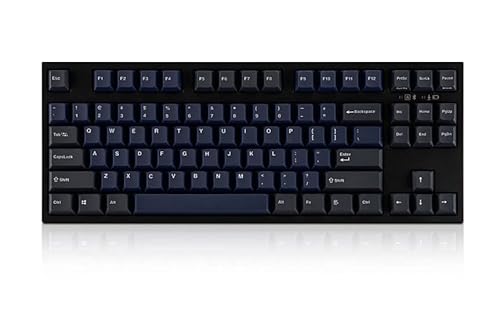
Leopold FC750RBT — Best fixed-switch connoisseur TKL
At a glance: Tenkeyless layout; Cherry MX Red switches in this variant; double-shot PBT keycaps; Bluetooth plus wired; sound-dampened case; navy blue.
Leopold is the brand keyboard people mention in the tone usually reserved for good tools: no app, no firmware theatre, no lighting show — just a tenkeyless board built to a standard that makes configuration unnecessary. For the Linux user this is the second honourable route to compatibility: there is nothing to configure, so there is nothing an operating system can strand. Plug it in or pair it, and the board is wholly itself on Linux, on a rescue shell, on a machine installed ten minutes ago. The Cherry MX Red switches in this variant are the genuine article, linear and proven across decades.
The details are where Leopold earns its reputation. The double-shot PBT keycaps have the texture and legends that owners of lesser boards buy as upgrades; the case is sound-dampened so the board’s voice is a low, composed thock rather than a rattle; and the stabilisers arrive tuned with a care that most brands reserve for their marketing. Bluetooth pairing covers the wireless desk, wired mode covers the rest, and the navy finish gives the board a desk presence that photographs do not do justice — it looks like equipment, which it is.
The trade-offs are the philosophy’s own: switches are fixed, so the Red in this variant must be the switch you want (other variants exist in the range — verify the listing’s selected option), and there is no remapping layer for the user who thinks in layers. Backlighting is absent. For the Linux user who has finished experimenting and wants the board equivalent of a perfectly made hand tool — bought once, used for a decade, never once asking for a driver — the Leopold is the end of the road, and its owners tend to describe it exactly that way.
Strengths
- Nothing to configure — total Linux compatibility by design
- Superb double-shot PBT keycaps fitted as standard
- Sound-dampened case with a composed, low voice
- Genuine Cherry MX switches with a proven lifespan
- Bluetooth and wired modes cover the desk
- Build quality that owners measure in decades
Trade-offs
- Switches are fixed — choose the variant carefully
- No remapping or layers
- No backlighting
Best for: Linux users who are done experimenting and want the finished tool.
Not suited for: Remappers and layer thinkers — see the QMK picks.

Das Keyboard 6 Professional — Best full-size professional
At a glance: Full-size layout; Cherry MX Brown tactile switches; aluminium enclosure; backlit shine-through keycaps; 2-port USB-C hub; volume knob and media controls; full NKRO; wired.
Das Keyboard built its name on the proposition that a keyboard is professional equipment, and the 6 Professional is the full-size expression: an aluminium enclosure, genuine Cherry MX Brown switches with their gentle tactile confirmation, and a row of grown-up conveniences — a proper volume knob, media controls, and a two-port USB-C hub built into the board so the desk’s most-reached-for ports live at your fingertips. For the Linux user, the compatibility story is the Leopold’s route at full size: everything is hardware, everything works on connection, and the hub and NKRO behaviour ask nothing of the operating system beyond what it already does for every keyboard on earth.
The full-size layout is the point for its buyer: a real number pad for the data work, the system administration and the spreadsheet seasons of a Linux professional’s year, with shine-through backlit legends that stay legible in a dark office. The Browns are the typist’s classic compromise — tactile enough to confirm, quiet enough for shared rooms, light enough for all-day volume — and Das’s build gives them a deck worthy of them. The board feels like it was specified by people who bill by the hour and resent equipment that wastes any.
Size and fixity are the costs. This is a wide, wired, desk-anchored instrument whose switches are not hot-swappable, and the compact-desk and layer-thinking crowds should look at the Keychrons above. The hub’s convenience also chains the board to its desk, which its buyer will count as a feature. For the Linux professional whose desk is a workplace first — full-size, full-featured, driver-free and built like it means it — the Das 6 Professional is the board that closes the question.
Strengths
- Full-size professional layout with a real number pad
- Genuine Cherry MX Brown tactile switches
- Built-in 2-port USB-C hub is a daily convenience
- Aluminium enclosure and a proper volume knob
- Everything is hardware — perfect Linux manners
- Backlit shine-through legends for dark offices
Trade-offs
- Wide and wired — a permanent desk fixture
- Switches are fixed, not hot-swappable
- Premium professional positioning
Best for: Linux professionals who want a full-size, driver-free flagship for work.
Not suited for: Compact-desk users and configuration hobbyists.
Why configuration independence is the Linux keyboard question
Every operating system accepts every USB keyboard as a typist. The divergence begins at the second layer of ownership: remapping a key, recording a macro, changing what the knob does, updating firmware. On the mainstream gaming boards, that layer lives in a desktop application written for one operating system, and the Linux buyer’s expensive features become read-only. The boards in this guide refuse that bargain in two ways — QMK/VIA boards move configuration into open firmware edited from a browser or the command line, and the Leopold and Das boards decline to need configuration at all. When you shop beyond this guide, that single question — where does configuration live — will sort the entire market more honestly than any specification table.
There is a corollary worth stating: onboard memory is a Linux feature even when the software is not. A board that stores its profiles internally carries them across dual-boots, live USB sessions, rescue shells and the Raspberry Pi you pressed into service as a console — every context where installing a vendor application is impossible or absurd. The HHKB’s DIP switches are the extreme, honourable form of the same idea: configuration you can read off the hardware with a fingernail, older than some distributions and more reliable than most software.
Bluetooth, dual-boot and the pairing realities
Bluetooth on a dual-boot machine has a famous wrinkle: each operating system pairs with the keyboard as if it were a stranger, and the board gets bounced between identities unless the user performs the known ritual of sharing pairing keys between systems. Multi-host boards like the K8 Pro soften this by giving each system its own pairing slot — one host per OS, switched with a key combination — which converts an annoyance into a feature for exactly the desks Linux users keep. Wired boards, and receiver-based connections, sidestep the entire question, which is why the Q1, V1 and Das keep their cables with pride.
Suspend and resume is the other daily test. A Linux laptop wakes many times a day, and a keyboard that needs re-pairing, re-plugging or a daemon’s apology after each wake will be replaced within the year regardless of its other virtues. The picks here were favoured partly for boring wake-up manners — the kind of reliability that never appears in a feature list and dominates the second year of ownership. When you read community reports on any board beyond this guide, search them for the words suspend and resume before you search them for sound tests.
The layout questions Linux users actually argue about
Where does Control belong? The Unix tradition puts it beside A — the HHKB’s founding decision — because the terminal’s shortcuts were designed when that was its home, and generations of Emacs and shell users have the reach in their bones. The modern bottom-corner position serves the shortcut vocabulary of graphical desktops. Neither is wrong; they are native to different workflows, and QMK boards dissolve the argument entirely by letting you have both, with Caps Lock’s wasted prime real estate reassigned to Control, Escape, or a tap-hold that is Control when held and Escape when tapped — the single most popular remap in the Linux keyboard community, and available on all three Keychrons here.
The Super key raises the second argument: what should it do, and whose logo should it wear? Linux desktops give Super real work — overview, window management, launcher — so a board whose Super is present, correctly placed and not hijacked by a vendor’s gaming lock is a genuine requirement. The boards here behave: the OS toggle’s Windows mode gives Linux a standard Super, the HHKB’s diamond key serves the role in its layout, and none of them hides the key behind a function combination. Small decencies, daily felt.
Switches for the terminal life
Linux stereotypes aside, switch choice here follows workload, not operating system. Long-form typing and terminal work reward tactiles — the Browns across the Keychron and Das picks — because the bump lets high-volume typists confirm without bottoming out, keeping long sessions light. The HHKB’s Topre is the tactile argument taken to its refined extreme. Linears like the Leopold’s Reds serve the gaming partition and the light-touch typist. What Linux adds to the decision is the hot-swap question: a community that maintains its systems for a decade appreciates a board whose switches can be replaced one at a time in year six, which is why three of the six picks carry sockets and why the fixed boards answer with switches rated to outlast the desk itself.
Keyboards for servers, rescue shells and the machines in between
A Linux household accumulates odd endpoints: the home server configured twice a year, the Pi on the shelf, the old laptop running a firewall, the install media booted at midnight. The keyboard that serves them all is the one with no requirements — wired or simply paired, standard layout behaviour, no application between it and competence. This is the quiet second job of the fixed boards in this guide and of the Keychrons in wired mode, and it is worth a line in any Linux buyer’s thinking: your main board will spend its life being borrowed by machines that cannot meet it halfway, and it should be gracious about that.
Linux on the desk is plural: distributions, desktops and window managers
One reason configuration independence matters so much here is that Linux is not one target. A board configured by a vendor’s application would need that application to survive GNOME and KDE, tiling window managers where keyboard settings live in a text file, Wayland and X11 sessions, and the console — a matrix no vendor tests and few even attempt. Firmware-side configuration collapses the matrix to a point: the board behaves identically everywhere because the behaviour is the board’s. Tiling window manager users, whose entire interface is keyboard-driven and whose Super key does the work of a mouse, feel this most acutely — and they are disproportionately the users reading a guide like this one.
The same plurality explains this guide’s affection for standards. Standard HID media codes, standard Bluetooth pairing, standard NKRO behaviour: these are the contracts every Linux environment honours, from the flagship desktops to a bare rescue shell. Boards that speak in standards are future-proof against the next environment you try, and Linux users try environments the way other people try wallpapers. Buy the board that will still be fully itself on the distribution you have not met yet.
How to choose: a buyer’s framework
Choose your school: open firmware, Unix layout or fixed professional
The six picks are three answers to one question — how should a keyboard relate to its owner? If the answer is collaborator, configurable forever, choose QMK: the Q1 for the flagship build, the K8 Pro for wireless, the V1 for value. If the answer is master, a finished layout designed by the tradition you work in, choose the HHKB and give it its fortnight of relearning. If the answer is tool, excellent and invisible, choose the Leopold for tenkeyless or the Das for full-size. Linux users have held all three philosophies since before mechanical keyboards were fashionable again; the only wrong choice is the board whose philosophy you discover after buying it.
Check the function row and the toggle before anything else
Two practical checks prevent most Linux disappointments. First, the function row: on many boards the F-keys default to media duties and need an Fn combination for F1 through F12, which editors, terminals and window managers use constantly — confirm the board either defaults correctly in its Windows/Linux mode or lets you lock the F behaviour, as the picks here do. Second, the OS toggle: a hardware Mac/Windows switch is the difference between correct modifier behaviour by design and a software workaround. Run both checks on any board you consider beyond this guide and you will filter out most of the category’s quiet incompatibilities in minutes.
Plan for your machine count
Count the machines the board must serve, honestly, including the dual-boot’s second personality. One machine: anything here, wired with a clear conscience. Two or three: the K8 Pro’s Bluetooth slots or the HHKB Hybrid’s pairing, with onboard configuration keeping the board identical across hosts. A desk plus a rack of occasional machines: a wired board that travels, or a second, simple board — the V1’s tier exists partly so the server corner can have its own. Machine count is the variable most likely to change after purchase, so buy one step above today’s count if the budget allows the imagination.
The second-hand and longevity view
Linux users keep hardware long enough that resale and repairability are first-order concerns. QMK boards hold value because their next owner can reprogram them completely; fixed boards from Leopold and Das hold value because their switches and keycaps are the durable kind the market trusts; the HHKB holds value the way classics do, on reputation alone. Whichever school you choose, keep the box, the cable and the spare keycaps — the board you are buying is likely to be sold, gifted or inherited by another Linux user someday, and its configuration independence is precisely what makes that handover graceful.
Setting up a keyboard on Linux: the first evening
A Linux keyboard setup has two halves: what the board stores in itself, and what the system maps on its side. Do the board’s half first — it travels with the keyboard — then the system’s half for the preferences that belong to the machine. The steps below assume one of this guide’s boards, but the sequence serves any keyboard a Linux user will ever own.
Step 1: Configure the board itself first: layers, toggles and locks
Set the OS toggle to the Windows/Linux position, lock the function row to F-key behaviour if your board offers the choice, and — on QMK boards — open the browser configurator and build your foundation layer changes: Caps Lock reassigned to Control or a tap-hold Escape, any media keys your layout sacrifices restored to a layer, the knob or extra keys given their jobs. On the HHKB, set the DIP switches now, with the manual open and a fingernail ready, and note the combination you chose. Everything configured at this step will survive every machine and reinstall the board ever meets.
Step 2: Pair deliberately: one slot per system
On Bluetooth boards, assign pairing slots by system rather than by order of meeting: workstation in slot one, laptop in slot two, the dual-boot’s other personality in slot three, and name them in a note you keep with the board. Pair each from a fresh boot of its system, then test the full rotation — sleep, wake, switch, type — before declaring victory. Dual-boot users who instead want a single shared pairing should look up the pairing-key sharing procedure for their distribution once and do it properly; it is a known ritual with a known ending, and it is better than a year of re-pairing.
Step 3: Set the system side: layout, repeat and compose behaviour
In your desktop’s keyboard settings — or your window manager’s configuration, or the console keymap for the terminal purists — set the layout variant you actually use, then the two settings typists feel most: key repeat delay and rate, which govern how a held key behaves in editors and shells. Consider a compose key if you type accented characters or symbols regularly; a right Alt given that job is the traditional arrangement. These are machine-side preferences, so expect to repeat them per system — one more reason the board-side half of this setup was done first and done in firmware.
Step 4: Test the contexts that break keyboards: BIOS, rescue, login
Reboot once and enter the firmware setup with your keyboard; log in through the display manager; switch to a virtual console and type there; if you run an encrypted disk, unlock it at its early prompt. These are the contexts where clever keyboards go to fail — Bluetooth asleep, hubs unrecognised, layers unloaded — and discovering a failure tonight, with your old board still in the drawer, is a rehearsal rather than an emergency. Wired mode is the standing answer for the pre-boot contexts on wireless boards; know which cable and which key combination invoke it before you need them at midnight.
Step 5: Document your configuration like a system, because it is one
Export the QMK configuration or photograph the DIP switches; write down the pairing-slot assignments and the system-side settings; keep the file with your other machine documentation. Keyboards outlive installations, and the user who can rebuild their input setup from a note in ten minutes treats a new machine as an errand rather than a project. Finish the evening the way every setup in this series finishes: an hour of real work, in your real editor, on your real machine — and the board should have disappeared beneath the work entirely.
Common mistakes to avoid
Buying a board whose features need a Windows app
The category’s signature Linux disappointment is unboxing a board whose remapping, macros and firmware updates live in software that does not exist for your system. The keyboard types — they all type — and its expensive second layer is simply absent, discoverable only in the fine print. The defence is one question asked before purchase: where does configuration live? If the answer is an application, check its platforms as carefully as its features. This guide’s six were chosen so the question answers itself, but the market beyond it is full of boards that fail exactly here.
Fighting Bluetooth on a dual-boot instead of assigning slots
Re-pairing the same keyboard to the same machine’s other operating system, weekly, forever, is a ritual some users accept as weather. It is not weather; it is an addressing problem with two solutions — a pairing slot per system, or the one-time sharing of pairing keys between the systems — and either ends it permanently. The hour spent implementing one is repaid the first time you reboot into the other system and simply start typing. Choose per-slot for simplicity, shared keys for elegance, but choose, because the third option is the one you are living now.
Judging the HHKB layout in an afternoon
The HHKB’s layout is a skill, and skills grade unfairly on their first day. Control beside A feels wrong until the terminal shortcuts it serves start landing without the little-finger stretch, at which point the old position starts feeling wrong instead — the conversion its owners describe is real, and it takes a fortnight of honest use to reach. Buyers who audition it for an afternoon and return it have tested their habits, not the board. If the Unix tradition is your tradition, commit to the fortnight before judging; if your work is graphical and shortcut-light, the tradition was never yours and the other five picks are waiting.
Ignoring the function-row default
A board whose F-keys arrive as media keys — F5 requiring a chord, F12 hiding behind Fn — taxes exactly the keys that terminals, editors, debuggers and window managers use most, in small payments hundreds of times a day. The fix is usually a lock setting or the OS toggle’s correct position, but only if the board offers one and the buyer checks before purchase. Put the function-row question on every keyboard shortlist you ever make for Linux use; it is the cheapest compatibility check in this guide and the one whose absence is felt longest.
Final recommendation
For most Linux users the answer is the Q1’s open flagship or the K8 Pro’s wireless version of the same idea, with the V1 carrying the identical firmware gospel to the friendly tier — three weights of the correct philosophy. The HHKB stands apart as the tradition’s own board, the Leopold and the Das as proof that the fixed professional school respects Linux precisely by needing nothing from it. Choose your school honestly and the keyboard question closes for years.
Whichever board lands on your desk, set it up in the order this guide prescribes — board first, system second, contexts tested, configuration documented — and it will serve every machine you own with the same manners. That uniformity is the real luxury in this category: a keyboard that treats a rescue shell and a flagship workstation with identical respect is a keyboard designed the way Linux itself was. Your hands will notice the difference daily, which is to say they will stop noticing, which is the point.
Frequently asked questions
Do all mechanical keyboards work on Linux?
As typing devices, effectively yes — standard USB and Bluetooth HID support means any board here and nearly any board anywhere will produce characters on a Linux machine. The differences that matter live above typing: whether remapping and macros can be configured without another operating system’s software, whether firmware can be updated, whether the function row defaults sanely, and whether Bluetooth pairing survives dual-boot life. This guide’s six were chosen at those deeper levels, which is where Linux compatibility is actually decided.
What is QMK and VIA, and why do Linux users care?
QMK is open-source keyboard firmware that runs on the board itself and defines its layers, macros and behaviour; VIA is its browser-based configurator, which talks to QMK boards from any modern browser — including on Linux — with nothing to install. Together they mean your keyboard’s intelligence lives in open firmware you control, configured from your own system, stored on the board and carried to every machine. For a community built on open systems, that alignment is not a preference but a principle, and it is why the three Keychron picks lead their categories here.
Is the HHKB layout really better for programmers?
For programmers whose editors and shells descend from the Unix tradition, the evidence of fifty years of loyalty says yes: Control beside A shortens the reach for the shortcuts that tradition uses constantly, and the minimal layout keeps hands home. For programmers in graphical environments with modern shortcut conventions, the advantage narrows to taste. The honest framing is fit rather than superiority — the HHKB is the native keyboard of a specific, still-thriving workflow, and users inside that workflow recognise it instantly, while users outside it should choose on the other five picks’ merits.
Can I update keyboard firmware from Linux?
On QMK boards, yes — flashing is a command-line or browser affair with community tooling that treats Linux as a first-class citizen. On the fixed boards here, the question mostly dissolves: the Leopold and Das have nothing meaningful to update in ordinary life. The boards to interrogate before buying are the app-configured mainstream models, whose updaters are frequently single-platform. If a board’s firmware can only be serviced from an operating system you do not run, its manufacturer has told you who the product is for, and it is worth believing them the very first time they say it, before the retail box is even open.
Which switch type suits Linux users best?
The operating system is silent on the question; the workload speaks. Terminal and writing volume rewards tactiles — the Browns across these picks, or Topre’s refined version in the HHKB — because confirmation without bottoming-out keeps long sessions light. Mixed gaming rewards linears like the Leopold’s Reds or a hot-swappable board that lets you run both across the deck. The most Linux-flavoured answer is the sockets: a community that patches everything else it owns tends to choose the board whose switches it can also patch, one at a time, forever.
My keyboard’s media keys do not work on my distribution. What should I check?
Start with the board’s own mode: the OS toggle in its Windows position and the function-row lock set so media functions sit on the Fn layer rather than the primary one, which is how the picks here are arranged. Then check the desktop environment’s shortcut settings, since most distributions map the standard media key codes automatically and a remapped or intercepted code is the usual culprit. The standard codes these boards send are the ones every major environment expects — which is precisely why this guide favoured boards that speak in standards rather than in vendor protocols.
Related guides
Linux keyboards sit at the crossing of the custom hobby and the professional desk, and their owners tend to read widely before buying once. These guides cover the firmware-friendly layouts, brand ranges, alternative switch technologies and switch questions that Linux buyers most often read next, all held to the same standard as this guide: nothing recommended that your own system cannot fully operate, configure and keep.
- the Akko range and its QMK-adjacent boards
- building a first custom keyboard with open firmware
- the 75 percent layout used by the Q1 and V1
- Topre boards for the HHKB-curious
- Bluetooth versus 2.4 GHz connections explained
- Alice layouts for a wider, shoulder-friendly stance
- advanced modding techniques for QMK boards