Emoji have become part of everyday writing, and the best keyboards for emoji suggestions are the ones that make them easy to reach. The honest truth first: emoji suggestions themselves come from the software, the operating system, and the application, not from the plastic under the fingers. What a keyboard decides is how quickly those suggestions can be reached, how comfortably the hands can type the words around them, and whether the shortcuts, dials, and programmable keys that speed up emoji entry are within reach. The six keyboards in this guide were chosen for that job: layouts and software that put emoji suggestions a keypress away, typing feel that survives long sessions, and the multi-device support that matters when the same keyboard serves a computer, a tablet, and a phone.
Kaju and Douglas may earn an affiliate commission when you buy through links on this page. That commission funds the research behind guides like this one and never changes the price you pay. Every pick below was selected from manufacturer specification sheets, product documentation, and published technical references, and the comparisons throughout rest on those documented figures rather than on headline numbers copied from retail boxes.
This guide is written for the way people actually use emoji: in messages, in documents, in social posts, and in work chat, where the right emoji arrives in a second or not at all. A keyboard that forces the hands off the home row, opens a clumsy picker, or makes the user hunt through menus will slow every message, while a keyboard with a dedicated shortcut, a smart action, or a programmable key will make emoji entry feel effortless. The picks below cover the range from minimalist wireless keyboards to mechanical boards with deep customisation, and the notes on each one say how emoji entry works on it.
In this guide
Quick picks: best keyboards for emoji suggestions
| # | Product | Where to buy |
|---|---|---|
| 1 | Logitech MX Keys S | Check on Amazon |
| 2 | Logitech K780 | Check on Amazon |
| 3 | Keychron K2 Version 2 | Check on Amazon |
| 4 | Logitech Craft | Check on Amazon |
| 5 | Apple Magic Keyboard with Touch ID | Check on Amazon |
| 6 | Microsoft Surface Keyboard 2nd Edition | Check on Amazon |
How the picks were chosen
The selection started from the emoji workflow, because that is what this guide is about. Every pick below offers a documented route to fast emoji entry: a keyboard shortcut that opens the system emoji picker, smart actions or programmable keys that can be assigned to emoji, a multi-device design that carries the same shortcuts across a computer and a phone, or a dial and software that speed up the surrounding work. A keyboard with no documented shortcut or programmable route to emoji was set aside, even if it typed well, because it does not serve this guide's purpose.
The second filter was typing feel and layout. A keyboard bought for emoji is still a keyboard, and it will be typed on for hours. The picks here include low-profile scissor keyboards, a mechanical board with tactile switches, and the slim Apple and Microsoft designs, so that the typing feel can match the buyer rather than the other way around. Layout matters too: a full-size board with a number pad suits a desk, while a compact board suits a small desk and a bag.
The third filter was software and multi-device support. The best keyboards in this guide pair with three devices and switch between them at a keypress, which matters when emoji are typed on a phone as often as on a computer. The software behind the programmable keys and smart actions is part of the purchase, and the notes say what each keyboard's software can do. Finally, each pick had to be a genuine keyboard with a documented model number, rather than a keyboard case, a keycap set, or an accessory that happens to mention emoji in its listing.
What to look for in a keyboard for emoji
The emoji shortcut is the feature
On Windows, the emoji picker opens with a keyboard shortcut, and on macOS it opens with another; the keyboard's job is to make that shortcut easy to press and to keep the hands on the home row while doing it. A keyboard with a dedicated key, a programmable key, or a function row that reaches the shortcut comfortably will beat a keyboard that forces an awkward stretch every time. The picks below all offer a documented route: Logitech's smart actions and Options software, Apple's Touch ID key and macOS picker, Microsoft's Windows integration, and Keychron's QMK customisation, which can assign an emoji macro to any key.
Programmable keys deserve a closer look, because they turn a one-off shortcut into a habit. A key assigned to open the emoji picker, or a macro that types a frequently used emoji, saves seconds every time it is pressed, and those seconds add up across a day of messages. The Keychron and Logitech picks here offer that depth, while the Apple and Microsoft picks rely on the operating system's picker, which is simpler and needs no setup.
Typing feel, layout, and size
Typing feel is personal, and the picks here cover the range. Low-profile scissor keys, as on the Logitech MX Keys S and the Apple Magic Keyboard, are quiet and fast, with a short travel that suits long typing sessions. Mechanical switches, as on the Keychron K2, give a tactile bump and a longer travel that many typists prefer, and they can be customised with different switches. The Logitech Craft sits between the two, with a low-profile design and a creative input dial that adds a control no other pick here offers.
Layout decides the desk as much as the hands. A full-size keyboard with a number pad suits a desk where numbers are typed often, while a compact keyboard without the pad suits a small desk and leaves room for the mouse. The picks here include both, and the notes say which is which, so the choice can match the desk rather than the photograph.
Multi-device support and battery life
Emoji are typed on phones as often as on computers, and a keyboard that pairs with three devices and switches between them at a keypress is genuinely useful. The Logitech picks here document pairing with three devices over Bluetooth or the Logi Bolt receiver, and the K780 adds a built-in cradle that holds a phone or a tablet above the keyboard, which is the practical touch that makes multi-device typing work. The Apple and Microsoft picks are designed for their own ecosystems, and they pair most smoothly there.
Battery life matters because a keyboard that dies mid-message is a keyboard that gets replaced. The wireless picks here document long battery lives, with USB-C rechargeable designs and batteries measured in days or months rather than hours. A keyboard that charges over USB-C can top up from the same cable as a phone, which is a small convenience that adds up.
Software: smart actions, dials, and customisation
The software behind a keyboard decides what its extra keys can do. Logitech Options and Logi Options+ let the MX Keys S and the Craft assign smart actions to keys, including actions that open applications and insert text, and the Craft's dial can be assigned to scroll, adjust volume, or control creative applications. Keychron's QMK support goes further, letting any key be remapped and any macro be recorded, including emoji macros. Apple's and Microsoft's keyboards rely on the operating system instead, which is simpler and needs no software at all.
Software is also a commitment: a keyboard whose software is abandoned becomes a keyboard whose extra keys stop working. The manufacturers in this guide all maintain their software, and the picks here are current models rather than discontinued ones, which is the best protection available.
The six best keyboards for emoji suggestions

Top pick
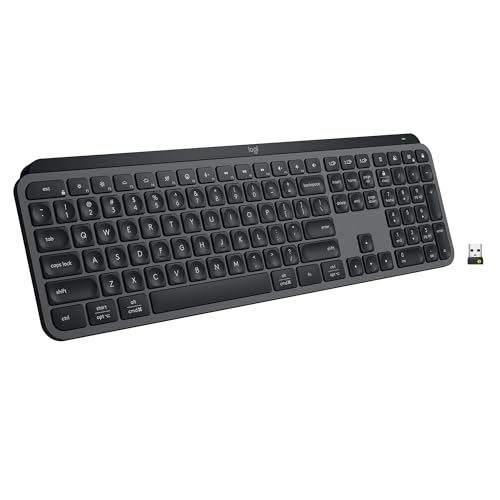
1. Logitech MX Keys S, Graphite
The Logitech MX Keys S in graphite is the keyboard this guide measures the others against, and its listing documents the combination that makes it the default choice for emoji and for typing in general: a low-profile design, USB-C rechargeable power with ten days of battery, pairing with three devices, smart backlit keys that adapt to the environment, and the Logi Bolt USB receiver. The smart actions in Logitech's software are the feature that matters most here: keys can be assigned to open applications, insert text, and trigger shortcuts, which puts the emoji picker a single keypress away. The backlit keys adapt to the light, so the keyboard stays readable in a dim room, and the low-profile keys type quietly and quickly.
Specs: low-profile wireless keyboard; USB-C rechargeable, 10 days battery; pairs 3 devices; smart backlit keys adapt to environment; Logi Bolt USB receiver; graphite.
Strengths:
- Smart actions in Logitech's software can assign the emoji picker to a key, which is the fastest route in this guide.
- Pairing with three devices carries the same shortcuts across a computer, a tablet, and a phone.
- The low-profile keys are quiet and comfortable for long typing sessions.
Trade-offs:
- Ten days of battery is shorter than the months quoted for some wireless keyboards, so it needs regular charging.
- The smart actions need Logitech's software, which must be installed and maintained.
- The low-profile feel suits most typists but disappoints those who prefer mechanical switches.
This keyboard fits the multi-device user who wants the emoji picker on a dedicated key, and who types all day on a computer, a tablet, and a phone.
Best for: multi-device typing with smart actions. Not suited for: mechanical keyboard fans, or buyers who want months of battery life.
Check price on Amazon: Logitech MX Keys S
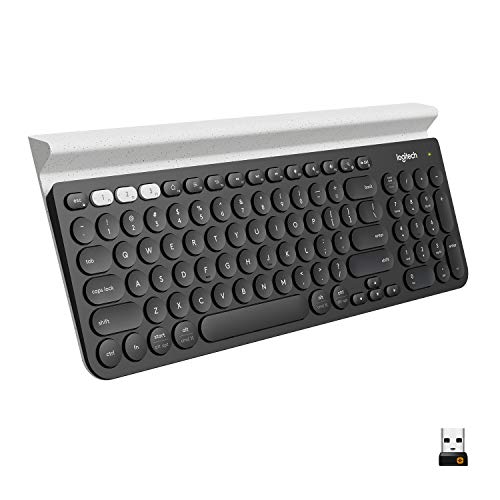
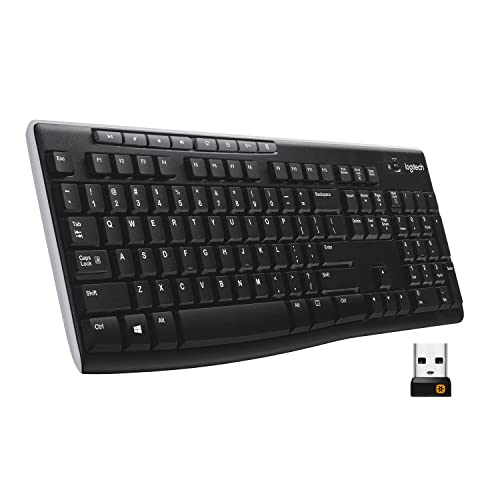
2. Logitech K780 Multi-Device Wireless Keyboard, Speckles
The Logitech K780 in speckles is the multi-device pick in this guide, and its listing documents the practical touch that defines it: a built-in cradle that holds a smartphone and a large tablet together, above the keyboard, while the keyboard pairs with three devices over Bluetooth or USB. The cradle is the feature that makes multi-device typing work in practice, because the phone is visible while the keyboard does the work, and the emoji typed on the phone use the same keyboard as the computer. The compact layout keeps the keyboard small enough for a crowded desk, and the speckles finish gives it a distinctive look.
Specs: multi-device wireless keyboard; built-in cradle; compact keyboard; Bluetooth or USB; type on 3 paired devices; cradle holds a smartphone and large tablet; speckles.
Strengths:
- The built-in cradle holds a phone and a tablet where they can be seen, which is the practical touch for multi-device typing.
- Pairing with three devices carries the same keyboard across a computer, a tablet, and a phone.
- The compact layout fits a crowded desk and a small workspace.
Trade-offs:
- The cradle adds bulk, and the keyboard is heavier than the slimmer picks here.
- The typing feel is comfortable but unremarkable, without the refinement of the MX Keys S.
- The speckles finish is distinctive, and buyers who prefer a neutral colour should look elsewhere.
This keyboard fits the buyer who types on a phone and a tablet as often as on a computer, and who wants the devices visible while the keyboard does the work.
Best for: multi-device typing with a phone cradle. Not suited for: buyers who want the slimmest keyboard, or a neutral colour.
Check price on Amazon: Logitech K780

3. Keychron K2, 75% Layout, RGB, Brown Switch, Version 2
The Keychron K2 in its Version 2 is the customisation pick in this guide, and its listing documents the specification set that defines it: a 75 percent layout with RGB backlighting, Bluetooth wireless, a mechanical design with Keychron Super Brown switches, anti-ghosting, N-key rollover, eighty-four keys, and support for Mac and Windows. The Brown switches give a tactile bump without a loud click, which suits shared spaces, and the 75 percent layout keeps the function row and the arrow keys while dropping the number pad, which saves desk space. The deep customisation is the reason to choose this board: QMK support lets any key carry any macro, including an emoji macro that types a frequently used emoji directly.
Specs: 75% layout RGB Bluetooth wireless mechanical keyboard; Keychron Super Brown switch; anti-ghosting; N-key rollover; 84 keys; Mac and Windows; Version 2.
Strengths:
- QMK customisation lets any key carry an emoji macro, which is the deepest emoji support in this guide.
- The Brown switches give a tactile feel without the noise of clicky switches.
- The 75 percent layout keeps the function row while saving desk space.
Trade-offs:
- The mechanical design is taller and heavier than the low-profile picks, and it takes more desk space.
- Customisation needs setup time, and the software is less polished than Logitech's.
- There is no number pad, which matters for buyers who type numbers often.
This keyboard fits the typist who wants to customise everything, including emoji macros on any key, and who prefers a mechanical feel to a low-profile one.
Best for: customisation and mechanical typing. Not suited for: buyers who need a number pad, or who want the slimmest keyboard.
Check price on Amazon: Keychron K2 Version 2
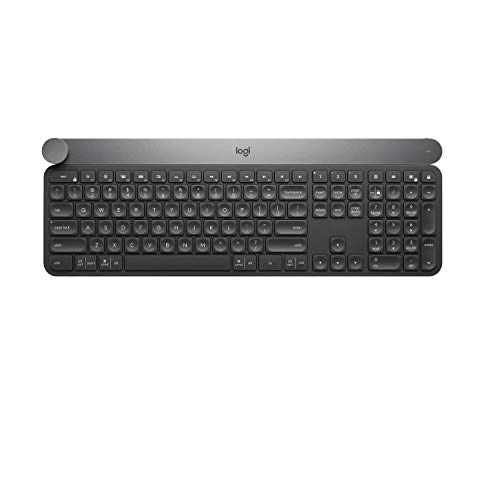
4. Logitech Craft Advanced Keyboard with Creative Input Dial
The Logitech Craft is the creative pick in this guide, and its listing documents the feature that defines it: an advanced keyboard with a creative input dial. The dial sits at the top left of the keyboard and can be assigned to scroll, adjust volume, control brightness, or drive creative applications, which makes it a control that no other pick here offers. For emoji entry, the dial's value is indirect but real: it speeds up the surrounding work, from scrolling through a document to adjusting the volume on a call, and the keyboard's software lets its keys carry the same smart actions as the MX Keys S. The low-profile design types quietly, and the aluminium build gives the keyboard a weight and solidity that the plastic picks lack.
Specs: advanced keyboard; creative input dial; low-profile design.
Strengths:
- The creative input dial adds a control that no other keyboard in this guide offers.
- The low-profile keys type quietly and comfortably for long sessions.
- The aluminium build feels solid and premium on the desk.
Trade-offs:
- The dial is most useful in creative applications, and buyers who never use them will not get its full value.
- The listing documents fewer battery and pairing details than the MX Keys S, so buyers should confirm them before ordering.
- The premium build carries a premium position in the range, and the value case depends on the dial.
This keyboard fits the creative user who wants a dial for their applications, and who values a solid, premium keyboard for long typing sessions.
Best for: creative work with a dial control. Not suited for: buyers who want the deepest emoji customisation, or the lowest price.
Check price on Amazon: Logitech Craft

5. Apple Magic Keyboard with Touch ID, USB-C, US English
The Apple Magic Keyboard with Touch ID is the Mac pick in this guide, and its listing documents the specification set that defines it: a Magic Keyboard with Touch ID, for Mac models with Apple silicon, with a USB-C connection and a US English layout. Touch ID is the feature that matters beyond typing: it unlocks the Mac and authorises purchases with a fingerprint, which removes passwords from the daily routine. For emoji, the Mac pick is the most direct route in this guide, because the macOS emoji picker is a keypress away and the keyboard is designed for the system that shows it. The low-profile scissor keys type quietly, and the aluminium enclosure matches the Mac it pairs with.
Specs: Magic Keyboard with Touch ID; for Mac models with Apple silicon; USB-C; US English.
Strengths:
- Touch ID unlocks the Mac and authorises purchases, which removes passwords from the routine.
- The macOS emoji picker is a keypress away, and the keyboard is designed for the system that shows it.
- The slim aluminium design matches the Mac and takes little desk space.
Trade-offs:
- Touch ID works only on Mac models with Apple silicon, so buyers on Intel Macs or Windows should look elsewhere.
- There is no number pad, and the compact layout will not suit buyers who type numbers often.
- The keyboard is designed for the Apple ecosystem, and its best features do not carry to Windows.
This keyboard fits the Mac user with Apple silicon who wants Touch ID and the fastest route to the macOS emoji picker, in a keyboard that matches the Mac.
Best for: Mac users with Apple silicon. Not suited for: Windows users, Intel Macs, or buyers who need a number pad.
Check price on Amazon: Apple Magic Keyboard with Touch ID

6. Microsoft Surface Keyboard, 2nd Edition
The Microsoft Surface Keyboard in its 2nd Edition is the Windows pick in this guide, and its listing documents a straightforward design: a Surface keyboard, second edition, built for Windows. The Windows emoji panel is a keypress away on any Windows keyboard, and the Surface Keyboard puts that keypress on a slim, quiet board designed for the operating system it serves. The low-profile keys type quietly, the layout is the familiar Windows arrangement, and the keyboard pairs cleanly with Windows devices without extra software. It is the simplest pick in this guide, and its simplicity is the point: nothing to install, nothing to configure, and the emoji panel always within reach.
Specs: Microsoft Surface Keyboard; 2nd Edition; Windows layout.
Strengths:
- The Windows emoji panel is a keypress away, and the keyboard is designed for the system that shows it.
- The slim, quiet design suits an office desk and long typing sessions.
- No extra software is needed, which keeps setup to a single pairing.
Trade-offs:
- The listing documents fewer features than the Logitech picks, with no programmable keys or smart actions.
- The keyboard is designed for Windows, and its best integration does not carry to Mac.
- Buyers who want deep customisation or a mechanical feel should look at the Keychron instead.
This keyboard fits the Windows user who wants a slim, quiet keyboard with the emoji panel a keypress away, and who values simplicity over customisation.
Best for: Windows users who want simplicity. Not suited for: Mac users, or buyers who want programmable keys and macros.
Check price on Amazon: Microsoft Surface Keyboard 2nd Edition
The six at a glance
The table below compresses the differences that matter into the terms used throughout the guide. It describes positioning rather than ranking: the right row is the one whose layout, software, and typing feel match the way emoji are actually typed. Read it alongside the pick sections rather than instead of them, because the table cannot carry the caveats about software and ecosystem that decide between close keyboards.
| Keyboard | Layout | Connection | Emoji route | Best for |
|---|---|---|---|---|
| Logitech MX Keys S | Low-profile, full-size | Bluetooth / Logi Bolt, 3 devices | Smart actions | Multi-device typing |
| Logitech K780 | Compact, cradle | Bluetooth / USB, 3 devices | Multi-device shortcuts | Phone and tablet typing |
| Keychron K2 Version 2 | 75%, mechanical | Bluetooth / wired | QMK macros | Customisation |
| Logitech Craft | Low-profile, dial | Wireless | Smart actions, dial | Creative work |
| Apple Magic Keyboard, Touch ID | Low-profile, compact | Bluetooth / USB-C | macOS picker | Mac users |
| Microsoft Surface Keyboard | Low-profile | Wireless | Windows panel | Windows simplicity |
Matching a keyboard to how you type emoji
Start with the device. A buyer who types emoji mostly on a Mac should look at the Apple pick, because the macOS emoji picker and the Touch ID key are built for that system. A buyer who types mostly on Windows should look at the Microsoft pick or the Logitech picks, because the Windows emoji panel and Logitech's software are built for that system. A buyer who switches between a computer, a tablet, and a phone should look at the multi-device Logitech picks, because the same keyboard and the same shortcuts carry across all three.
Then think about the typing. A buyer who types all day needs a keyboard that feels good after hours, and the low-profile Logitech and Apple picks are the most comfortable for long sessions. A buyer who wants to customise everything, including emoji macros on any key, should choose the Keychron, because QMK goes further than any other software here. A buyer who works in creative applications should look at the Craft, because the dial adds a control that no other pick offers.
Finally, think about the desk. A full-size keyboard suits a desk with room, while a compact keyboard suits a small desk and a bag. The K780's cradle is the practical touch for multi-device typing, holding the phone where it can be seen while the keyboard does the work. Choose the layout that fits the desk, the software that fits the devices, and the feel that fits the hands.
Budget is the last filter, and it should not be the first. A keyboard is used for hours every day, and the difference between the cheapest board and the right board is felt in every message. The picks in this guide span a range of prices, and the cheapest is not the worst nor the most expensive the best. Spend enough to get the layout, the software, and the feel that match the hands and the devices, and treat anything beyond that as a luxury rather than a necessity.
Setup, shortcuts, and care
Setting up a keyboard for emoji takes minutes. Pair the keyboard over Bluetooth or the included receiver, install the manufacturer's software if the model has one, and assign the emoji shortcut to a key or a smart action. On Windows, the system emoji picker is a keypress away; on macOS, it is a keypress away as well, and the Apple pick puts it within easy reach. Test the shortcut on the first day, and make it a habit before the keyboard becomes part of the routine.
Programmable keys deserve a deliberate first session. Assign the most-used emoji or the picker shortcut to the easiest key to reach, and leave the rest for later. A keyboard with ten programmable keys and no plan will stay at its defaults, while a keyboard with one well-chosen assignment will save time every day. The Keychron's QMK support rewards that session more than any other pick here, because any key can carry any macro.
Care is simple: keep the keyboard clean, wipe the keys with a dry cloth, and keep food and drink away from it. A wireless keyboard should be charged before it runs flat, and a keyboard with a rechargeable battery will last longer if it is not left at full charge permanently. None of this is onerous; it is the ordinary care that any daily-use keyboard deserves.
Common mistakes when buying a keyboard for emoji
The most common mistake is believing the keyboard creates the emoji suggestions. It does not: the suggestions come from the operating system and the application. A keyboard bought for its emoji marketing, without a shortcut or a programmable key, will not make emoji any faster. Buy the keyboard for its shortcut, its software, and its feel, not for a picture of an emoji on the box.
The second mistake is ignoring the layout. A keyboard that is too large for the desk, or too small for the hands, will frustrate every message. Measure the desk, try the layout if possible, and remember that a compact keyboard without a number pad is a genuine trade-off for anyone who types numbers often.
The third mistake is buying a keyboard for one device when three are used. A keyboard that pairs with only one device will sit unused when the phone rings, while a multi-device keyboard will carry the same shortcuts across all of them. Check the pairing count before buying, and check that the switching is a keypress rather than a re-pairing.
The fourth mistake is forgetting the software. A keyboard whose extra keys need software that is not installed, or not maintained, will lose its best features. Install the software on the first day, assign the keys deliberately, and keep the software updated.
How emoji suggestions actually work
Understanding where emoji suggestions come from makes the keyboard choice clearer, so it is worth a short explanation. On a computer, the emoji picker is part of the operating system: Windows and macOS both offer a panel that opens with a keyboard shortcut, lets the user type a word to search, and inserts the chosen emoji into whatever application is open. The suggestions in that panel come from the system, not from the keyboard, and they improve as the system learns which emoji the user picks most often. On a phone, the suggestions come from the keyboard application, which predicts emoji from the words typed, and the same learning applies.
That division of labour is why the keyboard's contribution is about access rather than intelligence. A keyboard cannot make the system's suggestions better, but it can make them faster to reach: a shortcut that opens the picker, a programmable key that inserts a favourite emoji, or a multi-device design that carries the same shortcuts to the phone. The picks in this guide were chosen for those access features, and the guide is honest about the boundary: the keyboard opens the door, and the system decides what is behind it.
There are a few habits that make the system's suggestions better over time. Using the picker to search by word, rather than scrolling through categories, teaches the system which emoji match which words. Picking the same emoji for the same meaning, rather than a different one each time, builds a consistent history that the predictions can rely on. And keeping the operating system updated matters, because new emoji are added with system updates, and an outdated system will not suggest the newest ones. None of these habits needs a new keyboard, but all of them work better with a keyboard that puts the picker within reach.
One caution is worth naming: third-party keyboard applications on phones can offer richer emoji predictions, but they also see everything typed, which is a privacy trade-off that deserves thought. The keyboards in this guide rely on the system's own picker rather than a third-party application, which keeps the typing private and the suggestions honest. For most buyers, the system's picker, reached quickly through a good keyboard, is the right balance of speed and privacy.
More keyboard guides on this site
Readers comparing keyboards will find the neighbouring guides useful. The gaming keyboards for 30 dollars guide covers the budget end, while keyboards for college students covers portable use. Buyers who type on tablets should read reviewed wireless tablet keyboards, and gaming keyboards under 100 dollars covers the value end of the same market.
Frequently asked questions
Do keyboards have emoji keys?
Most full-size keyboards do not have a dedicated emoji key, and the emoji suggestions come from the operating system rather than the keyboard. What a keyboard offers is a shortcut, a programmable key, or a smart action that opens the system emoji picker quickly. The picks in this guide all offer a documented route to fast emoji entry, and the notes on each one say how it works.
What is the fastest way to type emoji on a computer?
Open the system emoji picker with its keyboard shortcut, type a word to search, and press enter. On Windows and macOS the picker is a keypress away, and the fastest keyboards in this guide put that keypress within easy reach or assign it to a programmable key. A macro that types a frequently used emoji directly is faster still, and the Keychron pick supports that.
Can I use the same keyboard for my computer and my phone?
Yes, if the keyboard pairs with multiple devices. The Logitech picks in this guide pair with three devices and switch between them at a keypress, and the K780 adds a cradle that holds the phone above the keyboard. The Apple and Microsoft picks are designed for their own ecosystems, and they pair most smoothly there.
Is a mechanical keyboard better for emoji?
Not for emoji specifically, but it can be better for typing in general. Mechanical switches give a tactile feel that many typists prefer, and the Keychron pick lets any key carry an emoji macro, which is the deepest customisation in this guide. Low-profile keyboards are quieter and faster for long sessions, so the choice is about typing feel rather than emoji alone.
Why do my emoji suggestions differ between devices?
Because the suggestions come from each device's own system, and each system learns separately. A computer's emoji picker learns from what is typed on that computer, and a phone's keyboard learns from what is typed on that phone, and the two histories do not sync. Using the same words to search for the same emoji on each device will train both systems to agree over time, and keeping both systems updated keeps the available emoji consistent.
Do I need software to use emoji shortcuts?
No, the system emoji picker works without any extra software, on both Windows and macOS. Software adds programmable keys, smart actions, and macros, which make emoji entry faster, but the basic picker is always available. Install the manufacturer's software to unlock the extra keys, and keep it updated.
Emoji are a small part of writing, and the keyboard that makes them easy is the keyboard that gets out of the way: a shortcut within reach, a layout that fits the hands, and software that does what it promises. Choose the keyboard that matches the devices and the desk, assign the shortcut on the first day, and the emoji will take care of themselves.