Affiliate disclosure: this article contains affiliate links. If you buy through a link on kajuandouglas.com, the site may earn a commission at no extra cost to you.
This keyboard lighting not working fix guide addresses the most theatrical fault a keyboard can have: the board types perfectly while its lights are dead, dim, frozen on the wrong colour, or lit in a pattern that belongs to a different keyboard entirely. Lighting faults feel like hardware deaths and usually are not — the LEDs in a modern board are durable components, while the systems that command them (brightness levels stored in firmware, lighting modes, companion software, USB power budgets, per-key configuration profiles) are a stack of small, resettable decisions, any one of which can present as ‘my lights stopped working’. The fix is almost always in the stack, and the stack can be climbed methodically.
The guide works the problem in the order of probability and effort: the instant checks that revive most boards (brightness shortcuts, mode resets, cable and port power), the software layer where profiles and companion apps override the hardware, the firmware layer where resets and updates live, and finally the genuinely physical faults — and how to prove one before paying for it. Verified products for the physical end of the ladder are reviewed in the middle. The closing sections give the full diagnostic sequence, the mistakes that make lighting faults worse, and the questions owners ask while staring at a dark board that types like nothing is wrong — because nothing else is.
Key takeaways
Work the stack in order: brightness keys (many boards dim to zero and remember it), lighting-mode shortcuts, a different USB port and cable (lighting is the first casualty of a power budget), the companion app’s profile (software overrides hardware silently), a factory reset of the board, then firmware. True LED death is rare and usually partial — one key’s colour channel — while whole-board darkness is almost always a setting, a profile or power.
In this guide
First Principles: Why Whole Boards Go Dark
A keyboard’s lighting is a subsystem with its own power draw, its own controller logic and its own stored state, and each of those is a place darkness can live. Stored state is the most common: nearly every backlit board remembers a brightness level, and the minimum of that range is off — a board dimmed to zero by an accidental shortcut combination, a curious child or a cat’s editorial pass will sit dark indefinitely, typing happily, waiting for someone to press the brightness-up combination its manual lists. Mode state is the second hiding place: boards carry lighting profiles and effect modes, some of which are ‘off’ wearing a name, and a profile switched by software or shortcut can hold the board dark against all hardware fiddling until the profile itself is addressed.
Power is the third principle, and it is physics rather than settings: a full board of bright LEDs is one of the hungriest things on a USB port, and boards fed through unpowered hubs, tired front-panel ports or long passive extensions may light weakly, flicker, or decline to light at all while typing — the lower-power function — continues unbothered. This asymmetry, lights failing before letters, is the diagnostic gift of the category: a board that types but will not light is telling you to suspect its supply and its settings long before its LEDs. The fix keyboard not working troubleshooting guide on this site covers the graver faults where typing itself fails; this guide’s territory is the board that works and merely will not shine.
The fourth principle completes the framework: software outranks hardware. A companion app, a system-level lighting service (operating systems now run their own RGB coordination layers), or a leftover profile from a previous board can hold a keyboard’s lighting under remote control, overriding its onboard shortcuts in ways that make the hardware seem possessed. When the board’s own keys stop governing its lights, a programme on the computer has taken the wheel — and the fix lives in that programme’s settings, not in the board at all. Keep the four principles in order — state, mode, power, software — and the diagnostic sequence below is merely their application.
The Symptom Atlas: Reading What the Darkness Is Saying
Total darkness with perfect typing is the settings-and-power pattern just described; its cure rate at the first two diagnostic rungs approaches totality. Partial darkness tells different stories. A single key dark or the wrong colour usually indicts that key’s LED or its solder joint — red channel dead shows as a key that does cyan and blue but never red or white — and this is the one genuinely hardware-shaped fault in the atlas, addressed at the ladder’s physical end. A zone or row dark suggests a trace or connector issue, or on modular boards a ribbon not fully seated after a cleaning or mod — recent surgery is the clue, and reseating is the cure.
Wrong behaviour has its own entries. Lights frozen on one colour against all commands suggest the board is locked in a hardware profile the software cannot see, or the software is writing to a different device profile than the one connected. Lights that work until the computer sleeps and never return implicate USB power management — the operating system powering the port down and the board failing to renegotiate — cured in the system’s device settings rather than the board’s. Lights dimmer than they were, uniformly, across months: check the brightness memory first, then accept the possibility of a degrading cable quietly rationing power. Each symptom is a sentence; the atlas exists so the owner reads it before reaching for the parts catalogue.
Flicker deserves its own line because it frightens owners disproportionately: rhythmic flicker usually tracks a power negotiation or an effect mode misread as a fault, while random flicker on one key returns to that key’s LED and joint. In all cases the guide’s refrain holds — the pattern is the diagnosis, and five minutes spent naming the pattern precisely saves the unfocused hour of trying everything. Write the symptom down in one sentence before touching a setting. The sentence will tell you which rung of the ladder to start on, and, just as usefully, which rungs to skip.
The Software and Firmware Layers, Where Most Ghosts Live
Companion software is the lighting system’s capital city, and most persistent faults are governed from there. The methodical pass runs: open the board’s own app and confirm it sees the board; check which profile is active and whether its lighting page shows brightness at zero or an effect set to a static dark colour; look for a per-key configuration that has black assigned where colour was expected; and check whether a second lighting authority — the operating system’s dynamic lighting service, another brand’s RGB suite left from a previous board — is also claiming the device, because two authorities writing to one board produce exactly the haunted behaviour owners describe. One authority, chosen deliberately, is the stable configuration.
Firmware is the layer beneath, and its tools are the reset and the update. A factory reset — every board has a key combination or a configurator command for it — clears the stored state stack in one stroke: brightness memories, profiles, mode confusion, the accumulated ghosts of a year of shortcuts. It costs the owner their customisations, which is why it sits mid-ladder rather than first, and why the keyboard firmware QMK VIA guide in this cluster preaches exporting configurations before they are needed. Firmware updates, in turn, occasionally carry lighting-controller fixes for faults that were never the owner’s settings at all; a board whose darkness began on a specific date should have its maker’s update history read with that date in mind. Between the reset and the update, the software stack’s cures are exhausted — and most boards are lit again long before this paragraph ends.
QMK and VIA boards add a configurator dimension: lighting there is governed by firmware-level toggles and keycodes (the RGB and LED control keys that can be mapped, unmapped or accidentally assigned), and a board whose lighting keys were remapped away in an enthusiastic layout session will appear broken to exactly the degree its owner was creative. The configurator’s lighting page and a default keymap flash are that world’s reset and update. The principle survives translation across every ecosystem in this section: the lights are software all the way down to the last millimetre, and software can be returned to a known state — which is the most reassuring sentence in this entire guide.
Keyboard Lighting Not Working Fix Guide: The Shortlist
The physical end of the ladder needs little: a cable that can actually feed the board, a powered hub for desks whose ports ration current, and — for the rare convicted LED — the soldering path’s entry kit. The parts and boards below were each found in Amazon catalogue data that this site verified directly.
Braided USB-C Cable
The power suspect, replaced
- USB-C, braided jacket
- Full power and data specification
- Lengths for desk routing
- The first physical swap in the diagnosis
A cable is the cheapest physical suspect in any lighting case and the correct first purchase when the ladder reaches hardware: cables degrade invisibly — conductors fatigue at the strain reliefs, resistance creeps up — and lighting, the board’s hungriest function, is where a rationing cable shows itself first, as dimness, flicker or darkness that a known-good cable cures in one swap. The diagnostic value alone justifies the drawer having one: every future lighting or connection mystery on the desk gets its first experiment free.
Buy the specification honestly — a cable rated for data as well as charge, at the length the desk’s routing actually needs per the how to hide your keyboard and mice cables measurements — and let braiding be the durability feature it is rather than a colour choice. If the new cable cures the board, the old one leaves the desk’s ecosystem entirely; a cable convicted of rationing power will be re-trusted by someone, someday, and will ration again.
Strengths
- Cures the commonest physical cause
- Doubles as the desk’s diagnostic spare
- Costs less than any other rung’s parts
Trade-offs
- Useless if the fault is in settings
- Length must suit the routing
- One more cable to manage
Best for: Dim, flickering or port-sensitive boards.
Not suited for: Boards dark since a software update — start in the app.
Powered USB Hub
The power budget, solved
- Externally powered hub
- Per-port current headroom
- Data and charging ports
- Desk-permanent infrastructure
Desks accumulate powered peripherals until the computer’s ports — especially front-panel and laptop ports — are a rationing system, and the keyboard’s lighting is the ration’s first visible casualty. A powered hub ends the arithmetic: its own supply feeds the board and its neighbours at full specification, and lighting faults that tracked ‘which port, which hub, what else is plugged in’ simply stop occurring. For multi-board, multi-device desks it is infrastructure rather than accessory, and its diagnostic testimony is equally valuable — a board that lights perfectly on the hub and sulks on the motherboard has told you where its problem lives, permanently.
Placement follows the cable-management discipline: the hub lives in the under-desk tray with the power strip, its uplink routed once and bound, its ports facing the desk’s working edge. Buy headroom — ports and current beyond today’s census — because the hub, like the tray it sits beside, is a system the desk grows into. The board’s lights, fed properly at last, become the least interesting part of the setup, which is what infrastructure is for.
Strengths
- Ends power-rationing faults for every device
- Diagnostic clarity about port problems
- Grows with the desk’s device census
Trade-offs
- Costs more than a cable swap
- Adds a powered brick to the tray
- Overkill for a one-device desk
Best for: Multi-device desks and laptop docks.
Not suited for: Single-board desktop setups with healthy ports.
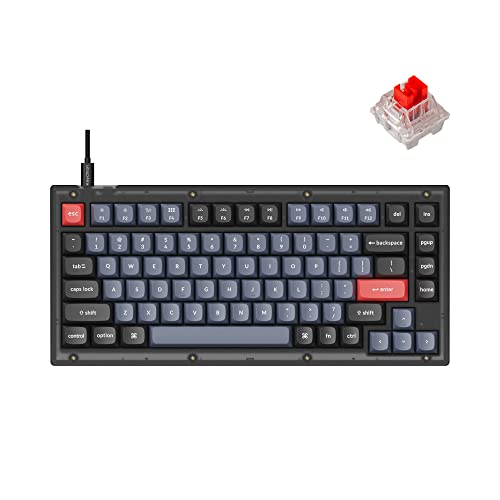
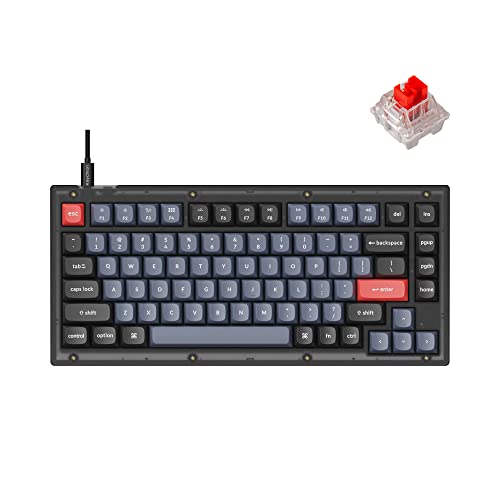
Keychron V1
The known-state reference
- 75 percent, hot-swap
- QMK/VIA with full lighting control
- Per-key backlight models in the line
- Factory reset via configurator
A fix guide may fairly include the board whose lighting system is the most legible in the business: on the V1, every lighting behaviour — brightness, effect, per-key colour on its backlit models — is governed through the open QMK/VIA stack, where the controls are documented, the reset is total, and no companion app can silently override the hardware because the configurator is the authority. Owners migrating from a haunted proprietary stack discover that a lighting system they can fully inspect is a lighting system that stays fixed, and the board’s entry price makes the migration a rational response to an otherwise incurable software tangle.
This is not a claim that other boards’ lights are unreliable — the ladder above cures the overwhelming majority in place — but a recognition that a small residue of faults are really ecosystem mismatches between a board’s software and a desk’s other software. For that residue, moving the board into the open stack is the definitive rung, and it is cheaper than the hours it replaces. The guide lists it without embarrassment: sometimes the fix for a lighting system is a better-governed one.
Strengths
- Lighting fully inspectable and resettable
- No silent software overrides
- Entry price for the open stack
Trade-offs
- A new board is a big rung on any ladder
- Plastic case, modest sound
- Migration effort for existing setups
Best for: Owners whose faults trace to software ecosystems.
Not suited for: Anyone whose board is one reset from healthy.
The Physical End: Dead LEDs and What Honesty Requires
When the ladder’s every software rung has been climbed and one key still will not show red, the fault is the LED or its joint, and the guide’s duty is to price that honestly. On most boards the LED is a surface-mount component soldered beside or inside the switch’s position; replacing it is a soldering job of moderate delicacy — entirely learnable, genuinely fiddly, and worth it chiefly for boards whose value is sentimental or flagship. The diagnostic proof before any iron heats: the dead channel is consistent across computers, cables, profiles and resets, and its neighbours behave. Anything less is a software ghost wearing a hardware costume, and the iron does not exorcise ghosts.
The economics deserve their sentence: a single dead colour channel on one key is, for most owners, a cosmetic fault on a working instrument, and the rational responses include living with it (remapping that key’s colour to a palette the surviving channels can make is the connoisseur’s workaround) or warrantying the board if its term remains. The guide’s ladder exists to find the cheap cures; its honesty consists in naming the point where the cure’s price exceeds the fault’s. A keyboard is for typing, and its lights — this entire article notwithstanding — are the one subsystem whose total failure leaves the instrument fully itself. Perspective is the final rung, and it is free.
Keeping the Lights Governed: a Small Maintenance Doctrine
Lighting systems stay healthy under the same doctrine as the rest of the board: one authority, known state, changes made deliberately. Choose the board’s own app or the operating system’s lighting service — not both — and let the loser be disabled rather than merely ignored, because ignored software wakes up after updates and reasserts itself. After any firmware update, spend the two minutes the release notes deserve; lighting behaviour is a frequent passenger in updates, and knowing it changed beats discovering it. Keep the board’s lighting shortcuts on a note until they are reflexes — the brightness combination especially, since its accidental invocation is the commonest ‘fault’ in the entire category.
And keep the physical layer boring: the board fed from a healthy port or the powered hub, its cable unstrained and unswapped with charging-only leads of unknown specification, its firmware’s configuration exported alongside the keymap per this cluster’s standing advice. Governed this way, a lighting system should give its owner years of silence on the subject — which, for a subsystem whose entire job is to be looked at, is the paradoxical definition of working perfectly. The lights you never think about are the lights that are working.
How Keyboard Lighting Actually Works: A Circuit Tour
A fix guide’s diagnoses sharpen when the system’s normal operation is understood, so this expansion tours the lighting circuit end to end. Power arrives from the USB connection or the battery, budgeted: the USB specification’s current is a real constraint, and a board’s full-white, full-brightness array can approach it, which is why some boards dim on unpowered hubs and why the hub pick in the main guide exists. The current reaches the LEDs through driver circuitry — on simpler boards, a controller switching rows of a matrix; on per-key RGB boards, dedicated driver chips or LEDs with integrated drivers, addressed by a data chain that visits each light in turn. That chain architecture explains the fault signatures the ladder reads: a data chain broken at one LED silences every light downstream of it while its upstream neighbours burn on, a pattern no power fault produces, and the single most informative symptom in RGB diagnosis.
The microcontroller conducts: it holds the lighting state, receives the host’s commands where the board supports them, and runs the effects. Its firmware is thus a lighting component, and its corruption or its confusion — the state desynchronised between the board and the vendor’s software — produces the faults that resets cure, because a reset is the conductor re-reading the score from the top. The switch-socket geography matters too: on boards where the LED sits in or under the switch, a switch swap can unseat, bend or occlude a light, which is why the ladder asks what changed, and why ‘the lighting died after I swapped switches’ has a mechanical answer more often than an electronic one.
And the tour’s last stop is the light’s exit: the keycap. Shine-through legends are windows; opaque caps make the lighting a halo effect around the keys’ bases, and a board whose caps were changed from shine-through to solid has not lost its lighting — it has changed its architecture, a transformation the main guide’s keycap section prices. Owners who understand the tour can locate any fault on it — power, chain, conductor, exit — and the ladder’s rungs are simply the tour revisited with tools. Diagnosis is geography, in lighting as in latency: know the country and the fault has an address.
Per-Key RGB Failure Patterns, Decoded
Per-key systems fail in patterns, and each pattern is a sentence in the chain’s language that this section translates. One key dark, its neighbours lit: the fault is at that key — its LED, its solder joints, or, on hot-swap boards, the switch above it occluding or its socket’s LED window misaligned by a switch seated fractionally off. A contiguous run of keys dark, starting mid-row: the data chain is interrupted at the run’s first dark key, and the repair — beyond this guide’s ladder for most owners — is that LED’s replacement, which is why the ladder’s honesty about the technician’s rung matters. A whole row or column dark on a matrix-lit board points at the row’s driver or its trace. The whole board dark with the typing alive is the power-or-firmware fork the ladder opens with; the whole board dark with the typing dead is not a lighting fault at all but the board’s own obituary, and the fix keyboard not working troubleshooting guide is the correct door.
Colour faults speak their own dialect. A key that shows the wrong colour — red where the array shows white, a permanent tint — has lost one of its three channels: the LED’s green or blue element, or its share of the data, has failed, and the key displays the arithmetic of what remains. A board whose whites lean pink or green uniformly is usually not faulty at all but calibrated — its LEDs’ binning, the manufacturing variance that the premium tier pays to tighten — or its white point is set by software that believes it is displaying white through a colour profile. The distinction between fault and calibration is the owner’s first judgement on any colour complaint, and the test is uniformity: variance key-to-key is fault; a uniform cast is character.
Flicker is the dialect’s third sentence. A flicker synchronised across the board at a steady rate is a power negotiation — the hub, the cable, the port’s current — speaking. A flicker localised to one key is that LED’s joint or element dying. A flicker that appears only in photographs and videos is not a fault at all but the LEDs’ pulse-width dimming beating against the camera’s shutter, the same phenomenon the how to take better photos of your keyboard among other things guide teaches photographers to expose around. Three flickers, three countries of cause — power, component, perception — and the ladder that treats them as one will cure none of them reliably.
Software States: Profiles, Layers and the Host’s Opinions
A modern board’s lighting lives in at least three places at once — the board’s onboard memory, the vendor software’s profile, and the operating system’s or a third-party signal service’s stream — and a large share of ‘faults’ are disagreements among the three about what the lights should be doing. The onboard state is what the board shows with no software running: the truth you see on another computer, in the BIOS, at the login screen. The vendor profile is an opinion that must be loaded to rule. The signal services — the open RGB ecosystems — are a third government, capable of overriding both while they run and of leaving the board in their last commanded state when they close. The owner who does not know which government is ruling cannot diagnose a coup, and most lighting mysteries are coups: software updated, a profile switched by a hotkey’s accidental press, a second RGB service inheriting the board at startup.
The diagnostic discipline follows: establish the onboard truth first, with all software closed and then with the board on a second machine, because that divides the world into the board’s faults and the host’s opinions in one move. Then admit the governments one at a time — vendor software, then signal service — watching the lighting at each admission. The fault that arrives with a government belongs to that government: its profile, its update, its conflict with the other government, which should never rule simultaneously. Two RGB services commanding one board is the lighting world’s war of succession, and its symptoms — flicker, partial control, settings that revert — impersonate hardware failure convincingly enough to have sold many owners new boards they did not need.
Layer-linked lighting deserves its own warning, because it is the coup nobody notices staging. Boards that tint by layer — a genuinely useful feature, the firmware’s flag for the typist’s current country — will appear to ‘change colour randomly’ to an owner who triggers layers without realising, via a sticky key or a mod-tap’s new timing. The keyboard firmware QMK VIA guide‘s configuration literacy is the cure: read your own keymap’s lighting rules before diagnosing their obedience as a fault. The board is frequently innocent, the configuration is frequently forgotten, and the manual — yours, in the keymap file — is the witness that settles it.
Power Budgets: The Physics of Dim
Dim lighting is the fault most often misdiagnosed as decline, when it is usually arithmetic. An LED array’s brightness is bought with current, and the current is budgeted by the source: a USB 2.0 port’s standard allotment, a hub’s division among its children, a battery’s conservation policy, a laptop’s power plan. A board at full white on an unpowered hub is spending from an account the hub does not hold, and its dimming — or its browning whites, the colour of undervoltage — is the account’s statement, not the LEDs’ age. The test costs nothing: a direct port, the board’s own cable, full brightness. The board that recovers was never faulty, and the ‘fix’ is the powered hub or the direct connection, permanently installed as the desk’s policy rather than rediscovered monthly.
Wireless boards run the same arithmetic on a battery’s terms, with a policy layer on top: most dim or extinguish their lighting as the charge falls, by design, and the owner who reads the dimming as failure is being protected from a flat battery by a board too polite to explain itself. The manual states the thresholds; the how to hide your keyboard and mice cables guide’s charging discipline prevents the state from arriving mid-session. And brightness itself has a physics worth knowing: LED output against current is not linear at the top of the range, so the last brightness steps cost disproportionate power for invisible gains — the board run at eighty percent lives nearly twice as long per charge as the board run at a hundred, a trade every wireless owner should make with open eyes.
Age, when it does come for LEDs, arrives as the tour would predict: gradually, uniformly-ish, over years of high-brightness service, faster for the colours driven hardest. It is the last explanation a dim board deserves, behind power, policy and software — the ladder’s ordering again, cheapest and commonest first. The owner who replaces a board for ‘tired LEDs’ that a direct port would have resurrected has paid the tuition this section exists to refund: in lighting, as in chatter, the power supply is the first suspect, the software the second, and the component itself a distant, well-evidenced third.
When the Repair Is Real: LEDs, Boards and Honest Limits
Some lighting faults are genuinely component deaths, and this guide’s credibility requires their honest treatment. A dead LED on a soldered board is a board-level repair: the LED is a surface-mount component whose replacement wants a hot-air station, a steady hand and a donor part of the correct specification — a technician’s job for nearly all owners, priced against the board’s value with the same arithmetic the chattering guide applies to switches. A dead driver or a cut trace is a deeper repair still, and on many boards it is the end of the lighting’s story while the keyboard types on, fully useful, in the dark — a state its owner may accept, mitigate with a desk lamp’s honest light, or answer with the board’s replacement when the rest of its service no longer justifies the darkness.
The hot-swap era has quietly changed the repair’s odds in one specific way: boards whose LEDs are socketed with the switches, or mounted on the switch itself in some designs, put the light within the owner’s reach — a switch swap can carry the LED with it. Know your board’s architecture before mourning its lights; the manual and the maker’s documentation state it, and the keyboard pcbs guide types features guide’s PCB literacy is the background that makes the statement readable. Where the LED is the switch’s passenger, the ladder gains a rung; where it is the board’s citizen, the technician’s number is the rung, and both are respectable places for a guide to end.
And the section’s closing honesty is about value: lighting is the board’s most expendable system, the one whose total failure costs the typing nothing, and repair decisions should be made in that light — literally the last system to justify a board’s replacement, and the first to be sacrificed to a budget. Owners who love their lights are not wrong; they are patrons of the board’s jewellery, and patronage is priced like any other. The guide’s position is simply that the price be known: a technician’s hour, a board’s remainder, a lamp’s ten minutes of shopping. Choose with the numbers in view, and no outcome — repaired, replaced or serenely dark — is a defeat.
Keeping the Lights: A Maintenance Postscript
Lighting systems ask little maintenance, but the little has the usual leverage. The LEDs’ lenses collect the desk’s film like every surface; a board cleaned on the how to remove mechanical keyboard keys calendar keeps its lights at their designed brightness, while a neglected board’s dimming-by-grime is regularly misdiagnosed as electrical decline. The software wants its own housekeeping: one RGB government at a time, its version current, its profiles backed up with the keymap — because a lighting profile is a document like any configuration, and its loss to a reinstall is a small, preventable bereavement. The cable and port, the power budget’s custodians, want the direct connection that the desk’s final arrangement should provide by default.
Brightness discipline is the maintenance with a lifespan attached: run the array at the brightness the room needs rather than the maximum the menu offers, and the LEDs’ years multiply while the photographs — exposed for the actual light — improve as a side effect. Heat is the LEDs’ quiet enemy and full brightness in a warm room is their hardest service; the board on a sunlit desk with its lights at maximum is ageing two systems at once for an audience of nobody. None of this is asceticism — the lights exist to be enjoyed, in the evening, at the desk’s social hours. It is the allocation of a finite resource to the hours that appreciate it, which is this cluster’s definition of ownership in every domain it touches.
And the postscript’s last line belongs to the owners whose boards have no lights at all, reading a fix guide for a system they declined: your boards will never need this article, and that was a legitimate purchase criterion, priced in several of this cluster’s guides. The lit board’s owner and the unlit board’s owner have made the same decision in opposite directions — how much jewellery a tool should carry — and the maintenance postscript respects both. The lights, kept or forgone, are a preference with a service schedule. Everything else in the keyboard is a mechanism with one. Know which of your board’s systems is which, and you will never again pay a mechanism’s price for a preference’s fault.
Lighting and the Sale: Disclosure, Photographs and Honest Listings
A board’s lighting becomes a term of its sale the moment it is listed, and this closing section applies the fix guide’s knowledge to the marketplace, where it is worth money in both directions. The seller’s duty is the state, stated: which zones work, which key has lost a channel, whether the fault is a component or a configuration — because a lighting fault disclosed is a price adjustment, while a lighting fault discovered is a dispute, a return and a reputation’s small funeral. Photograph the board lit, in the dark, at the effect the buyer will use, and include the unlit daylight photograph as well: the pair is the lighting’s honest portrait, and it sells the board faster than the glow alone, because buyers have learned to read a listing’s omissions as its confessions. The seller who has kept the board’s records — the fault log, the ladder’s notes — can answer the buyer’s questions with evidence, and evidence, in this market, is the premium’s whole substance.
The buyer’s reading inverts the same knowledge: a listing that shows the board dark in every photograph is telling you something by the omission, and the question — lit, in the dark, all zones — costs one message and prices the answer or the silence equally. A board whose lighting fault is disclosed and diagnosed (one LED, one channel, the ladder’s notes attached) can be a genuine bargain: the typing is unaffected, the repair is bounded, and the discount for a dark key regularly exceeds the technician’s price for curing it. The buyer who has read this guide can price that arithmetic while other buyers price only their fear — which is the final form of the guide’s usefulness, and a fair place for it to end: the fault that sent its first owner to a search engine at midnight becomes, in the hands of its tenth, a line item with a number, calmly negotiated in daylight.
The Full Diagnostic Sequence, in Order
Work down; stop the moment the lights return and note which rung cured it — that note is the diagnosis if the fault ever recurs.
- Press the board’s brightness-up shortcut (consult the manual’s lighting page; it is usually Fn with an arrow or a dedicated key) several times. Then try the lighting-mode cycle shortcut. A third of all cases end here, in under a minute.
- Unplug and reconnect the board; then move it to a different USB port — a rear motherboard port if it was on a hub or front panel — with the board’s own cable. Retest the lights before changing anything else.
- Swap in a known-good data cable. If the board lights, the old cable is convicted; retire it rather than demoting it to another device.
- Open the board’s companion app: confirm the device is recognised, identify the active profile, raise its brightness, and set a simple static effect. Check for a second lighting authority (OS dynamic lighting, another brand’s suite) and disable all but one.
- Perform the board’s factory reset per its manual, then retest before restoring any customisation. If the lights return, restore settings gradually — the fault may live in one restored profile, and gradual restoration will catch it in the act.
- Check the maker’s site for a firmware update whose notes mention lighting, and apply it per instructions. On QMK boards, reflash the default keymap as the equivalent total state.
- If a single key or zone remains dark after all of the above, across a second computer as well, the fault is physical: pursue warranty, the LED repair, or the palette workaround — in that order of cost.
Lighting-Fix Mistakes That Deepen the Mystery
Changing five things at once.
New cable, new port, reset, app reinstall, firmware flash — and the lights return, leaving the owner with no idea which ghost was exorcised and no defence when it returns. The ladder’s order is also its method: one rung, one test, a note. Lighting faults recur along the same lines they arrived by, and the note is the only map back.
Assuming darkness means death and ordering parts.
The parts cannon again, in its most expensive costume: replacement boards bought for faults that a brightness shortcut held. Whole-board darkness is a settings symptom until the ladder proves otherwise, and the proof costs an hour at most. Spend the hour; it is the cheapest diagnostic in the hobby.
Fighting two lighting authorities without noticing the second.
The board obeys its app in the morning and the operating system’s service after the update, and the owner concludes the hardware is intermittent. Software conflicts are diagnosed by inventory, not by repetition: list every programme on the machine that can write to a keyboard’s lights, then reduce the list to one name.
Resetting before exporting.
The factory reset is the ladder’s great cleanser and its small tragedy: a year of per-key artistry and profiles, gone in the cure. Export first — the configurator and app both provide the means — and the reset becomes the free, fearless tool it should be. The cluster’s firmware guide preaches this for keymaps; it applies to lighting with equal force.
Feeding a flagship board through a bargain hub and blaming the board.
Power is a specification, not a hope. A board whose lights flicker on a bus-powered hub and shine on a direct port has delivered its diagnosis plainly; replacing the board repeats the experiment with a more expensive subject. Feed the instrument properly, then judge it.
Running two RGB control programs at once.
Vendor software and a signal service commanding the same board produce exactly the symptoms — flicker, reversion, partial response — that owners diagnose as hardware death. The governments must be reduced to one before any other diagnosis is meaningful. Check what starts with your computer; the second service is often a forgotten installation from a previous board, ruling a keyboard it has never met from beyond its own uninstall.
Frequently asked questions
Why do my keyboard lights turn off when the computer sleeps?
Usually power management: the operating system suspends the USB port, and the board’s wake behaviour decides whether lighting returns with the session. Fixes live in the system’s device settings (disable selective suspend for the board or its hub), in the board’s firmware options, or in accepting a reconnect as the ritual. If typing also fails on wake, the fault graduates to the general troubleshooting guide’s territory.
One key shows the wrong colour. Is the LED dying?
Probably one channel of that key’s RGB LED has failed or its joint has cracked — the key that cannot make red will render whites as cyan-tinted and reds as black, which is the signature to check. Confirm it survives resets and a second computer; then it is the physical fault described in this guide, with warranty, repair or a palette workaround as the honest options, in ascending order of effort.
My lights work in the app preview but not on the board. Why?
The app is writing to a profile or device the board is not currently running — a different connected device, a disconnected profile, or a board in a mode (such as a hardware or Bluetooth mode) that the app cannot reach. Connect by cable, confirm the app’s device name matches the board in hand, and apply the profile explicitly. Mode mismatches of this kind are the software layer’s commonest practical joke.
Can lighting be turned off permanently for a distraction-free desk?
Yes — brightness to zero is a stored state on most boards, lighting modes include an off setting, and apps and configurators all expose a master toggle. Set it once through the board’s own authority and it persists. Owners of boards whose lights return after resets should check for a software authority reapplying a profile, per the doctrine section — permanence is a governance question, not a hardware one.
Do LEDs wear out or dim with age?
LEDs dim very slowly across tens of thousands of hours — far beyond a keyboard’s other lifespans — so uniform dimming in a young board is almost never ageing; it is brightness memory, power rationing or a profile. Genuine age-related dimming arrives as a board-wide mellowing over many years and is best answered by the brightness control’s remaining headroom. One key dimming alone returns to that key’s LED and joint.
The lighting worked until I remapped keys. What happened?
On configurable boards, the lighting controls are themselves keys in the map, and an enthusiastic remapping session can unassign the brightness and mode keys — leaving a healthy lighting system with no controls on the board. Restore them from the configurator’s lighting keycodes, or reset the keymap to defaults and rebuild the layout with the lighting keys protected this time. The board was never broken; its light switches were given away.
One key’s backlight is a different colour. Is the LED dying?
Probably one channel of it has — an RGB LED is three lights in one package, and the loss of one (most often noticed when whites go pink from a dead green, or cyan from a dead red) leaves the key displaying the sum of the survivors. Confirm by setting the board to display each pure colour in turn: the key that cannot show green has told you its diagnosis. The repair is that LED’s replacement — a technician’s rung on most boards — while the typing is entirely unaffected, which sets the repair’s urgency at your convenience rather than the fault’s.
My keyboard lights turn off when my laptop sleeps. Is that a fault?
No — it is the host’s power policy withdrawing the USB bus’s current, and the board obeying physics. If you want the lights maintained (for a board used as a night light, or a wireless board charging), the settings live on the host’s side: the USB selective-suspend and power-plan options, or a powered hub that holds its ports live independently. A wireless board’s sleep behaviour is its own firmware’s policy, usually adjustable in its software — and worth adjusting knowingly, since a board that lights all night is spending its battery on the performance.
A dark keyboard that types perfectly is not a dying keyboard; it is a healthy instrument with one subsystem holding a wrong setting, a stale profile, an underfed port or an overriding programme — and the ladder in this guide reaches all of them before it reaches for a soldering iron. That ordering is the article’s whole argument: state, mode, power, software, and only then hardware, because the probabilities run that way and so do the prices. Work it in order, change one thing at a time, and write down what cured it.
When the lights return — as, rung by rung, they nearly always do — take the doctrine section’s small precautions so the darkness stays a story rather than becoming a subscription: one lighting authority, an exported configuration, a healthy port. The board will go back to being judged on its typing, which is as it should be. Its lights, governed and glowing, can return to their proper role: the desk’s quiet ornament, noticed only when someone new sits down and says the setup looks great — which, after this fix, it does.