Figuring out how to speed up a smartphone is usually the first thing people search when a once-quick phone starts pausing before opening apps, stuttering through menus or taking an age to load the camera. The encouraging truth is that most slowdowns come from fixable software causes: nearly full storage, years of accumulated apps, background processes and pending updates, not from the hardware suddenly wearing out.
This guide works through the fixes in the order that delivers the biggest improvement for the least effort, from a proper restart and storage clean-up to deeper steps like reviewing background apps, updating software and, as a last resort, a factory reset done safely. No tools or technical knowledge are needed beyond your phone’s own settings.
Disclosure: As an Amazon Associate, kajuandouglas.com earns from qualifying purchases. Links to Amazon on this page are affiliate links; they cost you nothing extra. Listing details such as price and availability change often, so check the current Amazon listing before you buy.
The Short Answer
Restart the phone properly, then free storage until at least a tenth of it is empty, because full storage is the single most common cause of slowness. Update the operating system and your apps, remove or disable apps you no longer use, and restart again. Most phones feel noticeably quicker after just those steps; the deeper fixes in this guide handle the stubborn cases.
In this guide
Gear for This Guide
If slow performance is really a storage problem, fast external storage and a modern replacement phone bracket the two ends of the solution.
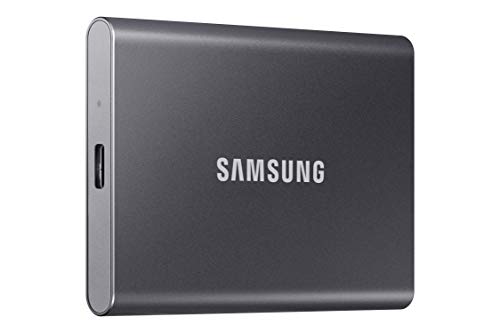
Samsung T7 Portable SSD 1TB Titan Gray, USB 3.2 Gen 2, Up to 1,050MB/s — A fast portable SSD that makes it painless to move years of photos and videos off the phone, freeing the internal storage that speed depends on. Check price on Amazon.

SANDISK 256GB Extreme microSD Card + Adapter, Up to 190MB/s Read Speeds — A high-speed microSD card for Android phones that support expandable storage, useful for moving media off internal memory. Check price on Amazon.

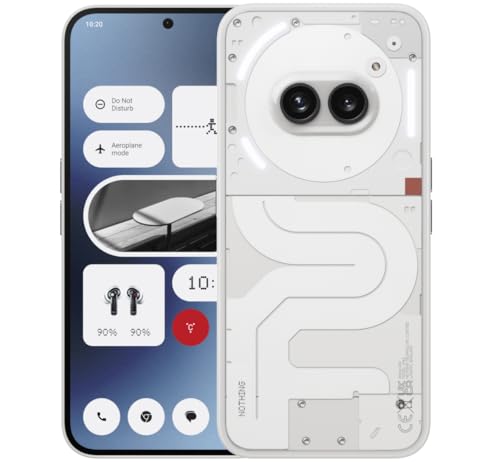
Nothing Phone (2a) — A current mid-range phone with modern storage and memory, for the point where an old handset’s hardware, not its software, is the real limit. Check price on Amazon.
Why Phones Slow Down Over Time
A phone rarely slows because its processor got weaker; it slows because the work it is asked to do grew. Apps get bigger and busier with every update, photos and videos accumulate until storage is nearly full, and dozens of apps quietly run background tasks — syncing, tracking location, pre-loading feeds — that compete for memory and processing time. The result is a phone that hesitates even though its hardware is unchanged.
Storage deserves special attention. Flash storage slows dramatically as it fills, because the system needs free space to shuffle data during writes, and the operating system itself needs room for caches and update files. A phone with only a few hundred megabytes free can feel broken: apps crash, the camera refuses to save, and updates fail. Keeping a healthy buffer of free space is the highest-value maintenance habit there is.
Age still plays a part eventually. Batteries degrade and, on some phones, the system reduces peak performance to protect a weak battery. Apps also raise their minimum requirements over the years. But in our experience the majority of ‘my phone is so slow’ complaints trace back to storage, background load and skipped updates — all fixable in an afternoon.
How to Speed Up a Smartphone Step by Step
Step 1: Restart it properly
Hold the power button and choose Restart, or power off, wait thirty seconds, and power on. A real restart clears temporary memory, ends stuck processes and applies pending system changes. Phones that run for months without a restart accumulate exactly the cruft this clears.
Step 2: Free up storage aggressively
Open storage settings and sort by size. Delete downloaded videos and podcast backlogs, clear the downloads folder, remove large games you no longer play, and move photos and videos to a computer or cloud library. Aim to free at least ten percent of total storage, and more on older phones.
Step 3: Update the system and apps
Install any pending operating system update, then update all apps from the store. Updates routinely include performance fixes and remove the inefficiency of mismatched old apps running against a newer system. Enable automatic app updates afterwards so the phone stays current without effort.
Step 4: Remove or disable apps you do not use
Scroll your full app list and uninstall anything untouched for months. For pre-installed apps that cannot be removed, use Disable where offered, which stops them running or updating. Fewer apps means fewer background tasks, fewer notifications and fewer update cycles competing for resources.
Step 5: Tame background activity
In battery or app settings, find which apps consume the most background power and restrict the ones that do not need to be live, such as shopping or news apps. Keep messaging, email and navigation unrestricted so you do not break the alerts you actually rely on.
Step 6: Clear the cache of problem apps
If one specific app is slow or bloated, clear its cache from app settings — this removes temporary files without deleting your account or data. Avoid clearing app data unless you are prepared to sign in and set the app up again from scratch.
Step 7: Reduce visual effects
Turning off or shortening animations in accessibility or developer settings makes any phone feel snappier, especially older models, because menus and app switches complete faster. Reducing live widgets and animated wallpapers also lightens the load on the home screen.
Step 8: Factory reset only as the last resort
If the phone is still slow after everything above, back up completely, then factory reset and set up fresh, reinstalling only the apps you use. A clean start removes years of accumulated settings and data conflicts. Treat this as the final step, not the first, and never reset without a verified backup.
Habits That Keep a Phone Fast
Speed is maintained, not achieved once. Keep storage below about eighty-five percent full by reviewing it every few months, and let photos back up automatically so deleting local copies is painless. Restart the phone every week or two; it takes a minute and prevents the slow build-up of stuck processes that makes phones feel tired.
Be selective about new apps. Every app is a background tenant competing for memory, battery and your attention. If a website works fine in the browser, you may not need its app at all. When you do install, check what the app asks to do in the background and deny what it does not need.
Finally, watch the battery’s health. A badly degraded battery can cause both poor endurance and, on some phones, reduced performance. If your phone is fast when plugged in but sluggish on battery, or shuts down with charge remaining, a battery replacement at an authorised service centre can restore both speed and stamina far more cheaply than a new phone.
Deeper Causes Worth Checking
If the standard clean-up leaves the phone slow, look at three deeper causes before concluding the hardware is finished. The first is a failing or nearly full storage chip’s companion problem: a phone that has been completely full for a long time may need the space freed and then a full restart and a day of use before performance recovers, because the system has deferred maintenance it could not perform. Judge the result after that settling period, not in the first hour.
The second is heat damage and battery condition interacting: a phone that has lived hot — years of dashboard navigation, gaming while charging, summers in a work van — may have a battery whose internal resistance has risen, so it cannot deliver peak power and the system compensates by slowing down. Battery health readings, where the phone offers them, plus the pattern of slowness improving while plugged in, point at this cause, and a battery service is its cure.
The third is a single badly behaved account or sync service: a corrupted calendar sync, a photo library stuck re-uploading the same files, or a work profile fighting the system can consume resources invisibly for months. The battery and data usage screens often betray these — look for system services or sync entries with abnormal consumption — and signing the account out and back in, or removing and re-adding it, clears the corruption that restarts cannot.
When Fast Enough Is the Right Answer
There is a point in every phone’s life where the honest goal changes from restoring youth to achieving reliable adequacy. An older phone that opens apps a beat slower but does everything you need, still receives security updates and holds a day’s charge after a battery service is not a problem to solve; it is an asset to maintain. The maintenance routine in this guide — storage headroom, weekly restarts, disciplined apps, current software — is exactly what keeps a phone in that honourable state for years.
Resist the booster-app industry’s central suggestion that slowness is a mystery requiring their product. Phone slowness has a short list of mundane causes, every one of them visible in the phone’s own settings screens, and the manufacturers’ tools are both safer and more effective than third-party cleaners that monetise your frustration with advertising and their own background processes.
Set a simple personal threshold instead: if the phone still receives security updates and, after the full routine in this guide plus a battery check, handles your daily apps acceptably, keep it and spend nothing. If it fails either test — updates ended, or daily tasks remain painful after honest maintenance — replace it without guilt, because you have established that the limit is the hardware’s age rather than your housekeeping.
The Performance Audit: Finding Your Phone’s Personal Bottleneck
Every slow phone has a primary bottleneck, and the fixes in this guide work fastest when aimed at it rather than scattered at everything. The audit takes ten minutes. First, note the storage figure: if free space is under a tenth of the total, storage is the bottleneck until proven otherwise, and nothing else you do will outperform freeing space. The phone has been telling you this, possibly for months, in warnings that are easy to dismiss and expensive to ignore.
If storage is healthy, watch memory pressure through behaviour: apps constantly reloading when you switch between them, the home screen redrawing itself, the keyboard arriving late. That pattern points at background load and memory, and the audit continues in the app list — sort by installation date and by size, and interrogate the recent and the huge. A phone rarely slows for one reason, but it almost always slows for one reason first, and that reason’s fix unlocks the rest.
Next, isolate hardware from software with a simple observation: use the phone plugged in, cool and idle for ten minutes, then repeat your slowest task. A phone that is brisk on the charger and sluggish off it is confessing a battery problem. A phone that is slow in the first cool minutes of the morning, before any app has had time to misbehave, is pointing at storage or system state rather than background load.
Write the audit’s findings down before fixing anything. Phones accumulate interventions the way gardens accumulate ornaments, and without a record you cannot tell which change worked — knowledge you will want in six months when a new slowness arrives wearing a familiar face. The audit turns maintenance from superstition into engineering, at a scale a kitchen table can hold.
And if the audit’s honest conclusion is that the bottleneck is the phone itself — processor and memory outgrown by the apps of today — accept it with the satisfaction of a diagnosis completed rather than a battle lost. You will buy the replacement knowing exactly which specification failed you, which is the best possible education a dying phone can provide.
Common Mistakes to Avoid
- Installing cleaner or booster apps. Most add ads, run in the background themselves and duplicate what the system already does. The built-in storage tools are safer and more effective.
- Clearing all app data instead of cache. Clearing data signs you out and deletes local files and settings. Cache clearing is the safe first move; data clearing is a deliberate reset of that app.
- Factory resetting without a backup. A reset erases everything not backed up. Verify photos, messages and two-factor apps are safely stored before you begin.
- Ignoring a nearly full storage warning. Full storage is not just an inconvenience; it actively slows the phone and blocks updates. Treat the warning as the diagnosis, not a nuisance.
Pro Tips
- Sort apps by size in storage settings; the top five offenders usually account for most of the space you can recover in minutes.
- If the camera is the slow part, clear space first — camera apps stutter badly when the phone cannot write photos quickly.
- After a big clean-up, give the phone a day of normal use before judging; systems re-index and re-optimise in the background after major changes.
Finding the Real Bottleneck Before You Change Anything
Slowness is a symptom, not a diagnosis, and the fix that works depends entirely on which resource has run out. A phone can feel sluggish because its storage is nearly full, because one app is misbehaving in the background, because the battery has aged and the system is limiting peak performance, or simply because animations make everything look slower than it is. Spending ten minutes identifying which of these applies will save you hours of random tweaking and the frustration of a factory reset that fixes nothing because the cause was a failing battery all along.
Start with storage, because it is the most common culprit and the easiest to confirm. Modern flash storage slows dramatically as it fills, since the controller needs free blocks to write quickly and to run its housekeeping. When a phone sits above roughly ninety percent full, app installs stall, photos save slowly, updates fail, and general responsiveness sags in a way that feels like a dying processor. Freeing space until at least a tenth of the storage is empty often produces the single biggest speed improvement available without spending anything, and it costs nothing to test.
Next, separate system slowness from app slowness. If the home screen, settings and camera open crisply but one social or shopping app crawls, the phone is fine and the app, its cache, or its connection is the problem. If everything stutters including the keyboard, suspect storage, background load, heat, or battery health. Note when the slowness happens: only while charging, only in summer heat, only after a recent update, or only on mobile data. That pattern is the clue that points at the right section of this guide instead of a generic list of tips.
Background Load: The Invisible Crowd on Your Processor
Every app that refreshes feeds, syncs photos, tracks location or checks for messages is borrowing your processor and your battery while you are doing something else. Individually they are trivial; together, especially after years of installs, they create a constant background hum that makes the foreground feel heavy. Audit them in batches. Turn off background refresh for apps you always open manually anyway, such as shops, travel apps and games. Restrict location to while-in-use for anything that does not genuinely need to find you when closed. Remove widgets you glance at once a week, because each one is a small program waking up on your home screen all day.
Sync accounts deserve the same scrutiny. Old work accounts, duplicate cloud photo services backing up the same library twice, and email accounts set to push on several addresses all generate steady background work. Consolidate to one photo backup, set less important mail to fetch on a schedule, and sign out of services you no longer use. Owners are often surprised how much cooler and quicker a phone feels after this single tidy-up, because the processor finally gets idle time in which to cool down and the storage controller gets breathing room for its maintenance.
Be careful with so-called cleaner and booster apps. At best they duplicate what the system already does; at worst they aggressively kill processes that the system then restarts, creating a churn that wastes battery and makes apps open more slowly, while showing you advertisements for the privilege. The built-in storage and battery screens give you honest information without that overhead. If an app promises to double your speed with one tap, it is selling theatre, not performance.
Signs the battery, not the software, is slowing you down
- The phone is quick in the morning but sluggish by evening on the same charge.
- Performance improves noticeably while the phone is plugged in.
- The battery percentage drops in sudden steps or the phone shuts down with charge remaining.
- The back feels warm during light tasks such as reading or messaging.
- Battery health in settings has fallen well below its original capacity.
Heat, Cases and the Physics of Sustained Speed
Processors protect themselves. When a phone gets hot, the system reduces clock speeds until temperatures fall, and no setting can override that physics. This is why a phone can benchmark brilliantly and still stutter through a long video call in a sunny room or a gaming session in a thick rugged case. If your slowness arrives after ten or fifteen minutes of use rather than instantly, heat is the prime suspect and the remedies are physical: remove the case during long calls or gaming, keep the phone out of direct sun, avoid charging while doing heavy tasks, and give it a minute of rest with the screen off when it feels hot to the touch.
Charging habits feed into this. Fast charging a nearly empty battery generates the most heat, and doing it under a pillow, in a car cradle in the sun, or while navigating with the screen at full brightness stacks several heat sources at once. The phone will slow down, charge more slowly to protect itself, and age its battery faster in the process. A slower charger for overnight use, a vent-mounted holder that catches air conditioning, and topping up earlier rather than from empty all keep temperatures in the zone where the phone can actually use its full speed.
Ageing batteries make heat worse because a worn cell delivers voltage less steadily, forcing the system to be conservative. If your phone is several years old, throttles quickly, and shows reduced battery health, a battery replacement at a reputable repairer frequently restores both endurance and responsiveness more completely than any software trick. It is the one paid fix that addresses a root cause rather than a symptom, and it is usually far cheaper than replacing a phone whose only real fault is a tired battery.
A Maintenance Rhythm That Keeps the Speed You Won Back
Speed regained in one big cleanup fades if the habits that caused the slowdown return unchanged. A light monthly rhythm prevents that. Once a month, glance at storage and clear the largest accidental burdens: forgotten video downloads, duplicate messaging media, offline playlists for trips already taken. Review newly installed apps and delete the ones you opened twice. Restart the phone if you have not done so in weeks, because a clean boot clears stuck processes and lets the system finish pending housekeeping it only performs when idle.
Keep updates boring and regular. System updates often include performance fixes for exactly the regressions people complain about after a major release, and app updates fix the memory leaks that make one app heavier every month. The exception is the first days after a huge operating system upgrade, when indexing and photo analysis make any phone feel busy; judge that upgrade’s true speed after a couple of nights on charge, not during the first afternoon. If an update genuinely made things worse and a later patch does not arrive, a backup followed by a clean reset and selective restore is the honest last resort, done once and done properly rather than as a monthly ritual.
Finally, calibrate your expectations to the hardware you own. A budget phone from several years ago will not feel like a current flagship no matter how carefully you maintain it, because app developers target newer hardware each year. Good maintenance closes most of the gap for messaging, browsing, photos and navigation, which is what most days actually demand. When the gap that remains is in the tasks you care about most, that is the signal that an upgrade will genuinely change your daily experience rather than just your benchmark screenshots.
Apps That Deserve a Second Look: Social, Shopping and Free Utilities
Certain categories of app grow heavier every year while adding little you asked for. Social apps accumulate caches of video, in-app browsers, shopping layers and background tracking that make them among the largest and busiest programs on any phone. Shopping apps send promotional notifications and refresh in the background to do it. Free utilities often carry advertising frameworks that wake the phone on their own schedule. None of this means deleting the apps your life runs on; it means demoting the ones you use weekly to their mobile websites, which are dramatically lighter, keeping the installed app only for the two or three services you truly open daily, and noticing how much calmer the phone feels when a dozen background tenants have moved out.
Games deserve the same audit with a different lens. A single flagship game can occupy more storage than your entire photo library from last year, and several can sit unplayed for months while still updating themselves in the background and holding their space against everything else you do. Delete games you have finished or abandoned rather than archiving them sentimentally; they can be downloaded again in minutes on the day you actually want them, and their saved progress usually lives in an account rather than in the installation itself. The storage reclaimed by two forgotten games frequently exceeds everything a cleaner app has ever promised you, and it arrives without advertisements, subscriptions or a single permission granted to a stranger.
Finally, look at duplicate function, the quietest speed tax of all. Two cloud storage apps syncing the same folders, three browsers each holding tabs and caches, a manufacturer app and a platform app doing the same job side by side: duplication doubles background work for zero benefit and doubles the notifications asking for your attention. Choose one tool per job, migrate what matters, and remove the rest with the same decisiveness you would apply to a desk covered in duplicate paperwork. A phone with fewer, better-chosen apps is faster in the only sense that matters, which is that everything you touch responds as if the phone were new, and stays that way month after month.
Network Settings and the Slowness That Is Not Your Phone
Before blaming hardware, prove the phone is the problem, because a large share of perceived slowness is connectivity wearing a disguise. An app that opens instantly but fills slowly, a video that buffers at a quality your connection managed last month, a page that loads in fits and starts: these are network symptoms, not processor symptoms. Test the same task on a known good Wi-Fi network and on mobile data in a strong-signal area. If both fly, your phone is innocent and your home network, your tariff’s throttling after a data threshold, or a local signal problem is the culprit worth your afternoon instead of a factory reset that was never going to help.
Settings can quietly sabotage an otherwise healthy connection. A data-saver mode doing its job too well, a virtual private network routing everything through a distant server, a private DNS service having a bad week, or an old network configuration carried across three phones by backup can all add delay that feels exactly like processor slowness. Toggling these off one at a time, with a quick test between changes, isolates the culprit methodically rather than by folklore. A reset of network settings is the heavier tool for stubborn cases; it forgets saved Wi-Fi networks and Bluetooth pairings, so treat it as a planned step with passwords handy, not as a casual tap in a moment of frustration.
Home Wi-Fi itself deserves a paragraph of suspicion. A router in a cupboard, a congested channel shared with twenty neighbouring networks, or a mesh node placed where it can barely hear the main unit will make a flagship phone feel like a budget one in exactly the rooms where you use it most. If every device in the house is slow in the same places, stop optimising phones and fix the network’s geography: raise the router, move it toward the centre of the home, and let it breathe. Your phone’s speed is the product of the whole chain from the street to your hand, and the weakest link is frequently screwed to a wall, not held in it.
Accessibility and Display Settings That Change Perceived Speed
Some of a phone’s feeling of speed is literally how fast it shows you things. Animation scales, transition effects and window animations add fractions of a second to every move you make, hundreds of times a day, and their cumulative weight is larger than most processor differences you could buy. Many systems let you reduce or remove these animations in accessibility or developer settings, and the effect surprises people every time: apps appear to open instantly because nothing is performing a little dance first. This changes no real performance at all, yet it changes the experience of performance completely, which for a frustrated owner amounts to much the same thing, and it costs nothing but ten minutes in a settings menu.
Display settings interact with real performance too. Driving a screen at its highest resolution and refresh rate costs processor effort and battery that a phone under strain may spend better elsewhere, and some models let you trade a little of that spectacle for smoothness and endurance. If your phone stutters in games or heats during long sessions, experiment with one step down in resolution or a fixed, moderate refresh rate and live with it for a day before judging. On many screens the visual difference is subtle while the thermal difference is large, and a cooler phone is a faster phone over any period longer than a benchmark run, because it never has to protect itself by slowing down.
Touch settings complete the trio. Glove modes and heightened sensitivity options can cause phantom touches and corrections that feel like lag, while a thick screen protector on a phone tuned for a bare screen can dull response at the edges where keyboards put their most-used keys. If typing feels drunk rather than slow, with letters arriving late or wrong, suspect the input path before the processor and test with the protector removed and sensitivity at its standard setting. Perceived speed lives at the surface where your fingers meet the glass, and small frictions there colour your judgement of the entire device far beyond their mechanical importance.
Games, Video and Creative Apps: Heavy Work on Ageing Hardware
Demanding apps are where an older phone shows its mileage first, so judge a game stutter separately from a slow home screen. If messaging and browsing still feel brisk while one new game judders, the phone is not generally slow — that title simply wants more graphics power than the hardware has, so lower its settings towards steadier frame rates, free storage before long sessions so the game has workspace, and play cool and unplugged rather than hot and charging. Game modes offered by many phones genuinely help by prioritising resources and muting interruptions, provided their promises are tested in your games rather than trusted from the settings screen’s description.
Video work loads a different bottleneck: storage write speed under big files, plus heat from an export that never lets the processor rest. Short clips may fly while a ten-minute export crawls and warms the phone into throttling, which is thermal behaviour, not corruption or decline. Work in shorter segments, export at the resolution your audience actually watches, keep free storage generous because editing apps need workspace as surely as a carpenter needs a bench, and let the phone cool between heavy passes. Creators on older phones routinely produce excellent work with these habits, because the limitation they face is pace, not capability, and pace can be managed with planning.
The honest boundary is worth restating for heavy users. If your central hobby or job is the application your phone can no longer run acceptably, and settings, storage and battery work have all been done properly, the phone has not failed you; it has been outgrown by the software you love, which is the most respectable reason to upgrade that exists. Buy the replacement for that application’s demands, with headroom for its next two years of growth, and the cycle restarts at a higher level. Until that point, the targeted fixes in this section will usually recover a season or two of perfectly playable, exportable, enjoyable life from hardware you already own.
After an Update: Why Phones Slow Down and When It Passes
Do not score a phone’s speed in the first days after a major update, when it is still re-indexing itself in the background. Indexing of photos and files, app optimisation, on-device learning housekeeping and a hundred small migrations run in the background, often only while the phone is idle and charging, so a device can feel busy and warm for two or three days through no fault of its own. Owners who panic in that window perform resets that restart the very processes causing the slowness, extending their own misery by days. The correct response to post-update slowness is patience plus power: keep the phone charged overnight, keep storage comfortable, use it normally, and judge again after several days, by which time most update slowness has quietly evaporated.
Genuine update regressions do happen, and they have a recognisable shape: a specific function breaks or slows identically for many owners of the same model at the same time, discussed in the same week in the same places. Before resetting anything, look up your exact model with the symptom: a slowdown many owners met in the same week points to a patch, while one nobody else reports is yours to chase. Interim measures, clearing the one affected app’s cache, restarting, or in stubborn cases a backup and reset, are reasonable while you wait, provided your backup is verified first, as it should be before any major change to a device that holds your life.
Prevention for the next update is simple and effective. Update on a night when the phone can sit charging for hours, ensure generous free storage before starting, and avoid updating the day before travel or an important event, when a surprise regression would matter most and help would be hardest to reach. Skim the release notes written for your model before you install, and if this phone carries your workday, let the first wave of updaters report back for a few days before you join them. Updates remain essential for security and should never be refused out of fear; they should be scheduled like the maintenance they are, by an owner who understands the settling period that follows them and refuses to mistake it for decline.
A Note on Factory Resets Done Once and Done Properly
If you do reach the reset at the end of this guide’s road, treat it as a project with a beginning, a middle and an end, not as a button. The beginning is verification: backup confirmed by opening it somewhere else, authenticators and banking apps listed with their re-registration steps, passwords in the manager and the manager reachable from a second device. The middle is restraint: restore your data, then install apps back in the order you actually miss them over the following week, rather than cloning the entire old crowd back onto a clean system in the first hour, because half of what made the phone slow was that crowd and its habits.
The end is observation. Live with the reset phone for several days before declaring victory or defeat, because indexing and re-caching will make the first day unrepresentative in both directions. Time your three reference tasks again on the third day and compare them with the numbers you wrote down before you started this whole process. If the reset phone, selectively restored, is not dramatically better, the cause was never software, and you have learned, definitively and at last, that the phone’s hardware or battery is the boundary. That knowledge is worth the evening the reset cost you.
- Verify the backup on a second device before erasing anything.
- List authenticators, banking and work apps with their sign-in steps.
- Restore data first, then reinstall apps only as you miss them.
- Judge the result on the third day, with your original timings in hand.
Related Guides
- best smartphones under 300
- best smartphones under 500
- best smartphones for business
- best smartphones for seniors
- best smartphones under 600
- how to fix a slow phone
- how to back up a smartphone
- how to fix phone battery draining fast
Frequently Asked Questions
Why is my phone slow after an update?
A major update triggers hours of background work: re-indexing photos and files, optimising apps and rebuilding caches, all of which temporarily slows the phone and drains the battery. This normally settles within a day or two of normal use and charging. If slowness persists beyond that, check storage space, since updates need room to work, and install any follow-up patch, as early releases are often followed by performance fixes.
Does clearing cache really help?
Yes, for individual misbehaving apps. Cached files can grow to many gigabytes in media and social apps, and a corrupt cache can cause stutters and crashes. Clearing cache is safe because the app rebuilds it as needed. It is not a whole-phone cure, though; the system manages its own caches well, so focus cache clearing on the specific apps that are slow or oversized.
Will a factory reset make my phone like new?
A factory reset removes accumulated software problems, leftover data from uninstalled apps and years of settings conflicts, so a phone whose hardware is healthy often feels dramatically faster afterwards. It cannot fix a degraded battery, a failing storage chip or hardware that modern apps have simply outgrown. Always back up first, and set up fresh rather than restoring everything, or you may restore the problem too.
How much free storage should I keep?
Aim to keep at least ten percent of total storage free, and ideally several gigabytes on top of that. Phones need working room for updates, caches and camera files, and flash storage itself slows as it fills. If your phone is perpetually nearly full even after clean-ups, your next phone should have double the storage, or you should move your photo library to cloud or external storage permanently.
Do more RAM cleaners and task killers help?
No — manually killing apps usually makes things slower, because the system must reload them from scratch next time, which uses more power and time than resuming them from memory. Modern Android and iOS manage memory automatically. The useful interventions are removing apps you do not use, restricting background activity for greedy apps, and keeping storage and software up to date.
When is slowness a sign I need a new phone?
Consider replacement when the phone no longer receives security updates, when a healthy battery and a factory reset still leave everyday apps struggling, or when repair costs for screen and battery approach the value of a newer model. Modern mid-range phones are fast enough that an upgrade from a four- or five-year-old handset feels transformative, even without buying a flagship.
Will a new launcher make my phone faster?
A lighter launcher can make an older phone feel fresher, because the home screen and app drawer are surfaces you touch hundreds of times a day and a simpler one removes animations, widgets and background extras from that path. It will not make apps themselves open faster or games run better, because those limits live elsewhere. Try one if your current home screen feels cluttered or stutters, keep your previous layout noted so you can return to it, and judge after several days rather than in the first hour, when everything unfamiliar feels quick.
Does closing all my apps from the recent-apps screen help?
Generally no, and done habitually it can make the phone slower and hungrier. The system keeps recent apps in a suspended state that costs almost nothing, and reopening a suspended app is faster and cheaper than launching it from nothing, which is what a swipe-closed app must do next time. Close an app when it is misbehaving, frozen or draining in a way the battery screen confirms, and leave the rest to the system, which was designed for exactly this management and does it without your supervision.
How much free storage should I keep for good performance?
Keep at least a tenth of the phone’s storage free as a working rule, and more if you shoot a lot of video or edit on the device, because editing and recording need workspace of their own. The exact threshold varies by model, but the pattern is universal: performance and reliability sag as free space approaches zero, updates begin to fail, and the camera may refuse to record at the worst moment. If keeping a tenth free requires weekly effort, the phone is under-provisioned for your life, and the lasting fix is a larger storage tier at your next purchase.