Working out how to fix phone battery draining fast starts with one question: is this new behaviour or the slow fade of an ageing battery? A phone that suddenly loses its charge by lunchtime has usually gained a problem — a runaway app, a recent update, a signal struggle — while a phone that has gradually worsened over years is showing normal battery ageing. The fixes differ, so the diagnosis matters.
This guide orders the causes from most common first, gives safe step-by-step fixes you can do in settings, and explains how to read your phone’s own battery statistics, which will usually name the culprit directly. It ends with the point at which a battery replacement, not another setting, is the honest answer.
Disclosure: As an Amazon Associate, kajuandouglas.com earns from qualifying purchases. Links to Amazon on this page are affiliate links; they cost you nothing extra. Listing details such as price and availability change often, so check the current Amazon listing before you buy.
The Short Answer
Open battery settings and look at which apps used the power — the answer is usually staring at you. Restrict or update the worst offender, restart the phone, check for a pending system update, and review screen brightness, always-on display and background refresh. If drain happens in poor-signal areas, the radio hunting for a connection is the cause. Gradual decline over years with reduced maximum capacity means the battery itself is ageing and replacement is the fix.
In this guide
Gear for This Guide
A reputable charger supports healthy charging habits, and a modern replacement phone shows how far battery efficiency has come if yours is simply old.

Anker Nano 65W GaN II PPS USB C Charger, Fast Compact Foldable Charger — A quality GaN charger from a reputable brand, delivering clean, controlled power that is kinder to batteries than bargain chargers. Check price on Amazon.

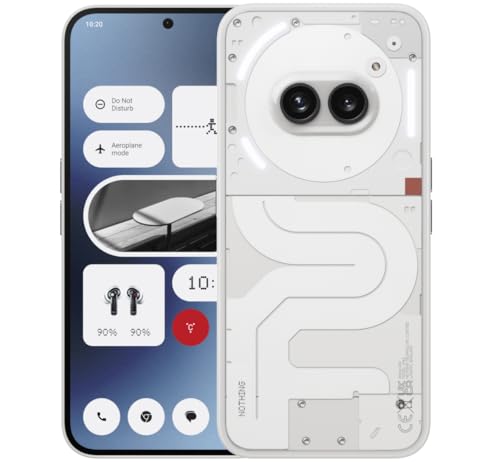
OnePlus 12R, 8GB RAM+128GB, Dual-SIM, US Factory Unlocked Android Smartphone, 5500 mAh… — A phone built around a large battery and efficient hardware, the kind of endurance current models offer when replacement time comes. Check price on Amazon.
Likely Causes, Most Common First
A single misbehaving app is the most common cause of sudden drain. An update goes wrong, a process gets stuck syncing or tracking location, and the app quietly consumes power all day in the background. Your phone’s battery usage screen exists precisely to catch this: it ranks apps by consumption, and a culprit at the top that you barely opened is the signature of a background problem.
The screen is the largest legitimate consumer. High brightness, long screen-on time, high refresh rates and always-on displays all draw steadily, and their combined effect grows if settings changed recently — a new phone often drains faster than expected simply because its screen is bigger, brighter and faster than the one it replaced.
Signal conditions are the underrated cause. In weak coverage the phone’s radio works far harder, boosting power to hold a connection and searching repeatedly for a better one. A phone that lasts all day at home but dies by afternoon in a rural office or a basement workspace is telling you about the signal, not the battery. Ageing completes the list: all rechargeable batteries lose capacity with cycles and time, so an older phone simply holds less than it did.
How to Fix Phone Battery Draining Fast: Step-by-Step Fixes
Step 1: Read the battery usage screen
Open battery settings and review usage by app over the last day. Note anything consuming heavily relative to how much you used it. This screen directs everything that follows, so start here rather than changing settings blindly.
Step 2: Restart the phone
A restart ends stuck processes, including the runaway background task behind many sudden drains. If the drain began recently and mysteriously, this simple step resolves a surprising share of cases on its own.
Step 3: Update or restrict the worst app
Update the top offending app, since drain bugs are usually patched quickly. If it still misbehaves, restrict its background activity and location access in its app settings, or uninstall it for a few days to confirm it was the cause. Keep messaging and navigation apps unrestricted so alerts and directions keep working.
Step 4: Install pending system updates
System updates frequently include power-management fixes, and the days immediately after a major update can show temporarily higher drain while the phone re-indexes and optimises. Install updates, then judge battery life after two or three normal days rather than the first afternoon.
Step 5: Tame the screen’s appetite
Use adaptive brightness, shorten the screen timeout, and consider whether you need the highest refresh rate and always-on display all day. Each is a modest saving; together they are the largest controllable drain on the phone.
Step 6: Review location, sync and background refresh
Set location access to while-using-the-app for everything except navigation and fitness tools that genuinely need more. Check which accounts sync constantly and whether every app needs background refresh. These settings quietly govern how often the phone wakes up when you are not looking at it.
Step 7: Check battery health and calibrate your expectations
If your phone reports battery health, look at maximum capacity. Below roughly four-fifths of original capacity, shorter days are physics, not a fault you can fix in settings. That is the point to price a battery replacement against your other options.
Diagnostic Checklist
Match the drain pattern to its likely cause.
| Pattern | Likely Cause | First Fix |
|---|---|---|
| Sudden drain, one app tops the usage list | Runaway or buggy app | Update it, restrict its background use, or remove it |
| Drain mostly in one location | Weak signal straining the radio | Use Wi-Fi calling there; consider airplane mode in dead zones |
| Drain overnight while idle | Background sync or an app preventing sleep | Check overnight usage by app; restrict the offender |
| Fast drain only after an update | Re-optimisation or a new bug | Wait two to three days; install the follow-up patch |
| Steady decline over years | Battery ageing | Check health; plan a battery replacement |
| Hot phone while draining | Heavy process stuck running | Restart; then hunt the app in the usage list |
When to Get Professional Repair or Replace It
Book a service visit if the battery has swollen — a lifting screen, a case that rocks on a table, or a gap appearing along the frame — because a swollen battery is a safety issue and the phone should be serviced promptly rather than charged and used. The same applies if the phone gets hot while idle and charging, or shuts down abruptly at moderate percentages, which suggests a failing battery rather than a settings problem.
A battery replacement at an authorised centre restores an otherwise healthy phone to its original endurance for a fraction of a new phone’s cost, and is one of the best-value repairs in technology. Ask about genuine parts and whether water resistance is re-sealed after the work.
Replacement of the phone itself makes sense when the battery is tired and the phone has also left its security-update window, or when repair costs stack up. If you replace, note that modern mid-range phones often outlast older flagships on battery, thanks to bigger cells and efficient chips.
Habits That Slow Battery Ageing
Batteries age fastest under heat and at extremes of charge. Avoid leaving the phone in hot cars or charging under bedding, and do not stress about keeping it between roughly a fifth and four-fifths charged when convenient — perfection is unnecessary, but living permanently at full charge on a hot desk is the pattern to avoid. Many phones offer a charging limit or optimised charging feature; enabling it costs nothing on days you do not need maximum range.
Use quality chargers, keep the phone’s software updated so power management improves, and treat sudden drain as a symptom to investigate rather than a personality trait of the phone. With those habits, a battery should deliver several years of service before capacity loss becomes the story.
Reading Battery Graphs Like a Technician
Your phone’s battery screen holds more evidence than most people use. Beyond the app ranking, look at the discharge graph’s shape. A cliff edge — charge falling steeply for an hour — marks an event: heavy use, a hot environment or a process running wild. A steady steep slope all day suggests a constant load such as poor signal or an always-active app. A graph that falls while the phone sat unused overnight isolates a background or sync problem, because the screen, the usual suspect, was off the whole time.
Correlate the graph with your day. Drain that coincides with a commute points at signal searching and location services working through movement. Drain during a meeting with the phone face-down points at background activity. Drain only on days you visit a particular building points at that building’s coverage. The graph plus your memory is a diagnostic instrument; screenshots of both, taken over three typical days, will tell a service technician more than any description you can give.
Manufacturers also hide a second useful figure: screen-on time since the last charge, and sometimes each app’s background minutes beside its total. An app whose background time approaches its total time is living a double life. Restricting that single app, then watching the next day’s graph, is the cleanest experiment in this whole guide — one variable changed, one clear result.
When Drain Is a Symptom of Something Else
Occasionally fast drain is the visible tip of another problem. A phone infected with malicious software — rare, and usually arriving via sideloaded apps or dubious downloads — may mine, track or transmit constantly, draining battery and data together; unexplained data usage alongside drain is the tell, and the cure is removing recent suspicious apps, running the platform’s built-in scan and, in stubborn cases, a factory reset from a clean backup. A phone with a failing storage chip or other hardware fault may also burn power in error loops, presenting as heat and drain with no app to blame.
Accounts can be culprits too: an email account stuck in a sync loop against a changed password, or a cloud photo library perpetually re-uploading a corrupted file, will drain a battery with the persistence of a dripping tap. The battery screen attributes this to system or account services rather than a named app, which is the clue — sign the account out and back in, or pause and resume the photo backup, and watch whether the drain survives.
The method across all these cases is the same disciplined loop this guide began with: observe the pattern, change one thing, measure again. Battery problems feel mysterious only when attacked randomly. Treated as evidence, they nearly always confess.
Seasonal and Situational Drain: Heat, Cold and Motion
Battery behaviour bends with the environment in ways that masquerade as faults. Heat is the accelerant: a phone used for navigation on a summer dashboard, or left in a hot car and then asked to perform, drains faster and ages faster, because the chemistry inside the battery runs hotter and the processor throttles and recovers in cycles that waste energy. Shade, airflow and removing the case during heavy use are genuine battery interventions in summer, not comforts.
Cold bends the curve the other way: a chilled battery temporarily delivers less of its charge, so a phone can plunge in percentage on a winter walk and recover some of it back indoors. Skiers, winter workers and cold-climate commuters know the pattern — keep the phone in an inside pocket, warmed by the body, and treat a cold-weather plunge as physics rather than failure. A battery that only misbehaves in the cold is usually a healthy battery in a hostile season.
Motion is the third situational drain: travelling at speed through variable coverage forces the radio to renegotiate constantly, and navigation adds screen, GPS and processing on top. A phone that lasts two days at home and half a day on a road trip is not inconsistent; it is reporting the cost of the journey. Offline maps downloaded in advance, a vehicle charger from a reputable maker, and airplane mode through true dead zones convert the trip back into ordinary battery life.
Recognising situational drain saves the two errors owners make: replacing a healthy battery that was merely hot, cold or travelling, and ignoring a genuinely failing battery because its symptoms were blamed on the weather. The test is always the same — does the drain follow the situation, or does it follow the phone home? Situations end. Faults come home with you.
Keep a note of the pattern for a week before spending anything. Battery diagnosis rewards the patient observer, because the battery itself keeps honest books; you need only read them in context.
Common Mistakes to Avoid
- Turning off every feature in desperation. Blanket disabling of location, sync and notifications breaks the phone’s usefulness. Find the actual consumer in the usage list and fix that.
- Judging battery life on the first day after an update. Post-update optimisation temporarily raises consumption. Give it two or three normal days before concluding the update hurt battery life.
- Assuming a new battery app will fix drain. Battery-saver apps mostly duplicate system tools and add their own overhead. The built-in battery screen is the diagnostic that matters.
Pro Tips
- Check the battery usage screen at the same time each evening for three days; patterns that are invisible in one snapshot become obvious.
- In a known dead zone, airplane mode with Wi-Fi enabled can double your standby time, because the phone stops hunting for a mobile signal.
- If drain started after installing one app, uninstall it for a day as an experiment — confirmation beats guesswork.
Reading the Battery Screen Like a Diagnostician
The battery usage screen is the most honest page on your phone, but it needs interpreting rather than just reading. Look at it after a full typical day, not after an hour, and look for proportions rather than raw positions. An app you used for three hours sitting at the top is behaving normally. An app you opened twice consuming a fifth of your battery is not, and that mismatch between use and consumption is the fingerprint of a background problem: runaway sync, stuck location requests, repeated crashing and restarting, or a download retrying forever on a weak signal.
Screen-on time gives you the context that turns percentages into a verdict. If the battery fell by half with the screen on for most of that period at high brightness, the phone may be healthy and simply worked hard. If it fell by half in your pocket with the screen off, something is waking it repeatedly, and the culprits are usually accounts, apps with location access, poor signal forcing the radios to hunt, or a wearable or earbuds connection misbehaving. Note also the shape of the day: a steady slope is usage; a cliff is an event, and events have causes you can find by remembering what changed at that hour.
Compare against your own baseline, not the internet’s. A delivery driver navigating all day, a nurse on hospital Wi-Fi and a home worker on a strong home network have completely different normal drains. Your question is never whether your battery matches a stranger’s screenshot; it is whether this week’s drain matches last month’s on the same routine. A sudden change on an unchanged routine means something on the phone changed, and the list of recent updates and installs is where that story is written.
Signal, Heat and the Drains That Are Not Apps at All
Weak signal is the great hidden drain. A phone in a low-coverage area raises its radio power, searches more often, and holds connections longer, all while you do nothing at all. Basements, metal-clad buildings, rural travel and even a desk on the wrong side of an office can halve standby life. The test is simple: a day on strong Wi-Fi at home versus a day in the weak-signal place. If the difference is dramatic, your remedies are environmental: use Wi-Fi calling where available, keep the phone nearer a window, download media before entering dead zones, and use airplane mode in places with no usable signal rather than letting the phone shout into the void for hours.
Heat accelerates everything bad. A hot battery discharges faster, ages faster, and triggers protective behaviour that can look like drain when the system throttles and tasks take longer. Phones become hot from fast charging under bedding, gaming in thick cases, camera use in summer sun, and being left on car dashboards. If your drain days are also your hot days, cool the phone’s life down first: charge on hard surfaces, remove the case for long sessions, keep it out of sun, and the drain often improves before you have changed a single setting.
Ageing completes the trio. A worn battery does not merely hold less; it reports its charge less accurately, sags under load, and can plunge from a comfortable percentage to empty during a photo burst or a cold morning. Battery health readings, sudden shutdowns, and percentage steps that jump rather than glide all indicate chemistry, not software. No setting restores lost capacity, and recognising that saves you weeks of tweaking a phone whose real need is a new battery.
Overnight drain test that separates standby faults from daytime use
- Charge to a comfortable level, note the percentage, and leave the phone unplugged overnight.
- Keep your normal routine of apps and accounts for the first night to get a true baseline.
- A small single-digit loss is healthy standby; a large loss means something wakes the phone.
- Repeat with Wi-Fi off or in airplane mode to separate radio drain from app drain.
- Check the battery screen in the morning before using the phone, so the culprit list is clean.
App-Level Fixes That Actually Move the Needle
Once the battery screen names a suspect, deal with that app specifically rather than reforming the whole phone. Update it first, because runaway drain is a common bug and developers fix it. If it is current and still misbehaving, clear its cache, check its in-app settings for background refresh, location precision and auto-playing media, and restrict its background activity in system settings. Then watch a full day. One app fixed properly teaches you more than twenty settings changed at once, and it preserves the functions you actually value elsewhere.
Accounts hide inside apps. Email set to push on multiple addresses, cloud drives syncing camera folders they have already synced, and workplace apps polling legacy servers can each masquerade as system drain. Consolidate photo backup to one service, set unimportant mail to fetch on a schedule, and sign out of accounts you no longer use. Social and video apps deserve individual attention: disable auto-play, download over Wi-Fi only, and be aware that creating and editing video inside these apps is among the heaviest work a phone does, however casual it feels.
Be sceptical of battery-saver apps and aggressive task killers. The system already manages background work, and third-party killers usually create a cycle of closing and relaunching that costs more power than it saves, while harvesting permissions for themselves. The legitimate tools are the built-in battery screen, per-app background controls, and your own willingness to uninstall the one badly behaved app and use its website instead for a week to prove the diagnosis.
Longer-Term: Keeping a Good Battery Good
After the crisis is fixed, habits decide how long it stays fixed. Batteries age fastest under heat, prolonged full charge in hot conditions, and deep discharge to empty, so a routine of moderate charges on cool surfaces, using built-in charge-limiting or optimised charging features, and topping up rather than routinely running to zero will slow the fade. None of this needs obsession; the difference between careful and careless is measured in years of useful capacity, while the difference between careful and fanatical is measured in minutes of anxiety for almost no gain.
Review the battery screen monthly, briefly, the way you glance at a bank statement. New apps, new accounts and system updates all change the drain landscape quietly, and a monthly glance catches a new offender while it is still a small line item. Keep a mental note of your normal screen-on endurance so that a genuine change registers as a change. Owners who do this rarely experience mysterious drain, because on their phones nothing stays mysterious for more than a few weeks.
And keep the endgame in proportion. Every battery is a consumable wearing out on a schedule set by chemistry and use. When health has genuinely fallen, a replacement battery restores the phone you already like at a fraction of replacement cost, and planning for that once in a phone’s life is not defeat. It is the correct maintenance for the component that every other part of the phone depends on.
Wearables, Earbuds and the Connected Devices That Drink Through Your Phone
Your phone’s battery feeds more than your phone. A smartwatch polling for notifications, earbuds reconnecting in their case, a fitness band syncing continuously, a car negotiating a wireless connection it cannot quite hold: each draws its power through the phone’s radios, and a misbehaving accessory can drain a healthy phone while the battery screen blames the system or an innocent app. When drain resists every app-level explanation, disconnect your accessories for a day, one category at a time, and watch the slope of the battery graph change. A watch face that syncs weather from a dead service, or earbuds with a faulty case that wakes them hourly, will confess quickly under this simple isolation.
Connection quality matters as much as connection count. A wearable at the edge of its range, in another room or on the far side of a body from the phone’s pocket, forces both devices to shout, and shouting costs power. Cars deserve a special mention: a phone simultaneously running wireless projection, navigation, music streaming and a hotspot for passengers is doing the work of four devices, and its drain on a long drive is honest labour rather than a fault. Judge drain against workload, always, and give the phone wired power during the jobs that are really jobs.
Keep accessory firmware and apps updated with the same discipline as the phone itself, because drain bugs live there as often as anywhere, and remove pairings for devices you no longer own, which otherwise linger as background relationships the phone maintains out of habit. The connected life is worth its conveniences, but it should be a list you can recite, not a crowd you have forgotten inviting.
Work Profiles, Dual SIMs and Other Legitimate Drains With Unfair Reputations
Some configurations drink more by design, and recognising them saves you from hunting faults that do not exist. A work profile duplicates accounts, security scanning and sync on the same hardware, so a phone carrying your employer’s managed world will simply use more than its personal twin. Dual SIM operation keeps two network relationships alive, and if the second line lives in a weak-signal area, its radio alone can explain a mysterious evening drain. Neither configuration is broken; both are bills presented for services genuinely rendered, and the remedies are proportionate: charge at work without guilt, and consider whether the second line needs to be active overnight.
Hotspot duty is the most honourable drain of all and the most commonly misdiagnosed. A phone sharing its connection with a laptop is a router, a modem and a battery in a trench coat, and it will empty itself in hours while growing warm, entirely correctly. Plan hotspot sessions around power, lower the connected devices’ own background appetites, and switch the hotspot off when the meeting ends, because a forgotten hotspot serving nobody is the one version of this drain that truly is waste.
New phones and newly restored phones also drain legitimately while they index, learn and sync a life’s worth of data, a settling period measured in days that owners routinely mistake for a defective battery. Judge any new setup after a week of normal use, on your normal networks, before opening a diagnostic investigation. Patience is a diagnostic tool: it separates the phones that are settling from the phones that are suffering, and it costs nothing but a few days of charging without commentary.
Building a Charging Routine Around a Battery You Cannot Change
When a battery’s capacity has genuinely shrunk, routine becomes the treatment. Learn your phone’s true endurance on your real day and place charging where your life already pauses: a cable at the desk, a pad where you make morning coffee, a charger in the car that turns navigation time into charging time. Small, frequent top-ups suit modern batteries perfectly and suit a reduced capacity best of all, because they keep you away from the deep discharges that stress an ageing cell and from the anxiety of watching a percentage fall in the afternoon.
A power bank, chosen honestly and kept charged, converts a weak battery from a daily negotiation into a solved logistics problem, and for travellers it is close to compulsory. Keep it in the bag you actually carry, with its cable, and rehearse the pairing before a journey rather than during one. At home, use the phone’s own battery-protection features, charge limits and optimised schedules, not as superstition but as a way of spending the remaining capacity wisely, reserving full charges for the days that need them.
Hold the whole subject in proportion as you close this guide. A battery is a consumable heart with a finite number of beats, and fast drain is its way of reporting, sometimes about an app, sometimes about a signal, sometimes about its own age. Diagnose in order, fix what is fixable, adapt your routine to what is not, and replace the battery or the phone when the evidence says so. Owners who follow that sequence rarely feel ambushed by their phones, because they learned to read the reports the phone was sending all along.
Wearables, Earbuds and the Connected Devices That Drink Through Your Phone
Your phone’s battery feeds more than your phone. A smartwatch polling for notifications, earbuds reconnecting inside their case, a fitness band syncing continuously, a car negotiating a wireless connection it cannot quite hold: each draws its power through the phone’s radios, and a misbehaving accessory can drain a healthy phone while the battery screen blames the system or an innocent app. When drain resists every app-level explanation, disconnect your accessories for a day, one category at a time, and watch the slope of the battery graph change. A watch face syncing weather from a dead service, or earbuds with a faulty case that wakes them hourly, will confess quickly under this simple isolation.
Connection quality matters as much as connection count. A wearable at the edge of its range, in another room or on the far side of your body from the phone’s pocket, forces both devices to shout, and shouting costs power on both ends of the conversation. Cars deserve a special mention: a phone simultaneously running wireless projection, navigation, music streaming and a hotspot for passengers is doing the work of four devices at once, and its drain on a long drive is honest labour rather than a fault. Judge drain against workload, always, and give the phone wired power during the jobs that are really jobs, rather than diagnosing a worker for sweating.
Keep accessory firmware and companion apps updated with the same discipline as the phone itself, because drain bugs live there as often as anywhere, and remove pairings for devices you no longer own, which otherwise linger as background relationships the phone maintains out of habit and at your battery’s expense. The connected life is worth its conveniences, but it should be a list you can recite on request, not a crowd you have forgotten inviting. Audit it twice a year, the way you audit subscriptions, and the drain that survives the audit will at least be drain you chose.
Work Profiles, Dual SIMs and Other Legitimate Drains With Unfair Reputations
Some configurations drink more by design, and recognising them saves you from hunting faults that do not exist. A work profile duplicates accounts, security scanning and sync on the same hardware, so a phone carrying your employer’s managed world will simply use more than its personal twin ever will. Dual SIM operation keeps two network relationships alive around the clock, and if the second line lives in a weak-signal area, its radio alone can explain a mysterious evening drain that no app audit will ever find. Neither configuration is broken; both are bills presented for services genuinely rendered, and the remedies are proportionate: charge at work without guilt, and consider whether the second line needs to be active overnight at all.
Hotspot duty is the most honourable drain of all and the most commonly misdiagnosed by worried owners. A phone sharing its connection with a laptop is a router, a modem and a battery in a trench coat, and it will empty itself in hours while growing warm, entirely correctly, doing exactly what it was asked to do. Plan hotspot sessions around power, lower the connected devices’ own background appetites where you can, and switch the hotspot off when the meeting ends, because a forgotten hotspot serving nobody, still advertising itself to the room, is the one version of this drain that truly is waste and the easiest to prevent.
New phones and newly restored phones also drain legitimately while they index, learn and sync a life’s worth of data, a settling period measured in days that owners routinely mistake for a defective battery and report angrily. Judge any new setup after a week of normal use, on your normal networks, before opening a diagnostic investigation or a returns process. Patience is a diagnostic tool in its own right: it separates the phones that are settling from the phones that are suffering, and it costs nothing but a few days of charging without commentary, which is a price worth paying for a correct verdict.
Building a Charging Routine Around a Battery You Cannot Change
When a battery’s capacity has genuinely shrunk, routine becomes the treatment, and a good routine can make a diminished phone feel entirely sufficient again. Learn your phone’s true endurance on your real day and place charging where your life already pauses: a cable at the desk, a pad where you make morning coffee, a charger in the car that turns navigation time into charging time. Small, frequent top-ups suit modern batteries perfectly and suit a reduced capacity best of all, because they keep you away from the deep discharges that stress an ageing cell and from the afternoon anxiety of watching a percentage fall toward a number you do not trust.
A power bank, chosen honestly and kept charged, converts a weak battery from a daily negotiation into a solved logistics problem, and for travellers it is close to compulsory equipment. Keep it in the bag you actually carry, with its own cable attached, and rehearse the pairing before a journey rather than during one, in a station, with a train approaching. At home, use the phone’s own battery-protection features, charge limits and optimised schedules, not as superstition but as a way of spending the remaining capacity wisely, reserving full charges for the days that genuinely need them and letting ordinary days run gently in the comfortable middle of the battery’s range.
Hold the whole subject in proportion as you close this guide. A battery is a consumable heart with a finite number of beats, and fast drain is its way of reporting, sometimes about an app, sometimes about a signal, sometimes about its own age and nothing else. Diagnose in order, fix what is fixable, adapt your routine to what is not, and replace the battery or the phone when the evidence, rather than the frustration, says so. Owners who follow that sequence rarely feel ambushed by their phones, because they learned to read the reports the phone was sending all along, in a graph they now understand.
Related Guides
- best phones for battery and camera
- best smartphones under 500
- best smartphones under 300
- best smartphones for business
- best accessories for smartphones
- how to fix a phone that will not charge
- how to fix a slow phone
- how to protect a smartphone
Frequently Asked Questions
Why is my phone battery suddenly draining so fast?
Sudden drain almost always has a specific trigger: an app update that introduced a background bug, a system update still optimising, a change in your signal environment such as a new workplace with poor coverage, or a stuck process. The battery usage screen will usually identify the consumer directly. Restart the phone, update or restrict the worst app, and give a fresh system update a few days to settle before suspecting the battery itself.
How can I tell which app is draining my battery?
Open the battery section of settings and find usage by app, which ranks consumers over the last day or since the last charge. The tell-tale sign is an app high on the list that you barely used, or one whose background time dwarfs its screen time. Social, navigation and poorly behaved retail apps are frequent offenders. Restrict that app’s background activity or location access and watch the next day’s figures to confirm the fix.
Does 5G drain the battery faster?
It can, particularly in areas where 5G coverage is patchy, because the phone works harder maintaining connections and may juggle radios. In strong coverage the difference is modest on modern phones. If you live or work in a fringe area and battery life suffers, many phones let you prefer 4G in network settings, which trades top speed for endurance. Test both settings for a few days each and keep the one that suits your area.
Should I replace my battery or buy a new phone?
If the phone is otherwise healthy, still receives security updates and meets your needs, a battery replacement is excellent value and restores original endurance. If the phone has left its update window, needs other repairs, or struggles with the apps you use, put the money toward a replacement instead. The decision hinges on the phone’s remaining supported life, not just the battery’s condition.
Is it bad to charge my phone overnight?
Modern phones manage charging intelligently and stop at full, so overnight charging is not the hazard it is sometimes made out to be. Heat is the greater enemy: charging under a pillow or in a hot room ages the battery faster than the hours at full charge do. Enable optimised or limited charging if your phone offers it, keep the phone somewhere cool and uncovered while it charges, and do not worry beyond that.
Why does my battery drain fast when I travel?
Travel stacks every drain factor at once: weak and changing signals as you move, constant map and camera use, bright screens outdoors, roaming radios searching for networks, and long days away from chargers. Download offline maps, keep a power bank for long days, use airplane mode in true dead zones such as rural trains, and lower screen brightness when you can. Your battery is probably healthy; your usage pattern is simply at its peak.
Why does my battery drain faster in winter?
Cold slows the chemistry inside a battery, so a chilled phone delivers less power, reports its charge less accurately, and can shut down outdoors with percentage apparently remaining, recovering when warmed. The effect is temporary and is not damage, though repeated deep cold exposure is unkind over years. Keep the phone in an inside pocket close to your body outdoors, let it warm gradually before charging it, and expect shorter days from it in a cold snap. If the drain persists in warm conditions on your normal routine, return to the diagnostic order in this guide.
Is it bad to charge my phone overnight every night?
For most owners, no, provided the phone and charger are healthy, the device rests on a hard, clear surface, and you use the built-in optimised or limited charging features where offered. Overnight charging’s real costs are time spent at full charge and gentle warmth, both of which modern systems manage deliberately by finishing the charge near your waking time. The habits that genuinely shorten battery life are chronic heat, constant deep discharge to empty, and fast charging in hot conditions, all of which are easier to avoid than the convenience of waking to a full phone.
How can I tell if an app is draining my battery in the background?
Read the battery usage screen after a full typical day and look for a mismatch between use and consumption: an app you opened briefly that accounts for a large share of the day’s drain is working in the background whether you asked it to or not. Check its settings for background refresh, location access and sync behaviour, restrict what it does not need, update it, and watch the next day. If one app repeatedly tops the list out of proportion to your use, it has identified itself, and the fix belongs to it rather than to the whole phone.