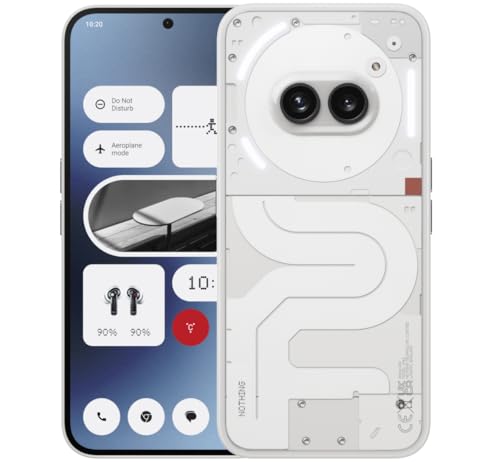
Learning how to back up a smartphone is the least exciting and most valuable skill in phone ownership, because phones get lost, stolen, dropped in water and broken every single day, usually without warning. The photos, messages, contacts and app data on a phone are often worth far more to their owner than the hardware, and they are only safe if a copy exists somewhere else.
This guide explains the backup options on iPhone and Android, what each one does and does not cover, and how to set up an automatic routine you never have to think about again. It also covers the two details people discover too late: two-factor authentication apps and chat histories, which need deliberate attention.
Disclosure: As an Amazon Associate, kajuandouglas.com earns from qualifying purchases. Links to Amazon on this page are affiliate links; they cost you nothing extra. Listing details such as price and availability change often, so check the current Amazon listing before you buy.
The Short Answer
Turn on your phone’s built-in cloud backup — iCloud on iPhone, Google One backup on Android — and confirm it runs automatically over Wi-Fi while charging. Then add a second copy of your photos and important files on a computer or external drive. Finally, check that chat apps and two-factor codes have their own backup or recovery method, because the main backup does not always include them.
In this guide
Gear for This Guide
A fast portable drive gives you a private, no-subscription second copy of everything on the phone.

Samsung T7 Portable SSD 1TB Titan Gray, USB 3.2 Gen 2, Up to 1,050MB/s — A compact, fast portable SSD well suited to holding full photo libraries and phone backups exported from a computer. Check price on Amazon.

SANDISK 256GB Extreme microSD Card + Adapter, Up to 190MB/s Read Speeds — A roomy high-speed microSD card that Android users with a card slot can use as an on-device media copy. Check price on Amazon.
What a Backup Actually Needs to Cover
A complete backup has four layers: your photos and videos, your contacts and calendars, your messages and chat history, and your apps with their data and settings. Cloud backups from Apple and Google handle most of this automatically, but the details differ. Some app data is excluded by the app’s developer, some chat apps run their own separate backup system, and your photo library only uploads fully if you have enough cloud storage and the setting is actually switched on.
The most dangerous assumption is that a new phone ‘just restoring everything’ in the shop means you are protected. That restore worked because a backup existed. Check yours deliberately: find the date of the last successful backup in your settings. If it says never, or months ago, you are one bad day away from losing everything since.
Also remember what a backup is not. Sync services mirror your current data, so if you delete a photo everywhere, the synced copy goes too. A true backup routine keeps at least one copy that is not continuously mirrored — a computer or drive copy made at intervals — so deletions and account problems cannot take every copy at once.
How to Back Up a Smartphone Step by Step
Step 1: Turn on the built-in cloud backup
On iPhone, open Settings, tap your name, then iCloud and iCloud Backup, and switch on automatic backups. On Android, open Settings, then Google and Backup, and enable the Google One backup. Both run automatically when the phone is charging, locked and on Wi-Fi.
Step 2: Confirm photos are included and uploading
Check that photo library backup or sync is enabled and that recent photos actually appear when you sign in on a computer. Free cloud tiers fill up quickly with video, and a full account silently stops backing up — the single most common backup failure.
Step 3: Back up your chat apps separately
Open your main messaging apps and find their own chat backup settings. Some ride on the phone’s cloud backup, others keep a separate backup in your cloud drive with its own schedule. Enable it, note where it lives, and check its last-run date.
Step 4: Protect your two-factor codes
If you use an authenticator app, enable its cloud backup or transfer feature if it offers one, and save the recovery codes for your important accounts somewhere safe outside the phone. Losing a phone without these can lock you out of banking and email for days.
Step 5: Make a local copy on a computer
Connect the phone to a computer and make a full local backup with the manufacturer’s software, or copy the photo and video folders to an external drive. A local encrypted backup captures the most complete snapshot and restores fastest. Do this every month or two, and always before major updates or repairs.
Step 6: Test the backup before you need it
Sign in to your cloud account on a computer and confirm you can see contacts, calendar entries and recent photos. A backup you have never inspected is a hope, not a backup. This five-minute check is what separates a routine from a false sense of security.
Cloud, Computer or Both?
Cloud backup wins on convenience: it is automatic, off-site, and ready the moment you sign in to a replacement phone. Its costs are the subscription for enough storage and the dependence on your account staying accessible — which is why strong account security, including two-factor authentication on the cloud account itself, is part of backup hygiene.
Computer backup wins on completeness and control. A full local backup can include nearly everything, restores quickly over a cable, and costs nothing beyond the drive. Its weakness is human: it only happens when you remember to plug in. The robust answer for most people is both — cloud for daily automatic protection, computer for a periodic full snapshot.
Whichever you choose, encrypt local backups. An unencrypted computer backup excludes saved passwords and health data on some platforms, and encryption also protects the copy if the computer or drive is stolen. Store the backup password in your password manager, because an encrypted backup you cannot unlock is no backup at all.
Backing Up Before Repairs, Upgrades and Travel
Certain moments demand a fresh, verified backup regardless of your routine. Before sending a phone for repair, back up fully, because workshops may replace or reset the device. Before a major operating system upgrade, a backup is your way back if something goes wrong. Before switching phones, run a manual backup and wait for it to complete before starting the transfer.
Before long trips, a current backup means a lost phone is an inconvenience rather than a disaster: you can buy any replacement, sign in, and have your contacts, photos and apps back the same day. Travellers should also keep a copy of travel documents and insurance details in the cloud, accessible from any browser.
After restoring to a new phone, spot-check the things that matter: open your photo library, your messages, your authenticator and your banking app. Then turn automatic backup on for the new device — it does not always carry the setting over, and the first weeks with a new phone are exactly when drops happen.
The 3-2-1 Idea, Translated for Phones
Backup professionals use a rule called 3-2-1: keep three copies of what matters, on two different kinds of storage, with one copy off-site. For a phone owner this translates painlessly. The phone itself is copy one. The automatic cloud backup is copy two and the off-site copy in one. A periodic computer or external-drive backup is copy three, on a different kind of storage, immune to cloud account problems. With those three in place, no single event — theft, a house fire, a locked account, a failed update — can take your photographs and data with it.
The rule’s power is that each copy covers the others’ characteristic failures. Cloud backup fails when accounts fill, passwords are lost or subscriptions lapse. Computer backups fail when the computer dies or the routine is forgotten for a year. The phone fails by being small, portable and breakable. Any two of these failing simultaneously is rare; all three at once is the stuff of genuine catastrophe, at which point photographs are unlikely to be your primary concern.
You do not need to implement this formally. Turning on the cloud backup, plugging into a computer every month or two, and checking the last-backup date when a reminder fires is the 3-2-1 rule wearing civilian clothes. The photographers and the paranoid add a second cloud service or an annual drive stored with family; everyone else can stop at the basic three and sleep well.
Backing Up the awkward Corners: Health, Banking and Work Data
Some categories of data play by special rules and deserve a deliberate check. Health and fitness data usually syncs to its own cloud account tied to the platform, and whether it is included in a device backup — particularly an unencrypted one — varies. If your health records matter to you, open the health app, confirm its cloud sync is on, and sign in on another device or the web to see the data exists outside the phone.
Banking and payment apps deliberately store almost nothing recoverable: after a restore you will sign in again, re-verify your identity and re-add cards, which is the security model working as designed rather than a backup failure. Keep your bank’s recovery process in mind — registered phone numbers and backup codes current — so that a lost phone does not become a locked-out-of-money emergency layered on top of the loss itself.
Work data follows your employer’s rules. If your phone carries a work profile or managed apps, that data typically backs up to the organisation’s systems, not your personal cloud, and wiping or replacing the phone may need your IT department’s involvement to restore access. Before any factory reset or phone change, check with them; discovering a compliance requirement after the wipe is a special and avoidable misery.
Restoring: What the Day Actually Looks Like
People imagine restoring a backup as a single triumphant moment; in practice it is a process with a rhythm worth knowing in advance. When you sign a replacement phone into your account, the system backup restores settings, app lists and much app data first, then the phone spends hours quietly downloading apps and pulling down your photo library in the background. During that first day the phone may run warm and the battery may drain faster, and photographs may appear in a trickle ordered by the service rather than by your impatience. This is normal, and judging a restore in its first hours leads to unnecessary panic.
Some things return only with your participation. Banking and payment apps require fresh sign-in and identity checks by design. Cards must be re-added to the wallet. Two-factor codes arrive only if you prepared their transfer or backup beforehand, which is why this guide insists on them while your old phone is still in your hand. Chat histories restore from each app’s own backup system, on its own timetable, when you sign in with the same number and account.
Knowing this rhythm changes how you prepare. Before a planned phone change, run the backup, then also open the two or three apps whose loss would hurt most and verify their individual states: the chat app shows a recent backup date, the authenticator shows its transfer or cloud option enabled, the photo library shows itself complete on a computer screen. Five verifications, ten minutes, and the restore day becomes boring — which is the highest praise a backup can earn.
If you are restoring after a loss rather than a planned change, add one step at the front: secure the accounts first. Change the email and cloud passwords from a computer, review signed-in devices, and only then restore to the new phone. A backup is a copy of your digital life; restoring it into a compromised account hands the copy to whoever holds the account.
Finally, when the new phone has run for a week and everything is present, turn your attention to the detail everyone forgets: the new phone’s own backup. Confirm it is on, confirm it has completed at least once, and check its date the following week. The cycle of protection only works if it closes, and it closes by habit, not by hope.
Common Mistakes to Avoid
- Assuming backup is on because the phone is new. Many phones ship with backup enabled but photo upload paused, or with a free cloud tier that filled months ago. Verify the last backup date yourself.
- Backing up photos but not chats or codes. Chat histories and authenticator apps often live outside the main backup. Losing them is the most common and most painful surprise after a phone loss.
- Keeping the only copy on the phone itself. A card or folder on the same device is lost with the device. A backup must live somewhere the phone’s fate cannot reach.
- Never testing the restore path. Signing in on a computer to view your backed-up contacts and photos takes minutes and proves the system works before an emergency depends on it.
Pro Tips
- Set a monthly phone reminder to check the last-backup date; automatic systems fail silently when storage fills or passwords change.
- Keep your cloud account recovery details current — an old phone number on the account can lock you out of your own backup when the phone is gone.
- Before trading in an old phone, keep its final backup until the new phone has run perfectly for at least a month.
What a Complete Backup Actually Has to Cover
People discover the gaps in their backup at the worst possible moment: the new phone restores beautifully, and then they realise the authenticator codes, the offline maps, the voice recordings, the health history or the messages from a parent who has since died were never included. A complete backup is not one switch in one menu. It is a set of layers, each covering a different kind of data, and the work of this section is to walk those layers so you can check them deliberately instead of hoping a single toggle caught everything.
The first layer is the system backup offered by your phone’s platform, which covers settings, app lists, call history, messages in many cases, and the data of apps that choose to participate. The catch is that participation varies. Some banking, work and messaging apps deliberately exclude themselves for security, and some store their real data in their own cloud tied to your account with that service rather than in the phone backup. Make a short list of the ten apps you would be most upset to lose, then open each one and confirm where its data lives and how it returns on a new device. That ten-minute audit is the difference between a backup and a rumour of one.
The second layer is media. Photos and videos are usually the largest and most irreplaceable part of a phone, and they deserve a backup that you have personally watched complete. Cloud photo services are convenient, but check whether yours stores originals or optimised versions, whether videos above a certain length or size are included, and what happens if the subscription lapses. For truly irreplaceable material, a periodic copy to a computer or external drive in plain folders, organised by year and month, is a layer that no account problem, price rise or service shutdown can take away from you.
Accounts, Codes and the Keys to Your Digital Life
Restoring data is only half of getting your life back; the other half is proving you are you. Two-factor authentication codes are the classic trap. If your authenticator app lives only on the phone you lost, and its own backup was never enabled, you can be locked out of email, banking and work systems at exactly the moment you need them most. Before anything goes wrong, enable the authenticator’s own secure backup or transfer feature, save the recovery codes your important services offer in a place that is not the phone itself, and make sure at least one trusted route back into your main email account exists, because email is the master key that resets almost everything else.
Passwords belong in the same conversation. A password manager synced to your account restores your logins on a new phone in minutes; passwords saved only in one browser on one phone vanish with it. Check which of your browsers and accounts holds your saved passwords, confirm you can sign into that account from a computer today, and update the recovery phone number and email address if they point at services you no longer use. These small verifications, done calmly on an ordinary evening, are what make a future phone loss an inconvenience instead of a crisis.
Do not overlook the physical and financial credentials that now live on phones. Digital car keys, transit passes, loyalty cards, boarding passes and payment cards may need to be re-added individually, and some issuers limit how many devices can hold them. Knowing in advance which items restore automatically and which need a phone call or a visit to an issuer lets you plan the order of your recovery instead of discovering each gap at a checkout, a gate or a locked car.
The five accounts to verify before you ever need them
- Your main email account, including its recovery options and sign-in from a second device.
- Your platform account that carries the phone backup itself.
- Your password manager, with its own recovery method stored safely offline.
- Your authenticator, with backup or transfer enabled and recovery codes saved.
- Your primary banking app, so you know its re-registration steps in advance.
Testing the Backup: The Step Almost Everyone Skips
An untested backup is a hypothesis. Backups fail quietly for ordinary reasons: storage that filled up months ago, a Wi-Fi-only setting on a phone that is never on Wi-Fi overnight, an account signed out by an update, or a backup that has been faithfully protecting an empty set of folders since you changed a permission. Open your backup settings and read the date and time of the last successful backup, its size, and what it claims to include. A backup from last night with a plausible size is reassuring; a backup from four months ago with a tiny size is an alarm bell you are lucky to hear today.
The strongest test is a restore, and you do not need a disaster to perform one. If you have an old phone or tablet, restore your backup onto it and live in it for an hour: open your photos, your messages, your notes, your password manager. Note what is missing while the stakes are zero. Many people do this test when setting up a new phone anyway, which is the perfect moment, provided the old phone is not wiped or traded in until the new one has been lived with for several days and every important layer has been confirmed present.
Keep that discipline at trade-in time. The pressure to hand over the old device immediately is real, but the cost of a missing backup is permanent. Transfer, verify, live with the new phone through a normal working day including payments, messages, photos and your authenticator, and only then erase the old device. If a shop or carrier process demands the old phone first, complete your verification in store, calmly and item by item, rather than discovering a gap in the car park afterwards.
Family Backups, Shared Devices and Special Situations
Backing up your own phone is a skill; making sure a family is covered is a system. Parents’ phones often hold the only copies of family photos and the accounts that run a household, yet they are the least likely to have been checked. When you visit, spend fifteen minutes confirming that a parent’s backup is recent, that their photos are going somewhere, and that you know, with their permission, how they would get back into their accounts. Write the essentials down for them in plain language. The best time to do this is a relaxed afternoon, not a distressed phone call after a loss.
Children’s and teenagers’ devices raise different questions. Schoolwork, creative projects and message histories matter to them intensely even when adults rate them as trivial. Agree as a family what is backed up, whose account it belongs to, and what happens to that data when a young person gets their first account of their own. Shared tablets are the worst offenders for confusion, accumulating photos and documents under whoever happened to sign in first, so give shared devices a deliberate owner account and a simple routine for moving important files off them.
Finally, think about the situations beyond loss and theft. Travel is the obvious one: back up fully before a trip, confirm you can reach your accounts from a borrowed computer, and carry recovery options separately from the phone. Medical emergencies, house fires and simple human error all argue for at least one copy of your most important data living outside your home and outside a single account. That is not paranoia; it is the same reasoning that makes people keep copies of paper documents, applied to the device that now holds far more of a life than any filing cabinet ever did.
Backing Up Messages, Health Data and the Small Things With Big Sentimental Value
Some data matters out of all proportion to its size. Message threads hold the last conversations with people who have died, the first messages of relationships, the addresses, photographs and small change of a family’s entire life. Before trusting any backup, verify specifically that your message history is included, how far back it reaches, and whether attachments such as photos, videos and voice notes travel with the text or are silently left behind. Messaging apps differ widely here: some ride inside the system backup, some keep their own cloud history tied to your number, and some treat a new phone as a fresh start unless you perform their particular transfer ritual while both phones are still in your hands, which is a ritual worth learning before the old phone is gone.
Health data is the other quiet treasure. Years of activity, sleep, heart and cycle records, medication logs and medical documents accumulate into a history that cannot be recreated from memory or re-measured after the fact. Confirm where your health data is stored, whether it is encrypted, whether it is included in your regular backup or syncs separately under its own setting that a past update may have switched off, and practise opening it on a second device while nothing is wrong. The same applies to authenticator seeds, password vaults and the notes app where many people keep everything from door codes to the manuscript of a novel in progress: small databases, enormous consequences, deserving of individual verification rather than general hope.
Voice recordings, scanned documents and creative work deserve an explicit mention because they often live inside single apps with their own storage logic. A musician’s voice memos, a student’s lecture recordings, a tradesperson’s photographed receipts, a writer’s drafts may never leave the app that made them unless you export them deliberately, and app-specific storage is the first casualty when an app is discontinued or an account lapses. Once a quarter, export these collections to plain files in a backed-up folder. Plain files in ordinary formats are the most durable backup technology ever invented, because they depend on no company’s survival, subscription or goodwill to be read in twenty years, and they ask nothing of the future except a screen.
Encryption, Privacy and Keeping Your Backup From Becoming a Liability
A complete backup is a complete copy of your life, which makes it a target as well as a treasure. Protect the accounts that hold your backups with the strongest authentication you have, because an attacker who controls your backup account controls your photos, your messages and your password resets in one place. Where your platform offers end-to-end encrypted backups, understand the trade before enabling it: encryption that even the provider cannot undo means a forgotten key or password can make the backup permanently unreadable, so store recovery keys with the same care as the data itself, in a place that survives the loss of the phone and the forgetfulness of its owner alike.
Local backups shift the responsibility rather than removing it. A laptop holding an unencrypted phone backup, itself unprotected and never backed up, is a single point of failure wearing a disguise of diligence. Encrypt local backups with a password you record safely, keep the computer’s own storage protected, and remember that a backup drive stored beside the phone it protects shares the phone’s fate in a fire, a flood or a burglary. The classic rule exists because it works and because every exception has a sad story attached: multiple copies, in more than one place, with at least one copy living away from your home and outside your primary account’s reach.
Shared and family devices complicate privacy in ways worth deciding deliberately rather than discovering accidentally. A parent’s backup may contain a teenager’s messages if accounts were shared carelessly in the early years, and a family cloud plan can surface one member’s photos on another’s new tablet during an innocent restore. Set up individual accounts early, understand what family sharing actually shares in its current version, and revisit the arrangement as children grow and circumstances change. Good backup hygiene and good family privacy are the same project viewed from two sides: knowing exactly whose data lives where, and being able to say so without guessing, at midnight, under stress.
A Backup Calendar: Turning Good Intentions Into a System
Systems survive; intentions evaporate by February. Anchor your backup routine to events that already happen: the monthly evening you pay bills, the week before any trip, the day a new phone is ordered, and the start of each school or work year. On each occasion the routine is short precisely because it is a check rather than a rescue: confirm the last backup date on every device in the household, glance at photo sync, export the quarter’s recordings and scans to plain files, and verify one restore path on a second device or computer. Fifteen calm minutes, four or five times a year, outperforms any heroic effort made in a panic beside a dead phone.
Include the household’s other custodians in the system. The relative who holds the family photos, the partner whose phone runs the household accounts, the teenager whose coursework exists nowhere else on Earth: each needs the same fifteen minutes and the same plain-language checklist. Write the checklist once, in words a non-technical person can follow at midnight, and keep a printed copy where it can be found without the phone it describes. The document should say which accounts matter, where recovery codes live, and who to call, because the person executing it may be frightened, tired, bereaved, or simply not you, and it must work for all of them.
Review the system whenever life changes shape. A new job brings work accounts and possibly a managed device with its own backup rules. A house move, a new child, a bereavement or a separation all change whose data lives where and who should have access to it, sometimes urgently. Backups are not a technology chore that finishes; they are the household’s memory, maintained the way a roof is maintained, in fair weather, by people who understand what the rain would cost. Treat them with the same seriousness as insurance and documents, and the worst day your phone ever has will remain an inconvenience rather than becoming an amputation.
Restoring Onto a New Phone: Order of Operations for a Calm First Day
When the day comes, restore in a deliberate order and the new phone will feel like yours by evening. Connect to a reliable network and power first, because a restore interrupted by a flat battery or a collapsing connection creates half-states that are tedious to unpick. Restore the system backup, then sign into your password manager and authenticator before the parade of individual apps, because those two are the keys that make every other sign-in a minute instead of an archaeology expedition. Let photos and media download in the background while you arrange the home screen, and resist judging the phone’s speed or battery until the restore has fully finished and the device has had a night on charge to index itself.
Verify against a list, not against a feeling. Open the ten apps you audited when you built your backup and confirm each one’s data is present and current: messages with their attachments, health history, notes, recordings, banking access, payment cards, transit passes and digital keys. Photograph anything missing before you touch the old phone, because the old device, still intact, is the answer to almost every gap, provided it has not yet been wiped, traded or handed down in the excitement. This is why the standing rule of this guide is absolute: the old phone is erased last, after a full normal day lived on the new one, never first.
Finish the migration administratively, the part everyone forgets. Move your number’s messaging registrations properly so verification codes follow you, re-pair watches, earbuds and the car, tell your bank and employer the device has changed if their systems ask, and remove the old phone from trusted-device lists only when its replacement is fully enrolled. Keep the old phone, charged and untouched, in a drawer for a fortnight as a final safety net before its erasure or hand-down. A migration done this way is boring in the best sense: nothing lost, nothing locked, nothing discovered missing at an airport, which is exactly what a good backup was for.
Backing Up Before Repairs, Lending and Other Small Emergencies
Disaster is not the only reason for a backup; the ordinary accidents of ownership ask for one far more often. Before any repair, back up completely, because workshops wipe devices as a matter of routine, replace boards without sentiment, and return phones in factory condition with your data’s absence noted nowhere on the receipt. Before lending a phone to a child, a guest or a colleague, back up and consider a guest profile or a spare device instead, because your backup is also your insurance against their accidents, their curiosity and their well-meant tidying. Before a major system update, back up for the same reason you check a parachute: the event is routine, and the stakes of the exception are total.
Travel deserves its own sentence in this list of small emergencies, because a phone abroad is simultaneously more valuable and more vulnerable than at home. Back up the night before departure, confirm your accounts are reachable from a borrowed computer, carry your recovery options separately from the device, and know your carrier’s number for suspending a line from overseas. The traveller who has done this can lose a phone in a foreign city and be operational again within a day, on a borrowed or replacement device, with photos, documents and dignity intact. The traveller who has not begins the worst administrative week of their year in a language they may not speak.
Teaching the Household: Backups as a Shared Skill
The last layer of any backup system is human. The best-configured phone in the world is one person’s habit away from being an orphan if its owner is ill, absent or simply the family member who always handled these things. Teach one other person in your household where the backups live, which accounts matter, and how the recovery codes can be reached with your permission, and write the essentials down for the day neither of you can be consulted. This is not morbid; it is the same prudence as a spare key with a neighbour, extended to the object that now holds the photographs, the documents and the keys to the accounts themselves.
Make the teaching kind and brief. Nobody learns a system from a lecture delivered in a crisis, and nobody retains one delivered with contempt for their questions. A calm quarter of an hour, a printed checklist, and an agreement about who checks what at the seasonal moments this guide describes will carry a household further than any premium subscription. Backups, in the end, are a promise a family makes to its future selves: that the photographs will survive, that the messages will be there, that a bad day with a phone will stay a bad day and not become a lost decade. Keep the promise with systems, and keep the systems with kindness.
Related Guides
- best smartphones under 500
- best smartphones for business
- best smartphones for privacy
- best smartphones under 300
- best accessories for smartphones
- how to speed up a smartphone
- how to protect a smartphone
- how to choose a smartphone
Frequently Asked Questions
Is the free cloud storage enough for a phone backup?
For the system backup itself — settings, app data and messages — the free tier is often enough at first. Photos and videos are what consume space, and a few years of family video will exceed any free tier. When the account fills, backups silently stop, which is worse than paying a small monthly amount for enough room or offloading photos to a computer or drive. Check your usage and treat a full account as an urgent fix.
Does a cloud backup include my photos?
It depends on settings. On iPhone, iCloud Photos is a separate toggle from iCloud Backup; on Android, Google Photos backup is separate from the device backup. Either can be off while the other runs. Open the photos settings and confirm backup is on, then sign in on a computer and verify recent photos are visible. Never assume; this is the most common gap in phone backups.
How often should I back up my phone?
With automatic cloud backup enabled, the phone backs up daily on its own whenever it charges on Wi-Fi, and that is the right cadence for most people. Add a full computer backup every month or two, and an extra manual backup before repairs, major updates, phone upgrades and long trips. The real rule is simple: the cost of a backup is minutes, and the cost of not having one can be years of photos.
What happens to my backup if I switch from Android to iPhone or the reverse?
Your cloud data tied to Google or Apple services — contacts, calendars, photos in Google Photos or iCloud — can move across with the right apps and sign-ins. App data and message histories are harder; both platforms offer move tools during setup of the new phone, and major chat apps now support cross-platform transfer. Plan the switch, run fresh backups on the old phone first, and do not wipe it until the new phone is fully checked.
Can I back up without paying for cloud storage?
Yes. A computer backup with the manufacturer’s software is free and can be the most complete copy of all, stored on the computer or an external drive. The trade-off is discipline: it only happens when you plug in and run it. Many people combine a free computer backup routine with free-tier cloud backup for contacts and settings, accepting that photos live primarily on the computer copy.
Should I back up before sending my phone for repair?
Absolutely, and verify it completed. Repair centres may replace the device, swap the main board or reset the software, any of which erases local data. Back up to the cloud and, if possible, to a computer as well. Also note your account passwords and remove or secure anything highly sensitive, and check whether the manufacturer advises removing the SIM or signing out of accounts before the device leaves your hands.
How often should my phone back up?
Let the automatic backup run daily, which it will do when the phone is charging, locked and connected to Wi-Fi, and verify its date weekly with a glance rather than trusting that it must be working. Daily matters because the cost of a backup is measured in what you would lose since the last one: a day of photos is an annoyance, a month of them is a bereavement. Before trips, repairs, updates and handing the phone to anyone else, run a backup manually on the spot, because those are the moments when the automatic schedule and your actual risk part company.
What is the difference between a backup and sync?
Sync keeps the same data live in several places at once, so a photo appears on your tablet and a note edits everywhere, but it also means a deletion or corruption can travel everywhere just as efficiently. A backup is a preserved copy from a moment in time, which is what lets you go back when sync has faithfully replicated a mistake. You need both: sync for convenience across your devices, and a true backup, ideally with some history, for recovery. Owners who discover the difference during a crisis learn it at the highest possible price.
Should I back up before installing a major system update?
Yes, every time, and it takes only a few minutes to confirm the last backup is current or to run one manually. Major updates are routine and overwhelmingly safe, but they rewrite the phone’s foundations, and the rare failure, a corrupted install, an app whose data does not survive the transition, is precisely the kind a backup exists for. Treat the pre-update backup the way you treat a seatbelt: not because you expect the crash, but because the habit costs nothing and the one time it matters, it matters completely.