Disclosure: As an Amazon Associate, kajuandouglas.com earns from qualifying purchases. Links to Amazon on this page are affiliate links; they cost you nothing extra. Listing details such as price and availability change often, so check the current Amazon listing before you buy.
Where to buy
Every linked pick in this guide to the best laptops for kali linux is sold on Amazon, where you can check the current price, availability and delivery options before you order. Prices and stock change often, so the listing — not any guide — is the final word at checkout. Orders are placed with Amazon, and qualifying purchases made through these links may earn a commission at no extra cost to you. The shortlist below follows the same order as the full reviews further down the page.
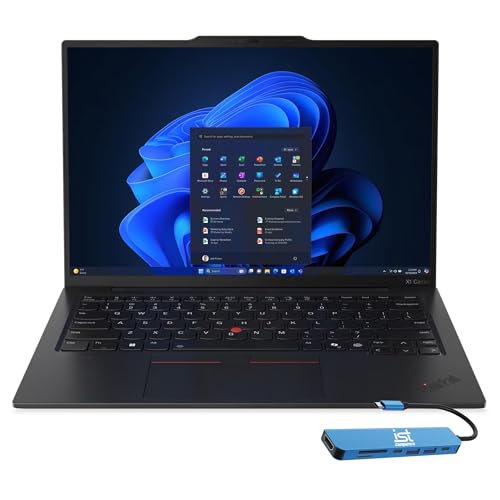
- Lenovo ThinkPad X1 Carbon Gen 13 — Chosen as the best overall option — built for executives and frequent travellers who type all day.
- HP EliteBook 640 G11 (Core Ultra 7 165U) — Chosen as the best business pick option — built for business travellers and IT-managed fleets.
- Apple MacBook Air 13 (M5) — Chosen as the best alternative (macos unix) option — built for almost anyone who wants a premium everyday laptop.
- Acer Swift Go 14 (Core Ultra 7 155H) — Chosen as the best portable pick option — built for travellers and professionals who want speed in a slim body.
- Lenovo LOQ (RTX 5060) — Chosen as the best gpu pick for linux gaming option — built for gamers who want current-generation performance without flagship prices.
- Lenovo IdeaPad Slim 3 (Ryzen 7 5825U) — Chosen as the best budget pick option — built for students and home users who want a capable all-rounder.
Read the full guide ↓
Finding the best laptops for kali linux means ignoring most of the laptop market on purpose. The machines that matter for security students learning with Kali Linux are the ones built around running Linux as a primary or secondary system, where hardware compatibility — Wi-Fi, suspend, fingerprint readers and GPU drivers — matters as much as raw speed. This guide narrows the field to six picks that cover the realistic range — a clear best overall, honest budget options and premium machines for readers whose work justifies them — and every linked pick below has been cross-checked against the manufacturer’s specification for the exact model named. Prices move too often to print responsibly, so each pick links to its live Amazon listing instead; what this guide gives you is the part that does not change weekly: which machine fits which kind of user, and why.
The short version: start with the Lenovo ThinkPad X1 Carbon Gen 13, which earns the top spot for most security students learning with Kali Linux. If the budget is the binding constraint, the budget-badged pick further down protects the components that decide long-term satisfaction and trims the ones that do not. And if your version of running Kali Linux for security labs and learning is heavier than average — bigger projects, longer days, more demanding software — the premium picks are not decoration; they are the machines whose headroom you will actually use.
Below you will find the quick-picks table, the reasoning behind the selection, a full review of each machine, a side-by-side comparison, a buying guide for this specific use, a practical how-to section, the mistakes buyers in this category keep making, and answers to the questions security students learning with Kali Linux ask most. Read the reviews for the two or three picks closest to your situation and the choice usually makes itself.
Key Takeaways
- Best overall for most buyers: the Lenovo ThinkPad X1 Carbon Gen 13.
- The deciding factors for this use are running Linux as a primary or secondary system, where hardware compatibility — Wi-Fi, suspend, fingerprint readers and GPU drivers — matters as much as raw speed.
- Memory and storage headroom matter more than a small processor difference — buy for year three, not week one.
- Every linked pick was verified against the exact model specification; check the live listing for current price and stock.
- Sale prices change constantly — the configuration matters more than the discount banner.
In this guide
Quick Picks
Six machines made the cut for security students learning with Kali Linux. The table summarises the verdicts; the full reviews below explain each one.
| Badge | Pick | Why it stands out | Link |
|---|---|---|---|
| Best Overall | Lenovo ThinkPad X1 Carbon Gen 13 | Featherweight carbon build with a superb keyboard | Check price on Amazon |
| Best Business Pick | HP EliteBook 640 G11 (Core Ultra 7 165U) | 32GB RAM and 1TB SSD in a travel-size business laptop | Check price on Amazon |
| Best Alternative (macOS Unix) | Apple MacBook Air 13 (M5) | M5 performance with total silence — no fan | Check price on Amazon |
| Best Portable Pick | Acer Swift Go 14 (Core Ultra 7 155H) | Core Ultra 7 with Arc graphics is genuinely quick | Check price on Amazon |
| Best GPU Pick for Linux Gaming | Lenovo LOQ (RTX 5060) | RTX 5060 with current DLSS features for smooth play | Check price on Amazon |
| Best Budget Pick | Lenovo IdeaPad Slim 3 (Ryzen 7 5825U) | 8-core Ryzen 7 and 16GB RAM for smooth multitasking | Check price on Amazon |
How These Picks Were Chosen
The selection started from what running Kali Linux for security labs and learning actually demands of a laptop, then filtered the current market against it. Machines were excluded for failing the basics — too little memory for the workload, screens that undermine the work, or designs whose compromises this audience would feel daily — regardless of how impressive their headline specifications looked.
- Fit for the job: each pick is genuinely suited to running Linux as a primary or secondary system, where hardware compatibility — Wi-Fi, suspend, fingerprint readers and GPU drivers — matters as much as raw speed, not merely powerful in the abstract.
- Verified specification: every linked pick’s processor, memory, storage and display were cross-checked against the exact model listing before inclusion.
- Balanced configurations: picks favour the configuration a buyer should actually order, not the stripped variant used to advertise a low starting price.
- Honest compromises: each review states the trade-offs plainly, including where a cheaper or dearer pick would serve better.
- Price discipline: because prices change constantly, no fixed prices are printed — each pick links to its live listing so you judge value at the moment you buy.
The Best Laptops For Kali Linux
Six picks, reviewed in the same order as the tables above. Each review covers who the machine suits, its verified specification, three strengths, three honest trade-offs, and a plain verdict.
Lenovo ThinkPad X1 Carbon Gen 13
Badge: Best Overall
| Processor | Intel Core Ultra 7 258V |
| Memory | 32GB RAM |
| Storage | 1TB SSD |
| Display | 14-inch 2.8K OLED |
| OS | Windows 11 |
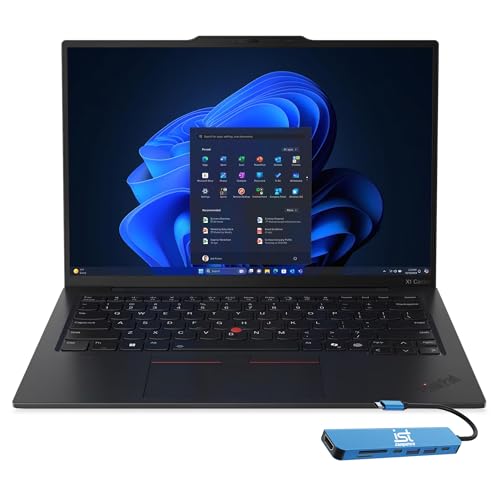
The X1 Carbon Gen 13 Aura Edition is the business ultrabook perfected: a featherweight carbon-fibre chassis, a 14-inch 2.8K OLED screen, a Core Ultra 7 258V with Arc 140V graphics, 32GB of memory and a 1TB SSD. The keyboard is the best in the business, the NPU handles Copilot+ AI tasks efficiently, and battery life stretches across long travel days. It costs like a flagship because it is one. Executives and frequent flyers who type all day will understand the appeal immediately.
The fit for running Linux as a primary or secondary system, where hardware compatibility — Wi-Fi, suspend, fingerprint readers and GPU drivers — matters as much as raw speed comes down to a few specifics. Its fast processor and 32GB of memory set the everyday pace, and the 1TB SSD of storage decides how much of your working library lives on the machine itself. Graphics acceleration here is mid-tier and genuinely useful — enough to speed the GPU-assisted parts of the workload without paying flagship prices for power this job rarely touches. The conventional clamshell design is a virtue here: stable on any desk or lap, with a keyboard deck built for long sessions. Windows 11 keeps the widest range of software open to you, including the specialist tools this audience often grows into.
Living with it day to day adds a few more facts worth weighing. Day to day, this is a low-drama machine: modern standby, fast wake and the current generation of Wi-Fi keep it feeling responsive, and its port selection decides how cleanly it docks into a desk setup. As with most modern laptops, confirm the upgrade story before assuming memory or storage can grow later. Taken together with its badge in this guide, that ownership profile is why it sits where it does in the running order for this audience.
Strengths
- Featherweight carbon build with a superb keyboard
- 2.8K OLED screen and 32GB memory
- Long battery life and Copilot+ efficiency
Trade-offs
- Flagship pricing
- Soldered memory cannot be upgraded later
- Not a gaming machine despite the strong iGPU
Choose it if you are looking for a machine built for executives and frequent travellers who type all day. Skip it if your situation matches the other side of its design: it is not the right tool for budget buyers or gamers. Readers whose needs sit between those poles should weigh the badge it carries in this guide — best overall — against the picks either side of it.
Best for: executives and frequent travellers who type all day / Not suited for: budget buyers or gamers
HP EliteBook 640 G11 (Core Ultra 7 165U)
Badge: Best Business Pick
| Processor | Intel Core Ultra 7 165U |
| Memory | 32GB RAM |
| Storage | 1TB SSD |
| Display | 14-inch FHD+ anti-glare |
| OS | Windows 11 Pro |
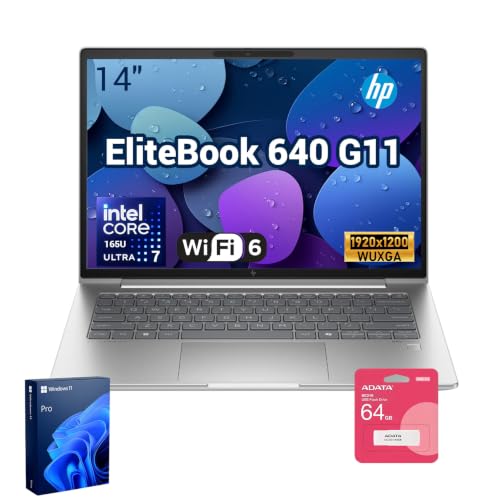
The EliteBook 640 G11 is the compact business traveller: a 14-inch anti-glare screen, Core Ultra 7 165U, a generous 32GB of memory and 1TB SSD, plus the ports offices actually use — including Ethernet and Thunderbolt 4 — and a 5MP IR camera for sharp, secure video calls. Windows 11 Pro and HP’s manageability tools make it fleet-friendly, while the size and weight suit regular travel. Graphics are integrated, so creative GPU work belongs elsewhere, but for office productivity it is thoroughly sorted.
For running Linux as a primary or secondary system, where hardware compatibility — Wi-Fi, suspend, fingerprint readers and GPU drivers — matters as much as raw speed, the specification here lines up well. Its fast processor and 32GB of memory set the everyday pace, and the 1TB SSD of storage decides how much of your working library lives on the machine itself. Graphics are integrated, which suits this workload’s lighter visual demands; the money has gone into the processor, memory and screen instead of a discrete GPU this job would seldom use. The conventional clamshell design is a virtue here: stable on any desk or lap, with a keyboard deck built for long sessions. Windows 11 keeps the widest range of software open to you, including the specialist tools this audience often grows into.
Beyond the headline specification, the ownership experience matters. Day to day, this is a low-drama machine: modern standby, fast wake and the current generation of Wi-Fi keep it feeling responsive, and its port selection decides how cleanly it docks into a desk setup. As with most modern laptops, confirm the upgrade story before assuming memory or storage can grow later. Taken together with its badge in this guide, that ownership profile is why it sits where it does in the running order for this audience.
Strengths
- 32GB RAM and 1TB SSD in a travel-size business laptop
- Ethernet, Thunderbolt 4 and a 5MP IR camera
- Windows 11 Pro with business security features
Trade-offs
- Integrated graphics only
- Anti-glare FHD+ panel is practical, not cinematic
- Business pricing above consumer equivalents
Choose it if you are looking for a machine built for business travellers and IT-managed fleets. Skip it if your situation matches the other side of its design: it is not the right tool for gamers or video editors. Readers whose needs sit between those poles should weigh the badge it carries in this guide — best business pick — against the picks either side of it.
Best for: business travellers and IT-managed fleets / Not suited for: gamers or video editors

Apple MacBook Air 13 (M5)
Badge: Best Alternative (macOS Unix)
| Processor | Apple M5 |
| Memory | 16GB unified memory |
| Storage | 512GB SSD |
| Display | 13.6-inch Liquid Retina |
| OS | macOS |
The 13-inch MacBook Air with M5 is the default recommendation for most people for a reason: it is fast, silent, light and lasts all day, with a bright 13.6-inch Liquid Retina screen, a 12MP Center Stage camera and Touch ID. The 16GB of unified memory and 512GB SSD in this configuration remove the compromises of older base models, so it handles photo editing, coding, dozens of tabs and light video work without complaint. It has no fan, so sustained rendering jobs throttle eventually — the Pro exists for that — but for everyday excellence it is hard to beat.
For running Linux as a primary or secondary system, where hardware compatibility — Wi-Fi, suspend, fingerprint readers and GPU drivers — matters as much as raw speed, the specification here lines up well. Its fast processor and 16GB of memory set the everyday pace, and the 512GB SSD of storage decides how much of your working library lives on the machine itself. Graphics acceleration here is mid-tier and genuinely useful — enough to speed the GPU-assisted parts of the workload without paying flagship prices for power this job rarely touches. The conventional clamshell design is a virtue here: stable on any desk or lap, with a keyboard deck built for long sessions. Running macOS, it suits buyers inside Apple’s ecosystem, with the battery efficiency Apple silicon is known for during long unplugged stretches.
Beyond the headline specification, the ownership experience matters. Ownership is defined by efficiency and integration: long battery life, silent or near-silent running, and effortless cooperation with an iPhone or iPad if you own them. Memory and storage are fixed at purchase, so the configuration decision is permanent — choose it with the whole ownership period in mind. Taken together with its badge in this guide, that ownership profile is why it sits where it does in the running order for this audience.
Strengths
- M5 performance with total silence — no fan
- 16GB memory and 512GB storage as configured here
- Excellent screen, camera, keyboard and battery life
Trade-offs
- Fanless design throttles on very long renders
- Port selection is minimal without a hub
- macOS only — no Windows apps without extra software
Choose it if you are looking for a machine built for almost anyone who wants a premium everyday laptop. Skip it if your situation matches the other side of its design: it is not the right tool for sustained heavy rendering or Windows-only workflows. Readers whose needs sit between those poles should weigh the badge it carries in this guide — best alternative (macos unix) — against the picks either side of it.
Best for: almost anyone who wants a premium everyday laptop / Not suited for: sustained heavy rendering or Windows-only workflows

Acer Swift Go 14 (Core Ultra 7 155H)
Badge: Best Portable Pick
| Processor | Intel Core Ultra 7 155H |
| Memory | 16GB LPDDR5X |
| Storage | 512GB SSD |
| Display | 14-inch 1920×1200 touch |
| OS | Windows 11 |
The Swift Go 14 is Acer’s thin-and-light done right: a Core Ultra 7 155H with Intel Arc graphics, 16GB of fast LPDDR5X memory and a 512GB SSD in a slim 14-inch body with a 1920×1200 touch display. It is quick enough for photo editing, coding and heavy browser work, carries Intel Evo certification for responsiveness and battery behaviour, and the taller screen suits documents. For travellers who want real performance without a gaming laptop’s bulk, this is one of the strongest mid-priced options.
The fit for running Linux as a primary or secondary system, where hardware compatibility — Wi-Fi, suspend, fingerprint readers and GPU drivers — matters as much as raw speed comes down to a few specifics. Its fast processor and 16GB of memory set the everyday pace, and the 512GB SSD of storage decides how much of your working library lives on the machine itself. Graphics are integrated, which suits this workload’s lighter visual demands; the money has gone into the processor, memory and screen instead of a discrete GPU this job would seldom use. The conventional clamshell design is a virtue here: stable on any desk or lap, with a keyboard deck built for long sessions. Windows 11 keeps the widest range of software open to you, including the specialist tools this audience often grows into.
Beyond the headline specification, the ownership experience matters. Day to day, this is a low-drama machine: modern standby, fast wake and the current generation of Wi-Fi keep it feeling responsive, and its port selection decides how cleanly it docks into a desk setup. As with most modern laptops, confirm the upgrade story before assuming memory or storage can grow later. Taken together with its badge in this guide, that ownership profile is why it sits where it does in the running order for this audience.
Strengths
- Core Ultra 7 with Arc graphics is genuinely quick
- Thin, light Evo-certified design for travel
- Taller 1920×1200 touch display suits work
Trade-offs
- 512GB storage may pinch large media libraries
- Integrated graphics cap gaming at lighter settings
- Touch display adds cost some buyers will not use
Choose it if you are looking for a machine built for travellers and professionals who want speed in a slim body. Skip it if your situation matches the other side of its design: it is not the right tool for AAA gamers. Readers whose needs sit between those poles should weigh the badge it carries in this guide — best portable pick — against the picks either side of it.
Best for: travellers and professionals who want speed in a slim body / Not suited for: AAA gamers

Lenovo LOQ (RTX 5060)
Badge: Best GPU Pick for Linux Gaming
| Processor | AMD Ryzen 7 250 |
| Graphics | NVIDIA GeForce RTX 5060 |
| Memory | 16GB RAM |
| Storage | 512GB SSD |
| Display | 15.3-inch WUXGA IPS 165Hz |
The RTX 5060 version of the LOQ is the sweet spot of the range: a Ryzen 7 250, 16GB of memory and a 15.3-inch WUXGA 165Hz display that is sharper than the usual 1080p panel. The RTX 5060 brings current-generation DLSS features, so demanding games stay smooth at the native resolution with smart settings. Lenovo’s cooling keeps noise and temperatures sensible for the class. Storage is again 512GB — budget for a second drive if your library is large — but performance per dollar is excellent.
Judged against what this job actually demands — running Linux as a primary or secondary system, where hardware compatibility — Wi-Fi, suspend, fingerprint readers and GPU drivers — matters as much as raw speed — this machine is well matched. Its fast processor and 16GB of memory set the everyday pace, and the 512GB SSD of storage decides how much of your working library lives on the machine itself. The high-tier graphics hardware is the headline: GPU-accelerated stages of the work run at full speed rather than becoming the bottleneck, and the cooling in this class of chassis is built to sustain that pace. As a gaming-class chassis it brings serious cooling and a high-refresh display, both of which this workload can exploit. Windows 11 keeps the widest range of software open to you, including the specialist tools this audience often grows into.
Beyond the headline specification, the ownership experience matters. Expect fan noise under sustained load and modest battery life away from the socket — the standard tax of this performance class — balanced by cooling that keeps the hardware at full pace and, on most gaming chassis, memory and storage that can be upgraded later. Taken together with its badge in this guide, that ownership profile is why it sits where it does in the running order for this audience.
Strengths
- RTX 5060 with current DLSS features for smooth play
- Sharper WUXGA 165Hz display
- Effective cooling for the price class
Trade-offs
- 512GB SSD fills fast with modern games
- Battery life is short under gaming loads
- Heavier than thin-and-light alternatives
Choose it if you are looking for a machine built for gamers who want current-generation performance without flagship prices. Skip it if your situation matches the other side of its design: it is not the right tool for travellers needing long battery life. Readers whose needs sit between those poles should weigh the badge it carries in this guide — best gpu pick for linux gaming — against the picks either side of it.
Best for: gamers who want current-generation performance without flagship prices / Not suited for: travellers needing long battery life
Lenovo IdeaPad Slim 3 (Ryzen 7 5825U)
Badge: Best Budget Pick
| Processor | AMD Ryzen 7 5825U (8-core) |
| Memory | 16GB DDR4 |
| Storage | 512GB SSD |
| Display | 15.6-inch FHD touchscreen |
| OS | Windows 11 Home |
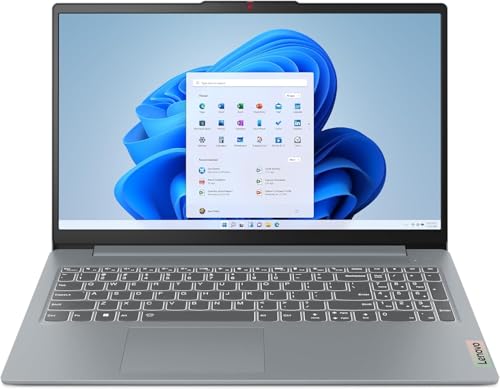
The IdeaPad Slim 3 in this configuration is the sensible middle of the laptop market: an 8-core Ryzen 7 5825U, 16GB of memory, a 512GB SSD and a 15.6-inch Full HD touchscreen. It handles office work, study, streaming and light creative tasks without drama, and the touch layer is handy for scrolling long documents and signing forms. The 720p camera is merely adequate and the build is practical rather than premium, but the core spec — the part you feel every day — is exactly right for the money.
The fit for running Linux as a primary or secondary system, where hardware compatibility — Wi-Fi, suspend, fingerprint readers and GPU drivers — matters as much as raw speed comes down to a few specifics. Its capable processor and 16GB of memory set the everyday pace, and the 512GB SSD of storage decides how much of your working library lives on the machine itself. Graphics are integrated, which suits this workload’s lighter visual demands; the money has gone into the processor, memory and screen instead of a discrete GPU this job would seldom use. The conventional clamshell design is a virtue here: stable on any desk or lap, with a keyboard deck built for long sessions. Windows 11 keeps the widest range of software open to you, including the specialist tools this audience often grows into.
Ownership details round out the picture. Day to day, this is a low-drama machine: modern standby, fast wake and the current generation of Wi-Fi keep it feeling responsive, and its port selection decides how cleanly it docks into a desk setup. As with most modern laptops, confirm the upgrade story before assuming memory or storage can grow later. Taken together with its badge in this guide, that ownership profile is why it sits where it does in the running order for this audience.
Strengths
- 8-core Ryzen 7 and 16GB RAM for smooth multitasking
- Touchscreen adds flexibility for documents and browsing
- 512GB SSD is a comfortable size for most users
Trade-offs
- 720p webcam is soft on video calls
- Integrated graphics only for gaming
- Plastic build feels workmanlike next to metal rivals
Choose it if you are looking for a machine built for students and home users who want a capable all-rounder. Skip it if your situation matches the other side of its design: it is not the right tool for serious gamers or video professionals. Readers whose needs sit between those poles should weigh the badge it carries in this guide — best budget pick — against the picks either side of it.
Best for: students and home users who want a capable all-rounder / Not suited for: serious gamers or video professionals
Comparison Table
| Pick | Processor | Memory | Storage | Display |
|---|---|---|---|---|
| Lenovo ThinkPad X1 Carbon Gen 13 | Intel Core Ultra 7 258V | 32GB RAM | 1TB SSD | 14-inch 2.8K OLED |
| HP EliteBook 640 G11 (Core Ultra 7 165U) | Intel Core Ultra 7 165U | 32GB RAM | 1TB SSD | 14-inch FHD+ anti-glare |
| Apple MacBook Air 13 (M5) | Apple M5 | 16GB unified memory | 512GB SSD | 13.6-inch Liquid Retina |
| Acer Swift Go 14 (Core Ultra 7 155H) | Intel Core Ultra 7 155H | 16GB LPDDR5X | 512GB SSD | 14-inch 1920×1200 touch |
| Lenovo LOQ (RTX 5060) | AMD Ryzen 7 250 | 16GB RAM | 512GB SSD | 15.3-inch WUXGA IPS 165Hz |
| Lenovo IdeaPad Slim 3 (Ryzen 7 5825U) | AMD Ryzen 7 5825U (8-core) | 16GB DDR4 | 512GB SSD | 15.6-inch FHD touchscreen |
Specifications are for the configurations described in the reviews; manufacturers sell variants of most models, so confirm the exact configuration on the listing before ordering.
Buying Guide: How to Choose a Laptop for Security students learning with Kali Linux
This section steps back from individual models to the decisions underneath them, so you can judge any machine — including next season’s — against the needs of running Kali Linux for security labs and learning.
Compatibility Is the Spec That Matters Most
A Linux laptop succeeds or fails on the unglamorous details: whether Wi-Fi wakes reliably from suspend, whether the fingerprint reader and function keys work, and whether the GPU drivers behave. For best laptops for kali linux, the safest buys are business-class machines with Intel networking and long Linux track records — the ThinkPad and EliteBook picks above are community favourites for a reason — and the reviews note where a discrete GPU will need proprietary-driver attention.
Memory and storage still matter: dual-booting or running virtual machines alongside Linux wants 16GB of memory and enough SSD room for two systems. Every pick above clears that bar, so the real choice is compatibility personality, not speed.
Dual-Boot, VM or Bare Metal? Choose Your Layout First
How you run Linux decides what to buy. For best laptops for kali linux, bare-metal installs reward the best-supported hardware; dual-booting adds storage pressure and bootloader care; virtual machines shift the requirement to memory and processor virtualisation support, which every pick here has. Security-focused distributions and penetration-testing toolkits like the one in this keyword run happily in a VM for learning and lab work, which is also the safest way to practise — isolated from your daily system.
A practical note: keep a Windows or macOS recovery path. Firmware updaters occasionally assume a mainstream OS, so a small retained partition or a recovery USB avoids surprises two years into ownership.
Linux buyers should also value the second-hand market: off-lease business laptops like the EliteBook class are cheap, plentiful and famously Linux-friendly, and a renewed one can be the best-value lab machine of all — just budget for a fresh battery.
Consider the second-user test as well: a laptop in this category is often shared, borrowed or handed down. Machines with standard ports, replaceable batteries where the design allows, and a clean reinstall path age more gracefully through a household or a small team than sealed designs bought purely on first impressions.
Think about the software subscriptions and services around the machine, too. Office suites, cloud storage, creative tools and security software increasingly rent rather than sell, and the honest cost of a laptop over five years includes them. A slightly cheaper machine that forces a pricier software tier — or lacks the ports for the drive you already own — can be the more expensive purchase by year two.
Lastly, buy the machine in front of you, not the rumoured one. There is always a newer model a season away, and waiting for it is a strategy only if your current machine still serves you. If it does not, the best laptop is the well-chosen one you can order today from this list, verified, checked in its first week and put to work.
Noise, heat and light are the three comfort taxes nobody lists in a specification table. A machine that runs its fans during a call, warms the desk under your wrists or washes out beside a window will be resented daily regardless of its benchmark scores — which is why the reviews above mention these traits wherever they are known, and why your first week with the machine should include using it in the brightest, quietest room you work in.
One more consideration that rarely appears in listings: how a laptop ages. Batteries lose capacity, keyboards polish smooth and software grows heavier, so the configuration with headroom — memory above the minimum, storage above the immediate need — is the one that still feels competent in year four. Every pick in this guide was chosen with that horizon in mind rather than for its first-week benchmarks alone.
It is also worth deciding where this laptop sits in your wider setup. If a monitor, keyboard and dock wait at a desk, the laptop’s own screen and weight matter less and its ports matter more; if the laptop is the whole setup, its screen, keyboard and speakers carry the full weight of your satisfaction. The reviews above note which picks lean each way, so match the machine to the life it will actually live.
Finally, a note on timing and configuration discipline. Laptop lines refresh frequently, and the exact model you researched can quietly change memory or screen specification between seasons. When you order, screenshot the configuration on the listing, verify it against the manufacturer’s page, and check the delivered machine against both in its first days — that small ritual prevents nearly every ‘not what I ordered’ story.
How Do You Set Up a Laptop for Linux Lab Work?
A tidy lab setup keeps experiments from endangering your daily system.
Step 1: Install inside a virtual machine first
snapshot before experiments so any broken configuration is a thirty-second restore.
Step 2: Give the lab its own network segment or host-only networking for anything involving scanning or testing tools.
Step 3: Keep notes outside the VM
document every tool and command you learn in your main system, where a lab reset cannot erase them.
Step 4: Back up the VM image once it is configured the way you like it — rebuilding a tuned environment from scratch is a weekend you only want to spend once.
Step 5: Only ever test against systems you own or have explicit permission to test; lab skills and legal boundaries are learned together.
Troubleshooting
Problem: the laptop feels slow a month after setup → Check what starts with the machine. Launch-at-login lists grow silently; disable everything you do not use daily, confirm the drive is not nearly full, and let pending updates finish — most ‘slow new laptop’ cases are one of those three.
Problem: Wi-Fi drops or crawls in one room → Update the wireless driver from the manufacturer’s site, try the other Wi-Fi band on your router, and test beside the router to separate a laptop fault from a coverage problem before changing settings at random.
Problem: the battery drains faster than expected → Screen brightness and background sync are the usual causes. Lower brightness a step, check which apps the battery report blames, and pause cloud uploads during long unplugged stretches.
Problem: fans are louder than you would like → Confirm the vents are unobstructed and the machine sits on a hard surface, then check for a runaway background process in the task manager. Sustained heavy work will always be audible; idle noise is the fault worth chasing.
Common Buying Mistakes
Choosing the wrong operating system for your software
Windows, macOS and Chrome OS each run different software. List the programs you cannot live without and confirm they exist — natively, not through a workaround — on the platform you are buying. No hardware bargain compensates for a machine that cannot run your essential tools.
Trusting one listing’s description over the manufacturer’s spec sheet
Retailer listings occasionally mix up configurations — memory, storage and even screen resolution can differ between variants sold under one product name. Cross-check the exact configuration against the manufacturer’s page before ordering, and re-check the delivered machine against your order.
Buying the minimum memory to save money
Memory is the first thing that makes a laptop feel old. A machine that is fine with three tabs open today crawls with ten tomorrow, and on most modern laptops the memory is soldered and can never be upgraded. Buy the configuration with headroom now, even if it means stepping down a screen or storage tier to pay for it.
Forgetting ports and living in dongle debt
Count the ports before you buy: chargers, external drives, monitors, printers and wired internet all compete for sockets. A laptop with the ports you actually use — or one good USB-C dock in the budget — saves daily friction that no processor upgrade can fix.
Skipping the warranty and return-window check
Read the return window and warranty terms before ordering, especially on configurable models. A generous return policy is your safety net if the screen, keyboard or fan noise disappoints in the first week — check the machine thoroughly as soon as it arrives.
Final Recommendation
For most security students learning with Kali Linux, the answer is the Lenovo ThinkPad X1 Carbon Gen 13. It matches the demands of running Kali Linux for security labs and learning without forcing the compromises that cheaper machines hide or the overspend that flagship machines invite.
The runner-up is the HP EliteBook 640 G11 (Core Ultra 7 165U), which suits readers whose priorities tilt slightly differently — read its review alongside the winner’s and the difference will be obvious. Everyone else should find their machine by badge: follow the label that describes your situation, and let the detailed reviews confirm it.
Whichever pick you choose, do the two things this guide keeps repeating: verify the exact configuration before ordering, and check the live listing for the current price and availability on the day you buy. Do those, and the best laptops for kali linux question answers itself.
Related Guides
- best laptops under 5 pounds
- best laptops for financial advisors
- best laptops for playing minecraft
- best laptops for med students
- best 15 laptops for college students
Frequently Asked Questions
Is the top pick in this guide powerful enough for running Kali Linux for security labs and learning?
Yes — the Lenovo ThinkPad X1 Carbon Gen 13 was chosen as the lead recommendation precisely because it handles running Kali Linux for security labs and learning with headroom to spare. Its specification leaves room for the heavier end of the workload, not just the average day. If your work is lighter than typical for this category, the budget picks further down the list will still serve you well; if it is heavier, look at the premium options, which trade portability and price tier for sustained performance.
Which operating system is best for this use?
The right answer follows your software, not fashion. Windows runs the widest range of applications and games; macOS is required for Apple’s ecosystem and some creative workflows; Chrome OS is the simplest and most secure option for browser-based work. Every pick in this guide was chosen to run the software this audience typically needs — check the operating system line in each pick’s spec box against your essential programs.
How much memory do I actually need?
For light use — browsing, documents and streaming — 8GB is workable, though 16GB feels noticeably smoother and lasts longer before feeling dated. For creative suites, development tools, virtual machines or heavy multitasking, treat 16GB as the floor and 32GB as the comfortable choice. Because most modern laptops cannot be upgraded later, buying memory headroom now is the cheapest longevity you can purchase.
Can I upgrade the laptop later?
It depends on the model. Many thin laptops solder memory and sometimes storage to the board, making upgrades impossible, while larger and gaming-oriented machines often allow memory and SSD upgrades. The reviews above note upgradeability where the design allows it. If upgrading matters to you, confirm the exact configuration’s service manual or manufacturer specifications before ordering.
How much storage should I get?
Match storage to what lives on the machine. Cloud-centred users who stream media can live with 256GB; most people are happier with 512GB; and anyone storing game installs, video projects or large photo libraries should look at 1TB or plan an external drive. Remember that the operating system and applications take their share before your files get any room.
How long should a laptop bought today last?
A sensibly specified laptop should stay comfortable for four to six years of everyday use. Longevity is decided mostly by memory and storage headroom, battery health and build quality rather than the processor badge. Choosing one tier above your minimum needs today is the most reliable way to stretch the machine’s useful life, and a battery replacement midway can refresh an otherwise healthy laptop.


