
If you want to know how to speed up a laptop, start with the encouraging truth: most slow laptops are not dying, they are overloaded. Years of startup programs, a nearly full drive, background updaters, and browser bloat can make even a capable machine feel ancient. The fixes in this guide are ordered from free and easy to slightly more involved, and the first three alone recover most of the lost speed on a typical machine.
Work through the steps in order and test as you go. Restart the laptop before you begin — a machine that has been asleep for weeks rather than properly restarted carries a surprising amount of accumulated sluggishness — and note how it feels after each change, so you learn which fix actually mattered on your system.
Disclosure: As an Amazon Associate, kajuandouglas.com earns from qualifying purchases. Links to Amazon on this page are affiliate links; they cost you nothing extra. Listing details such as price and availability change often, so check the current Amazon listing before you buy.
What You Need Before You Begin
You need about an hour, your charger, and ideally an external drive or cloud storage for a backup before you change anything significant. Check two numbers first, because they shape the whole job: how much free space your system drive has, and how much memory (RAM) your laptop has. On Windows, Task Manager’s Performance tab shows both; on a Mac, About This Mac and Activity Monitor do the same. A drive with less than about ten percent free space and a machine with very little RAM are the two most common root causes of chronic slowness.
Also decide honestly how the laptop feels slow. Slow to start up points to startup programs and drive health. Slow with many tabs or apps open points to memory. Slow at everything, with the fan roaring, points to heat and dust. Matching the symptom to the cause keeps you from wasting time on fixes that cannot help.
In this guide
How to Speed Up a Laptop, Step by Step
Step 1: Cut the startup program list
Programs love to register themselves to launch at sign-in, and each one steals time and memory all day. On Windows, open Task Manager’s Startup tab and disable everything you do not need in the first minute of your day — updaters, game launchers, and helper apps are safe to disable; they still run normally when you open them yourself. On a Mac, remove items under Login Items in Settings. This single step often transforms startup and sign-in times.
Step 2: Free up serious disk space
Operating systems need breathing room on the system drive for temporary files and updates, and a nearly full drive slows everything. Aim to keep at least 15 to 20 percent free. Delete or offload large videos, old downloads, and duplicate installers; empty the recycle bin or trash; and use the built-in storage tools — Storage Sense on Windows, the Storage recommendations on macOS — to find what is really consuming space. Moving your photo and video library to an external SSD keeps the space free permanently.
Step 3: Remove software you no longer use
Old trials, bundled manufacturer utilities, duplicate antivirus tools, and forgotten programs all run background services. Uninstall what you do not recognize as essential, one category at a time, restarting occasionally. Be careful with drivers and anything tied to your touchpad, audio, or graphics — if you are unsure what something is, look it up before removing it rather than guessing.
Step 4: Tame the browser
For many people the browser is the computer, and a browser carrying thirty extensions and two hundred tabs will make any laptop feel slow. Remove extensions you do not actively use, close or bookmark-and-close old tabs, and clear the cache if pages behave oddly. If one browser feels heavy on your machine, trying a lighter one costs nothing and sometimes makes an old laptop feel new.
Step 5: Run updates and a malware scan
Install pending operating system and driver updates; performance fixes ship in them regularly, and a laptop stuck mid-update-cycle can run background maintenance for days. Then run a full scan with the built-in security tool — Windows Security or your Mac’s built-in protections. Genuine malware and aggressive adware are less common than simple bloat, but when they are present, no amount of tuning will outrun them.
Step 6: Check memory pressure and consider a RAM upgrade
If Task Manager or Activity Monitor shows memory nearly full during your normal work, and your work grinds when you switch between apps, you are memory-limited. On laptops with upgradeable memory, adding RAM is the single most effective hardware upgrade for multitasking smoothness. On sealed laptops, the software equivalent is discipline: fewer simultaneous heavy apps, and restarting the worst offenders when they bloat.
Step 7: Replace a mechanical hard drive with an SSD
If your laptop still boots from a spinning hard drive, no software fix will make it feel modern. Swapping to an SSD is the most dramatic speed upgrade any older laptop can get — startup, app launches, and file operations all transform. This is a user-serviceable upgrade on many older models with a standard drive bay; on sealed modern machines it is a repair-shop job or not possible at all. Back up everything before attempting it.
Step 8: Reset the operating system as a last resort
If the machine is still slow after everything above, a clean reset of the operating system — backing up your files first, then reinstalling fresh — removes years of accumulated software cruft in one stroke. Both Windows and macOS offer built-in reset options that keep the process manageable. It is a half-day project, but on a five-year-old laptop it routinely delivers the biggest improvement of all.
Gear for This Guide
Most of this guide is free. One verified product genuinely helps if a crowded drive is your problem:
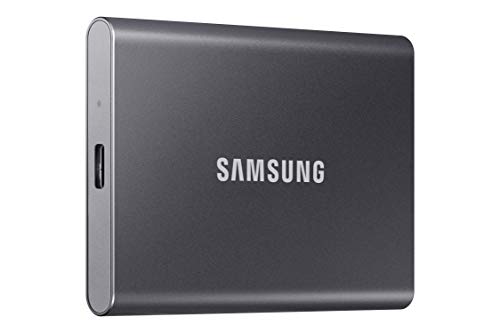
Samsung T7 Portable SSD 1TB Titan Gray, USB 3.2 Gen 2, Up to 1,050MB/s — A fast portable SSD is the cleanest way to offload photos, videos, and archives so your internal drive keeps the free space it needs to run quickly. Check price on Amazon.
Common Mistakes When Trying to Speed Up a Laptop
The classic mistake is installing a ‘PC optimizer’ or registry cleaner from an advertisement. At best these do nothing your operating system cannot do itself; at worst they bundle adware or delete things they should not. Everything in this guide uses built-in tools. A second mistake is disabling services at random from internet lists — some are load-bearing, and the performance gain from service-tweaking is negligible on modern systems.
Another error is expecting software fixes to cure hardware limits. A laptop with very little memory, a failing drive, or a processor from a much earlier era has a ceiling that tuning cannot raise. If the drive reports health warnings, back up immediately and treat replacement as urgent, not optional. And do not skip the backup step before major changes: speed is worthless if the process costs you your files.
Pro Tips to Keep the Laptop Fast
Restart properly at least once a week instead of living on sleep mode; it clears memory leaks and lets updates finish. Keep the startup list lean by reviewing it whenever you install something new, because installers re-add themselves quietly. Keep the drive’s free space above that 15 percent line permanently by storing media externally from the start.
Finally, manage heat. A laptop that runs hot throttles its processor to protect itself, which feels exactly like a slow computer. Use it on hard, flat surfaces, keep the vents clear, and clean the vents with compressed air a few times a year. Cool hardware is fast hardware.
The Settings Layer: Power Plans and Visual Effects
Between software cleanup and hardware upgrades sits a layer of settings worth ten minutes. Power plans matter: a laptop locked into an aggressive battery-saver profile will feel slow even plugged in, while the balanced plan most people should use lets the processor sprint when needed. On Windows, check the power mode slider; on a Mac, review the battery settings for options that cap performance. If the machine is slow only on battery, this layer is almost certainly your answer.
Visual effects are the other quiet tax. Animations, transparency, and shadows cost little on a modern machine and a noticeable amount on an old one. Windows lets you adjust for best performance in the advanced system settings — keep font smoothing, drop the rest, and an elderly laptop’s interface becomes visibly snappier. It will not transform application speed, but interface responsiveness is what ‘feels fast’ actually means day to day.
Notifications and sync deserve a pass too. Every chat client syncing, every cloud folder indexing, every news app fetching is background load competing with your work. Audit the notification and sync settings app by app; the goal is not austerity but intention — the laptop should spend its cycles on what you asked for, not on everything that ever asked it.
When the Problem Is One Bad Application
Sometimes ‘my laptop is slow’ means ‘one program I live in is slow,’ and the fixes are application-specific. A browser that has run for months accumulates cache bloat, misbehaving extensions, and occasionally a corrupted profile; creating a fresh profile or reinstalling the browser cures mysteries that system-wide tuning cannot. Office suites slow down around enormous documents and add-in pileups. Creative applications slow around cache drives that have filled up — check each pro app’s cache settings and purge them.
The diagnostic habit that finds these: when the machine slows, look at the process list immediately and write down the culprit three times before concluding anything. Patterns emerge — the same app, the same time of day, the same action — and a named culprit can be updated, reconfigured, reinstalled, or replaced. Vague slowness gets vague fixes; specific slowness gets solved.
Do not overlook peripherals and drivers in this category. A failing external drive can hang every file dialog while the system waits for it. Outdated graphics drivers cause stutters that look like processor limits. Disconnect everything, test the bare laptop, and reconnect one device at a time — an old but decisive isolation technique.
Setting Expectations: What Fast Feels Like After
A successful tune-up does not make an old laptop new; it makes it honest. Startup should drop to a fraction of its former time, the desktop should be usable immediately after sign-in, and your regular applications should open at the speed the hardware always allowed. If the laptop has an SSD and adequate memory, that restored state is genuinely pleasant — most people’s workloads are lighter than they think, and bloat, not age, was the enemy.
Keep it that way with the lightest possible maintenance: a weekly restart, a monthly glance at startup programs and free space, and skepticism toward anything that offers to optimize your PC for you. Speed is a state you maintain by not installing the problem again.
And when the ceiling truly is the hardware — when the processor pegs at full load in your normal work and memory and storage are both healthy — accept the diagnosis gracefully. You will have spent nothing but time, you will know exactly which specification your next laptop needs more of, and the old machine, freshly reset, makes an excellent backup, a child’s first computer, or a donation that someone else will find fast enough.
The Update Trap and How to Escape It
Updates deserve their own section because they are both cure and cause. A laptop that falls weeks behind on updates eventually installs them in a pile — hours of background downloading, installing, and indexing that make the machine feel broken precisely because it is healing. The escape is rhythm: let updates install promptly, restart when asked, and the background cost of staying current becomes minutes a month instead of a lost afternoon per quarter.
Driver updates deserve the same discipline through the manufacturer’s own utility rather than third-party driver sites, which range from useless to malicious. Graphics and chipset drivers in particular carry real performance fixes. Firmware updates — the BIOS — occasionally fix fan, battery, and performance behaviors that no software setting can reach; install them plugged in and undisturbed.
If an update itself caused a slowdown — it happens — the remedies are patience first (indexing finishes), then the update’s own uninstall option where the platform offers one, and a system restore point where it does not. This is one more reason the restore point habit matters: it converts a bad update from a crisis into a rollback.
Storage Deep Dive: What Is Actually Eating Your Drive
When the drive is the bottleneck, ‘delete some files’ is uselessly vague, so get specific. Storage analysis tools built into both operating systems break usage into categories, and the usual giants surprise people: the downloads folder’s forgotten installers, the video projects rendered and raw, the virtual machine images, the game libraries of games unplayed for a year, and the local copies of cloud folders syncing entire shared drives to a laptop that only needs three of the files.
System files have their own quiet appetites: old update caches, restore points multiplying, hibernation files sized to your memory, and application caches — browsers and creative suites especially — that grow without ceilings until you set them. The built-in cleanup tools know where these live; run them before reaching for manual deletion, because deleting system files by hand is how a cleanup becomes a reinstall.
The strategic fix is architectural: the system drive should hold the operating system, applications, and active work, while archives, media libraries, and completed projects live on external or cloud storage. A laptop kept in that shape rarely meets the full-drive slowdown at all — the 15 percent free-space rule stops being a rescue target and becomes the machine’s natural state.
Diagnosing Before Optimising: Find the Actual Bottleneck
The steps in this guide work best when they are aimed, and aiming takes ten minutes of observation. Open your system’s resource or task monitor while the laptop feels slow and watch four dials: processor, memory, disk and, where shown, graphics. A processor pinned near its maximum during the slow moments names the applications or the background work responsible. Memory pressure that stays high, with the system swapping to disk, names the RAM upgrade or the application diet that will actually help. A disk held at full activity during freezes, on a machine with a mechanical drive, is the SSD case announcing itself, while the same symptom on an SSD machine points at a failing drive, a runaway process or an update in progress. A system where nothing is pinned yet everything feels sluggish is often thermally throttling, dusty and hot, or running on a power plan that has quietly limited it. Ten minutes of watching converts the rest of this guide from a list you apply hopefully into a treatment you chose, and it prevents the commonest waste in laptop revival: upgrading the component that was never the problem.
The slow laptop that is actually a slow network
A large share of modern slowness is not the laptop at all. Cloud documents, streaming, video calls and web applications all present their delays wearing the laptop’s face, and owners have upgraded memory to fix what was a struggling wireless connection, a distant router, or a household network saturated by someone else’s downloads. Test before you treat: if local work, opening saved documents, browsing photographs, editing offline files, is brisk while everything online crawls, your bottleneck lives in the network, and the fixes are a wired connection for the desk, a better position relative to the router, or a conversation about bandwidth rather than a new drive. The resource monitor helps here too, because a network-bound laptop shows low processor, low disk and a spinning application, the signature of a machine waiting politely for data that is late.
Software Diet in Depth: What Actually Deserves to Stay
Uninstalling is easy to advise and hard to judge, so here is a framework for the audit. Sort your applications by when you last used them, honestly, and divide them into the daily, the monthly, the yearly and the never. The never category goes without ceremony. The yearly category earns a question: is this the only tool for an important rare job, such as tax software or a device utility, or is it a habit kept from an old workflow? Daily and monthly applications stay, but each should justify its background privileges, because the true cost of software is rarely its disk space; it is the updaters, helpers, tray processes and startup entries it installs and leaves running forever. Review those per application, in the startup and background settings this guide’s steps describe, and keep the ones with a function you can name. A laptop’s speed is substantially the sum of what it is asked to carry when it is doing nothing, and most machines are carrying the accumulated background staff of every application they have ever met.
Browser extensions and the hidden second computer
The browser deserves its own audit because it has become a second operating system, and its extensions are that system’s startup items. Each extension runs in every window, watches every page, and consumes memory in proportion to its ambitions. Disable all of them for a day and notice the machine; then re-enable the handful you genuinely use, one at a time. Owners are routinely surprised by which forgotten extension, a coupon tool from years ago, a converter installed for one document, was taxing every page load. The same discipline applies to tabs: a browser holding dozens of live tabs is holding dozens of small computers open, and bookmarking-and-closing is a performance feature disguised as tidiness. None of this requires new hardware, which is why the browser audit belongs near the start of any speed investigation, before money is discussed.
When Slowness Is a Warning: Failing Drives and Batteries
Two hardware failures announce themselves as slowness before they announce themselves as death, and recognising them changes the response from optimisation to rescue. A failing drive, mechanical or solid-state, produces freezes, long pauses when opening files, corrupted downloads and a system that grows worse in steps; the correct first move is not a cleanup but a backup, immediately, because the drive is telling you its remaining life in the only language it has. Drive health utilities can confirm the suspicion, but the backup should not wait for confirmation. A failing or swollen battery produces a different masquerade: throttling when unplugged, sudden shutdowns at apparently healthy percentages, and on some machines a lifted trackpad or a case that no longer sits flat, which is a safety matter that ends all optimisation until the battery is replaced by a professional. Slowness with a story, sudden, worsening, accompanied by noises, heat or physical change, is a symptom to respect, and the speed-up steps in this guide are explicitly for the other kind: the gradual, explicable slowing of a healthy machine under accumulated software weight.
Operating System Settings That Quietly Govern Speed
Beyond the steps in the main guide, a few system settings deserve a deliberate look because they trade speed against appearance and convenience in ways owners rarely chose consciously. Visual effects, animations, transparencies and shadows, cost little on a modern machine and a great deal on an older one, and trimming them on a struggling laptop is honest optimisation rather than vandalism, because the machine’s job is your work, not its own decoration. Search indexing is a subtler trade: it makes searches instant by working in the background, and on a machine with a slow drive it can be the background. Let it finish its initial work rather than fighting it daily, and consider limiting it to the folders you actually search if it remains a burden. Power plans govern more than battery: a plan set for silence or endurance can cap the processor in ways that feel exactly like ageing, so confirm the plan matches the moment, endurance unplugged, full capability at the desk. None of these settings is a secret hack; they are the machine’s own published trade-offs, and the speed-up craft is largely choosing them on purpose instead of inheriting them by accident.
Updates: the schedule that prevents the slowdown ambush
Updates slow laptops twice: once when they are deferred until they become enormous, and again when they install at the worst possible moment and convince the owner the machine is dying. The management is scheduling rather than avoidance, because current systems are a security requirement as much as a performance one. Let updates install on the machine’s quiet hours, restart promptly when they ask rather than accumulating a queue of pending changes, and treat a laptop that has been asleep and un-updated for months as a machine that needs an evening of patience before it needs a diagnosis. Application updates follow the same rule, and the browser, which updates itself constantly, is the model citizen the rest of the software should imitate. An updated machine is not automatically a fast one, but a neglected machine is reliably a slow one at the least convenient times.
Measuring Success: What to Expect and How to Know It Worked
Set the expectations before you begin, in numbers you can check afterwards, or the whole exercise dissolves into feeling. Time a cold start to a usable desktop. Time your heaviest application opening your typical file. Note the free space on the drive and the memory pressure during your normal work. Those four figures, written down before the first step, are your before picture. Apply the steps that your diagnosis indicated, in the guide’s order, and measure again a day later, after updates and indexing have settled, because measuring in the middle of the storm misleads in both directions. A successful revival shows itself plainly: starts measured in a fraction of the time, applications opening without the pause that taught you to make tea, fans quiet at work that once provoked them. If the figures barely moved, the diagnosis was wrong or the limit is hardware ageing, and both answers are valuable, because they end the tinkering and point at the real decision, an upgrade of the true bottleneck or an honest conversation about replacement.
The Upgrade Decisions in Full: RAM, SSD and the Order of Operations
When software work is done and a hardware limit remains, the upgrades deserve a decision framework rather than enthusiasm. The SSD first, if the machine still has a mechanical drive, because it transforms every interaction and because a failing old drive makes the upgrade a rescue as well as a revival; clone or reinstall cleanly, and keep the old drive as a backup until the new setup has survived a month. Memory second, if your monitoring showed genuine pressure and the machine accepts more, sized to the workload’s real appetite rather than to the maximum the slots allow, because unused memory speeds nothing. Everything else, processors, graphics, screens, is effectively a new laptop wearing an upgrade’s clothes, and should be priced as one. The order matters because money spent in the wrong sequence buys disappointment: memory added to a machine suffocating on a mechanical drive produces a faster-swapping slow laptop, while the same money on the drive first produces a machine that may reveal it never needed the memory at all. Diagnose, then spend, in that order, once.
Clean reinstall versus the reset: choosing your fresh start
The guide’s final software step, the reset, has a sibling worth distinguishing. A reset restores the maker’s image, with its bundled software and its settings, which is convenient and sometimes exactly right. A clean installation of the operating system from the maker’s own media starts from the operating system alone, with drivers fetched deliberately, and produces the leanest possible foundation at the cost of more of your time and care. For a machine whose slowness is substantially bundle and accumulation, the clean installation is the deeper cure. For a machine being prepared for a less technical owner, the reset’s convenience and included utilities may serve better. Either way, the fresh start only stays fresh if the software diet from this guide is applied to what gets reinstalled, because restoring every application and startup item faithfully restores the slowness with them, freshly formatted.
Keeping It Fast: The Maintenance Rhythm That Prevents Round Two
Revived laptops slow down again on a predictable schedule unless the habits that caused the accumulation change, so close the job by installing the rhythm rather than the result. Monthly, glance at free space and at the startup list, because both drift silently and both are five-minute corrections while they are small. Quarterly, run the application audit’s short version, removing what the season added and no longer uses. When installing anything new, ask the question that prevents most future trouble: does this need to run at startup, in the background, or only when I open it, and set its privileges accordingly at install time rather than in a future cleanup. Keep the backup current, because a machine with a good backup can be reset without fear, and fear of the reset is what lets software weight accumulate for years. A laptop maintained this way does not need a speed-up guide again; it needs only the small, regular kindnesses that this entire subject, in the end, has always consisted of.
Speed Across the Household: Older Laptops and Second Lives
A laptop revived by this guide often begins a second career, and planning for it extends the value of the work. As a family machine, a child’s first computer, a kitchen and homework terminal, or a dedicated machine for one job, writing, media, a workshop reference, an older laptop with an SSD, honest memory and a clean system can serve for years after its front-line retirement. Set up the second life deliberately: the reset or clean installation from this guide, accounts for its new users, the browser discipline applied, and its backup arranged, because a second-life machine holds real work within a month of its adoption. Note its limits kindly in the handover, the tasks it does well and the ones it no longer attempts, and a new owner who might be a child or a parent will use it happily instead of fighting it. Machines, like the people in these guides’ other chapters, mostly fail from mismatched expectations, and a revived laptop with honest expectations is one of the best bargains in all of home technology.
The shortest honest summary
Diagnose before you treat, watching processor, memory, disk and temperature while the machine feels slow. Free the disk, cut the startup list, audit the applications and the browser, update on a schedule, and fix the network if the slowness lives there. Spend money only on the proven bottleneck, an SSD before memory, memory only under real pressure, and use the reset or a clean installation as the honest last resort, with a verified backup before it. Then keep the rhythm, monthly glances and quarterly audits, so the revival is a permanent change of habits rather than an annual event. That is the whole subject, and it was never really about tricks. It was about a healthy machine carrying only what its owner actually asked it to carry.
Begin this week, with the diagnosis, on the machine in front of you rather than on an idealised replacement for it. Ten minutes of watching the monitors, one honest list of what the machine is carrying, and the first step that the evidence actually names. A month from now, if the rhythm has taken hold, the laptop will tell the story of that beginning in its starts, its silences and its patience under your real work, and you will understand, in the way only owners of revived machines understand, that most slowness was never the machine ageing. It was the machine waiting, politely and for years, for someone to take the accumulated weight off its back.
A note on knowing when to stop
Every revival has a finishing point, and recognising it is a skill this guide values as highly as any step. Stop when the measured figures, start time, application launches, memory pressure, free space, match the work the machine must do, even if forum folklore insists more is possible. Stop when the remaining slowness is the processor’s honest age in tasks it was never young enough for. Stop, above all, when the tinkering itself becomes the hobby and the laptop’s actual job, your work, waits in the queue behind its own maintenance. A revived laptop is a tool restored to service, not a project restored to a showroom, and the owners who get the most from this guide are the ones who close it, on time, and go and use the machine.
And if you take only one sentence from this entire guide to the desk with you, take this one: a laptop is fast in proportion to how little unnecessary work it is asked to do, and almost everything in these pages is a way of asking less of it, more deliberately. Ask less, measure honestly, spend only on proof, and the machine you already own will surprise you with how much of its youth was never lost at all, only buried.
One last check before you call it revived
Make a habit of the five-minute farewell whenever a revival finishes: a cold start timed, your heaviest application opened on a real file, the drive’s free space confirmed, the startup list read once with fresh eyes, and the backup verified rather than assumed. That tiny audit is the difference between a speed-up as an event and a speed-up as a condition, because it proves the work while the tools are still open and catches, at the earliest possible moment, the one setting, application or pending update that would otherwise announce itself mid-deadline. Owners who farewell their machines properly are rarely ambushed by them, and freedom from ambush, in the working life of a laptop, is the entire prize this guide has been pursuing.
That is the guide complete: the diagnosis, the diet, the settings, the upgrades in their proper order and the rhythm that keeps the result. The next step is not another utility or another article. It is ten minutes with the resource monitor open and the honesty to write down what you see, and after that, the quiet satisfaction of a laptop that starts when you ask it to, opens what you point it at, and gets out of the way of the work it was always meant to serve.
Revive it honestly, keep it lightly loaded, measure it kindly and stop when the work is done, and let it grow old in useful service, carrying your work rather than its own accumulated history, start after start, year after useful year.
Start tonight, before the next layer of accumulation settles in and calls itself ageing, with whichever part of the diagnosis your machine needs most obviously, the crowded drive, the endless startup list or the browser carrying a second computer’s worth of extensions, and let that one small, completed act make the rhythm easier to keep, as first acts in any good habit always do.
The software will keep arriving and the machine will keep ageing, and between the two of them, the owner’s rhythm, kept honestly and kept regularly, decides absolutely everything, which is why this guide ends where all durable performance begins: not with a product, a utility or a trick, but with a person who has decided, on evidence, what their computer is for and what it is carrying, and who checks, now and then, month by month and year by year, that the two still match, in the small hours and the busy ones, at the start of the working week and at its tired end, for as long as the machine remains in honest and useful service, which, treated this way, can be a surprisingly and gratifyingly long time indeed, measured in finished work rather than in waiting, watching, wondering and waiting again, ever again, at all, in any ordinary working week that matters to you or to anyone relying on the work this machine quietly and reliably carries.
Related Guides
- best laptops for speed-focused budgets
- best laptops for work
- best laptops for programming
- best laptops for students
- best laptops for under a mid-range budget
- how to fix a slow laptop, the troubleshooting version
- how to upgrade the RAM on a laptop
Frequently Asked Questions
Why is my laptop slow when it was fast when new?
Almost always accumulation: more startup programs, a fuller drive, heavier software updates, and background services competing for the same hardware. The hardware rarely slows down itself, except when a drive is failing or dust forces thermal throttling. Working through the startup, storage, and software steps in this guide reverses most of the decline.
Will adding RAM make my laptop faster?
Only if you are actually running out of it. If your memory usage sits near full during normal work and the machine stutters when switching apps, more RAM helps a lot. If memory usage is moderate, extra RAM changes nothing you can feel. Check the memory graph in Task Manager or Activity Monitor during your heaviest normal workload before spending anything.
Is an SSD really that much faster than a hard drive?
Yes — it is the largest single upgrade for an older laptop. Solid-state drives have no moving parts and access data far faster, so startup, app launching, and file operations all improve dramatically. If your laptop still has a mechanical drive, upgrading it matters more than any other change in this guide.
Should I pay for speed-up software?
No. The reputable tools built into Windows and macOS — startup management, storage cleanup, built-in security scanning — cover everything legitimate that third-party optimizers claim to do. Many advertised optimizers are themselves a source of pop-ups and slowness. Spend money on hardware, like an SSD or RAM, only when a genuine limit is identified.
How much free space should I keep on my drive?
Keep at least 15 to 20 percent of the system drive free. Below that, the operating system struggles to find room for temporary files, updates, and memory swapping, and everything slows down. If freeing space is a recurring battle, move media libraries to an external drive permanently rather than deleting and re-downloading.
When is a laptop too old to bother speeding up?
When a core limit cannot be fixed: memory that is both small and soldered, a processor several generations behind your software’s requirements, or a failing motherboard. If the laptop cannot run a currently supported operating system, that is also a hard stop for security reasons. At that point the money for upgrades is better saved toward a replacement.
Will a cooling pad make my laptop faster?
Only if heat is the diagnosed problem. A laptop that throttles because its cooling is overwhelmed or its vents are clogged can recover real performance when its temperature falls, and a pad, or simply raising the rear of the machine and clearing its intakes, can achieve that. A laptop slowed by a mechanical drive, memory pressure or software weight gains nothing from cooler air. Diagnose first, as this guide insists, and let the monitor’s evidence, not the accessory shelf, decide.
How much faster will an SSD really feel?
On a machine moving from a mechanical drive, it is the largest single improvement most owners ever experience: starts that took minutes take a fraction of the time, applications open without the long disk-bound pause, and the whole system stops freezing while the drive catches up. The processor does not change, so heavy computation takes as long as it ever did, but the waiting that fills a normal day, opening, saving, searching, waking, is overwhelmingly disk waiting, and that is what disappears.
Does closing programs actually help, or is memory managed automatically?
Modern systems manage memory intelligently, caching spare capacity usefully rather than wasting it, so a high memory reading alone is not a problem. What closing programs does help is the real pressure case, where the system is actively swapping to disk, and the background case, where closed applications also close their updaters, helpers and synchronisers. Judge by the pressure and swapping indicators in your monitor rather than by the raw percentage, and close with intent: the heavy, the duplicative and the forgotten, not everything in sight.

