
Learning how to choose a laptop starts with one honest question: what will you actually do with it every day? A laptop that is perfect for a student writing essays and joining video calls can feel painfully slow for a video editor, and a powerful gaming machine is wasted money and weight for someone who lives in a web browser. This guide walks you through the decision in the same order a good salesperson would: workload first, then the processor, memory, storage, screen, keyboard, ports, and battery that workload really needs.
The mistake most buyers make is shopping by headline numbers. A bigger screen or a higher model number on the box does not guarantee a better experience, and the cheapest configuration of a well-known model line is often built around much weaker parts than the reviews describe. By the end of this page you will know which specifications matter for your tasks, which ones you can safely ignore, and how to read a listing without being misled by marketing labels.
Disclosure: As an Amazon Associate, kajuandouglas.com earns from qualifying purchases. Links to Amazon on this page are affiliate links; they cost you nothing extra. Listing details such as price and availability change often, so check the current Amazon listing before you buy.
Start With Your Workload, Not the Spec Sheet
Write down the three things you will do most often. For many people that list is web browsing with many tabs open, documents and spreadsheets, and video calls. That workload is light, and almost any modern laptop with a recent processor, 8GB or more of memory, and solid-state storage will feel quick. If your list includes photo editing, programming, data analysis, or gaming, your requirements climb quickly, and the processor, graphics, and memory sections below become the deciding factors.
Also think about where the laptop will live. A machine that travels daily needs to be light, durable, and able to last a full day away from an outlet. A machine that sits on a desk can be larger and heavier, which usually buys you a bigger screen, a better keyboard, and more ports for the same money. Being honest about mobility saves you from paying a premium for thinness you never use, or from dragging a heavy gaming laptop through airports for no reason.
Finally, decide how long you expect to keep it. A laptop bought for one school year can be modest. A laptop expected to last five or six years deserves more memory and storage than you need today, because software grows heavier over time and many modern laptops cannot be upgraded later. Buying a little headroom is almost always cheaper than replacing the whole machine early.
In this guide
What You Need Before You Start Comparing Models
You need three things before model names will make sense. First, a shortlist of your must-have programs, because a few applications only run on one operating system or demand a dedicated graphics chip. Second, a sense of your storage habits: check how much space your current computer uses, then double it, because photos, videos, and game installs grow fast. Third, a realistic budget range expressed as tiers — entry, mid-range, or premium — rather than a single rigid number, so you can judge value instead of chasing the lowest sticker.
It also helps to check the peripherals you already own. If your monitor, printer, and drives use older USB-A connectors and your new laptop only has USB-C ports, you will need adapters or a dock. If you already own a good external monitor and keyboard, screen size on the laptop itself matters less. Small compatibility details like these are where surprise costs hide.
How to Choose a Laptop in Six Steps
Step 1: Match the processor to your heaviest regular task
The processor is the engine. For browsing, office work, and streaming, a current mid-range chip from Intel’s Core i5 or Core Ultra 5 families, or AMD’s Ryzen 5 family, is the sweet spot. Creators and gamers should look at Core i7 or Ultra 7 and Ryzen 7 class chips, and anyone running virtual machines, compiling large projects, or editing high-resolution video benefits from the top tiers. Avoid very old generations sold cheaply in new-looking machines; generation matters as much as the badge number.
Step 2: Choose memory you will not outgrow
Memory, or RAM, decides how much you can do at once before the laptop slows down. 8GB is the workable minimum for light use today, 16GB is the comfortable standard for most buyers, and 32GB suits heavy multitaskers, creators, and developers. Because many thin laptops have soldered memory that can never be upgraded, treat this decision as permanent and lean toward more if you keep machines a long time.
Step 3: Insist on solid-state storage, sized generously
Every laptop you consider should have an SSD, not a mechanical hard drive; the difference in startup times and general responsiveness is dramatic. 256GB fills up quickly once you add photos and a few large programs, so 512GB is the safer default, and 1TB makes sense for gamers, video editors, and anyone who keeps a large local media library. Like memory, storage is soldered in on some thin models, so check before assuming you can upgrade later.
Step 4: Pick the screen by size, resolution, and brightness
Screen size drives the whole size and weight of the machine: 13 to 14 inches travels best, 15 to 16 inches balances screen room and portability, and 17 inches is a desk-bound choice. Look for at least a Full HD (1920×1080) resolution, an IPS-type panel for wide viewing angles, and brightness around 300 nits or more if you work near windows. Touchscreens and 2-in-1 hinges are genuinely useful for note-taking and presentations but add cost and weight you may not need.
Step 5: Check the keyboard, ports, and webcam
If you type for a living, keyboard feel matters more than benchmark scores; look for backlit keys with decent travel and a large, precise touchpad. Count the ports: you want at least two USB ports, HDMI or a USB-C port that carries video, and a headphone jack. A 1080p webcam is noticeably better on calls than the older 720p standard still found on budget models.
Step 6: Weigh battery life and build quality last
Manufacturer battery claims are measured under gentle conditions, so treat them as comparisons between models rather than promises. Reviews that test with real workloads are more trustworthy. Then pick up the machine if you can: a metal chassis, a hinge that opens smoothly without wobbling, and a charger you will not hate carrying all contribute more to daily satisfaction than a small difference in processor speed.
Gear for This Guide
You do not need to buy anything to use this guide, but these three verified listings show the entry, mid-range, and premium tiers side by side so the advice above is concrete.

Lenovo IdeaPad Slim 3 – Everyday Laptop – Lightweight – Windows 11-15.6″ FHD – 8GB Memory – 256GB Storage – AMD Ryzen 5 7520U – Abyss Blue — A sensible reference point for everyday buyers: a lightweight 15.6-inch design with 8GB of memory and solid-state storage shows what the entry tier should include as a baseline. Check price on Amazon.

Dell Inspiron 3530 Laptop – 15.6-inch FHD (1920 x 1080) Touchscreen Display, Intel Core i5-1335U, 16GB DDR4 RAM, 512GB SSD, Intel Iris Xe Graphics, Windows 11 Home – Carbon Black — A step-up example with a touchscreen, 16GB of memory and a larger SSD — the configuration most general buyers should aim for when the budget allows. Check price on Amazon.
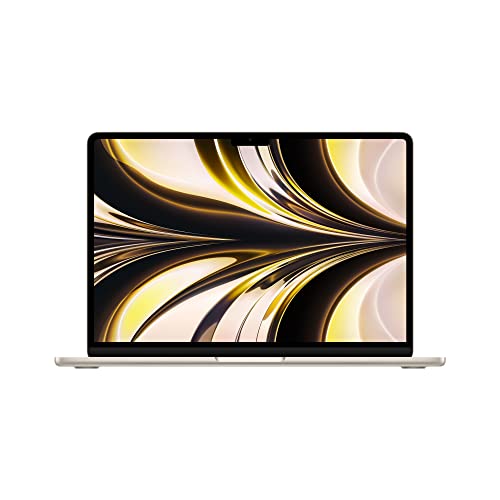
Apple 2022 MacBook Air Laptop with M2 chip: Built for Apple Intelligence, 13.6-inch Liquid Retina Display, 8GB RAM, 512GB SSD Storage, Backlit Keyboard, 1080p FaceTime HD Camera; Starlight — The premium thin-and-light benchmark from Apple, useful for judging how much portability and battery life the top tier buys you. Check price on Amazon.
Common Mistakes When Choosing a Laptop
The most common mistake is buying the cheapest configuration of a famous model. Manufacturers advertise the line with its best screen and fastest chip, then sell a base version with a dim display, minimal memory, and slow storage under the same name. Always compare the exact configuration, not the model family. A related trap is paying for a dedicated graphics card you will never use; if you do not game or edit video, integrated graphics are fine and buy you better battery life.
Another frequent error is ignoring the return window reality check: a laptop that feels fine in a five-minute store demo may have a keyboard or fan noise that grates after a week. Buy from sellers with fair return policies, and spend your first days testing your real workload — your heaviest spreadsheet, your biggest photo batch, your longest call — while returning is still easy.
Finally, do not forget the total cost of ownership. Factor in a case or sleeve, a possible dock or adapter set, and software subscriptions. A slightly more expensive laptop that needs no accessories often beats a bargain machine plus a pile of add-ons.
Pro Tips From Years of Laptop Buying
Shop the previous generation when a new one launches. Laptop performance improves gradually year to year, so last year’s mid-range model at a discount frequently beats this year’s entry model at the same money. Also, learn the difference between a model’s marketing name and its configuration code; two laptops with nearly identical names can differ in screen quality, memory, and storage.
If you are torn between two machines, choose the one with the better screen and keyboard. You look at the screen and touch the keyboard every minute you use the laptop, while a ten percent processor difference is invisible in daily work. And when a deal looks extraordinary, check whether the machine is an old warehouse model with an outdated processor generation — that is the usual explanation.
Operating System: The Choice Underneath Everything
Before comparing hardware, settle the operating system, because it quietly determines which laptops exist for you. Windows offers the widest hardware range and software library, and it is the default for business, gaming, and most specialized professional tools. macOS runs only on Apple’s MacBooks, which simplifies the shortlist dramatically and buys deep integration with iPhones and iPads. ChromeOS powers Chromebooks: simple, secure, and inexpensive machines built around the browser, excellent for schools and light users, limiting for anyone who needs full desktop applications.
Linux deserves a mention for developers and the technically inclined: many business laptops run it superbly, and some manufacturers sell Linux configurations directly. For most buyers the practical advice is to choose by software first — list the programs you cannot live without, confirm where they run well, and let that answer pick your operating system. Every hardware comparison after that point becomes a comparison within one family, which is a much easier decision.
Also consider the ecosystem you already own. An iPhone user gains real conveniences from a MacBook: messages, calls, file handoff, and shared clipboards. A household standardized on Windows gains simpler support and shared accessories from staying there. Switching platforms is entirely doable — your files move, mainstream apps exist on both sides — but the switching cost is a week of small frictions, and it should be a deliberate choice, not an accident of a sale price.
Gaming, Creative Work, and Other Special Cases
General rules bend for special workloads, so check your case explicitly. Gamers need a dedicated graphics card as the first specification, a high-refresh screen second, and cooling that can sustain both; processor tier matters less than the graphics card’s tier. Video editors need the opposite balance: strong processors, 32GB of memory for serious timelines, fast storage, and a color-accurate screen. Photographers should spend on the display before anything else, because the screen is their darkroom.
Students should weight durability, battery life, and weight above raw performance, and check their institution’s software requirements before buying anything — engineering and architecture programs often mandate Windows and specific graphics hardware, while other faculties are platform-agnostic. Developers should prioritize memory and screen resolution for code, and decide early whether they need to run virtual machines or containers, which pushes memory to 32GB quickly.
For households buying one shared machine, buy for the heaviest user and let everyone else enjoy the headroom; a laptop that satisfies the family editor or gamer will browse beautifully for everyone. And for anyone buying for an elderly relative or a child, weight the decision toward simplicity, a bright readable screen, a comfortable keyboard, and support you can actually reach — the best laptop is the one that generates the fewest phone calls.
Reading a Listing Like a Professional
Listings are written to sell, so read them defensively. Find the exact processor model number, not just ‘Intel Core i7’ — the generation digits tell you whether the chip is current or several years old. Find the screen’s brightness and panel type, not just its size and resolution. Find whether memory is a single module or a pair, whether it is soldered, and what the actual storage type is; a slow budget SSD and a fast NVMe drive share the same capacity number and nothing else.
Check the warranty terms and the return policy with the same care as the specifications. A generous return window is a feature: it converts your first week with the laptop into a real trial with your real workload. Finally, read reviews of the exact configuration where possible, because reviewers often test higher configurations than the one on sale, and the base model’s screen and storage can be entirely different components.
Worked Examples: Three Buyers, Three Right Answers
Consider a student starting a four-year degree in the humanities. Her workload is reading, writing, research, and video calls; her campus life demands light weight and all-day battery. The right answer is a 13 or 14-inch laptop with a current mid-range processor, 16GB of memory, 512GB of storage, and the best screen in her budget — performance headroom she will barely touch, wrapped in a machine she will not resent carrying for four years. A gaming laptop would be heavier, louder, and dead by the afternoon lecture.
Now a freelance video editor. His workload is 4K timelines, color work, and exports that run for an hour. His right answer inverts the student’s priorities: a 16-inch machine with an upper-tier processor, 32GB of memory, a fast 1TB drive, a dedicated graphics card, and a color-accurate wide-gamut screen — weight and battery be forgiven, because the machine earns its living plugged in. The student’s perfect laptop would be his bottleneck within a week.
Finally, a small-business owner buying for herself and two employees. Her right answer is not a specification at all but a system: one business model, identically configured, with three-year on-site warranties, docks for each desk, and a spare charger in the drawer. Individually, a consumer laptop might benchmark faster for the money; as a fleet, the business machines will cost her less in downtime, support, and replacements across their working lives. Three buyers, three correct laptops, zero overlap — which is why this guide teaches a method instead of naming a winner.
After You Buy: The First-Week Checklist
The choosing is not finished at checkout. In the first week, run every update, set up your backups, and enable encryption before the laptop accumulates the files that make those tasks feel risky to touch. Then test your real workload deliberately: your heaviest document, your biggest photo batch, your longest video call, your favorite game. You are inside the return window, and the window’s entire purpose is discovering a mismatch while it is still free to fix.
Check the unglamorous things reviewers cannot check for you: whether the fan noise annoys you in your actual room, whether the keyboard suits your hands across a full day, whether the screen’s glare fights your window. A laptop is a five-year roommate; the first week is when you learn whether you chose a compatible one.
If it passes, finish the setup properly: a restore point, a recorded serial number, the warranty registered, and the box kept until the return window closes. If it fails, return it without sentimentality and apply the lesson — you now know one more specification that matters to you, which makes the second choice the right one.
Ports, Expansion and the Laptop You Will Own in Three Years
The main steps weigh ports at purchase time, but their real significance is temporal: a laptop’s ports decide what your desk looks like for years. Count not the ports you use today but the setup you are drifting toward, an external monitor, a backup drive, a microphone or camera for calls, a wired network connection where the desk lives. A machine with too few of the right ports does not fail; it accumulates adapters and a hub, which is a legitimate solution provided the hub is budgeted and the laptop’s single do-everything port is a modern, full-capability one. What cannot be solved later is internal: memory and storage that are soldered are decisions made forever at checkout, while machines with accessible slots forgive a smaller initial specification. When two otherwise equal laptops differ in upgradability, the upgradable one is worth a real premium to anyone who keeps machines a long time, because it converts two future replacements, more memory, more storage, into inexpensive afternoons.
Displays in more depth: brightness, colour and eye comfort
Screens deserve a second pass because you will look at yours for thousands of hours. Brightness decides usability in bright rooms and near windows more than resolution does, and a dim, high-resolution screen is a worse tool than a bright, modest one for most work. Colour coverage matters in proportion to your creative work: photographers and designers should look for displays that cover the wider colour spaces their work uses, while office and study use is honestly served by standard panels. Matte finishes fight reflections in bright and mixed light; glossy finishes look richer in controlled light and mirror the room in difficult light, so choose by where the laptop will actually sit. Refresh rate, much marketed, matters chiefly for gaming and for the subjective smoothness of scrolling, and is a fair tiebreaker rather than a headline for most buyers. Finally, size interacts with resolution: text scaling on modern systems makes high resolutions comfortable at small sizes, but your own eyes, tested in a shop at your working distance, outrank any specification.
Keyboards, Trackpads and the Ergonomics of Daily Work
Reviewers photograph keyboards; owners marry them. If your work is writing, coding, study or any keyboard-heavy life, the keyboard and trackpad should rank alongside the processor in your decision, because they are the parts of the machine your body negotiates with hourly. Key travel, layout sanity, the presence of a proper set of navigation keys, and a trackpad that is large, accurate and palm-rejecting are testable in minutes in a shop and unfixable afterwards. Backlighting matters if you work in dim rooms, trains or lecture halls. The fingerprint reader and camera, meanwhile, decide the friction of every single day: a laptop that unlocks instantly and handles video calls flatteringly removes a hundred small annoyances a month, which over years is a larger quality-of-life sum than a benchmark difference you will never perceive. Buy for your hands and your day first, and let the spec sheet argue afterwards.
Build, hinges and the honest meaning of premium
Premium pricing in laptops buys several different things that are worth separating. It buys materials and stiffness, which you feel as solidity and which protect the machine in bags and in drops. It buys thermal design, which decides whether the advertised performance survives a long task or throttles politely. It buys support and warranty terms, and in business ranges, years of parts availability and next-day service options. It does not automatically buy a better screen, keyboard or battery, which is why a well-chosen mid-range machine with the right display and memory regularly serves its owner better than a premium machine bought for its badge with the wrong basics. Judge the premium by which of those goods your work actually consumes, and pay for those, in that model, rather than for the tier in the abstract.
Timing, Models and the Art of Not Waiting Forever
Laptop ranges refresh on cycles, and buyers freeze themselves waiting for the next one. The useful rule is that a current model bought when you need it outperforms, in delivered work, a marginally better model bought a season later, in almost every real life. Buy near a refresh if your need can genuinely wait and the expected change addresses your specific workload, such as a new processor generation for a compile-heavy job. Otherwise, the previous generation at a reduced tier is often the value summit of the whole market, because its performance is known, its faults are documented and its price has absorbed the novelty. Whichever you choose, set the machine up completely in its first week, updates, backup, recovery options, while returning it is still easy and faults are still discoveries rather than archaeology. A laptop’s first week decides its next five years more than its launch date ever will.
Battery Life, Honestly: Ratings Versus Your Day
Advertised battery figures are measured under conditions gentler than most working days, with dim screens and light tasks, and they function best as comparisons between models tested the same way rather than as promises. Translate them into your day by discounting for your real brightness, your real applications and the age the battery will reach while you own the machine, because capacity fades gradually and a laptop that barely lasts your day when new will not last it in year three. If your work is desk-based with occasional mobility, weight your decision toward performance and screen and treat battery as a convenience. If your work is lecture halls, sites, wards, flights and conferences, battery is a primary specification and the models built for endurance, with efficient processors and larger batteries in still-portable bodies, earn their compromises honestly. Either way, check the charging story: fast charging that restores a working charge during a lunch break changes the lived experience of a modest battery, and USB-C charging shared with your phone’s ecosystem simplifies travel more than a small capacity advantage ever will.
Weight, chargers and the true travel weight
Laptop weight is quoted for the machine alone, but you travel with the system: charger, cable, mouse if you use one, adapter or hub, and the bag itself. Add those before comparing a featherweight machine with a proprietary heavy charger against a slightly heavier machine that charges from the small USB-C adapter you already carry for everything else. The second system is frequently the lighter one at the airport. The same arithmetic applies at home, where a second charger for the desk, bought once, removes the daily ritual of unpacking the travel charger, a small quality-of-life purchase that owners consistently rank among their best. Portability is a system property, like everything else in this guide, and the buyers who calculate it whole are the ones whose laptops actually get carried.
Security, Privacy and Longevity Features Worth Wanting
A modern laptop holds a life, and a few features protect it disproportionately. A fingerprint reader or face recognition makes strong sign-in effortless, which means it gets used, which is the whole of practical security. Full-disk encryption, standard on current systems, should simply be confirmed as on, with its recovery key stored safely away from the machine. A physical camera shutter or a camera that can be disabled in firmware answers the privacy question without tape. For longevity, prefer makers with a track record of operating system support for older models and available parts, and business ranges whose batteries and storage can be replaced, because a laptop retired by a dead battery or a full drive while its processor still serves is a waste in every currency. None of these features photographs well in a listing. All of them compound quietly across years of ownership, which is exactly the timescale this guide has asked you to think on from its first step.
Gaming and Creative Laptops: Where the General Rules Bend
Two workloads bend this guide’s general rules enough to deserve explicit treatment. Gaming laptops trade the virtues this guide prizes, quiet, cool, light, long battery, for graphics performance, and the trade is honest when gaming is genuinely central. Judge them on the graphics hardware’s sustained performance in that specific chassis, because the same named graphics in a thin body and a thick one are different performers, on the screen’s refresh and colour together, and on whether the keyboard and cooling survive long sessions. Creative laptops for photo, video and design work bend the rules differently: the screen’s colour accuracy becomes a primary specification rather than a nicety, memory and storage speed feed directly into editing responsiveness, and graphics acceleration matters in proportion to the effects and resolutions in the workflow. Both categories reward buyers who test with their own material, a game scene, a project file, rather than trusting category averages, because within each category the spread between models is wider than the spread between categories.
Students, families and the shared laptop
A student laptop is a four-year relationship with coursework, portability between rooms and libraries, and a budget that must also survive accidents; durability, battery, weight and a warranty that covers real student life outrank peak performance, and the mid-range is the student’s natural home. A family laptop is a shared instrument and should be bought like one: a screen and keyboard everyone can use, storage that assumes several people’s files, user accounts set up from day one, and the sturdiness to survive being the household’s most handled computer. In both cases, the mistake is buying for the most demanding imagined day rather than the thousand ordinary ones, a principle this guide has applied to processors and now applies to people: the laptop that serves the ordinary days of its actual users, reliably and without friction, is the right laptop, and it rarely wears the highest specification in the shop.
After the Purchase: Setup Choices That Protect the Investment
The first day with a new laptop sets patterns that persist for years, and a few choices deserve the same care as the purchase itself. Run every update before installing your life on the machine, so the foundation is current. Turn on full-disk encryption and record its recovery key somewhere safe and separate. Set up the backup before you need it, ideally automatic, because the best time to arrange a backup is when there is nothing irreplaceable to lose and the worst time is the day after there should have been. Create a standard account for daily use if the machine will hold important work, and keep the administrator account for installations. Transfer files selectively rather than cloning a decade of clutter onto a fresh machine, and let the new laptop begin its life organised. Finally, photograph or record the serial number and keep the receipt with your important documents. None of this is exciting, and all of it is the difference between a laptop that serves for five calm years and one whose first crisis, in month two, becomes an education you paid full price for.
The Shortlist Method: From Forty Models to Two
Choice overload is the modern laptop buyer’s first problem, so here is the funnel this guide implies, made explicit. Start by fixing the decisions that eliminate most of the market at a stroke: the operating system your software and habits require, the screen size your carrying and your desk dictate, and the memory and storage floors your workload sets, bought generously where they cannot be upgraded. That funnel typically leaves a handful of models rather than a catalogue. Among those, eliminate any whose keyboard, screen brightness or port selection fails your daily reality, because those are the unfixable properties. What remains is usually two or three machines separated by price, weight and warranty, and at that point the honest tiebreakers are the ones from this guide: hold them if you can, price the whole system including chargers and hubs, and check the maker’s support record for models a few years old. A decision made this way is defensible in every particular, and, just as importantly, it ends, which frees the buyer to do the work the laptop was bought for.
What to do with the money you did not spend
Buyers who follow the funnel often land below their maximum budget, and the remainder has high-value homes that listings never suggest. A proper backup drive and the habit to use it protects everything the laptop will ever hold. A second charger ends the daily unpacking ritual. A good bag or sleeve protects the machine in the journeys where laptops actually die. A warranty extension, judged by the machine’s working life as this guide describes, may earn its place. And a reserve kept for the battery replacement or the storage upgrade in year three converts a future replacement decision into a minor service. A laptop bought as a system, with its life funded in advance, serves longer and calmer than a laptop bought as a single maximal object, which is this guide’s argument in miniature.
A Closing Word on Enough, for Laptops Too
The laptop market sells escalation as a default, and this guide’s steps exist to give you a stopping place with a clear conscience. When a machine runs your heaviest regular task without complaint, carries the memory and storage your next few years require, shows your work on a screen your eyes enjoy, lasts your working day in the places you work, and fits your hands and your bag, it is not a compromise purchase awaiting an upgrade. It is the right laptop, and the correct next step is to close the comparison tabs and do the work, the study, the creating or the organising that the machine was bought to serve. The buyers who get the most from their laptops are rarely the ones with the finest specifications. They are the ones who chose deliberately, set the machine up completely, backed it up faithfully, and then thought about it as little as possible for five years, which is the highest compliment a tool can ever be paid.
One final encouragement, addressed to the buyer who has read this far and feels the choice getting heavier rather than lighter. A laptop is a companion for years of mornings, deadlines, journeys and late finishes, and it deserves the care you have given the decision. Apply the funnel, test the finalists against your real day, fund the whole system rather than the single object, and then commit completely. A well-chosen laptop stops being a purchase within a month and becomes simply the place where your work lives, which is the outcome every step in this guide has been quietly aiming at from the beginning.
The shortest honest summary of this guide
Start from your workload, not the shop window. Buy memory and storage for the years, not the month, especially where they cannot be upgraded. Choose the screen, keyboard and battery for the places and postures of your real day, price the whole travelling system rather than the bare machine, and prefer the maker whose older models are still supported and serviceable. Then set it up completely, back it up automatically, and think about it as little as possible for as many years as it will let you. That is the whole method, and it will still be true when every model in this season’s line-up has been replaced twice over.
And if you take only one sentence from this entire guide into the shop, take this one: buy the laptop your heaviest ordinary week requires, with the screen and keyboard your body will thank you for, and nothing in the decision will need revisiting for years. Everything else in these pages is that sentence with its working shown. Trust the working, make the choice, and let the work begin.
Choose it once, choose it well, and then go and fill it with the work, the photographs, the writing and the life it was bought to hold. That filling, not the choosing, is where its value will actually come from.
Related Guides
- best laptops for work in our tested price bands
- best laptops for college students
- best laptops for programming
- best laptops for video editing
- best laptops for students on a budget
- how much RAM a laptop needs, explained
- what makes a good laptop processor
Frequently Asked Questions
How much should I spend on a laptop?
Think in tiers rather than a single figure. Entry-tier laptops handle browsing, documents, and streaming. Mid-range machines add comfortable multitasking, better screens, and metal builds, and suit most workers and students. Premium models buy thinness, top-tier displays, and strong performance for creators and gamers. Spend for the tier your workload needs, not the tier with the most impressive advertising.
Is 8GB of RAM enough in a new laptop?
For light use — browsing, email, documents, and streaming — 8GB still works, though heavy tab habits will push it. Because many laptops cannot be upgraded later and software keeps growing, 16GB is the safer choice for anyone keeping the machine more than a couple of years or doing anything beyond basic tasks.
Should I choose Windows or macOS?
Choose based on your software and ecosystem. Windows offers the widest hardware choice at every price and runs the broadest range of business and gaming software. macOS is limited to Apple’s machines but is prized for battery life, build quality, and integration with iPhones. Neither is universally better; your programs and preferences decide.
Do I need a dedicated graphics card?
Only if you game, edit video regularly, work in 3D or CAD, or run GPU-accelerated workloads. For everyday computing, modern integrated graphics handle multiple monitors, streaming, and light photo work well, while running cooler and lasting longer on battery. Paying for a discrete GPU you never use is one of the easiest ways to overspend.
How long should a good laptop last?
A well-chosen mid-range or premium laptop should serve four to six years for general use. Longevity depends mostly on buying enough memory and storage at the start, keeping the battery healthy, and choosing a sturdy build. Very cheap machines often become frustrating after two to three years because their limited memory and storage cannot be upgraded.
Are refurbished laptops worth considering?
Manufacturer-refurbished business laptops can be excellent value: they were built for durability, are easy to service, and cost far less than new equivalents. Buy from the manufacturer’s own outlet or a reputable seller with a warranty, check the battery health policy, and confirm the specifications carefully, since refurbished listings vary unit by unit.
Should I buy the extended warranty?
It depends on the machine’s life rather than the machine. A laptop that travels daily, works on sites or survives student housing faces accident risks that can make accidental-damage cover rational. A desk-bound home laptop faces mainly component failure, which standard warranties and consumer protections already address in its early years. Read what the extension actually covers, especially batteries and accidents, and compare its cost against a repair reserve you keep yourself. There is no universal answer, only an honest estimate of your laptop’s working conditions.
Is a touchscreen worth it on a laptop?
It depends entirely on the work. For drawing, annotation, presenting and any task where touching the content is natural, a good touchscreen, especially with pen support, is a genuine capability. For conventional desk work it adds cost, weight and a glossier screen while going largely unused. Two-in-one designs that fold into a tablet shape serve readers, teachers and field workers well and compromise keyboard and hinge for everyone else. Let a named task argue for the touchscreen; if no task speaks up, spend the money on memory or screen brightness instead.
How important is the processor brand?
Less than the processor’s generation and tier, and far less than memory, storage and screen for most buyers. Current processors from all the major makers handle ordinary work excellently, and the differences that matter, sustained performance under long loads, efficiency for battery life, integrated graphics strength for light gaming and creative work, are properties of specific models in specific chassis. Compare the actual machines on your shortlist doing your actual work, in reviews that test sustained loads, rather than choosing a badge and shopping beneath it.

