Disclosure: As an Amazon Associate, kajuandouglas.com earns from qualifying purchases. Links to Amazon on this page are affiliate links; they cost you nothing extra. Listing details such as price and availability change often, so check the current Amazon listing before you buy.
Where to buy
Every linked pick in this guide to the best laptops for 10 year olds is sold on Amazon, where you can check the current price, availability and delivery options before you order. Prices and stock change often, so the listing — not any guide — is the final word at checkout. Orders are placed with Amazon, and qualifying purchases made through these links may earn a commission at no extra cost to you. The shortlist below follows the same order as the full reviews further down the page.
- HP Chromebook 14 (Celeron N4120) — Chosen as the best overall option — built for students and casual users who live in a browser.
- Lenovo Flagship Chromebook 14 (Kompanio 520) — Chosen as the best screen option — built for budget buyers who want a sharp screen for browsing and classwork.
- Acer Chromebook Plus 514 — Chosen as the best longer-lasting pick option — built for Chromebook fans who want speed, storage and a better screen.
- ASUS Vivobook Go 15 — Chosen as the best windows pick option — built for first-time buyers who need real Windows on a tight budget.
- Acer Aspire Go 15 — Chosen as the best bigger screen option — built for home users who want a roomy screen and smoother everyday Windows use.
- HP Pavilion 15.6 (Intel N150) — Chosen as the best for homework + calls option — built for students and home-office users doing documents, mail and calls.
Read the full guide ↓
Finding the best laptops for 10 year olds means ignoring most of the laptop market on purpose. The machines that matter for parents buying for a 10 year old are the ones built around a child’s schoolwork, homework platforms and supervised browsing, where durability, simple management, long battery life and a safe, locked-down system matter more than speed. This guide narrows the field to six picks that cover the realistic range — a clear best overall, honest budget options and premium machines for readers whose work justifies them — and every linked pick below has been cross-checked against the manufacturer’s specification for the exact model named. Prices move too often to print responsibly, so each pick links to its live Amazon listing instead; what this guide gives you is the part that does not change weekly: which machine fits which kind of user, and why.
The short version: start with the HP Chromebook 14 (Celeron N4120), which earns the top spot for most parents buying for a 10 year old. If the budget is the binding constraint, the budget-badged pick further down protects the components that decide long-term satisfaction and trims the ones that do not. And if your version of schoolwork, homework platforms and supervised browsing is heavier than average — bigger projects, longer days, more demanding software — the premium picks are not decoration; they are the machines whose headroom you will actually use.
Below you will find the quick-picks table, the reasoning behind the selection, a full review of each machine, a side-by-side comparison, a buying guide for this specific use, a practical how-to section, the mistakes buyers in this category keep making, and answers to the questions parents buying for a 10 year old ask most. Read the reviews for the two or three picks closest to your situation and the choice usually makes itself.
Key Takeaways
- Best overall for most buyers: the HP Chromebook 14 (Celeron N4120).
- The deciding factors for this use are a child’s schoolwork, homework platforms and supervised browsing, where durability, simple management, long battery life and a safe, locked-down system matter more than speed.
- Memory and storage headroom matter more than a small processor difference — buy for year three, not week one.
- Every linked pick was verified against the exact model specification; check the live listing for current price and stock.
- Sale prices change constantly — the configuration matters more than the discount banner.
In this guide
Quick Picks
Six machines made the cut for parents buying for a 10 year old. The table summarises the verdicts; the full reviews below explain each one.
| Badge | Pick | Why it stands out | Link |
|---|---|---|---|
| Best Overall | HP Chromebook 14 (Celeron N4120) | Chrome OS boots fast and updates itself with no maintenance | Check price on Amazon |
| Best Screen | Lenovo Flagship Chromebook 14 (Kompanio 520) | Full HD touchscreen is sharper than most budget Chromebooks | Check price on Amazon |
| Best Longer-Lasting Pick | Acer Chromebook Plus 514 | Core i3 and 8GB RAM make Chrome OS feel genuinely fast | Check price on Amazon |
| Best Windows Pick | ASUS Vivobook Go 15 | Full Windows 11 for normal desktop programs | Check price on Amazon |
| Best Bigger Screen | Acer Aspire Go 15 | 8GB DDR5 memory, double most entry-level rivals | Check price on Amazon |
| Best for Homework + Calls | HP Pavilion 15.6 (Intel N150) | Numeric keypad suits spreadsheets and data entry | Check price on Amazon |
How These Picks Were Chosen
The selection started from what schoolwork, homework platforms and supervised browsing actually demands of a laptop, then filtered the current market against it. Machines were excluded for failing the basics — too little memory for the workload, screens that undermine the work, or designs whose compromises this audience would feel daily — regardless of how impressive their headline specifications looked.
- Fit for the job: each pick is genuinely suited to a child’s schoolwork, homework platforms and supervised browsing, where durability, simple management, long battery life and a safe, locked-down system matter more than speed, not merely powerful in the abstract.
- Verified specification: every linked pick’s processor, memory, storage and display were cross-checked against the exact model listing before inclusion.
- Balanced configurations: picks favour the configuration a buyer should actually order, not the stripped variant used to advertise a low starting price.
- Honest compromises: each review states the trade-offs plainly, including where a cheaper or dearer pick would serve better.
- Price discipline: because prices change constantly, no fixed prices are printed — each pick links to its live listing so you judge value at the moment you buy.
The Best Laptops For 10 Year Olds
Six picks, reviewed in the same order as the tables above. Each review covers who the machine suits, its verified specification, three strengths, three honest trade-offs, and a plain verdict.
HP Chromebook 14 (Celeron N4120)
Badge: Best Overall
| Processor | Intel Celeron N4120 |
| Memory | 4GB RAM |
| Storage | 64GB eMMC |
| Display | 14-inch HD |
| OS | Chrome OS |
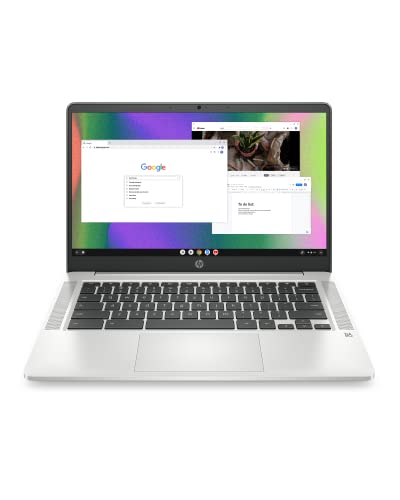
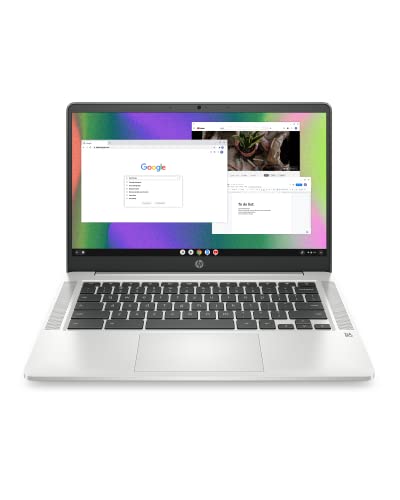
The HP Chromebook 14 is the classic low-cost school-and-email laptop: a Celeron N4120, 4GB of memory and 64GB of eMMC storage wrapped in a thin 14-inch chassis running Chrome OS. It boots fast, updates itself in the background and shrugs off the malware worries that come with cheap Windows machines. The HD panel is fine for documents, video calls and streaming, and the long battery life suits a full school day. It is not a machine for local photo editing or big downloads, but as a browser-first computer it covers the essentials honestly and cheaply.
The fit for a child’s schoolwork, homework platforms and supervised browsing, where durability, simple management, long battery life and a safe, locked-down system matter more than speed comes down to a few specifics. Its modest processor and 4GB of memory set the everyday pace, and the 64GB eMMC of storage decides how much of your working library lives on the machine itself. There is no discrete graphics card, and for this job that is the right allocation — the budget sits in the components the work actually exercises every day. Chrome OS keeps the machine fast, self-updating and almost maintenance-free, which suits browser-centred work.
Beyond the headline specification, the ownership experience matters. Chrome OS ownership is deliberately boring: updates install themselves, the machine boots in seconds, and there is almost nothing to maintain. The checks that matter are the update-support horizon and whether your files live comfortably in cloud storage. Taken together with its badge in this guide, that ownership profile is why it sits where it does in the running order for this audience.
Strengths
- Chrome OS boots fast and updates itself with no maintenance
- Long battery life easily covers a school or work day
- Thin, light 14-inch design that travels well in a backpack
Trade-offs
- 4GB of memory slows down with many heavy tabs open
- 64GB eMMC fills quickly if you save lots of files locally
- HD screen is dimmer and softer than FHD panels on pricier picks
Choose it if you are looking for a machine built for students and casual users who live in a browser. Skip it if your situation matches the other side of its design: it is not the right tool for anyone who needs Windows software or local storage. Readers whose needs sit between those poles should weigh the badge it carries in this guide — best overall — against the picks either side of it.
Best for: students and casual users who live in a browser / Not suited for: anyone who needs Windows software or local storage

Lenovo Flagship Chromebook 14 (Kompanio 520)
Badge: Best Screen
| Processor | MediaTek Kompanio 520 (8-core) |
| Memory | 4GB RAM |
| Storage | 64GB eMMC |
| Display | 14-inch FHD touchscreen |
| OS | Chrome OS |
Lenovo’s entry Chromebook stands out with a Full HD touchscreen where most rivals at this level settle for a softer HD panel. The 8-core MediaTek Kompanio 520 keeps Chrome OS feeling responsive for browsing, documents and classroom apps, and Wi-Fi 6 support means it plays nicely with newer home routers. Storage is the usual 64GB of eMMC, so plan on cloud storage for photos and files. For buyers who want a cheap machine that still feels modern when scrolling and tapping, this is one of the better-balanced budget Chromebooks.
Judged against what this job actually demands — a child’s schoolwork, homework platforms and supervised browsing, where durability, simple management, long battery life and a safe, locked-down system matter more than speed — this machine is well matched. Its modest processor and 4GB of memory set the everyday pace, and the 64GB eMMC of storage decides how much of your working library lives on the machine itself. There is no discrete graphics card, and for this job that is the right allocation — the budget sits in the components the work actually exercises every day. Chrome OS keeps the machine fast, self-updating and almost maintenance-free, which suits browser-centred work.
Living with it day to day adds a few more facts worth weighing. Chrome OS ownership is deliberately boring: updates install themselves, the machine boots in seconds, and there is almost nothing to maintain. The checks that matter are the update-support horizon and whether your files live comfortably in cloud storage. Taken together with its badge in this guide, that ownership profile is why it sits where it does in the running order for this audience.
Strengths
- Full HD touchscreen is sharper than most budget Chromebooks
- 8-core processor keeps everyday browsing smooth
- Wi-Fi 6 support for newer routers and faster local speeds
Trade-offs
- 4GB RAM limits serious multitasking
- 64GB eMMC means cloud storage is a must
- Touch layer adds a little weight versus non-touch rivals
Choose it if you are looking for a machine built for budget buyers who want a sharp screen for browsing and classwork. Skip it if your situation matches the other side of its design: it is not the right tool for users who need Windows-only programs. Readers whose needs sit between those poles should weigh the badge it carries in this guide — best screen — against the picks either side of it.
Best for: budget buyers who want a sharp screen for browsing and classwork / Not suited for: users who need Windows-only programs

Acer Chromebook Plus 514
Badge: Best Longer-Lasting Pick
| Processor | Intel Core i3-1315U |
| Memory | 8GB LPDDR5 |
| Storage | 256GB SSD |
| Display | 14-inch WUXGA IPS touch, matte |
| OS | Chrome OS |
The Chromebook Plus 514 is what Chrome OS looks like with real headroom: a Core i3-1315U, 8GB of LPDDR5 memory and a proper 256GB SSD instead of slow eMMC. The 14-inch WUXGA matte touch display is easy on the eyes in bright rooms, the FHD camera is a step up for video calls, and Wi-Fi 7 future-proofs the wireless side. Google’s Chromebook Plus tier also brings the AI editing and call tools built into the platform. If you like the simplicity of a Chromebook but hate the sluggishness of the cheapest models, this is the fix.
For a child’s schoolwork, homework platforms and supervised browsing, where durability, simple management, long battery life and a safe, locked-down system matter more than speed, the specification here lines up well. Its capable processor and 8GB of memory set the everyday pace, and the 256GB SSD of storage decides how much of your working library lives on the machine itself. There is no discrete graphics card, and for this job that is the right allocation — the budget sits in the components the work actually exercises every day. Chrome OS keeps the machine fast, self-updating and almost maintenance-free, which suits browser-centred work.
Beyond the headline specification, the ownership experience matters. Chrome OS ownership is deliberately boring: updates install themselves, the machine boots in seconds, and there is almost nothing to maintain. The checks that matter are the update-support horizon and whether your files live comfortably in cloud storage. Taken together with its badge in this guide, that ownership profile is why it sits where it does in the running order for this audience.
Strengths
- Core i3 and 8GB RAM make Chrome OS feel genuinely fast
- 256GB SSD is far roomier and quicker than eMMC rivals
- Matte WUXGA touch display plus FHD camera for calls
Trade-offs
- Costs more than entry Chromebooks while still running Chrome OS
- No Windows app support beyond web and Android apps
- Integrated graphics only, so no serious local gaming
Choose it if you are looking for a machine built for Chromebook fans who want speed, storage and a better screen. Skip it if your situation matches the other side of its design: it is not the right tool for buyers who need desktop Windows or Mac software. Readers whose needs sit between those poles should weigh the badge it carries in this guide — best longer-lasting pick — against the picks either side of it.
Best for: Chromebook fans who want speed, storage and a better screen / Not suited for: buyers who need desktop Windows or Mac software

ASUS Vivobook Go 15
Badge: Best Windows Pick
| Processor | AMD Athlon Silver 10 |
| Memory | 4GB RAM |
| Storage | 128GB SSD |
| Display | 15.6-inch FHD |
| OS | Windows 11 Home |
The Vivobook Go 15 is a full Windows laptop at a Chromebook-like tier, built around an AMD Athlon Silver 10 processor, 4GB of memory and a 128GB SSD. The 15.6-inch Full HD screen gives documents and spreadsheets room to breathe, and Windows 11 Home means normal desktop programs install without workarounds. Performance is strictly for light duty — email, browsing, documents and streaming — and the 4GB of memory is the ceiling you will feel first. As a first laptop or a spare household machine, it covers the basics in a slim, colourful chassis.
Judged against what this job actually demands — a child’s schoolwork, homework platforms and supervised browsing, where durability, simple management, long battery life and a safe, locked-down system matter more than speed — this machine is well matched. Its modest processor and 4GB of memory set the everyday pace, and the 128GB SSD of storage decides how much of your working library lives on the machine itself. There is no discrete graphics card, and for this job that is the right allocation — the budget sits in the components the work actually exercises every day. The conventional clamshell design is a virtue here: stable on any desk or lap, with a keyboard deck built for long sessions. Windows 11 keeps the widest range of software open to you, including the specialist tools this audience often grows into.
Beyond the headline specification, the ownership experience matters. Day to day, this is a low-drama machine: modern standby, fast wake and the current generation of Wi-Fi keep it feeling responsive, and its port selection decides how cleanly it docks into a desk setup. As with most modern laptops, confirm the upgrade story before assuming memory or storage can grow later. Taken together with its badge in this guide, that ownership profile is why it sits where it does in the running order for this audience.
Strengths
- Full Windows 11 for normal desktop programs
- Large 15.6-inch Full HD screen at an entry tier
- Slim, light design that is easy to carry around the house
Trade-offs
- 4GB RAM is the minimum for comfortable Windows use
- Athlon Silver chip is for light tasks only
- 128GB SSD fills fast with games or large media libraries
Choose it if you are looking for a machine built for first-time buyers who need real Windows on a tight budget. Skip it if your situation matches the other side of its design: it is not the right tool for multitaskers or anyone running demanding software. Readers whose needs sit between those poles should weigh the badge it carries in this guide — best windows pick — against the picks either side of it.
Best for: first-time buyers who need real Windows on a tight budget / Not suited for: multitaskers or anyone running demanding software
Acer Aspire Go 15
Badge: Best Bigger Screen
| Processor | Intel Core 3 N355 |
| Memory | 8GB DDR5 |
| Storage | 128GB UFS |
| Display | 15.6-inch FHD IPS |
| OS | Windows 11 Home (S Mode) |
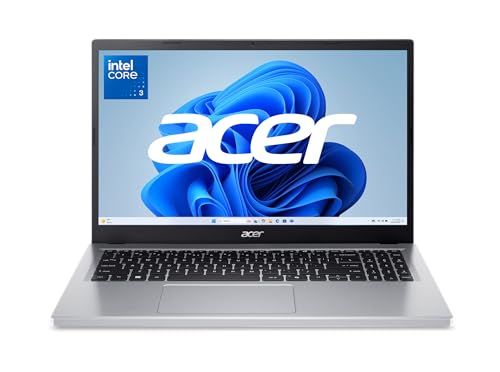
The Aspire Go 15 doubles the memory of most entry laptops — 8GB of DDR5 — which makes Windows feel noticeably less cramped when you keep a browser, mail and a document open together. The Intel Core 3 N355 handles everyday work, the 15.6-inch FHD IPS panel is a genuine step up from the washed-out screens common at this level, and Wi-Fi 6 is standard. It ships in S Mode, which restricts installs to the Microsoft Store until you switch out of it for free. Storage is a modest 128GB, so pair it with cloud or external drives.
Judged against what this job actually demands — a child’s schoolwork, homework platforms and supervised browsing, where durability, simple management, long battery life and a safe, locked-down system matter more than speed — this machine is well matched. Its modest processor and 8GB of memory set the everyday pace, and the 128GB UFS of storage decides how much of your working library lives on the machine itself. There is no discrete graphics card, and for this job that is the right allocation — the budget sits in the components the work actually exercises every day. The conventional clamshell design is a virtue here: stable on any desk or lap, with a keyboard deck built for long sessions. Windows 11 keeps the widest range of software open to you, including the specialist tools this audience often grows into.
Living with it day to day adds a few more facts worth weighing. Day to day, this is a low-drama machine: modern standby, fast wake and the current generation of Wi-Fi keep it feeling responsive, and its port selection decides how cleanly it docks into a desk setup. As with most modern laptops, confirm the upgrade story before assuming memory or storage can grow later. Taken together with its badge in this guide, that ownership profile is why it sits where it does in the running order for this audience.
Strengths
- 8GB DDR5 memory, double most entry-level rivals
- 15.6-inch FHD IPS display with decent viewing angles
- Modern Wi-Fi 6 and a clean, light design
Trade-offs
- 128GB storage is tight for photos and games
- S Mode must be switched off to install normal desktop apps
- Integrated graphics only — fine for video, not for gaming
Choose it if you are looking for a machine built for home users who want a roomy screen and smoother everyday Windows use. Skip it if your situation matches the other side of its design: it is not the right tool for gamers or heavy multitaskers. Readers whose needs sit between those poles should weigh the badge it carries in this guide — best bigger screen — against the picks either side of it.
Best for: home users who want a roomy screen and smoother everyday Windows use / Not suited for: gamers or heavy multitaskers

HP Pavilion 15.6 (Intel N150)
Badge: Best for Homework + Calls
| Processor | Intel N150 |
| Memory | See listing (varies) |
| Storage | 128GB plus 1TB cloud storage |
| Display | 15.6-inch |
| OS | Windows 11 |
HP’s Pavilion bundle leans into convenience: an efficient Intel N150 processor, a full-size 15.6-inch chassis with a numeric keypad, fast charging and a long battery runtime, plus bundled cloud storage and Office 365 access to soften the modest 128GB of local space. It is aimed squarely at study and light business work — documents, email, video calls and web apps — where the quiet, cool-running chip is an advantage rather than a limit. Anyone planning heavy local software should look further up this list, but for straightforward daily computing it is an easy machine to live with.
For a child’s schoolwork, homework platforms and supervised browsing, where durability, simple management, long battery life and a safe, locked-down system matter more than speed, the specification here lines up well. Its modest processor and 8GB of memory set the everyday pace, and the 128GB + cloud of storage decides how much of your working library lives on the machine itself. There is no discrete graphics card, and for this job that is the right allocation — the budget sits in the components the work actually exercises every day. The conventional clamshell design is a virtue here: stable on any desk or lap, with a keyboard deck built for long sessions. Windows 11 keeps the widest range of software open to you, including the specialist tools this audience often grows into.
Living with it day to day adds a few more facts worth weighing. Day to day, this is a low-drama machine: modern standby, fast wake and the current generation of Wi-Fi keep it feeling responsive, and its port selection decides how cleanly it docks into a desk setup. As with most modern laptops, confirm the upgrade story before assuming memory or storage can grow later. Taken together with its badge in this guide, that ownership profile is why it sits where it does in the running order for this audience.
Strengths
- Numeric keypad suits spreadsheets and data entry
- Fast charging and long battery life for study days
- Bundled cloud storage offsets the small local drive
Trade-offs
- N150 processor is for light workloads only
- Local storage is small without the cloud bundle
- Not suited to gaming or heavy creative software
Choose it if you are looking for a machine built for students and home-office users doing documents, mail and calls. Skip it if your situation matches the other side of its design: it is not the right tool for power users or gamers. Readers whose needs sit between those poles should weigh the badge it carries in this guide — best for homework + calls — against the picks either side of it.
Best for: students and home-office users doing documents, mail and calls / Not suited for: power users or gamers
Comparison Table
| Pick | Processor | Memory | Storage | Display |
|---|---|---|---|---|
| HP Chromebook 14 (Celeron N4120) | Intel Celeron N4120 | 4GB RAM | 64GB eMMC | 14-inch HD |
| Lenovo Flagship Chromebook 14 (Kompanio 520) | MediaTek Kompanio 520 (8-core) | 4GB RAM | 64GB eMMC | 14-inch FHD touchscreen |
| Acer Chromebook Plus 514 | Intel Core i3-1315U | 8GB LPDDR5 | 256GB SSD | 14-inch WUXGA IPS touch, matte |
| ASUS Vivobook Go 15 | AMD Athlon Silver 10 | 4GB RAM | 128GB SSD | 15.6-inch FHD |
| Acer Aspire Go 15 | Intel Core 3 N355 | 8GB DDR5 | 128GB UFS | 15.6-inch FHD IPS |
| HP Pavilion 15.6 (Intel N150) | Intel N150 | See listing (varies) | 128GB plus 1TB cloud storage | 15.6-inch |
Specifications are for the configurations described in the reviews; manufacturers sell variants of most models, so confirm the exact configuration on the listing before ordering.
Buying Guide: How to Choose a Laptop for Parents buying for a 10 year old
This section steps back from individual models to the decisions underneath them, so you can judge any machine — including next season’s — against the needs of schoolwork, homework platforms and supervised browsing.
Simple and Locked Down Beats Fast
A ten-year-old’s laptop lives a hard, simple life: school platforms in a browser, homework documents, video calls with teachers and a lot of being carried in a backpack. For best laptops for 10 year olds, Chrome OS machines lead this list because they are fast to boot, nearly impossible to break with bad installs, update themselves and let parents manage accounts and content through family controls. The Windows picks are here for schools that require Windows software — check the school’s platform first, because it decides the operating system for you.
Specifications barely matter at this age beyond the basics: 4GB of memory runs school platforms, and storage fills with very little. What matters is battery that survives the school day, a screen big enough for split-screen lessons and a price tier that does not make a cracked hinge a family tragedy.
The Parent Checklist: Controls, Cases and School Rules
Before buying, settle three things. First, the school’s requirements — some mandate a specific platform or even supply the device list. Second, supervision: set up the child’s account under your family management system from the first boot, not after the first incident. Third, protection: a sleeve or case and a talk about drinks near keyboards prevent the two most common childhood laptop deaths. For best laptops for 10 year olds, also consider where the machine charges — a fixed charging spot keeps it out of bedrooms overnight and makes the school-morning routine calmer.
Finally, think about the handover horizon: a child of ten will be a teenager with heavier school demands within this laptop’s life. The Chromebook Plus pick above is the deliberate step-up for families who want one machine to span that whole stretch.
A word on hand-me-downs: an old family laptop can be a fine first machine if its battery still holds a school day and it still receives security updates. If it fails either test, the entry picks above are safer than reviving a machine whose updates have ended.
Finally, a note on timing and configuration discipline. Laptop lines refresh frequently, and the exact model you researched can quietly change memory or screen specification between seasons. When you order, screenshot the configuration on the listing, verify it against the manufacturer’s page, and check the delivered machine against both in its first days — that small ritual prevents nearly every ‘not what I ordered’ story.
Accessories deserve one paragraph of honesty: the right case, a second charger for the bag or desk, and — for desk workers — a decent external mouse often improve daily life more than one component tier would have. Budget for the two or three you will genuinely use, and ignore the rest of the accessory wall.
Support and warranty are part of the product, too. Before ordering, read how repairs work for the brand you are buying, how long the included warranty runs and whether accidental-damage cover is offered at a sane price for your risk profile — a machine that travels or serves children lives a different life from one that never leaves a desk.
Consider the second-user test as well: a laptop in this category is often shared, borrowed or handed down. Machines with standard ports, replaceable batteries where the design allows, and a clean reinstall path age more gracefully through a household or a small team than sealed designs bought purely on first impressions.
Think about the software subscriptions and services around the machine, too. Office suites, cloud storage, creative tools and security software increasingly rent rather than sell, and the honest cost of a laptop over five years includes them. A slightly cheaper machine that forces a pricier software tier — or lacks the ports for the drive you already own — can be the more expensive purchase by year two.
Lastly, buy the machine in front of you, not the rumoured one. There is always a newer model a season away, and waiting for it is a strategy only if your current machine still serves you. If it does not, the best laptop is the well-chosen one you can order today from this list, verified, checked in its first week and put to work.
Noise, heat and light are the three comfort taxes nobody lists in a specification table. A machine that runs its fans during a call, warms the desk under your wrists or washes out beside a window will be resented daily regardless of its benchmark scores — which is why the reviews above mention these traits wherever they are known, and why your first week with the machine should include using it in the brightest, quietest room you work in.
How Do You Set Up a Laptop for a Child Safely?
The first setup session sets the habits. Do it together.
Step 1: Create the child’s own supervised account under your family management settings before handing the machine over, and set content and app rules at the level you have agreed as a family.
Step 2: Turn on automatic updates and confirm they are scheduled outside school hours.
Step 3: Bookmark the school platforms and homework sites together, and show your child how to spot the sign-in pages they should never type a password into.
Step 4: Agree the charging spot and the carrying rule — two hands, closed lid, in the case — and practise it once.
Step 5: Set a screen-time rhythm in the family controls that matches your household rules, so the laptop enforces the boring part for you.
Troubleshooting
Problem: a website or app you need is not available → Check for the web version first — most services have one — then the Android app. If the tool is Windows-only software, that is a platform limit, and the honest fix is a Windows machine or the service’s cloud version.
Problem: storage fills with downloads → Chromebooks are designed around cloud storage: move files into your cloud drive, clear the downloads folder monthly, and let the system manage its cache rather than hoarding offline copies.
Problem: the machine will not update → Check the device’s Auto Update Expiration date in settings. Past that date the hardware still works, but it stops receiving updates — a fact to weigh before buying any renewed unit.
Problem: printing misbehaves → Remove and re-add the printer in settings, confirm it is on the same network, and prefer printers with stated Chrome OS support; ageing USB printers are the usual culprits.
Common Buying Mistakes
Choosing the wrong operating system for your software
Windows, macOS and Chrome OS each run different software. List the programs you cannot live without and confirm they exist — natively, not through a workaround — on the platform you are buying. No hardware bargain compensates for a machine that cannot run your essential tools.
Believing headline battery claims without context
Manufacturers quote battery life under light video-playback tests, not under your real workload. Heavy tasks can cut runtime to a fraction of the headline figure. Read the claim as a best case, check the battery capacity where it is published, and plan charging around your longest unplugged stretch.
Trusting one listing’s description over the manufacturer’s spec sheet
Retailer listings occasionally mix up configurations — memory, storage and even screen resolution can differ between variants sold under one product name. Cross-check the exact configuration against the manufacturer’s page before ordering, and re-check the delivered machine against your order.
Ignoring weight until the first commute
A laptop that feels fine on a desk feels different after a day in a backpack with its charger. Add the power brick to the quoted weight, think about the bag you actually carry, and be honest about how often the machine will travel before choosing a large, heavy model.
Skipping the warranty and return-window check
Read the return window and warranty terms before ordering, especially on configurable models. A generous return policy is your safety net if the screen, keyboard or fan noise disappoints in the first week — check the machine thoroughly as soon as it arrives.
Final Recommendation
For most parents buying for a 10 year old, the answer is the HP Chromebook 14 (Celeron N4120). It matches the demands of schoolwork, homework platforms and supervised browsing without forcing the compromises that cheaper machines hide or the overspend that flagship machines invite.
The runner-up is the Lenovo Flagship Chromebook 14 (Kompanio 520), which suits readers whose priorities tilt slightly differently — read its review alongside the winner’s and the difference will be obvious. Everyone else should find their machine by badge: follow the label that describes your situation, and let the detailed reviews confirm it.
Whichever pick you choose, do the two things this guide keeps repeating: verify the exact configuration before ordering, and check the live listing for the current price and availability on the day you buy. Do those, and the best laptops for 10 year olds question answers itself.
Related Guides
- best laptops for windows 7
- best laptops for forex
- best simple laptops for students
- best laptops for 500 dollars
- best laptops for older person
Frequently Asked Questions
Is the top pick in this guide powerful enough for schoolwork, homework platforms and supervised browsing?
Yes — the HP Chromebook 14 (Celeron N4120) was chosen as the lead recommendation precisely because it handles schoolwork, homework platforms and supervised browsing with headroom to spare. Its specification leaves room for the heavier end of the workload, not just the average day. If your work is lighter than typical for this category, the budget picks further down the list will still serve you well; if it is heavier, look at the premium options, which trade portability and price tier for sustained performance.
Which operating system is best for this use?
The right answer follows your software, not fashion. Windows runs the widest range of applications and games; macOS is required for Apple’s ecosystem and some creative workflows; Chrome OS is the simplest and most secure option for browser-based work. Every pick in this guide was chosen to run the software this audience typically needs — check the operating system line in each pick’s spec box against your essential programs.
How much battery life should I realistically expect?
Treat the manufacturer’s figure as a best case measured on light video playback. Real mixed use — browsing, documents, calls and streaming — typically lands well below it, and heavy work like gaming or rendering can cut runtime to a small fraction. For best laptops for 10 year olds, the practical approach is to choose a machine whose quoted battery life comfortably exceeds your longest unplugged stretch, and to remember that battery health declines gradually over the years you own it.
Should I buy a refurbished or renewed laptop instead?
Renewed machines can be excellent value, particularly business models built for long service lives, and they are sometimes the only way to reach certain budgets. The risks are battery wear, shorter warranties and cosmetic condition. Buy renewed only from sellers with clear grading, a stated battery policy and a return window, and factor a possible battery replacement into the comparison.
What should I check when the laptop arrives?
In the first days, verify the delivered configuration matches the order — memory, storage, screen resolution and processor — then test every port, the keyboard backlight, the webcam, speakers and Wi-Fi. Run the machine on battery to confirm the runtime is sane, and check for dead pixels and excessive fan noise under load. Doing this inside the return window turns any problem into a simple exchange instead of a repair claim.
How long should a laptop bought today last?
A sensibly specified laptop should stay comfortable for four to six years of everyday use. Longevity is decided mostly by memory and storage headroom, battery health and build quality rather than the processor badge. Choosing one tier above your minimum needs today is the most reliable way to stretch the machine’s useful life, and a battery replacement midway can refresh an otherwise healthy laptop.


