First, a clarification that decides everything else in this guide: the “5G” in this search means the 5GHz band of your home Wi-Fi, not the 5G cellular network your phone uses outdoors. The two technologies share nothing but a number, and no extender in this guide touches a mobile signal. What these devices do is repeat your router’s 5GHz Wi-Fi band — the fast, short-range band where modern laptops, phones, consoles and televisions do their heavy work — into the rooms where that band currently fades out. If you arrived here looking for a way to make the fast band reach a back bedroom, a home office or a garage conversion, you are in the right place. As an Amazon Associate, kajuandouglas.com may earn an affiliate commission from qualifying purchases made through links on this page.
The 5GHz band is a bargain with physics. It offers wide channels and high speeds, but its signal weakens faster through walls, floors and distance than the older 2.4GHz band, which is why the same router that covers a whole house on 2.4GHz can leave 5GHz dead zones two rooms away. An extender attacks that problem by listening to the router and rebroadcasting the signal further into the home. Done well, it is the cheapest structural fix in home networking. Done badly — placed in the dead zone itself, or built around a single overworked radio — it repeats a weak signal and disappoints. The six extenders below were chosen from published manufacturer specifications to cover the realistic cases: a single dead room, a large house, an ASUS or TP-Link mesh household, a tri-band design with a dedicated backhaul, and a budget tier first step. No prices are printed here, because prices move; each pick is positioned in its tier and you can check the current price on Amazon before deciding.
Quick comparison: the six picks at a glance
| Extender | Wi-Fi class | Design | Best for | Watch out for |
|---|---|---|---|---|
| TP-Link RE715X | AX3000, Wi-Fi 6 | Wall plug, OneMesh | Most homes, one dead zone | Backhaul shares the 5GHz band |
| NETGEAR Nighthawk EAX80 | AX6000, Wi-Fi 6 | Desktop, four LAN ports | Large homes, heavy far-room loads | Premium tier, needs shelf space |
| NETGEAR Nighthawk EX7700 | AC2200, tri-band | Desktop, dedicated backhaul | Streaming and gaming far from the router | Wi-Fi 5 generation, older platform |
| ASUS RP-AX58 | AX3000, Wi-Fi 6 | Wall plug, AiMesh | ASUS router households | Best features assume an ASUS router |
| Linksys RE7350 | AX1800, Wi-Fi 6 | Wall plug, Spot Finder | Mid-range all-rounder, any router | Lower 5GHz ceiling than AX3000 rivals |
| TP-Link RE315 | AC1200, Wi-Fi 5 | Compact wall plug, OneMesh | Budget tier, a single small dead spot | Modest speeds, one basic Ethernet port |
Read the table as a map of priorities rather than a ranking. Every extender here carries a genuine 5GHz radio and modern security, so the real differences are about how each one moves data back to the router, how much speed survives the trip, and how gracefully your devices move between the router and the extender as you walk around the house. Those are the questions the rest of this guide takes in order. Note also what the table cannot show: the same extender can be a triumph in a timber-framed house and a disappointment in a brick one, because the building is half the system. Everything in the buying guide that follows is written with that partnership between hardware and house in mind.
In this guide
What to look for in a 5GHz Wi-Fi extender
Extenders look interchangeable on a shelf — small boxes with antennas and optimistic speed numbers — but a handful of engineering choices decide whether one transforms a dead zone or merely decorates it. These are the factors that matter, in the order they tend to matter.
Dual-band, tri-band and the backhaul problem
Every extender lives a double life. It has to talk back to your router — a link called the backhaul — and it has to talk to your devices, which is the fronthaul they actually experience. On a typical dual-band extender, the same 5GHz radio handles both jobs in turn: it receives a frame from the router, then retransmits it to your laptop, then listens again. That store-and-forward rhythm means a dual-band extender can deliver, at best, roughly half of the throughput its 5GHz radio could manage on a direct connection, and busy households feel the division more than the headline numbers suggest. A tri-band extender adds a third radio dedicated to the backhaul, so the band serving your devices is not shared with the router link; the cost is a higher tier price and usually a desktop-sized unit rather than a neat wall plug. Mesh-style extenders attack the same problem with coordination instead of hardware, scheduling traffic across both bands intelligently, but the physics of a shared radio still apply. The practical rule is simple: for browsing, calls and one stream in a far room, dual-band is enough; for simultaneous streams, game downloads and video calls at the far end of a large home, dedicated backhaul earns its keep. There is one escape hatch from the whole dilemma, and it is worth naming here because several picks below support it: wire the backhaul. An extender running in access point mode, fed by an Ethernet cable, spends nothing on wireless backhaul at all, and its full radio capacity serves devices. Wireless backhaul is a compromise adopted because most homes lack cabling in the right places — a good compromise, but a compromise, and the tri-band design is best understood as an attempt to buy back with hardware what a cable provides for free.
The 2.4GHz band still matters
A guide about the 5GHz band might seem to have no business praising its slower sibling, but every extender here is dual-band for good reasons. The 2.4GHz band travels further through walls and floors, so it is the band that actually reaches the corners where smart plugs, cameras, doorbells and older gadgets live — devices that neither need nor support 5GHz speeds but do need a dependable connection. It is also the safety net of the whole arrangement: when a device drifts beyond comfortable 5GHz range, falling back to a solid 2.4GHz signal beats clinging to a dying fast one. Read the 2.4GHz specification of an extender with that role in mind. Its headline figure will always be the smaller number, and that is fine; what matters is that the radio is a full participant — with its own backhaul share and modern security — rather than a token addition. In mesh-style systems the two bands are managed as one pool, with devices steered to whichever serves them better in each spot. Judged as a partnership rather than a contest, 2.4GHz is the band that makes the extended network feel complete, while 5GHz is the band that makes it feel fast.
Match the Wi-Fi standard to your router
An extender can never be faster than the link behind it, so its Wi-Fi standard should be read against your router’s, not against the newest standard on sale. An AX3000 Wi-Fi 6 extender paired with an older Wi-Fi 5 router behaves like a Wi-Fi 5 extender, because the backhaul — the half of the system that matters most — runs at the older standard. The reverse pairing wastes money in the other direction: a premium extender behind a weak router repeats a weak signal beautifully. Features such as OFDMA and MU-MIMO, which let a radio serve several devices efficiently at once, only work when both ends of a link support them, and the wide 160MHz channels that produce the most dramatic speed figures need router support and a reasonably clean local spectrum to deliver anything. The honest sequence is to check the router first. If it is a Wi-Fi 6 model in good health, a Wi-Fi 6 extender of a similar class is the balanced match. If the router is elderly, the money may work harder as a router replacement or a mesh kit, with an extender reserved for the one room the new router still cannot reach.
Headline speeds, real speeds and the Gigabit port
The class number on the box — AX1800, AX3000, AX6000 — is an arithmetic sum of the maximum theoretical rates of every band the device carries, measured under laboratory conditions that no home reproduces. Treat it as a size label, not a promise. The figure that matters for this guide is the 5GHz component: an AX3000 extender typically quotes up to 2402 Mbps on 5GHz, an AX1800 model up to 1201 Mbps, and after protocol overhead, distance and the backhaul division described above, a healthy fraction of that is a good real-world outcome. The wired port matters more than its size suggests. A Gigabit Ethernet port lets you plug a television, console, printer or desktop directly into the extender, giving that device a wired connection fed by the wireless backhaul — usually steadier than the device’s own Wi-Fi — while freeing airtime for everything else. A port limited to 100 Mbps quietly caps a fast extender, which is why the budget pick in this guide is honest about its ceiling. Some extenders can also run in access point mode, fed by an Ethernet cable instead of wireless backhaul; if your home has cabling, that mode removes the throughput division entirely and is the fastest configuration any of these devices can offer.
OneMesh, AiMesh and house systems versus universal extenders
Extenders divide into two philosophies. Universal extenders, such as the NETGEAR and Linksys models in this guide, work with any router from any brand: they connect as a very capable client, then rebroadcast, and they ask you to manage their settings through their own app or web page. House-system extenders — TP-Link’s OneMesh models and ASUS’s AiMesh models — do the same job with a router from the same family, but the relationship is closer: the router coordinates the extender, settings are managed in one place, firmware updates flow through the same channel, and roaming between the two is actively managed rather than left to chance. NETGEAR’s mesh extenders occupy a middle ground, keeping your router’s network name and password with any brand of router while behaving like a mesh node. None of these approaches is automatically superior. A household already running a TP-Link or ASUS router gets genuine extra value from the matching extender, while a household with a provider-supplied router it cannot change is better served by a universal model that asks nothing of the router at all. What matters is deciding which situation you are in before choosing, because the best extender on paper is the wrong one if its best features assume a router you do not own.
Placement decides everything: the edge-of-coverage rule
More extender disappointment is caused by placement than by hardware. An extender can only repeat the signal it receives, so plugging it into the dead zone itself — the room with no signal — gives it nothing worth repeating. The correct home for an extender is the edge of good coverage: roughly halfway between the router and the dead zone, at a point where the 5GHz signal is still solid, ideally with as few walls and as little metal, masonry and water between it and the router as the layout allows. Height helps, since signals travel more cleanly at furniture height than along the floor, and the signal indicator lights fitted to most models exist precisely for this search: green or full bars at the chosen outlet, not red. Expect to try two or three candidate spots, walking the boundary with a phone and checking that the 5GHz band still shows a healthy signal at each one. Ten minutes of placement experiments will do more for a far room’s speeds than a whole tier of extra hardware, and every review below assumes the extender is placed by this rule rather than by convenience. Outbuildings deserve a special mention, because they stretch the rule hardest: a garden office or garage sits at the end of a long, often wall-crossing path, and the halfway point may be an exterior wall with no socket anywhere near it. In those cases the extender belongs on the house side of that wall, as close to the outbuilding as the wiring allows, and expectations should be set by the 2.4GHz band for the final hop outdoors even when 5GHz is the goal inside the house.
One network name and how roaming really behaves
Older extenders created a second network name with a suffix, and devices clung to whichever signal they joined first, so a phone carried into the garden stayed stubbornly attached to a fading router signal while a strong extender broadcast nearby. Modern extenders increasingly keep the router’s name and password, which is more convenient, but the underlying truth survives: the decision to roam belongs to the device, not the network. Laptops and phones each apply their own logic about when a signal is weak enough to justify switching, and some are stickier than others. Coordinated systems — mesh extenders and house-brand pairings — can nudge clients toward the better radio and steer dual-band devices onto the right band, which is most of what people are praising when they say a mesh feels seamless. A separate extended network is not always a flaw, either: it lets you deliberately pin a device to the extender, or keep smart-home gadgets on their own 2.4GHz corner. Judge the picks below by which behaviour suits your household, not by the assumption that one name is always better. And when a device does cling to the wrong signal, the oldest trick in networking remains the reliable cure: toggle its Wi-Fi off and on in the new location, and it will almost always join the stronger radio it finds waiting there.
WPA3, updates and the security basics
An extender becomes part of your network’s front door, so its security support deserves the same attention as its speeds. The current baseline is WPA3, usually in a mixed mode that also accepts WPA2 devices, and it matters because an extender that only understands older security can force the whole extended network down to the weaker standard. Check that the model supports the security mode your router uses, that its firmware is still maintained, and that updates can be applied automatically or through a simple app — an extender is exactly the kind of device people install and forget, which makes abandoned firmware a real risk rather than a theoretical one. One-button WPS setup is convenient and fine for getting connected, but the management password should be changed from any default, and the extender’s own admin page deserves the same unique password discipline as the router’s. Finally, note that guest networks do not always extend cleanly: some extenders rebroadcast only the main network, so a household that relies on a separate guest or work-from-home network should confirm that behaviour in the specifications before buying.
The best 5GHz Wi-Fi extenders, reviewed
Six extenders, six different answers to the same dead zone. They are ordered from the most broadly suitable to the most specialised, and each review states plainly where the model is strong, where it compromises, and who should buy it. All six carry a genuine dual-band design with a real 5GHz radio; the differences are in backhaul strategy, ecosystem, form factor and tier.

TP-Link RE715X: the best all-round 5GHz extender
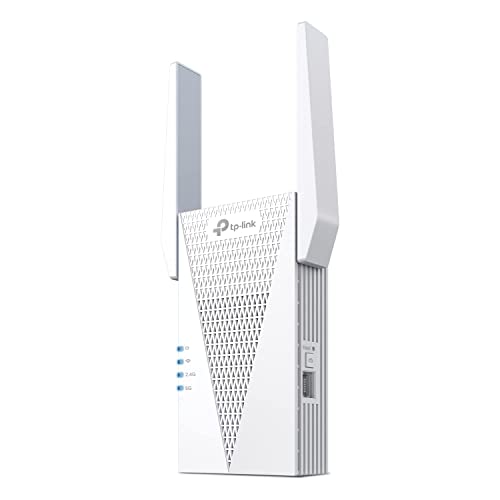
The RE715X is the extender this guide reaches for first because it gets the fundamentals right in the proportions most homes need. It is a Wi-Fi 6 wall plug in the AX3000 class, quoting up to 2402 Mbps on the 5GHz band and 574 Mbps on 2.4GHz, with two adjustable external antennas and a Gigabit Ethernet port on the side for wiring a television, console or desktop into the extended network. Setup runs through TP-Link’s Tether app, and the unit supports OneMesh, so paired with a compatible TP-Link router it shares the router’s network name, takes its settings from the router and roams as part of a coordinated system rather than as a stranger rebroadcasting nearby. Used with any other brand of router it behaves as a straightforward universal extender, which keeps it a safe recommendation for mixed households.
The honest limitation is the one shared by every dual-band wall plug: the 5GHz radio divides its time between backhaul and devices, so far-room throughput lands well below the class figure, and demanding households running several simultaneous streams through it will meet that ceiling. Within that ceiling, though, the RE715X is well judged — the external antennas give placement flexibility that internal-antenna rivals lack, the signal indicators make the edge-of-coverage search quick, and the access point mode means a home that later gains Ethernet cabling can promote it to wired backhaul without replacing it. Because both ends of the link speak Wi-Fi 6 in a TP-Link pairing, the OFDMA scheduling that keeps many small devices orderly actually operates across the backhaul instead of only on the final hop, which is a quiet advantage in device-dense households. It also runs cool and untroubled for months at a time in a hallway socket, which sounds like a small thing until an extender is forgotten about — as, ideally, it should be. It is the balanced middle of this guide: modern standard, sensible port, two modes of working, and no ecosystem commitment demanded of households that do not already own TP-Link equipment.
Strengths. Full AX3000 Wi-Fi 6 specification with a strong 2402 Mbps 5GHz radio. Gigabit Ethernet port for wiring a stationary device. OneMesh coordination with TP-Link routers, universal behaviour with everything else. Adjustable external antennas and clear signal indicators for placement. Access point mode for a future wired backhaul.
Trade-offs. Dual-band design shares the 5GHz band between backhaul and devices, capping far-room throughput. Wall-plug format with external antennas is bulkier than the most discreet rivals and can crowd a double socket. OneMesh benefits require a TP-Link router; other households get the universal feature set only.
Who it suits. The typical household with one or two dead rooms, a reasonably modern router and a mixture of streaming, calls and browsing to support at the far end. It is also the natural first choice for TP-Link router owners who want the coordinated version of the experience. If that description matches your home, start the shortlist here and check price on Amazon.

NETGEAR Nighthawk EAX80: the premium desktop for large homes
The EAX80 sits at the opposite end of the extender market from the discreet wall plug: it is a desktop unit in the AX6000 class, quoting up to 4800 Mbps on 5GHz across eight Wi-Fi streams, with four Gigabit LAN ports, a USB port for shared storage duties on the local network, and the processing headroom to serve a crowd of devices at the far end of a big house. Like NETGEAR’s other mesh extenders it keeps your existing router’s network name and password and works with routers of any brand, including provider-supplied gateways, so it upgrades the far rooms without touching the network the household already knows. The Nighthawk app handles setup and gives a clearer view of connected devices and signal quality than most extender software.
What the premium buys is capacity rather than magic. The backhaul still shares wireless spectrum — this is a dual-band design, not a tri-band one — but with more streams and wider channels in play, the division hurts less, and the four wired ports let the heaviest stationary loads in the far room (a gaming PC, a media server, a work workstation) bypass wireless fronthaul entirely. The compromises are size, tier and appetite: it needs shelf or desk space and a power outlet of its own, it sits firmly in the premium tier, and in a small flat it is simply more extender than the problem requires. For a large home where the far end is a real living space — an office, a games room, a teenager’s floor — it is the most capable single-box answer in this guide.
Strengths. AX6000 class with eight streams and the fastest 5GHz radio here. Four Gigabit LAN ports turn the far room into a small wired hub. Keeps the router’s network name with any brand of router. Strong multi-device handling through OFDMA and MU-MIMO. Capable app with useful signal and client information.
Trade-offs. Premium tier pricing, closer to a mesh kit decision than a casual add-on. Desktop footprint needs furniture space near the right location. Dual-band architecture still shares spectrum for backhaul, unlike the tri-band pick below. Power draw and size are overkill for a single small dead spot.
Who it suits. Owners of larger homes where the far rooms carry serious traffic — remote work, gaming, a home cinema — and where several devices deserve wired connections at that end of the house. If your dead zone is really a second living zone, this is the extender built for it, so compare its tier against a small mesh kit and check price on Amazon.
NETGEAR Nighthawk EX7700: the tri-band with a dedicated backhaul
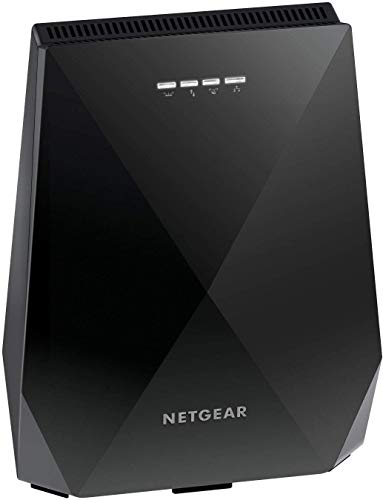
The EX7700 is the engineering answer to the problem described at the top of this guide. It is a tri-band extender in the AC2200 class: one 2.4GHz radio and one 5GHz radio serve your devices, while a second, dedicated 5GHz link — NETGEAR calls the arrangement FastLane3 — does nothing but talk to the router. Because the backhaul never competes with the fronthaul, the throughput delivered to the far room holds up far better under load than a dual-band design of similar class, which is exactly the scenario — evening streaming, calls and downloads colliding in the far rooms — where ordinary extenders feel weakest. It keeps the router’s network name, works with any brand of router, and provides two Gigabit ports for wired devices at the far end.
The trade-off is generational. The EX7700 is a Wi-Fi 5 design in a Wi-Fi 6 guide, so it lacks OFDMA and the newest efficiency features, and its per-band headline figures look modest beside the AX models. Buyers should read that correctly: its advantage is architectural, not numerical, and it shows under sustained multi-device load rather than in a single-device speed figure near the extender. It is also a desktop unit rather than a wall plug, and as an older platform its remaining firmware horizon is shorter than the newest models here. For a household whose router is a strong Wi-Fi 5 or early Wi-Fi 6 unit and whose complaint is specifically that the far rooms collapse at busy hours, the dedicated backhaul solves the actual problem more directly than a faster shared radio does.
Strengths. Dedicated tri-band backhaul keeps far-room throughput stable under load. Keeps the existing network name and works with any router brand. Two Gigabit Ethernet ports for far-room wired devices. MU-MIMO support and a mature, well-documented platform. Desktop design with clear status indication.
Trade-offs. Wi-Fi 5 generation: no OFDMA or Wi-Fi 6 efficiency features. Headline per-band speeds look modest next to AX3000 and AX6000 rivals. Desktop footprint, not a discreet wall plug. Older platform means a shorter remaining update horizon.
Who it suits. Households whose far rooms fail specifically at busy times — several streams, calls and downloads at once — and who want that fixed without replacing the router. If your problem is congestion rather than raw distance, the dedicated backhaul is the feature that matters, so weigh it against the newer dual-band models and check price on Amazon.

ASUS RP-AX58: the AiMesh pick for ASUS households
The RP-AX58 is a wall-plug extender in the AX3000 class — up to 2402 Mbps on 5GHz, 574 Mbps on 2.4GHz, one Gigabit port — whose defining feature is AiMesh. Paired with an AiMesh-capable ASUS router, it stops being an extender in the old sense and becomes a satellite of the router’s own system: one network name, settings managed from the router’s interface or the ASUS Router app, coordinated roaming, and a backhaul the system manages as part of a whole-home picture. For an ASUS household with one room the router cannot reach, it is the tidiest possible fix, because nothing new has to be learned or separately maintained. With a router from another brand it still works as a conventional universal extender, but in that role it is merely good rather than special.
As a dual-band unit it shares the usual ceiling — the 5GHz radio divides its attention between backhaul and clients — and ASUS’s AiMesh routers can also use Ethernet backhaul, which the RP-AX58 supports through its port for homes with cabling. The wall-plug design is compact and the indicator lights make the placement search straightforward. Its real dividing line is ecosystem: the closer a household is to ASUS — router now, perhaps a fuller AiMesh system later — the more sense it makes, because the same unit can graduate from extender duty into a permanent mesh node. Households on other platforms should read it as a competent AX3000 wall plug and compare it honestly against the RE715X, which offers the same class of performance with its own ecosystem story.
Strengths. AiMesh integration turns it into a true mesh node with an ASUS router. AX3000 Wi-Fi 6 specification with a Gigabit port. Compact wall-plug design with clear signal guidance. Ethernet backhaul option through its wired port. Managed entirely from the router’s existing app and settings.
Trade-offs. The headline features assume an ASUS AiMesh router; other households get standard extender behaviour. Dual-band backhaul sharing applies, as with all wall plugs here. Single Ethernet port limits far-room wired devices to one without a switch. ASUS’s settings depth can feel dense for first-time users.
Who it suits. ASUS router owners, plainly: for them this is the lowest-friction route to a genuine mesh with the dead room covered. It also suits buyers planning to grow into a fuller AiMesh system over time. If your router wears another badge, shortlist it as a solid AX3000 plug — and if it wears the ASUS badge, move it to the top and check price on Amazon.

Linksys RE7350: the mid-range all-rounder with Spot Finder
The RE7350 is Linksys’s Max-Stream entry in the AX1800 class — up to 1201 Mbps on 5GHz and 574 Mbps on 2.4GHz — in a wall-plug body with a Gigabit Ethernet port and one feature that deserves more attention than it gets: Spot Finder, Linksys’s placement guidance, which uses the setup process itself to judge whether the chosen outlet sits in a good position relative to the router. Since placement decides more outcomes than any specification in this guide, an extender that actively coaches it is solving the right problem. The RE7350 works with any brand of router, supports MU-MIMO, and can also run as a wired access point, which gives it a second life if the home later gains cabling.
The compromise is ceiling. An AX1800 backhaul has less headroom than the AX3000 models, so in a busy household the far room will feel the shared-bandwidth division sooner, and the single 5GHz figure is roughly half the RE715X’s on paper. In exchange it sits in a friendlier tier and covers the most common real-world case — a couple of rooms, a stream or two, calls and browsing — without strain. Linksys’s app and browser setup are workmanlike rather than slick, and households invested in the Velop mesh ecosystem should note this is a range extender, not a Velop node; it extends any router but does not join a Velop system as a coordinated satellite. Judged on its own terms — a universal, mid-range, placement-friendly extender — it is a well-aimed product.
Strengths. Spot Finder placement guidance tackles the most common cause of extender failure. Works with any router brand; no ecosystem commitment required. Gigabit Ethernet port and access point mode add flexibility. Wi-Fi 6 specification with MU-MIMO in a mid-range tier. Compact wall-plug format.
Trade-offs. AX1800 class gives a lower 5GHz ceiling than AX3000 rivals. Not a Velop node: it does not join Linksys mesh systems as a coordinated satellite. App experience is functional rather than polished. Dual-band backhaul sharing, as with every wall plug in this guide.
Who it suits. Buyers with a provider-supplied or mixed-brand router who want a sensibly priced extender and honest help placing it well. It is the natural choice when the dead zone is moderate and the household’s far-room demands are ordinary. If that is your situation, put the RE7350 on the shortlist and check price on Amazon.
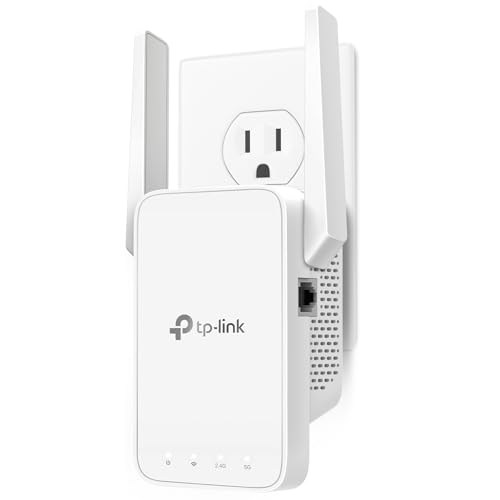
TP-Link RE315: the budget-tier first step
Not every dead zone justifies a premium fix, and the RE315 exists for the rest: a compact wall plug in the AC1200 class, quoting up to 867 Mbps on 5GHz and 300 Mbps on 2.4GHz, with OneMesh support, a signal indicator light on the front, and a single Ethernet port for wiring one nearby device. It is a Wi-Fi 5 design, so it pairs most naturally with the enormous installed base of Wi-Fi 5 routers, and with a TP-Link OneMesh router it shares the network name and settings like its bigger relatives. For a spare bedroom that drops to one bar, a doorbell camera on the wrong side of the house, or a garden office that needs email, calls and light streaming rather than a cinema, this class of extender is honestly sufficient.
The limits should be stated as plainly as the virtues. The 5GHz radio is modest, the shared-bandwidth division applies in full, and the Ethernet port is a basic one rather than Gigabit, so wired devices at the far end inherit a lower ceiling — fine for a printer or a smart television’s streaming app, less so for a workstation moving large files. The compact body that makes it discreet also means internal antennas and less placement flexibility than the RE715X. What it offers in return is the lowest-commitment route into the whole category: a small outlay, a ten-minute setup, and an honest answer to the question of whether an extender solves your problem at all. Households that discover they need more will have learned it cheaply, and the RE315 can retire to a lighter duty elsewhere in the home.
Strengths. Budget tier pricing makes it a low-risk first experiment. OneMesh support brings coordinated behaviour with TP-Link routers. Signal indicator light simplifies the placement search. Compact, discreet wall-plug design. Adequate 5GHz performance for light far-room duties.
Trade-offs. Wi-Fi 5 generation with a modest 867 Mbps 5GHz ceiling. Ethernet port is not Gigabit, capping wired devices. Internal antennas and a compact body limit range flexibility. Shared-bandwidth division is felt sooner than on any other pick here.
Who it suits. Renters, first-time extender buyers and anyone fixing a single small dead spot for light duties — a bedroom, a camera, a garden room — without committing to a bigger network project. If the problem turns out to be small, this solves it completely; if it turns out to be large, you will know exactly why you are upgrading, so begin here and check price on Amazon.
best cameras for live video streaming
Extender, mesh kit or wired access point: choosing the right fix
An extender is one of three honest answers to weak 5GHz coverage, and choosing between them starts with the shape of the problem. If exactly one room or one corner fails while the rest of the home is healthy, an extender is the proportionate fix — the cheapest, the quickest and the least disruptive. If coverage is patchy in several directions, or the router itself is old enough to be the bottleneck, a mesh kit replaces the whole system with coordinated nodes and usually delivers a better result per unit of frustration, at a higher tier and with the household’s network rebuilt around it. The third answer is the one enthusiasts reach for first: a wired access point, or an extender in access point mode, fed by Ethernet cable. Wired backhaul removes the throughput division entirely and is simply the fastest, steadiest option — where cabling exists. Homes without cabling can sometimes borrow it through MoCA adapters over coaxial runs or, less predictably, powerline adapters over the mains wiring. The mistake to avoid is buying extender after extender to paper over a problem that is actually the router; one extender is a patch, two is a symptom. Renters should weight the calculation toward extenders almost automatically: nothing is drilled, nothing is rewired, the device leaves with you, and the deposit survives. Owners planning to stay can justify the structural answers — cabling or mesh — more easily, because the home itself keeps the benefit.
What an extender cannot fix: walls, floors and honest expectations
Radio signals are absorbed and reflected by the building itself, and 5GHz suffers more from this than 2.4GHz does. A plain plasterboard partition costs the signal a little; brick and blockwork cost it a great deal; reinforced concrete, foil-backed insulation, large mirrors, metal cladding and full aquariums can behave almost like walls of lead. Floors are usually worse than walls, because of their density and the pipes, ducts and wiring inside them — although a short vertical path straight through one floor can still be kinder than a long horizontal path through several walls. An extender works inside this reality, not above it: it relocates the starting point of the signal, which is powerful, but it cannot make the final wall transparent. The practical consequence is that in a heavily built home, one extender per problem area, each placed by the edge-of-coverage rule, beats one heroic extender asked to punch through everything.
Two expectations deserve calibrating before any purchase. The first concerns chains: an extender can extend another extender, and some systems permit it, but each wireless hop repeats the sharing problem, so a second hop is a remedy for a hallway or a landing, not a strategy for a whole wing. If the plan needs two hops in the same direction, the honest answer is a mesh kit or a cable. The second concerns the outdoors: coverage in a garden is a legitimate goal for music, cameras and summer working, and an extender near the garden wall will usually deliver it — but weatherproofing belongs to dedicated outdoor access points, not to any indoor unit in this guide, and range across open lawn falls off faster than intuition suggests once the signal leaves the building. Set expectations by the building and the layout, and the hardware in this guide will meet them; set them by the numbers on the box, and no hardware will.
Setting up a 5GHz extender so it stays fast
Walk the boundary before you commit
Begin with a phone connected to the router’s 5GHz network and walk slowly toward the dead zone, watching where the signal stops being strong and starts being merely present. The outlet you want sits just inside the strong side of that boundary, ideally with a reasonably open path back to the router — through a doorway rather than through a bathroom’s tiled walls and plumbing, if the layout gives you the choice. Fit the extender, check its signal indicator, and only then judge the far room. If the indicator reports a weak router link, no setting will rescue the arrangement; move the extender closer and accept a slightly less central position. Two or three attempts are normal, and the search is the setup — everything after it is administration.
The settings that actually matter
Four choices during setup have lasting effects. First, the network name: keep the router’s name if the extender offers it and your household values simplicity, or accept a separate extended name if you prefer to control which devices use the extender. Second, security: match the router’s WPA3 or mixed WPA2/WPA3 mode exactly, and change the extender’s admin password from anything standard. Third, firmware: update it on day one, before the device is forgotten in its hallway socket, and enable automatic updates if offered. Fourth, expectations for channel settings: most extenders handle channel selection automatically and should be left to it, since the extender must sit on the router’s channel to maintain the backhaul in any case. If the unit supports access point mode and a cable run later appears, switching modes is a five-minute job that doubles the far room’s real throughput.
Mistakes that make good extenders look bad
The classic errors repeat across households. Plugging the extender into the dead room itself is the first, and it converts a good product into a repeater of nothing. Hiding it behind a television, inside a cabinet or beside a large metal appliance is the second; radios need reasonably open air. The third is judging success from the signal bars in the far room rather than from actual use — an extender can show a magnificent signal of its own while its backhaul crawls, so open the applications that matter and use them. The fourth is forgetting the device entirely: extenders run for years, and a unit left on ancient firmware with a default password is a small but real liability on the network. A twice-yearly glance at the app, timed with changing the clocks, is maintenance enough.
Verify the result, then leave it alone
Judge the finished installation by behaviour, not by indicators. In the far room, do the things the room is for: start the stream, join the call, move the file. Check that devices have actually joined the extended network rather than clinging to the router — the extender’s client list in its app settles the question — and confirm that the devices you wired into its Ethernet port are running at the speed the port promises. Then repeat the judgement once at the busiest hour of the household’s day, because an arrangement that flies at noon can sag at eight in the evening when every screen in the house wakes up; if it sags, the placement is slightly too ambitious, and moving the extender a metre or two back toward the router usually recovers more than any setting would. After that, the correct relationship with a working extender is neglect, punctuated by firmware updates. Resist the urge to keep optimising a system that has stopped being a problem.
How these six extenders were chosen
The shortlist was built from published manufacturer specifications and documentation, applying the criteria in the buying guide above. Every model had to carry a genuine dual-band design with a full 5GHz radio — single-band 2.4GHz repeaters were excluded outright, however inexpensive — and a security specification current enough to sit safely on a modern network. The six were then spread deliberately across the real decision space: two ecosystems (OneMesh and AiMesh) and two universal designs, wall plugs and desktops, a tri-band architecture for the backhaul problem, and tiers from budget to premium, so that the comparison illuminates the choices rather than repeating one product six times. Models were left out if their 5GHz radio was an afterthought with minimal capability, if their firmware support had visibly ended, or if they duplicated another pick’s position without adding a distinct reason to exist. The specifications quoted in the reviews — band figures, port speeds, stream counts — are the manufacturers’ own published numbers, and the analysis built on them is deliberately conservative: where a design divides its bandwidth, the guide says so and says roughly by how much, rather than repeating the box arithmetic as if it were a measurement. That conservatism is the point of the exercise. An extender chosen with honest expectations tends to exceed them; one chosen on headline numbers tends to be returned.
Frequently asked questions about 5GHz Wi-Fi extenders
Will an extender slow down my connection?
It divides rather than destroys. A dual-band extender shares its 5GHz radio between the router link and your devices, so the far room’s ceiling is roughly half of what the same radio could do directly — which still turns an unusable dead zone into a perfectly serviceable connection for streaming, calls and browsing. Tri-band designs with a dedicated backhaul, and any extender wired in access point mode, avoid most of that division. Devices near the router are unaffected either way; the extender only serves the area it covers.
Is a 5GHz extender the same thing as a 5G signal booster?
No, and the confusion is understandable because the names collide. A 5GHz Wi-Fi extender repeats your home router’s wireless network and needs no permission from anyone; it never touches a mobile network. A cellular booster amplifies a phone carrier’s signal between an outdoor antenna and an indoor one, is a different class of hardware entirely, and in many countries must be approved by the carrier whose signal it repeats. If your problem is phone reception, an extender from this guide will not help; if your problem is home Wi-Fi range, a cellular booster will not either.
Will an extender work with my router if the brands differ?
Almost always, yes. Universal extenders connect to any router as a client and rebroadcast its networks, and the NETGEAR, Linksys and TP-Link models here all work in that mode with any brand, including provider-supplied gateways. What a mixed pairing gives up is coordination: same-brand systems such as OneMesh and AiMesh add unified settings, managed roaming and a single point of control. The extended network still functions without them — it is simply administered as two devices rather than one system.
Where exactly should I plug in a 5GHz extender?
At the edge of the router’s good 5GHz coverage, roughly halfway to the dead zone, at furniture height, in open air, and as free of masonry, metal and water as the layout allows. The extender’s own signal indicator is the referee: it should report a strong link to the router at the chosen outlet. Plugged into the dead room itself, even the best extender in this guide has nothing worth repeating; moved to the boundary, even the budget pick becomes useful. Expect to test two or three outlets before settling.
Should I buy an extender or replace everything with mesh?
Match the remedy to the diagnosis. One failing room and a healthy, reasonably modern router points to an extender — the smallest spend and the least upheaval, and house-system models can later graduate into a fuller mesh. Several failing areas, an ageing router, or a household about to renovate its whole setup points to a mesh kit, which rebuilds coverage as one coordinated system. The extender bought today is rarely wasted in the mesh future either: universal models retire gracefully to garages, gardens and spare rooms. One more consideration belongs in the decision, and it is the household’s tolerance for projects. An extender is an afternoon; a mesh migration is a weekend of renaming, reconnecting and re-teaching every gadget in the house its network. Neither is unreasonable — but they are different commitments, and choosing the smaller one first, with open eyes about its ceiling, is a legitimate strategy rather than a compromise.
Every dead zone in every home is the same small tragedy of physics: the fast band gave everything to speed and kept too little for distance. The fix is not complicated, but it is specific — put a capable extender where the 5GHz signal is still alive, give its backhaul room to breathe, and let it carry the fast band the rest of the way. Choose the pick above that matches your router, your rooms and your tier, and the room that frustrated you becomes simply another room where the Wi-Fi works.