Disclosure: As an Amazon Associate, kajuandouglas.com earns from qualifying purchases. Links on this page are affiliate links; they cost you nothing extra. Prices and availability change often, so check the current Amazon listing before you buy.
75 Percent Keyboard Layout Guide: The Short Answer First
A 75 percent keyboard layout guide has one job: to show you exactly which keys survive when a full-size keyboard shrinks to about three quarters of its footprint, and what that means for your games and your work. Here is the direct answer. A 75 percent layout keeps roughly 81 to 86 keys: the full alphanumeric block, a compressed function row directly above the number row, dedicated arrow keys in the bottom-right corner, and a single narrow column of navigation keys along the right edge. It removes the number pad, merges the editing cluster into that right column, and eliminates nearly all empty bezel space between key groups. You end up with a board that behaves like a complete keyboard — F-keys included — while taking up barely more desk than a 65 percent board.
Everything below unpacks that answer properly: how the layout is arranged cluster by cluster, how the exploded and compact sub-styles differ, what the knob replaces and why, how 75 percent compares with 65 percent, tenkeyless, and full-size boards for specific games and jobs, how to remap the keys that moved, and how to decide whether this is your layout. Three example boards, each verified against Amazon’s catalog data before being linked, illustrate the layout’s main variations in real products you can buy today.
In this guide
Anatomy of the 75 Percent Layout, Cluster by Cluster
The main alphanumeric block
The heart of the board is unchanged, and that is the point. Letters, the number row, punctuation, and the standard modifier row — Shift, Ctrl, Alt, the spacebar, and their right-hand partners — sit exactly where your muscle memory expects them. Typing speed transfers from a full-size board on day one, because nothing in the home area moved. The only adjustment in this zone on some models is a slightly shortened right Shift key, used to make room for the arrow keys that now live inside the main rectangle. Check the listing photos if you are a right-Shift typist: boards differ, and a 1.75-unit Shift feels different from a full one until you adapt.
The compressed function row
Directly above the number row, separated by little or no gap, sits a full F1–F12 row, usually with Escape at the left and one extra key or a knob at the right. This row is what separates 75 percent from 65 percent, and it matters more than its size suggests. Games bind class skills, camera positions, build menus, and voice functions to F-keys; creative and office software leans on F2 rename, F5 refresh, F11 full screen, and F12 developer or save functions. On a 65 percent board every one of those is a two-key chord through a function layer. On a 75, they are single presses again — slightly smaller and tighter than on a tenkeyless board, but present, physical, and fast.
The right navigation column
Where a tenkeyless board spreads Insert, Home, Page Up, Delete, End, and Page Down across a two-column editing cluster with generous spacing, a 75 percent board stacks a chosen subset — most often Delete, Page Up, and Page Down, sometimes Home or End — into one column at the right edge. This column is the layout’s most personal area. Writers and coders who live on Home and End should verify their keys made the cut on the specific model; spreadsheet users who hammer Delete and Page Down are almost always served. Anything omitted physically can be restored on a layer, which the remapping section below covers in practical terms.
The integrated arrow keys
Arrow keys sit in the bottom-right corner, tucked under the right column and beside a shortened Shift or a small modifier. They are dedicated keys, not a layer — press and go, exactly as on a full-size board. Menu navigation, spreadsheet movement, strategy-game camera work, and platformers all feel native. The arrows are the second feature, after the F-row, that makes 75 percent the stopping point for most people shrinking their keyboard: smaller layouts ask you to give one of these two things up.
The knob, and what it costs
Many current 75 percent boards place a rotary encoder in the top-right corner, where the function row meets the navigation column. The knob typically handles volume and mute by default and can often be remapped on programmable boards. Its cost is exactly one key position — commonly Print Screen, Insert, or Delete’s top-row seat. This is a genuine trade, not a free bonus: decide whether a hardware volume control you will use daily outweighs a key you press weekly. For most gaming desks the knob wins, which is why it appears on so many current models, including two of the three examples later in this guide.
Exploded vs Compact: The Two Families Inside the Layout
Stand two 75 percent boards side by side and the family resemblance hides a real difference. Exploded boards insert small gaps — a few millimeters of case — between the function row and the main block, and around the arrow and navigation clusters. Those gaps are landmarks. Your fingers find F5 or the arrows by touch, the way they do on a tenkeyless board, because the clusters announce themselves. Compact boards delete the gaps entirely, packing every key into one uninterrupted field. They are narrower, lighter, and visually cleaner, and they demand a short adjustment period because the right column and arrows sit directly against neighboring keys.
Which family suits you depends on how you play and work. MMO and strategy players who strike F-keys and navigation keys by feel during combat benefit from exploded spacing. FPS players who rarely leave WASD and the mouse gain nothing from gaps and may as well take the smaller footprint. Touch typists with strong accuracy adapt to compact boards within days; hunt-and-peck typists take longer and make more early errors. Neither family is the “real” 75 percent — they are two answers to the same space problem, and the example boards below include both philosophies.
75 Percent vs the Neighboring Layouts
75 percent vs 65 percent
A 65 percent board drops the function row and keeps the arrows, landing around 67 or 68 keys. It is smaller in depth, not much narrower, and it forces F-key functions onto a layer. Choose 65 percent if your games genuinely never touch F-keys, your software is layer friendly, and minimal depth matters — a cramped desk or a travel kit. Choose 75 percent if you play anything with F-key bindings, use function-key shortcuts at work, or simply dislike chords for everyday actions. The full comparison lives in our 65 keyboard layout guide, and the roundup of complete boards lives in our guide to 75 mechanical keyboards.
75 percent vs tenkeyless (TKL)
A tenkeyless board removes only the number pad and keeps everything else in its traditional, separated arrangement. It is the layout with zero learning curve and the layout that gives back the least space. Choose TKL if the separated editing cluster is non-negotiable — some programmers and writers feel this strongly — or if you want the widest possible key spacing. Choose 75 percent if mouse room is the priority: the savings are several inches of width, which low-sensitivity players feel immediately in their aim and their shoulder.
75 percent vs full-size and 96 percent
Full-size and 96 percent boards keep the number pad. If numbers are your job — data entry, accounting, finance modeling, CAD input — no layer trick fully replaces a physical pad, and you should not let a layout guide talk you out of one. The 96 percent family compresses the pad into a near-full-size footprint, and our 96 vs 1800 keyboards guide explains that end of the spectrum. For everyone else, the pad is the least-used real estate on the desk, and 75 percent is where its absence stops mattering.
75 percent vs 60 and 40 percent
Sixty percent removes the arrows and F-row both, and 40 percent removes the number row as well, turning the keyboard into a layers-first instrument. These layouts reward dedication and punish casual use. They are covered in the 40 percent keyboard guide; the honest advice for most readers is that 75 percent captures nearly all the space savings with a fraction of the adaptation cost.
Three Real Boards That Show the Layout’s Range
Layout diagrams are abstract; these three verified models show how manufacturers actually arrange the same 84-or-so keys, and each illustrates a different priority. They are examples for learning the layout as much as products to buy.
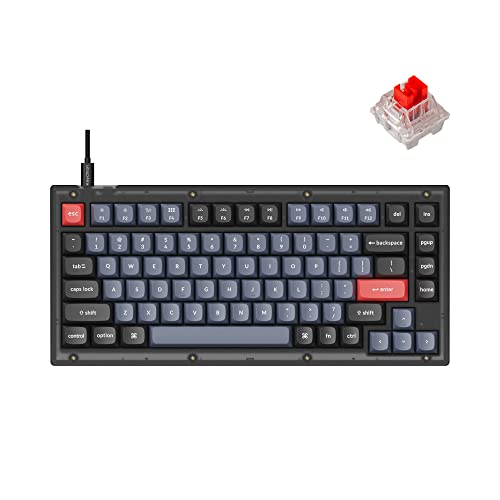
Keychron V1 — The Programmable, Wired Reference
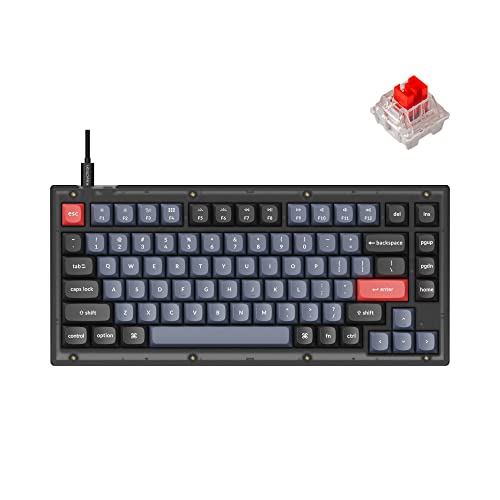
Badge: Layout purist’s pick. The wired V1 is a compact 75 with a frosted translucent case option, QMK and VIA support, and hot-swappable switches. Its significance for this guide is configurability: because every key can be remapped and layered in VIA’s visual interface, the V1 is the board on which a missing navigation key is truly a non-issue. It demonstrates the compact family’s tight right column and shows how a function row sits with almost no gap above the numbers.
- Layout: 75 percent compact, QMK/VIA programmable
- Connectivity: USB-C wired
- Switches: Hot-swappable Keychron K Pro options
- Keycaps: Non-shine-through set (see listing variant)
Strengths
- Complete remapping makes the layout fully yours, including the right column.
- Wired simplicity: no batteries, no modes, no receivers.
- Mac and Windows legends suit mixed-OS desks.
Trade-offs
- No wireless modes for multi-device desks.
- Compact spacing requires the usual first-week adjustment.
- No knob on this configuration, so volume lives on a layer or the OS mixer.
Best for: learners and tinkerers who want to reshape the layout in software. Not suited for: wireless-first setups. Check price on Amazon

RK Royal Kludge R75 — The Knob, Front and Center
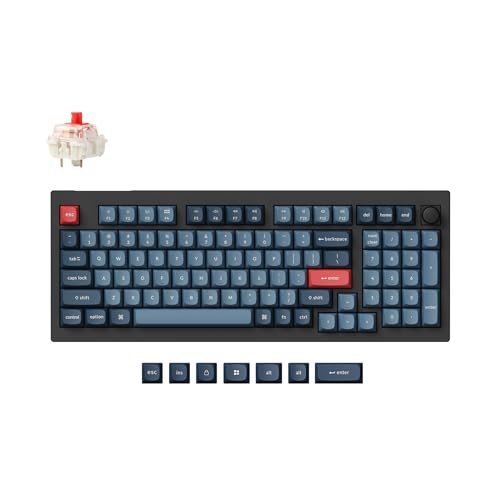
Badge: Knob exemplar. The wired R75 builds the layout around its volume knob and a gasket-mounted, foam-damped case with MDA-profile PBT keycaps. As a teaching example it shows the modern enthusiast interpretation of 75 percent: the knob owns the top-right, the right column compresses below it, and the whole board is tuned for a soft, quiet sound that suits shared rooms and late sessions.
- Layout: 75 percent with volume knob
- Connectivity: USB-C wired
- Switches: Hot-swappable, factory linear option
- Keycaps: MDA-profile PBT
- Mounting: Gasket mount
Strengths
- The knob demonstrates the layout’s signature extra better than any diagram.
- Gasket mounting and PBT caps deliver a finished, muted sound stock.
- Hot-swap sockets keep switch experiments cheap.
Trade-offs
- Wired only, so one desk and one machine is its natural home.
- MDA caps are taller and more sculpted than gaming-standard profiles.
- The knob’s key cost is real if you needed that corner key daily.
Best for: players who want the knob layout and a quiet board for a fixed desk. Not suited for: multi-device or travel use. Check price on Amazon

Corsair K65 Plus Wireless — The Big-Brand Gaming Interpretation
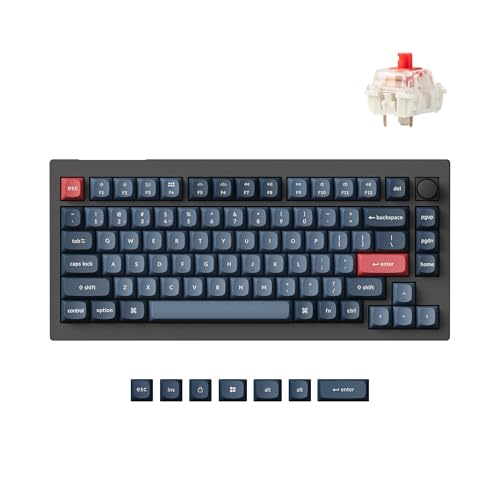
Badge: Mainstream gaming pick. Corsair’s K65 Plus shows how a major gaming brand reads the layout: pre-lubed linear MLX switches, PBT dye-sub keycaps, hot-swap sockets, 2.4 GHz and Bluetooth connectivity, and a knob for volume. It is proof the layout has left the hobbyist niche — when a flagship gaming line ships a 75 as a headline product, the layout is the mainstream. Its exploded-leaning spacing also makes it the friendliest of these three examples for players coming straight from a TKL.
- Layout: 75 percent with knob
- Connectivity: 2.4 GHz, Bluetooth, wired
- Switches: Corsair MLX Red linear, pre-lubed, hot-swappable
- Keycaps: PBT dye-sub
Strengths
- Proper gaming wireless with a low-latency 2.4 GHz mode.
- Pre-lubed linears and PBT caps need no upgrades to feel finished.
- Big-brand support, firmware, and warranty infrastructure.
Trade-offs
- Brand-name pricing sits above enthusiast-direct rivals with similar hardware.
- Software is a vendor suite rather than open QMK tooling.
- PBT dye-sub caps do not shine through, so RGB is underglow rather than legends.
Best for: gamers who want the layout from an established gaming brand with full support. Not suited for: QMK tinkerers or strict budgets. Deciding between this world and Razer’s is a common question, and our look at whether Razer keyboards are worth it helps frame it. Check price on Amazon
How to Remap the Keys That Moved
Every 75 percent owner should spend twenty minutes on remapping in the first week; it converts the layout’s few compromises into non-issues. Start by listing the keys you actually miss — for most people that is one or two of Print Screen, Home, End, or Insert. On QMK and VIA boards, open the configurator, select a layer, and place each missing key where your hand already goes: Print Screen above Backspace is a popular seat, and Home and End sit naturally on a layer over Page Up and Page Down. On vendor-software boards, the same logic applies inside the driver, with profiles saved per game or per application.
Then improve what is present. Caps Lock is the most wasted key on any board; remapping it to a layer key, or to Control for shortcut-heavy work, is the single highest-value change in the hobby. Put media controls on a layer over the right hand so volume and track skipping never need the knob hand to travel. If your board has a knob, test it as a scroll or zoom control in your editor and as volume in games, and keep whichever mapping you reach for twice in a day. Finally, export or screenshot your layout. A saved configuration turns a replacement board, a firmware reset, or a second PC from a rebuild into a five-minute restore.
Adapting Your Play and Work to the Layout
The first-week error curve is normal
Expect three specific mistakes in your first days. You will strike the arrow cluster when reaching for right Shift or Enter, because the main block’s right edge moved. You will overshoot Delete into the knob or the corner key. And you will hunt for F-keys with your eyes because the row sits tighter to the numbers than your old board’s did. Each error fades on its own schedule — arrows within days, the F-row within about two weeks of regular play. Deliberate practice shortens the curve: ten minutes of typing tests that emphasize the right column, plus one session of your most F-key-heavy game played slowly, teach your hands the new geography faster than a month of passive use.
Genre-by-genre impact
Shooters gain immediately from the mouse room and lose nothing; every binding that matters fits. MOBA and MMO players keep their F-row and arrows and should spend their adaptation effort on the right column, which often carries camera or ping shortcuts. Strategy players keep dedicated arrows for edge-panning alternatives and control-group work on the number row, unchanged. Typists, writers, and programmers lose the separated editing cluster and should decide consciously where Home, End, and Delete live in their remapping — that single decision determines whether the layout feels like a downgrade or an upgrade for text work. Spreadsheet-heavy users are the borderline case: navigation survives, but anyone entering columns of figures should test a separate number pad or step up to a 96 percent board rather than suffer.
Ergonomics of a narrower board
The layout’s quiet benefit is postural. A narrower keyboard lets both hands work closer to your body’s centerline, and your mouse hand stops living at a wide angle from your shoulder. Center the letter block on your sternum, keep wrists floating or lightly supported rather than planted, and let the mouse claim the freed inches. Players who angle their keyboard for WASD comfort will find a 75 percent board angles more gracefully than a TKL, because the shorter right edge stops colliding with the mousepad’s territory. None of this replaces a sound desk setup, but the layout removes the specific compromise — reach or crowding — that full-size boards impose.
Buying Checklist Specific to This Layout
- Count the right column. Confirm which of Delete, Home, End, Page Up, and Page Down are physical keys on the exact model, from the listing’s key map, not the marketing render.
- Check the right Shift. Shortened Shift keys are common; know the size before ordering if you type with your right pinky.
- Decide the knob trade consciously. A knob costs a key position. Name the key you are giving up and confirm you can layer it.
- Exploded or compact, on purpose. Choose spacing by how much you navigate by touch, not by which render looks cleaner.
- Programmability is layout insurance. QMK, VIA, or a competent vendor driver turns every missing key into a solved problem.
- Mind the legends. Mac users should confirm Mac modifier caps or a Mac mode; shine-through fans should confirm the cap type and LED orientation.
If the checklist leaves you convinced, the shopping itself is handled in our roundup of the best 75 mechanical keyboards, and owners who want to tune sound and feel afterward will find five easy modifications to improve your mechanical keyboard a friendly next step.
Common Layout Myths, Corrected
“75 percent means 75 keys.” It does not. The percentage describes the share of a full-size layout retained, and real boards carry roughly 81 to 86 keys depending on how the manufacturer handles the right column and knob. “You lose the F-keys.” That is 65 percent. The F-row is the defining feature that 75 percent keeps. “Compact boards are worse for gaming.” Input performance is identical; only spacing and landmarks differ, and those are preference, not performance. “A layer is as good as a physical key.” For occasional keys, yes; for keys you strike mid-combat or fifty times a day, a physical key is faster and more reliable, which is precisely why this layout keeps the F-row and arrows physical. “The knob is a gimmick.” It is a trade — one key for a control most owners use hourly. Judge it as a trade and it stops being mysterious.
Key-by-Key Map: Where Everything Lives
Read a typical 84-key 75 percent board from the top-left, the way your hands will learn it. Row zero, the function row: Escape, F1 through F4 in a tight group, F5 through F8, F9 through F12, and then the corner position — Delete, Print Screen, or the knob, depending on the model. Row one: the number row with its shifted symbols, unchanged, ending in Backspace, which is sometimes shortened slightly to let the corner column breathe. Row two: Tab, the QWERTY row, and the first right-column key, often Delete or Page Up. Row three: Caps Lock, the home row, Enter, and the second column key, often Page Down or Home. Row four: left Shift at full size, the bottom letter row, a shortened right Shift, the Up arrow intruding from below, and the third column key. Row five, the bottom row: Ctrl, system and Alt keys, the spacebar — frequently a standard full-size unit, which matters for keycap buyers — right-side modifiers, the Left, Down, and Right arrows, and a final column key or a compact Ctrl.
Two details in that map decide daily happiness. The first is which keys the manufacturer chose for the right column’s three or four seats; there is no standard, and two boards that look identical in renders can differ in exactly the key you need. The second is the bottom-right geometry: on compact boards the arrows borrow space from the bottom row, which is why right Shift and the right modifiers shrink. Keycap sets must match those shrunken units, a compatibility point the next section covers. Everything else — every letter, every number, the whole home row — is the keyboard you already know.
A Brief History: How 75 Percent Became the Default
The layout is younger than it looks. Full-size boards ruled until tenkeyless models proved that most users never touched the number pad, and the enthusiast community then spent years shrinking further: 60 percent boards proved layers could work, and 65 percent boards proved arrows were worth keeping. Seventy-five percent emerged from custom group-buy designs that asked the obvious next question — if the F-row costs only one shallow row of depth, why is everyone deleting it? Early custom 75s were expensive, limited, and frequently sold as kits. What changed the layout’s fate was manufacturing: once major enthusiast brands and then mainstream gaming brands shipped assembled 75 percent boards with hot-swap sockets, gasket mounting, and wireless radios, the layout stopped being a hobbyist dialect and became the recommendation friends give friends. The three example boards in this guide — an open-firmware wired model, a knob-focused enthusiast model, and a flagship gaming brand’s wireless model — are that history in miniature.
Keycap and Switch Compatibility on This Layout
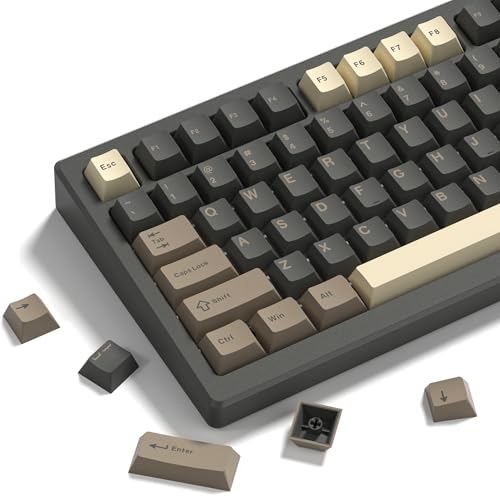
Owners upgrade 75 percent boards constantly, so compatibility deserves plain language. Switches are the easy part: hot-swappable boards accept standard MX-style switches, three-pin and usually five-pin, with no soldering. Keycaps need more care. A complete replacement set must include the shortened right Shift in the size your board uses, 1-unit or 1.25-unit keys for the right column and bottom-right modifiers, and the correct spacebar length. Sets marketed as full kits with broad layout coverage handle this; minimal base kits aimed at 60 percent boards often lack the exact units and leave the right edge mismatched. Profile matters too: uniform profiles tolerate the layout’s odd sizes gracefully, while sculpted profiles need the right row heights for the column keys. If you plan a cap swap on day one, photograph your board’s right side and compare it against the set’s kit diagram before ordering — five minutes that prevent the most common disappointment in the hobby. Material choice for those caps is its own rabbit hole, covered in our ABS vs PBT keycaps explainer.
Adaptation Drills That Actually Work
If you want the learning curve over in days rather than weeks, treat it like aim training: short, deliberate, targeted. Drill one targets the F-row. Open your most F-key-dependent game or application, slow down, and perform twenty deliberate actions using F-keys by touch, glancing only to correct errors. Drill two targets the right column: in a document, practice jumping by page and deleting forward and backward until the column’s order is in your fingers. Drill three targets the arrows-plus-modifier corner: navigate a spreadsheet or a file manager using only arrows and the neighboring keys, which teaches the compact corner faster than any typing test. Ten minutes a day for four or five days is genuinely enough for most people; the hands learn geography through repetition under attention, not through hours of distracted use. Players who also angle their board should lock the angle during the drill period — changing two variables at once doubles the curve.
Decision Scenarios: Readers Ask, the Layout Answers
“I play shooters and I stream. Is this my layout?”
Yes, with one condition: choose a board whose sound suits a live microphone, because your audience hears every keystroke. Gasket-mounted models with PBT caps keep the noise deep and low; a knob gives you hardware volume and mute control mid-stream without tabbing out. The layout itself is pure gain for you — mouse room for aim, F-row for scene or replay shortcuts in your streaming software, and a footprint that leaves room for a stream deck beside the board rather than behind it.
“I write code all day and game at night.”
This is the layout’s core audience, with one homework item: settle your navigation keys before the first workday. Restore Home and End to a layer or confirm they are physical on your model, put your screenshot key somewhere memorable, and remap Caps Lock to Control or a layer key if your editor rewards it. Do that and the board disappears under your work exactly as a TKL did, while your evening sessions inherit the extra mouse room for free. Programmable boards earn their premium in this scenario because your carefully built layers follow you between the work laptop and the gaming PC.
“My desk is tiny and shared.”
Measure before you romanticize. A compact 75 is meaningfully smaller than a TKL, but a wireless compact 75 is the real shared-desk answer: it pairs to the household laptop over Bluetooth, to your PC over its receiver, and it can be stood in a drawer or on a shelf in seconds because there is no cable to manage. In genuinely extreme spaces, the honest recommendation may be a 65 percent board — the depth saving is small but real — accepting the F-key layer as the price.
“I have large hands and I am worried everything is cramped.”
Distinguish key size from board size. The keys themselves, their spacing in the main block, and the switch travel are standard on virtually all 75 percent boards; your letters will not feel cramped. What shrinks is the space between clusters and the size of a few edge keys — right Shift and the bottom-right modifiers. If your typing style leans heavily on the far right edge, an exploded model restores the landmarks, and a store visit or a generous return window is worth more than any review, including this one.
Operating Systems, Legends, and the Small Print
Layout is physical, but legends are political. Windows users are served by every board by default. Mac users should confirm either a Mac mode that swaps the system and Alt positions, included Mac modifier keycaps, or full remapping that achieves the same result — all three example boards in this guide address Mac use in one of those ways, which is typical of the category now. Linux users should favor QMK and VIA boards, whose configuration lives in a browser or an open tool rather than a Windows-only driver, keeping the layout identical across machines. Console and tablet users should temper expectations: most consoles accept basic keyboard input for chat and menus rather than full gameplay, and a board’s gaming features — layers, macros, high polling — generally apply to PC use. None of this diminishes the layout; it simply means the 75 percent keyboard you choose should be chosen for the desk where it will actually live, with the operating system it will actually serve, which is the same advice that applies to every peripheral and is ignored by almost every buyer.
Troubleshooting the Classic 75 Percent Frustrations
“I keep hitting Page Up when I want Delete.”
The two keys are neighbors in the right column on most models, and the fix is layered. First, give it the full adaptation week before changing anything; most owners stop making this error unaided. If it persists, swap the two keys in your remapping software so the key you use more sits where your finger lands. There is no sacred factory layout — the board works for you, and a two-minute remap beats a month of annoyance.
“My F-keys type symbols or trigger media functions instead.”
Many boards ship with the function row defaulting to media and system actions, with true F1–F12 behind the Fn key. The toggle is usually an Fn combination or a setting in the configurator; find it once, set F-keys as primary if your games and software expect them, and the row behaves like the one on your old board. Mac-mode switches on dual-OS boards flip this behavior too, so check the mode before blaming the firmware.
“The knob changed my volume in the wrong app.”
Knobs send standard volume and mute commands to the operating system, which routes them to the active output, not to a specific application. If you need per-app control, use your OS mixer, your headset’s controls, or a macro that targets the application’s own volume shortcut. Knowing this boundary prevents a week of hunting for a setting that does not exist.
“My replacement keycaps do not fit the right side.”
Almost always a kit-coverage problem, not a defect: the shortened right Shift and the small right-column units are exactly the keys minimal kits omit. Compare the kit diagram against your board before ordering, choose broad-coverage kits, and keep the stock caps for any position a new set cannot fill — a mixed right edge looks intentional when the colors are chosen well.
A Working Glossary for Layout Shopping
Exploded: a 75 percent board with visible gaps between key clusters. Compact: the same key count with the gaps removed. Layer: a second set of functions reached by holding a designated key, the mechanism that restores any missing key. Knob / rotary encoder: the top-right dial, usually volume, often programmable. Right column: the single stack of navigation keys at the board’s right edge. 1u, 1.25u, 1.75u: key widths measured in standard key units — the vocabulary of keycap compatibility. QMK / VIA: open firmware and its visual configurator, the deepest remapping tools in the category. Gasket mount: a plate suspended on soft strips, softening feel and sound. Hot-swap: sockets that let switches be pulled and replaced without soldering. With these nine terms you can read any 75 percent product page in the world and know exactly what is being promised — which, in the end, is the whole purpose of a layout guide.
How to Test a 75 Percent Board in a Store or on a Desk in Five Minutes
If you get hands on a board before committing — a store display, a friend’s desk, a meetup — five minutes with a plan beats an hour of random typing. Minute one: type a paragraph of ordinary text and notice only the home block; it should feel like your current board, and if it does not, the switch or keycap profile is the cause, not the layout. Minute two: strike each F-key by touch, eyes on the screen, and count your misses; exploded boards will flatter you, compact boards will expose you, and both results are information. Minute three: work the right column deliberately — Delete, page up and down through a document, jump to the start and end of a line — and decide whether this model’s choices match your habits or whether your remapping plan covers the gap. Minute four: use the arrows in a menu or a spreadsheet, including the awkward diagonal reaches into the compact corner, and check whether your right pinky finds Shift cleanly afterward. Minute five: if there is a knob, use it the way you actually would — volume during a video, a scroll through a long page — and judge the trade with your hands rather than your imagination. Walk out knowing which family, which column, and which corner you prefer, and the online listing photos will suddenly read like a specification you wrote yourself.
What Changes If You Play on Console or a Handheld PC?
The layout travels better than most peripherals do. Handheld PCs and small-form-factor setups reward the 75 percent footprint directly: the board fits the compact desks, lap desks, and travel cases those machines live with, while still presenting a complete F-row and arrows to games that expect them. Console use is narrower — most consoles accept keyboards for text entry, menus, and supported titles rather than universal gameplay — but within those limits a compact board is simply easier to keep in a living room than a full-size one, and tri-mode models can park one Bluetooth slot on the console and keep the receiver in the PC. The layout advice does not change; only the expectations for what the host device will let a keyboard do. If your gaming is split across PC and couch, choose the wireless end of this guide’s examples and let the layout’s size do the rest.
The Layout in One Decision Tree
If you have read this far and still feel undecided, walk the tree. Do you enter numbers for hours every week? Then leave this layout entirely and take a 96 percent board; no layer will love you back. Do your games and software use F-keys weekly or more? Then 75 percent is your floor — smaller layouts will tax you daily. Do you navigate documents by touch and rely on landmarks? Choose an exploded model. Do you angle your board, travel with it, or share a small desk? Choose a compact model, and add wireless if a second machine is involved. Do you remap keys for work or play? Insist on QMK-class programmability or a proven vendor suite. Five questions, and the sprawling layout market narrows to a handful of boards that fit your actual life — which is all a layout guide can honestly promise, and all it needs to.
A Last Word on Confidence
Layout anxiety is the most common and least necessary feeling in keyboard shopping. The 75 percent layout asks for one week of patience and repays it with years of a complete keyboard on a compact footprint; its compromises are named, small, and fixable in software, and its advantages — the F-row, the arrows, the mouse room — show up in the first gaming session. If your answers to the decision tree pointed here, commit, remap deliberately, run the drills, and judge on day fourteen. The layout has earned its place as the modern default one satisfied desk at a time.
Sources and Method for This Guide
The layout descriptions here reflect the standard arrangements used across current 75 percent boards, and the three example products were verified against Amazon’s catalog data for brand, model, and listing identity before being linked. Where a model’s specification varies by variant, the guide says so rather than guessing. No prices or fixed ratings are quoted, because listings change and layouts do not.
Layout Fluency: Moving Your Shortcuts Onto a 75 Percent
Adapting to this layout is usually described as learning where keys moved. The deeper task is moving your shortcuts — the combinations your hands fire without permission from your brain — onto a board where some of their ingredients now live in new places or behind a layer. Shortcut fluency, not key location, is what makes a 75 percent board feel native, and it can be trained deliberately instead of absorbed by accident.
Rebuilding your five most-used shortcuts
List the five combinations you use most — not the ones you think you use, but the ones a day of honest observation catches: the window switcher, the screenshot, the development environment’s search-everywhere, the spreadsheet’s paste-special, the call controls. Test each on the new layout and sort them into three fates. Most survive unchanged, because the alphanumeric block and modifiers did not move. Some survive with a new finger pattern, because a navigation key shifted by one position; these need a week of patience, not intervention. A stubborn few now require a layer chord, and those are the ones to redesign: give the whole shortcut a single home on a layer rather than asking your hands to hold a layer key and then perform a chord designed for a different board. Five shortcuts, audited once, will teach your hands more than a month of general typing practice, because they are the combinations your work is actually made of.
Text expansion and macros on a compressed board
A board with fewer keys invites suspicion about automation, but programmable 75 percent models turn the layout’s compression into an argument for it. The keys you lost were mostly single-purpose; the layer space you gained can hold entire strings — addresses, sign-offs, code fragments, the phrase your job makes you type forty times a day. Place expansions on the layer positions your fingers reach most reliably, group them by job rather than by the letters they start with, and keep the set small enough to remember without a reference card. The failure mode to avoid is building an elaborate macro library in the first week and abandoning it by the third: add one expansion when a repetition genuinely annoys you, live with it until it is reflex, then add the next. Fluency compounds; libraries merely accumulate.
When the layer should stay empty
Restraint is a layout skill. Not every missing key deserves a layer assignment, because every assignment is a small tax on memory that you pay during tired, distracted work — exactly when errors cost most. Keys you use monthly can stay behind the operating system’s tools or an on-screen keyboard without shame. The test for whether a function earns a place on your board is frequency multiplied by urgency: daily and needed mid-flow means it belongs under your fingers; rare or tolerable-with-a-pause means it does not. Owners who keep their layers sparse adapt faster and report the board feeling simpler than the full-size board it replaced, which sounds paradoxical until you realise their old board carried dozens of keys they never touched either. Compression, handled with restraint, is editing — and editing is what made this layout worth choosing.
A note on households: the second typist
Shared computers introduce a variable solo buying advice ignores: the other person. A partner, parent or older child who uses the same machine occasionally will meet your 75 percent board without your adaptation week, and their first impressions will be formed at the compressed right column and the doubled-up function row. Two small kindnesses keep the peace. Keep the most standard arrangement you can — the layout variant whose navigation column matches common laptops gives a guest the fewest surprises — and resist burying everyday functions behind your personal layers on a shared machine. If the second typist uses the machine daily, the honest answer may be a second, inexpensive board in the layout they already know, swapped at the desk in seconds. Keyboards are personal equipment that happen to be shareable; treating them that way is cheaper than the argument.
Frequently Asked Questions
How many keys does a 75 percent keyboard have?
Most models carry between 81 and 86 keys. The exact count depends on the right navigation column, whether a knob replaces a key, and small choices such as a full or split right Shift. The percentage refers to the proportion of a full-size layout retained, not to a fixed key count.
Does a 75 percent keyboard have a number pad?
No. The number pad is the main deletion that defines every layout below 96 percent. If you enter numbers constantly, pair a 75 with a standalone pad you can park on either side, or choose a 96 percent board instead. Occasional number entry on the number row is perfectly comfortable.
Is 75 percent better than 65 percent for gaming?
For most game libraries, yes, because the physical F-row carries bindings that 65 percent owners must chord through a layer, and mid-game chords are slower and easier to fumble. Players whose games never use F-keys gain nothing and may prefer the smaller board. The deciding question is your bindings, not the layouts’ reputations.
What is the knob on a 75 percent keyboard for?
Volume and mute by default on most models. On programmable boards it can also scroll, zoom, scrub timelines, switch brushes, or adjust in-game settings, and pressing it usually acts as a button. It replaces one top-right key, so confirm which key your chosen model sacrifices.
How long does it take to get used to a 75 percent layout?
Most people feel normal within a week of daily use and fully automatic within two to three weeks. The arrows adapt fastest, the right column next, and the tight F-row last. Deliberate practice with typing tests and one F-key-heavy game session compresses the whole curve noticeably.
Can I use a 75 percent keyboard for programming and office work?
Yes, comfortably, provided you remap deliberately. Restore any missing navigation keys to a layer, consider Caps Lock as a layer or Control key, and verify your model’s right column covers your Delete and paging habits. The only roles that should hesitate are number-entry-heavy jobs, which belong on 96 percent or full-size boards.
Will my muscle memory from a laptop keyboard transfer to a 75 percent board?
Mostly yes, and laptop users often adapt faster than full-size desktop users. Laptop boards are themselves compressed layouts: the function row already doubles as media control behind a modifier, navigation keys already live in a squeezed column or behind combinations, and your hands have quietly learned those compromises already. What transfers least is the arrow cluster’s exact feel, because laptop arrows are often half-height while desktop 75 percent boards use full-size keys in a tighter neighbourhood — expect a few days of brushing the neighbouring keys. What transfers best is your attitude: laptop users arrive pre-trained to check a key’s secondary legend and to hold a modifier without resentment. If your laptop years were spent on an external full-size board instead, expect the standard adaptation curve described earlier in this guide rather than the shortcut version.
Can left-handed mouse users benefit from a 75 percent layout?
Yes — in some ways more directly than right-handed users. A narrower board centres the typing position on the body and shortens the board’s reach in both directions, and for a left-handed mouser the space a full-size board’s number pad would occupy sits exactly where their mouse wants to live. The pad’s absence removes the old compromise between a centred keyboard and a comfortable mouse position. Two checks matter before buying. The right-hand navigation column, which left-handed users often operate with their right hand while the left stays on the mouse, should carry the keys your work actually uses. And if your work involves number entry, the separate-pad arrangement described elsewhere in this guide can place the pad on the right, under your free hand, while the mouse keeps the left — a symmetry full-size boards never offered you.