Disclosure: As an Amazon Associate, kajuandouglas.com earns from qualifying purchases. Links on this page are affiliate links; they cost you nothing extra. Prices and availability change often, so check the current Amazon listing before you buy.
A good 65 keyboard layout guide should start with the reason this size exists at all: the 65% layout is the answer to the most common complaint about 60% keyboards. A 60% board deletes the arrow keys, and for anyone who edits text, navigates spreadsheets, plays games with arrow-key movement or simply grew up with a cursor cluster, that deletion itches every single day. The 65% layout puts the arrows back — plus a slim column of navigation keys — while keeping almost all of the 60%’s tiny footprint. It is, for a large share of typists, the smallest keyboard that does not feel like a compromise.
This guide explains exactly what a 65% board keeps and cuts, how it differs from the 60% below it and the 75% above it, the layout traps hidden in product photos (short right Shift keys, squeezed arrow clusters, non-standard bottom rows), who the size suits, and which current boards are worth your shortlist — from the budget end to the buy-it-for-years end of the market.
Key Takeaways
- A 65% keyboard typically has 67–68 keys: everything on a 60% board, plus dedicated arrow keys and one slim navigation column (usually Delete, Page Up and Page Down).
- You still give up the function row and the number pad; F-keys live on a layer, exactly as on a 60%.
- The defining compromises are a shortened right Shift on many models and a non-standard bottom row — check both in photos before buying, especially if you ever plan to change keycaps.
- 65% is the sweet spot for writers, programmers, students and gamers who need real arrows in a bag-friendly board.
- If you also need a physical F-row, step up to 75%; if you never use arrows, a 60% is smaller and usually cheaper. Our 75% keyboard layout guide covers the next size up.
In this guide
65 Keyboard Layout Guide: What a 65% Board Keeps and Cuts
Start from a full-size keyboard and remove things in order. The number pad goes first (that is tenkeyless, roughly 80%). The function row and most of the navigation cluster go next (that is 60%). The 65% layout is what happens when the industry listened to the complaints about that last step and restored exactly two things: a dedicated arrow cluster, carved into the bottom-right of the board, and one column of navigation keys along the right edge — most commonly Delete at the top, then Page Up and Page Down, though some boards offer Home, End or a knob in that column instead.
The key count lands at 67 or 68 on the classic designs, and the physical footprint stays close to a 60%: a 65% board is typically only about one key-column wider. That single column is the entire invention, and it is enough to change the keyboard’s daily character completely. Text editing with real arrows and a real Delete key feels like a normal keyboard; on a 60%, the same tasks involve a function key held down hundreds of times a day. Small numbers of keys, large numbers of repetitions — that arithmetic is the whole case for 65%.
The arrow cluster: integrated, not appended
To fit arrows without growing the board much, 65% designs borrow space from the bottom row. The right Shift shrinks — commonly to 1.75 units or even 1 unit where a full Shift is 2.75 — the right-hand modifiers shrink to 1 unit each, and the arrow keys slot into the freed territory. This is why 65% bottom rows are famously non-standard, and why the layout’s one true tax is keycap compatibility: a replacement keycap set must include the short right Shift and the 1-unit modifiers, or it will not fit your board. Enthusiast keycap sets advertise 65% support explicitly; basic sets often silently omit the crucial caps. Everything else about the layout is standard, which is why 65% became the default recommendation for compact buyers within a few years of appearing.
What still lives on a layer
The function row (F1–F12) is the main resident of the Fn layer, mapped across the number row exactly as on a 60%. Media controls, backlight settings and often Home/End join it, depending on the board’s firmware and the right column’s configuration. If your work leans on F-keys constantly — certain IDEs, CAD packages, trading tools and older enterprise software — be honest about that before choosing any sub-75% board: holding Fn for every F5 will annoy you by the second day, and no keycap legend makes a layered key feel physical. For everyone else, the layer tax on a 65% is paid rarely and painlessly, which is precisely the balance the layout strikes.
65% vs 60% vs 75%: The Three-Way Decision
65% vs 60%
The difference is exactly the arrows and the right column, and whether they matter is a question about your hands, not your desk. Watch yourself edit a paragraph: if your right hand keeps diving for arrow keys to fix a word two lines up, a 60% will tax you on every one of those dives. Gamers should note the split by genre: most modern titles rebind happily to WASD, but platformers, rhythm games, retro titles and many indie games treat arrows as primary controls, and a layered arrow is a missed input under pressure. Programmers split similarly — vi-style users barely touch arrows, while everyone else lives on them. The 60% remains smaller, usually cheaper, and prettier in its symmetry; the 65% is the one that never makes you think about arrows again. Our 40 percent keyboard guide shows where the minimalism road leads if you keep following it downward.
65% vs 75%
A 75% board adds back the function row — usually compressed, sharing a tight top row with Escape and sometimes a knob — and often restores a fuller navigation column. The footprint grows by roughly one row in height and little in width. Choose 75% if F-keys are weekly tools rather than rare guests, or if you like a knob for volume (several 75% designs make it their signature). Choose 65% if the F-row would be decoration: the smaller board is lighter in a bag, cheaper at equivalent quality, and leaves more desk for the mouse. There is no wrong answer, only an honest count of your F-key usage; our roundup of 75 mechanical keyboards is the natural next read if the count comes out high.
And the number pad?
Both 65% and 75% delete it, permanently. Occasional number-pad users have three good options: a separate wireless numpad that lives in a drawer until data-entry day, a full-size second board for accounting season, or simply using the number row, which for a few dozen digits a week is perfectly fine. Daily number-pad users should not be reading compact-layout guides at all — the 98-key class (TKL-plus-numpad in a compressed frame) is their layout, and it appears in our guide to the best Topre keyboards in Leopold FC980C form for those who want it in a premium switch.
Who a 65% Keyboard Suits — and Who Should Look Elsewhere
It suits you if…
- You edit text constantly — writing, coding, documents — and your right hand reaches for arrows and Delete by reflex.
- You want one keyboard for desk and bag: small enough to travel, complete enough to never apologise for itself.
- You game in genres that use arrows, or share the board with someone who does.
- You are stepping down from a full-size or TKL board and want the gentle version of compact: nothing you use daily is behind a layer except the F-row.
- You like customising: 65% is the most-supported compact layout in the keycap and case aftermarket, provided you buy sets with the right extras.
Look elsewhere if…
- Your software lives on F-keys (choose 75% or TKL), or your work lives on a number pad (choose 98-key or full-size).
- You cannot tolerate a short right Shift. Some typists’ right pinkies strike the far end of the Shift key; on many 65% boards that spot is now an arrow key, and the resulting errors drive a minority of users genuinely mad. Check your own striking habit before ordering — type a paragraph and notice where your pinky lands.
- You want the absolute smallest, lightest board for travel and never use arrows — a 60% serves you better and costs less.
- You need a knob, a screen or other flagship furniture; those live mostly in the 75% class.
Five 65% Keyboards Worth Shortlisting
A layout guide’s picks should demonstrate the category’s range honestly. The four linked boards below cover the programmable all-rounder, the budget wireless favourite, the gaming-leaning classic and the premium build — and one widely shopped model is covered in prose because its current listings did not give us a confident match to link.

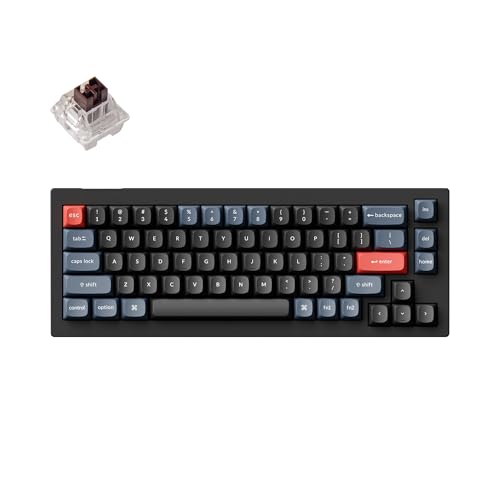
Keychron V2 — Best for: Most People, Most Desks
Badge: All-rounder pick
- Layout: 65%, 67 keys, with a knob version available
- Firmware: QMK/VIA programmable, Mac/Windows keycaps included
- Switches: Hot-swappable (K Pro Brown on the listed variant)
- Connectivity: Wired
The V2 is the 65% board against which others are measured at its tier, because it makes no strange decisions: a sane right column, a proper (if compact) bottom row arrangement, QMK/VIA remapping so the Fn layer is yours to design, hot-swap sockets, and both Mac and Windows keycaps in the box — a small thing that dual-system users appreciate weekly. It is wired-only, which is the honest trade at this tier, and the case is plastic rather than the aluminium of Keychron’s Q-series, but everything that affects typing is present and correct.
Strengths
- Full QMK/VIA programmability — the Fn layer, macros and right column are all yours.
- Hot-swap sockets and dual-OS keycaps make it a board that adapts as your setup changes.
- The layout is the reference 65%: keycap sets with 65% support are designed around boards like this.
Trade-offs
- Wired only; wireless lives in Keychron’s other lines at higher tiers.
- Plastic case sounds and feels a step below the aluminium Q-series.
- South-facing backlighting is dimmer through non-shine-through caps for legend visibility at night.
Best for: first-time 65% buyers, programmers, and Mac/Windows switchers who want programmability without premium pricing. / Not suited for: wireless-only desks or buyers chasing a metal case at this tier.
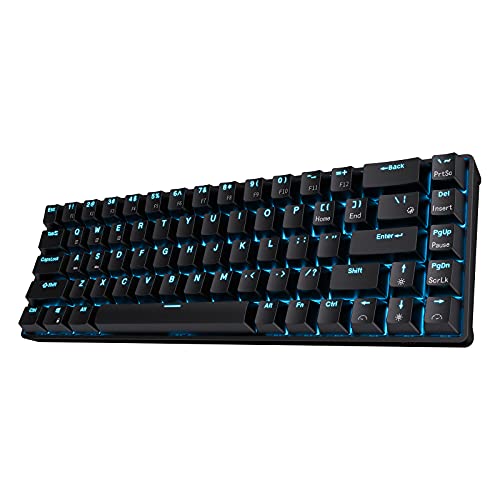
RK Royal Kludge RK68 — Best for: Wireless on a Budget
Badge: Budget wireless pick
- Layout: 65%, 68 keys, stand-alone arrow and control keys
- Connectivity: Bluetooth 5.0 wireless and wired
- Switches: Hot-swappable, RK custom switches
- Backlighting: Blue backlit (listed variant)
The RK68 built its reputation by giving budget buyers the two features they actually ask for — wireless and hot-swap — in the 65% layout, at the tier where competitors used to make you choose one. Its 68-key arrangement keeps the arrows properly separated, pairing over Bluetooth suits a laptop-plus-tablet life, and the board has been a default recommendation for students and first mechanical keyboards for years because the formula simply works. Software support exists for remapping basics, though it is not QMK-class, and the stock switches and caps are serviceable starting points that the hot-swap sockets let you outgrow gracefully.
Strengths
- Bluetooth wireless plus hot-swap at a budget tier — the combination that made its name.
- 68-key layout with clearly separated arrows; nothing feels squeezed.
- A proven first-board choice with a huge owner community to answer questions.
Trade-offs
- Remapping software is basic next to QMK/VIA boards like the V2.
- Stock keycaps and stabilizers are the first upgrade targets for enthusiasts.
- Backlighting is single-colour on the listed variant — check variants if RGB matters to you.
Best for: students, laptop-first users and anyone who wants wireless 65% without leaving the budget tier. / Not suited for: heavy remappers or buyers who want premium stock keycaps out of the box.
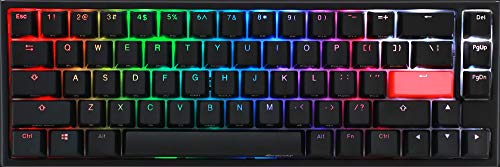
Ducky One 2 SF — Best for: Typists Who Value Keycaps and Feel
Badge: Typist’s classic
- Layout: 65% (“SF” — sixty-five), dedicated arrows
- Switches: Kailh Box Red on the listed variant; other switch options exist in the line
- Keycaps: PBT double-shot
- Connectivity: Wired USB-C
Ducky’s One 2 SF is one of the boards that defined the 65% category for typists: a compact frame, PBT double-shot keycaps fitted as standard when rivals shipped thin ABS, and a typing feel tuned by a maker that has always prioritised the press over the feature list. It does its remapping onboard through key combinations rather than a slick app — old-fashioned, and entirely workable once set — and its detachable USB-C cable and clean underside make it a tidy traveller. In a market now full of knobbed and screened 65% boards, the SF’s argument is focus: everything it does is about the keys themselves.
Strengths
- Excellent stock PBT keycaps — the upgrade other boards need, already fitted.
- A long-proven 65% layout with properly placed arrows and navigation keys.
- Onboard configuration means no software dependency on any computer you plug into.
Trade-offs
- Not hot-swappable in the classic SF design — switch choice is a purchase decision, so choose carefully.
- No wireless; this is a wired typist’s board.
- Key-combination programming is slower to learn than a VIA-style visual editor.
Best for: touch typists and writers who want superb stock caps and a focused, wired board. / Not suited for: switch experimenters (no hot-swap) or wireless desks.

Leopold FC660M — Best for: Buy-It-for-Years Build Quality
Badge: Premium build pick
- Layout: 65%, 66 keys, dedicated arrows
- Switches: Cherry MX Brown on the listed variant (several MX options in the line)
- Keycaps: Double-shot PBT
- Connectivity: Wired
Leopold is the maker enthusiasts name when asked who builds a keyboard like a tool rather than a gadget, and the FC660M is the 65% expression of that philosophy: a dense, quiet, beautifully finished board with double-shot PBT caps, sound-dampening attention inside the case, and Cherry MX switches in a range of options. It offers no app, no hot-swap playground, no lighting show — the money is visibly spent on tolerances, materials and the out-of-box sound, which is the most finished in this list. Its capacitive sibling, the FC660C, appears in our best Topre keyboards roundup; the FC660M is the same layout philosophy with the MX ecosystem’s switch and keycap freedom.
Strengths
- Best-in-list stock build: case finishing, keycaps and factory sound are a tier above.
- Sound-dampened internals make it office-quiet without any modding.
- Cherry MX switch options cover most preferences at purchase.
Trade-offs
- Fixed switches and wired-only in a hot-swap, wireless era — you are buying finished, not flexible.
- Premium tier pricing, in line with its build ambitions.
- Availability runs through fewer channels than Keychron or RK.
Best for: buyers who want the finished article and will keep it for many years. / Not suited for: tinkerers, wireless users, or anyone still discovering their switch preference.
In prose: Akko 3068B
Akko’s 3068 series is one of the most-shopped 65% lines in the budget wireless class — colourful retro-styled boards with multi-device Bluetooth and hot-swap sockets — and it deserves its popularity. We cover the 3068B in prose rather than as a linked pick because the listings available to us at the time of writing did not present a confident, exact match for the model; Akko’s naming across regions and revisions is easy to confuse, and a wrong-variant link helps nobody. If you shop for one, verify the exact model suffix, the connection modes and the switch type on the listing, and buy from a channel whose returns you trust. It competes directly with the RK68 above: the Akko leans into style and colourways, the RK into plain value, and either serves a first wireless 65% well.
The Comparison Point: What One Row Up Buys You
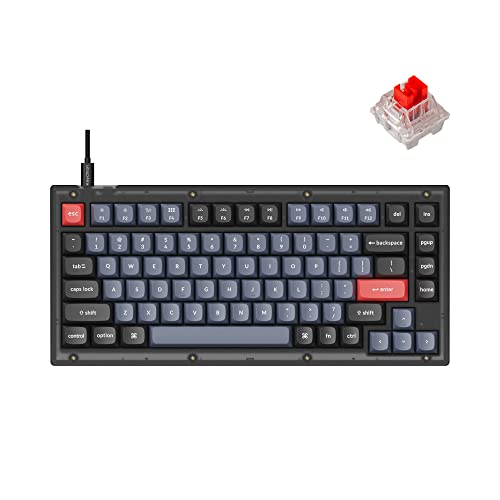
Keychron V1 (75%) — For Readers Whose F-Keys Are Non-Negotiable
Badge: The step-up option
- Layout: 75%, with physical function row
- Firmware: QMK/VIA programmable
- Switches: Hot-swappable (K Pro Red on the listed variant)
- Connectivity: Wired
The V1 is included so the 65%-versus-75% decision is concrete rather than theoretical: for a modest step in height and price over its V2 sibling, you get the F-row back as physical keys, the same QMK/VIA programmability and the same hot-swap flexibility. If, reading the earlier comparison, you recognised your own F-key habits, this is your board and the 65% section was a pleasant detour. If you did not, it confirms the V2 as your pick — either way, the comparison has done its job.
Best for: F-key-dependent software users who still want a compact board. / Not suited for: buyers minimising size and weight for travel.
How to Choose a 65% Keyboard: The Buyer’s Checklist
1. The right Shift, first. Measure your habit, then measure the board. If your right pinky strikes Shift at its outer end, shortlist boards with the longest right Shift you can find in the class, or accept a week of retraining. Product photos show the truth; marketing renders sometimes flatter it.
2. The right column’s contents. Delete plus Page Up/Page Down is the classic trio. Some boards swap in Home/End, a dedicated Fn position, or (rare at 65%) a knob. Match the column to your editing habits — writers live on Delete and Page keys; programmers often prefer Home/End and can remap if the firmware allows.
3. Firmware and remapping. QMK/VIA support (Keychron V2) is the gold standard; capable proprietary software is second; onboard key-combination programming (Ducky) is third but perfectly serviceable. What matters is that the Fn layer and the right column can become yours, because on a 65% you will use that layer for F-keys every day you own the board.
4. Hot-swap, honestly assessed. If you are still learning your switch preference, hot-swap sockets are close to essential — they turn a wrong guess into a small parts order instead of a new keyboard. If you already know your switch, a soldered board from a quality maker (Ducky, Leopold) trades that flexibility for build focus, and that trade is legitimate.
5. Keycap compatibility for later. Confirm the spacebar size (6.25u is standard) and that your board’s short Shift and 1u modifiers match what enthusiast keycap sets include. The mods in our five easy mechanical keyboard modifications — PBT caps above all — are the standard second step for any board on this page.
6. Connectivity by device count. One computer: wired is simpler and cheaper. Laptop plus tablet plus desktop: Bluetooth multi-device boards (RK68 class, or wireless lines from the bigger makers) earn their premium every time you switch. Do not pay for radios you will never pair.
7. Budget framing. As category framing only: 65% boards span from a genuine budget tier (RK68 territory) through a mid tier where programmability and hot-swap become standard (V2 territory) to a premium tier buying build quality and finish (Leopold territory). The layout is identical across all three; you are paying for materials, firmware depth and longevity, in that order.
Living With a 65%: Setup and Adaptation How-To
Day one: set the Fn layer before habits form. Put your most-used F-keys and media controls where your fingers expect them, set the right column to your preference if the firmware allows, and — the tip nobody gives — decide where Home and End live, because text editors reward them constantly and every 65% hides them somewhere different. Twenty minutes of configuration on day one saves a year of small irritations.
Week one: the Shift audit. If you are producing stray arrow presses or missed capitals, your right pinky is voting against the short Shift. Slow down for two days and deliberately strike Shift nearer its centre; most typists recalibrate within the week. If errors persist past two weeks, the board’s Shift is genuinely wrong for your hand — return windows exist for exactly this discovery, so buy from channels that honour them.
Gaming setup. Bind the Fn layer’s gaming-relevant keys thoughtfully: a toggleable layer that brings F-keys or a number row forward is the standard solution for titles that need them, and most programmable 65% boards support layer toggles natively. Keep the arrows native — that is the point of the layout — and check that your board’s polling and rollover suit your genres; the mainstream picks above all handle ordinary gaming without drama.
Desk ergonomics. A 65% buys your mouse hand several centimetres of inward travel versus a full-size board; take the win by actually moving the mouse in, and centre the letter cluster — not the whole board — in front of you, since the arrow column shifts the board’s visual centre rightward. Small boards also pair naturally with a separate numpad placed to the right of the mouse for data-entry days, a modular trick full-size boards cannot offer.
Common Mistakes 65% Buyers Make
- Buying a keycap set that does not fit. The short right Shift and 1u modifiers are the classic trap. Check the set’s extras for explicit 65% support before ordering, every time.
- Assuming all 65% layouts are identical. Right columns, Shift sizes and bottom rows vary by model. Two boards with the same percentage can demand different keycap sets and different habits.
- Choosing 65% while living on F-keys. Count your F-key use for one honest workday first. If it is hourly, the 75% exists for you and will make you happier.
- Paying for wireless, then never unplugging. Batteries age whether or not you use the feature. Match the connection to your actual device count.
- Judging the layout by its footprint photo alone. A 65% is a typing instrument; the buying criteria are Shift geometry, firmware and switch options. The photograph is the least informative page of the listing.
Anatomy of a 65%: Row by Row
Walk a classic 65% board from the top and the design logic becomes obvious. The top row is the number row, doing double duty as the F-row through Fn — identical to a 60%, and the reason the layout’s learning curve is so shallow for anyone arriving from a standard board. The three letter rows are untouched full-size rows: no squeezed keys, no relocated punctuation, nothing to relearn, which cannot be said of the 40% layout. Your touch typing transfers completely, and that is a deliberate design promise of the category.
The right edge carries the layout’s signature column. Delete usually sits at the top, aligned with the number row, where a lifetime of TKL habits expects it to be near. Page Up and Page Down stack beneath it against the letter rows, close enough to reach without moving your hand from the arrows. Some boards rearrange this column — Home and End appear on certain models, and a few designs place a dedicated key for screenshots or a rotary knob at the column’s top — but the principle holds: three or four high-frequency navigation keys, physically present, in a column that costs the board almost no width.
The bottom two rows are where the engineering argument happened. The right Shift gives up its outer territory to the Up arrow and the right-column keys; the bottom row compresses its right-hand modifiers to single units so that Left and Down and Right can sit in a proper inverted-T rather than a straight line. A good 65% keeps that T centred under your right middle and ring fingers’ natural fall; a bad one offsets it until your hand hunts for Up by braille. When you compare product photos, this cluster is the detail to study at full zoom — it is the difference between a board your hands trust in week one and a board they are still negotiating with in month two.
65% Keyboards at Work: Four Scenarios
The writer or editor. This is the layout’s home crowd. Drafting and revision are arrow-key activities — up two lines, back three words, Delete, retype — and the 65% keeps every one of those gestures physical while shrinking the desk footprint enough to centre a notebook or a reference book where a full-size board used to sprawl. The layered F-row is almost never touched in prose work, so the layout’s one compromise simply never comes due.
The programmer. Verdict: excellent, with one configuration task. Set Home, End and your debugger’s favourite F-keys into the Fn layer on day one, in positions your fingers can learn, and the board disappears under the work. Programmers in modal editors gain the same as writers; programmers in F-key-driven IDEs should run the honest count described earlier and consider 75% without any sense of defeat — the layouts are siblings, not rivals.
The student. A 65% is arguably the best single-keyboard answer to student life: small enough for a dorm desk and a backpack, complete enough for essays, code and casual gaming, and available at a budget tier (the RK68 class) that survives being replaced if it is lost. Wireless multi-device models pair with the laptop in lectures and the tablet in the library without a cable ceremony.
The hybrid worker. One board, two desks — home and office — is where the 65% quietly shines. It is light enough to commute with daily, which ends the two-different-keyboards problem that quietly degrades muscle memory, and a Bluetooth model serves the work laptop while its cable waits at home. Add a standalone numpad at whichever desk does the data entry, and the compact board stops being a compromise and becomes a system.
Knobs, Screens and Other 65% Extras: Worth It?
The current generation of 65% boards increasingly arrives with furniture: rotary knobs, small status screens, gasket mounting, tri-mode radios. Judge each extra against your actual desk rather than the product page. A knob earns its space if you adjust volume constantly — media work, call-heavy days, streaming — and is dead weight for everyone else; at 65% it usually costs you the top of the right column, so price it as a trade, not a bonus. Screens that show connection status and battery are mildly useful on wireless boards and pure decoration on wired ones. Gasket mounting, by contrast, is not furniture but feel: a flexibly mounted plate softens the bottom-out and mellows the sound, and it is the one modern extra that changes the typing itself. Tri-mode connectivity (wired, Bluetooth, 2.4GHz dongle) matters if you switch between a work laptop, a personal machine and a tablet; the dongle’s lower latency also makes wireless gaming respectable. None of these extras changes what a 65% is — but the gasket mount and the radios change how it feels and lives enough to be worth their place on your checklist, after Shift geometry and firmware, not before.
A Short History of the 65% Layout
The 65% emerged from the custom-keyboard community in the mid-2010s, when group-buy designers working at 60% kept hearing the same request — “add the arrows back” — and began publishing layouts that did exactly that with minimal growth. The designs that followed proved there was a mass market hiding inside a niche complaint: mainstream makers adopted the layout, budget brands industrialised it, and within a few years 65% went from enthusiast shorthand to the default compact recommendation in buying guides everywhere. That history explains the layout’s maturity today: keycap sets plan for it, cases and foams are cut for it, and firmware templates assume it. Buying into 65% is buying into the most-supported compact ecosystem in the hobby, which is a practical advantage that compounds every time you shop for an accessory — one more reason this size, rather than its smaller or larger neighbours, is where we advise most compact-curious readers to start.
Switches and Keycaps on a 65%: What Actually Matters
Because a 65% board concentrates your typing into a smaller area, switch character feels amplified compared with the same switch in a full-size board. Linears give the layout its smoothest, quietest expression and are the default choice for shared spaces and gaming; tactiles give each press a defined event that many writers prefer for rhythm, and on a compact board the bump also serves as confirmation your finger landed where the compressed bottom row intended. Clicky switches on a 65% are a personality decision — the small case makes them lively — and one to make only if everyone within earshot has consented. Weighting follows the usual logic: lighter springs for gentle, high-volume typing; standard weights as the safe default; heavy springs only for typists who know they mash. If you are undecided, a hot-swap board from this guide’s picks converts the question from a purchase risk into a twenty-minute experiment, which is the correct way to answer it.
Keycap profile interacts with the layout in one specific way: sculpted profiles (OEM, Cherry) give each row a distinct height and angle that helps your fingers read the board’s geography — useful when the right column and arrow cluster are new territory. Uniform profiles (XDA, DSA) look cleaner on compact boards and make the odd-sized right-column caps easier to source, at the cost of that row-by-row guidance. For a first 65%, a sculpted profile in PBT is the combination we would hand a friend: PBT keeps its texture for years while ABS polishes smooth within months, and on a board you touch all day, texture is feel. Whichever material you choose, buy the set whose extras list names your board’s Shift size explicitly.
Troubleshooting the First Month on a 65%
“I keep hitting Up instead of Shift.” The signature 65% error, covered in the adaptation notes above: your pinky aims at the old Shift’s far end. Two days of deliberate centre-striking fixes most cases; a longer-Shift model fixes the rest. Do not remap the arrow away in frustration during week one — the arrows are the reason you bought the layout, and the habit genuinely does fade.
“My replacement keycaps do not fit the bottom row.” You have met the category’s tax. Check the set’s extras bag before assuming the set lacks the caps — 1-unit modifiers and the short Shift are often packed separately — and if they are truly absent, the set was not designed for 65% despite any vague “for mechanical keyboards” labelling. Keep a note of your board’s exact Shift and spacebar sizes in your phone; every future keycap purchase gets faster.
“The Fn layer feels different from my old board.” It is, and that is normal: there is no standard Fn-layer layout across brands, which is why programmable boards earn their keep here. Spend one session arranging the layer to mirror your previous board’s positions for F-keys, media and Home/End, and the strangeness evaporates. On non-programmable boards, a printed cheat card for the first fortnight is a respectable and effective bridge.
“The board feels cramped for gaming.” Check your hand position before your hardware: on a 65%, the WASD cluster sits closer to the board’s left edge than on a full-size board, and many players unconsciously crowd their mouse hand as a result. Slide the board slightly left, angle it a few degrees if that is your habit from larger boards, and confirm your mouse actually claimed the space the layout freed. The cramped feeling is almost always geometry, not the keyboard.
The 65% as a Travel and Second-Desk Board
The 65% layout’s second career is the one many owners discover by accident: it is the size that leaves the main desk without an argument. Small enough for a laptop bag, complete enough that nothing about your working day has to change, it has become the default travel and second-desk format for people who tried travelling with larger boards and quietly stopped. Setting one up for that role is mostly a matter of decisions made once, at home, rather than repeatedly in hotel rooms.
Carrying a 65%: cases, cables and weight
A 65% board survives travel on the strength of what surrounds it. A padded sleeve or hard case protects the two things travel actually damages — keycaps worked loose by vibration and a cable connector stressed at an angle — and it keeps the board from typing against the inside of your bag, which matters if it travels switched on. Weight varies enormously across this category, from light plastic boards you forget are in the bag to aluminium models that announce themselves on a long walk through an airport. Neither is wrong; the mistake is buying the heavy, beautiful board for a travel role and then leaving it home because of its weight. Decide the role first. If the board will also be your main desk board, one compromise weight makes sense; if it is purely the travel board, lightness is a feature you will appreciate on every single trip rather than a specification you admire once.
One 65% across a laptop, a desktop and a tablet
Multi-device use is where the 65% layout’s completeness pays rent. Because arrows and the main navigation keys are physically present, the board behaves identically on every machine without depending on each operating system’s remapping tools. Give each device its own Bluetooth slot if the board offers them, keep the keymap — if the board is programmable — identical for all three, and let the wired connection belong to whichever machine you game or do precision work on. The discipline that makes this pleasant is refusing to customise per device. The moment one machine gets its own special layer arrangement, your hands stop trusting the board, and a travel keyboard that requires thought has lost its purpose. One layout, three machines, no surprises: that is the entire system, and it works precisely because a 65% asks so little adaptation in the first place.
Hotel desks, hot desks and other people’s furniture
Unfamiliar desks expose setup habits your home desk hides. Hotel desks sit at unpredictable heights, shared hot desks come with whatever chair was left behind, and the 65% board’s narrow footprint is a genuine ergonomic asset in both places: it lets you centre the board on your body and keep the mouse close without negotiating with a number pad you do not have. Carry a short cable even if you plan to work wirelessly — shared spaces are where pairing fails, batteries die and house rules about wireless devices appear without warning. And because a travel board accumulates other people’s desks, give it a wipe-down routine on returning home; the board that visits everywhere should be cleaned like it does.
What a second-desk board teaches the main desk
Owners who run the same 65% in two places often find the experiment improving both setups. The travel role exposes every unnecessary complication in a keymap or a cable routine, because a complication you tolerate at home becomes the thing you curse in an airport lounge. Fixes made for the road — a simpler layer arrangement, one standard cable, a pairing order you can perform half-asleep — turn out to be exactly the fixes the home desk wanted too. The reverse also holds: the main desk is where you have the leisure to tune the board properly, and every improvement travels with it for free. Treat the two roles as one system with two locations, maintained once, and the 65% stops being a compromise you carry and becomes the most considered keyboard you own.
One last travel habit is worth adopting from the start: photograph your working setup — board position, cable route, stand angle — the first time a trip goes well. Rebuilding a proven arrangement from a photograph takes a minute; rediscovering it at midnight in an unfamiliar room takes considerably longer, and the board’s whole promise is that it should never be the difficult part of working away from home.
Frequently Asked Questions
How many keys does a 65% keyboard have?
Usually 67 or 68, with a few designs at 66 or 69 depending on how they treat the right column and bottom row. The count itself matters less than the arrangement: what defines the layout is the presence of dedicated arrow keys and one navigation column alongside a full letter block, with no function row and no number pad.
Does a 65% keyboard have a function row?
Not a physical one. F1–F12 live on the Fn layer across the number row, reached by holding the Fn key. For occasional F-key use this is painless; for software that demands F-keys constantly, choose a 75% board with a physical F-row instead — that single difference is the main reason the 75% layout exists.
Is a 65% keyboard good for gaming?
Yes for most genres, and better than a 60% for the ones that use arrow keys, since the arrows are physical and always available. Competitive players in F-key-heavy titles should either use a toggleable gaming layer or step up to 75%. For the mainstream — shooters on WASD, action games, indies, platformers — a 65% is a genuinely good gaming size with a real desk-space advantage.
Can I use normal keycap sets on a 65% keyboard?
Only if the set includes the compact extras: a short right Shift (commonly 1.75u or 2u depending on the board), 1-unit bottom-row modifiers, and the right-column keys in the correct profile rows. Sets marketed with 65% support include these; basic 104-key sets do not. Check your specific board’s Shift size against the set’s included caps before buying — it is the most common compatibility disappointment in the hobby.
65% or 75% — which should a programmer choose?
It depends on the toolchain. Programmers whose editors and debuggers lean on F-keys (many IDEs do) will be happier on 75%; programmers in keyboard-driven editors who navigate with arrows and shortcuts will find 65% complete, especially with a programmable Fn layer. Both sizes are heavily represented in the programming community; the honest test is one day of counting your own F-key presses.
Why is the right Shift so short on many 65% boards?
Because the arrow keys have to live somewhere, and the bottom-right corner is the only space available without growing the board. Designers reclaim the room from the right Shift and the right modifiers. It is the layout’s one real ergonomic tax, most typists adapt within a week, and boards vary in how much they reclaim — which is why this guide treats Shift size as a first-order buying criterion rather than a footnote.
The Bottom Line on the 65% Layout
Every keyboard layout is a negotiation between your desk and your hands, and the 65% is the negotiation most people win. It keeps the keys your fingers reach for without thinking — letters, arrows, Delete, page navigation — and layers only the keys you use in deliberate bursts, the F-row above all. Its costs are specific and knowable in advance: a shorter right Shift, a bottom row that demands the right keycap extras, and no number pad. If none of those three costs touches your daily work, a 65% board will feel less like a new category of device and more like your old keyboard with the waste removed — which is, in the end, the highest compliment a layout can earn, and the reason this size has become the compact default for writers, programmers, students and gamers alike. Choose the model by Shift geometry, firmware and switch plan, in that order, and the layout will take care of the rest.
One final practical note for shoppers comparing listings this week: 65% boards are sold under a thicket of near-identical names, and the same model may appear with different switches, keycap colours and connection modes across listings. Before paying, confirm the four attributes that define your daily experience — switch type, connection modes, keycap material and the right Shift size — written out on the exact listing you are buying from, rather than trusting the product family’s general reputation. Two minutes of variant-checking is the difference between the board this guide described and a near cousin of it, and it is the cheapest insurance in the entire purchase — cheaper than a return, cheaper than a second set of switches, and cheaper than a month of typing on almost the right keyboard.
Can I add a separate number pad later and keep the 65% layout?
Yes, and it is one of the layout’s quiet strengths: the 65% board plus an occasional pad is a modular full-size keyboard that only occupies full-size space on the days you need it. Place the pad on the left if your mouse hand is busy during number work, or on the right in the classic position for data-entry sessions, and park it in a drawer the rest of the month. Match the pad’s connection style to your board’s so the desk does not gain a second cable system, and do not worry about matching brands — pads are simple devices. The readers who get the most from this arrangement are those whose number work arrives in bursts: invoicing days, marking periods, monthly reporting. Daily, all-day number entry is the case that still argues for a permanently larger board.
Do 65% keyboards work well over Bluetooth for gaming?
For most gaming, yes; for the narrow slice of gaming where every millisecond is contested, use the cable or a 2.4 GHz connection where the board offers one. Bluetooth’s delay is small and, in story-driven, strategy, simulation and most multiplayer play, entirely unnoticeable — the convenience of a wire-free travel setup easily outweighs it. The honest dividing line is your own sensitivity in fast competitive titles, and it is easy to test: play your most demanding game both ways for an evening each. What Bluetooth genuinely costs you is not speed but certainty — an occasional reconnection pause when a device wakes — which is a travel annoyance rather than a gaming flaw. Boards in this guide with multiple connection modes exist precisely so you never have to choose permanently.