People often search for “how to optimize for gaming a gaming laptop” when a machine that should be fast feels oddly ordinary, and the honest answer is that optimisation is mostly about removing the quiet limits software places on hardware. Laptops ship in balanced modes, route games through the wrong graphics chip, let launchers and overlays compete for processor time, and render hundreds of frames a screen cannot show. None of that needs new parts. This guide works through the settings that matter, in the order a technician would check them: power and profiles first, then graphics routing and drivers, then per-game settings, background load and storage, finishing with how to measure whether any of it actually helped on your machine.
Disclosure: As an Amazon Associate, kajuandouglas.com earns from qualifying purchases. Links to Amazon on this page are affiliate links; they cost you nothing extra. Listing details such as price and availability change often, so check the current Amazon listing before you buy.
How To Optimize For Gaming A Gaming Laptop: What Matters Most
Plug in, select the performance profile in the brand app and the best-performance power mode in Windows, and confirm games run on the discrete GPU. Update graphics drivers from the GPU maker, cap frame rates near your refresh rate, use the quality upscaling mode in supported games, and close heavy background apps. Change one thing at a time and test in the same scene, or you will never know what worked.
In this guide
What You Need
- Your brand control app installed and updated
- The latest graphics driver from the GPU manufacturer’s site or app
- A repeatable test: one game, one scene, one settings baseline
- A frame-rate and temperature overlay you trust
- Thirty to forty-five minutes of methodical, one-change-at-a-time testing
Step by Step: How To Optimize For Gaming A Gaming Laptop
Step 1: Set power and performance profiles deliberately
Connect the charger; gaming on battery invokes limits no setting can fully lift. In the brand control centre choose the performance or turbo profile, and in Windows power settings select best performance while plugged in. These two levers agree with each other and together they decide fan behaviour, power limits and clock speeds. Return to balanced profiles for everyday use if you like quiet, but make the gaming choice consciously every time, because some apps reset it after updates.
Step 2: Force games onto the discrete graphics chip
Laptops carry two graphics processors and automatic switching sometimes guesses wrong, especially with older or indie titles. In the GPU control panel or Windows graphics settings, assign your games to the high-performance GPU explicitly. If your machine has a MUX switch or Advanced Optimus, the direct connection also trims latency and adds a little performance at 1080p. Verify with an overlay showing which GPU is loaded while you play; guessing here wastes hours.
Step 3: Update drivers with a light touch
Graphics drivers from the GPU maker bring game-specific fixes and occasionally meaningful gains in new releases. Update through the official app, choose the clean option if a previous install misbehaves, and avoid driver-booster utilities entirely. Chipset and BIOS updates from the laptop brand are worth taking when they mention stability or performance, but read the notes and never interrupt a BIOS update. After any driver change, re-check your per-game assignments and frame caps, which updates can reset.
Step 4: Tune each game like a technician
Start from the game’s own recommended preset, then adjust the expensive effects first: ray tracing, shadows, volumetrics and reflection quality cost the most frames. Use the quality mode of upscaling features such as DLSS, FSR or XeSS where offered; on modern versions it recovers substantial performance at minor visual cost, especially at 1440p. Set textures as high as your GPU memory comfortably allows, since textures cost little frame rate. Lock a frame-rate cap near your refresh rate for stable pacing and lower heat.
Step 5: Cut background load and overlays
Before a session, close the extra launchers, browser tab hoards, cloud sync uploads and recording tools you are not using. Disable overlays you do not need, since each injects itself into the render path. Check Task Manager sorted by processor use while a game runs to find the one forgotten app eating a core. Windows Game Mode is fine left on; the gains come from removing real competition for resources, not from toggling every gaming-branded switch you can find.
Step 6: Keep storage and temperatures from undoing your work
Leave meaningful free space on the game drive so the system and games can patch and cache properly, and keep your most-played titles on the internal NVMe drive rather than a slow external disk. Then protect the result thermally: a laptop that throttles after twenty minutes throws away every setting you tuned. Clean vents, a raised rear and sane fan profiles are optimisation steps, not housekeeping, because sustained clocks are the whole point.
Step 7: Measure, record and keep what works
Return to your test scene and compare frame rate, frame pacing and temperatures against your baseline notes. Keep a short log per game of the settings that worked; it takes two minutes and saves a full re-tune after every driver update or reinstall. Accept that optimisation has a ceiling set by your hardware: the goal is the best sustained experience your machine can give, not the numbers a desktop with the same chip names produces.
How Heat, Power and Performance Connect
A gaming laptop is a small box that has to do two contradictory jobs at once: run a processor and a graphics chip at full speed, and move the heat those chips produce out through vents that are only a few millimetres tall. When either chip passes its temperature limit, firmware quietly lowers its clock speed, a behaviour called thermal throttling, and frame rates fall even though nothing in the game has changed. Power limits matter just as much: the same graphics chip can be configured by different brands at very different wattages, which is why two laptops with identical spec sheets can perform noticeably differently. Understanding this triangle of heat, power and clock speed explains almost every behaviour owners describe as mysterious, from fans that surge during loading screens to performance that is excellent for ten minutes and mediocre after an hour. Any fix, upgrade or purchase decision that ignores thermals is treating a symptom. Start with airflow, dust, surface and fan behaviour, then look at software, and only then consider hardware changes.
Reading Gaming Laptop Specs Without the Marketing
Spec sheets reward careful reading. The graphics chip model is only the start: its configured power range, the memory it carries and whether the laptop has a MUX switch or Advanced Optimus to route frames directly to the display all change real performance. Processor core counts look dramatic, but most games still lean on a handful of fast cores, so sustained clock speed under load matters more than the headline number. Memory should be judged on capacity, speed and whether it runs in dual-channel mode with two matched sticks, because a single stick can quietly cost measurable frame rate in CPU-limited scenes. Storage speed affects loading and texture streaming more than raw frame rate, yet a nearly full drive slows everything through background maintenance. Finally, the display is part of the performance chain: a fast panel cannot show frames the GPU never renders, and a powerful GPU is wasted on a dim, slow screen. Judge the machine as a system, not a list.
Battery, Noise and the Real Cost of Portable Power
Every gaming laptop is a compromise between a desktop replacement and a machine you can actually carry. Expect modest battery life away from the wall when gaming, because the discrete graphics chip alone can draw more than a whole ultraportable laptop uses. Fan noise follows the same physics: smaller fans must spin faster to move the same air, so thin machines are louder under load, and a headset or a sensible fan curve is part of the ownership experience rather than an afterthought. Weight figures also hide the power brick, which on high-wattage models can add a substantial chunk to your bag. None of this makes gaming laptops a bad choice; it makes them a specialised one. Buyers who mostly play at one desk should weigh that honestly against a desktop, while buyers who move between rooms, campuses or work trips get something no desktop can offer. Matching the machine to the real usage pattern is the single highest-value decision in this category.
Software Settings That Quietly Decide Your Frame Rate
Long before hardware limits appear, software decides how a gaming laptop behaves. The graphics driver control panel chooses which GPU renders each game, and laptops left on automatic sometimes run demanding titles on the integrated graphics. Windows power mode, the brand control centre performance profile and the in-game resolution scale are three separate levers that stack, so a machine can feel slow simply because one of them is set to a quiet or battery profile. Background software matters too: overlays, capture tools, cloud sync and launchers updating other games all compete for the same processor time. A clean baseline, with drivers current, one performance profile chosen deliberately and background apps trimmed, solves a surprising share of complaints that get blamed on hardware. Change one setting at a time and test in the same game scene, otherwise you will never know which lever actually helped, and you may undo a good change while chasing a bad one.
Upscaling, Frame Caps and the Settings That Actually Matter
Modern optimisation leans on three levers more than any others. Upscaling renders the game below native resolution and reconstructs it intelligently; on its quality settings the image cost is small and the performance gain is the largest single change most players can make, effectively letting a mid GPU play at a higher resolution tier. Frame caps trade invisible extra frames for visible smoothness and lower heat: an uncapped GPU sprinting in easy scenes then dipping in hard ones feels worse than a steady capped rate. Finally, effect triage matters because settings are not priced equally: shadows, ray-traced effects and volumetrics consume disproportionate power, while textures, anisotropic filtering and most post-processing are cheap. A player who masters those three levers, and leaves the dozens of placebo tweaks alone, gets nearly everything optimisation can honestly offer on a laptop.
When you are ready to compare complete machines rather than individual settings, start with our roundup of the best gaming laptops for fortnite under 1000 and keep our roundup of the best laptops for light gaming under 800 open in a second tab. Reading a settings guide and a buying roundup side by side stops the most common mistake in this whole topic: changing software or hardware in isolation, without checking whether the rest of the machine actually supports the change you have in mind.
Gear for This Guide

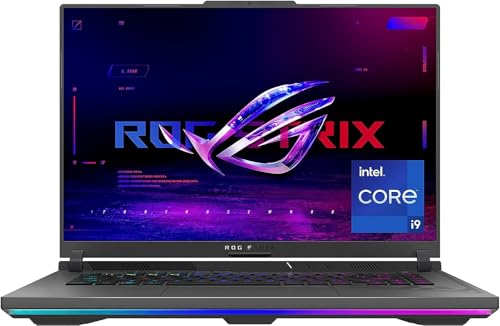
ASUS ROG Strix G16 (2023) Gaming Laptop — ASUS ROG Strix G16 (2023) Gaming Laptop, 16” 16:10 FHD 165Hz, GeForce RTX 4070, Intel Core i9-13980HX, 16GB DDR5, 1TB PCIe SSD, Wi-Fi 6E, Windows 11, G614JI-AS94, Eclipse Gray. Check price on Amazon before you decide, because configurations and availability change often.

Apple 2024 MacBook Air 13-inch Laptop with M3 chip: Built for Apple Intelligence — Apple 2024 MacBook Air 13-inch Laptop with M3 chip: Built for Apple Intelligence, 13.6-inch Liquid Retina Display, 8GB Unified Memory, 256GB SSD Storage, Backlit Keyboard, Touch ID; Space Gray. Check price on Amazon before you decide, because configurations and availability change often.

ASUS TUF Gaming A15 (2023) Gaming Laptop — ASUS TUF Gaming A15 (2023) Gaming Laptop, 15.6” FHD 144Hz, 100% sRGB Display, GeForce RTX 4060, AMD Ryzen 7 7735HS, 16GB DDR5, 1TB PCIe SSD, Wi-Fi 6, Windows 11, FA507NV-EH74. Check price on Amazon before you decide, because configurations and availability change often.
Common Mistakes
- Installing driver-booster or registry-cleaner utilities that promise one-click speed and deliver instability.
- Copying a desktop settings guide onto a laptop, then wondering why thermals throttle everything within minutes.
- Changing ten settings at once and keeping them all, including the three that made things worse.
- Chasing benchmark scores with uncapped frames on a hot machine instead of tuning for sustained, smooth play.
Pro Tips
- Create a per-game profile in the GPU control panel so your caps and GPU assignments survive global changes.
- If a new driver makes a favourite game worse, rolling back one version is a legitimate fix, not a failure.
- A second monitor showing a monitoring overlay during tuning sessions teaches you your machine’s behaviour faster than any guide.
- Revisit your settings after major game patches; updates routinely change which effects are expensive.
A Worked Example, From Start to Finish
Imagine the process applied to one ordinary owner rather than a test bench. They begin by writing down what success looks like in one sentence, work through the steps in order without skipping the preparation that feels skippable, and pause at the verification stage instead of declaring victory at the first encouraging sign. Two adjustments are usually needed: one step takes longer than expected, and one assumption made at the start turns out to be wrong in a small, correctable way. That is not failure; that is the normal texture of doing this properly, and it is why the guide separates preparation, execution and verification so deliberately. By the end, the result is checked rather than hoped for, the notes exist for next time, and the owner understands their own machine measurably better than when they started. Every reader’s details will differ from this example, but the shape of a good outcome rarely does: prepare honestly, change one thing at a time, verify under real conditions, and write down what you learned while it is still fresh enough to be accurate.
Putting It All Together
Work through the steps in order, test the result in your real routine for a few days, and adjust the one or two choices that your own use proves wrong rather than restarting the whole process. The guidance in this guide reflects how these machines behave across years of ownership, not just on day one, which is why the unglamorous details, placement, profiles, backups and habits, carry as much weight as the headline specifications. Keep your receipts, your notes and your original parts where parts were changed, revisit the related guides when your needs shift, and remember that a well-matched, well-kept laptop of any tier serves its owner better than a flagship that fights its owner’s life. That fit, more than any single feature, is what you were really choosing.
Optimising in the Right Order: A Priority Ladder
Optimisation advice usually arrives as a pile of forty tweaks with no sense of proportion. In practice the gains are lopsided: a handful of changes deliver most of the improvement, a second tier polishes, and a long tail of folklore does nothing measurable. Work down this ladder and stop when your games feel right.
Tier one: the changes that move frame rates
Play plugged into the original full-power adapter, in the manufacturer’s performance mode, with the dedicated graphics card driving the display where a multiplexer switch or settings allow it. Keep drivers for the graphics card current from the chip maker, not just the laptop maker. Run games from the internal solid-state drive with reasonable free space. Confirm each game is actually using the dedicated graphics — per-app graphics settings in the operating system fix the stubborn ones that default to integrated graphics and run at a fraction of their speed. These five checks, none of them exotic, account for the overwhelming majority of “my gaming laptop is slow” cases that reach forums.
Tier two: smoothness, latency and consistency
Once raw speed is right, optimise the delivery: match the game’s frame-rate cap to the screen, enable the low-latency and variable-refresh features your hardware supports, and choose fullscreen or optimised windowed modes per game based on which behaves better with your setup. Reduce background competition — cloud syncs, recording overlays you do not use, a browser with forty tabs — not because each is huge, but because their spikes land mid-game. This tier rarely raises average frame rates much; it raises the minimums and removes the stutters that players actually complain about.
Tier three: the folklore to skip
Registry cleaners, miracle booster apps, disabling core operating system services, and copying strangers’ lists of settings files belong to the folklore tier: unmeasured, occasionally harmful, and stubbornly popular. The test for any tweak is simple — can you measure its effect in your game, twice, with everything else unchanged? If a suggestion’s defenders never answer that question, you have your answer. Your time is better spent on the settings inside the games themselves, which is where the next section goes.
In-Game Settings: Where the Real Optimisation Lives
The expensive settings and the cheap ones
Not all graphics settings cost equally. Shadows, reflections, volumetric effects, ambient occlusion and draw distance are typically the heavyweights; texture quality mostly consumes graphics memory rather than processing and can often stay high if memory allows; effects like motion blur and depth of field cost a little and many players prefer them off regardless. When a game needs relief, lower the heavyweights one step each before touching resolution — the picture keeps its character and the frame rate recovers. When a game has headroom, raise textures and texture filtering first: they sharpen the world at modest cost.
Upscaling is the modern master setting
Modern upscaling — the AI-assisted and temporal reconstruction features offered by all the graphics platforms — renders the game at a lower internal resolution and reconstructs a sharp output, and at its quality settings it is close to free performance. On a laptop, where the graphics power budget is fixed, upscaling is often the difference between a settings tier and the one above it. Learn each game’s implementation: quality modes suit laptop screens’ high pixel density, and the smaller the screen, the more aggressive the upscaling you can accept before softness shows. Pair upscaling with the native screen resolution as the output target; rendering above the screen and downscaling is a luxury for desktops with power to spare.
Per-game profiles beat global rules
A competitive shooter wants low latency, high frame rate and clarity; a cinematic adventure wants beauty at a stable thirty-to-sixty; a strategy game wants the interface crisp and the simulation smooth. Save settings per game, in the game or in the graphics control panel, and resist the urge to force global overrides that fight each title’s own optimisation. Keep a note — even a phone photo of the settings screens — for the games you return to after months away, because drivers and updates reset things silently.
System Hygiene for Sustained Performance
Storage, memory and the background load
Performance decays through accumulation: launchers, updaters, overlays and utilities that each start with the machine. Audit the startup list twice a year and be unsentimental — anything you do not recognise or use weekly goes. Keep the games drive comfortably below full, since solid-state drives slow as they fill and games stream data constantly. Watch memory in your heaviest sessions; if the machine regularly runs near capacity, no setting fixes what only capacity can, and the honest optimisation is a memory upgrade or fewer simultaneous applications.
Power plans and the plugged-in rule
Laptops juggle two personalities — battery saver and gaming machine — and confusion between them causes half of all performance complaints. Create or confirm a plugged-in configuration that never sleeps the machine mid-session, keeps the processor and graphics at full policy, and leaves USB devices awake; then verify the machine actually switches to it on mains power. Play on battery only with expectations adjusted: the same game, the same settings, will not produce the same frame rates, and optimising for battery gaming is a separate discipline of caps and low settings.
Network optimisation for online play
Frame rate is only half of online smoothness; the other half is the connection. A wired connection, or a dock’s wired port, removes wireless variability entirely and is the single best network upgrade. On wireless, play near the router or on the less congested band your setup supports, and pause household bandwidth hogs — cloud backups and other people’s streaming — during competitive sessions. In-game, choose servers by measured ping rather than habit, and treat any optimisation that promises to rewrite internet routing with the scepticism it has earned.
Measuring Honestly: Benchmarks Without Self-Deception
Optimisation without measurement is decoration. Use the same scene, the same settings and the same session length when comparing, because games vary enormously by area and a benchmark run in an empty zone proves nothing about a crowded one. Watch the low percentiles and the frame-time graph, not just the average: an average of ninety with regular plunges to thirty feels worse than a steady sixty, and most optimisation worth doing targets those plunges. Record temperatures alongside, since a tweak that wins frames by cooking the machine loses them again at minute forty when throttling arrives. Finally, change one thing at a time. It is slower in the moment and dramatically faster overall, because every result teaches you something true — and a laptop optimised by evidence stays optimised, while one optimised by folklore needs re-optimising after every update, every driver, and every forum thread.
Optimising Specific Genres: One Size Fits None
A global “best settings” list fails because genres load a laptop differently. Tailoring the optimisation to the kind of game is where the last, most satisfying gains live.
Competitive shooters: latency is the product
Optimise for the lowest, steadiest delay: the dedicated graphics driving the display directly, the game’s low-latency mode on, frame rate uncapped or capped just above the screen’s refresh with variable refresh handling the rest, and visual settings stripped to whatever keeps shadows and effects from hiding information. Disable every overlay you do not actively use — each is a small tax and a possible stutter — and prefer a wired network connection, because in this genre the network is a graphics setting too. Judge changes by how tracking feels in a familiar aim routine, and by frame-time stability, not by the biggest number in a benchmark corner.
Open-world and cinematic games: stability over peaks
These games punish inconsistency: a soaring average with plunges in cities and forests feels worse than a modest, locked rate. Optimise by finding the frame rate the machine holds in the busiest area you can reach, then cap slightly below it, and spend the remaining budget on textures and draw distance rather than on chasing peaks in empty countryside. Upscaling at quality settings is this genre’s best friend on a laptop, and shader-compilation stutter on first visits to new areas should be recognised as the game’s behaviour, not your failure — it fades as the cache builds.
Strategy, simulation and the processor’s turn
Here the processor is the star and the graphics card often waits on it, so the optimisations invert: balanced boost behaviour to avoid thermal sawtoothing over long turns, background applications closed because the simulation wants the cores they are sitting on, and frame caps set generously low, since these games gain nothing from very high rates and the thermal headroom buys simulation speed late in long sessions when the calculations grow. Late-game slowdowns in this genre are usually the simulation’s honest weight, and the kindest optimisation is accepting a cap that keeps the whole evening even.
Driver and Firmware Discipline
Updating with intent
Graphics drivers bring game-specific optimisations that matter — new releases in particular can gain meaningfully from a driver written for them — and they occasionally bring regressions that matter just as much. The disciplined pattern: update when a game you play is named in the release notes or when you have a measured problem a driver plausibly addresses; note the version you came from; and if performance worsens, roll back without drama and wait for the next. Owners who update everything the hour it appears spend their lives beta-testing; owners who never update leave real gains unclaimed. Intent is the middle path.
The laptop maker’s software is part of the driver stack
Control centres, firmware and embedded controller updates govern fans, power limits and the multiplexer — the machinery optimisation depends on. Keep the maker’s software current through its own updater, and after any firmware change, re-verify your power mode and fan behaviour, because updates reset preferences silently. Conversely, debloat carefully: the maker’s control software is not bloat, however much it resembles it, and removing the tool that sets your performance mode in the name of optimisation is the genre’s most self-defeating move.
A clean baseline you can return to
Once your machine is optimised and verified, capture the state: note driver versions, power settings, per-game profiles and caps, ideally with a system restore point or backup before major changes. Optimisation is a series of experiments, and experiments need a known-good home to return to. The owners who tinker happily for years are the ones who can always go back; the ones who fear touching anything are usually those who once could not.
When Optimisation Ends: Recognising the Hardware Ceiling
Every laptop has a performance envelope set by its graphics power, its cooling and its silicon, and optimisation’s job is to reach that envelope cleanly — not to wish it larger. The signs you have arrived: frame rates match good reviews of your configuration, temperatures stabilise, frame times are even, and further tweaks move results by less than measurement noise. At that point the remaining choices are honest ones — lower settings, upscaling, a cap — or hardware choices: memory if it is the constraint, an external monitor that suits the machine’s real output, or saving toward the next machine. Recognising the ceiling is not defeat; it is the moment optimisation has fully succeeded, because the machine is now giving you everything it has, reliably, and your evenings belong to games again instead of to settings menus. That was the point all along: not the highest number, but the end of thinking about numbers.
Optimising the Human Side: Habits of Players With Fast Machines
Watch players whose laptops always seem to run well and a pattern emerges that has little to do with secret settings. Their machines are boringly consistent: same power mode, same profiles, updates applied deliberately, and a small notebook — physical or digital — where changes are recorded. They optimise in sessions, not in dribs and drabs mid-game, and they test changes in practice modes and familiar maps rather than in the ranked match where the result matters. Above all, they protect the known-good state: before a tournament, a trip or a long-awaited release, nothing on the machine changes, because an optimised laptop’s greatest virtue is predictability. Imitate the habits and the settings mostly take care of themselves; the reverse — settings copied without habits — produces the familiar cycle of endless tweaking and recurring problems.
A Word on Optimisation Software and Paid Boosters
Programs that promise one-click game optimisation sell a mixture of the obvious (closing background apps, setting power modes — things this guide teaches free) and the theatrical (defragmenting solid-state drives, clearing memory that the operating system manages better itself, registry rituals with no measurable effect). The honest test from earlier applies: measure your game, apply the tool, measure again, twice. Owners who run that test usually uninstall the tool and keep the two free habits it taught them. Your laptop’s performance is governed by physics, drivers and settings, all of which you now command; anything that claims to bypass those with a button is selling the feeling of optimisation, and feelings do not render frames.
The Optimised Laptop, Six Months Later
Return to your machine half a year after working through this guide and the difference is not a number — it is an absence. The absence of the mid-game alt-tab to fix a setting, of the forum thread open in a second window, of the suspicion that the machine is holding out on you. What remains is maintenance at the level of a habit: a driver updated with intent, a new game profiled in five minutes using your own method, a temperature glance that confirms all is as it was. That is the actual product of optimisation — not the highest frame rate the hardware can be photographed achieving, but a machine whose performance you trust completely and therefore never think about. Build it once, by evidence, in the order this guide sets out, and the settings menus close behind you for good.
Optimising Audio and Communications for Team Play
Performance is not only frames. In team games, the clarity of your voice and the intelligibility of your teammates’ are competitive variables, and they are optimised with the same method as the graphics. Route game audio and voice through separate channels where your tools allow, so a volume change for the game never buries a callout; set the microphone’s input level by recording test calls, not by the meter’s optimism, and position it consistently, because a microphone that wanders between sessions makes every level setting provisional. Push-to-talk, used well, removes your keyboard and your room from your team’s ears entirely — a larger quality gain than any headset upgrade. And test the whole chain in a practice lobby before the match that matters, because audio faults, like frame drops, are cheapest in rehearsal. The optimised machine is the one whose player is heard clearly, hears everything, and thinks about neither — the same standard of invisible performance this guide applies to the picture.
Storage Layout for a Games Library
Where games live affects how they load and update, and a little layout discipline pays quietly for years. Keep the operating system and your currently played games on the fastest internal drive, with the comfortable free space solid-state drives need to stay fast; let the back catalogue — the installed-just-in-case titles — live on a second internal drive or an external one, accepting their longer loads as the price of the arrangement. Schedule large downloads and updates for outside your play hours, because a library updating in the background is a frame-drop cause with a progress bar. And keep one empty slot of discipline: when the fast drive fills, move a game rather than letting the drive crowd itself into slowness, because storage pressure degrades everything on the machine, including the games that never moved.
Optimisation as a Seasonal Practice
Treat optimisation the way careful owners treat the machines themselves: as a rhythm rather than an event. Each new major game earns five minutes — a profile, a cap found in its busiest scene, upscaling set deliberately. Each driver release earns a glance at its notes and a decision, not an automatic install. Each season earns a review: temperatures as the room warms, the startup list audited, storage given its headroom back, profiles confirmed after the updates that quietly reset them. None of these moments is large, and together they are the entire difference between a laptop that was optimised once, in a heroic weekend, and gradually decayed — and one that stays optimised as a property of its owner’s habits. The first kind of optimisation is a project with an end date and a slow undoing. The second is a practice, and practices do not decay; they compound, quietly, in frame times you never have to think about again.
Optimising for Travel and Hotel Play
The optimised home setup deserves a travelling counterpart, because a gaming laptop’s second life happens in hotel rooms, relatives’ houses and trains. Build a travel profile in advance: the balanced power mode as default, caps set for the built-in screen, a small kit that never leaves the laptop bag — the proper adapter, a short cable for televisions, a compact mouse — and cloud saves confirmed current before departure rather than discovered stale on arrival. Hotel televisions reward the cable and punish assumptions: test the connection on arrival, set the television’s game mode, and accept its input lag philosophically if the evening is casual. On trains and in lounges, battery profiles and downloaded games are the optimisation, decided at home where the bandwidth lives. The traveller who prepares these five minutes at home plays anywhere; the one who does not spends the first evening of every trip in settings menus, in a room that is not theirs, solving problems that were solved once already and never written down.
The Optimisation Log: A Template in Words
Keep the log this guide keeps recommending in a fixed shape so it stays useful: the date, the game or system area touched, the single change made, the measured result in the same scene, and a verdict — keep, revert, or retest. Five lines per change, no essays. After a few months the log becomes the machine’s biography and your own education at once: patterns emerge about which levers your hardware respects, which updates have historically hurt, and which of your games are simply heavy by nature. When a future problem appears, the log is consulted before any forum, because it is the only source written about your exact machine by its only long-term witness.
Related Guides
- our roundup of the best laptops for gaming and school under 1000
- our roundup of the best laptops for gaming under 2000
- our roundup of the best laptops for gaming under 900
- gaming laptop vs gaming pc
- gaming laptop screen refresh rate explained
Frequently Asked Questions
What single change gives the biggest improvement?
It depends where your machine is limited, which is why measurement comes first. The most common big wins are selecting the performance profile and charger power, forcing the discrete GPU for a game that was running on integrated graphics, and enabling quality upscaling in a demanding title. Any one of those can transform a machine that felt broken. If all three are already right, gains become incremental and thermal care matters most.
Should I overclock my gaming laptop?
Laptop headroom is small and the thermal cost is real, so overclocking is the last lever, not the first. Modest GPU core and memory offsets through reputable tools are a known enthusiast practice, tested gradually with stability checks, but expect single-digit gains and more heat and noise. Every optimisation in this guide should be exhausted first. If you do experiment, save your stock profile so you can return to it instantly.
Do gaming optimisers and booster apps work?
Almost everything useful they do duplicates free system settings: closing background apps, setting power modes and clearing temporary files. The rest is marketing, and some add their own background load or worse. Your brand control app, the GPU control panel and Windows settings cover the legitimate ground with no extra software watching your system. Spend the effort on per-game settings instead, where the real gains live.
Why did my frame rate drop after a driver update?
Occasionally a new driver regresses a specific title, and updates can also reset your per-game GPU assignments, frame caps and power choices, which looks identical to a performance loss. Check the settings first, then search the driver’s known-issues notes for your game. Rolling back to the previous driver is safe and quick. This is exactly why a short settings log per game pays for itself.
How much free space should I keep on my game drive?
A practical rule is to keep at least fifteen to twenty percent of the drive free. Games patch by copying large files, the operating system caches and updates in the background, and a nearly full solid-state drive also loses some write performance. When space gets tight, uninstall the finished campaign before deleting the game you play weekly, and move screenshots and recordings to external storage.
Is Windows Game Mode worth using?
Leave it on; it modestly reduces background interruptions and is harmless on modern systems. Just do not expect it to substitute for the real work: profiles, GPU assignment, drivers, per-game tuning and thermals. Think of Game Mode as locking the door, while the rest of this guide is actually tidying the room. Players who do the fundamentals and leave Game Mode on get everything it has to offer.
Do game booster apps actually work?
Mostly they automate the free basics — closing background apps, setting power modes — and add theatrical features with no measurable effect. Test any tool the honest way: measure your game before and after, twice, changing nothing else. Owners who run that test usually keep the habits and uninstall the tool.
Should I overclock my gaming laptop?
For most owners, no. Laptop thermal headroom is scarce, so overclocking buys small gains at real costs in heat, noise and stability, and it can affect warranty. The safer performance in this guide — power modes, caps, upscaling, clean cooling — delivers more usable improvement for almost everyone.
How often should I update graphics drivers?
With intent: when a game you play is named in the release notes, or when you have a measured problem a driver plausibly fixes. Note the version you came from, and roll back without drama if a release regresses your games. Constant updating and never updating both leave performance on the table.