With gaming laptop screen refresh rate explained properly, a lot of buying confusion disappears, because refresh rate is one of the few specs that is both simple and routinely oversold. It describes how many times per second the panel can draw a new image, measured in hertz, and it only helps when your graphics chip can actually produce frames at that pace in the games you play. A 240Hz panel fed 70 frames per second by a struggling GPU is decoration; a 144Hz panel matched to a GPU that holds 144 frames is a genuinely smoother experience. This explainer covers how refresh rate interacts with frame rate, response time, resolution and sync technology, so you can choose a screen your hardware can honour and your eyes can appreciate.
Disclosure: As an Amazon Associate, kajuandouglas.com earns from qualifying purchases. Links to Amazon on this page are affiliate links; they cost you nothing extra. Listing details such as price and availability change often, so check the current Amazon listing before you buy.
Gaming Laptop Screen Refresh Rate Explained: What Matters Most
Refresh rate, in hertz, is the panel’s maximum new images per second; your visible smoothness is the lower of refresh rate and the frame rate your GPU delivers. For most gaming laptops 144Hz to 165Hz is the sweet spot, 240Hz and above suits competitive players with strong hardware, and 60Hz is now a budget compromise. Pair the panel with adaptive sync, and value brightness and response time alongside the headline hertz.
In this guide
What You Need to Know First
- The frame rates your GPU realistically sustains in your main games
- Whether you play competitively or for cinematic single-player experiences
- The panel’s resolution, brightness and response-time behaviour, not just its hertz
- Whether the display supports adaptive sync such as G-Sync or FreeSync
- Whether you will also dock to an external monitor, and its refresh rate
The Explanation, Step by Step
Separate refresh rate from frame rate
Frame rate is how many images the GPU produces each second; refresh rate is how many the screen can show. Your eye receives the smaller of the two. A game running at 90 frames on a 165Hz screen looks like 90, not 165, which is why screen and GPU must be chosen together. When frames exceed refresh, the extra frames are partly wasted and can cause tearing, the visible split when the screen updates mid-frame. This one distinction explains most disappointment with expensive panels.
Know what each hertz tier feels like
The step from 60Hz to 144Hz is dramatic: motion clarity, aiming feel and general desktop smoothness all transform, and most players notice within seconds. Steps beyond that, to 240Hz or higher, are real but subtler, valued mainly by competitive players in fast shooters where the GPU can feed them. For story-driven and strategy gaming, 144Hz to 165Hz captures nearly all the benefit, and money beyond that tier usually works harder in GPU power, memory or storage.
Add response time to the picture
Refresh rate says how often the image changes; response time says how quickly pixels complete the change. Slow pixels smear motion into ghosting even at high refresh rates. Gaming panels are built for fast response, but check reviews for the specific panel where you can, especially on budget machines where a high hertz number can hide mediocre response. The two figures together, not either alone, describe motion clarity.
Use adaptive sync to smooth the gaps
Adaptive sync lets the panel vary its refresh to match the GPU’s output, eliminating tearing and much of the judder when frame rates fluctuate, which in real games is most of the time. Both major GPU brands support it under their own names, and most gaming laptops include it. With sync active, a game hovering between 70 and 110 frames looks far smoother than the same range on a fixed-refresh screen. Treat sync support as close to mandatory on a new gaming laptop.
Balance refresh rate against resolution
Higher resolution and higher refresh compete for the same GPU budget. At laptop screen sizes, 1080p at high refresh suits competitive play, while 1440p at 144Hz to 165Hz is the premium all-round combination if the GPU can drive it, often with help from upscaling. A 4K high-refresh laptop panel asks more than laptop GPUs can usually give in native play. Choose the pairing your chip can feed in your games, because an underfed premium panel underperforms a well-fed modest one.
Set the screen up correctly when it arrives
Windows and games do not always default to the panel’s maximum: check the display settings refresh rate, the in-game refresh and resolution options, and whether the game is running on the discrete GPU, since the integrated path can cap features on some designs. Enable adaptive sync in the GPU control panel. Five minutes of setup is the difference between the screen you bought and the screen you actually use, and a surprising share of owners never collect it.
How Heat, Power and Performance Connect
A gaming laptop is a small box that has to do two contradictory jobs at once: run a processor and a graphics chip at full speed, and move the heat those chips produce out through vents that are only a few millimetres tall. When either chip passes its temperature limit, firmware quietly lowers its clock speed, a behaviour called thermal throttling, and frame rates fall even though nothing in the game has changed. Power limits matter just as much: the same graphics chip can be configured by different brands at very different wattages, which is why two laptops with identical spec sheets can perform noticeably differently. Understanding this triangle of heat, power and clock speed explains almost every behaviour owners describe as mysterious, from fans that surge during loading screens to performance that is excellent for ten minutes and mediocre after an hour. Any fix, upgrade or purchase decision that ignores thermals is treating a symptom. Start with airflow, dust, surface and fan behaviour, then look at software, and only then consider hardware changes.
Reading Gaming Laptop Specs Without the Marketing
Spec sheets reward careful reading. The graphics chip model is only the start: its configured power range, the memory it carries and whether the laptop has a MUX switch or Advanced Optimus to route frames directly to the display all change real performance. Processor core counts look dramatic, but most games still lean on a handful of fast cores, so sustained clock speed under load matters more than the headline number. Memory should be judged on capacity, speed and whether it runs in dual-channel mode with two matched sticks, because a single stick can quietly cost measurable frame rate in CPU-limited scenes. Storage speed affects loading and texture streaming more than raw frame rate, yet a nearly full drive slows everything through background maintenance. Finally, the display is part of the performance chain: a fast panel cannot show frames the GPU never renders, and a powerful GPU is wasted on a dim, slow screen. Judge the machine as a system, not a list.
Battery, Noise and the Real Cost of Portable Power
Every gaming laptop is a compromise between a desktop replacement and a machine you can actually carry. Expect modest battery life away from the wall when gaming, because the discrete graphics chip alone can draw more than a whole ultraportable laptop uses. Fan noise follows the same physics: smaller fans must spin faster to move the same air, so thin machines are louder under load, and a headset or a sensible fan curve is part of the ownership experience rather than an afterthought. Weight figures also hide the power brick, which on high-wattage models can add a substantial chunk to your bag. None of this makes gaming laptops a bad choice; it makes them a specialised one. Buyers who mostly play at one desk should weigh that honestly against a desktop, while buyers who move between rooms, campuses or work trips get something no desktop can offer. Matching the machine to the real usage pattern is the single highest-value decision in this category.
Software Settings That Quietly Decide Your Frame Rate
Long before hardware limits appear, software decides how a gaming laptop behaves. The graphics driver control panel chooses which GPU renders each game, and laptops left on automatic sometimes run demanding titles on the integrated graphics. Windows power mode, the brand control centre performance profile and the in-game resolution scale are three separate levers that stack, so a machine can feel slow simply because one of them is set to a quiet or battery profile. Background software matters too: overlays, capture tools, cloud sync and launchers updating other games all compete for the same processor time. A clean baseline, with drivers current, one performance profile chosen deliberately and background apps trimmed, solves a surprising share of complaints that get blamed on hardware. Change one setting at a time and test in the same game scene, otherwise you will never know which lever actually helped, and you may undo a good change while chasing a bad one.
Why 144Hz Became the Sweet Spot
The dominance of 144Hz to 165Hz panels is not marketing inertia; it is where three curves cross. Human perception gains steeply up to that range and flattens beyond it for most players. Mid-range laptop GPUs can genuinely sustain those frame rates at 1080p in a wide catalogue of games, so the panel gets fed. And panel manufacturing made fast 1080p and 1440p screens affordable at exactly those rates. Deviating makes sense at the edges: competitive specialists with powerful hardware extract real value from 240Hz and above in a narrow set of titles, while players of slow, beautiful games may prefer a brighter, higher-resolution 120Hz panel. The mistake is treating hertz as a score rather than a match. Ask what frame rates your GPU holds in your games, and the right panel tier names itself.
When you are ready to compare complete machines rather than individual settings, start with our roundup of the best laptops for gaming and school under 1000 and keep our roundup of the best laptops for gaming under 2000 open in a second tab. Reading a settings guide and a buying roundup side by side stops the most common mistake in this whole topic: changing software or hardware in isolation, without checking whether the rest of the machine actually supports the change you have in mind.
Gear for This Guide

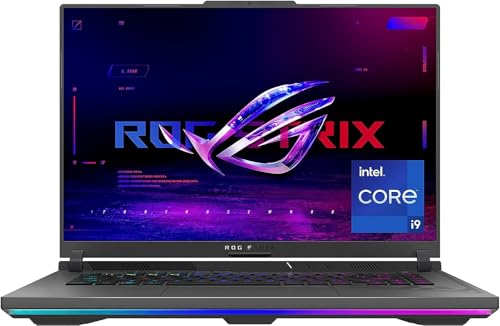
ASUS ROG Strix G16 (2023) Gaming Laptop — ASUS ROG Strix G16 (2023) Gaming Laptop, 16” 16:10 FHD 165Hz, GeForce RTX 4070, Intel Core i9-13980HX, 16GB DDR5, 1TB PCIe SSD, Wi-Fi 6E, Windows 11, G614JI-AS94, Eclipse Gray. Check price on Amazon before you decide, because configurations and availability change often.

msi Katana 15 15.6” 165Hz QHD Gaming Laptop: Intel Core i7-13620H — msi Katana 15 15.6” 165Hz QHD Gaming Laptop: Intel Core i7-13620H, NVIDIA Geforce RTX 4070, 16GB DDR5, 1TB NVMe SSD, Cooler Boost 5, Win 11: Black B13VGK-2000US. Check price on Amazon before you decide, because configurations and availability change often.

Apple 2024 MacBook Air 13-inch Laptop with M3 chip: Built for Apple Intelligence — Apple 2024 MacBook Air 13-inch Laptop with M3 chip: Built for Apple Intelligence, 13.6-inch Liquid Retina Display, 8GB Unified Memory, 256GB SSD Storage, Backlit Keyboard, Touch ID; Space Gray. Check price on Amazon before you decide, because configurations and availability change often.
Common Misconceptions
- Buying the highest-hertz panel on the shelf while the GPU can only feed half of it in your games.
- Ignoring response time and then blaming refresh rate for ghosting in fast motion.
- Leaving the display at its default 60Hz setting after purchase and never enabling the rate you paid for.
- Judging a screen in a bright showroom without checking brightness figures for your own room.
Pro Tips
- If you dock to a monitor, its refresh rate becomes your gaming reality; budget for the pair together.
- Frame-rate caps a few frames below the panel maximum pair beautifully with adaptive sync for stable pacing.
- For mixed work and play, a 1440p 165Hz panel is the current all-round sweet spot when the GPU supports it.
- Test motion clarity with a fast camera pan in your favourite game rather than a desktop benchmark animation.
How This Connects to the Decisions Around It
No specification lives alone, and the idea explained here touches the choices on every side of it. Sizing one component changes what another can achieve, a limit in one pool masquerades as a fault in a different one, and the marketing order of a spec sheet rarely matches the order of real-world importance. That is why experienced buyers read machines as systems: they ask what feeds what, what limits what, and where the ceiling actually sits for their own workload rather than for a benchmark’s. It is also why the cheapest upgrade is so often information, a measurement of your own usage taken before money moves. Carry that habit beyond this topic. Whenever a future purchase or problem presents a single confident number, ask what it leaves out, what it interacts with and what your own evidence says. The explanation you have just read gives you the vocabulary for this subject; the habit gives you every subject that follows it.
Putting It All Together
Keep this explanation beside you the next time a listing, a salesperson or a forum thread tries to reduce the topic to one number, because the pattern you have learned, define the terms, separate the pools and limits that get confused, size for your real habits, and check the escape routes, generalises to almost every specification argument in consumer technology. Numbers describe machines; behaviour over years is what you live with. If a decision still feels unclear, gather the one piece of personal evidence the guide asked for, your actual usage in your actual applications, and let it arbitrate. Manufacturers will keep inventing new headline figures. A buyer who understands the mechanics underneath them stays unhurried, and usually ends up with the right machine at the right configuration the first time.
Refresh Rate Meets Frame Rate: The Relationship in Practice
A screen’s refresh rate is a ceiling and a rhythm, not a guarantee. Understanding what happens above, below and between the frames your game produces and the refreshes your panel performs is what turns a specification into a decision.
When frame rate exceeds the refresh rate
Frames produced beyond the panel’s refresh cannot all be shown; the extras are discarded or, without synchronisation, torn across the screen as parts of two frames displayed at once. This is why competitive players on modest panels still value high frame rates — the newest frame is fresher, reducing input delay — while also why a high-refresh panel is the cleaner solution: it displays more of those frames whole. If your games run far beyond your panel’s rate, the panel, not the graphics card, is your bottleneck, and it is the rare bottleneck you can see in a specification before buying.
When frame rate falls short
Below the refresh rate, the panel repeats frames, and uneven frame delivery shows as judder: the same frame shown twice, then a new one for a single refresh, feels rougher than a steady lower rate. This is why a locked, consistent frame rate often feels smoother than a higher but wandering one, and why variable refresh technology — which lets the panel wait for the game instead of repeating on a fixed schedule — transformed laptop gaming more than raw refresh numbers did. When shopping, variable refresh support matters as much as the headline rate; a slightly slower panel with it can feel better than a faster fixed panel across the messy middle frame rates where most gaming happens.
Frame pacing, the invisible third factor
Two games at the same average frame rate can feel entirely different because one delivers frames at even intervals and the other clusters them. Refresh rate cannot fix pacing, but higher rates forgive it: at very high refresh, a late frame is late by a smaller slice of time. This is the honest core of the high-refresh experience — not just more frames, but smaller errors. It is also why chasing refresh makes the most sense paired with the settings discipline that keeps frame delivery even: caps, sensible settings, and upscaling set to quality modes.
Panel Technologies and Response Time
Why a fast panel can still smear
Refresh rate says how often the panel starts a new frame; response time says how long its pixels take to finish changing. If pixels transition slowly, fast refresh produces ghosting — trails behind moving objects — because the panel is asked for a new frame before the old one finished arriving. IPS-style panels in gaming laptops balance colour, viewing angles and speed well; the fastest esports-focused panels trade some colour richness for transitions that keep up with extreme refresh rates. Read response-time figures in reviews measured across the full range of transitions, since the single best-case number in marketing describes the easiest change the panel can make, not the average your games will ask for.
Overdrive and its artefacts
Panels use overdrive — deliberately overshooting pixel voltages — to speed transitions, and its settings are a dial between ghosting (too little) and inverse ghosting, bright coronas around moving objects (too much). The middle setting is usually the manufacturer’s tuned optimum, and the best setting can change with refresh rate, which better laptops handle automatically under variable refresh. If you see bright halos in motion, this dial, not the refresh rate, is your adjustment. It is a small setting that separates owners who think their panel is mediocre from owners who know it was simply misconfigured.
Resolution, size and the density question
Laptop screens pack high pixel density into small sizes, which changes the refresh conversation: at these densities, motion clarity, not sharpness, is the scarce resource, and refresh rate is the motion specification. A larger laptop screen viewed from the same distance benefits slightly more from resolution; a smaller one saturates the eye sooner and rewards refresh investment instead. When a range forces the choice — faster panel at standard resolution, or slower at higher resolution — the gaming answer is usually the faster panel, with the higher-resolution model justified by creative work, text-heavy days, or docking habits that keep the built-in screen secondary.
Choosing Your Rate by Genre and Habit
Competitive and esports play
Here refresh rate is a primary specification: the combination of high rate, fast response and variable refresh delivers the clearest motion and the lowest delay, and players at any serious level feel the step from standard rates immediately in tracking and flick shots. Pair it with in-game settings that keep frame rates at or above the rate, even at the cost of visual extras — in this genre, information is beauty.
Cinematic and single-player play
For story-driven games at a stable sixty frames, a high-refresh panel still helps — variable refresh smooths the dips, and menus and lighter scenes feel silkier — but the marginal return over a good mid-refresh panel is smaller, and colour quality, contrast and resolution compete for the same budget. The cinematic player’s panel priorities run colour and contrast first, refresh second, which is not a lesser choice but a matched one.
Mixed use: the laptop as your only screen
If the laptop is also your work and media screen, high refresh quietly improves everything — scrolling, window movement, the cursor itself — in a way owners describe as impossible to give up once lived with. That daily dividend, eight hours a day, can justify a refresh tier that gaming alone might not. Judge the panel as the window you will look through for years, for everything, and the specification stops being a gaming niche and becomes what it really is: the quality of the machine’s face.
Settings That Make the Most of Your Panel
- Enable the full rate: laptops sometimes ship set to a lower refresh for battery saving; confirm the display settings show the panel’s full rate when plugged in.
- Turn on variable refresh in the graphics control panel and let games run uncapped or capped just under the panel maximum, per your platform’s guidance.
- Match caps to content: cap cinematic games at a stable rate the machine can hold; let competitive titles run free.
- Check the multiplexer: where fitted, dedicated-graphics-direct mode can reduce latency and raise delivered frame rates to the panel.
- Mind the external monitor path: the port and cable decide what rate your docked display can run; the panel’s rate does not travel down the cable by itself.
Refresh rate rewards the buyer who treats it as a system — panel, response, synchronisation, frame delivery — rather than a number. Bought as a system and set up with the checks above, it is one of the few specifications whose benefit you feel in the first minute and every minute after, which is more than can be said for most of the numbers on the box.
Refresh Rate and Your Eyes: Comfort Over Long Sessions
Beyond scores and specifications, refresh rate has a comfort dimension that owners notice across a working day, and for a machine that is also your daily computer it may matter more than the gaming case.
Motion clarity and eye strain
Higher refresh rates render motion — scrolling text, dragging windows, panning across a map — with less smear and judder, and many users find long sessions of mixed work and play less tiring as a result. The effect is individual: some people are exquisitely sensitive to judder and feel low rates as a constant low-grade effort, while others genuinely cannot distinguish rates above the standard. Neither group is wrong, and the only reliable test is your own eyes on a demonstration machine, scrolling and gaming for ten unhurried minutes. If you are in the sensitive group, refresh rate is not a gaming luxury for you — it is the comfort specification of the whole machine, and it should be budgeted like one.
Brightness, flicker and the other comfort variables
Refresh is not the only display behaviour your eyes vote on. Some panels dim by flickering their backlight at low brightness, which bothers a minority of users in dim rooms; others dim cleanly. Blue-heavy colour temperatures late at night, glossy reflections in bright rooms, and insufficient brightness range at the low end all shape comfort as surely as refresh does. When you test a panel, test it at the brightness you actually use in the evening, in lighting like your room’s, because comfort problems hide in showrooms’ bright, brief encounters and announce themselves at hour three at home.
External Monitors: Refresh Rate Down the Cable
The port is a specification too
Your laptop’s internal panel rate says nothing about what it can send to a monitor. The output port’s standard, the cable’s rating and the dock between them each cap the resolution-and-refresh combinations available, and the caps bite exactly at the high end gamers care about: a port generation that handles a fast panel at the laptop’s native resolution may not handle the same rate on a larger external screen. Before buying a high-refresh external monitor for a laptop, verify the whole chain — port, cable or dock, monitor input — supports the combination you intend, in writing from the specifications, because “it has HDMI” is not an answer to a bandwidth question.
Which graphics card drives the external screen
On many gaming laptops, external ports are wired directly to the dedicated graphics while the internal screen routes through the integrated chip, or the reverse — and the routing decides performance, latency and which synchronisation technologies are available on each display. This is why a laptop can feel faster on its external monitor than on its own screen, and why the multiplexer question follows you to the desk. Check the wiring in reviews of your model, choose your gaming display accordingly, and if you game docked, judge the laptop by the external path’s numbers, not the internal panel’s.
Dual-screen habits
A second screen at a standard rate beside a high-refresh main screen is a fine arrangement — the eye adapts per display — but mismatched rates can produce odd judder when windows are dragged across or video plays on both. Keep competitive play on the fast screen, static content on the other, and if you record or stream, test the capture on the high-refresh display specifically, since capture pipelines have their own rate conversions that can introduce the very stutter you bought the panel to escape.
Buying the Panel: A Shortlist Method
Rank your genres by hours honestly played. If competitive titles dominate, the panel brief writes itself: highest refresh with the fastest measured response and variable refresh, at the resolution your graphics can feed. If cinematic titles dominate, brief for colour, contrast and a mid-to-high refresh with variable refresh, and let resolution rise if the graphics budget allows. If the machine is your everything-screen, weight the daily dividend — high refresh for work comfort, colour accuracy, brightness range — as heavily as the gaming case. Then verify the two or three finalists with measured reviews, because panels are where marketing language and measured reality part company most cheerfully in the whole specification. The screen is the part of the laptop you actually experience; everything else is inferred from it. Buy it like it matters most, because from where you sit, it does.
Refresh Rate Myths, Settled
The eye cannot see above a certain rate
The durable claim that human vision caps out at some modest frame rate confuses several different things — flicker fusion, motion perception, and the ability to detect change — and collapses under a thirty-second demonstration: a cursor dragged across a standard-rate and a high-rate screen side by side is visibly smoother on the latter to nearly every observer. Perception of smoothness keeps improving well past the rates of ordinary displays, with diminishing returns rather than a wall. The honest statement is that returns diminish and budgets are finite — not that your eyes are.
High refresh is only for esports professionals
Professionals benefit most per millisecond, but the comfort and clarity dividends described in this guide accrue to anyone whose games move — which is to say, games. The myth survives because high-refresh panels were born in esports marketing; so were many good things now enjoyed generally. Judge by your genres and your eyes, and let the professionals keep their endorsements without letting them fence the technology.
A higher rate always costs meaningful battery and heat
Panels do draw somewhat more at higher rates, and laptops that switch rates intelligently — high when plugged in or gaming, standard on battery for documents — have made the trade mostly optional. Where manual control exists, the sensible pattern is deliberate: full rate for play and plugged-in work, reduced rate for long unplugged writing days. The myth’s error is treating a manageable setting as a fixed tax.
Testing a Panel Before You Commit
In a shop or inside a return window, run the same short protocol: a familiar fast game or a motion test pattern for clarity and ghosting; a dark scene for backlight evenness; text scrolling for smear; and your own most-played title at its real settings for the verdict that counts. Compare at the brightness you use at home, and if two finalists are present, switch between them directly — refresh differences that are subtle in isolation are obvious in alternation. Then trust the comparison you just performed over every specification in this guide, including this sentence: panels are experienced, not read, and the buyer who experiences before committing is the one whose screen still delights them in year three.
Refresh Rate and Battery, Streaming and Recording
The battery trade, managed
A high-refresh panel draws more power than the same panel at a standard rate, and on battery that difference is measured in minutes that matter on a train. The mature solution is rate switching: full rate plugged in and in games, standard rate for unplugged documents and browsing, automated where your laptop supports it and a two-click habit where it does not. Set it up once and the trade disappears from your life, leaving the high rate’s benefits exactly where they are valuable and its cost exactly where it is not.
Recording and streaming a high-refresh screen
Capture pipelines have their own frame rates, and a mismatch between a very high panel rate and a standard capture rate can introduce judder into recordings that the player never saw. If you record or stream, test the capture of your fastest game early, choose capture settings that divide cleanly from your play rate where the tools allow, and judge the recording on its own terms — your audience watches the capture, not your panel, and optimising the wrong one is a quiet waste of a good screen.
The Panel as the Machine’s Face: A Closing Perspective
Every other component in a gaming laptop is experienced through the screen: the graphics card’s work, the processor’s, the storage’s speed — all of it arrives to you as light from this panel, at this rate, with this clarity of motion. That is the deepest reason refresh rate deserves the attention this guide has given it. It is not a gaming garnish or an esports fetish; it is the tempo at which the entire machine speaks to you, in games, in work, in the simple movement of a cursor across a desktop you will look at for years. Choose the tempo deliberately — by genre, by eyes, by the honest test — and every other specification you bought starts paying its rent.
Refresh Rate in the Showroom Versus the Sofa
A warning about where you judge: showrooms flatter refresh rate and betray everything else. Bright lights hide backlight flaws, demo loops are chosen to make motion look miraculous, and the chair is never your chair at your distance after your long day. The panel that wins the showroom sometimes loses the sofa, where dim rooms expose uniformity, where your games replace the demo loop, and where three-hour comfort outranks thirty-second spectacle. Use the showroom for the comparisons only it can offer — two panels side by side, the same content, your own eyes alternating — and reserve the verdict for the return window at home, in your light, with your games, from your seat. This is not indecision; it is the recognition that a screen is a domestic object, judged correctly only in its domestic place. Buy where returns are easy, test where life happens, and the panel you keep will be the one that deserved keeping — at whatever rate the badge on its box declares.
Refresh Rate and Resolution in External Esports Setups
Serious competitive players increasingly treat the laptop as a portable engine for an external esports monitor, and that arrangement reframes the panel question one last time. The built-in screen becomes the travel display — where a good mid-to-high rate with variable refresh serves hotel and event play — while the home monitor carries the extreme rate, fed through the port wired directly to the dedicated graphics. Buyers planning this life should spec the laptop’s ports and graphics routing as carefully as its panel, choose the built-in screen for colour and adequacy rather than for the ultimate rate, and put the rate money into the external monitor where the ranked matches actually happen. It is the same lesson the whole guide teaches, wearing a desk setup’s clothes: the refresh rate that matters is the one on the display you compete on, delivered by a chain you have verified end to end.
Refresh Rate for Readers, Writers and Strategy Players
Not every beneficiary wears a headset. Readers and writers who scroll documents all day are among high refresh’s quietest devotees, because text that stays legible while scrolling changes how a long document feels to work in — less smear, less re-finding your place, less fatigue at the day’s end. Strategy and simulation players, whose screens pan constantly across maps, gain the same clarity in the genre’s characteristic motion, and their frame rates often sit exactly in the band where variable refresh does its best smoothing work. If your laptop’s life is mostly these calmer motions, do not let esports marketing convince you the specification is not for you; the panel does not know what genre produced the motion. It only knows how faithfully to show it, and faithfulness, at any tempo, is the product being bought.
Related Guides
- our roundup of the best gaming laptops for fortnite under 1000
- our roundup of the best laptops for gaming under 900
- our roundup of the best gaming laptops for under 750
- gaming laptop vs gaming pc
- how to clean a gaming laptop
Frequently Asked Questions
Can I see the difference between 144Hz and 240Hz?
Most players can in fast competitive titles, but it is a refinement rather than the transformation that 60Hz to 144Hz delivers, and it only exists when the GPU sustains frame rates near the panel’s rate. In slower games the difference effectively vanishes. Competitive players who live in shooters justify the tier; everyone else usually gets more from spending the difference on GPU power, a brighter panel or storage. Your games and your GPU should make this call, not the spec sheet order.
What happens if my frame rate is below the refresh rate?
The screen simply shows each frame until the next is ready, so a 70-frame game on a 144Hz panel looks like 70 frames, with adaptive sync smoothing the uneven delivery. Nothing breaks, and you still benefit when lighter scenes or lighter games run faster. The waste is financial rather than visual: you paid for headroom you rarely use. That is why matching panel tier to your GPU and games matters more than maximising either number.
Is a 60Hz gaming laptop still acceptable?
For slow-paced strategy, simulation and older catalogues, and at strict budgets, it can be, especially with a strong GPU behind it. But the 60-to-144Hz step is the most felt upgrade in modern gaming, and fast panels have reached budget machines, so 60Hz should be a deliberate economy, not an accident of not checking. If you play anything fast, prioritise at least 120Hz to 144Hz over small differences in processor or storage.
Does refresh rate affect battery life?
Yes. Driving a panel at high refresh costs power, and many laptops let you drop to 60Hz on battery, which is a sensible default for classes, travel and films. Some models switch automatically when unplugged. For plugged-in gaming, run the full rate you paid for. Managing the setting by context gives you the smoothness at the desk and the endurance away from it, with no downside beyond the ten seconds it takes to change.
What is screen tearing and how do I stop it?
Tearing is the visible seam when the screen begins showing a new frame part-way through displaying the previous one, common when frame rate and refresh rate disagree. Adaptive sync is the clean fix, matching the panel to the GPU continuously. Traditional V-Sync also removes tearing but can add input lag and judder when frame rates dip. On a modern gaming laptop, enable the adaptive sync option in your GPU control panel and leave V-Sync off in most games.
Should I choose higher resolution or higher refresh rate?
Match it to your games. Fast, competitive play rewards refresh rate at 1080p. Cinematic, strategy and creative work rewards the clarity of 1440p, ideally still at 144Hz or above if the GPU can manage it with upscaling. At 15 to 16 inches both are viable, which is why 1440p high-refresh has become the premium default. The wrong answer is 4K at moderate refresh on a mid GPU, which serves neither master well.
Can I feel the difference between 144Hz and 240Hz?
Most players feel the step from 60Hz to the 144Hz class immediately and the step beyond it more subtly — in the fastest competitive titles, in cursor and camera motion, and in reduced blur. Whether it is worth paying for depends on your genres and your eyes; test in person if you can, because sensitivity varies genuinely.
Does a high refresh rate help in single-player games?
Yes, modestly: variable refresh smooths the dips that single-player games produce in busy areas, and menus, maps and lighter scenes feel noticeably silkier. The bigger single-player wins are colour and contrast, so budget those first and refresh second — the reverse of the competitive player’s order.
My laptop is set to 60Hz even though the screen supports more. What is wrong?
Probably nothing is broken: many laptops ship at a lower rate for battery saving, or an update reset the setting. Check the display settings while plugged in, confirm the full rate is selected, and check the maker’s control software for a panel power-saving option that caps it.