Working out how to fix a gaming laptop that overheats starts with respecting what the symptom is telling you: the cooling system can no longer shed heat as fast as the chips produce it, and the machine is protecting itself by slowing down, spinning fans desperately, or in the worst cases shutting off mid-game. Overheating is rarely one dramatic failure. It is usually an accumulation of small insults: dust in the fins, a laptop living flat on a desk or bed, a silent fan profile, dried thermal paste on an older machine, or one demanding game pushing settings the chassis cannot sustain. This guide orders the causes from most common to least, pairs each with a safe fix you can do at home, and marks clearly the point where a technician should take over.
Disclosure: As an Amazon Associate, kajuandouglas.com earns from qualifying purchases. Links to Amazon on this page are affiliate links; they cost you nothing extra. Listing details such as price and availability change often, so check the current Amazon listing before you buy.
How To Fix A Gaming Laptop That Overheats: What Matters Most
First confirm it is heat: temperatures pinned near the limit with falling frame rates during long sessions. Then work in order: hard flat surface with the rear raised, vents cleaned, performance fan profile selected, frame rate capped and the hottest settings reduced. If a well-kept three-year-old machine still throttles within minutes, suspect dried thermal paste or a failing fan and book a service rather than pushing settings further.
In this guide
What You Need Before You Start
- A monitoring overlay or your brand app to watch temperatures while gaming
- Compressed air and a soft brush for vent cleaning
- A stand or book to raise the rear of the machine
- One demanding game scene you can repeat to test each fix fairly
- Notes: record temperatures and frame rates before you change anything
Causes and Fixes, in Safe Order
Step 1: Confirm heat is really the problem
Play your most demanding game for twenty minutes while watching temperatures and frame rates. The overheating signature is specific: temperatures climb to the high 90s Celsius on the processor, fans run at maximum, and frame rates decay compared with the first minutes. Sudden shutdowns during play strengthen the diagnosis. If instead the machine is slow from the first minute at modest temperatures, your problem is settings, drivers or the wrong GPU, and this guide’s later steps on profiles still help, but heat is not your culprit.
Step 2: Free the airflow completely
Move the laptop to a hard, flat desk with clear space behind the exhausts, and raise the rear edge on a stand or book so the underside intakes can breathe. Remove it from beds, sofas, laps and the top of warm consoles or PCs. Check that no intake sits against a wall or a monitor stand. This step alone resolves a surprising share of cases, because many gaming laptops draw most of their air from underneath and owners unknowingly seal that path every day.
Step 3: Clean the vents and intakes
With the machine off and unplugged, brush the vent grilles and blow them out with short, angled bursts of air from a few centimetres away. Work every intake and exhaust, including the rear. Dust felted into heatsink fins is the most common physical cause of gradual overheating, and external cleaning recovers much of the lost capacity on machines that have never been serviced. If temperatures drop and stay down across a long session, you have found your fix.
Step 4: Set the fan and performance profile for gaming
Open the brand control centre and choose the performance or turbo profile, which raises fan speeds and lets the cooling work at full capacity. A machine left on a silent or balanced profile will throttle by design, because it is prioritising quiet over cooling. If a custom fan curve exists, set fans to ramp earlier. Accept the noise during gaming sessions as the sound of the fix working; use the quiet profiles for everything else.
Step 5: Reduce the heat being produced
Cap the frame rate at or near your screen’s refresh rate so the GPU stops rendering frames nobody sees. Then reduce the settings that generate the most heat: ray tracing first, then shadow quality, volumetrics and resolution scale, or enable quality-mode upscaling. These changes target heat production directly and often cost little visually. Test each game that overheats individually, because one badly configured title with an uncapped menu frame rate can cook a machine that handles everything else calmly.
Step 6: Check software load and drivers
Open Task Manager during play and look for background processes consuming processor time: stuck updaters, cloud sync, browser tab hoards or a second launcher patching another game. Update the graphics driver from the GPU maker, and the chipset and BIOS from the laptop brand if notes mention thermal or stability fixes. Malware and crypto-mining infections are a rarer but real cause of a laptop that runs hot even at idle, so run a full security scan if the machine is hot when doing nothing.
Step 7: Decide when it is a hardware service case
If a clean, well-placed machine on the right profile still hits its limit within minutes, the likely causes are dried or pumped-out thermal paste and pads, a fan that is failing or has stopped, or heatsink fins packed internally beyond external cleaning’s reach. On machines over roughly three years old, paste renewal by a technician is routine maintenance and often transformative. Fan failure, grinding noises or one cold exhaust while the other blows hot mean stop experimenting and book the repair.
Reading Gaming Laptop Specs Without the Marketing
Spec sheets reward careful reading. The graphics chip model is only the start: its configured power range, the memory it carries and whether the laptop has a MUX switch or Advanced Optimus to route frames directly to the display all change real performance. Processor core counts look dramatic, but most games still lean on a handful of fast cores, so sustained clock speed under load matters more than the headline number. Memory should be judged on capacity, speed and whether it runs in dual-channel mode with two matched sticks, because a single stick can quietly cost measurable frame rate in CPU-limited scenes. Storage speed affects loading and texture streaming more than raw frame rate, yet a nearly full drive slows everything through background maintenance. Finally, the display is part of the performance chain: a fast panel cannot show frames the GPU never renders, and a powerful GPU is wasted on a dim, slow screen. Judge the machine as a system, not a list.
Battery, Noise and the Real Cost of Portable Power
Every gaming laptop is a compromise between a desktop replacement and a machine you can actually carry. Expect modest battery life away from the wall when gaming, because the discrete graphics chip alone can draw more than a whole ultraportable laptop uses. Fan noise follows the same physics: smaller fans must spin faster to move the same air, so thin machines are louder under load, and a headset or a sensible fan curve is part of the ownership experience rather than an afterthought. Weight figures also hide the power brick, which on high-wattage models can add a substantial chunk to your bag. None of this makes gaming laptops a bad choice; it makes them a specialised one. Buyers who mostly play at one desk should weigh that honestly against a desktop, while buyers who move between rooms, campuses or work trips get something no desktop can offer. Matching the machine to the real usage pattern is the single highest-value decision in this category.
Software Settings That Quietly Decide Your Frame Rate
Long before hardware limits appear, software decides how a gaming laptop behaves. The graphics driver control panel chooses which GPU renders each game, and laptops left on automatic sometimes run demanding titles on the integrated graphics. Windows power mode, the brand control centre performance profile and the in-game resolution scale are three separate levers that stack, so a machine can feel slow simply because one of them is set to a quiet or battery profile. Background software matters too: overlays, capture tools, cloud sync and launchers updating other games all compete for the same processor time. A clean baseline, with drivers current, one performance profile chosen deliberately and background apps trimmed, solves a surprising share of complaints that get blamed on hardware. Change one setting at a time and test in the same game scene, otherwise you will never know which lever actually helped, and you may undo a good change while chasing a bad one.
How Heat, Power and Performance Connect
A gaming laptop is a small box that has to do two contradictory jobs at once: run a processor and a graphics chip at full speed, and move the heat those chips produce out through vents that are only a few millimetres tall. When either chip passes its temperature limit, firmware quietly lowers its clock speed, a behaviour called thermal throttling, and frame rates fall even though nothing in the game has changed. Power limits matter just as much: the same graphics chip can be configured by different brands at very different wattages, which is why two laptops with identical spec sheets can perform noticeably differently. Understanding this triangle of heat, power and clock speed explains almost every behaviour owners describe as mysterious, from fans that surge during loading screens to performance that is excellent for ten minutes and mediocre after an hour. Any fix, upgrade or purchase decision that ignores thermals is treating a symptom. Start with airflow, dust, surface and fan behaviour, then look at software, and only then consider hardware changes.
When to Get Professional Repair or Replace It
Book professional help when shutdowns persist after the home fixes, when a fan is silent, grinding or rattling, when temperatures spike within a minute of light use, or when the machine is under warranty and the problem is internal; opening a warranty machine yourself can complicate a claim. A technician will clean the heatsinks internally, renew thermal paste and pads, and test or replace fans, which covers nearly every remaining cause. Replacement enters the conversation when the machine is old enough that its GPU already struggles at low settings, when repair quotes approach a meaningful fraction of a modern replacement, or when multiple parts are failing together. Until then, overheating alone is one of the most fixable problems in laptop ownership, and it should never be the sole reason a capable machine is retired.
When you are ready to compare complete machines rather than individual settings, start with our roundup of the best gaming laptops for under 1000 usd and keep our roundup of the best laptops for gaming under 900 open in a second tab. Reading a settings guide and a buying roundup side by side stops the most common mistake in this whole topic: changing software or hardware in isolation, without checking whether the rest of the machine actually supports the change you have in mind.
Gear for This Guide

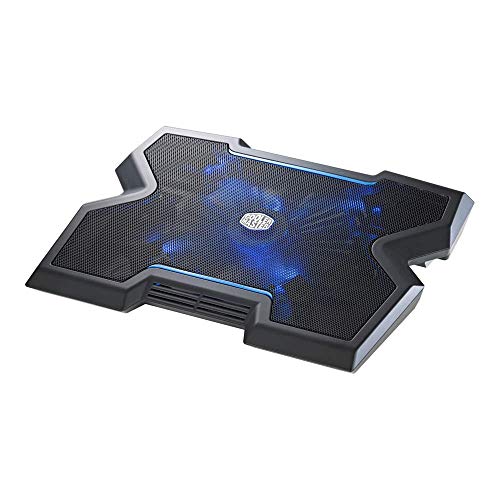
Cooler Master NotePal X3 – Laptop Cooling Pad with 200mm Blue LED Fan — Cooler Master NotePal X3 – Laptop Cooling Pad with 200mm Blue LED Fan. Check price on Amazon before you decide, because configurations and availability change often.
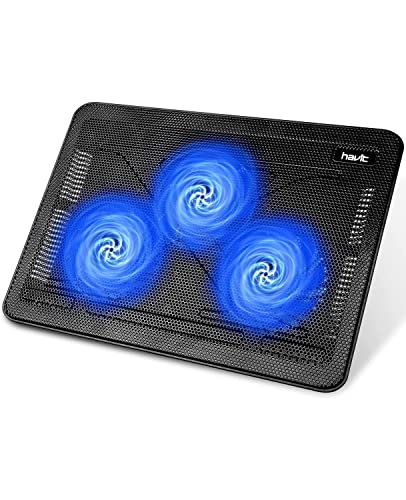
havit HV-F2056 Laptop Cooling Pad for 15.6-17 Inch Laptops — havit HV-F2056 Laptop Cooling Pad for 15.6-17 Inch Laptops, Black | Three quiet USB-powered fans circulate air below the laptop, two height settings improve viewing and typing comfort. Check price on Amazon before you decide, because configurations and availability change often.

Ultimate RGB Laptop Cooling Pad with LED Rim — Ultimate RGB Laptop Cooling Pad with LED Rim, USB Powered, Up to 17 Inch | Powerful 200mm Fan Spins at 750 rpm for Strong Airflow, Quiet and Stable Performance You Can Trust. Check price on Amazon before you decide, because configurations and availability change often.
Common Mistakes That Make It Worse
- Continuing to game through repeated thermal shutdowns, which stresses components and risks data loss.
- Blasting vents with long air bursts that pack dust deeper, then concluding cleaning does not work.
- Assuming a cooling pad substitutes for cleaning, profiles and placement, and buying accessories before the free fixes.
- Opening the machine and disturbing heatsink screws without the parts and paste to finish the job properly.
Prevention and Good Habits
- Keep a simple log of temperatures in one test scene; it turns arguments about whether a fix worked into arithmetic.
- Play long sessions in the coolest room available during heatwaves; ambient temperature sets the floor for the whole system.
- Prevention is a rhythm: external vent cleaning every few months and a stand as the machine’s permanent home.
- After any successful fix, re-test for a full thirty minutes, because heat soak is slow and short tests lie.
Keeping a Diagnostic Record That Future You Will Thank You For
While the fault is fresh, write a short record: the symptom in plain words, when it started, what changed around that time, the steps you tried in order, and which step changed the behaviour. Five lines are enough, and they transform any future recurrence from a fresh mystery into a familiar pattern with a known first move. The same record is gold if the machine ever reaches a technician, whose first questions are exactly those five lines, and whose bill shrinks when the answers are precise instead of reconstructed under stress. Store the note where you keep the machine’s receipts and warranty details. Troubleshooting skill is mostly this: not brilliance in the moment, but evidence preserved from the last moment, applied calmly to the next one. The owners who seem mysteriously good with technology are usually just the owners who wrote things down.
Putting It All Together
Finish by re-testing the original symptom under the original conditions, for long enough that the fault would definitely have appeared, because a fix is only a fix when the problem’s favourite circumstances cannot provoke it. Note what worked in a sentence you will understand in six months, including any versions, settings or parts involved, and keep that note with the machine’s records. If the symptom returns in a new pattern, treat it as a new diagnosis rather than a failed one, and work the order again from observation. Most technology faults reward this calm, sequential approach, and the confidence it builds is transferable to every device you will ever own. Your machine is not fragile and neither is this process; it is simply a ladder, and you now know where every rung is.
First Response: What to Do While It Is Overheating Now
An overheating laptop mid-session needs triage before diagnosis. The immediate goal is to bring temperatures down safely and gather the evidence that will identify the cause, without doing anything hurried that you will regret.
The five-minute triage
Pause the game or drop to its menu — menus usually unload the graphics card substantially — and watch temperatures in your monitoring overlay. If they fall promptly, the cooling system works and is simply overwhelmed by the workload or the setup; that is a management problem. If temperatures stay pinned or the machine shuts down even at a menu, stop the session entirely, let the machine cool on a hard surface with the vents unobstructed, and treat the next steps as diagnosis of a cooling fault, not tuning. Note what you were playing, for how long, in what room conditions and on what surface; that note, written now, is worth more than any guess later.
What not to do in the moment
Do not put the laptop in a refrigerator, aim freezing air at it, or use it on a bag of anything frozen — condensation is a real risk when hot electronics meet cold, moist air, and moisture inside the chassis is worse than heat. Do not block the exhaust to “check the fan” with your hand for more than a moment. Do not keep restarting into the same game to see if it happens again; repeated thermal shutdowns are the machine protecting itself, and overriding its protection to gather entertainment is how a fixable cooling problem becomes a damaged board.
Saving your work and your game state
If the machine is your main computer, treat unexpected shutdowns as a data risk as well as a hardware symptom: keep important work saved and backed up while the overheating is unresolved, because a shutdown during a write can corrupt what it interrupts. Most games save kindly; documents and creative projects are less forgiving. This practical caution belongs in the triage, because the cost of an overheating fault is often measured in lost work rather than in degrees.
Finding the Cause: A Fault Tree
Airflow causes — the most common branch
Work this branch first because it holds most cases: the laptop is on a soft surface or its intakes are against a wall or desk edge; the room is unusually warm; the vents and fin stacks are loaded with dust; or a fan has failed or is obstructed, which announces itself as silence from one side, grinding, or one exhaust noticeably cooler than the other. Test by relocating to a hard, clear surface in a cooler room and re-running the same game: a large improvement confirms the branch, and the permanent fix is positional or a clean, as the cooling guide on this site details step by step.
Workload causes — software driving the heat
Sometimes the cooling is healthy and the demand is pathological: a game uncapped in a menu rendering thousands of frames, a background process pinning the processor, a miner or other unwanted software (rare, but real, and worth ruling out with a reputable scan when heat appears at idle with no visible cause), or a driver or update that changed power behaviour. The signature is heat that tracks a specific program. Task manager and your monitoring tools, watched while the heat builds, name the process; the fix is a cap, a setting, an uninstall or an update — software answers to a software problem.
Hardware causes — when cooling itself has failed
The serious branch: dried or pumped-out thermal compound on an older machine, a heat pipe damaged or detached, a fan bearing at end of life, or a battery beginning to swell — the last of these shows as a lifting trackpad or a base that no longer sits flat, and it ends the diagnosis immediately: stop using the machine on mains, do not press the swelling down, and take it to a professional, because a swollen battery is a safety issue, not a performance one. For the rest of this branch, the pattern is heat that survives cleaning, good surfaces and sane workloads, and the destination is a technician with the compounds and parts to renew the cooling system properly.
Fixes Ranked by Effort and Effect
Free and immediate
Move to a hard, flat, clear surface; raise the rear with a stand or a stable prop that does not block vents; cap the game’s frame rate; choose the balanced power mode; close background applications; lower the settings that cost the most heat — shadows, reflections, volumetrics — one step. Together these routinely convert an overheating machine into a warm, stable one, and they cost an evening’s experimentation rather than money. Apply them one or two at a time and note temperatures, so you learn which levers your machine actually responds to.
Cheap and mechanical
Clean the fans and fin stacks as far as your model and confidence allow, following safe practice: power off, hold fans still against compressed air, clear the exhaust fins where dust mats form. Consider a cooling pad only after the free fixes, chosen to align its fans with your intakes. Replace a power adapter that is not the original specification if a substitute has crept into use — underpowered or incorrect adapters create strange thermal behaviour as the machine juggles its power budget.
Professional renewal
When the evidence points inside — age, persistent heat after cleaning, a suspect fan — a service that replaces thermal compound and pads, deep-cleans the cooling path and tests under load restores most machines to their as-new thermal behaviour. Ask what compounds they use, whether fan health is checked, and what temperatures they measured before and after; a good workshop answers all three happily, and the before-and-after numbers are your proof the money bought degrees rather than theatre.
After the Fix: Proving Stability and Preventing Return
Verify with the workload that caused the shutdown: the same game, the same settings you intend to keep, for at least the session length that previously failed. Watch not just peak temperature but the trend — a machine that stabilises is fixed; one still creeping upward at minute forty has a remaining cause. Then set the prevention habits while motivation is high: the laptop lives on hard surfaces, vents get their monthly brush-and-air routine, frame caps stay in your game profiles, and monitoring stays one keystroke away so the next drift is caught as a two-degree curiosity rather than a shutdown. Overheating feels like a verdict on a gaming laptop, but worked methodically — triage, fault tree, ranked fixes, verification — it is usually a chapter, not the ending, and the machine that emerges is one whose thermals you finally understand instead of merely fear.
Overheating in Specific Situations
The general fault tree covers most cases, but a few recurring situations have their own signatures and their own first moves. Recognising your situation in this list can shorten the diagnosis from an evening to a minute.
Overheats only when docked
A machine that is cool on its own and hot at its desk is usually reporting its environment: a closed lid trapping the keyboard deck’s heat, a dock or stand shrouding the exhausts, an external monitor pushing more pixels and therefore more graphics load, or a substitute power adapter delivering less than the machine wants under full load so the battery and charging circuitry join the thermal story. Work it in that order — lid open with the internal screen off, exhausts visibly clear, the original full-power adapter in use — before suspecting the laptop itself, because the laptop has already told you, by running cool undocked, that its cooling works.
Overheats only in one game
One title that cooks the machine while others behave is usually that title’s behaviour, not the machine’s decline: an uncapped menu or lobby screen rendering at extreme frame rates is the classic culprit, followed by a settings combination — often maximum shadows or ray tracing — that loads the hardware in a way your other games do not. Cap the frame rate globally for that game, including its menus where the option exists, and compare. If the same game overheats every owner’s laptop, as forums will tell you, your fix is a profile for that game, not a repair for your machine.
Overheats after an update
Heat that arrives with a driver, firmware or game update is a software event until proven otherwise: power profiles reset, fan curves change, a game’s new patch raises its demands. Note what updated, check the maker’s control software for reset preferences, and search the maker’s notes for your model before opening anything. The discipline of suspecting the change first saves more unnecessary teardowns than any other habit in troubleshooting, because machines rarely choose the day of an update to coincidentally fail.
Overheats while charging or on battery
Charging adds heat of its own, and a machine that overheats only while gaming and charging simultaneously is showing you a combined thermal budget — common in slim designs, managed by the balanced power mode and, where offered, a battery charge limit that reduces charging heat during play. Battery-only overheating is rarer and usually means the machine is working at full tilt in a lap or bed environment; the surface, again, is the first suspect. In both cases the pattern — heat tied to the power state — is itself the diagnosis, pointing away from dust and toward power management.
Long-Term Thermal Health: Keeping a Fixed Laptop Fixed
The habits that hold the line
Every fix in this guide decays without the small habits that preserve it: hard surfaces as a reflex, vents on a monthly glance, frame caps saved in game profiles rather than re-remembered, and the monitoring overlay close enough that a two-degree drift is noticed as a curiosity instead of a crisis. None of these is a chore in itself; together they are the difference between an overheating incident and an overheating era. Owners who have been through one thermal scare and adopted the habits rarely have a second; the machine did not change — the management did.
When to plan the professional renewal in advance
Thermal compound and pads age on a scale of years, and a machine entering its fourth or fifth year of heavy gaming is a candidate for planned renewal rather than emergency repair: book the service when temperatures have crept measurably from their cleaned baseline, fans are original and audible in new ways, and the machine still has years of life you want from it. Planned renewal costs the same as the emergency kind and buys it without the shutdowns, the lost work and the rushed decisions. Think of it as the laptop equivalent of tyres: replaced on wear, on schedule, by people with the right compounds and the patience to test under load afterwards.
The honest end of the road
Occasionally the diagnosis concludes that the machine’s design simply cannot shed the heat of the games it is now asked to play — titles grew, the laptop did not, and no clean, cap or service restores a margin that was never there. That conclusion, reached by evidence rather than frustration, is useful: it converts endless fixing into a clear-eyed plan — caps and settings that make the machine pleasant for what it can do, and a replacement decision made on your timetable instead of the machine’s. Even here, the methodical work was not wasted. You know exactly what your next laptop needs — cooling headroom, above all — because the old one taught you, in degrees, precisely where its limits lived.
Documenting the Fix: Your Machine’s Thermal Record
End the repair the way technicians do: with a record. Note the date, the symptoms, the ambient conditions, what you found at each branch of the fault tree, what you changed, and the before-and-after temperatures in the workload that failed. File it where the laptop’s other documents live. This record does three kinds of work. It proves the fix to your future self when doubt creeps in during the next hot week. It accelerates any professional’s work if the problem returns in a deeper form, because they start from your evidence instead of from zero. And it builds, entry by entry, the thermal biography of the machine — the baseline against which every future drift is measured in minutes rather than feared in the abstract. Overheating is, in the end, an information problem wearing a temperature costume: the machine always knows what is wrong, and the whole method of this guide — triage, tree, ranked fixes, verification, record — is simply how you persuade it to tell you. Persuade it once, write down what it said, and you will never face the blank panic of a shutdown again; you will face a checklist you have already survived, which is a very different thing.
A Note on Expectations for Slim Machines
Owners of thin gaming laptops should calibrate the goal itself. These machines are engineered to run at the edge of their thermal envelope by design — that is the price of the form — and “fixed” for them means stable, non-throttling performance at temperatures that would alarm a desktop owner, with fans that are a permanent part of the soundscape under load. Chasing desktop temperatures in a slim chassis leads owners into endless, futile intervention. The correct ambitions are the achievable ones in this guide: no shutdowns, no decay across a session, no surprises — a machine operating as its designers intended, managed by an owner who understands the intention. Meet the design where it lives, and even the slimmest gaming laptop becomes a predictable tool rather than a chronic patient.
Overheating and Warranty: Protecting Your Position
If the machine is under warranty, the overheating conversation changes: your job becomes documenting rather than repairing. Record the symptoms with dates, workloads and temperatures; photograph or film a shutdown if it recurs; and present the machine to the maker with that record before attempting anything that opens the chassis, because a documented thermal fault is a strong warranty case and an opened machine can complicate one. Do the external, warranty-safe work freely — surfaces, caps, cleaning the outside, software checks — and note those too, since showing that the ordinary causes were eliminated strengthens the case that the fault is the hardware’s. If the maker returns it “no fault found”, your record is also your appeal: temperatures and shutdown logs are harder to argue with than recollections. Warranties are, among other things, an agreement about who does the diagnosing. Honour the agreement, bring evidence, and let the overheating be the manufacturer’s problem while it still legally is — then apply everything else in this guide the day the warranty ends, with the machine’s whole thermal history already in your notebook.
Prevention as a Purchase Criterion Next Time
The overheating you have just fixed is the best buying advice you will ever receive, because it taught you your own thermal reality: your session lengths, your room’s summers, your tolerance for fan noise, your games’ true loads. Write the next purchase’s brief from that record. Favour the chassis class whose reviews report sustained temperatures with headroom under your kind of session, not the one with the highest burst benchmarks. Treat manufacturer noise and temperature testing as headline specifications. Prefer designs whose fans and filters are documented as serviceable, whose control software exposes honest power modes, and whose warranty handling for thermal faults is reviewed kindly by owners who have used it. And run the audit in the first week, while the return window stands open, so the new machine’s thermal character is verified rather than assumed. Owners rarely suffer the same overheating story twice — not because laptops changed, but because the second purchase was made by someone the first one educated.
Overheating Terminology: A Short Glossary for Support Calls
When you do speak to support or a technician, precise words shorten everything. Thermal throttling: the chips reducing speed to control temperature — a behaviour, not a fault. Thermal shutdown: the protection cutting power entirely — a symptom worth reporting with its workload and timing. Idle temperature: the machine’s resting heat with nothing running, the baseline every diagnosis starts from. Load temperature: heat under a defined workload, meaningless without naming the workload. Ambient: the room’s temperature, which belongs in every report because it moves all the others. Fan curve: the rule mapping temperature to fan speed, which updates sometimes reset. Armed with these six terms and your thermal record, a support conversation becomes an exchange of measurements between professionals — and overheating, which began as the most alarming fault a gaming laptop can show, ends as the one you can describe, document and dispatch most fluently of all.
Sharing the Machine: Overheating in Households
A gaming laptop shared between people overheats socially before it overheats thermally: one person’s uncapped settings become another’s shutdown, one person’s bed-gaming habit becomes the household’s dust problem, and nobody owns the maintenance. Households that share should share the management explicitly — the house profiles agreed and named, the hard-surface rule treated as house law rather than personal preference, the cleaning rota attached to a person and a date. It sounds formal for a family, and it is considerably cheaper than the alternative, which is a machine whose condition is everyone’s surprise. The same applies to machines lent to friends and returned with new settings and new habits aboard: check the profiles on its return the way you would check a borrowed car’s mirrors. Thermal health is a property of a machine’s whole social life, and managing that life is part of the fix.
Related Guides
- our roundup of the best gaming laptops for fortnite under 1000
- our roundup of the best laptops for light gaming under 800
- our roundup of the best gaming laptops for under 750
- gaming laptop vs gaming pc
- how to choose a gaming laptop
Frequently Asked Questions
What temperature counts as overheating for a gaming laptop?
Gaming laptops run hot by design, with processors commonly working in the high 80s to mid 90s Celsius under load. Overheating is better defined by behaviour than one number: temperatures pinned at the manufacturer’s limit around the high 90s to 100, fans at maximum, frame rates decaying through a session and especially shutdowns. A machine at a stable 92 degrees with steady performance is working as designed; a machine at the limit and slowing down needs this guide.
Can overheating permanently damage my laptop?
The built-in protections, throttling and emergency shutdown, exist precisely to prevent instant damage, and they are effective. Chronic overheating over months is the quieter risk: it ages the battery faster, dries thermal paste sooner and stresses fans and solder joints through constant heat cycling. Treat repeated shutdowns as a stop signal rather than an annoyance to push through, fix the cause promptly, and the hardware will forgive a surprising amount of history.
Why does my laptop only overheat in one game?
Games load hardware very differently. One title may run uncapped frame rates in menus, use ray tracing heavily, or load processor and GPU simultaneously in a way your other games never do. Check that title’s settings first: menu frame-rate caps, ray tracing and resolution scale are the usual levers. A per-game profile in the GPU control panel lets you tame the one hot title without compromising settings everywhere else.
Will a cooling pad fix my overheating?
Only if restricted airflow at the base is a major part of your problem, and only when the pad’s fans align with your intakes. A pad cannot compensate for dust-felted fins, a silent fan profile or dried paste. Do the free fixes first, measure, and then judge a pad by temperature change in a repeated thirty-minute test. Many owners find a plain stand delivers the same benefit, because the raised angle is doing most of the work.
How much does a professional repaste and clean cost in effort terms?
It is one of the best-value services in laptop ownership: a technician visit that typically restores several degrees and often the machine’s original noise and performance character. On a three-to-five-year-old gaming laptop that otherwise plays your games well, it routinely buys another couple of years of comfortable service. Ask for heatsink cleaning, paste and pad renewal and a fan health check as one job, and test thermals before you leave the shop if you can.
My laptop is hot even when idle. Is that the same problem?
Usually not. A healthy gaming laptop settles to modest temperatures within minutes of light use. Heat at idle points to something consuming the processor: a stuck update, runaway background software, a browser tab misbehaving, or occasionally malicious software mining in the background. Task Manager sorted by processor use names the culprit in most cases. Fix that first; the gaming fixes in this guide assume a machine that is calm when it should be.
My gaming laptop shut down during a game. Is it damaged?
Usually not: the shutdown is the protection working as designed, cutting power before temperatures can harm components. Let it cool fully on a hard surface, then work through the diagnosis in this guide before the next long session. Repeated shutdowns ignored over months are what turn a cooling problem into damage.
The fans run loudly even when I am only browsing. Why?
Something is loading the machine at idle — a background process, an update, a browser tab misbehaving — or dust has raised the baseline so far that even light work needs the fans. Check what is running first; if the machine is genuinely idle and still loud, the cooling path needs the cleaning and inspection sequence.
Should I remove the bottom panel to cool it while gaming?
No. The panel is part of the designed airflow path, and removing it usually worsens cooling while exposing components to dust and damage. The designed path, kept clean and given clearance by a stand, outperforms improvised openings on every properly tested machine.