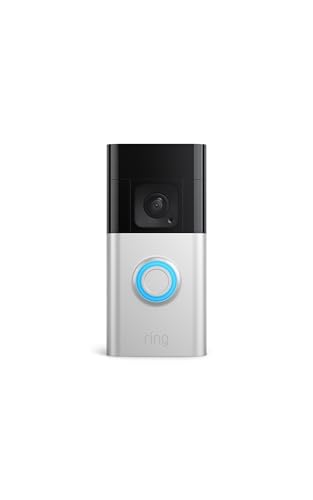
Working out how to fix a doorbell camera that keeps going offline is almost never about the camera being broken. The front door is the harshest networking spot in the home — outside the walls, far from the router, exposed to weather — and offline complaints trace back to weak Wi-Fi, battery behaviour, router settings or power, in roughly that order. The camera is usually the messenger, not the culprit.
This guide orders the causes from most to least common and gives fixes in safe order, from checking the app-reported signal through router and placement changes to battery and firmware checks. It covers battery and plug-in models you manage yourself; if your camera is hardwired and the fault involves its power circuit or transformer, that is a licensed electrician’s diagnosis, not a DIY one.
Disclosure: As an Amazon Associate, kajuandouglas.com earns from qualifying purchases. Links to Amazon on this page are affiliate links; they cost you nothing extra. Listing details such as price and availability change often, so check the current Amazon listing before you buy.
Symptom Summary
Offline patterns carry clues. A camera offline at random times suggests marginal Wi-Fi signal dropping under load. One that goes offline every night points to router schedules, band changes or cold-related battery sag. Offline after every doorbell press or live view suggests the camera’s radio or battery cannot sustain the effort of streaming. Offline since a specific day points to a change: a new router, a moved router, a firmware update, or building work. Note your pattern before fixing — it halves the work.
In this guide
Diagnostic Checklist
Match the pattern to the likely cause:
| Pattern | Likely cause | First fix |
|---|---|---|
| Random dropouts, weak signal in app | Marginal Wi-Fi at the door | Move router closer or add a mesh node near the door |
| Offline every night | Router schedule/band steering, or cold battery sag | Check router settings; charge battery; check 2.4GHz connection |
| Drops when live view opens | Bandwidth or battery cannot sustain streaming | Charge fully; improve signal; test near router |
| Offline since new router | Band or security settings changed | Connect to 2.4GHz; check router compatibility settings |
| Offline in heavy rain/cold snaps | Weather exposure or battery temperature limits | Check seals and mount; expect reduced winter battery performance |
| Hardwired model lost power entirely | Circuit, chime or transformer fault | Licensed electrician — do not investigate wiring yourself |
How to Fix a Doorbell Camera That Keeps Going Offline: Fixes in Safe Order
Step 1: Check the signal the app reports
Open the camera’s device health or settings page and read its Wi-Fi signal strength where it is mounted. This number decides everything: a marginal reading means the camera will drop whenever the network is busy, the weather is bad or a door closes differently. Stand at the door with your phone on the same network as a rough cross-check, remembering the camera sits outside the wall that your phone is inside. If signal is weak, skip ahead to the placement fixes — no setting cures physics.
Step 2: Restart the camera and the router
Restart the router first and let it come fully back, then restart the camera (in the app if offered, or by removing and refitting its battery). This clears stale connections and renegotiates the link cleanly, and it genuinely resolves a large share of offline loops, especially after updates or power cuts. Give the pair ten minutes to settle before judging, and check whether the camera reconnects on its own — automatic recovery matters as much as the initial fix.
Step 3: Fix the band and router settings
Many doorbell cameras are happiest on the 2.4GHz band, which penetrates exterior walls better than 5GHz. If your router merges bands under one name, the camera may be steered onto 5GHz and cling to a weak signal. Options include connecting the camera to a 2.4GHz-only network name if your router offers one, or creating a dedicated IoT network — a common, effective pattern. Also disable any router feature that blocks new devices or isolates wireless clients, and check that no nightly Wi-Fi schedule is switching the network off.
Step 4: Improve the signal path physically
If settings are right but signal stays weak, change the geometry. Move the router toward the door side of the home, elevated and out of cupboards. Add a mesh node or access point inside the home near the front door — the most reliable fix of all, because it gives the camera a strong, close signal through just the exterior wall. Avoid cheap plug-in extenders placed far from both router and door; an badly placed extender gives the camera a strong connection to a weak link.
Step 5: Charge the battery and review power behaviour
On battery models, a low or ageing battery causes offline behaviour that mimics network faults: the camera drops off to conserve power, or dies during the effort of a live view. Charge fully and watch whether the offline pattern vanishes for days. Review motion settings too — a camera triggered constantly drains itself into offline territory. In cold weather, expect reduced battery performance and shorter intervals between charges; that is chemistry, not failure.
Step 6: Update firmware, then reset the connection
Install pending camera firmware and app updates, which frequently include Wi-Fi stability fixes. If the camera still drops, remove it from the app and add it again fresh, which rebuilds its network configuration cleanly — note your motion zones first so you can recreate them. As a final software step, some routers benefit from reserving a fixed IP address for the camera, which helps certain models reconnect faster after interruptions.
When to Get Professional Help or Replace It
Call a licensed electrician if a hardwired camera has lost power entirely, behaves erratically with the chime, or shows any sign of wiring or transformer trouble — never open the doorbell circuit or transformer yourself. Contact the camera maker’s support when a camera with strong reported signal, a full battery and current firmware still drops offline, especially under warranty; a failing radio is uncommon but real. Replacement is sensible when the camera is old, out of support and unstable while every other device on the same network is solid — the network has been proven innocent by your other devices.
Prevention: Keep It Online
Keep firmware and the app updated, maintain the mesh node or router position that works, and check the app’s device-health page monthly for declining signal or battery trends. After any router change or broadband upgrade, test the doorbell’s live view and alerts the same day. A camera whose signal and battery you glance at monthly rarely surprises you by being offline on the day you actually need its footage.
Reading the App’s Health Data Like a Technician
Every major doorbell app hides a device-health page reporting signal strength (often as an RSSI number), battery level, firmware version and sometimes the Wi-Fi network name and channel. Learn to read it. Signal figures are negative numbers where closer to zero is stronger: a reading in the minus-fifties is healthy, the minus-sixties workable, and anything drifting through the minus-seventies at the door is a camera living on the edge, whatever the bars icon suggests. Note the figure when the camera is healthy; the comparison value is your baseline when faults begin.
Battery and signal interact in the data: a camera whose signal worsens may be a camera whose mount has shifted, whose nearby environment changed — a new metal door, a parked van, scaffolding — or whose router moved during a tidy-up nobody connected to the doorbell. The health page turns these mysteries into observations, and a monthly glance at it, recommended in the prevention section, is how small drifts get caught before they become offline weeks.
Firmware versions matter in support conversations: note yours before contacting the maker, along with your router model and the signal reading. Support agents solve cases with data; the owner who arrives with readings gets the senior script, not the restart script.
Router Features That Quietly Break Doorbells
Modern routers helpfully manage devices in ways cameras dislike. Band steering pushes clients toward 5GHz, which the door’s wall then punishes. Airtime fairness and smart-connect features occasionally drop quiet clients that sleep between events — exactly a battery doorbell’s lifestyle. Fast roaming between mesh nodes can strand a camera that was content on a farther node. None of these features is bad; all of them are configurable, and the camera’s stability usually improves when it is given a fixed, boring assignment: the 2.4GHz band, a preferred nearby node where the mesh allows pinning, and an IoT network if you run one.
Security settings deserve the same audit: a router firewall update, a new ISP-supplied router, or an enabled ‘block new devices’ mode can silently quarantine a camera that reconnects after a power cut with a changed identifier. If offline behaviour began with any network change — new router, new provider, a settings tidy-up — suspect the change before the camera, and compare the camera’s treatment with another smart device’s; if both suffered, the network confesses.
Keep a note of the working configuration once achieved: bands, network name, node placement, any pinned settings. Networks drift over years of small changes, and the note is what lets you restore a known-good state in minutes instead of re-deriving it during the next fault.
The Offline Log: Finding the Pattern
Before replacing anything, keep a simple log for a week: when the camera went offline, when it returned, the weather, and anything happening in the house — the router rebooting on a schedule, the microwave at lunch, the mesh node in the hall being unplugged by a cleaner. Patterns that are invisible in memory become obvious on paper: the camera that ‘always fails’ may fail only when a particular node is powered down, or only in rain, which implicates the mount’s weather exposure rather than the network at all.
Share the log with support if you escalate. Intermittent faults are the hardest class in all of technology, and the difference between a replaced camera and a solved network is usually nothing more than evidence of when the fault occurs. Your log is that evidence, and it costs a pencil.
When the Whole Street’s Cameras Complain
Occasionally the fault is neither camera nor router but the broadband service itself: neighbourhood outages, an ISP quietly migrating customers between network configurations, or line faults that drop connections for seconds at a time — long enough to evict a camera, short enough that laptops forgive and forget. The tell is correlation: other households’ devices misbehaving, the router’s own log showing line drops, the camera failing while its signal reading stays strong. Your provider’s status tools and a polite call armed with times from your offline log resolve what no camera setting can. Knowing when the case belongs to the ISP is the final diagnostic skill this guide can teach — and the log, as ever, is what proves it.
A Standing Monthly Health Check
Convert this whole troubleshooting episode into a five-minute monthly habit and it will rarely recur: open the device-health page, note signal and battery against last month’s figures, confirm the firmware is current, play one live view, and press the bell once to hear the chime and see the alert land. Five checks, one minute each, and the camera’s slow drifts — weakening signal, ageing battery, a setting an update rearranged — surface as observations instead of outages. Systems that are looked at monthly seldom fail dramatically; they merely report, in good time, that they would like some attention.
Looking More Closely at the Details That Decide It
Most discussions of tracking down why a doorbell camera keeps going offline, and keeping it online stay at the level of headlines, yet the outcome is usually decided by smaller details that only appear once you live with the decision. Three of those details deserve attention before anything else: router band steering and settings that suit laptops but strand doorbells, firmware updates on either the camera or the router changing the relationship, and the difference between a camera dropping Wi-Fi and losing power. None of them looks dramatic on a specification sheet. Together they decide whether your doorbell drops at the same hour nightly or holds its connection for months, and whether you fix the real cause or keep rebooting the wrong box.
Start with router band steering and settings that suit laptops but strand doorbells. A dropout is not a single fault but a pattern: note the hour, the weather and what the household was doing each time the camera vanishes. Compare like with like in your log, the same evening hour across a week, rather than trusting a single dramatic disconnection. A short written log beats a confident memory, which quietly blames whichever device was touched most recently.
Points to keep in mind
- Judge router band steering and settings that suit laptops but strand doorbells in your own setting before trusting a general verdict.
- Treat firmware updates on either the camera or the router changing the relationship as a first-order factor, not a footnote.
- Write down, in one plain sentence, whether you are accepting a marginal signal, a hungry battery, or a stranding router setting.
Then consider firmware updates on either the camera or the router changing the relationship. Households usually discover an update problem late, often only after the return window has closed or the installation is finished. Test the relationship at its edges: the morning after a router update, the week after a firmware change, and the first cold night. A connection that only holds in average conditions does not really work for a household, a student house or a small office, all of which live at the edges more often than they expect.
Finally, weigh the difference between a camera dropping Wi-Fi and losing power alongside the first two rather than in isolation. Splitting the fault into signal or power can mean slower certainty at first, and lumping them together can mean weeks of fixing the wrong one. A mature decision about offline fault diagnosis names that trade-off out loud. Naming the split lets you test the likelier suspect first, instead of discovering in six months that you spent winter fixing the wrong fault.
How This Plays Out in Real Situations
Abstract advice becomes useful when it meets a real household, so consider a mesh system whose nearest node sits just inside the front wall. With a mesh node by the wall, the priority is rarely the headline feature; it is whether the basics survive contact with an ordinary day. Keep the diagnosis plain at first: prove the camera can hold that node for a week, log every handoff, and only then add refinements like channel changes. Households with a node by the wall often find a modest single-node arrangement outperforms an ambitious multi-node one that keeps handing the camera around.
Contrast that with a doorbell fine since installation until a new router arrived. A new router rewrites the priorities, because every setting the camera quietly relied on has just been replaced. A band-steering compromise that barely mattered under the old router becomes the whole decision here, while the camera everyone blamed fades into irrelevance. This is why copying a friend’s conclusion about offline fault diagnosis so often disappoints: the friend optimised for a life that is not quite yours, with rooms, routines and patience that differ from your own.
Points to keep in mind
- When a doorbell camera keeps going offline, log each dropout time before changing any settings randomly.
- Compare a neighbour’s dropouts, then trust only your own log.
- Let the dropout pattern in your log, not one frightening offline weekend, decide where you investigate first.
A third pattern appears with a battery camera dropping more often as winter weather sets in. With a cold, draining battery, the household wants the fix to work first time, because every failed evening ends with a ladder in the dark. Ten minutes checking the battery trend and reconnection drain in the app prevents the improvised fixes that cause most frustration. If you recognise your camera here, weight a verified power explanation above every clever network extra.
There is also the quieter case of a flat where dozens of neighbouring networks compete at the front door. The camera connects, the app opens, yet nothing feels quite right because the connection survives only until the evening crowd of networks wakes up. A channel that clashes at seven nightly, a signal that fades in rain, an offline spell that ends by itself: together they point away from a broken camera. Naming the pattern precisely is usually enough to fix it, because interference, band steering and power each demand a different remedy.
A Practical Method You Can Repeat
When opinions conflict, a repeatable method settles the question of tracking down why a doorbell camera keeps going offline, and keeping it online better than another hour of reading. The method has four moves. First, define the fault in one sentence: when it drops, for how long, and what brings it back. Second, gather evidence in that exact setting. Third, change or compare one variable at a time. Fourth, judge each fix against the offline log you started before touching any setting, so the loudest anecdote cannot move the goalposts.
In practice that means actions such as these: charge fully and review power data before blaming the network; escalate to the manufacturer with your log rather than a vague complaint; and record times and conditions in a simple offline log before guessing. Each is deliberately unglamorous. Their strength is sequence: log first, power second, network third, so a confusing fault resolves into three suspects. Worked in that order they leave a fault trail you can re-check if a dropout pattern surprises you. Changed all at once, they leave the familiar mess where five fixes were tried and not one can be credited.
Points to keep in mind
- test the camera closer to the router to prove whether signal is the issue
- bind or steer the camera deliberately if your router offers sensible controls
- change one network setting at a time and watch for a full day
Equally important is what to record. Useful notes for offline fault diagnosis include the date and time, the place, what else was happening at the time, and a simple verdict in your own words. Across a week those notes expose what one dropout cannot: drops clustering at the streaming hour, failures after rainy nights, the battery sliding faster after every reconnection. Diagnosis built on those patterns stays sound, and they are what support teams actually need when you escalate with evidence instead of frustration.
Allow the logging a few days rather than expecting an answer from one dropout. The patience is repaid at the next dropout, when your log names the suspect immediately instead of restarting the cycle of rebooting and resetting that makes this fault feel exhausting. Most people do not need more information about offline fault diagnosis; they need their own information, gathered calmly in their own setting, and this method is simply a way of collecting it without drama.
Living With the Decision Over Time
The first week with any choice about tracking down why a doorbell camera keeps going offline, and keeping it online is a poor predictor of the first year. In the first week the novelty hides the pattern, no firmware update has yet disturbed the peace, and the weather has not tested the signal. Judge the fix at six months: updates have come and gone, the seasons have swung the signal around, and the camera still has to stay online unaided.
Long-term satisfaction usually rests on unexciting qualities connected to battery behaviour, cold weather and the extra drain of repeated reconnection and interference from neighbouring networks in dense streets and flats. Qualities like a signal margin that survives bad weather, a battery that does not spend itself reconnecting, and updates applied on your schedule decide whether the camera serves you or becomes a chore. When you compare fixes, give these qualities more weight than they receive in most reviews, because reviewers live with products for days while you will live with the consequences for years. Ask anyone who has kept a doorbell online through a full year what they still check, and it will be signal and battery trend.
Points to keep in mind
- Once stable, check signal strength and firmware monthly so small drifts get caught early on.
- Owners who cured repeat dropouts usually moved the router, not the doorbell, in the end.
- Repeat the offline checks after router replacements, broadband changes, or thick new front doors.
Maintenance deserves a plan rather than good intentions. Tie the health checks to routines you already keep: read the signal trend when you charge the battery, glance at the log when you pay the broadband bill, and apply updates on a quiet afternoon. That steady rhythm keeps the diagnosis honest: you spot a weakening trend while it is a setting, not after a failure exposes it. In the context of offline fault diagnosis, that plan mainly means keeping an eye on the point where repeated failure points to hardware rather than settings before it turns into a bigger problem.
Finally, leave the diagnosis open to revision when your life changes. Moving home, changing work, a new household member or a new device can all reorder the priorities around offline fault diagnosis. A fix that was right for the old situation is not a failure when the new situation outgrows it. Going back to your offline log turns that change into a quick adjustment instead of a fresh research project.
Mistakes to Avoid and Signs You Chose Well
Offline fixes fail in familiar ways, so the recurring diagnostic traps deserve naming first. One is this: attempting any work on mains-connected doorbell wiring instead of calling an electrician. Another, just as common, is the opposite excess — changing the Wi-Fi password and forgetting the camera among other devices. And a third, quieter error is adding an extender that halves speed or creates a confusing second network. Look at the three and they share a root: each is an attention lapse during diagnosis rather than a lack of intelligence. Every one begins when a single vivid factor, usually the most recent dropout or a frustrating evening of resets, stands in for the whole picture in the log.
Avoiding them does not require expertise, only a pause. Before committing to a fix, challenge it: what would have to be true about my signal or battery for this fix to disappoint me, and have I checked it? Which dropout moment, the rainy night, the streaming hour, the cold snap, have I not yet captured in the log? What am I assuming about reading the app’s health figures as a trend rather than a single snapshot that I have not verified? Ten minutes of hostile questioning, aimed at your own favourite option, is the cheapest insurance available in the whole process of tracking down why a doorbell camera keeps going offline, and keeping it online.
Points to keep in mind
- Question your leading diagnosis hard before you change anything.
- Judge success by quiet, ordinary evidence over several weeks.
- Try small corrections before concluding that replacement is necessary.
How will you know the decision was right? Watch for ordinary evidence: whether your log still shows a pattern after a month of stability; how the camera recovers after a router restart without your help; and whether alerts arrive promptly during the evening peak. None of these announces itself with fanfare. You notice them as absences: the offline notification that stops arriving, the reboot you no longer perform, the evening you stop thinking about the doorbell. That quiet connection is what the diagnosis buys, and a more trustworthy verdict than any health score in the app.
When the log points the other way, respond in proportion before replacing anything. Many disappointments with offline fault diagnosis yield to a small correction — a setting, a position, a habit, an accessory — rather than a complete replacement. Work through the small corrections first, one variable at a time with a week of log entries after each. Keep replacement for structural cases, such as a failing radio or a door position no signal can honestly reach. Holding that line calmly will save you more over the years than any single troubleshooting tip in this guide.
One More Round of Checks Before You Settle
Before you declare the dropout cured, run the stability watch that methodical troubleshooters keep, logging a week of evenings even when quiet days look perfect. It concerns signal strength at an outside wall as the most common root cause and mesh handoffs that move a fixed camera between nodes unhelpfully, two aspects that reveal themselves slowly. Test both deliberately: stage your hardest ordinary network moment, a rainy evening with every screen streaming, and watch the log without intervening. The aim is not fault-hunting but learning where your connection’s comfortable limits lie, while improving the signal is still cheap.
Tell the rest of the household what the log revealed about the dropouts. A setup for offline fault diagnosis is a household system, not a personal gadget, and other people’s routines will find edges yours never touches. Hearing their reports in the first fortnight, while settings can still change, stops the slow drift into a doorbell nobody trusts. Settle together which fixes stay and which get reverted, note it where a guest can find it, and treat that note as part of the installation.
Points to keep in mind
- Provoke the dropout once under controlled conditions, before it returns uninvited.
- Keep a short dropout diary beside the router, noting weather, time, and what fixed it.
- Stop adjusting the network once the log shows a full month without a dropout.
Then stop optimising. Every fault hunt reaches a point where one more setting change trades real life for a gain nobody at your door will ever notice. If your offline log, the record of stable weeks you have been keeping, says the system works, then let it work. Leave the router alone and save your attention for something in the house that genuinely misbehaves. A later round of diagnosis can wait until your routine or your home changes, and your log will make it shorter than this one. With offline fault diagnosis, that stopping point usually arrives once whether your log still shows a pattern after a month of stability stops changing from week to week.
Worked Examples That Make the Trade-Offs Concrete
One dropout diary teaches more than guesswork, so follow it closely. Imagine a camera that fails whenever the household streams films in the evening. Faced with those evening failures, most people reach for a new camera instead of asking what the household does to the network at that hour. Yet the binding constraint in that picture is usually mesh handoffs that move a fixed camera between nodes unhelpfully, and no amount of spending elsewhere relaxes it. That example only resolves well when the handoff problem is addressed first, because a better camera passed between the same nodes is decoration.
What to watch for
- Name the dropout bottleneck before resetting anything.
- Translate every example into your own log, router position and dropout hours before trusting its conclusion.
- If you keep resetting for the same nightly dropout, the diagnosis is wrong, not the reset.
Now change one variable: imagine a mesh system whose nearest node sits just inside the front wall. The camera, the router and the troubleshooting advice stay exactly the same, yet the correct fix flips, because how the network reaches the door has changed. This is the single most transferable lesson in the whole subject of tracking down why a doorbell camera keeps going offline, and keeping it online: context is not a detail around the decision, it is the decision. Read every offline fix against your own walls and log, and distrust advice that insists those details do not matter.
A third example works as a warning. Picture a household that skipped the early checks, committed quickly, and spent the following month applying fixes for changing the Wi-Fi password and forgetting the camera among other devices and then for remounting it in the same dead spot after every test. Each remedy bought a quieter week, because each calmed the symptom it aimed at while the dead spot underneath stayed exactly as it was. The cost was not only money; it was confidence. By the time the household finally kept a proper log and found the dead spot, nobody trusted their own troubleshooting judgement any more. These examples exist so your household skips that sequence: log the fault at the real door before changing anything else.
Use these examples as templates rather than stories. Swap their details for your own dropout hours, your own router position and your own weather pattern, then run the same reasoning again. If a different fix wins once your dropout hours and weather go in, the log has just shown you what your household truly values. If the same fix wins under several versions of your household, you have found a robust solution, one worth keeping through the next router or the next winter. Applied to offline fault diagnosis, the detail that most often changes the conclusion is an offline log revealing patterns by time, weather or household routine.
A Decision Flow When You Feel Stuck
Indecision about offline fault diagnosis usually means two good criteria are pulling in opposite directions, not that you lack information. When that happens, stop researching and start ranking. Write your fault criteria down, the four to six that genuinely matter, from dropout frequency to battery trend, and force them into a strict order. Ranking feels forced for a minute, then it bites, because rival explanations rarely fail across the board: each falls down on one criterion, and the ranking tells you whether that criterion tops your list.
What to watch for
- Order your diagnostic priorities before trying any more fixes.
- Cross out any fix that fails a genuine stability deal-breaker, then test what survives against your log.
- If moving the router and boosting signal tie as options, boost first; it disturbs less.
Next, apply a simple elimination pass connected to reading the app’s health figures as a trend rather than a single snapshot. Strike off any fix that fails a true stability deal-breaker, and be strict about the word: a deal-breaker means a flaw that will still irritate you on a plain weekday next winter, not a line that merely looks weak in a comparison chart. This pass is often brutal and always useful. What remains is a handful of fixes you can genuinely test against your log, and confidence from those tests lasts.
Then test the survivors against whether alerts arrive promptly during the evening peak and how the camera recovers after a router restart without your help in your own setting, on the same day if you can, so conditions stay comparable. Jot a score beside each test straight away, while the dropout and the recovery are still fresh in your mind. Most people are startled by how different that written score looks from the verdict in their heads, because memory keeps the one dramatic offline weekend while notes keep the typical week.
If two fixes still tie, break the tie on daily-life grounds and feel no guilt about it: which fix is kinder to maintain, simpler for a partner to understand, and easier to undo if it fails in year three? A dead heat between two plausible fixes is common, and at that point either will serve your doorway perfectly well. Picking one today and logging the result beats a week hunting for a difference your daily connection will never reveal. For offline fault diagnosis, the easiest option to live with is usually the one that handles reading the app’s health figures as a trend rather than a single snapshot with the least fuss.
Seasonal, Household and Long-Term Angles Worth Planning For
Conditions change across the year, and a decision about tracking down why a doorbell camera keeps going offline, and keeping it online that is tested in only one season carries hidden risk. Wet winter walls weaken the door signal, summer thunderstorms test recovery, and holiday guests flood the network at exactly the wrong hours. Testing all four seasons beforehand is impossible, so ask the winter question out loud: in the darkest, busiest week of your year, will this signal, battery and router setup still keep the camera online?
What to watch for
- Notice whether dropouts cluster on stormy nights or hot afternoons, pointing at power or signal.
- Leave reconnect instructions where a house-sitter can restore the doorbell without phoning you abroad.
- If dropouts return weekly despite fixes, escalate to your provider rather than endlessly rebooting everything.
Households also change from inside. A troubleshooting setup chosen by one confident user gets inherited by partners, children, parents and guests, each with different patience and different habits. The arrangements that last are ones a newcomer can make sense of cold: a log anyone can read, a note saying what was changed, and no secret reboot ritual. When you evaluate offline fault diagnosis, spend one minute imagining the least technical person in your life facing it alone. That minute is a surprisingly accurate quality test.
Count the total effort the fault will ask of you across its whole working life, not just the effort of this week’s fix. Count the ongoing attention honestly: the log reviews, the trend checks after updates, the battery swaps the fault has caused, and ask whether that rhythm fits the time your household has. A fault that wants weekly attention from a household that can only offer monthly will slowly return, however clever this week’s fix was. Matching the upkeep rhythm to the household matters just as much as matching the fix to the fault. With offline fault diagnosis, the recurring effort worth counting most honestly is the effort tied to mesh handoffs that move a fixed camera between nodes unhelpfully.
Finally, think about the exit before you need it. When this camera eventually comes down, can its log and settings be exported, and will the next camera inherit a proven signal position rather than the same dead spot? Keep a note of the dropout pattern and the fix that worked, so a replacement starts from evidence. That is not pessimism; it is what turns one purchase into accumulated household knowledge, so the next decision about offline fault diagnosis starts from experience instead of from a search box.
Questions Worth Asking Before You Spend Anything
Answering a few questions about timing, signal and power honestly prevents most costly replacement mistakes later. First: what exactly is the fault I am solving, stated without naming any product or fix? If your problem statement names a router or a setting, rewrite it until it describes your doorway: drops at nine nightly, dead after rain, gone whenever the battery falls low. Solutions chosen for a life-shaped problem age far better than catalogue-shaped ones, especially with offline fault diagnosis.
What to watch for
- Describe the dropout pattern plainly, without naming any suspected fix.
- Write down the dropout times and conditions you know, and mark the untested ones honestly.
- Ask who else is affected, especially anyone who relies on the doorbell while you are away, before fixing.
Second: what evidence do I already have? You know more about your own camera’s habits than you credit yourself with. You know which hour it usually vanishes, which weather triggers it, and which household members will resist anything complicated. Getting that fault knowledge onto paper before shopping stops a confident sales pitch from overwriting it. Mark the gaps in that evidence honestly as gaps: a gap you can see can be tested at the door, while an assumption you never noticed quietly becomes the foundation of a bad diagnosis. For offline fault diagnosis, that existing evidence usually includes what you already know about the point where repeated failure points to hardware rather than settings in your own setting.
Third: when, not if, this camera drops offline again in a year, what will you actually do about it? Batteries fade, firmware shifts the relationship, furniture moves in front of the signal, networks change, children grow. A choice with a calm answer to that question, involving steps like escalate to the manufacturer with your log rather than a vague complaint, is worth more than a choice with a slightly better specification and no answer at all. A camera whose connection survives updates, seasons and router swaps is resilient, even though resilience never appears in a feature list.
Fourth, and last: who else should have a say? Decisions about tracking down why a doorbell camera keeps going offline, and keeping it online often affect people who were not in the room when the research happened, and their late objections can sink an otherwise sound setup. Ask the household early, while the fix is still on the table: here is the dropout pattern, what would annoy you about it? The final fix may be the one you first favoured, but it will be a choice the household has accepted, and accepted fixes get maintained while resented ones get abandoned.
Related Guides
- best Wi-Fi security cameras for home
- best security cameras for front door
- best home security cameras for under 200
- best security cameras for home outdoor
- do doorbell cameras need Wi-Fi
- how to set up a doorbell camera
- how to choose a doorbell camera
Frequently Asked Questions
Why does my doorbell camera go offline at night?
Check three night-specific causes: a router Wi-Fi schedule or band-steering change, battery voltage sagging in cold night air on battery models, and increased neighbourhood network congestion in the evening. The app’s event history usually shows whether dropouts cluster at the same time, which points at schedules, or at the coldest hours, which points at the battery.
My Wi-Fi is strong indoors. Why is the camera’s signal weak?
Because the camera is outdoors. Exterior walls — especially brick, stone, foil-backed insulation and metal doors — block Wi-Fi far more than interior partitions. Your phone’s indoor signal tells you almost nothing about the camera’s. Read the signal in the camera’s own app, and fix weak readings with router placement or a mesh node near the door.
Will a Wi-Fi extender fix my doorbell camera?
A properly placed one can: it must sit where it receives a strong router signal itself, close enough to the door to give the camera a strong link. A mesh node near the front door does this job best. An extender plugged in randomly often gives the camera a strong connection to a weak relay, and dropouts continue.
Does going offline drain the battery faster?
Yes. A camera repeatedly searching for and renegotiating a weak connection works its radio hard, and reconnection attempts after dropouts are power-hungry. This is why fixing the signal often mysteriously fixes battery life too. If your battery life collapsed recently, check the signal report before assuming the battery is dying.
Should my doorbell camera use 2.4GHz or 5GHz?
For most front doors, 2.4GHz: it travels further and penetrates the exterior wall better, and doorbell cameras do not need 5GHz speeds. If your router uses a single merged network name, the camera may land on 5GHz and suffer. Many people solve offline problems permanently by putting the camera on a 2.4GHz-only or IoT network.
When should I suspect the camera itself is faulty?
When the app reports a strong signal, the battery is healthy and charged, firmware is current, other devices on the same network are stable, and the camera still drops — especially if it also fails when temporarily brought indoors near the router. At that point, maker support and warranty replacement are the right path.
How long should I log dropouts before changing anything?
For most households, a focused week of ordinary use tells you more than a month of occasional reading about tracking down why a doorbell camera keeps going offline, and keeping it online. Log the camera through a busy evening, a rainy night and one router restart, keep the short notes above, and then decide. Stretching the trial beyond that point seldom changes the verdict; it mostly postpones a decision your own offline log has already settled.
What should I recheck first if it still goes offline?
Return to the simplest explanation before replacing anything. Recheck the basics connected with an offline log revealing patterns by time, weather or household routine, repeat your most reliable test in your most familiar setting, and change one variable only. If a calm retest still disappoints, the mismatch is probably built into the connection itself, and your log will pinpoint whether signal, power or hardware failed you.
Is replacing the camera worth it before fixing signal?
Only when the higher tier improves something your own routine actually stresses, such as the point where repeated failure points to hardware rather than settings. If your log shows the frustration comes from a marginal signal or a steering setting, extra camera features will change nothing you feel. Judge any pricier tier against evidence in your own offline log, not the manufacturer’s best-case demonstration.