Figuring out how to cool a gaming laptop is mostly about helping the cooling system do the job it was designed for, because the hardware itself is rarely the real problem. Heat builds up when intake air is restricted, when vents sit flush against a desk or bedding, when dust narrows the heatsink fins, or when software settings push the chips harder than the chassis can sustain. Each cause has a matching fix, and the fixes stack: a lifted rear edge, clean vents, a sane fan curve and a frame-rate cap together can transform a machine that sounds like a hair dryer into one that hums along comfortably. This guide works through the measures in order of effort, from free placement changes to settings and accessories, so you can stop at the step that solves your problem.
Disclosure: As an Amazon Associate, kajuandouglas.com earns from qualifying purchases. Links to Amazon on this page are affiliate links; they cost you nothing extra. Listing details such as price and availability change often, so check the current Amazon listing before you buy.
How To Cool A Gaming Laptop: What Matters Most
Lift the rear of the laptop or use a stand so the underside intakes can breathe, keep vents clear of walls and bedding, clean the vents, and set a performance fan profile while gaming. Cap frame rates to your screen’s refresh rate, lower the settings that cook the GPU hardest, and consider a cooling pad only after the free fixes. Sustained temperatures, not brief spikes, are what you are managing.
In this guide
What You Need
- A stand, cooling pad or even a book to raise the rear of the machine
- Compressed air and a soft brush for the vents
- Your brand control app for fan and performance profiles
- A monitoring tool or in-game overlay to watch temperatures while you test
- One demanding game scene you can repeat for honest before-and-after comparisons
Step by Step: How To Cool A Gaming Laptop
Step 1: Fix placement and airflow before anything else
Put the laptop on a hard, flat surface with clear space behind the exhausts, never on a bed, sofa or your lap for long sessions. Raise the rear edge a few centimetres with a stand or a book under the back feet; this single change opens the underside intakes that most gaming laptops depend on and is often worth several degrees. Keep the machine away from radiators and direct sun, and remember a hot room raises every temperature in it.
Step 2: Clean the cooling path
Dust felted across heatsink fins is insulation the designers never planned for. Brush and blow out the vents and intakes from outside with the machine off, following safe air technique: short bursts, angled, from a few centimetres away. If the laptop is a few years old and still runs hot after external cleaning, an internal clean and fresh thermal paste by a technician is the single most effective service you can buy.
Step 3: Choose the right performance and fan profile
Open the brand control centre and select the performance or turbo profile for gaming sessions, which raises fan speed and power limits together. Balanced and silent profiles are for class, meetings and films; gaming on them guarantees throttling. If the app offers a custom fan curve, a curve that ramps fans earlier, before heat soaks the chassis, keeps temperatures steadier and can actually sound less frantic than one that reacts late.
Step 4: Cap frame rates and tune the hottest settings
Rendering 200 frames for a 144Hz screen wastes power as heat. Cap frame rate at or just below the refresh rate in the game or driver settings. Then target the settings that load the GPU hardest: shadows, ray tracing, volumetric effects and resolution scale. Dropping one or two of these a notch usually costs little visually and buys real thermal headroom, while texture quality, which mostly uses memory, can usually stay high.
Step 5: Consider undervolting or power limits if you are comfortable
Reducing the voltage supplied to the processor, or setting a modest power limit in the brand app or BIOS where supported, can cut heat noticeably at near-identical performance, because chips are often supplied a safety margin of extra voltage. This is an enthusiast step: change values in small increments, test stability in games, and know how to reset to defaults. Skip it entirely if the earlier steps already solved your problem.
Step 6: Add a cooling pad only if it fits your intake layout
Pads help when their fans align with the intakes on your machine’s base; they do little when they blow against solid chassis. Check your intake positions before buying, favour pads that also act as a stand, and judge results by temperature in a repeated game scene, not by how cool the base feels to your hand. Treat a pad as the finishing touch, not the foundation.
Step 7: Verify with a long session, not a benchmark sprint
Heat problems are endurance problems. Test in a demanding game for at least thirty minutes and watch sustained temperatures and whether frame rates hold or sag as the session goes on. A healthy result is stable temperatures with fans audible but not desperate, and the same frame rate at minute thirty as at minute five. If performance still fades, revisit dust, paste age and room temperature in that order.
Battery, Noise and the Real Cost of Portable Power
Every gaming laptop is a compromise between a desktop replacement and a machine you can actually carry. Expect modest battery life away from the wall when gaming, because the discrete graphics chip alone can draw more than a whole ultraportable laptop uses. Fan noise follows the same physics: smaller fans must spin faster to move the same air, so thin machines are louder under load, and a headset or a sensible fan curve is part of the ownership experience rather than an afterthought. Weight figures also hide the power brick, which on high-wattage models can add a substantial chunk to your bag. None of this makes gaming laptops a bad choice; it makes them a specialised one. Buyers who mostly play at one desk should weigh that honestly against a desktop, while buyers who move between rooms, campuses or work trips get something no desktop can offer. Matching the machine to the real usage pattern is the single highest-value decision in this category.
Software Settings That Quietly Decide Your Frame Rate
Long before hardware limits appear, software decides how a gaming laptop behaves. The graphics driver control panel chooses which GPU renders each game, and laptops left on automatic sometimes run demanding titles on the integrated graphics. Windows power mode, the brand control centre performance profile and the in-game resolution scale are three separate levers that stack, so a machine can feel slow simply because one of them is set to a quiet or battery profile. Background software matters too: overlays, capture tools, cloud sync and launchers updating other games all compete for the same processor time. A clean baseline, with drivers current, one performance profile chosen deliberately and background apps trimmed, solves a surprising share of complaints that get blamed on hardware. Change one setting at a time and test in the same game scene, otherwise you will never know which lever actually helped, and you may undo a good change while chasing a bad one.
How Heat, Power and Performance Connect
A gaming laptop is a small box that has to do two contradictory jobs at once: run a processor and a graphics chip at full speed, and move the heat those chips produce out through vents that are only a few millimetres tall. When either chip passes its temperature limit, firmware quietly lowers its clock speed, a behaviour called thermal throttling, and frame rates fall even though nothing in the game has changed. Power limits matter just as much: the same graphics chip can be configured by different brands at very different wattages, which is why two laptops with identical spec sheets can perform noticeably differently. Understanding this triangle of heat, power and clock speed explains almost every behaviour owners describe as mysterious, from fans that surge during loading screens to performance that is excellent for ten minutes and mediocre after an hour. Any fix, upgrade or purchase decision that ignores thermals is treating a symptom. Start with airflow, dust, surface and fan behaviour, then look at software, and only then consider hardware changes.
Reading Gaming Laptop Specs Without the Marketing
Spec sheets reward careful reading. The graphics chip model is only the start: its configured power range, the memory it carries and whether the laptop has a MUX switch or Advanced Optimus to route frames directly to the display all change real performance. Processor core counts look dramatic, but most games still lean on a handful of fast cores, so sustained clock speed under load matters more than the headline number. Memory should be judged on capacity, speed and whether it runs in dual-channel mode with two matched sticks, because a single stick can quietly cost measurable frame rate in CPU-limited scenes. Storage speed affects loading and texture streaming more than raw frame rate, yet a nearly full drive slows everything through background maintenance. Finally, the display is part of the performance chain: a fast panel cannot show frames the GPU never renders, and a powerful GPU is wasted on a dim, slow screen. Judge the machine as a system, not a list.
Understanding Thermal Throttling So the Fixes Make Sense
Every modern processor protects itself: past a temperature threshold it reduces clock speed and voltage until heat output falls back inside what the cooling can shed. That is throttling, and it is a feature, not a fault, but on a dust-choked or badly placed laptop it arrives within minutes and stays for the whole session. Short benchmark runs hide it completely, which is why a machine can review well and disappoint its owner. The practical lesson is to judge cooling by sustained behaviour: temperatures that stabilise are fine even if the number looks high, while frame rates that decay over a session tell you the cooling is losing. Fixes work by either reducing heat produced, through settings, caps and voltage, or increasing heat shed, through airflow, cleaning and fan profiles. The best results combine one of each, which is why a lifted, clean machine with a frame cap often outperforms exotic accessories applied to a neglected one.
When you are ready to compare complete machines rather than individual settings, start with our roundup of the best laptops for gaming and work under 1000 and keep our roundup of the best laptops for gaming under 2000 open in a second tab. Reading a settings guide and a buying roundup side by side stops the most common mistake in this whole topic: changing software or hardware in isolation, without checking whether the rest of the machine actually supports the change you have in mind.
Gear for This Guide

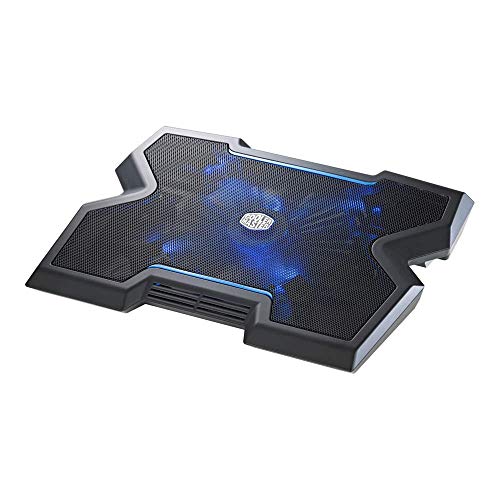
Cooler Master NotePal X3 – Laptop Cooling Pad with 200mm Blue LED Fan — Cooler Master NotePal X3 – Laptop Cooling Pad with 200mm Blue LED Fan. Check price on Amazon before you decide, because configurations and availability change often.
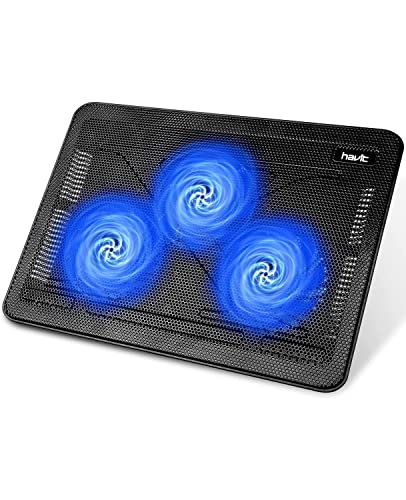
havit HV-F2056 Laptop Cooling Pad for 15.6-17 Inch Laptops — havit HV-F2056 Laptop Cooling Pad for 15.6-17 Inch Laptops, Black | Three quiet USB-powered fans circulate air below the laptop, two height settings improve viewing and typing comfort. Check price on Amazon before you decide, because configurations and availability change often.

Ultimate RGB Laptop Cooling Pad with LED Rim — Ultimate RGB Laptop Cooling Pad with LED Rim, USB Powered, Up to 17 Inch | Powerful 200mm Fan Spins at 750 rpm for Strong Airflow, Quiet and Stable Performance You Can Trust. Check price on Amazon before you decide, because configurations and availability change often.
Common Mistakes
- Gaming on a bed or sofa because it is comfortable, while the duvet seals every underside intake.
- Buying a cooling pad before cleaning vents or lifting the machine, then blaming the pad when nothing changes.
- Running the silent profile in games to keep noise down, which guarantees early throttling and worse performance.
- Judging temperatures from a five-minute test, when heat soak takes twenty minutes or more to show itself.
Pro Tips
- A cheap laptop stand often beats an expensive pad, because the angle opens intakes and improves your posture at the same time.
- If one room of your home is cooler, long sessions belong there; ambient temperature sets the floor for everything else.
- Keep the charger plugged in while gaming: battery play forces lower power limits and makes fans work against a hotter, discharging battery.
- Note your healthy temperatures when the machine is new or freshly cleaned, so future drift is obvious early.
A Worked Example, From Start to Finish
Imagine the process applied to one ordinary owner rather than a test bench. They begin by writing down what success looks like in one sentence, work through the steps in order without skipping the preparation that feels skippable, and pause at the verification stage instead of declaring victory at the first encouraging sign. Two adjustments are usually needed: one step takes longer than expected, and one assumption made at the start turns out to be wrong in a small, correctable way. That is not failure; that is the normal texture of doing this properly, and it is why the guide separates preparation, execution and verification so deliberately. By the end, the result is checked rather than hoped for, the notes exist for next time, and the owner understands their own machine measurably better than when they started. Every reader’s details will differ from this example, but the shape of a good outcome rarely does: prepare honestly, change one thing at a time, verify under real conditions, and write down what you learned while it is still fresh enough to be accurate.
Putting It All Together
Work through the steps in order, test the result in your real routine for a few days, and adjust the one or two choices that your own use proves wrong rather than restarting the whole process. The guidance in this guide reflects how these machines behave across years of ownership, not just on day one, which is why the unglamorous details, placement, profiles, backups and habits, carry as much weight as the headline specifications. Keep your receipts, your notes and your original parts where parts were changed, revisit the related guides when your needs shift, and remember that a well-matched, well-kept laptop of any tier serves its owner better than a flagship that fights its owner’s life. That fit, more than any single feature, is what you were really choosing.
Diagnosing Which Heat Problem You Actually Have
Cooling advice fails when it treats every hot laptop as the same laptop. Three different problems produce the same complaint — heat — and each responds to different fixes, so spend ten minutes diagnosing before spending anything at all.
Problem one: the room and the surface
If temperatures are worst on a bed, a sofa or a carpet, and improve dramatically on a hard desk, your problem is intake starvation, not the laptop. Soft surfaces seal the bottom vents that most gaming laptops breathe through, and no internal quality survives being suffocated. The fix is positional and nearly free: a hard, flat surface, a stand, or a lap desk. Diagnose this first because it masquerades as a hardware fault and has sent many healthy laptops in for unnecessary repairs.
Problem two: dust and age
If the machine ran cooler when new and has crept upward over a year or more in the same setup, dust in the fin stacks and fans is the prime suspect, with dried thermal compound as the accomplice in older machines. The signature is gradual change plus fans working harder at the same tasks. Cleaning addresses the dust half properly; compound replacement is the workshop half, justified when a thorough clean recovers little. This problem is the only one of the three where opening the machine, or paying someone to, is the correct answer.
Problem three: the workload outgrew the design
If the laptop has run hot since day one in demanding games, at a desk, clean and new, you are meeting the design’s thermal ceiling. Slim gaming laptops in particular are built to run near their limits. The tools here are management, not repair: frame-rate caps, power modes, undervolting where supported, and settings that trade invisible graphical excess for degrees. Recognising this category matters because it stops you chasing a fault that does not exist — the machine is performing as designed, and your job is to tune the design’s trade-offs toward your preferences.
Software Cooling: The Degrees Hidden in Settings
Frame-rate caps are a cooling feature
An uncapped game renders as many frames as the hardware can produce, including hundreds of frames in menus and easy scenes that no screen can show and no player can use. Capping frame rate at or near your screen’s refresh rate removes that waste heat entirely, and capping below it in less demanding titles trades imperceptible fluidity for substantial cool and quiet. This is the single most effective software cooling move, it costs nothing, and it also smooths frame pacing in many games. Set caps per game where the tools allow it, because a strategy title and a competitive shooter want different ceilings.
Power modes and the performance you do not need
Manufacturer control software and the operating system’s power modes decide how hard the processor and graphics boost. Maximum modes chase benchmark numbers; balanced modes typically surrender a small slice of peak performance for a large slice of heat and noise. For most games, most of the time, the balanced profile is the intelligent default, with maximum reserved for the titles that genuinely need it. Processor boost behaviour is the hidden lever inside this: limiting maximum boost, where your tools allow, can cut processor heat dramatically in CPU-heavy games while barely touching frame rates, because many games never needed the boost they were given.
Undervolting and fan curves, with care
Where a machine supports undervolting — supplying slightly less voltage to the processor or graphics — it reduces heat at identical performance, which is why enthusiasts prize it. It also risks instability if pushed, so it belongs to patient users who change one value at a time and test thoroughly, and it is unavailable or locked on many recent models. Custom fan curves are the gentler art: raising fan speed earlier keeps temperatures from spiking and can paradoxically sound better than a curve that yo-yos between quiet and frantic. Both techniques reward method and punish haste; neither is required to have a cool, well-run laptop.
The Physical Setup: Airflow as a System
Stands, pads and what the evidence supports
A simple stand that lifts the rear of the laptop and opens the intakes to room air is the most reliably effective accessory, because it fixes the geometry every gaming laptop struggles with. Cooling pads with fans add a little when their fans align with the intakes and a little noise always; their benefit varies by model and they are best bought after the free fixes, not before. What does not work: stacking the laptop on objects that block part of a vent, enclosing it in a cabinet or drawer-style dock while gaming, or aiming a desk fan at the keyboard and calling it cooling — the heat that matters is inside, leaving through the exhausts, and only clear intake and exhaust paths move it.
Room temperature and session management
The laptop can only cool toward the temperature of the air it breathes, so a hot room raises every component’s floor. In summer, the same game runs hotter and louder, and the remedies are environmental: shade, ventilation, or playing the most demanding sessions in the cooler evening. Long sessions also heat-soak the desk area and the machine’s own chassis; a machine that is fine for an hour and throttling at three is showing you its sustained limit, and the honest responses are the software caps above or accepting the design’s sustained performance as its real performance.
External monitors and docks change the heat picture
Docking to an external monitor often raises temperatures: the laptop may drive more pixels, keep its own screen circuitry active, and — if the lid is closed — lose the keyboard deck as a breathing and radiating surface. If your docked setup runs hot, try lid-open with the internal screen off, confirm the dock is not blanketing the rear exhausts, and check that the power supply in use is the full-power original or equivalent; an underpowered adapter can produce strange thermal and performance behaviour as the machine juggles power sources.
Knowing the Safe Limits and When to Stop
Modern processors and graphics chips are designed to run hot — sustained temperatures that would alarm a desktop owner are normal operating territory for a gaming laptop, and the chips protect themselves by throttling long before damage. Judge by behaviour, not by a frightening number: stable frame rates and no shutdowns mean the machine is coping, even at temperatures that look extreme on paper. The genuine warning signs are different — sudden shutdowns under load, a fan that stops or grinds, one side of the chassis far hotter than the other, or temperatures still climbing after cleaning, caps and setup fixes. Those point to hardware: a failing fan, separated heat pipe, or exhausted thermal compound, and they belong to a technician. Everything short of them is tuning, and tuning, done in the order this guide sets out — diagnose, cap, position, clean — gets almost every gaming laptop to a temperature its owner can stop thinking about.
Cooling Profiles for Different Kinds of Play
A single cooling strategy stretched across every game wastes either performance or quiet. The better approach is a small set of profiles, matched to how different games load the machine, switched as casually as you switch the games themselves.
The competitive profile: cool and consistent
Esports titles are light on graphics and heavy on the processor’s burst behaviour, and their enemy is not peak temperature but variability — a fan curve and boost policy that surge and retreat produce frame-time noise a competitive player can feel. Cap the frame rate a little above the screen’s refresh, choose the balanced power mode that holds clocks steady, and set fans to a constant, moderate behaviour rather than an aggressive curve. The machine runs cooler than its maximum mode and, more importantly, identically in minute one and minute ninety, which is the entire point.
The cinematic profile: quiet at a held frame rate
For story games at a capped sixty, the cooling goal is silence in cutscenes and steadiness in action. Let the cap do the work, prefer the quieter fan behaviour, and spend the thermal headroom the cap creates on visual settings rather than on frames you will not see. A machine tuned this way can run a beautiful game at a conversational fan volume indefinitely, which transforms evening gaming in shared rooms from a negotiation into a non-event.
The simulation and strategy profile: the long burn
Simulation and strategy titles load the processor for hours at a stretch, often while the graphics card idles — a heat pattern that surprises owners watching only graphics temperatures. For these, processor behaviour is the lever: balanced boost policies, a cap matched to the game’s actual responsiveness needs (these games rarely benefit from very high frame rates), and attention to the fact that a four-hour session heat-soaks everything, including the battery and the desk. Build the profile around endurance, and judge it at hour three, not in the menu.
Cooling the Whole Setup, Not Just the Laptop
The desk as a thermal environment
The laptop breathes the desk’s microclimate. A machine backed against a wall recirculates its own exhaust; a dock that shrouds the rear vents does the same with better aesthetics; a monitor arm’s cables draped over an exhaust are a small, warm blanket. Give the exhausts a clear throw of air, keep the intakes’ underside open, and if the desk sits in a sunlit corner, notice that afternoon sessions start several degrees ahead of evening ones and plan the demanding games accordingly. These are zero-cost degrees, available to anyone willing to look at their desk as a system rather than as furniture.
External displays and multi-device heat
A docked setup concentrates heat sources — laptop, dock, external drives, monitor power bricks — often in the same enclosed desk area. Spread them, ventilate the shelf they share, and check whether the dock itself runs hot enough to be adding to the laptop’s burden through the shared surface. Owners chasing a docked machine’s temperatures sometimes discover the culprit was never inside the laptop: it was the neighbourhood the laptop was asked to live in.
Seasonal adjustments
Cooling is seasonal whether you plan it or not. Summer raises every baseline; winter heating dries and warms rooms in its own pattern. The practical response is a twice-yearly profile check: as the hot season arrives, verify caps are in place, vents are clean and the quiet profiles still hold their temperatures; as it leaves, restore any performance you borrowed. Machines that “suddenly” overheat every June are not failing — they are reporting the weather, and the owner’s calendar should expect the report.
What Good Temperatures Actually Look Like
Owners chase numbers without a picture of normal, so here is the honest picture. A gaming laptop under a heavy game will run its processor and graphics hot by desktop standards — that is the design’s physics, small heatsinks and shared heat pipes in a thin box — and the chips are built and warrantied for it. Normal is: temperatures that stabilise rather than climb indefinitely, fans audible but not frantic, frame rates that hold from minute ten to minute ninety, and a chassis warm on top, hottest near the exhausts, never painful to touch on the surfaces your hands rest on. Abnormal is the opposite list: endless climbing, shutdowns, one-sided heat, grinding or silent fans, performance that decays through every session. Judge your machine against the pattern, not against a desktop’s numbers or a forum’s bravado, and you will know — usually correctly — whether you have a problem or merely a gaming laptop being one.
The Cooling Audit: One Evening, Every Answer
If you take one action from this guide, take this one: spend a single evening running the audit in order. Note temperatures and frame rates in your main game as the machine stands. Then change the surface and position; note again. Then cap the frame rate and set the balanced mode; note again. Then clean the vents and, if you are able, the fans; note a final time, in the same game, the same scene, the same session length. The four lines in that note are your machine’s thermal biography — which levers move it, by how much, and what its true sustained behaviour is. Every future cooling question you ever have about this laptop starts from those four lines, and most of them end there too. Cooling a gaming laptop is not a product you buy; it is a set of facts you learn about your own machine, and one honest evening teaches them all.
Cooling Myths That Waste Money
The more pads and fans, the better
Stacking accessories — a pad under a stand, a fan aimed at the keyboard, gadgets clipped to exhausts — feels like effort and mostly rearranges noise. The laptop’s cooling is a designed path: air in at the intakes, across the fins, out at the exhausts. Accessories help only when they serve that path (clearance, aligned airflow) and hinder when they fight it; an exhaust gadget that restricts the exit to create suction can raise temperatures while sounding productive. Buy one thing at a time, measure, and keep only what the numbers keep.
Metal chassis means better cooling
A metal body feels premium and conducts heat to your palms, which owners read as cooling working — sometimes it is the opposite: the chassis is absorbing heat the internal path could not shed, and using your hands as the heatsink. Judge cooling by component temperatures and sustained performance, never by how warm the shell feels. A cool-feeling plastic machine may be cooling superbly inside; a hot-feeling metal one may be confessing. The thermometer that matters is the one in your monitoring overlay.
Repasting is a routine chore
Fresh thermal compound is the enthusiast internet’s universal prescription, and on a young machine it is usually an unnecessary risk: factory applications on modern gaming laptops are competent, the gains from redoing them are small and variable, and liquid-metal adventures gone wrong are catastrophic. Compound renewal earns its place on older machines whose temperatures have crept after cleaning — as the final step of an evidence chain, not the first step of a hobby. Let the audit’s numbers, not the calendar or the forums, tell you when paste is the remaining suspect.
Cooling as a Buying Lesson for Next Time
If this guide’s work has taught you your current machine’s thermal character, it has also written the brief for your next one — and that may be its most valuable output. You now know whether your games are processor- or graphics-bound, whether your room runs warm, whether your sessions are marathons or sprints, and how much fan noise your household tolerates. The next purchase can be specced against those facts: a chassis class with headroom for your session length, a power configuration matched to your games rather than to a benchmark table, and reviews read specifically for sustained temperatures in machines tested the way you play. Owners rarely buy the wrong second gaming laptop, because the first one — especially the first one that ran hot — is an education. This guide simply aims to graduate you without the tuition of a damaged machine: diagnose honestly, tune freely, clean methodically, escalate rarely, and let the degrees fall where the evidence says they should.
Cooling for Streamers, Creators and Long Sessions
Streaming and recording stack a second workload on top of the game — encoding, overlays, capture — and the heat story changes accordingly. The encoding should live on the graphics card’s dedicated hardware encoder where available, which produces stream quality at a fraction of the processor heat of software encoding; choosing it is simultaneously a quality setting and a cooling setting. Creators rendering video face the long-burn pattern in its purest form: sustained full load for tens of minutes, where the machine’s steady-state temperature, not its burst behaviour, is the whole story, and where the balanced power mode often finishes renders barely slower than maximum mode while running dramatically cooler throughout — because maximum mode’s early sprint is repaid, with interest, in throttling. If your sessions are measured in hours, optimise for the machine’s behaviour at hour two. That principle — judge at steady state, tune for endurance — is the creator’s version of the same wisdom competitive players apply to frame times, and it generalises across every workload this guide has touched: a gaming laptop’s real thermal character is the one it settles into, and wisdom is arranging your settings so that the settled character is one you can live with, session after session, summer after summer.
Cooling Knowledge Compounds: Teaching the Next Owner
Whether the next owner is a buyer, a sibling or your own future self with a new machine, the thermal knowledge in your notes is transferable wealth. The profiles you built, the audit numbers, the knowledge of which levers move your games’ temperatures — record them where the laptop’s documents live, and hand them over with the machine. A used gaming laptop sold with its thermal biography documented is a rarer and more valuable thing than its specifications suggest, because the buyer is purchasing certainty about the one variable used laptops never disclose. And for your next machine, the same notes become the baseline protocol: run the audit in the first week, while the return window is open and the machine is new, so its healthy numbers are on record before life changes them. Cooling, treated this way, stops being a series of emergencies and becomes a continuous, documented understanding between you and your hardware — which is, in the end, all that maintenance ever is.
Related Guides
- our roundup of the best gaming laptops for under 1000 usd
- our roundup of the best gaming laptops for fortnite under 1000
- our roundup of the best laptops for light gaming under 800
- how to fix a gaming laptop that overheats
- how to fix fps drops on a gaming laptop
Frequently Asked Questions
What temperatures are normal for a gaming laptop?
Processor temperatures in the high 80s to mid 90s Celsius under full gaming load are common and within design limits on many models, with the graphics chip usually running cooler, in the 70s to mid 80s. What matters more is behaviour: temperatures that stabilise and frame rates that hold are healthy, while temperatures pinned at the limit with falling performance mean the cooling needs help. Idle temperatures should settle far lower within minutes of closing a game.
Does a cooling pad actually work?
Sometimes, modestly. When pad fans align with the laptop’s underside intakes, a few degrees of improvement is realistic; when they blow at solid chassis, expect almost nothing beyond the benefit of the raised angle itself. A plain stand captures that angle benefit for less money. If you buy a pad, test it in a repeated game scene for half an hour and keep it only if sustained temperatures or frame rates genuinely improve.
Will capping my frame rate hurt my gaming?
Set the cap at or slightly below your screen’s refresh rate and you lose nothing visible, because the panel cannot show frames beyond its refresh anyway. You gain lower temperatures, quieter fans and steadier frame pacing. Competitive players on high-refresh panels sometimes run uncapped for minimal input latency in specific titles, but for most players and most games, a sensible cap is free cooling.
Is undervolting safe?
Done gradually with stability testing, undervolting is a well-established technique and the worst realistic outcome is a crash that a reset to defaults fixes. It is still an enthusiast step that some manufacturers restrict, and modern brand apps increasingly offer simpler power-limit sliders that achieve part of the same effect. If you are not comfortable in advanced settings, skip it; placement, cleaning, profiles and frame caps solve most heat problems without touching voltage.
Why is my laptop cool in menus but hot in one specific game?
Different games load hardware very differently. An unlocked frame rate in menus can send a GPU to full tilt rendering a static screen hundreds of times per second, while a demanding open-world title loads both processor and graphics together. Check for menu frame-rate caps in that game’s settings, and compare its settings against titles that run cooler. Per-game profiles in the driver control panel let you tame the one hot title without compromising the rest.
When is heat a sign of a real fault?
Sudden changes are the warning: a fan that stops, rattles or grinds, temperatures that spike within a minute of light use, unexpected shutdowns, or one side of the chassis far hotter than the other. Those point to a failed fan, dried or pumped-out thermal paste, or a blocked heatsink, and they deserve a technician rather than more settings changes. Gradual drift over years is normal ageing; abrupt change is a fault.
Is a cooling pad worth buying?
Sometimes — after the free fixes. A stand that lifts the laptop and opens its intakes delivers most of the benefit; a pad’s fans add a little when they align with the intakes. Buy one only after surface, caps and cleaning have been done, and judge it by measured temperatures in your own games, not by its packaging.
What temperature is too hot for a gaming laptop?
Judge by behaviour rather than a single number: chips are designed to run hot and protect themselves by throttling. The warning signs are shutdowns, performance that decays through every session, temperatures that climb without stabilising, and fans that grind or fall silent — those indicate a fault, not a hot-running design.
Does playing on battery make the laptop cooler?
Usually yes, because the machine deliberately limits performance on battery — but it buys that cool with frame rates, and it is not a cooling strategy so much as a different, slower computer. For real cooling at full performance, the caps, surfaces and cleaning in this guide are the honest tools.