Disclosure: As an Amazon Associate, kajuandouglas.com earns from qualifying purchases. Links to Amazon on this page are affiliate links; they cost you nothing extra. Listing details such as price and availability change often, so check the current Amazon listing before you buy.
People often search for “how to connect to pc a headset” after plugging in a brand-new headset and hearing nothing — or worse, hearing sound while the microphone silently uses the laptop’s built-in mic instead. The connection itself is simple; what trips people up is that a PC offers several ways to connect (USB, a single 3.5 mm jack, dual jacks, Bluetooth and wireless dongles) and each one has its own small follow-up step in Windows or macOS settings.
This guide takes each connection type in turn, then covers the default-device settings that make the connection actually stick, how to test both ears and the microphone, and the fixes for the five problems that account for nearly every failed connection.
Quick answer: Plug in by USB, 3.5 mm (with a splitter if your PC has separate mic and headphone sockets) or the wireless dongle, or pair by Bluetooth. Then open your sound settings, set the headset as the default output and input device, and repeat that selection inside your call or game app. Test with a recording before your first real call.
How to Connect to Pc a Headset
In this guide
Gear for This Guide

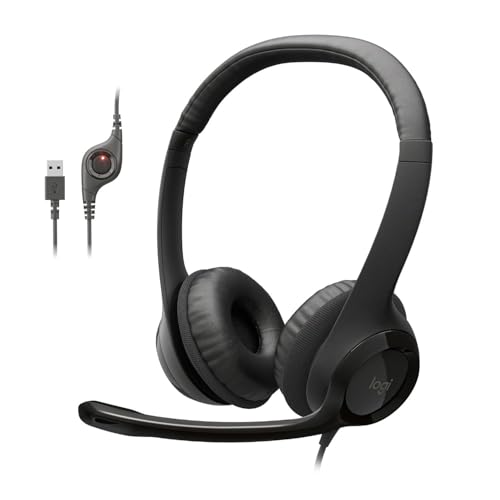
Logitech H390 Wired USB-A Headset — A USB-A headset that shows the simplest PC connection of all: one plug, automatic recognition, and a noise-cancelling microphone for calls. Check price on Amazon.
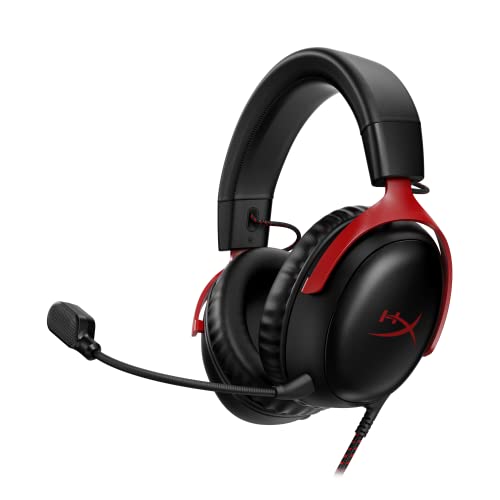
HyperX Cloud III Wired Gaming Headset — Connects by USB-C, USB-A or 3.5 mm, making it a useful example of one headset covering every PC socket type. Check price on Amazon.

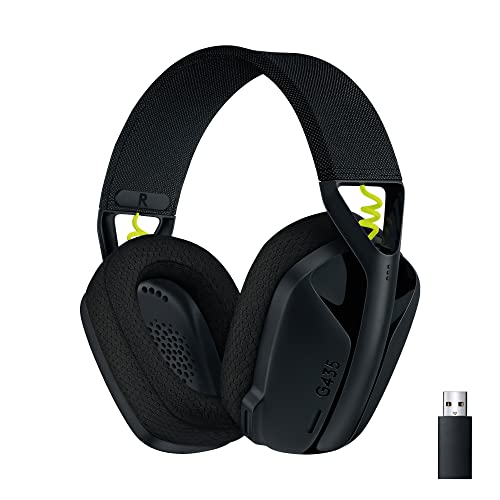
SteelSeries Arctis Nova 7 Wireless — A dongle-based wireless connection for low-latency PC gaming, with Bluetooth as a second simultaneous link. Check price on Amazon.
What You Need to Connect a Headset to a PC
- Your headset and its cable, USB dongle or splitter, as supplied.
- Knowledge of your PC’s sockets: one combined 3.5 mm jack, or separate headphone (green) and microphone (pink) sockets on older machines.
- Five minutes in Windows Sound settings or macOS Sound preferences.
- A recorder app or voice-chat app for the final test.
Most connection problems are not broken hardware — they are a headset plugged into the wrong socket, or a PC still pointing at its old speakers. Work through the connection types below, find yours, and do not skip the defaults section afterwards; it is the step that turns a plugged-in headset into the device your PC actually uses.
Option 1: Connect by USB
Plug the USB connector directly into the PC — front or back panel both work, though a direct port is more reliable than an unpowered hub. Windows and macOS recognise standard USB headsets within seconds and usually switch automatically. USB carries both sound and microphone on the one plug, and because the headset contains its own small sound hardware, USB models behave identically on any PC, which is why call-centre headsets like the Logitech H390 in our work headset picks are almost always USB.
If nothing happens, try a second port before anything else; a single dead or loose port is more common than a dead headset. Then open Sound settings and look for the headset by name in the output list — if it appears there, the connection is fine and only the default selection (covered below) needs changing.
Option 2: Connect by 3.5 mm Jack — and the Splitter Question
Modern laptops and many desktops have a single combined jack that handles headphones and microphone together, marked with a headset icon. A headset with one plug goes straight in. Older desktops have two sockets — green for headphones, pink for microphone — and a single-plug headset needs a Y-splitter (one female socket to two male plugs) to use both functions; without it you get sound but no mic, the classic half-working connection.
Headsets with two plugs of their own reverse the problem on a single-jack laptop, needing the opposite combiner adapter. Either adapter is inexpensive and passive — no drivers, no settings. If you hear a loud buzz through a desktop’s front-panel jack, try the rear panel socket instead; front panels on some cases are poorly shielded and pick up electrical noise from inside the machine.
Option 3: Connect a Wireless Dongle Headset
Insert the USB dongle, switch the headset on, and wait for the link light to go solid — most models pair automatically because the dongle and headset were matched at the factory. Dongle placement matters more than people expect: a dongle in a rear port, behind a metal case under a desk, is shielded from the headset, so use a front port or the short extension cable many gaming headsets include. Keep the dongle a little distance from USB 3.0 external drives, whose cables can radiate interference in the same frequency range.
Dongle headsets appear in Sound settings as their own device, exactly like a USB headset. If yours offers both a ‘game’ and ‘chat’ endpoint — some gaming models present two devices — set game as the output and chat as the communications device, or simply choose the main endpoint for both until you have a reason to split them. The picks in dongle-based wireless gaming headsets for PC all follow this pattern.
Option 4: Pair by Bluetooth
Put the headset into pairing mode (usually holding the power or Bluetooth button until the light flashes), open your PC’s Bluetooth settings, choose Add device, and select the headset when it appears. Bluetooth is the most flexible connection — the same pairing works for music, films and calls — but it carries a compromise: when the microphone is active, many PCs switch the headset into a hands-free profile with noticeably lower sound quality, and there is more delay than a dongle connection. For calls and casual listening that trade is fine; for competitive gaming, prefer the dongle or a wire.
If a paired headset refuses to reconnect later, remove it from the Bluetooth device list and pair again from scratch — stale pairings are the cause more often than hardware faults. Also check that the headset is not still connected to your phone; many headsets connect to the first familiar device they find, which may be the phone in your pocket rather than the PC in front of you.
Set the Headset as the Default Output and Input
In Windows, open Settings, then System, then Sound, and choose the headset under both Output and Input. In macOS, open System Settings, then Sound, and do the same on the Output and Input tabs. Then — the step everyone forgets — open each app you use for voice (your meeting app, Discord, your game’s settings) and confirm the headset is selected there too, because apps remember their own choice independently of the system.
While you are in the settings, rename nothing and change nothing else. Get one clean, working configuration first. If you regularly switch between speakers and a headset, Windows lets you switch output quickly from the volume icon in the taskbar; learning that two-click move ends the daily unplug-replug ritual. Our walkthrough in our full guide to setting up a headset covers the wider setup, including fit and levels, once the connection itself is live.
Test Both Ears and the Microphone
Play a song you know well and confirm both sides play at similar volume — a half-inserted 3.5 mm plug characteristically kills one side or makes the sound thin and strange, and reseating the plug firmly fixes it. Then open a recorder, speak for twenty seconds at normal volume, and play it back. If the recording is clear, your connection is genuinely complete; if the meter moved but the recording is silent or distant, the app may be recording from a different microphone, which sends you back to the per-app settings.
Common Mistakes When Connecting a Headset to a PC
- Using a single-plug headset in a dual-socket PC without a splitter, then troubleshooting the ‘dead’ microphone for an hour.
- Leaving the meeting app set to the laptop microphone while the system default is correct — the audience hears the room, not you.
- Burying a wireless dongle behind the PC case and diagnosing the resulting dropouts as a faulty headset.
- Pairing by Bluetooth while the headset is still connected to a phone, so the PC never sees it in pairing mode.
- Judging the connection by the Windows volume icon alone instead of making a test recording.
Pro Tips for a Connection That Survives Reboots and Updates
Windows updates occasionally reset default devices, so if your headset ‘stops working’ after an update, check the defaults before anything else — it takes twenty seconds. Keep your splitter or adapter taped to the headset cable if you move between machines, because the adapter is always the piece that goes missing. And if you own both a dongle headset and Bluetooth devices, connect the dongle headset first when you sit down; it claims its link instantly and leaves Bluetooth free for everything else.
If, after all of this, the microphone specifically refuses to cooperate, work through how to fix a headset mic that is not working step by step — it isolates whether the fault is the mic, the settings or the app. And if the real problem turns out to be that your PC’s sockets do not match your headset at all, the wired models in wired headsets for PC with clear connector details list their connectors plainly, so you can match plug to socket before you buy.
Front Panel vs Rear Panel: Which Socket Should You Use?
Desktop PCs offer analogue sockets in two places: the front panel, convenient and sometimes noisy, and the rear panel on the motherboard itself, which is electrically quieter. If you hear a constant buzz, whine or clicking through a wired headset that changes as the PC works harder — graphics card load is a classic trigger — move the plug to the rear socket before blaming the headset. The front panel’s long internal cable runs past electrically noisy components, and some cases shield it poorly. USB headsets sidestep this entirely, because the conversion to audio happens inside the headset, after the noisy journey through the case — one of USB’s underappreciated virtues for gaming PCs with powerful graphics cards.
Laptop users have a different version of the same choice: the built-in socket versus a USB connection. If your laptop’s socket produces hiss or the microphone sounds thin, a USB headset or a small USB audio adapter changes the hardware doing the conversion and often cleans the sound dramatically. This is also the fix when a laptop socket is physically worn from years of use — the USB route bypasses it completely.
Connecting Two Things at Once: Dongle Plus Bluetooth
Some wireless headsets support simultaneous connections: the USB dongle to your PC for game audio, and Bluetooth to your phone for calls and music, mixed together. Setting this up is a two-stage process — complete the dongle connection to the PC first, verify it with the defaults routine in this guide, and only then pair Bluetooth to the phone as a second connection. Doing both at once muddles which device the headset has claimed, and headsets, like people, handle one introduction at a time better than two.
Once both links are live, learn how your model prioritises: most duck the game audio or pause it when a call arrives, then restore it afterwards. Test that behaviour with a friend calling your phone while you play, in a low-stakes moment. Discovering your headset’s manners during a ranked match or a client presentation is the avoidable version of the same lesson.
When the PC Sees the Headset but Apps Do Not
A frustrating variant deserves its own paragraph: the headset appears in Windows sound settings and works in a recorder, but a specific app shows no sign of it. Beyond the app’s own device selection, check three things. First, whether the app needs a restart after the headset was connected — some apps enumerate audio devices only at launch. Second, whether the app has exclusive-mode or device-permission quirks, which a quick search of its help pages by name will reveal. Third, on work machines, whether an IT policy restricts audio devices — managed laptops sometimes whitelist hardware, and that is a helpdesk conversation, not a home fix.
Browser-based calls add one more layer: the browser itself asks permission for the microphone per website, and a site you once blocked stays blocked until you allow it in the browser’s site settings. If your headset works in installed apps but not in the browser version of the same meeting service, the browser’s permission list is where the answer lives.
Windows and macOS: the Two Settings Pages That Matter
On Windows, the journey runs through Settings, System, Sound for the everyday defaults, and through the older Sound control panel — still reachable from those pages — for recording-device states, levels and the ‘listen to this device’ option you should leave off unless you deliberately want microphone playback. Windows also keeps a per-app volume and device mixer, which is the hidden layer behind ‘my game uses the headset but my browser uses the speakers’. On macOS, System Settings, Sound holds output and input selection, and holding the Option key while clicking the menu-bar sound icon reveals the quick device switcher that experienced Mac users rely on. On both systems, the principle from the main guide holds: the system default is a suggestion that individual apps are free to ignore, so the app’s own settings page is always the final authority for that app.
Linux users follow the same shape through their sound settings or PulseAudio/PipeWire volume controls, where the headset appears as its own profile — and where choosing the headset profile that includes the microphone (rather than an output-only profile) is the equivalent of the splitter lesson: half the connection missing until the right profile is picked.
Troubleshooting the Half-Connected Headset
Half-connections have signatures worth memorising. Sound but no microphone: splitter missing, wrong profile, or the app’s input selection. Microphone but no sound: rarer, usually an output default pointing at speakers or a monitor. Both working but quiet: a level or a half-seated plug. Working in the recorder but not in one app: that app’s settings or permissions. Working everywhere until the PC sleeps, then gone: a USB power-management quirk, fixed by trying another port or disabling USB selective suspend for that device. Each signature names its own fix, and recognising the pattern is most of the skill this guide exists to teach.
One Cable Drawer, Fewer Mysteries
End with a small act of organisation that pays for years: keep the headset’s splitter, adapters and dongle in one labelled pouch with the headset itself. Connection problems are disproportionately ‘the right adapter is in another room, bag or year’ problems. A two-minute sort today converts tomorrow’s troubleshooting session into a non-event, and when you lend the headset, the pouch goes with it — adapter included, mystery excluded.
Frequently Asked Questions
Why can I hear sound but my microphone does not work on PC?
The two usual causes are a missing splitter — a single-plug headset in a PC with separate mic and headphone sockets only connects the sound half — or an app still set to a different microphone. Check the socket arrangement first, then the app’s own audio settings, then the system input level.
Is USB or 3.5 mm better for a PC headset?
USB is more predictable: it carries sound and mic on one plug and behaves the same on every PC, which is why it suits work and calls. A 3.5 mm connection is more universal across phones, controllers and PCs, and some listeners prefer their PC’s built-in audio hardware. For most people, USB’s simplicity wins at a desk.
Why does my Bluetooth headset sound worse when I join a call?
When the microphone activates, Bluetooth typically switches the headset into a hands-free profile that shares bandwidth between your voice and the incoming audio, lowering sound quality. It is a Bluetooth limitation, not a fault. Using a USB dongle headset, or a separate microphone, avoids the switch entirely.
My PC does not see my headset at all. What now?
Try a different port or socket first, then test the headset on another device such as a phone. If it works elsewhere, the PC’s port or settings are the problem; check Sound settings for the device appearing but unselected. If it fails on every device, suspect the cable or the headset itself.
Do I need to install drivers for a PC headset?
Almost never. Standard USB and Bluetooth headsets use drivers built into Windows and macOS. Manufacturer software is optional and adds features like EQ and firmware updates. If a headset seems to need a driver to produce basic sound, check the connection and defaults first — that is nearly always the real issue.
Can I connect two headsets to one PC for shared listening?
Yes, with caveats. Two USB or Bluetooth headsets can both be recognised, but Windows plays to one default output at a time without extra software or a splitter. For two wired headsets, a simple 3.5 mm splitter shares one socket easily. For calls, each person also needs microphone routing, which gets complicated quickly — a speaker is usually simpler.
The PC Audio Stack: Where Connections Actually Live
Connecting a headset to a PC looks like a single act — plug in, pair up — but underneath it sits a small stack of decisions the computer makes on your behalf: which physical link, which device the system prefers, which device each application chooses, and which enhancements ride along. Most connection misery is a disagreement somewhere in that stack, not a broken headset. This section maps the stack layer by layer, explains how each connection type behaves inside it, and gives you the diagnostic habit that resolves nearly every case: change one layer at a time, test with a recording, and never trust that the layer you fixed is the layer that was broken.
First Principles Worth Keeping in View
Read with the underlying principles in mind, this stops being a footnote and becomes the part of connecting a headset to a PC that you will actually live with at a Windows or Mac desktop, day after ordinary day. Hold that thought alongside everything else in this guide, and connecting a headset to a PC becomes a decision you can explain, defend and, most importantly, stop revisiting at a Windows or Mac desktop.
Anyone currently connecting a headset to a PC eventually runs into the underlying principles, usually at the least convenient moment, so it deserves a clear-eyed look here rather than a surprised one later on. None of this needs to be perfect on day one; it needs to be understood well enough that connecting a headset to a PC improves with familiarity instead of slowly unravelling.
Where the Details Start to Matter
It is easy to treat the finer details as an afterthought while connecting a headset to a PC, yet experienced owners will tell you it decides more long-term satisfaction than the headline choice ever does. That holds at a Windows or Mac desktop as much as anywhere else. That is the durable lesson here, and it will still be true of connecting a headset to a PC long after the novelty of any particular model has worn completely off.
The honest way to approach the finer details while connecting a headset to a PC is to think in months rather than minutes, because that is the timescale on which its effects quietly accumulate at a Windows or Mac desktop. Label the cable and the port that finally worked, because future you, post-update and half asleep, will be genuinely grateful for the note. A connection you have to renegotiate every morning is not really a connection at all, just a daily chore wearing a headset. Keep the point in proportion, though: it refines connecting a headset to a PC rather than replacing the fundamentals, and it rewards attention rather than anxiety at a Windows or Mac desktop.
The Decision Checklist Before You Troubleshoot a Connection
With connecting a headset to a PC as the goal, connection behaviour deserves its moment here. File it under things worth checking once and benefiting from for years, which is the best bargain connecting a headset to a PC has to offer anyone.
- Connection type inventory: Know exactly which links your headset offers — analogue jack, USB, dongle, Bluetooth — and which your PC accepts well, because the best link is the one both ends handle gracefully.
- Front versus rear ports: Remember that front-panel jacks route through internal cabling that can pick up interference; a rear port is the cleaner test when hum or crackle appears.
- Default device versus default communications device: Check both roles in the system settings, since Windows keeps them separate and a headset set for one but not the other produces half-working behaviour.
- Per-app overrides: Look inside the app that misbehaves before blaming the system; voice apps in particular keep their own device choices and ignore system defaults cheerfully.
- Driver and firmware state: Note whether the headset uses class drivers or its own software, and whether an update is pending, before deep troubleshooting begins.
- The known-good test: Keep one alternative — a phone, a second cable, a different port — ready as a reference, because a connection problem is only locatable when something in the test is known to work.
Read with connection behaviour in mind, this stops being a footnote and becomes the part of connecting a headset to a PC that you will actually live with at a Windows or Mac desktop, day after ordinary day. Windows keeps separate defaults for playback and recording, and it also keeps a third setting, the default communications device, which is the one chat apps quietly obey. Hold that thought alongside everything else in this guide, and connecting a headset to a PC becomes a decision you can explain, defend and, most importantly, stop revisiting at a Windows or Mac desktop.
Four Connection Stories and Their Resolutions
Here is the part of connecting a headset to a PC that owners learn latest: connection behaviour. None of this needs to be perfect on day one; it needs to be understood well enough that connecting a headset to a PC improves with familiarity instead of slowly unravelling.
Take a concrete everyday case: a USB headset that Windows sees perfectly while the owner’s game continues to play through the speakers, a per-app setting hiding in plain sight. There is also a time dimension to this scenario. What will actually decide daily satisfaction with this USB headset is whether Windows keeps choosing it after reboots, updates and the occasional unplug to charge a phone. Fix the per-app output once, in the game’s own audio menu, and that single act of housekeeping is worth more than any specification the headset carries.
It is easy to treat connection behaviour as an afterthought while connecting a headset to a PC, yet experienced owners will tell you it decides more long-term satisfaction than the headline choice ever does. Worth a sticky note, if connecting a headset to a PC is a weekly ritual for you. That is the durable lesson here, and it will still be true of connecting a headset to a PC long after the novelty of any particular model has worn completely off.
Consider how this plays out in practice: a Bluetooth headset that sounds rich for music and dreadful in calls, where the PC has switched it into a hands-free profile with a different microphone and far less bandwidth. Here the fix is recognising that the PC has quietly swapped profiles, trading the stereo device you chose for music for the hands-free device it prefers for calls. The Bluetooth radio, the call app’s appetite for a microphone and your expectation of music quality cannot all win inside the hands-free profile, so the profile choice has to be made consciously. Pick the stereo entry for listening and accept the hands-free entry only while a call lasts, and the same headset stops sounding like two different products on the same PC.
The honest way to approach connection behaviour while connecting a headset to a PC is to think in months rather than minutes, because that is the timescale on which its effects quietly accumulate at a Windows or Mac desktop. Keeping the wireless receiver and the headset’s own cable in the same drawer prevents half of all connection panics before they start. Keep the point in proportion, though: it refines connecting a headset to a PC rather than replacing the fundamentals, and it rewards attention rather than anxiety at a Windows or Mac desktop.
Consider how this plays out in practice: an analogue headset on a single combined jack that hears everything and says nothing, because the splitter the headset needs never made it out of the box. In this situation the sensible priorities reorder themselves. On a split-socket desktop, a working microphone depends on a humble splitter being present at all, and no software setting can conjure the missing contact into existence. The analogue setup that earns trust is the boring one: splitter fitted, plugs fully home in pink and green, and a test recording made before the first real call depends on it.
Plenty of guides skip straight past connection behaviour, which is a shame, since connecting a headset to a PC tends to succeed or fail on exactly these unglamorous details in the long run. On a desktop with separate pink and green sockets, a single-plug headset needs a Y splitter, and plugging it straight into the green socket alone gives you ears but no voice. File it under things worth checking once and benefiting from for years, which is the best bargain connecting a headset to a PC has to offer anyone.
Picture the most common version of this in real life: a dongle headset that drops out whenever a particular USB port is used, teaching the owner that port choice and interference are part of connection quality. There is also a time dimension to this scenario. Months with this dongle headset will be judged by which ports behave: a front socket that crackles and a rear socket that never does are teaching you the machine’s wiring, not the headset’s mood. Move the receiver to a short extension lead away from the case and note the winning port in your phone, because that small record ends the dropout hunt permanently.
Read with connection behaviour in mind, this stops being a footnote and becomes the part of connecting a headset to a PC that you will actually live with at a Windows or Mac desktop, day after ordinary day. Hold that thought alongside everything else in this guide, and connecting a headset to a PC becomes a decision you can explain, defend and, most importantly, stop revisiting at a Windows or Mac desktop.
Making the Connection Stay Made: Defaults That Survive Updates
When connecting a headset to a PC is the task, connection behaviour is easy to underestimate. None of this needs to be perfect on day one; it needs to be understood well enough that connecting a headset to a PC improves with familiarity instead of slowly unravelling.
Fit Considerations in the Long Run
It is easy to treat fit and comfort as an afterthought while connecting a headset to a PC, yet experienced owners will tell you it decides more long-term satisfaction than the headline choice ever does. Small thing, large echo, as so often with connecting a headset to a PC. That is the durable lesson here, and it will still be true of connecting a headset to a PC long after the novelty of any particular model has worn completely off.
The honest way to approach fit and comfort while connecting a headset to a PC is to think in months rather than minutes, because that is the timescale on which its effects quietly accumulate at a Windows or Mac desktop. When in doubt, remove one link from the chain and test again, since connection faults surrender to subtraction rather than addition. Keep the point in proportion, though: it refines connecting a headset to a PC rather than replacing the fundamentals, and it rewards attention rather than anxiety at a Windows or Mac desktop.
Sound Considerations in the Long Run
Plenty of guides skip straight past sound quality, which is a shame, since connecting a headset to a PC tends to succeed or fail on exactly these unglamorous details in the long run. A wireless dongle wants a clear line to the headset, so burying it in a rear port behind a metal case can cost more range than any setting in the software. Bluetooth pairing on a PC adds a fork in the road: the same headset can appear as a stereo music device and as a hands-free device, and only one of those profiles carries the microphone well. File it under things worth checking once and benefiting from for years, which is the best bargain connecting a headset to a PC has to offer anyone.
Read with sound quality in mind, this stops being a footnote and becomes the part of connecting a headset to a PC that you will actually live with at a Windows or Mac desktop, day after ordinary day. Rear motherboard sockets are wired straight into the board’s audio section, which is why technicians reach for them first when a front jack hisses, buzzes or drops a channel. Hold that thought alongside everything else in this guide, and connecting a headset to a PC becomes a decision you can explain, defend and, most importantly, stop revisiting at a Windows or Mac desktop.
Microphone Considerations in the Long Run
Anyone currently connecting a headset to a PC eventually runs into microphone behaviour, usually at the least convenient moment, so it deserves a clear-eyed look here rather than a surprised one later on. It sounds minor until the evening a call depends on it. None of this needs to be perfect on day one; it needs to be understood well enough that connecting a headset to a PC improves with familiarity instead of slowly unravelling.
It is easy to treat microphone behaviour as an afterthought while connecting a headset to a PC, yet experienced owners will tell you it decides more long-term satisfaction than the headline choice ever does. True on day one, truer still in month six of connecting a headset to a PC. That is the durable lesson here, and it will still be true of connecting a headset to a PC long after the novelty of any particular model has worn completely off.
Battery Considerations in the Long Run
The honest way to approach battery life and charging while connecting a headset to a PC is to think in months rather than minutes, because that is the timescale on which its effects quietly accumulate at a Windows or Mac desktop. Front-panel jacks run through a thin internal cable to the motherboard’s HD Audio header, so a loose header plug can leave one channel crackling while the rear sockets stay clean. Keep the point in proportion, though: it refines connecting a headset to a PC rather than replacing the fundamentals, and it rewards attention rather than anxiety at a Windows or Mac desktop.
Plenty of guides skip straight past battery life and charging, which is a shame, since connecting a headset to a PC tends to succeed or fail on exactly these unglamorous details in the long run. A USB hub that shares power with a hungry external drive can make a headset vanish and reappear, a fault that looks like a driver problem until the hub is bypassed. File it under things worth checking once and benefiting from for years, which is the best bargain connecting a headset to a PC has to offer anyone.
Durability Considerations in the Long Run
Read with build and durability in mind, this stops being a footnote and becomes the part of connecting a headset to a PC that you will actually live with at a Windows or Mac desktop, day after ordinary day. Hold that thought alongside everything else in this guide, and connecting a headset to a PC becomes a decision you can explain, defend and, most importantly, stop revisiting at a Windows or Mac desktop.
Anyone currently connecting a headset to a PC eventually runs into build and durability, usually at the least convenient moment, so it deserves a clear-eyed look here rather than a surprised one later on. Desktops reward the rear panel and punish the dusty, rarely used front jack far more often than most buying guides ever admit. Keeping the wireless receiver and the headset’s own cable in the same drawer prevents half of all connection panics before they start. None of this needs to be perfect on day one; it needs to be understood well enough that connecting a headset to a PC improves with familiarity instead of slowly unravelling.
Care Considerations in the Long Run
It is easy to treat care and upkeep as an afterthought while connecting a headset to a PC, yet experienced owners will tell you it decides more long-term satisfaction than the headline choice ever does. A USB headset announces itself to the operating system as its own sound card, which is why it can work perfectly while the motherboard jacks sit faulty or disabled in the BIOS. That is the durable lesson here, and it will still be true of connecting a headset to a PC long after the novelty of any particular model has worn completely off.
The honest way to approach care and upkeep while connecting a headset to a PC is to think in months rather than minutes, because that is the timescale on which its effects quietly accumulate at a Windows or Mac desktop. Keep the point in proportion, though: it refines connecting a headset to a PC rather than replacing the fundamentals, and it rewards attention rather than anxiety at a Windows or Mac desktop.
Hearing Considerations in the Long Run
Plenty of guides skip straight past listening levels and hearing, which is a shame, since connecting a headset to a PC tends to succeed or fail on exactly these unglamorous details in the long run. After a major system update, a previously perfect setup can silently revert to the monitor’s speakers over HDMI, because the update re-ranks the output list. File it under things worth checking once and benefiting from for years, which is the best bargain connecting a headset to a PC has to offer anyone.
Read with listening levels and hearing in mind, this stops being a footnote and becomes the part of connecting a headset to a PC that you will actually live with at a Windows or Mac desktop, day after ordinary day. Label the cable and the port that finally worked, because future you, post-update and half asleep, will be genuinely grateful for the note. Hold that thought alongside everything else in this guide, and connecting a headset to a PC becomes a decision you can explain, defend and, most importantly, stop revisiting at a Windows or Mac desktop.
Platform Considerations in the Long Run
Anyone currently connecting a headset to a PC eventually runs into platform and settings behaviour, usually at the least convenient moment, so it deserves a clear-eyed look here rather than a surprised one later on. Laptops complicate everything once a dock joins the chain, because a dock hides a second set of audio decisions inside a small box. When in doubt, remove one link from the chain and test again, since connection faults surrender to subtraction rather than addition. None of this needs to be perfect on day one; it needs to be understood well enough that connecting a headset to a PC improves with familiarity instead of slowly unravelling.
It is easy to treat platform and settings behaviour as an afterthought while connecting a headset to a PC, yet experienced owners will tell you it decides more long-term satisfaction than the headline choice ever does. Windows keeps separate defaults for playback and recording, and it also keeps a third setting, the default communications device, which is the one chat apps quietly obey. That is the durable lesson here, and it will still be true of connecting a headset to a PC long after the novelty of any particular model has worn completely off.
Going Further: Headset Details That Reward a Second Look
With connecting a headset to a PC as the goal, the finer details deserves its moment here. Keep the point in proportion, though: it refines connecting a headset to a PC rather than replacing the fundamentals, and it rewards attention rather than anxiety at a Windows or Mac desktop.
Plenty of guides skip straight past the finer details, which is a shame, since connecting a headset to a PC tends to succeed or fail on exactly these unglamorous details in the long run. Keeping the headset’s own volume wheel, where one exists, near its top and controlling loudness in Windows instead usually gives the cleanest, least hissy result. Every extra adapter between headset and PC is another suspect when something crackles, drops out or goes quiet in the middle of a call. File it under things worth checking once and benefiting from for years, which is the best bargain connecting a headset to a PC has to offer anyone.
Read with the finer details in mind, this stops being a footnote and becomes the part of connecting a headset to a PC that you will actually live with at a Windows or Mac desktop, day after ordinary day. Hold that thought alongside everything else in this guide, and connecting a headset to a PC becomes a decision you can explain, defend and, most importantly, stop revisiting at a Windows or Mac desktop.
Anyone currently connecting a headset to a PC eventually runs into the finer details, usually at the least convenient moment, so it deserves a clear-eyed look here rather than a surprised one later on. On a desktop with separate pink and green sockets, a single-plug headset needs a Y splitter, and plugging it straight into the green socket alone gives you ears but no voice. None of this needs to be perfect on day one; it needs to be understood well enough that connecting a headset to a PC improves with familiarity instead of slowly unravelling.
Related Guides
Why does my headset appear twice in the device list?
Many headsets present separate endpoints for playback and recording, and Bluetooth headsets often present two playback profiles as well — a high-quality stereo one and a hands-free one for calls. Seeing multiple entries is normal; the skill is knowing which entry your current activity needs.
Can I use a headset with a PC that has separate mic and headphone jacks?
Yes, with the right splitter for headsets that use a single combined plug, or directly if your headset has separate plugs. The combined-jack standard is common to phones and consoles, while many desktop PCs still expect the older two-plug arrangement, so the small adapter is a standard part of the kit.