kajuandouglas.com is reader-supported. When you buy through links on our site, we may earn an affiliate commission.
Where to Buy
A pan-and-tilt camera is a promise that one camera can do the work of three, and the best app for ptz cameras ios is where that promise is kept or broken — because on iOS, the app is the steering wheel, the patrol route and the guard’s notebook in one. The cameras in this guide are sold through the usual electronics channels; the apps are downloads, mostly the makers’ own, with two independent viewers for households whose cameras come from several families. Choosing well means matching the steering experience to the post: territory outdoors, a room indoors, a mixed collection, a generic orphan.
Four of the six picks are camera-and-app pairs from this site’s verified pool, linked as such, because in the PTZ world the pair is the product — a brilliant camera with a clumsy app will sit pointing at a wall, and a brilliant app cannot steer a camera that does not exist. The other two picks are the iOS viewers that gather supported or standards-based PTZ cameras under one window, for owners whose collection has outgrown single-brand loyalty.
Bring one question to every pick below: when something moves at the edge of the frame at midnight, what happens next — and whose thumb does it? The answers divide the six more honestly than any specification sheet.
Key Takeaways
- Reolink’s app with the Argus PT Ultra is the outdoor PTZ benchmark on iOS: presets, steered patrols and local playback for wide territory.
- Arlo’s pan-tilt indoor camera offers the most polished iOS steering, with modes that make a looking-around camera governable in a family room.
- eufy E220 and Tapo C210 steer whole rooms while keeping archives local — eufy with on-device judgement, Tapo at a starter spend.
- OWLR and IP Cam Viewer gather supported or generic PTZ cameras into one iOS window; maker apps still own firmware, zones and alerts.
- Presets and a resting position are the whole PTZ doctrine: a camera left mid-sweep is a guard facing the wrong way.
In this guide
Quick Picks
| Pick | Badge | Why it earns its place |
|---|---|---|
| REOLINK Argus PT Ultra | Best iOS App for Outdoor PTZ Territory | Reolink’s iOS app gives this wire-free pan-and-tilt camera a proper patrol: presets, steered live view and local playback, all from the iPhone in your pocket. |
| Arlo Essential Indoor Pan Tilt | Best iOS Experience for Polished Indoor PTZ | Arlo’s iOS app is among the slickest in security, and its pan-and-tilt indoor camera turns that polish toward whole-room coverage with privacy manners. |
| eufy Indoor Cam E220 | Best iOS PTZ With On-Device Judgement | Its detection lives in the camera, so the iOS app runs a calmer, more private watch — pan, tilt and a diary compiled at home. |
| TP-Link Tapo C210 | Best Value iOS PTZ for One-Room Coverage | Tapo’s iOS app steers this affordable pan-and-tilt camera across a whole room and keeps the recordings on a card in the camera — value with its archive at home. |
| OWLR for iOS | Best Third-Party iOS Viewer for Supported PTZ Families | A friendly iOS viewer that can steer supported pan-and-tilt cameras from several families in one calm interface — for households outgrowing single-brand apps. |
| IP Cam Viewer for iOS | Best Universal iOS Viewer for Standards-Based PTZ | The iOS edition of the veteran universal viewer: profiles and stream access for a long list of cameras, with PTZ controls for models that expose them. |
How Did We Choose These Picks?
Steering quality was the first filter, because PTZ lives or dies by it. Each app had to move its camera responsively, hold presets reliably, and return the camera to a guard post without ceremony. Apps whose PTZ support was a buried menu or a laggy afterthought were cut, however fine their fixed-camera game, because a steering wheel that annoys is a steering wheel unused — and an unused PTZ camera is just a fixed camera pointing somewhere accidental.
The second filter was the loop around the steering: alerts that arrive with the camera looking the right way, playback that can be found from the iPhone, and settings deep enough to govern the looking — zones, schedules, modes. PTZ multiplies a camera’s power to intrude as well as to protect, so indoor picks were additionally required to offer legible privacy governance.
Camera picks were restricted to the verified pool and chosen to span the real PTZ territory: outdoor wire-free, polished indoor, locally minded indoor, and value indoor. The two viewer picks were required to show genuine PTZ support for their cameras — not merely live pictures — and to be honest, in their own materials, about the limits of that support.
Plan-shaped features are flagged as plan-shaped wherever they appear. Steering, presets and the basic loop are what this guide guarantees; the rest is the makers’ current weather, best checked inside the apps themselves.

REOLINK Argus PT Ultra — Best iOS App for Outdoor PTZ Territory
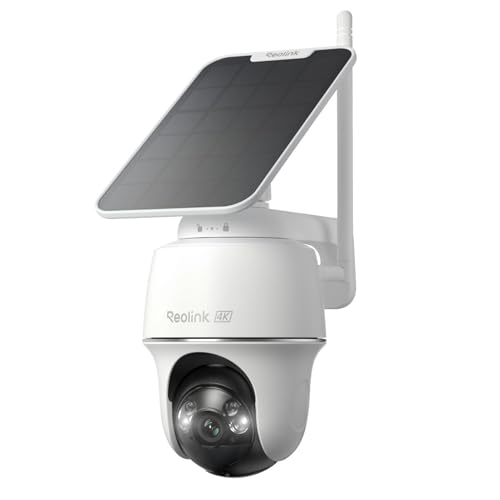
A pan-and-tilt camera is only as good as the thumb that steers it, and on iOS the Reolink app gives the Argus PT Ultra a confident thumb. The camera itself is the outdoor heavyweight of this guide — wire-free, weather-ready, able to sweep a yard or a drive from a single post — and the iOS app is built to conduct that sweep: drag to look around, save the views that matter as presets, and return the camera to its post with a tap instead of a fiddle. The difference between PTZ as a feature and PTZ as a tool is exactly this quality of steering, and Reolink understands it.
The monitoring loop around the steering is equally grown-up. Events arrive as alerts with the camera already looking the right way if your presets are disciplined; playback lives locally on the camera’s recording, browsable from the iPhone without the footage taking a world tour; and the app scales into Reolink’s wider range if the property later adds wired posts. iOS-specific polish shows in the small places — notifications that behave, a live view that resumes where you left it, widgets and shortcuts that put the gate one gesture away.
Battery physics govern the outdoor PTZ life, and the app is honest about the economy: patrols and long live views are spends, vigilance is the income. Owners who set a resting position, aim the default view at the post that matters, and let motion bring the camera to life get a season of service; owners who leave it mid-sweep admiring a sunset get a camera facing the wrong way when it counts. The app provides the presets; the discipline is yours to supply, and this guide will keep repeating that sentence in different costumes because it is the whole PTZ doctrine.
Choose this pair for the wide outdoor post on an iPhone-run property. It is the most complete outdoor PTZ experience available to iOS in this pool, and the one against which indoor pretenders should be measured.
- Type: wire-free outdoor pan-and-tilt camera with iOS app (pool pick, linked)
- App jobs: steered live view, preset positions, event alerts, local playback
- Coverage: sweeps yards and drives from one post
- Power: battery — steering and live view are deliberate spends
- Ecosystem: Reolink app spans wired and wireless ranges
Strengths
- Steering and presets feel designed, not bolted on
- Local playback keeps the archive on the property
- Scales into a larger Reolink system without relearning
Trade-offs
- Battery economy punishes casual all-day viewing
- Resting-position discipline is mandatory
- App serves Reolink cameras only
Best for: iPhone households with a yard, drive or smallholding to patrol.
Not suited for: a small fixed indoor post that never needs to turn its head.

Arlo Essential Indoor Pan Tilt — Best iOS Experience for Polished Indoor PTZ
Arlo has always sold the feeling of a well-run hotel — everything hushed, labelled and where it should be — and its iOS app is the concierge. The Essential Indoor Pan Tilt brings that service to the PTZ problem: one camera, placed once, covering a room by turning its head under app control, with the smooth, confident interface iPhone owners expect from the platform’s best citizens. For a nursery, a living room or a home office, it is the most civilised steering experience in this guide.
The civilisation includes privacy, which indoor PTZ needs more than any other kind, because a camera that can look around a room can look at anything in it. Arlo’s ecosystem leans into modes and schedules — the camera’s attention following the household’s presence — and the app makes those rules legible rather than burying them in menus. A PTZ camera the household trusts is one whose looking is governed by agreements everyone can see, and Arlo’s app presents those agreements like a host, not a lawyer.
The costs of polish are the familiar Arlo ones. The ecosystem is a walled garden of the well-kept kind: the app minds Arlo cameras, and the richest detection and history features follow the maker’s current plan arrangements, which this guide leaves to Arlo’s own pages rather than printing terms that will drift. Owners should also steer with intent — PTZ novelty invites endless panning in week one, and the camera that is always being driven is never standing guard.
Choose the Arlo pair when the indoor post matters, the household is iPhone-first, and the app’s feel is part of the purchase. In PTZ, where you steer daily, feel is function.
- Type: indoor pan-and-tilt camera in the Arlo ecosystem (pool pick, linked)
- App jobs: steered live view, modes and schedules, event alerts, timeline
- Privacy: ecosystem modes govern when the camera attends
- Power: plug-in — always ready to steer
- Service note: richer features follow the maker’s current plans — check in the app
Strengths
- The most polished steering experience on iOS here
- Modes and schedules make indoor PTZ governable
- App design suits non-technical households
Trade-offs
- Arlo-only garden, elegantly walled
- Richest features are plan-shaped
- Novelty panning must settle into guard duty
Best for: iPhone-first homes wanting indoor PTZ with manners.
Not suited for: mixed-brand collectors or plan-refusers.
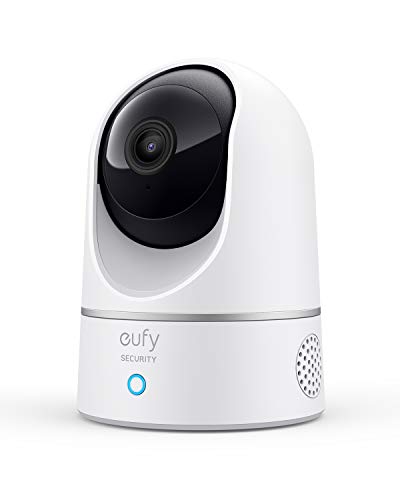
eufy Indoor Cam E220 — Best iOS PTZ With On-Device Judgement
The E220’s pitch to an iPhone owner is architectural: let the camera do the thinking. Its detection is handled substantially on-device, so the alerts that reach the iOS app have already been judged by the hardware that saw the event, and the recording options lean local. The result is a PTZ experience with a distinctive calm — steer the room from the app, set the zones, and let the camera’s own judgement decide what deserves your lock screen. For privacy-minded households, that division of labour is the most modern idea in this guide.
Steering itself is workmanlike in the best sense. The pan-and-tilt range covers a room from a corner or a shelf; presets return the camera to its posts; the app keeps the controls where thumbs expect them. iOS households already running other eufy devices will find the app a familiar room; newcomers will find it refreshingly free of upsell theatre compared with some rivals, with the camera’s local storage keeping the diary at home.
Boundaries, as ever, apply. The eufy app is for eufy devices; the E220 is a room-scale instrument, not a yard tool; and on-device judgement, while strong, should still be proven against your own household’s cast — the dog, the cleaner, the toddler with a cape — during the tuning week every pick in this guide demands. A camera that thinks for itself still needs to be introduced to the family it thinks about.
Choose the E220 when the indoor post is sensitive — nursery, office, a carer’s eye on an elderly parent — and the household wants the watching done locally and the steering done well. It is PTZ with a conscience and a steering wheel.
- Type: indoor pan-and-tilt camera with on-device detection (pool pick, linked)
- App jobs: steering, presets, zones, locally compiled event diary
- Detection: substantially in the camera, privacy-leaning
- Recording: local options keep footage in the house
- Ecosystem: eufy app for eufy devices
Strengths
- Local judgement makes alerts calmer and more private
- Honest steering with sensible presets
- App experience is refreshingly un-theatrical
Trade-offs
- Room-scale only; not a yard instrument
- One-brand app world
- Detection still needs a household tuning week
Best for: nurseries, offices and care situations on iPhone.
Not suited for: outdoor territory or multi-brand command centres.

TP-Link Tapo C210 — Best Value iOS PTZ for One-Room Coverage
Value in PTZ is a dangerous word, because cheap steering usually means steering you abandon. The C210, through Tapo’s iOS app, is the exception that justifies this pick: the camera pans and tilts across a room’s whole story, the app’s controls are direct and learnable in an evening, and the recordings live on a memory card in the camera, so the monitoring loop closes without any cloud arrangement at all. For a flat, a small shop or a first nursery, it is a complete PTZ system at a starter spend.
The iOS experience is plainer than Arlo’s tailoring and better for some households because of it. Presets are set without ceremony, the live view is a tap away, and playback from the card is presented as a timeline rather than a file system. Tapo’s wider ecosystem — plugs, bulbs and more cameras under the same app — gives the value pick an upgrade path: the room camera that starts the system can be joined by the rest of a Tapo-leaning home without a second control room.
Its limits are honest ones. Motion tracking should be tuned with a sceptical hand, or the camera will spend its days following curtains with tragic dedication. The app’s world is Tapo’s. And a memory card is a finite, physical archive: households keeping evidence-grade records should adopt the export habit this guide preaches, rather than trusting any card to be a forever vault.
Choose the C210 when the budget is real, the room is single, and the iPhone is the control room. It is the PTZ pick most likely to be recommended between neighbours, because it is the one most neighbours can actually buy.
- Type: indoor pan-and-tilt camera with iOS app (pool pick, linked)
- App jobs: steering, presets, alerts, card-based playback timeline
- Recording: local memory card in the camera
- Coverage: whole-room from one affordable unit
- Ecosystem: Tapo app extends to a wider smart-home range
Strengths
- Complete PTZ loop at a starter spend
- Local archive with no cloud obligation
- Upgrade path into a broader Tapo home
Trade-offs
- Tracking needs sceptical tuning
- Tapo-only app
- Card archives demand an export habit for keepsakes
Best for: flats, small shops and first nurseries on iPhone.
Not suited for: evidence vaults or outdoor posts.
OWLR for iOS — Best Third-Party iOS Viewer for Supported PTZ Families
Sooner or later a household owns two brands of camera and one patience. OWLR’s iOS edition exists for that moment: a viewer built around a curated set of popular camera families, presenting them — including their pan-and-tilt controls, where the family supports them — in one calm, human interface. Its presence in a PTZ guide is specific: if your steerable cameras belong to its supported families, OWLR can be the single iOS window you steer them all from, sparing you the two-app shuffle every time the dog changes rooms.
The design philosophy is the same friendliness that marks its Android sibling, translated faithfully to iOS manners. Big controls, plain words, viewing as a two-tap act — the app assumes the person steering may not be the person who installed, and in family life that assumption is a form of respect. Grandparents steering a nursery camera from an iPhone they already understand is a genuinely achievable outcome here, which cannot be said of most universal tools.
The curated list is the boundary, printed plainly: outside its supported families, OWLR cannot adopt a camera, and PTZ depth varies by family — some cameras offer the viewer their presets and tracking, others only their basic steering. Check your exact models against the app’s support information before reorganising your life around it, and keep the maker apps installed regardless for firmware, zones and the deep settings no viewer may touch.
Choose OWLR when your PTZ collection is small, supported and operated by more than one person. It is the diplomacy pick: several brands, one window, no arguments.
- Type: third-party multi-family viewer for iOS
- App jobs: unified live view and PTZ steering for supported families
- Setup route: guided discovery for supported models
- Depth note: presets and tracking vary by camera family
- Companion rule: maker apps stay installed for settings and firmware
Strengths
- One window for several supported brands
- Steering simple enough for the whole household
- Respects non-technical operators by design
Trade-offs
- Supported list is finite — check your models first
- PTZ depth varies by family
- Never replaces maker apps for deep settings
Best for: small mixed collections operated by several people.
Not suited for: unsupported cameras, or power users wanting every maker’s depth.
IP Cam Viewer for iOS — Best Universal iOS Viewer for Standards-Based PTZ
Every platform needs its Swiss army knife, and on iOS the universal-viewer role belongs to the IP Cam Viewer lineage: a long-serving app whose device library and stream plumbing can adopt an enormous range of network cameras, including pan-and-tilt models whose controls it can drive where the camera exposes them in standard ways. For the iPhone owner whose PTZ camera came from the generic shelf — capable hardware, forgettable maker app — this is frequently the rescue: one competent viewer, configured once, steering a camera its own maker underserved.
The working method is the universal viewer’s eternal bargain. You gain breadth — one app, many cameras, recording and multi-view options — and you pay in setup: profiles to choose, stream details to enter, a first evening of configuration that the maker apps would have wizarded away. PTZ support follows the same logic: where a camera speaks standard control languages, the viewer steers it respectably; where a maker kept steering proprietary, the viewer shows the picture and the maker’s app keeps the wheel.
iOS adds its own considerations. Background behaviour and notifications on Apple’s platform are more strictly governed than elsewhere, so a universal viewer should be hired for viewing and steering, not for alert heroics — let maker apps or the cameras’ own detection carry the lock-screen duties, and let this app be the window you open. Configured with that division of labour, it is dependable in the way long-serving tools are: unglamorous, maintained, and there when an odd camera needs adopting.
Choose it when your PTZ hardware is generic, your iPhone is the control room, and you are willing to trade one evening of setup for years of unified steering.
- Type: third-party universal viewer for iOS
- App jobs: multi-camera viewing, PTZ control where standards allow, local recording options
- Setup route: device profiles or manual stream configuration
- Alert note: let maker apps own notifications; this is a viewing tool
- Best with: generic and legacy PTZ cameras with standard streams
Strengths
- Adopts cameras whose maker apps disappointed
- One window across a long list of models
- Long-serving, maintained tool with deep configuration
Trade-offs
- Setup evening is part of the price
- PTZ depth depends on the camera’s standards manners
- Not the right tool for alert heroics on iOS
Best for: generic PTZ owners who configure once and steer for years.
Not suited for: anyone wanting wizard setup and native alerts from one download.
Steering Wheels Compared: The Six in One View
| Pick | Badge | What defines it |
|---|---|---|
| REOLINK Argus PT Ultra | Best iOS App for Outdoor PTZ Territory | The outdoor patrol: territory steering with presets and a local archive. |
| Arlo Essential Indoor Pan Tilt | Best iOS Experience for Polished Indoor PTZ | The concierge: polished steering, governed looking, indoor poise. |
| eufy Indoor Cam E220 | Best iOS PTZ With On-Device Judgement | The local thinker: PTZ steering with the judging done at home. |
| TP-Link Tapo C210 | Best Value iOS PTZ for One-Room Coverage | The neighbourly pick: whole-room PTZ, home-kept archive, honest price class. |
| OWLR for iOS | Best Third-Party iOS Viewer for Supported PTZ Families | The diplomat: many brands, one calm iOS window. |
| IP Cam Viewer for iOS | Best Universal iOS Viewer for Standards-Based PTZ | The army knife: breadth and plumbing for the generic shelf. |
What Makes PTZ Steering Good or Bad on a Phone?
Three qualities decide it, and you can judge all three in the first minute. First, latency: the gap between your drag and the camera’s movement must be small enough that steering feels like looking, not like posting letters. Second, granularity: the camera must move in small, controllable steps at the end of a movement, so framing the gate — not the gate’s left half, not the hedge — is achievable without a yo-yo of overshoot. Third, memory: presets that recall exact positions, because no human steers to the same framing twice by hand, and a guard post that cannot be recalled is a rumour.
Bad PTZ inverts all three: a second of lag that turns every correction into an overcorrection, steps coarse enough to leap from the door to the fence in one twitch, and no presets, so the camera’s home position is wherever the last curious user abandoned it. The tragedy is that the hardware in bad systems is often identical to the hardware in good ones — the difference is the app’s care, which is why this guide exists and why its first filter was the thumb’s experience.
Test any new PTZ pair with the gate drill: from the resting position, steer to three named targets — door, vehicle, far corner — and back to post, timing yourself and counting corrections. A good system makes the drill boring within two attempts. Boring, in guard equipment, is the highest available praise.
How Do You Set Up Presets and Patrols Properly?
Choose posts before positions. Walk the territory and name the three or four views whose loss would matter: the gate closed, the vehicles, the outbuilding door, the cot. Those are your presets, in priority order, and the first of them is the resting position — the view the camera returns to after every adventure and wakes up holding. Everything else the camera can see is tourism, and tourism is what live steering is for.
Set each preset at the hour it will matter. A gate preset framed at noon may be a silhouette at dusk; a nursery preset framed in daylight may blind itself on a night-light. Name presets in the app with the plain words you will use at 2 a.m., and rehearse recall until the sequence — alert, open, preset two, confirm, back to post — is muscle memory. If the app offers patrol or cruise patterns, adopt them sceptically: a camera on a scenic tour is a camera periodically facing away from its post, and most properties are better served by a still guard and a fast thumb than by a moving one and a hopeful schedule.
Revisit presets when the property changes — the new fence, the grown hedge, the moved car — because presets are promises made to a landscape, and landscapes edit themselves. The quarterly audit from this guide’s other chapters applies here with a steering wheel attached.
What Mistakes Do PTZ Owners Make?
The original sin is abandonment mid-sweep: the camera left admiring the sunset it was steered to, while its post goes unwatched for a week. Presets and resting discipline exist precisely to absolve this sin, and apps that make returning home a single tap should be preferred for exactly that reason. The second sin is tracking credulity — enabling motion tracking on day one and letting the camera chase cats, curtains and weather until its diary is a slapstick reel and its post is wherever the last chase ended. Prove tracking against your own property’s cast before believing in it.
Third is the wide-eyed installation: mounting a PTZ camera to see everything, then discovering that a camera that can see everything is always looking at one thing, and the schedule of its looking is the actual security design. Fourth is privacy drift indoors — a steerable camera whose governance was never agreed, quietly becoming the household’s uninvited witness. Fifth is viewer overreach: expecting a third-party app to steer proprietary features it was never given, and blaming the camera when the wheel is not connected to those wheels.
Underneath them all sits the fixed-camera mindset applied to a moving instrument. A PTZ camera is not a camera with a bonus; it is a small guard with a neck, and it must be posted, drilled and relieved like one.
How Does iOS Change the PTZ Equation?
Apple’s platform brings gifts and governance. The gifts are polish and predictability: notifications with consistent manners, live view that behaves across the maker’s range, and households where one phone platform means one set of habits to teach. The governance is background strictness — iOS decides what apps may do while closed, which is why this guide keeps assigning alert heroics to maker apps and cameras’ own detection, and viewing heroics to whichever window you open. An iOS PTZ setup designed around that division works with the platform instead of petitioning it.
The ecosystem extras are worth using deliberately. Widgets and shortcuts can put a named camera’s live view one gesture from the home screen — the digital equivalent of a guard’s direct line — and a tablet left in a kitchen can hold the steered view for the household the way the other guides in this series describe. Set those up after the presets, not before: quick access to an undisciplined camera is just faster tourism.
Final Recommendation
Post the territory first: if an iPhone household has wide outdoor ground, the Reolink pair is the patrol to beat, run with presets and a resting post. Indoors, choose your temperament — Arlo for polish and governance, eufy for local judgement, Tapo for value with a home-kept archive — and govern the looking with the same care you would want from any guard who can turn his head in your living room. If your cameras already span brands, let OWLR or IP Cam Viewer gather the steering into one window, while maker apps keep the keys to firmware and zones.
Above all, drill the basics until they bore you: presets named, resting post set, the gate drill under ten seconds. PTZ rewards the drilled and embarrasses the casual, and the difference is visible from the first midnight alert.
What Does a Midnight Alert Look Like With Good PTZ?
The phone buzzes once — once, because the tuning was done in October and October’s work is still paying. The thumbnail shows the yard camera’s resting view: gate shut, drive empty, something at the frame’s edge that the camera judged worth reporting. You open the app; the camera is already awake. Preset two: the vehicles, untouched. A short steer left, into the gap between the outbuilding and the fence, at the granularity a good app allows — and there is the evening’s entire drama, a fox inspecting the bins with professional thoroughness. Back to post with one tap. Total elapsed time, under a minute; total wakefulness required, partial; the camera resumes its post and its patience.
Now run the same minute with bad PTZ. The app opens on the view the camera was abandoned in last Sunday — the sunset wall. Steering lags, overshoots, corrects; the fox, unbothered, concludes his inspection and leaves through the gap you reach ninety seconds later. The diary entry is a masterpiece of timing failure. Same camera class, same fox, same phone network: the difference was presets, latency and a resting post, which is to say the difference was the app and the discipline, which is to say it was everything this guide has been about.
How Does PTZ Serve Care Situations?
Some of the most humane PTZ posts are not about intruders at all. A camera watching over an elderly parent’s main room, steered by an adult child’s iPhone, answers the questions that actually keep families awake: is the morning routine happening, is the carer’s visit under way, does the room look like itself. The steering matters because dignity matters — a carer checks the door, the chair, the kitchen doorway, and leaves the rest of the room unexamined, in a way a fixed wide camera, staring at everything always, cannot imitate. PTZ, governed well, can be the more respectful instrument.
The governance is the family’s to write, together, in daylight: which hours the camera attends, which presets exist, who holds steering rights, and how the arrangement is reviewed as needs change. The apps in this guide supply the mechanisms — schedules, modes, named sharing — and the picks with legible privacy controls earn their indoor places partly here. A care camera installed with consent and run with restraint is a form of presence; the same camera installed as a surprise is a form of weather. Choose presence.
When Is PTZ the Wrong Answer Entirely?
When two places must be watched in the same second, as this guide’s questions concede — the till and the door, the cot and the stairs. When the post is a narrow funnel, like a gate gap or a corridor, where a fixed camera’s stare is already the whole territory and a neck adds only failure modes. When the operators are many and the discipline is none: a PTZ camera in a chaotic household becomes a toy with a diary, and a fixed camera would have guarded better by having no options to abuse. And when the network at the post is weak — steering is a conversation, and a camera that cannot hold one will frustrate its owner into abandoning the very features they paid for.
None of this diminishes the format; it locates it. The steerable camera is a specialist instrument for territory, sequence and care. Deployed there, with presets and a drilled thumb, it does what no fixed camera can. Deployed everywhere, it becomes a houseful of guards all facing the wrong way, admiring sunsets.
Who Gets to Steer? Sharing PTZ Around a Household
A steerable camera introduces a question fixed cameras never ask: whose hand is on the neck? In a shared household the answer needs to be a small constitution, written in the app’s sharing settings rather than negotiated per incident. Viewing rights for everyone who lives with the camera; steering rights for the people who understand the resting post; administration — zones, presets, schedules — for one or two named keepers. Most apps in this guide allow roughly that gradation, and setting it deliberately prevents the two classic failures: the camera perpetually re-aimed by competing thumbs, and the preset list quietly edited into nonsense by helpfulness.
Guests and sitters get the fixed-camera treatment: viewing access for the stay, no steering, revoked with the spare key’s return. And the household should agree the courtesy rule that governs all shared steering — whoever drives, returns the camera home. It is the PTZ equivalent of refilling the kettle, and a house that adopts it will find its guards facing their posts at every midnight that matters.
How Do You Maintain a PTZ Camera Across the Seasons?
Moving parts live outdoors in the moving world, so the quarterly audit gains a mechanical verse. Work the camera through its full sweep from the app and watch for hesitation, grinding or a new reluctance at one end of the travel — early whispers of wear or of a cable dressing itself where it should not. Check the presets against the season: the hedge has grown, the sun’s angle has moved, the resting view that was perfect in spring may now be a portrait of foliage. Clean the dome or lens with the softness the makers prescribe, because a PTZ camera’s whole face is a window it must both see and turn through.
Then rehearse the drill from this guide — three targets and home — and time it against last season’s performance. A system that is maintained in this rhythm ages like a tool. One that is not ages like a surprise, and surprises are the one thing a guard camera is employed to prevent.
What Should an iPhone Owner Check Before Buying Any PTZ Camera?
Four things, in the store listing and the maker’s pages, before the box is opened. First, that the iOS app is current — updated for recent iOS versions, with a living changelog — because the app is half the product and the half that ages fastest. Second, that presets are a named feature, not an implication. Third, how the camera’s archive works — local, cloud or both — and what of it the iOS app can actually search from the phone. Fourth, the steering’s dependency: whether live view and control travel through the maker’s relay, which decides how the camera behaves when you are away and how it behaves if the maker ever wanders off.
None of these checks requires expertise, only the refusal to buy a neck without asking who moves it. The PTZ market rewards that refusal disproportionately, because the gap between a steered guard and an abandoned swivel is entirely contained in those four answers.
A Note on Zoom, Optical and Otherwise
PTZ’s third letter invites a confusion worth clearing. Many cameras in this class zoom digitally — enlarging the picture’s centre — rather than optically, with a lens that truly magnifies. Digital zoom is a reading aid, not a telescope: it makes a number plate bigger without making it more legible beyond the sensor’s original detail. Judge a PTZ camera’s identification range by its sensor and its distance to the post, not by a zoom multiplier in the listing, and place the camera so its resting view puts the important details within honest reach. The app can steer a head; it cannot manufacture pixels the head never gathered.
How Does PTZ Change the Way You Mount a Camera?
A fixed camera is aimed once, at installation, by a person on a ladder making a judgement call. A PTZ camera is aimed continuously, which moves the mounting question from direction to vantage: the post must command the territory — height to see over the car, clearance to sweep without clipping the wall it hangs from, and a view of its own blind spot’s boundaries, because every PTZ camera has a cone it cannot see, directly beneath and behind itself. Mount for the sweep, not for the postcard view on day one, and test the full travel from the app before the ladder goes away — a camera that kisses the gutter at full left tilt has been mounted by optimism.
Power and network deserve the same foresight. A steerable camera that loses its connection mid-sweep is a guard frozen mid-glance; give outdoor PTZ the strongest signal your property can offer at its post, and treat the first week’s steering responsiveness as a mounting report card. If the drill is crisp, the post is right. If it stutters, move the camera or strengthen the network before blaming the app — geography, as this series keeps insisting, is destiny.
What About Sound — the Forgotten Half of a PTZ Check?
A steered look often wants an ear with it. Several cameras in this class offer two-way talk through their apps, and on iOS the feature earns its keep in specific, unglamorous moments: telling a courier where the parcel box lives, greeting a child home before you are, asking a caller at the gate their business with a politeness that carries better by voice than by siren. Judge talk features by their delay, as you judge steering — a conversation with a two-second lag is a correspondence, not a conversation — and use them sparingly, because a camera that speaks is a camera the whole street can hear learning your household’s routines.
How Do PTZ Apps Behave on an iPad or a Household Screen?
Worth a short note, because iOS households often have a bigger Apple screen than the phone: the same apps generally stretch gracefully to an iPad, where steering gains room and a multi-camera property becomes genuinely glanceable. A wall-mounted or counter iPad running the household’s PTZ window — resting views on display, steering one touch away — is the control-room version of the spare-tablet pattern this series recommends elsewhere, with the added pleasure that iOS notifications and shortcuts behave identically across the devices. Set it up as a viewer with named, limited access rather than as a second administrator, and the big screen becomes the house’s shared eye without becoming its master key.
Frequently Asked Questions
Can one iOS app steer PTZ cameras from different brands?
Sometimes, within limits. Viewers like OWLR steer supported families from one window, and universal viewers can drive cameras that expose standard controls. Proprietary features — a maker’s tracking, presets stored in its cloud, special modes — stay in the maker apps. Expect unified basic steering, not unified depth, and keep every maker app installed.
Are presets really necessary, or can I just steer when needed?
Necessary. Steering by hand to the same framing twice is nearly impossible, and at 2 a.m. it is impossible squared. Presets turn an alert into a glance: open, tap the post, judge, return. They also give the camera a home to be left in, which is the difference between a guard and a tourist.
Does motion tracking replace presets?
No — it complements them at best and undermines them at worst. Tracking follows what moves, which includes the irrelevant; presets hold what matters, which is the guard’s actual job. Prove tracking on your own property before enabling it, and always keep a resting preset the camera returns to when the chase ends.
Why is there a delay when I steer my PTZ camera?
Some lag is physics — your command travels to the camera and the picture travels back, often via the maker’s relay. Excess lag usually means weak Wi-Fi at the camera’s post or a battery camera waking groggily. Test steering on home Wi-Fi; if it is crisp there, the camera’s connection is the culprit, not the app.
Is a PTZ camera better than two fixed cameras?
For coverage of a territory from one post, often yes; for simultaneous watching of two posts, never — a PTZ camera sees one direction at a time. Choose PTZ where events are sequential and a patrol makes sense, and fixed pairs where two places must be watched in the same second, like a till and a door.
How do I keep an indoor PTZ camera from feeling intrusive?
Govern it visibly: schedules tied to the household’s presence, modes everyone understands, zones and resting positions that face the door rather than the sofa, and access limited to named people under their own sign-ins. A steerable camera whose rules the household wrote is an appliance; one without rules is a rumour with a lens.
A closing drill, offered as the guide’s handshake: tonight, if you already own a PTZ camera, open its app and run the three-target test. If the camera comes home crisply and the presets still match the property, you own a guard. If it wanders, lags or faces a wall, you own a project — and now you own the vocabulary for it too: presets, resting post, steering latency, and a quarterly date with a ladder. Either way, the next midnight alert will find you better prepared than the last one did.
And if you are buying your first, buy the pair whose app you enjoyed steering in the shop’s demo mode or a friend’s system. PTZ is a daily physical relationship conducted through glass; liking the feel of it is not a soft criterion. It is the criterion on which all the others depend.
One more iOS habit worth forming: put the camera app’s icon where your thumb lives, not in a folder of good intentions. The seconds between an alert and a steered, preset-guided look are the product you bought; a home-screen icon and a rehearsed drill are what cash them in. Everything else in this guide is commentary on those seconds.
Guards, in the end, are judged on a single quality: when the moment comes, they are looking the right way. Everything in a PTZ system — the app, the presets, the drill, the audit — exists to purchase that one alignment of head and moment. Buy it deliberately, maintain it quarterly, and your turning camera will earn its neck.
And if the drill tonight reveals a camera whose app you simply dislike steering — laggy, stingy with presets, mysterious in its menus — believe the evidence of your own thumb over any listing, including this guide’s rankings. PTZ is the most tactile corner of the camera world; the right system is the one your hand trusts at midnight, and hands are honest critics.
Post, preset, drill, audit — four words to pin inside the cupboard door, and a PTZ system that will still be earning its place when the novelty of steering has long worn off.
The neck, after all, was never the point. The looking was.
Why do PTZ controls lag in the app, and how do you make them feel responsive?
The lag you feel is a relay race: your drag crosses the internet to a server, returns to the camera, moves a motor, and the resulting picture travels the whole path back before your eyes confirm it. Each leg is short; the round trip is what your thumb notices. You cannot repeal the distance, but you can shorten the race. On the home network, an app that connects locally rather than via the cloud removes the longest legs entirely. A camera on a strong Wi-Fi signal — or better, wired — answers measurably faster than one clinging to a weak signal at the garden’s edge. Lowering the live-view stream to the sub-stream while steering, then letting it sharpen when you stop, mirrors what professional systems do. And technique covers the rest: steer in short taps toward a preset position instead of holding long drags, because presets are executed by the camera itself in one instruction. Responsive PTZ is a system property, not an app feature — build the path short and the controls feel direct.
Related Guides
Complete the picture with our guides to the best apps for monitoring security cameras day to day, running Blink cameras and their app as one system and choosing Android viewers for mixed IP cameras.