Some links in this article are affiliate links, which means this site may earn an affiliate commission if you buy through them, at no extra cost to you. That commission never decides which laptops appear here; the six machines below earned their place by being the ones a careful buyer would actually shortlist.
A 15-inch business laptop under the thousand-dollar line sits in an awkward but rewarding spot. Go much cheaper and you start losing the things that make a work machine pleasant over a three-year life: a keyboard you can type on all day, a screen that does not wash out under office lighting, enough ports that you are not living out of a dongle pouch. Spend much more and you are mostly paying for thinner metal and bragging rights. The six laptops in this guide live in the productive middle, where the money goes into the parts you touch every day.
Every pick here is a real, current 15-inch-class business model from a line that companies actually deploy: Lenovo’s ThinkPad E and L series, Dell’s Latitude range, HP’s EliteBook and ProBook families, and one consumer-adjacent Lenovo that sneaks in because it borrows so much from its business siblings. None of them will embarrass you in a client meeting, all of them can drive a desk setup with external monitors, and each one makes a different compromise, which is exactly why a single “best” answer would be dishonest. Your job is to match the compromise to your work.
This guide is written for the person who buys their own work laptop or buys for a small team: the office manager equipping a growing firm, the consultant who is their own IT department, the remote employee whose employer hands them a budget rather than a machine. It assumes the laptop will work full days for at least three years, that video calls are a daily reality, and that nobody has time to nurse a fragile or underpowered computer. If your work is heavier — compiling large codebases all day, editing long video timelines, running virtual machines in parallel — the honest advice is that this budget will frustrate you, and the picks below are chosen for the broad centre of business work rather than those edges.
In this guide
Quick picks: best business laptops under 1000 15 inch
| # | Product | Where to buy |
|---|---|---|
| 1 | Lenovo ThinkPad E15 (Gen 4 class configurations, Ryzen 5 / Core i5, 16GB, 512GB) | Check on Amazon |
| 2 | Lenovo ThinkPad L15 (Gen 4 class configurations, Ryzen 5 / Core i5, 16GB, 512GB) | Check on Amazon |
| 3 | Dell Latitude 5540 (13th-gen Core i5, 16GB, 512GB) | Check on Amazon |
| 4 | HP EliteBook 650 (G10 class configurations, Intel Core / Ryzen, 16GB, 512GB) | Check on Amazon |
| 5 | HP ProBook 450 (G10/G11 class configurations, Core i5 / Ryzen 5, 16GB, 512GB) | Check on Amazon |
| 6 | Lenovo IdeaPad Slim 5 15-inch (Ryzen 5 / Core i5, 16GB, 512GB) | Check on Amazon |
What to look for in a 15-inch business laptop at this budget
Processor and memory: buy for the workload you actually have
At this budget you will mostly meet Intel Core i5 and Core Ultra 5 chips, AMD Ryzen 5 parts, and the occasional Ryzen 7 in a machine that cuts corners elsewhere. For email, documents, browser-heavy research, video calls, and the odd spreadsheet with real weight behind it, a modern six-to-eight-core processor is more than enough, and chasing a faster chip while starving the memory is the classic mistake in this class. Sixteen gigabytes of RAM is the figure that matters. Eight gigabytes still appears in entry configurations, and it is the single most common reason a two-year-old laptop feels old: the processor is fine, but the machine spends its life swapping to disk because three dozen browser tabs, a chat client, and a video call do not fit. If a configuration forces you to choose between a faster processor and more memory, take the memory every time.
Storage follows the same logic. A 512GB solid-state drive is the comfortable size for a work machine that also holds a photo library and a few years of documents; 256GB works only if your files genuinely live in the cloud. Check whether the memory and storage can be upgraded later. Some machines in this guide have a spare slot or socketed memory, which turns a mid-life refresh into a cheap afternoon job instead of a new purchase. Soldered-everything designs are not disqualifying, but they make the configuration you buy on day one the configuration you retire.
The screen: brightness and finish matter more than resolution
Nearly every screen here is a 15.6-inch Full HD panel, and that is fine. At this size, Full HD text is sharp enough for documents and code, and the extra pixels of a higher-resolution panel cost battery and money that this budget spends better elsewhere. What separates a good panel from a tiring one is brightness and finish. Look for at least 300 nits and an anti-glare matte coating; a dim, glossy screen in a bright office or a café window seat will have you squinting and hunching by mid-afternoon. If you work with a second monitor at a desk most of the time, the built-in panel matters less, and you can let a pick with a merely adequate screen win on other strengths. If the laptop screen is your only screen, weight this section heavily.
Keyboard, touchpad, and the daily feel
Business lines earned their reputation on keyboards, and the differences are still real. A good work keyboard has a firm bottom-out, enough travel that your fingers are not slapping a hard deck, and a layout that keeps the arrow keys and function row where muscle memory expects them. Several picks here include a numeric keypad, which spreadsheet users love and touch-typists sometimes find shifts the main keys off-center; think about which camp you are in before you buy. The touchpad should track without skipping and click without flexing the deck. These are unglamorous qualities, and they are also the ones you will notice ten times a day for years, long after you have forgotten the benchmark scores.
Ports and docking: plan the desk, not just the laptop
A hybrid worker’s laptop lives two lives: naked on a train or café table, and tethered at a desk. For the tethered life, what matters is whether one cable can run your monitors, peripherals, and charging. USB-C with DisplayPort output and power delivery is the modern answer, and a proper docking station turns any of these machines into a one-plug desk setup. HDMI built in still earns its keep for walking into a meeting room and presenting without an adapter hunt. An Ethernet port, increasingly rare, is gold for anyone whose work depends on a stable wired connection or who troubleshoots networks for a living. Count the ports against your actual desk and travel kit, not against an abstract wish list.
Battery life and charging
Manufacturers quote battery figures from gentle video-playback tests that no working day resembles. Treat those numbers as a ranking hint, not a promise. In real mixed work — browser, documents, calls, screen at working brightness — the machines here land somewhere between a comfortable full day and a day-plus-change, with the most efficient AMD and newer Intel configurations stretching furthest. Two practical points matter more than the headline figure. First, fast charging through USB-C means a half-hour at an airport outlet buys back a useful chunk of the day. Second, a standard USB-C charger is a spare you can borrow, lose, and replace cheaply, which is a quiet quality-of-life win over proprietary bricks.
A related habit worth forming: check the battery’s health report once or twice a year. Both Windows and the manufacturers’ own tools can show how much of the original capacity remains, and a battery that is fading announces itself months before it becomes a problem — swelling, notably, is the one sign that means stop using it and replace it promptly. On the serviceable picks here that replacement is a modest part and a short job; on the sealed designs it is a service visit, which is one more reason the three-year view favours machines that open.
Build, warranty, and the three-year view
Business laptops are built to a different brief than consumer machines: hinges built for daily open-close cycles, keyboards that survive coffee-adjacent accidents better, chassis tested against bumps and temperature swings, and parts that stay available because fleets depend on them. The warranty story matters just as much. A standard one-year warranty is common at this price, and extending coverage or adding accidental-damage protection at purchase is usually far cheaper than a single out-of-warranty repair. Also check how the machine handles security basics: a fingerprint reader or an IR camera for face sign-in, a physical webcam shutter, and firmware-level protections are standard expectations in this class, and all six picks cover most of that ground.
Windows Pro, manageability, and the software layer
One quiet divider between business and consumer machines is the operating system edition. Business lines ship with Windows Pro, which adds drive encryption controls, remote desktop hosting, and the policy tools that let a machine join a managed company setup. If your organisation’s IT — even if that is one person with a checklist — expects those features, a consumer machine with Windows Home can become an unexpected upgrade bill. The IdeaPad in this guide is the pick to check most carefully on this point, since consumer configurations vary. For a solo user, the difference may never surface; for anyone plugging into a company’s systems, it is a five-minute check that prevents a real headache.
Webcam, microphones, and speakers: the meeting kit
A decade ago the webcam was an afterthought; now it is the face your colleagues and clients see for hours a week, and the differences in this class are worth weighing. The baseline everywhere here is a 720p or 1080p camera, and the 1080p units on the better configurations are visibly kinder in poor light. More important than the resolution figure is the microphone array: dual microphones with noise reduction are what separate a voice that sounds present from one that sounds like it is calling from inside a cupboard, and the business lines here generally tune for exactly that. Speakers follow the same pattern — nobody is mixing music on them, but clear, forward-firing voice reproduction makes long calls measurably less tiring. If your calendar is wall-to-wall video, weight this section as heavily as the keyboard; if you live on a headset anyway, it barely matters.
Weight, size, and the reality of carrying 15 inches
A 15.6-inch laptop is a desk-first machine that travels, not a travel machine that desks, and it is worth being honest with yourself about the split. The picks here range from just under four pounds to a little over four and a half, and that difference is trivial at a desk and noticeable on a shoulder by the third airport. The power brick adds its share too, though USB-C charging means a single compact charger can often serve laptop and phone together on trips. If you genuinely move every day — trains, client sites, campus — the slimmer picks here, the Latitude and the IdeaPad, will feel kinder by Friday. If the machine travels between two desks and otherwise sits still, buy the sturdier, more serviceable option and let the extra few ounces go unnoticed.
The six picks, reviewed

Lenovo ThinkPad E15: the value entry into the ThinkPad world
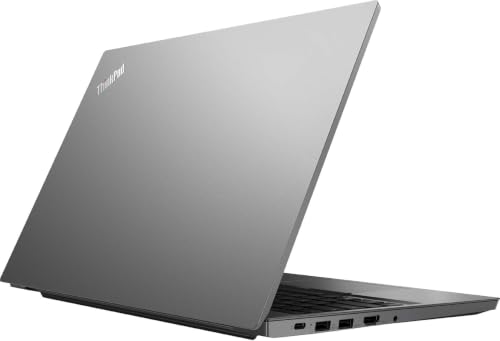
The ThinkPad E15 is the machine Lenovo aims at small businesses and budget-conscious departments that still want the ThinkPad name on the lid, and it earns that position honestly. It keeps the essentials the line is known for — the keyboard, the TrackPoint, a sober aluminium-and-polymer build that does not creak — while trimming the premium materials and some of the refinement of its expensive siblings. In its common configurations you get a recent Ryzen 5 or Core i5, 16GB of memory, and a 512GB drive, which is exactly the specification this guide keeps recommending, at a price that usually sits comfortably inside the budget with room to spare for a dock or a warranty extension.
Day to day, the E15 feels like a tool rather than a treat, and for a lot of buyers that is precisely the appeal. It boots fast, runs office workloads without drama, and the fan stays out of the way during calls. The 15.6-inch screen is serviceable rather than lovely: fine for documents and spreadsheets, a little muted if your work involves judging colour. The chassis is not the slimmest here, and you feel its size in a bag, but that size buys a full keyboard with a numeric pad and a port selection that does not force dongle life on you, including USB-C, USB-A, HDMI, and Ethernet on most configurations — a combination that is quietly disappearing elsewhere.
Ownership is where the E15 quietly shines. Because the E series is sold in enormous numbers to small firms, the internet is full of teardown videos, spare keyboards, and replacement batteries for it, and a competent local repair shop will have seen one before. The hinges use metal reinforcement that keeps the lid stable when you type on a train tray, the fan curve is conservative in the best way — it would rather run a little warm than whine during a call — and the firmware update tooling is the same mature stack the expensive ThinkPads use. None of this appears on a spec sheet, and all of it is the difference between a cheap laptop and an inexpensive one.
Strengths: The keyboard is the headline, with the deep, confident key feel ThinkPad buyers expect, plus the TrackPoint for those who use it. Upgradeability is better than most rivals here, with memory and storage that can grow later on many configurations. The port mix is genuinely practical for office and hotel-room work, and the machine’s fleet-friendly design means parts and documentation are easy to find years down the line.
One more ownership note in the E15’s favour: because it is a fleet staple, its out-of-box state is mercifully clean. There is little trial software to evict, the update tooling is the same mature Lenovo Vantage stack the flagships use, and a fresh machine can be working-ready within the hour. For a small business handing these to staff, that predictability is worth real money over a year of setups.
Trade-offs: The display is the compromise you accept for the price; brightness and colour are adequate, not generous. The build, while sturdy, uses more polymer than the premium ThinkPads and feels a step less dense. Battery life is mid-pack rather than class-leading, so heavy travellers will notice the gap against the most efficient picks here.
Who it suits: Small-business owners, office administrators, and anyone who wants ThinkPad ergonomics and a sensible spec without paying for the flagship lines. If your day is documents, email, and calls, and your desk has a wired network you would like to plug into, the E15 is the straightforward choice. To see the current configuration options and street pricing for the E15, check price on Amazon.
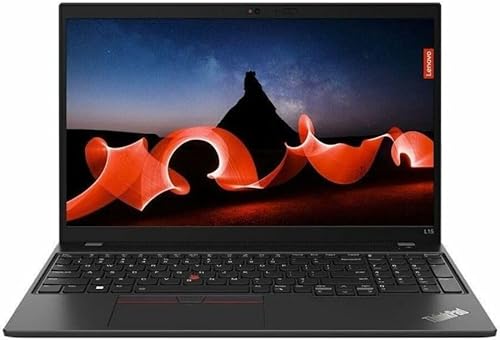
Lenovo ThinkPad L15: the fleet laptop with the longer view
Where the E15 is the budget doorway, the ThinkPad L15 is the machine IT departments buy by the hundred, and that heritage shapes everything about it. The L series is designed for deployment and long service: it is a little more configurable, a little more thoroughly tested, and built with manageability features that matter to organisations — and that quietly benefit individual buyers too, because a laptop designed to be serviced by the thousand tends to be easy to live with for years. Configurations at this budget mirror the E15’s sensible recipe of a modern mid-range processor, 16GB of memory, and a half-terabyte drive.
In hand, the L15 feels marginally more serious than its sibling. The chassis is reinforced, the hinge action is tight and even, and the whole machine gives the impression of having been designed by people who expect it to be opened, upgraded, and repaired rather than replaced. The keyboard matches the family standard, the screen options are similar in character — practical, matte, easy on the eyes for text — and the port selection is generous, with docking-friendly USB-C at the centre. It is not a glamorous machine, and it does not try to be; it tries to be the laptop you stop thinking about, which is a high compliment for a work tool.
There is also a configuration discipline to the L15 that suits careful buyers. The options list is long — screen variants, processor tiers, WWAN for those who need mobile data built in — and the sensible route is the same as elsewhere in this guide: mid-range processor, 16GB of memory, 512GB drive, and money held back for the warranty. Configured that way, the L15 is the pick most likely to still be in daily service, with its original owner still content, half a decade from now. It is the least exciting recommendation in this guide and, for a certain kind of buyer, the most satisfying one.
Strengths: Serviceability is the L15’s quiet superpower: memory, storage, and battery are all more accessible than on slimmer rivals, stretching the machine’s useful life. The build quality and hinge feel a step above the E series. It carries the full ThinkPad keyboard experience and a port layout that suits both a docked desk and a meeting-room dash. Fleet-grade security and manageability features come standard.
The L15 also handles the unglamorous logistics of ownership better than most. Its charger is a standard USB-C unit shared across the range, its BIOS settings can be locked down by an administrator, and its asset-friendly design — serial labels where a scanner can reach them, consistent screws, a battery that does not require removing the mainboard — reads like a love letter to whoever maintains it. Individual buyers benefit from the same choices every time something needs cleaning, upgrading, or fixing.
Trade-offs: It is among the heavier and thicker machines in this guide, and the styling is unapologetically corporate. The standard screen is workmanlike rather than bright, and the speakers are tuned for voices on calls, not for music. You are paying a small premium over the E15 for durability and serviceability that only pays off over years, not on day one.
Who it suits: Buyers who keep laptops for four or five years and value repairability, small IT teams standardising on one model, and anyone burned before by a sealed machine that died with its battery. If the E15 tempts you but you want the sturdier, longer-haul version of the same idea, compare the current L15 configurations and check price on Amazon.

Dell Latitude 5540: the polished all-rounder for hybrid desks
Dell’s Latitude line is the other great corporate standard, and the 5540 shows why. It is a 15.6-inch machine that balances the spreadsheet of business virtues — performance, ports, security, support — without letting any single one sag. In the configurations that fall inside this budget, you typically get a 13th-generation Intel Core i5, 16GB of memory, and a 512GB drive, wrapped in a chassis that feels a touch more refined than the ThinkPads here: tighter panel gaps, a slightly sleeker profile, and a keyboard deck that looks at home in a boardroom.
The Latitude’s party trick is how well it handles the hybrid pattern. Thunderbolt-capable USB-C ports mean a single-cable dock drives multiple monitors and charges the machine, the Wi-Fi is consistently strong, and the webcam and microphone array are tuned for the back-to-back call schedule that defines modern office work. On the move, it is slim enough to slip into a bag without complaint, and the battery comfortably handles a working day of mixed use. Dell’s support ecosystem is the other half of the proposition: next-business-day service options and a deep well of documentation and parts make downtime a smaller risk than with lesser-known brands.
Small details round out the Latitude’s case. The keyboard backlight is even and two-stage, the touchpad clicks with a muted confidence that suits quiet offices, and the chassis resists the palm-rest shine that makes lesser machines look tired within a year. Dell’s BIOS and driver discipline is also a genuine comfort for anyone who has ever lost a morning to a flaky update: firmware arrives tested, documented, and reversible. Put together, the 5540 is the pick that feels least like a compromise when a colleague with a flagship machine sits down next to you — it simply looks and behaves like it belongs in the same meeting.
Strengths: Excellent docking behaviour through its USB-C ports makes it the easiest machine here to build a desk around. The overall fit and finish feel a class up, and the keyboard and touchpad are both consistently good rather than merely acceptable. Security features are comprehensive, including strong sign-in options, and Dell’s business support options are among the best in the industry.
Trade-offs: Configurations matter enormously: some Latitude 5540 listings ship with 8GB of memory or a dimmer screen to hit a price, so read the exact spec rather than trusting the model name. The numeric keypad is absent on this design, which number-crunchers will miss. Premium support tiers cost extra, and the machine’s price can drift toward the top of the budget in better configurations.
Who it suits: Hybrid workers whose laptop splits its life between a docked desk and meetings, and buyers who value support quality as much as hardware. If your desk setup matters and you want the machine that integrates with it most gracefully, look at the exact Latitude 5540 configuration on offer and check price on Amazon.
Check price on Amazon: Dell Latitude 5540 (13th-gen Core i5, 16GB, 512GB)

HP EliteBook 650: the security-first professional
The EliteBook 650 is HP’s mainstream business flagship in this size, and its personality is defined by polish and protection. It is the machine aimed at professionals who carry client data, present to strangers, and work from places where a shoulder-surfer is a real concern. Within this budget you will find it with recent Intel Core or Ryzen processors, the recommended 16GB of memory, and a 512GB drive, in a silver chassis that looks deliberately understated — the laptop equivalent of a well-cut grey suit.
HP layers its security story deeper than most: firmware self-healing, a privacy screen option on some configurations, a camera shutter, and sign-in biometrics are all part of the pitch, and for once the pitch matches the product. The keyboard is excellent in a different way from the ThinkPad’s — lighter, crisper, a little less travel — and the touchpad is large and precise. The display options are a highlight too, with brighter panels available in the range than the base screens on several rivals, which makes the 650 a good pick for anyone whose screen time happens under harsh lighting. Battery life is solidly in the full-day camp.
Day-to-day performance matches the brief. The EliteBook 650 stays composed under the layered load of a professional day — mail, documents, a browser forest, two calls at once in the worst moments — and its cooling is tuned to keep fan noise out of meeting recordings. HP’s collaboration touches help too: the camera framing and presence-detection features on better configurations handle the walk-away-and-lock habit automatically, which is the sort of small automation that protects data without asking willpower of the user. It is a machine that assumes your work is worth taking seriously, and equips itself accordingly.
Strengths: The most complete security package in this guide, from firmware protection to privacy features for open-plan and public working. Build quality and design feel genuinely premium without leaving the budget. Keyboard, touchpad, webcam, and speakers are all tuned for the call-heavy professional day, and the brighter screen options suit bright environments.
It is also worth saying plainly who should skip the EliteBook: buyers whose work never leaves their own desk and whose data is their own. The security depth that defines this machine is insurance, and like all insurance it is wasted money if the risk is not yours. But for the professional whose laptop holds client files, financial records, or anything covered by a confidentiality clause, the 650’s protections are not decoration — they are the feature the whole machine is organised around, and they are implemented better here than anywhere else in this guide.
Trade-offs: The best configurations — brighter screen, more storage — push toward the ceiling of the budget, so the value depends on catching the right configuration. HP’s preinstalled software bundle is heavier than some rivals’, and worth ten minutes of cleanup on day one. Like the Latitude, it skips the numeric keypad that some finance users consider essential.
Who it suits: Consultants, client-facing professionals, and anyone handling sensitive information who wants security handled properly rather than bolted on. If your laptop is also your presentation machine and your data is worth protecting, review the current EliteBook 650 specification and check price on Amazon.
Check price on Amazon: HP EliteBook 650 (G10 class configurations, Intel Core / Ryzen, 16GB, 512GB)

HP ProBook 450: the small-business sweet spot
If the EliteBook is HP’s flagship, the ProBook 450 is its honest workhorse, built for growing businesses that need real business features without flagship pricing. It shares the family look and much of the DNA — aluminium touches in the build, a comfortable keyboard, a 15.6-inch matte screen — while trimming some of the EliteBook’s premium security layers and finish to land at a friendlier point in the budget. Typical configurations inside the thousand-dollar line offer a current Core i5 or Ryzen 5, 16GB of memory, and a 512GB drive, which is the whole checklist for a machine that will not feel slow in year three.
The ProBook’s appeal is how little it asks you to compromise on the everyday things. The keyboard is comfortable for long documents, the webcam and dual microphones handle calls respectably, the port mix covers the desk basics including USB-C with display output and HDMI, and the chassis opens for memory and storage upgrades on many configurations — a trait that extends its life exactly the way the ThinkPad L15’s serviceability does. It is a machine designed to be bought in small batches, handed to new hires, and forgotten about, which is what most small businesses actually need from a laptop.
What keeps the ProBook 450 honest is that HP did not cut the corners employees actually touch. The keyboard surround is firm, the display hinge opens with one hand without the base lifting, and the machine passes the same category of durability testing as its pricier sibling, just with less exotic materials in the shell. For a growing company, the standardisation argument is real too: one model, one charger type, one set of spare parts, and a spec that a new hire cannot reasonably complain about. That boring competence is precisely what a work laptop is for.
Strengths: Strong value for a genuine business line, with the essential security and manageability features intact. Upgradeable memory and storage on many configurations protect the purchase long-term. The keyboard, screen finish, and call hardware are all comfortably fit for full working days, and the design looks professional without trying to be a flagship.
Performance in the office sense deserves a plain word, because buyers sometimes worry that a workhorse line means a slow one. It does not. With the recommended specification, the ProBook opens heavy documents, juggles a browser load, and holds a video call with screen sharing without the fans announcing themselves, and it wakes from sleep the way a work machine should: instantly, every time, with your windows where you left them. That consistency, repeated hundreds of times a month, is the real performance metric of a business laptop.
Trade-offs: The build mixes materials more than the EliteBook’s, and close inspection reveals the cost engineering in the deck flex and hinge feel. The standard screen is adequate rather than bright. Some of the EliteBook’s deeper security features are absent, which matters only if your work specifically demands them.
Who it suits: Small-business owners buying one machine or five, office managers who need dependable fleet laptops on a sane budget, and individual buyers who want business-grade manners at the friendliest price in this guide. For the configuration that matches the spec described here, check price on Amazon.
Check price on Amazon: HP ProBook 450 (G10/G11 class configurations, Core i5 / Ryzen 5, 16GB, 512GB)

Lenovo IdeaPad Slim 5 (15-inch): the business-adjacent bargain
The IdeaPad Slim 5 is the one pick here that does not come from a business line, and it earns its place by being the machine many buyers actually end up happier with. Lenovo builds it on the same bones as its corporate machines — similar processors, similar screens, a keyboard clearly related to the ThinkPad’s — then trades fleet management features and some durability testing for a slimmer body, a nicer standard screen, and a price that often undercuts the true business laptops by a useful margin. In 15-inch form with a Ryzen 5 or Core i5, 16GB of memory, and a 512GB drive, it covers the working day just as capably as its business-badged rivals.
What you notice living with the Slim 5 is how pleasant it is as an object: the all-metal-feeling chassis is tidy, the screen is typically brighter and more colour-capable than the base panels on the business picks, and the whole machine feels designed for a person rather than a procurement department. The keyboard is a close cousin of the ThinkPad’s and genuinely good, the touchpad is generous, and battery life from the efficient configurations is among the best here. For a solo professional, freelancer, or remote worker who is their own IT department, the missing fleet features are features they would never have used.
The honest way to frame the Slim 5 is as a trade of institutional support for personal quality. You give up the fleet warranty options, the deepest security stack, and the guarantee of parts five years out; you gain the machine that is nicest to open every morning. For a business of one, that trade is usually correct. For a business of fifty, it is usually not, which is why this pick sits in the guide as the deliberate exception rather than the rule — the right answer for the self-employed professional, flagged clearly so a procurement-minded buyer does not mistake it for a fleet machine.
Strengths: The best screen-per-dollar in this guide and a slim, tidy build that travels better than the true business machines. Performance and battery life from the common Ryzen configurations are excellent for office work. The keyboard keeps the family feel, and the price often leaves budget over for a dock, a monitor, or a longer warranty from a third party.
Trade-offs: It is a consumer line: warranty service is mail-in rather than next-business-day, the security and manageability suite is thinner, and memory is soldered on many configurations, so buy the 16GB version or none. Port selection is good but leans on USB-C, and the chassis, while neat, is not tested to business durability standards.
Who it suits: Freelancers, remote employees buying their own machine, students entering professional work, and anyone whose priority is the nicest daily experience for the money rather than fleet features. If that sounds like your working life, look at the current IdeaPad Slim 5 15-inch configuration and check price on Amazon.
Check price on Amazon: Lenovo IdeaPad Slim 5 15-inch (Ryzen 5 / Core i5, 16GB, 512GB)
How the six compare at a glance
The table below sums up the character of each pick rather than drowning you in specifications, because at this level the specification sheets are close cousins and the personalities are what differ.
| Laptop | Character | Keyboard | Screen | Upgrade path | Best for |
|---|---|---|---|---|---|
| ThinkPad E15 | Budget business tool | Excellent, with numeric pad | Adequate, matte | Good on most configs | ThinkPad feel for the least money |
| ThinkPad L15 | Fleet-grade and serviceable | Excellent, with numeric pad | Adequate, matte | Best in class | Keeping one machine for years |
| Dell Latitude 5540 | Polished hybrid all-rounder | Very good, no numeric pad | Good, configuration-dependent | Moderate | Docked desks and support quality |
| HP EliteBook 650 | Security-first professional | Excellent, crisp action | Good, brighter options | Moderate | Client work and sensitive data |
| HP ProBook 450 | Small-business workhorse | Very good | Adequate, matte | Good on most configs | Growing teams on a budget |
| IdeaPad Slim 5 15 | Business-adjacent bargain | Very good | Best value panel here | Limited, buy 16GB | Solo professionals and travellers |
Read the table as a set of trade-offs, not a ranking. The ThinkPads trade screen sparkle for keyboards and serviceability. The Latitude trades a numeric pad for docking polish. The EliteBook spends its budget on security and finish, the ProBook saves money by trimming exactly those things, and the IdeaPad steps outside the business world to buy a better screen and slimmer body with the change. Any of the six will run a working day without complaint; the right one is the one whose compromises land where you will never notice them.
One pattern worth noticing in the table is how little the six disagree about fundamentals. All of them offer the same sensible core specification, all of them charge over USB-C, all of them will drive a desk of monitors, and all of them come from makers with real support organisations behind them. That convergence is what a mature product category looks like, and it is good news for buyers: it means the decision can be made on feel, fit, and the handful of trade-offs above, rather than on fear of choosing a genuinely bad machine. There is no trap door in this list.
A short decision path
If the six-way choice feels like a lot, it collapses quickly once you answer two questions honestly. The first is where the laptop will spend its life. Mostly at one desk with a dock and monitors? Then docking behaviour and serviceability dominate, and the Latitude 5540 and ThinkPad L15 move to the front — the Latitude for polish, the L15 for a machine you can keep alive with a screwdriver and spare parts. Mostly carried — trains, client offices, home-to-office with no fixed desk? Then weight, battery, and screen quality dominate, and the IdeaPad Slim 5 and EliteBook 650 become the natural finalists.
The second question is whose data the laptop carries. If it is your own work and nothing sensitive, the security depth of the EliteBook is a luxury you can decline in favour of the ProBook’s value or the E15’s keyboard. If it is client data, regulated data, or anything you have promised to protect, the calculation inverts: the EliteBook’s firmware protections and privacy features stop being garnish and become the reason to buy, and the modest premium over the ProBook is the cheapest compliance you will ever purchase.
And if both questions leave you torn between the two ThinkPads, the tiebreaker is time horizon. The E15 is the better buy for a three-year plan; the L15 is the better buy for a five-year plan, because its serviceability only converts into money saved in years four and five. There is no wrong answer among the six — there is only the answer that matches the desk, the data, and the years you actually have in mind.
Getting the desk setup right
A laptop in this class is rarely the whole purchase, and planning the desk around it from the start saves both money and daily friction. The centre of a good setup is a USB-C dock matched to your monitors: one cable on the desk that carries display signals, your keyboard and mouse, wired networking if you use it, and charging power back into the laptop. Arrive, plug in one cable, and the machine becomes a desktop; leave, unplug it, and nothing needs re-pairing or re-arranging. Every pick in this guide can live this way, though the Latitude and the ThinkPads, with their fleet-dock heritage, do it most seamlessly.
Monitor choice matters more than most buyers expect. A single large external display at eye level will do more for your posture and your patience than any laptop upgrade, and it makes the built-in screen’s quality less critical — one reason dock-bound buyers can happily choose a pick whose panel is merely adequate. If you run two externals, confirm the dock and the laptop’s ports between them can drive both at their native resolution; this is the one specification worth checking twice before money changes hands, because port capabilities genuinely differ between configurations of the same model.
Finally, budget a little for the unglamorous extras at the same time as the laptop: a spare USB-C charger for the bag, so the desk charger never moves; a laptop stand or monitor arm if the machine will spend its days open beside a display; and the warranty extension discussed above, which is cheapest when bought with the machine. None of these is exciting, and together they are the difference between a laptop you own and a workstation you rely on.
Mistakes to avoid when buying in this class
The first mistake is buying the model name instead of the configuration. Every line in this guide is sold in versions that range from excellent to barely adequate, and the cheap versions cut exactly the things this guide warns about: memory drops to 8GB, the screen dims, the drive shrinks. Two laptops with the same name on the lid can be different machines in daily use. Always read the full specification of the exact unit in the listing — processor, memory, storage, screen brightness — and walk away from any listing that will not tell you all four.
The second mistake is spending the whole budget on the laptop and nothing on the ecosystem around it. A machine at the very top of the budget with no dock, no spare charger, and a one-year warranty is often a worse three-year purchase than a machine a step below it with those things covered. The budget in this guide’s title is best treated as a ceiling for the laptop itself, with a modest separate allowance for the desk kit that makes it productive.
The third mistake is optimising for the wrong day. Buyers imagine the presentation, the trip, the impressive moment; the laptop actually lives through thousands of ordinary mornings of mail, documents, and calls. Choose for the ordinary day — the keyboard, the screen you stare at, the battery that gets you to the evening — and the impressive moments will take care of themselves, because a machine that is pleasant every day is never the wrong machine on the big day either.
A note on refurbished and previous-generation machines
Anyone shopping this class seriously will notice the other road to value: a refurbished or previous-generation flagship. A two-year-old top-tier ThinkPad, Latitude, or EliteBook, bought from the manufacturer’s own refurbished outlet with a warranty, can offer a better screen, a better chassis, and more memory than a new machine at the same money. The trade is battery wear, a shorter support horizon, and specifications that need checking model by model — which is why this guide sticks to new machines with predictable configurations. But if you are a confident spec-reader and the manufacturer’s outlet has stock, that road is legitimate, and the same rules apply: 16GB of memory, a 512GB drive, a bright matte screen, and a warranty in writing.
The same logic explains why this guide names model lines rather than pretending one frozen configuration exists forever. Business laptops are sold in waves of configurations that change through the year, and the right way to use these reviews is to find the current configuration of the named model that matches the specification described — mid-range processor, 16GB, 512GB — and judge its price against the budget on the day you buy. The personalities described here stay true across those waves; the exact sticker does not, which is why every pick ends with a pointer to check the current listing rather than a frozen figure.
The fourth mistake is ignoring the return window as a testing tool. A keyboard, a screen, and a touchpad cannot be judged from a specification sheet, and the first week with a new machine tells you more than a month of research. Buy from a seller with a sane returns policy, set the machine up exactly as you will use it — your accounts, your dock, your heaviest ordinary day — and pay attention to the small irritations, because small irritations at week one become the reasons a laptop gets replaced at year two. Every pick in this guide will suit somebody; the return window exists to confirm, cheaply, that the one on your desk suits you.
Frequently asked questions
Is 16GB of RAM really necessary for office work?
For a machine you intend to keep three or four years, yes. Today’s office load is not a word processor; it is a browser with dozens of tabs, a chat client, a video-conferencing app, cloud-sync software, and security tools all running at once, and that combination already presses against 8GB. With 16GB the machine stays responsive when a call, a large spreadsheet, and a screen share collide, and it keeps that responsiveness as software grows heavier. Every pick in this guide is recommended in its 16GB configuration for exactly this reason.
Can these laptops run two external monitors at a desk?
Yes, with the right connection path. Machines with Thunderbolt or full-function USB-C can drive two external displays through a single docking station, and the others can typically run one display over USB-C and another over HDMI, or use a dock with its own display hardware. Check the exact port specification of the configuration you are buying, because port capabilities vary within a model line, and buy the dock at the same time so the whole setup is tested together during the return window.
Should I choose Intel or AMD at this price?
Either, and the difference matters less than the configuration around it. Recent AMD Ryzen 5 configurations often deliver the best battery life and strong multi-core performance for the money, while Intel configurations — especially those with Thunderbolt — offer the broadest docking compatibility and sometimes better single-core responsiveness. Choose the machine whose keyboard, screen, ports, and price suit you, in the 16GB and 512GB specification, and let the processor be whatever that machine comes with.
How long should a laptop in this class last?
Three to five years of full-time work is a fair expectation, and the serviceable picks here — the ThinkPad L15 and ProBook 450 especially — can stretch further with a battery replacement and a memory or storage upgrade midway through life. The things that usually end a business laptop’s career are a worn battery, a filled drive, and software weight, in that order, and all three are addressable on the more open designs. Buying the 16GB configuration on day one is the cheapest longevity insurance available.
Can these laptops handle photo editing or light creative work?
Capably, with one caveat about colour. The processors and memory in the recommended configurations handle photo editing, presentation design, and light illustration without strain, and integrated graphics in current chips are stronger than their reputation suggests. The caveat is the screen: most panels in this class cover a modest share of the colour spectrum, which is fine for documents and web work but limiting if you are judging print colour. Creative-leaning buyers should favour the IdeaPad Slim 5’s better panel or plan to edit on a calibrated external monitor at the desk.
Is it worth extending the warranty beyond the first year?
For a machine your income depends on, usually yes. The jump from a one-year mail-in warranty to two or three years with faster turnaround is typically a modest fraction of the purchase price when bought with the laptop, and a single screen or mainboard failure outside warranty can cost more than the extension would have. It matters less if you have a spare machine to fall back on, and more if this laptop is the only thing standing between you and a missed deadline.
Buy the configuration with 16GB of memory and the keyboard your hands like best, and any of these six will quietly get out of the way and let you work for years.