kajuandouglas.com is reader-supported. When you buy through links on our site, we may earn an affiliate commission.
Where to Buy Streaming Cameras, and Why the Signal Chain Matters More Than the Sensor
Anyone hunting for the best cameras for live video streaming quickly discovers an awkward truth: viewers never see your sensor. They see whatever survives the journey through an HDMI cable, a capture card, an encoder and a platform’s compression, in that order. A modest camera feeding a clean, stable signal will look better on a viewer’s phone than a flagship whose output stutters, crops unexpectedly or shuts down mid-broadcast to protect itself from heat.
Where to buy: every linked name in this guide leads to that model’s Amazon listing, where you can check current availability and the exact kit contents before ordering. Buy the camera body only after you have priced the unglamorous parts of the chain — the capture card, the dummy battery, the cable rated for your run length — because a stream is a system, and systems fail at their cheapest forgotten link.
Two families of camera compete for a streamer’s desk. Dedicated webcams and streaming cameras connect over USB and appear in OBS Studio or Streamlabs as a source within a minute of unboxing. Mirrorless cameras take the longer road — HDMI out, capture card, USB into the computer — and repay that plumbing with shallower depth of field, interchangeable lenses and an image that looks filmed rather than conferenced.
Latency deserves a paragraph of its own, because it shapes how a broadcast feels. A USB webcam typically reaches your software a fraction of a second after the moment happens. An HDMI chain adds its own small delays at the capture card and again in encoding. None of this matters for a lecture; all of it matters when you are answering chat questions about something viewers saw several seconds ago, so this guide notes where each pick sits on that delay spectrum.
Heat is the other silent broadcaster-killer. Cameras designed for stills may treat a two-hour continuous video feed as an edge case, while streaming-first models are built to run all evening. Each detailed review below states plainly how its pick behaves across a long session, because a camera that politely powers down during your finale is not a streaming camera at all, whatever its badge says.
One more framing decision before the picks: this guide separates cameras that are the show from cameras that are part of the show. A webcam is the whole video department — lens, sensor and delivery in one USB object. A mirrorless body is the front end of a small television station you assemble yourself. Neither philosophy is superior; they suit different evenings, different rooms and different tolerances for cables, and pretending otherwise is how streamers end up owning the wrong excellence.
Key Takeaways
The short version for streamers who would rather be rehearsing:
- Signal chain first: clean HDMI output or a solid USB feed beats raw sensor size every time it reaches a viewer.
- The Elgato Facecam is the purist’s webcam — fixed focus, no microphone, and an image tuned for one job.
- OBSBOT’s Tiny 2 follows a moving presenter, freeing solo hosts from sitting statue-still.
- Sony’s ZV-E10 II gives a stream that unmistakably cinematic blur behind the presenter.
- Canon’s EOS R50 is the friendliest first mirrorless for a channel that also records edited videos.
- Run any camera on mains power for long sessions; batteries are for rehearsals, not broadcasts.
In this guide
Quick Picks
Six ways to put a face on a broadcast, from a sixty-second USB setup to a full mirrorless rig.
| Camera | Badge | Why it earns its place here |
|---|---|---|
| Elgato Facecam | Best Dedicated Streaming Webcam | A fixed-focus streaming specialist whose software control suits a permanent desk setup. |
| OBSBOT Tiny 2 | Best Tracking Camera for Solo Presenters | A tiny gimbal head that pans and tilts to keep a standing host framed. |
| Sony ZV-E10 II | Best Mirrorless Stream Image | Interchangeable lenses and a large sensor deliver the blurred-background look audiences associate with produced shows. |
| Logitech Brio 4K | Best Plug-and-Play 4K Webcam | A familiar business webcam with a wide field of view for two-person frames. |
| Canon EOS R50 | Best First Mirrorless for Streamers | Friendly menus, lovely colour and clean output for channels mixing live shows with recorded pieces. |
| Logitech StreamCam | Best for Vertical and Short-Form Creators | A compact camera that rotates for portrait framing and suits a second-angle role. |
How Did We Judge the Best Cameras for Live Video Streaming?
Recorded video forgives; live video itemises. An editor can rescue a soft take, warm up a cold white balance or cut away from a focus hunt, but a broadcast shows every one of those moments to the audience in real time. Our first test was therefore stability: does the camera hold exposure when a cloud crosses the window, hold focus when the host leans toward the lens, and hold its signal for three unbroken hours?
Second came the output itself. We favoured cameras with a genuinely clean HDMI feed — no focus boxes, no battery icons, no menu artefacts baked into the picture — or, for USB models, a feed that streaming software recognises instantly without a driver ritual. A camera that needs a workaround before every show will eventually miss a show.
Audio strategy counted too, though not in the way spec sheets suggest. Most serious streamers run a separate USB or XLR microphone, so a camera’s built-in microphone mattered less than whether the camera stays out of the audio chain’s way — or, in the mirrorless cases, accepts an external microphone cleanly for recorded work between broadcasts.
Finally, we weighed the desk reality: mount options, cable exits that do not fight the monitor arm, software that remembers settings between sessions. Streaming is a repeated performance, and the best camera is partly the one whose setup ritual shrinks to flipping two switches and pressing Go Live.
We also listened for the unglamorous sounds: fan noise near a microphone, the click of a mount flexing, the hum a cheap cable introduces. A streaming camera lives inches from an audio chain that reveals everything, and two otherwise equal pictures separate quickly once the room goes quiet and the host drops to a conversational whisper during a story segment.
What Does Clean HDMI Actually Mean, and Why Do Streamers Obsess Over It?
Clean HDMI means the camera sends a picture and only a picture. On a stills camera never intended for broadcast, the HDMI feed often mirrors the rear screen, complete with exposure readouts, focus brackets and a flashing low-battery warning — charming in a viewfinder, ruinous on air. Cameras with a proper clean output, or a menu setting that strips the overlays away, hand the capture card a frame that looks like a finished programme.
Resolution behaviour hides inside this topic as well. Some bodies output a lower resolution over HDMI than they record internally, or crop the frame when certain frame rates are selected. Before buying any mirrorless camera for streaming, confirm the exact output specification for the frame rate you intend to broadcast, because the number printed largest on the box usually describes internal recording, not the feed your audience receives.
How Does a Capture Card Change Delay, Quality and Your Evening?
A capture card is a translator: HDMI enters one side, a USB video device leaves the other, and your streaming software sees a webcam. Good translators are invisible. The picture arrives without tearing, the colours survive, and the added delay stays small enough that a separate microphone can be nudged into sync inside OBS with a fixed offset you set once and forget.
Where streamers get bitten is assuming the card is the whole story. The computer still encodes the final picture, the platform still recompresses it, and a weak upload connection will smear a beautiful camera feed into blocks regardless. Spend on the chain in order — light, camera, card, connection — and test the complete path with a private unlisted stream before blaming any single component for a soft broadcast.
Which Cameras Earn a Place on a Live Desk? The Six Picks in Detail
Ordered by workflow rather than worth: pure webcams first, then the mirrorless bodies that reward a bigger setup.

Elgato Facecam — Best Dedicated Streaming Webcam
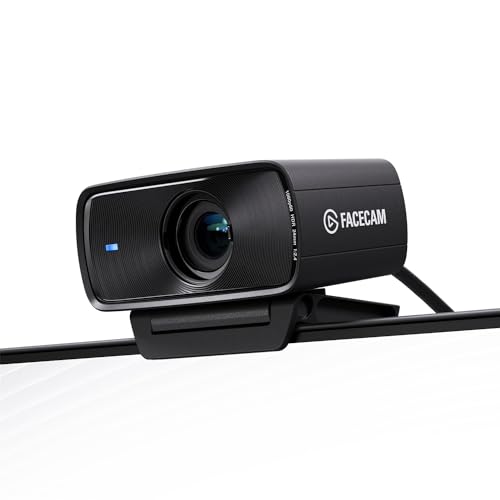
Elgato built the Facecam by deleting things. There is no microphone, because streamers own better ones. There is no autofocus, because a fixed-focus lens set for desk distance never hunts while you talk. What remains is a USB camera engineered around a single distance — roughly an arm’s length — with software that hands you manual control over exposure, white balance and field of view, then remembers those choices between sessions.
On air, that stubbornness becomes a virtue. Sit down, and the picture is exactly the picture you tuned last Tuesday: same framing, same skin tone, same background brightness. Guest hosts on lesser webcams visibly pulse as automatic exposure chases window light; the Facecam, locked down, simply holds. For a news-style show, a tutoring channel or a nightly gaming stream, that repeatability is worth more than a resolution headline.
Its image leans honest rather than flattering. The lens is sharp at desk range and the sensor handles a dim room respectably, though it will not manufacture the creamy background separation of a mirrorless camera — everything from your face to your bookshelf stays recognisably in focus. Streamers who treat the background as part of the set design often prefer exactly that honesty.
Practical notes from the desk: the camera wants a USB connection straight into the computer rather than through an elderly hub, and its companion software is where the real product lives, so budget ten minutes to dial in your room’s lighting once. After that evening, the Facecam asks for nothing. It is the closest thing streaming has to a studio light switch: unglamorous, instant, identical every night.
Consider who else benefits from its discipline: the recurring guest. A Facecam pointed at a co-host’s chair produces the same exposure for a spouse, a bandmate or a rotating panel of friends, because nothing about its setup depends on who sat down. Shows built around a household or a small team’s shared desk quietly standardise on it for that reason. It is also unusually honest about its one-room life — moved to a living-room console setup it still performs, but its soul is the desk it was tuned on, and streamers who respect that habitat get years of uneventful service from it.
Long-term owners report an unfashionable virtue: nothing about it drifts. Software updates arrive occasionally, the settings hold, the mount stays tight, and the camera fades into the furniture of the channel — which is precisely what infrastructure should do. Streamers cycling through fashionable gear every season eventually notice that their most reliable colleague is the camera they stopped thinking about in March. If your ambitions involve production rather than novelty, that invisibility is the Facecam’s final and best specification.
- Type: fixed-focus USB streaming webcam
- Focus: fixed at desk distance, no hunting
- Microphone: none — pair with your own
- Control: companion software with saved settings
- Role: the set-and-forget desk camera
Strengths
- Identical framing every single session.
- No autofocus pulsing on air.
- Software settings persist between broadcasts.
Trade-offs
- Needs a separate microphone, always.
- Background stays in focus throughout.
- Desk distance is its one habitat.
Best for: solo streamers with a permanent desk, a good microphone and a set they like showing.
Not suited for: presenters who roam, or anyone wanting a blurred background without lighting tricks.

OBSBOT Tiny 2 — Best Tracking Camera for Solo Presenters
The Tiny 2 is a camera on a small motorised gimbal, and the gimbal changes the genre of a solo broadcast. Stand up to demonstrate a product, walk to a whiteboard, hold a guitar at arm’s length — the head pans and tilts to keep you framed, following with a smoothness that feels like an invisible camera operator rather than a robot. Hand gestures raise, lower and reframe the shot without touching the keyboard.
Teachers and fitness instructors feel the benefit first. A yoga host cannot return to a desk between poses to check framing; a repair tutor soldering at a bench cannot spare a hand for a mouse. The Tiny 2’s tracking, driven by onboard subject recognition, holds a person in frame through movements that would walk straight out of a fixed webcam’s view, and its voice control covers the moments when both hands are occupied.
Picture quality sits comfortably in the premium webcam class: a larger sensor than most USB rivals, credible behaviour in ordinary room light, and a 4K feed that gives editing and reframing room when the same camera doubles for recorded lessons. Autofocus is quick and, more importantly for a moving subject, decisive — it commits to a face and stays there instead of breathing in and out.
The honest cautions concern choreography. Tracking follows the person it has locked onto, so a second person entering frame can confuse a handover; busy backgrounds occasionally tempt it mid-demonstration. Learn its gesture vocabulary during rehearsal, light the room evenly, and the Tiny 2 becomes the rare gadget that genuinely removes a job from a solo creator’s evening instead of adding a new one.
Battery-free operation is worth underlining for long teaching days: powered over its USB connection, the Tiny 2 does not die mid-workshop the way a camera on cells eventually does. Its carrying case also earns a sentence rarely given to accessories — presenters who teach in hired rooms genuinely transport this camera weekly, and the gimbal arriving unbent, show after show, is a design feature. For hybrid workers it doubles as the meeting camera that makes a home office look directed rather than merely attended, which does no harm to a presenter’s professional weather.
Multi-camera producers find a second use for the Tiny 2 that its makers underplay: the roaming cutaway. While a fixed main camera holds the host’s desk, the Tiny 2 sits across the room tracking the same person, so standing segments cut between two genuine angles instead of a digital crop pretending to be one. The edit gains the rhythm of a staffed studio from a device that fits in a coat pocket between venues. For lecturers recording in several rooms a week, that portable second angle may justify the purchase before the tracking itself is even switched on.
- Type: gimbal-mounted USB camera
- Movement: motorised pan and tilt tracking
- Control: gestures and voice commands
- Feed: high-resolution USB video
- Role: the roaming solo presenter
Strengths
- Follows a standing, moving host.
- Hands-free reframing mid-lesson.
- Strong autofocus on faces.
Trade-offs
- Tracking can hesitate with two people.
- Costs more than fixed webcams.
- Gestures need rehearsal to feel natural.
Best for: teachers, fitness hosts, demonstrators and anyone who streams standing up.
Not suited for: static desk shows where a fixed frame never changes.

Sony ZV-E10 II — Best Mirrorless Stream Image
Mount a bright prime lens on the ZV-E10 II, feed its clean HDMI output through a capture card, and the broadcast stops looking like a video call. The APS-C sensor is far larger than any webcam’s, so backgrounds melt into a soft wash, skin renders with genuine texture, and a modest desk lamp becomes a lighting design. Viewers may not name the difference, but they stay longer in streams that look produced.
Sony built this line for creators, and the streaming-relevant details show it. USB streaming is available as a simpler route for days when the capture card stays in a drawer, the autofocus tracks eyes with the reliability Sony’s system is known for, and the colour science flatters faces without turning them orange. A product-showcase mode, inherited from the vlogging line, shifts focus to an item held toward the lens — a small mercy for review channels.
Heat behaviour separates it from older mirrorless bodies that treated long video as an insult. Configured sensibly and powered from the mains through a dummy battery or USB power delivery, it runs extended sessions that would have troubled its ancestors, though a streamer planning six-hour marathons should still test their exact room temperature and frame rate combination before a launch night.
Budget truthfully around it. The body is the beginning: a lens, the capture card, a mount that holds a real camera’s weight, cables and power all join the invoice. What the total buys is a double life — the same camera records superb edited videos between broadcasts — and for a channel growing in both directions, that shared investment is the ZV-E10 II’s deepest argument.
A word for the audio path, since this body often anchors a whole channel: its microphone input and headphone monitoring make it a legitimate recording hub between broadcasts, so interviews captured on a Tuesday carry the same colour and lens character as Friday’s live show. Channels live or die on that kind of visual consistency. Owners should also explore its picture profiles gradually rather than on premiere night — the flatter profiles reward colour work in editing, while the standard look is the safer live companion until the workflow around it matures.
Second-hand thinking is worth applying early with this body: the E-mount’s enormous lens ecosystem means the prime you buy for streaming holds value and company for years, and a used market exists for nearly every focal length a creator might grow into. Streamers should also decide their colour position deliberately in month one — a consistent, slightly warm live look becomes part of a channel’s identity faster than any logo — and the Sony’s profiles make that identity easy to keep across both live and recorded work without a colourist’s intervention.
- Type: APS-C interchangeable-lens mirrorless
- Output: clean HDMI plus USB streaming
- Focus: eye-tracking autofocus
- Audio: microphone input for recorded work
- Role: the produced-look channel camera
Strengths
- unmistakable step up in image depth.
- Eye autofocus you can trust live.
- Doubles as a serious recording camera.
Trade-offs
- Needs capture card for best results.
- Lens and power costs add up.
- Setup ritual longer than a webcam’s.
Best for: creators whose stream is their shop window and who also publish edited videos.
Not suited for: anyone wanting to be live five minutes after unboxing.

Logitech Brio 4K — Best Plug-and-Play 4K Webcam
The Brio’s streaming career began in boardrooms, and that heritage is its charm: it is the camera least likely to surprise you. Plug it into a computer and every conferencing and streaming application recognises it instantly. Its 4K sensor feeds a feed that broadcasting software can crop into — a digital zoom that reframes a wide desk shot into a closer portrait without a plastic-looking upscale.
Field of view is the Brio’s party piece. Settings step between a tight head-and-shoulders framing, a medium shot, and a wide angle that comfortably holds two people on a sofa or a host plus a demonstration table. Podcast duos and co-hosted shows lean on that width constantly, and its autofocus, while not in the mirrorless league, keeps a seated presenter sharp through normal leaning and gesturing.
Low light is where expectations need managing. Like most small-sensor webcams, the Brio prefers a lit room; give it a decent key light and its picture is crisp and colour-accurate, starve it and the image softens as gain climbs. Streamers upgrading from a laptop’s built-in camera will still see a transformation, because the laptop camera suffers the same physics from a worse position with a smaller lens.
It also travels well between roles. The same Brio that streams on Saturday presents to clients on Monday, mounts on a laptop lid or a tripod with equal indifference, and asks for no companion software to do its basic job. In a guide full of specialists, the Brio is the competent generalist — rarely the most exciting frame on the page, frequently the most sensible purchase on it.
Windows Hello sign-in is an unexpected municipal-grade convenience in a creator guide, yet streamers who share a household computer mention it constantly: the Brio recognises its owner, unlocks the machine, and the show’s software stack opens on the right accounts. Small dignities accumulate across a year of broadcasts. Its privacy shutter, a simple sliding cover, similarly ends the low-grade anxiety of a lens pointed at a bedroom studio during the other twenty-two hours of the day — a feature whose value nobody appreciates until they have lived without it.
A practical streaming pattern the Brio enables better than most: the confidence angle. Set it wide on a shelf behind and above the main camera’s position and it becomes the room shot for starting-soon screens, stretch breaks and the moment a pet or child inevitably joins the broadcast. Shows feel produced when the wide shot exists, and the Brio’s width plus its instant recognition by every application make it the path of least resistance to that production value. It is the rare purchase that improves scenes it was not bought for.
- Type: 4K USB webcam
- Framing: adjustable field of view
- Fit: monitor, laptop or tripod mount
- Compatibility: recognised everywhere instantly
- Role: the two-person and work-and-play camera
Strengths
- Wide shot holds two presenters.
- Digital crop from a 4K sensor.
- Zero-friction setup in any app.
Trade-offs
- Wants good light to shine.
- Autofocus is competent, not cinematic.
- No background blur without software.
Best for: co-hosted shows, podcast video, and streamers who also present at work.
Not suited for: dark-room streamers chasing a filmic look on a webcam budget.

Canon EOS R50 — Best First Mirrorless for Streamers
Canon’s R50 is where many streamers’ mirrorless journey starts, because Canon understood that a first real camera must not feel like an examination. The menus explain themselves, the guided interfaces teach as they go, and the colour — Canon’s long-standing gift — makes faces look healthy under the mixed lighting of a real bedroom studio. Its clean HDMI output feeds a capture card properly, so the friendly body is not a toy behind the scenes.
For a channel mixing formats, the R50’s balance is shrewd. Live shows get the big-sensor look with a kit or prime lens; between broadcasts, the same body records tutorials and vlogs with a fully articulating screen that flips to face the presenter — the single feature solo creators use more than any other. Autofocus borrowed from Canon’s pricier bodies tracks eyes and products calmly and surely.
Streaming stamina deserves a straight answer. The R50 handles typical show lengths well when powered continuously and given airflow, but it is a compact body, and compact bodies shed heat slowly. Streamers planning very long sessions in warm rooms should test honestly, choose frame rates sensibly, and treat a small USB fan as production equipment rather than paranoia.
Lens economics favour the patient. Canon’s RF mount offers everything from an inexpensive bright prime — the classic first upgrade, transforming a stream’s background separation overnight — to serious glass the R50 will grow into. Buy the body for tonight’s broadcast, and the mount quietly keeps next year’s ambitions affordable. Few first cameras manage to be both welcoming now and worth keeping later; the R50 is one.
The R50’s wireless life deserves a paragraph for streamers who hate cables on principle: Canon’s ecosystem can move clips to a phone for quick vertical edits in the corridor after a show, feeding the short-form engine while the main recording uploads. It is not a streaming path — the broadcast still wants the HDMI chain — but as a channel’s connective tissue it saves real evenings. New owners should also know the kit lens is a rehearsal instrument: perfectly serviceable while the channel finds its format, and the honest signal to upgrade is the night you start lighting for a lens you do not yet own.
Teachers of streaming — the people running community media courses and school clubs — reach for the R50 for a reason worth copying: its guided modes let a nervous beginner produce a good-looking broadcast on day one, while every automatic behaviour can be peeled back manually as confidence grows, on the same body, without a trade-in ceremony. A camera that teaches is worth more to a developing channel than a camera that merely performs, and the R50’s resale resilience means the lesson, if it ends, refunds a respectable share of its fee.
- Type: APS-C interchangeable-lens mirrorless
- Output: clean HDMI for capture cards
- Screen: fully articulating, faces the host
- Focus: eye and product tracking
- Role: the welcoming first real camera
Strengths
- Menus a beginner can enjoy.
- Canon colour flatters every face.
- Flip screen serves solo recording.
Trade-offs
- Compact body, modest heat headroom.
- Best results need a lens upgrade.
- Capture chain adds desk cabling.
Best for: new mirrorless owners building a mixed live-and-recorded channel.
Not suited for: marathon streamers in hot rooms without cooling plans.

Logitech StreamCam — Best for Vertical and Short-Form Creators
The StreamCam was designed by people who noticed creators filming in two orientations at once. Its mount rotates, letting the camera shoot proper vertical video for short-form platforms without cropping a horizontal frame into mush, then swing back to widescreen for the evening’s live show. For a streamer whose growth happens in clips, that physical honesty about modern formats is worth real money.
Picture character suits its mission: a clean 1080p feed with autofocus that keeps a seated creator sharp, and exposure behaviour tuned for faces in home lighting. It will not out-resolve the 4K options in this guide, and on a large monitor the difference shows; on the phones where its audience actually watches, the StreamCam’s picture is bright, stable and entirely professional.
Its second career is as a second camera. Established streamers mount one high for a desk or hands view — keyboard, sketchbook, workbench — while the main camera holds their face. The StreamCam’s compact body and standard mount make that overhead rig easy, and its consistent colour with other Logitech cameras keeps the two angles from arguing with each other when you cut between them.
Connection is its one dated note: it is a USB-C camera, and older desktops may need an adapter that actually carries data properly. Check the port before the premiere. Beyond that footnote, the StreamCam remains the thoughtful choice for creators whose live show is only half their output — the half that feeds the clips that feed the channel.
StreamCam owners develop one habit worth copying whatever camera you buy: they mark positions. A strip of tape for the monitor mount’s angle, a note of the software zoom setting, a photograph of the desk as the audience sees it. Because the StreamCam rotates between orientations, its owners learned early that a setup you can rebuild in ninety seconds is a feature no specification sheet lists. Streamers running it as an overhead second camera should light the desk surface separately — hands and objects need their own small source, or the face light leaves the work area in theatrical gloom.
Audio is the StreamCam’s quiet footnote: its built-in microphones are serviceable for a second-angle camera whose sound is never the programme’s main feed, and for casual clips recorded at the desk they save the ceremony of rigging the broadcast microphone. Judge them as a convenience, not a solution. The camera’s real longevity trick is simpler — it has survived several fashion cycles in streaming because its two promises, a clean face picture and honest vertical video, turned out to be the two things its owners needed every single week.
- Type: compact USB-C webcam
- Orientation: rotates for vertical video
- Feed: full HD tuned for faces
- Mount: monitor or tripod, overhead-friendly
- Role: the clips-and-live double agent
Strengths
- True vertical framing for clips.
- Ideal second camera overhead.
- Colour matches Logitech main cameras.
Trade-offs
- 1080p ceiling in a 4K world.
- USB-C only; adapters may be needed.
- Small sensor wants decent light.
Best for: short-form creators, dual-camera desks and vertical-first channels.
Not suited for: streamers wanting one camera to do 4K close-ups.
How Do the Six Compare When the Broadcast Starts?
Read this table as a routing guide: your format and your room decide the row, not a league position.
| Camera | Connection route | Standout trait | Watch out for |
|---|---|---|---|
| Elgato Facecam | Direct USB | Locked, repeatable desk picture | No microphone built in |
| OBSBOT Tiny 2 | Direct USB | Motorised tracking of a moving host | Learns gestures best in rehearsal |
| Sony ZV-E10 II | HDMI + capture card or USB | Biggest, most filmic image here | Longest setup chain |
| Logitech Brio 4K | Direct USB | Wide framing and digital crop | Hungry for good lighting |
| Canon EOS R50 | HDMI + capture card | Friendly body, beautiful colour | Watch heat on marathon shows |
| Logitech StreamCam | Direct USB-C | Rotates for vertical clips | Full HD is its ceiling |
What Frame Rate Should a Live Show Actually Use?
Thirty frames per second is the talk-show standard for a reason: it matches how faces and gestures read on screens, halves the bandwidth and encoding burden of sixty, and leaves computer headroom for games, overlays and the browser tab somebody forgot to close. Talking heads, teaching, interviews and music all live comfortably at thirty, and viewers will not write comments mourning the missing frames.
Sixty earns its keep when the picture itself moves fast — gameplay, sport, dance, a demonstrator’s hands. The cost arrives as encoder load and platform bitrate, so the honest test is a private stream at your real settings watched on a phone over mobile data. If that test looks clean, broadcast boldly; if it blocks and smears, thirty frames delivered well will always look more professional than sixty delivered badly.
How Do You Keep a Mirrorless Stream Running for Hours Without Drama?
Heat management is a checklist, not a mystery. Power the camera continuously so a hot battery is not adding its warmth to the body. Open the screen away from the body so it stops insulating the rear panel. Choose the frame rate the show needs rather than the maximum the menu offers, and give the camera moving air — a small, silent USB fan aimed across the body is standard equipment in warm rooms, not an admission of defeat.
Then rehearse at full length. A camera that survives a forty-minute test tells you nothing about hour three of a charity marathon, and the failure you meet in rehearsal is a story; the failure you meet on air is a reputation. Streamers running the ZV-E10 II or R50 for long events build the rehearsal into the production calendar the way theatres build a dress rehearsal into theirs — because that is exactly what it is.
Which Microphone Decisions Belong in a Camera Guide?
Only one, but it is decisive: the camera should never be your audio plan. Even the mirrorless picks here, with their microphone inputs, are picture devices whose audio role is recording convenience. On a live show, a dedicated USB or XLR microphone placed close to the mouth will outperform every camera-mounted option, because microphones obey distance more faithfully than any other rule in broadcasting.
Placement beats price within reason. A modest microphone eight inches from the speaker, slightly off-axis to soften plosives, in a room with soft furnishings, will embarrass an expensive microphone across the room in a bare-walled space. Camera choice decides how a stream looks; that eight inches decides whether anyone stays to look at it.
How Do You Direct Yourself When Nobody Is Behind the Camera?
Solo streaming is a performance discipline disguised as a technical one. The camera choices above remove friction, but the presenter’s craft is in the rituals: a glance at the lens when making the point that matters, a pause that trusts the audience to think, a habit of narrating transitions so a viewer joining mid-stream understands the room within thirty seconds. Practise those on private recordings and the camera — any camera — starts to look talented.
Framing serves the performance more than the résumé. Leave headroom that survives an excited lean, keep the eyeline near the lens rather than the preview monitor, and place chat where a glance toward it reads as engagement instead of distraction. Streamers wonder why two identical setups feel different on air; the answer is usually that one host performs to the lens and the other performs to their own reflection.
How Should You Light a Stream Before Upgrading the Camera?
Every streamer eventually learns the order of operations the hard way: light first, camera second. A face lit by a single soft source placed near the camera — a panel light, a shaded lamp, even a bright window with a curtain for diffusion — gains more visible quality than two camera generations provide. The picks in this guide all assume that lesson; their low-light differences matter at the margins, not as substitutes for a lit face.
Practical arrangement for a desk: key light at roughly forty-five degrees to your face and slightly above eye level, a dimmer fill or a pale wall opposite, and the background lit separately and darker than you are. Then lock the camera’s exposure and white balance, because automatic systems interpret your carefully built lighting as a problem to correct. Ten rehearsals with a private stream will teach more than ten product pages.
How Do You Set Up OBS Around Any of These Cameras?
Add the camera as a video capture source, then set its resolution and frame rate explicitly instead of accepting defaults — mismatched rates between camera, canvas and output are a quiet source of judder that viewers describe as ‘something looks off’. Match your microphone’s delay to the camera’s path: USB webcams need little or no offset, while an HDMI chain usually wants a small audio delay dialled in once, using a clap test recorded locally.
Scenes are the second half of the craft. Build a starting scene, a main scene, a close-up crop and a technical-difficulties card, and rehearse switching until it is boring. When something fails live — and something eventually fails live — the streamer with rehearsed scenes looks professional for exactly as long as it takes to fix the problem calmly.
Which Mistakes Ruin More Streams Than Bad Cameras Do?
Judging a camera by its box resolution is the classic error. Platforms compress aggressively, most viewers watch on phones, and a stable 1080p feed from a well-lit camera beats a struggling 4K feed in every real audience test. Buy for the chain you can actually sustain — upload speed included — rather than the largest number a sensor can produce under laboratory kindness.
Forgetting power runs a close second. A mirrorless camera on its internal battery will end a show on its own schedule, mid-sentence, with the confidence of a device that thinks it is helping. Dummy batteries or continuous USB power are not accessories for streaming; they are the price of admission, and rehearsing without them rehearses a failure.
Automatic everything is the third trap. Auto exposure brightens when you wear black and darkens when you gesture toward the lens; auto white balance repaints your face when a coloured light cycles behind you. Lock both once your lighting is set. The small effort converts a camera that reacts into a camera that presents — and presenting, not reacting, is the entire job on a live broadcast.
Finally, streamers neglect the rehearsal recording. Fifteen minutes of private testing reveals the hum from a ground loop, the fan noise in the microphone, the capture card dropping frames under load. Every pick in this guide performs as described inside a tested chain and disappoints inside an untested one. That gap is why professionals sound superstitious about checklists: the checklist is the difference between their first stream and yours.
A quieter fifth mistake is buying for the channel you imagine instead of the one you run. The mirrorless rig suits the streamer broadcasting four nights a week to an audience that notices production; it is an expensive ornament for a monthly hobby stream whose viewers came for the host. Every pick above was described at its true scale deliberately, so the purchase can match the calendar you actually keep rather than the one in the announcement post.
What Does a Returning Viewer Actually Remember About Your Picture?
Ask a loyal viewer why one channel looks better than another and they will rarely mention resolution. They mention that the host looks rested rather than haunted, that the room feels like a place, that nothing flickers, pulses or swims when the host moves. Those impressions are the sum of the decisions in this guide: a locked exposure, a colour the skin believes, a background that is either honestly sharp or honestly soft, and a frame that never surprises. Cameras differ in how easily they let a streamer reach that sum and hold it for two hours.
That is also why this guide resisted crowning a single winner. The Facecam reaches the sum by refusing to change anything; the Tiny 2 reaches it while walking around; the mirrorless pair reach it with depth and colour that webcams cannot imitate; the Brio reaches it with a second person in frame; the StreamCam reaches it twice, once horizontally and once vertically. A returning viewer remembers the feeling, not the route — choose the route your evenings can sustain, and the feeling follows.
One final rehearsal habit ties the whole subject together: watch your own broadcast back, on a phone, with the sound off, for exactly two minutes. Sound-off viewing is merciless about picture problems — wandering exposure, distracting backgrounds, a frame that cuts the host’s gestures in half. Fix what those two minutes reveal before buying anything else. The streamers whose pictures viewers remember are, almost without exception, the streamers who watch themselves the way strangers do.
Final Recommendation
Choose by the shape of your show. A seated solo host with a good microphone should take the Facecam’s repeatability or the Brio’s width for guests. A presenter who stands, teaches or demonstrates belongs with the Tiny 2. A channel investing in how it looks — and recording seriously between broadcasts — should step up to the ZV-E10 II or the R50 and enjoy the double life those bodies lead.
The StreamCam rounds out the list for the clip-driven creator, the one whose live show exists partly to be cut into vertical pieces. None of these six will embarrass a broadcast; all of them will reward the streamer who lights the room, locks the settings and rehearses the chain. Cameras do not make streams watchable — they make watchable streamers look the way they deserve to.
Whichever route you take, spend the first week on the chain rather than the content: private streams, clap tests for sync, a full-length rehearsal, a photograph of the finished desk. The audience will never know those evenings happened. They will simply feel, without vocabulary for it, that this channel looks like it knows what it is doing — and that feeling is the entire commercial value of a good streaming camera.
Related guides
- Best D-Link Router for Cameras: 6 Network Setups That Keep Every Feed Live
- Best Canon Cameras for Live Streaming: Clean HDMI, USB Streaming and All-Session Endurance
- Best Cameras to Use for YouTube Streaming: 6 Picks for Clean, Long, Reliable Live Video
- Best Cameras for Video Email: Personal Messages That Get Watched
Frequently Asked Questions
Do I really need a capture card to stream with a mirrorless camera?
For the best picture, yes: the capture card carries the camera’s clean HDMI output into your computer at full quality. Some bodies, including the ZV-E10 II, also offer direct USB streaming at reduced specifications, which is fine for casual shows. Treat USB as the rehearsal route and HDMI as the broadcast route, and the distinction will never confuse a purchase again.
Why does my stream look worse than the camera preview?
Three suspects, in order: the platform’s compression, your encoder settings, and your lighting. Preview windows show the camera’s feed before encoding, so a soft broadcast usually means the encoder is starved of bitrate for the resolution chosen, or the upload connection is faltering. Drop a resolution step, stabilise the connection, and light the face — the preview’s quality is achievable, just not free.
How much delay will my camera add?
A USB webcam typically adds a small fraction of a second. An HDMI and capture card chain adds a little more, and the platform adds the largest share before viewers see anything. For talk, gaming with chat interaction and teaching, these delays are manageable with a fixed audio offset in your software. For live auctions or call-in formats where timing is the product, favour the direct USB picks.
Can one camera handle both streaming and my recorded videos?
The two mirrorless picks exist precisely for that double life. The ZV-E10 II and EOS R50 stream through a capture chain and record high-quality footage to their own cards between shows. Webcams record too, through your software, but without the lens choice, sensor size or standalone operation that edited productions usually want.
What should I buy first if my budget arrives in pieces?
Light, then audio, then the camera, then the capture chain. Audiences forgive a modest picture far sooner than echoing sound or a face lit like a cave painting. Among this guide’s picks, a webcam such as the Facecam or Brio makes a complete starting point; add the mirrorless body when the channel’s look becomes the bottleneck rather than its content.
Should I stream in 4K if my camera offers it?
Usually not yet. Most platforms either cap live bitrates below what 4K needs or reserve their best treatment for partners, and most viewers watch on screens where a well-lit 1080p picture is indistinguishable from more. A 4K-capable camera still helps — the Brio crops from its larger sensor, and mirrorless bodies downscale beautifully — but broadcast at the resolution your connection delivers flawlessly, and let the camera’s headroom serve the picture rather than the settings page.
Can I use my phone as a second camera on the same show?
Yes, and many streamers do — a phone on a small tripod makes a serviceable overhead or wide shot through the streaming apps and companion tools that feed it into your software. Keep expectations proportionate: the phone’s picture will not match the main camera’s colour without a little correction, and its battery and heat limits suit segments rather than whole shows. As a second angle for a desk reveal or a wide room shot, though, it is the cheapest production value in this entire guide, and a sensible rehearsal before buying a dedicated second camera like the StreamCam.
Related Guides
Keep building the broadcast desk with our companion reading: streaming microphone setups for small rooms explains the other half of a professional sound, capture cards and HDMI basics for beginners walks the signal chain in photographs, and desk lighting layouts that flatter any camera covers the cheapest picture upgrade of all.