Learning how to choose a touch screen laptop starts with a question most listings never ask: what will your fingers and pen actually do on that screen? Touch on a laptop comes in three very different forms, a simple touch panel on a conventional laptop for tapping and scrolling, a 360-degree convertible that folds into a tablet, and a detachable whose keyboard comes away entirely, and each suits different work. Layered on top is pen technology, where the gap between a screen that merely registers a stylus and one built for handwriting and drawing is enormous. This guide works through form factor, pen support, screen quality, hinges and the ordinary laptop fundamentals underneath, in the order that prevents expensive mismatches between the touch experience you imagined and the one that arrives.
Disclosure: As an Amazon Associate, kajuandouglas.com earns from qualifying purchases. Links to Amazon on this page are affiliate links; they cost you nothing extra. Listing details such as price and availability change often, so check the current Amazon listing before you buy.
How To Choose A Touch Screen Laptop: What Matters Most
Decide the form first: clamshell touch for occasional tapping, a 360-degree convertible for notes and presenting, a detachable for true tablet use. If you will write or draw, require an active pen with pressure sensitivity and palm rejection, ideally included. Then judge it as a laptop: screen brightness and colour, battery, keyboard, weight and ports. Never pay the touch premium for a feature your week will not use.
In this guide
What You Need
- An honest list of your touch tasks: tapping, handwriting, drawing, presenting, reading
- Whether pen input matters, and whether a pen is included or an extra purchase
- Your portability pattern: desk, commute, lectures, travel
- The ordinary laptop requirements underneath: memory, storage, battery, ports
- A chance to handle the hinge and keyboard of your shortlist in person if possible
Step by Step: How To Choose A Touch Screen Laptop
Step 1: Choose the form factor that matches your hands
A conventional laptop with a touch screen adds quick taps, scrolling and pinch zoom to a normal machine, and suits users who mostly type. A 360-degree convertible folds through tent and stand modes into a tablet, suiting note-takers, presenters and readers who want one device. A detachable offers the lightest, truest tablet experience but usually compromises keyboard quality, ports and lap use. Pick by your dominant posture: if the tablet modes will be weekly, convertible or detachable; if they are a fantasy, a good clamshell, touch or not, serves you better.
Step 2: Interrogate the pen support properly
Touch and pen are separate capabilities. A screen can accept fingers and a cheap capacitive stylus while offering no pressure sensitivity, no tilt and poor palm rejection, which makes handwriting tiring and drawing crude. For real writing or art, require an active pen system, check the pressure levels and whether the pen is included, rechargeable or battery-powered, and where it stores on the machine. Students annotating PDFs need reliable palm rejection above all; artists need pressure and tilt. Match the pen technology to the task, because this is the spec that decides satisfaction.
Step 3: Judge the screen as a screen, not a feature list
Touch panels are glossy and reflective, so brightness matters more than on a matte laptop screen; look for a panel that stays readable in bright rooms. Resolution and colour accuracy matter for creative work, while most office and study tasks are well served at 1080p-class resolution. Check whether the display supports the pen and touch simultaneously without lag in a review or in store. The screen is the part of a touch laptop you interact with constantly, in every mode, so weight it accordingly in the budget.
Step 4: Test the hinge, weight and tablet-mode reality
Convertibles live or die by their hinges and their weight in tablet mode. A 15-inch convertible is a heavy tablet; most people find 13 to 14 inches the usable ceiling for handheld use, with larger machines better in tent mode on a desk. The hinge should feel firm at every angle without wobble, and the keyboard should disable cleanly when folded. If you can, hold the shortlisted machine folded for two minutes in a shop; your arms will give you data no specification sheet carries.
Step 5: Apply ordinary laptop discipline underneath
Touch does not excuse weak fundamentals. Aim for 16GB of memory and at least 512GB of storage on a machine you will keep, a battery that covers your day in laptop mode, and the ports your accessories need. Remember tablet modes drain batteries at their own rate and glossy screens at high brightness are thirsty. Check the keyboard and trackpad as carefully as the touch features, because on most days, for most users, typing remains the primary input and the touch layer is the supporting act.
Step 6: Decide whether touch earns its premium for you
Price the same machine, or its nearest equivalent, without touch or in a simpler form, and ask what the difference buys elsewhere: more storage, a better screen, a lighter chassis. If your listed touch tasks are daily, handwriting, annotating, presenting, sketching, the premium is buying a tool you will use for years. If they are speculative, the honest purchase is the better ordinary laptop. This final reflection is where touch laptops are won and lost, because the feature is delightful when used and pure cost when it is not.
Touch Settings, Calibration and Accessibility
Modern operating systems rarely need manual calibration, because panels leave the factory aligned and the system compensates automatically, but the settings around touch still reward attention. Sensitivity, palm rejection behaviour, pen button assignments, flick and gesture controls and the on-screen keyboard all live in the pen and touch settings, and five minutes there can fix annoyances owners tolerate for years. Accessibility options deserve a look even if you do not need them daily: larger touch targets, touch feedback visuals and hold-to-right-click timing make the machine friendlier for anyone sharing it. When touch misbehaves, the cause is usually software rather than the panel itself: a disabled device in the device manager, a driver update that stalled, a screen protector lifting at one corner, or moisture on the glass. Work through settings, drivers and a clean, dry screen before assuming hardware failure, because genuine digitiser faults are the least common explanation and the most expensive one to chase first.
How Touch and Pen Input Actually Work on a Laptop
A touch laptop replaces the simple display of a regular machine with a layered panel: the screen itself, a digitiser that senses finger or pen position, and protective glass on top. Capacitive sensing reads the tiny electrical change a fingertip causes, which is why gloves and ordinary pens do not register, while active pens communicate their own position, pressure and tilt to a dedicated digitiser layer. That distinction explains most buying confusion: a screen that works beautifully with a finger may offer only crude pen input, and handwriting or drawing quality depends on the pen technology, not the display resolution. Palm rejection is software and sensor work combined, letting you rest a hand on the glass while writing. Hinges complete the system on convertibles, either folding a full 360 degrees or detaching entirely, and each design trades rigidity, weight and port layout differently. Judge a touch laptop by the input method you will actually use, because finger navigation, note-taking and illustration are three different requirements wearing one label.
Where Touch Genuinely Helps, and Where It Does Not
Touch earns its place in specific moments: scrolling long documents in tablet mode on a train, annotating a PDF with a pen during a lecture, sketching an idea before it fades, signing a form without a printer, or presenting while standing and tapping through slides. It is less convincing at a desk, where reaching forward to a vertical screen tires the arm and smudges the panel, and where a good touchpad or mouse is faster for precise work. Battery and weight also pay a small tax for the digitiser and glass, and glossy touch panels reflect more light than matte regular screens. The honest test is your own week: count how often you would fold the machine back, pick up a pen or tap rather than click. If those moments are daily, touch is a feature you will use for years. If they are hypothetical, a regular laptop with a better screen or larger battery for the same money may serve you better.
Caring for a Touch Screen and Its Hinges
A touch panel is the most handled surface on any laptop, so it collects skin oil, dust and the occasional splash, and it is also the most fragile and expensive part to replace. Clean it powered off, with a dry or barely damp microfibre cloth, never with household glass sprays that can damage coatings, and never by pressing hard on one spot. The hinges on a convertible work harder than on any other laptop style, cycling through laptop, tent, stand and tablet positions, so open and close the lid from the centre, keep crumbs and grit away from the hinge line, and avoid carrying the machine by its screen corner. Cases and sleeves matter more here too, because pressure on the lid in a crowded bag flexes the glass. Treat the pen as part of the machine: store it in its slot or loop so its tip is protected, and replace worn tips before they scratch. Gentle habits add years to a mechanism that cannot be serviced cheaply.
Finger Touch, Active Pens and the Vocabulary That Matters
Three terms unlock every touch laptop listing. Capacitive touch is the finger layer, present on all of them, excellent for tapping and gestures. An active digitiser is the additional layer that tracks a specific pen precisely, enabling pressure sensitivity, where line weight follows how hard you press, tilt detection for shading, and palm rejection, where the machine ignores your resting hand while the pen writes. A pen described as included with thousands of pressure levels signals a true active system; a listing that says stylus compatible without naming a technology usually means a passive pointer little better than a fingertip. Hover distance, report rate and initial activation force further separate good pens from great ones for artists. You do not need to memorise the numbers: you need to know which layer your tasks require, and to refuse to pay handwriting prices for a screen that only does finger work.
When you are ready to compare complete machines rather than individual settings, start with our roundup of the best work laptops for under with touch screen and keep our roundup of the best laptops for under 500 dollars touch screen open in a second tab. Reading a settings guide and a buying roundup side by side stops the most common mistake in this whole topic: changing software or hardware in isolation, without checking whether the rest of the machine actually supports the change you have in mind.
Gear for This Guide

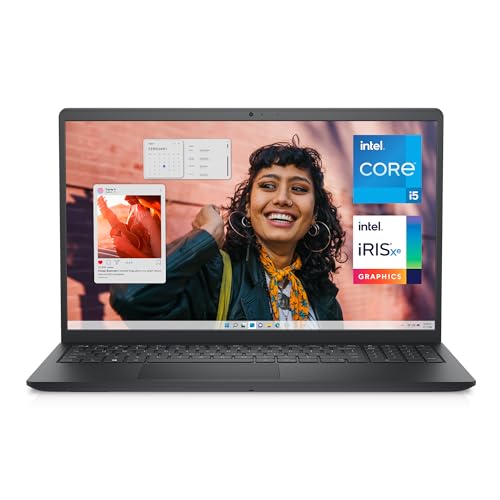
Dell Inspiron 3530 Laptop – 15.6-inch FHD (1920 x 1080) Touchscreen Display — Dell Inspiron 3530 Laptop – 15.6-inch FHD (1920 x 1080) Touchscreen Display, Intel Core i5-1335U, 16GB DDR4 RAM, 512GB SSD, Intel Iris Xe Graphics, Windows 11 Home – Carbon Black. Check price on Amazon before you decide, because configurations and availability change often.

HP Pavilion 15.6″ FHD Touchscreen Laptop — HP Pavilion 15.6″ FHD Touchscreen Laptop, Intel 13th Gen Core i7-1355U Processor, GeForce MX550 Graphics, Wi-Fi 6, Backlit Keyboard, HDMI, Webcam, Windows 11 Home, Blue (32GB RAM | 1TB SSD). Check price on Amazon before you decide, because configurations and availability change often.

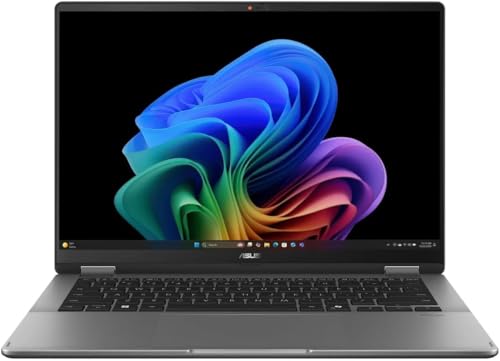
Lenovo Yoga 7i 2-in-1 w/Ultra 7 — Lenovo Yoga 7i 2-in-1 w/Ultra 7, 16G RAM, 1TB SSD, 14″ OLED, Yoga Pen | Copilot+ PC with Intel Core Ultra 7 256V Processor, 14” WUXGA 100%DCI-P3 HDR 500 Touchscreen, 5MP IR Cam, Wi-Fi 7, Win 11 Pro. Check price on Amazon before you decide, because configurations and availability change often.

LG gram 14-inch 2in1 Lightweight Laptop — LG gram 14-inch 2in1 Lightweight Laptop, Intel Evo Edition – AI-Enabled Intel Core Ultra 7 Processor, Windows 11 Home, 32GB RAM, 2TB SSD, Touch IPS Display, Black. Check price on Amazon before you decide, because configurations and availability change often.
Common Mistakes
- Paying for a pen-focused convertible when your real use is tapping through presentations twice a term.
- Assuming every touch screen supports a proper pressure-sensitive pen because a stylus appears in the marketing photos.
- Choosing a large convertible for tablet reading, then discovering its weight makes handheld use a short-lived novelty.
- Skipping the ordinary checks, battery, keyboard and ports, in fascination with the folding hinge.
Pro Tips
- Buy the pen with the machine where possible; matched pens pair instantly and store properly, and bundles are usually cheaper.
- A matte screen protector designed for pen use can add a paper-like feel for writers; fit it carefully to avoid touch issues.
- Students: test handwriting in the actual note app you will use, because app support for pens varies more than hardware does.
- Check the cost and availability of replacement pen tips and nibs before committing to a system for years.
A Worked Example, From Start to Finish
Imagine the process applied to one ordinary owner rather than a test bench. They begin by writing down what success looks like in one sentence, work through the steps in order without skipping the preparation that feels skippable, and pause at the verification stage instead of declaring victory at the first encouraging sign. Two adjustments are usually needed: one step takes longer than expected, and one assumption made at the start turns out to be wrong in a small, correctable way. That is not failure; that is the normal texture of doing this properly, and it is why the guide separates preparation, execution and verification so deliberately. By the end, the result is checked rather than hoped for, the notes exist for next time, and the owner understands their own machine measurably better than when they started. Every reader’s details will differ from this example, but the shape of a good outcome rarely does: prepare honestly, change one thing at a time, verify under real conditions, and write down what you learned while it is still fresh enough to be accurate.
Putting It All Together
Work through the steps in order, test the result in your real routine for a few days, and adjust the one or two choices that your own use proves wrong rather than restarting the whole process. The guidance in this guide reflects how these machines behave across years of ownership, not just on day one, which is why the unglamorous details, placement, profiles, backups and habits, carry as much weight as the headline specifications. Keep your receipts, your notes and your original parts where parts were changed, revisit the related guides when your needs shift, and remember that a well-matched, well-kept laptop of any tier serves its owner better than a flagship that fights its owner’s life. That fit, more than any single feature, is what you were really choosing.
Matching Touch Hardware to Real Tasks: Five Buyer Profiles
The note-taking student or professional
Your defining workload is handwriting: lecture notes, meeting notes, annotated readings and sketched diagrams. That makes the pen system, not the touch screen in the abstract, your primary purchase. Prioritise an active pen with strong palm rejection and low latency, a screen size that gives a full notebook page comfortable room, and battery life that survives a day of classes or meetings, because a note machine that dies at three in the afternoon fails at its only job. Weight matters more than processor tier for you, and the note application you intend to live in should be tested with the actual pen on the actual machine wherever a shop allows it, since handwriting feel is the one quality no specification can describe.
The presenter, teacher and trainer
You will use touch standing up, in front of people, often with the machine in tent or stand mode and a room watching. For you the hinge quality, screen brightness under room lighting, and the ability to annotate over slides smoothly outrank almost everything else. A convertible that flips quickly and stays where you put it, a pen that lives in a garage or a magnetic home rather than a bag, and reliable wireless display behaviour will shape your daily experience far more than a processor generation. Test the flip and the annotation in the shop if you can; presenters discover within thirty seconds whether a machine feels like a tool or an obstacle.
The creative hobbyist and aspiring artist
Drawing and photo work ask the most of a touch laptop: colour quality, pen pressure behaviour, tilt support and an application ecosystem that includes the serious creative programs you want to grow into. Be honest about the ceiling. A good pen laptop is a wonderful sketchbook and a capable photo editor, but sustained heavy creative work still favours a larger dedicated setup, and some artists ultimately pair a simpler laptop with a dedicated drawing display. Buy the pen experience first, screen colour second, and treat every other specification as supporting cast, because a creative tool that frustrates the hand gets abandoned regardless of its benchmark scores.
The family and shared-home buyer
Shared machines are touched by everyone, literally: children doing homework, adults browsing on the sofa, relatives on video calls. Durability, easy cleaning, a hinge that tolerates enthusiastic handling and enough performance for undemanding tasks matter more than pen sophistication, and many families are best served by a straightforward touch clamshell rather than a delicate premium convertible. Spend on build and warranty rather than on pen features nobody in the house will use, and choose the size by where the machine will actually live — carried room to room, or mostly parked on a kitchen table.
The business traveller adding touch to a work machine
For you touch is a secondary input layered on a serious laptop: signing documents, marking up decks, navigating in cramped seats where a mouse is impossible. The laptop fundamentals from any good business buying guide come first — battery, weight, ports, support — and touch should be added only where it does not compromise them. A modest weight increase is acceptable; a glossy, dim screen that ruins outdoor readability is not. Pen support can be basic unless annotation is central to your role, but document signing alone justifies more pen quality than most travellers expect, because a signature that looks like your own is a small professional pleasure repeated weekly.
Screen Technology Decisions Buyers Usually Skip
Beyond resolution, three screen qualities decide how a touch laptop feels over years. The first is brightness paired with finish. Touch displays are almost always glossy, which deepens colour and makes reflections, so brightness is your compensation: a brighter panel remains usable in sunlit rooms and near windows where a dimmer one becomes a mirror you type into. The second is the touch layer’s effect on clarity. Most modern integrated touch panels are optically clean, but some cheaper implementations add a faint grain or haze over fine text; if you read and write documents all day, compare text sharpness side by side at your normal viewing distance rather than trusting resolution numbers to tell the whole story.
The third is colour behaviour for anyone doing visual work. A panel that covers the common web colour space fully is the sensible baseline; wider colour coverage earns its premium for photographers and designers whose workflow is built around it, and is wasted money for everyone else. Refresh rate, heavily marketed elsewhere, matters least on a touch laptop bought for productivity and notes: it smooths scrolling and pen strokes slightly, but it should never outrank brightness, pen quality or battery in your budget order. Screens are where touch laptops concentrate both their cost and their compromises, so this is the component to inspect in person, in lighting like your own, before any other part of the machine.
The Total Cost of a Touch Laptop, Counted Honestly
Touch laptops invite a particular budgeting error: pricing the machine and forgetting its ecosystem. Count the whole purchase before comparing options. The pen may be included or may be a separate purchase, and its replacement tips and batteries belong in the same column. A case or sleeve that accommodates the chosen form factor, especially for detachables whose keyboards are part of the carrying story, is a real cost of ownership. So is the warranty decision, which matters more for a machine whose screen is both display and primary input surface, since a cracked panel removes two functions at once and is among the more expensive repairs any laptop can need.
There is also a configuration trap unique to this category. Because touch and convertible designs are often sold in fixed configurations, the model with the screen and pen you want may force a memory or storage tier you would not have chosen, or the configuration you want may only exist without the pen support you need. Map the exact purchasable combinations before falling in love with a review unit, which frequently represents the top configuration. The right question is never which model line is best in the abstract; it is which specific, buyable configuration, with pen and cover and warranty included, delivers your priorities inside your budget. Buyers who price at that level of honesty are rarely surprised, and surprise is the enemy this entire guide exists to prevent.
Trying Before You Buy: A Fifteen-Minute Shop Test
- Write two full sentences and draw one diagram with the pen in your intended note or drawing application. Judge latency, palm rejection and line quality at your natural writing speed, not a careful demonstration speed.
- Flip the machine through every mode you expect to use, twice. Note hinge stiffness, wobble on the desk, and whether the keyboard and trackpad disable correctly in tablet and tent modes.
- Open a dense document and a bright photograph. Check text sharpness at your reading distance and look at the screen from the angles and lighting of your real workspace as closely as the shop allows.
- Hold the machine as a tablet for two full minutes, one-handed and two-handed. Weight that is charming for twenty seconds and punishing at two minutes will not improve across a semester of reading.
- Type a paragraph on the keyboard and use the trackpad for precise selection. Touch is an addition to a laptop, never a substitute for its fundamentals, and the fundamentals are what you will use most.
Finish the test by closing the machine, picking it up with its charger and pen, and honestly picturing your daily carry. That complete picture — handwriting feel, hinge behaviour, screen quality, tablet weight and total carry — is the purchase decision, and fifteen structured minutes in a shop will teach you more about it than a week of specification comparison. Where buying online is unavoidable, choose sellers with workable returns, run the same tests at home in the first days, and be willing to act on the verdict while returning is still simple.
After Purchase: Settings and Habits for the First Month
A touch laptop rewards a short period of deliberate setup. Calibrate your habits before your hardware: decide which tasks genuinely belong to touch in your workflow — reading and annotation, presenting, note-taking — and which remain keyboard and trackpad tasks, because using touch deliberately, where it is strongest, is what makes owners love these machines, while forcing it everywhere is what makes others conclude touch was a gimmick. Set pen shortcuts to the actions you actually repeat, adjust palm rejection and touch sensitivity in the settings your model provides, and arrange your note and reading applications on the home screen or taskbar so tablet mode opens onto your work rather than onto a storefront.
Protect the investment physically from week one. A screen that is touched, penned and wiped daily deserves the cleaning routine described elsewhere in this series, a case that respects the hinge design, and a household rule about drinks beside an open convertible that will spend part of its life tented near them. Check for firmware and pen driver updates after your first weeks, since manufacturers refine pen behaviour early in a model’s life, and revisit your mode habits after a month: most owners discover their real pattern — often more laptop mode and less tablet mode than they imagined, or the reverse — and arranging accessories, desk setup and shortcuts around the real pattern, rather than the imagined one, is the final step in choosing a touch screen laptop well.
Operating System and App Reality for Touch and Pen
Hardware is only half of a touch laptop; the software decides whether the hardware feels integrated or improvised. On the dominant laptop platform, touch and pen support is built into the system, with handwriting panels, gesture navigation and pen shortcuts available everywhere, but the depth of the experience still varies by application. The major note-taking, office and creative programs offer genuine pen-first features — pressure-sensitive ink, shape recognition, ink-to-text conversion and palm-aware canvases — while older or niche professional software may treat the pen as nothing more than a substitute mouse, which limits handwriting to pointing and clicking. Before buying for a specific workflow, confirm that your specific applications reward a pen; a five-minute check of each program’s pen features is worth more than any general claim about an ecosystem being touch-friendly.
Tablet-mode behaviour deserves the same specificity. Good implementations enlarge touch targets, summon the on-screen keyboard intelligently, and remember your preferred arrangement of windows when you flip between modes; clumsy ones interrupt with prompts, mishandle rotation, or strand you in an interface scaled for fingers when you have returned to the keyboard. Reviews rarely dwell on these transitions, yet you will perform them dozens of times a week, and their smoothness is a large part of whether a convertible feels like one coherent device or two devices arguing. If your shortlist includes machines from different makers, weight their software polish on transitions as a real criterion, because it is manufactured, not specified, and it differs.
Longevity: Hinges, Screens and Batteries Across Years
A touch laptop has more moving and touched parts than a conventional one, so its longevity questions are specific. The hinge on a convertible cycles far more than a clamshell hinge and should feel evenly firm without grating or play; it is the component most worth testing on a display unit that has lived in a shop. The screen accumulates micro-wear from pens and cleaning, which good glass and sensible care keep cosmetic rather than functional for the machine’s whole life. The battery, as on any laptop, is the predictable wear item, and models with serviceable battery replacement protect your investment in a form factor you have carefully chosen.
Plan for the pen as a consumable companion rather than a permanent one. Tips wear, pens get lost in the specific way small valuable objects do, and a machine whose pen is a standard, replaceable model is a calmer long-term ownership proposition than one tied to a discontinued proprietary accessory. Check pen and tip availability before purchase, buy a spare tip set with the machine, and note the pen model somewhere you will find it in year three. These are small decisions, but touch laptops are bought for a quality of daily interaction, and protecting that interaction across the machine’s life is simply the long version of choosing it well in the first place.
Deciding Between This Year’s Model and the One Before
Touch laptops refresh frequently, and the previous generation of a good convertible line is often the smartest purchase in the category. Pen systems, hinges and screens change slowly; a model from the prior cycle frequently carries the same digitiser, the same panel family and the same build, with a slightly older processor that makes no practical difference to note-taking, presenting, browsing or office work. The savings can fund the things this guide has argued matter more: the higher memory configuration, the pen if it is sold separately, accidental damage cover for a screen-centric machine, or simply a larger share of your budget left intact. The checks are the longevity ones — confirm update support, pen and tip availability, and battery service for the older model — and if those pass, choosing it is not settling. It is buying the category’s mature qualities at their most honest price.
The exception is when a refresh specifically improves the interaction layer: a meaningfully better pen, a brighter panel that fixes the reflection problem, or a hinge redesign addressing a known weakness of the earlier model. Those are the upgrades worth paying for in this category, because they change what your hands and eyes experience daily. Processor bumps, by contrast, are the least visible upgrade a touch laptop can receive. Judge each refresh by whether it improves touch, pen, screen or hinge — the four things you bought the machine for — and let everything else be background. A buyer who evaluates generations that way will consistently end up with the right machine, which is the entire purpose of choosing carefully rather than merely choosing recently.
Accessories That Complete a Touch Laptop Setup
The right accessories protect the qualities you paid for. A sleeve or case sized to the machine’s folded form prevents the screen — your primary input surface — from collecting the scratches and pressure marks of bag life. A spare pen tip set, bought on day one rather than during a crisis, keeps handwriting quality constant as tips wear. At a desk, an external keyboard and mouse paired with a stand that raises the screen turns a convertible into a comfortable workstation while preserving touch for the moments it shines, and a second charger for the desk removes the daily cable ritual that slowly wears ports and patience alike. None of these purchases is exciting, and together they cost a fraction of the machine, but they decide whether a carefully chosen touch laptop stays a pleasure in year three or becomes a collection of small compromises. Choose the machine with your head, then finish the job by equipping it with the same care.
A Note on Buying for Children and First-Time Users
When the touch laptop is for a child or a first-time computer user, the priorities in this guide reorder themselves in a healthy way. Forgiveness outranks finesse: a sturdy hinge, a screen that tolerates enthusiastic tapping, simple tablet-mode behaviour and strong parental or school management matter more than pen pressure levels or colour coverage. Younger users genuinely benefit from touch, because direct manipulation matches how they already understand tablets and phones, and a convertible that meets them there can ease the transition to keyboards, files and real schoolwork. Choose the size for small hands and school bags, invest in the protective case without being asked twice, and treat an included basic pen as a creative bonus rather than a requirement. The best first touch laptop is not the most capable one; it is the one still working, still charged and still liked at the end of the school year.
One final consideration belongs to anyone choosing between two otherwise equal finalists: pick the machine whose touch experience you enjoyed more in your hands, not the one whose specification sheet won more rows. Touch laptops are bought for interaction, and interaction is felt, not tabulated. Across years of daily use, the convertible that felt natural in a fifteen-minute test will be used in all its modes, while the technically superior machine that felt awkward will quietly become an ordinary laptop with an expensive screen. Trust the structured test, trust your hands’ verdict within it, and buy once, properly.
That same trust applies after the purchase. Give the machine a full month in your real routine before judging modes, applications or accessories, because touch workflows are learned by the hands over weeks, not assessed in an afternoon. Most owners who chose carefully discover, somewhere in that month, the specific moment the category justifies itself — a signature captured without a scanner, a diagram drawn straight into notes, a presentation annotated live — and from then on the choice stops being a specification debate and becomes simply how their laptop works.
Keep that felt verdict in charge of the final detail, too: between two configurations of the same chosen machine, fund the interaction first — the better pen bundle, the brighter panel, the hinge you trusted in the test — before funding performance headroom your tasks will never request. A touch laptop is an interface purchase wearing a computer’s clothes, and budgets allocated in that order are the ones their owners describe, years later, as money spent exactly right.
Keep the shop-test notes, whichever machine you buy, in the same file as its receipt. They look like shopping trivia today, but in three years, when a successor is being chosen, they will read as the most valuable research you own: your own handwriting verdict, your own hinge impressions, your own weight tolerance, recorded by the only reviewer whose hands are exactly the right shape for the job.
Related Guides
- our roundup of the best laptops for artists under 500
- our roundup of the best laptops for photo editing under 500
- our roundup of the best touch screen laptops for photoshop
- how to clean the screen of a touch screen laptop
- 2 in 1 laptop vs tablet
Frequently Asked Questions
Is a touch screen worth it on a laptop?
When your week includes handwriting, annotating, drawing, presenting standing up, or reading in tablet mode, emphatically yes; those tasks are why the category exists. When your work is typing at a desk with a good trackpad and mouse, touch adds cost, weight and reflections for occasional taps, and the money usually works harder elsewhere. The feature’s value is entirely behavioural. Audit your actual habits for a week before deciding, and be suspicious of imagined uses that have never occurred in your life so far.
What is the difference between a convertible and a detachable?
A convertible keeps its keyboard permanently attached on a 360-degree hinge, folding through laptop, tent, stand and tablet modes; it is the sturdier, better-keyboard, better-ports design and the heavier tablet. A detachable separates into a true tablet and a keyboard cover or dock, giving the lightest tablet experience with compromises in typing, lap use and connectivity. Choose the convertible for a laptop that sometimes becomes a tablet, and the detachable for a tablet that sometimes needs a keyboard.
Do all touch laptops come with a pen?
No, and the distinction matters. Some include an active pen in the box, some support one sold separately, and some touch screens accept only fingers and passive styluses with no pressure sensitivity at all. If handwriting or drawing is among your purposes, confirm three things before buying: that the screen has an active digitiser, which pen model it pairs with, and whether that pen is included or an additional purchase. Marketing images of pens are not evidence of any of the three.
Does a touch screen drain the battery faster?
Modestly. The digitiser layer and the bright glossy panel both draw power, and tablet-mode use at high brightness adds up. In practice the difference is a factor in daily life rather than a deal-breaker, and modern convertibles still cover a working day of mixed use. If battery life is your top priority and touch is a maybe, a non-touch machine with the same battery will run longer. If touch is a definite, choose the model with the strongest tested battery among your shortlist.
What screen size is best for a 2-in-1?
Thirteen to fourteen inches is the sweet spot for most buyers: large enough for split-screen work, light enough to hold folded as a tablet for reading and notes. Smaller detachables suit travellers who prize the tablet side. Sixteen-inch convertibles exist and present beautifully in tent mode, but as handheld tablets they are a commitment few sustain. Let your intended tablet use set the size ceiling, because a convertible too heavy to hold is just a laptop with an expensive hinge.
Can I add touch or pen support to my existing laptop later?
Not meaningfully. Touch and pen digitisers are built into the display assembly, and while cheap USB overlays and passive styluses exist, they do not reproduce the integrated experience and are rarely worth it. A drawing tablet accessory is the better addition for art on a non-touch machine. This permanence is why the form and pen decisions deserve the care this guide gives them: you are choosing the input system for the machine’s whole life at the moment of purchase.