Learning how to fix fps drops on a gaming laptop means learning to tell several different problems apart, because a frame rate that falls has at least six common causes and each has a different cure. There is the slow decay of thermal throttling as heat soaks the chassis, the sudden stutter when memory fills and the system swaps to storage, the sawtooth of a game running on the wrong graphics chip, the dips caused by background software stealing processor time, and the classic case of settings simply set beyond the hardware. The diagnostic skill is matching the pattern of the drop to its cause: when it happens in a session, which games it touches, and what the monitoring overlay shows at that moment. This guide gives you that pattern-matching method and the fixes in the order a technician would try them.
Disclosure: As an Amazon Associate, kajuandouglas.com earns from qualifying purchases. Links to Amazon on this page are affiliate links; they cost you nothing extra. Listing details such as price and availability change often, so check the current Amazon listing before you buy.
How To Fix FPS Drops On A Gaming Laptop: What Matters Most
Note the pattern first: drops after twenty minutes suggest heat; drops in new areas suggest memory or storage; drops everywhere from the start suggest the wrong GPU, profile or settings. Then work the order: charger in and performance profile on, discrete GPU forced, drivers current, frame cap set, background apps closed, vents cleaned. Test one change at a time in the same scene and keep a short log.
In this guide
What You Need Before You Start
- A frame-rate and temperature overlay visible while you play
- One repeatable test scene in your worst-affected game
- Task Manager for memory, processor and disk activity during drops
- Your brand control app and the GPU control panel
- A notebook habit: one change, one test, one line of results
Causes and Fixes, in Safe Order
Step 1: Characterise the drop before touching anything
Play the affected game and write down the pattern. Drops that arrive after fifteen to thirty minutes and worsen steadily point to heat. Drops when entering new areas or turning quickly point to memory capacity, single-channel memory or slow storage. A frame rate that is simply low and uneven from the first minute points to the wrong GPU, a quiet profile or excessive settings. Random spikes across all games point to background software. This five-minute observation decides which half of this guide applies to you.
Step 2: Lock in power, profile and the correct GPU
Connect the charger, select the performance profile in the brand app and best-performance mode in Windows. Then confirm in the GPU control panel or Windows graphics settings that the game is assigned to the high-performance discrete GPU, and verify with the overlay’s GPU load readout while playing. Integrated graphics masquerading as your gaming GPU is the most common cause of inexplicably low and unstable frame rates on laptops, and it takes two minutes to rule out.
Step 3: Update the graphics driver and check the game itself
Install the current driver from the GPU manufacturer’s app, choosing a clean installation if problems began after a previous update. Check the game’s known issues and recent patches; some drops are the game’s fault and are fixed by its developers, not your settings. Verify game files through the launcher if drops began after an update or a crash. Rolling back one driver version is a legitimate diagnostic if a drop clearly started with a new driver.
Step 4: Stabilise the frame rate with a cap and sane settings
An uncapped GPU sprinting and dipping feels worse than a steady capped rate. Set a frame cap at or slightly below your refresh rate, enable adaptive sync, and use quality-mode upscaling in demanding titles. Reduce the settings that spike load: shadows, ray tracing, volumetrics and draw distance. If drops persist in specific scenes, watch whether they coincide with effects or area transitions; that tells you whether you are GPU-limited or streaming-limited, and therefore which settings to touch.
Step 5: Rule out memory and storage limits
Watch total memory use in your heaviest game. Sustained use near your installed total, especially on an 8GB machine or a single-stick configuration, means swapping, and swapping means stutter. The cures are closing background apps today and a matched dual-channel memory upgrade as the permanent fix. Also keep meaningful free space on the game drive and keep the game on the internal NVMe drive; a nearly full drive or a slow external disk produces exactly the new-area hitches owners blame on the GPU.
Step 6: Eliminate background competition
During a drop, glance at Task Manager sorted by processor and disk use. Updaters, cloud sync, a second launcher patching, browser tab hoards and recording tools you forgot were running are frequent thieves. Close or schedule them outside gaming hours and disable overlays you do not use. If drops vanish in a clean session with only the game running, you have your answer and your permanent routine: two minutes of closing apps before you play.
Step 7: Attack heat if drops grow with session length
If the pattern is thermal, clean the vents, raise the rear of the machine, confirm the performance fan profile and consider the cooling steps in our overheating guide as your full programme. Compare frame rates at minute five and minute thirty in the same scene; convergence after your fixes is the proof. On older machines that still decay, dried thermal paste is the remaining suspect and a technician’s service is the cure, not another settings expedition.
Battery, Noise and the Real Cost of Portable Power
Every gaming laptop is a compromise between a desktop replacement and a machine you can actually carry. Expect modest battery life away from the wall when gaming, because the discrete graphics chip alone can draw more than a whole ultraportable laptop uses. Fan noise follows the same physics: smaller fans must spin faster to move the same air, so thin machines are louder under load, and a headset or a sensible fan curve is part of the ownership experience rather than an afterthought. Weight figures also hide the power brick, which on high-wattage models can add a substantial chunk to your bag. None of this makes gaming laptops a bad choice; it makes them a specialised one. Buyers who mostly play at one desk should weigh that honestly against a desktop, while buyers who move between rooms, campuses or work trips get something no desktop can offer. Matching the machine to the real usage pattern is the single highest-value decision in this category.
Software Settings That Quietly Decide Your Frame Rate
Long before hardware limits appear, software decides how a gaming laptop behaves. The graphics driver control panel chooses which GPU renders each game, and laptops left on automatic sometimes run demanding titles on the integrated graphics. Windows power mode, the brand control centre performance profile and the in-game resolution scale are three separate levers that stack, so a machine can feel slow simply because one of them is set to a quiet or battery profile. Background software matters too: overlays, capture tools, cloud sync and launchers updating other games all compete for the same processor time. A clean baseline, with drivers current, one performance profile chosen deliberately and background apps trimmed, solves a surprising share of complaints that get blamed on hardware. Change one setting at a time and test in the same game scene, otherwise you will never know which lever actually helped, and you may undo a good change while chasing a bad one.
How Heat, Power and Performance Connect
A gaming laptop is a small box that has to do two contradictory jobs at once: run a processor and a graphics chip at full speed, and move the heat those chips produce out through vents that are only a few millimetres tall. When either chip passes its temperature limit, firmware quietly lowers its clock speed, a behaviour called thermal throttling, and frame rates fall even though nothing in the game has changed. Power limits matter just as much: the same graphics chip can be configured by different brands at very different wattages, which is why two laptops with identical spec sheets can perform noticeably differently. Understanding this triangle of heat, power and clock speed explains almost every behaviour owners describe as mysterious, from fans that surge during loading screens to performance that is excellent for ten minutes and mediocre after an hour. Any fix, upgrade or purchase decision that ignores thermals is treating a symptom. Start with airflow, dust, surface and fan behaviour, then look at software, and only then consider hardware changes.
Reading Gaming Laptop Specs Without the Marketing
Spec sheets reward careful reading. The graphics chip model is only the start: its configured power range, the memory it carries and whether the laptop has a MUX switch or Advanced Optimus to route frames directly to the display all change real performance. Processor core counts look dramatic, but most games still lean on a handful of fast cores, so sustained clock speed under load matters more than the headline number. Memory should be judged on capacity, speed and whether it runs in dual-channel mode with two matched sticks, because a single stick can quietly cost measurable frame rate in CPU-limited scenes. Storage speed affects loading and texture streaming more than raw frame rate, yet a nearly full drive slows everything through background maintenance. Finally, the display is part of the performance chain: a fast panel cannot show frames the GPU never renders, and a powerful GPU is wasted on a dim, slow screen. Judge the machine as a system, not a list.
When to Get Professional Repair or Replace It
Professional help is warranted when drops come with crashes, artefacts on screen, driver resets or shutdowns, because those suggest failing hardware rather than configuration: a dying fan, degraded thermal interface, faulty memory or a graphics chip in decline. A technician can stress-test each subsystem and isolate the part. Replacement becomes the rational conversation when the machine is clean, correctly configured and still cannot hold playable frame rates at low settings in the games you care about; at that point the GPU itself is the ceiling and no guide can raise it. Until those signs appear, treat fps drops as a diagnosis exercise with a high success rate, because the large majority trace back to profiles, routing, heat, memory or background load, all of which are fixable at home for free.
When you are ready to compare complete machines rather than individual settings, start with our roundup of the best laptops for gaming under 900 and keep our roundup of the best laptops for gaming and school under 1000 open in a second tab. Reading a settings guide and a buying roundup side by side stops the most common mistake in this whole topic: changing software or hardware in isolation, without checking whether the rest of the machine actually supports the change you have in mind.
Gear for This Guide

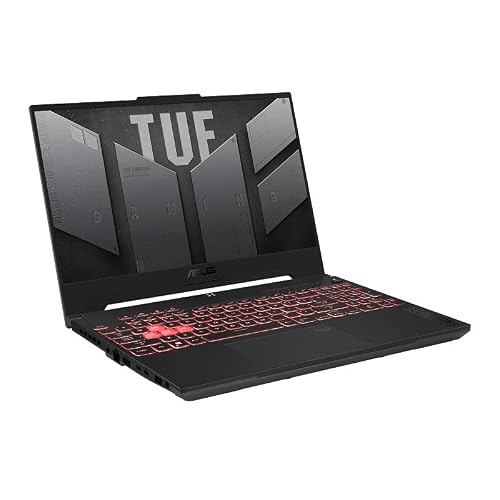
ASUS TUF Gaming A15 (2023) Gaming Laptop — ASUS TUF Gaming A15 (2023) Gaming Laptop, 15.6” FHD 144Hz, 100% sRGB Display, GeForce RTX 4060, AMD Ryzen 7 7735HS, 16GB DDR5, 1TB PCIe SSD, Wi-Fi 6, Windows 11, FA507NV-EH74. Check price on Amazon before you decide, because configurations and availability change often.
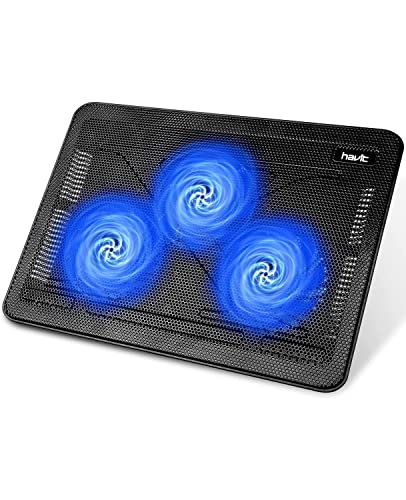
havit HV-F2056 Laptop Cooling Pad for 15.6-17 Inch Laptops — havit HV-F2056 Laptop Cooling Pad for 15.6-17 Inch Laptops, Black | Three quiet USB-powered fans circulate air below the laptop, two height settings improve viewing and typing comfort. Check price on Amazon before you decide, because configurations and availability change often.

ASUS ROG Strix G16 (2023) Gaming Laptop — ASUS ROG Strix G16 (2023) Gaming Laptop, 16” 16:10 FHD 165Hz, GeForce RTX 4070, Intel Core i9-13980HX, 16GB DDR5, 1TB PCIe SSD, Wi-Fi 6E, Windows 11, G614JI-AS94, Eclipse Gray. Check price on Amazon before you decide, because configurations and availability change often.
Common Mistakes That Make It Worse
- Changing graphics settings, drivers and profiles all at once, then having no idea which change helped or hurt.
- Testing in menus or easy areas where frame rates are unrepresentatively high and stable.
- Blaming the GPU for stutters that Task Manager clearly shows are memory swapping or disk saturation.
- Accepting a five-minute benchmark as proof of a fix, when the drop only ever appeared after twenty minutes.
Prevention and Good Habits
- Keep a one-line log per game: scene, settings, frame rate at minute five and thirty. It is the fastest route through every future problem.
- The overlay is your best friend; enable GPU use, temperatures and frame time, not just the frame-rate number.
- Frame-time spikes matter more than averages: a game at a steady 60 feels better than one oscillating between 50 and 90.
- Re-run your characterisation step after major game or driver updates, because the cause of drops can change under you.
Keeping a Diagnostic Record That Future You Will Thank You For
While the fault is fresh, write a short record: the symptom in plain words, when it started, what changed around that time, the steps you tried in order, and which step changed the behaviour. Five lines are enough, and they transform any future recurrence from a fresh mystery into a familiar pattern with a known first move. The same record is gold if the machine ever reaches a technician, whose first questions are exactly those five lines, and whose bill shrinks when the answers are precise instead of reconstructed under stress. Store the note where you keep the machine’s receipts and warranty details. Troubleshooting skill is mostly this: not brilliance in the moment, but evidence preserved from the last moment, applied calmly to the next one. The owners who seem mysteriously good with technology are usually just the owners who wrote things down.
Putting It All Together
Finish by re-testing the original symptom under the original conditions, for long enough that the fault would definitely have appeared, because a fix is only a fix when the problem’s favourite circumstances cannot provoke it. Note what worked in a sentence you will understand in six months, including any versions, settings or parts involved, and keep that note with the machine’s records. If the symptom returns in a new pattern, treat it as a new diagnosis rather than a failed one, and work the order again from observation. Most technology faults reward this calm, sequential approach, and the confidence it builds is transferable to every device you will ever own. Your machine is not fragile and neither is this process; it is simply a ladder, and you now know where every rung is.
Reading the Pattern: Your Drops Are Telling You the Cause
Random frame-rate drops feel chaotic, but they almost always follow one of a few patterns, and each pattern points at a different system. Before changing anything, play your most affected game for fifteen minutes with a monitoring overlay showing frame rate, frame time, temperatures and usage, and classify what you see.
Drops that arrive after twenty minutes
Smooth at the start, deteriorating as the session lengthens: this is the thermal signature. Components heat, clock speeds retreat, and the frame rate sags in proportion — often recovering after a pause in a menu, which confirms it. The work belongs to cooling: surfaces, dust, caps and power modes. A subtler variant is the power brick or battery interplay on machines that cannot draw full power under combined load; if drops correlate with the heaviest combined processor-and-graphics scenes in a warm machine, heat and power delivery should be investigated together.
Drops in the same places, every time
If the frame rate falls at the same map locations, the same busy scenes, the same effects — a crowded city, a smoke-filled firefight, looking across a whole valley — the game is hitting a hardware limit at those moments, most often graphics throughput, sometimes processor load in simulation-heavy scenes, sometimes storage streaming as new areas load. Reproduce the spot, then lower settings one at a time there: if shadows or draw distance restore the rate, you have found the cost. These are not faults; they are the game’s honest demands meeting your machine’s honest ceiling, and per-game settings are the cure.
Drops that strike anywhere, briefly, like hiccups
Short, sharp stutters at random moments — a freeze of a fraction of a second, then recovery — are the background world’s signature: a cloud sync starting, an antivirus scan kicking off, a browser tab waking, a recording tool buffering to a busy drive, the operating system indexing. Their randomness is the clue. The methodical hunt is to note the clock time of several stutters, then check what the system was doing at those times in its task and event views. One found culprit is worth more than ten guessed tweaks, and this pattern rewards patience more than any other.
Drops only in online games
If single-player runs clean and online titles stutter, separate frame drops from network rubber-banding, which imitate each other: true frame drops show in the frame-time graph while the game world stays consistent; network problems show a smooth frame graph while the world jumps, warps or rewinds. Network causes get network fixes — wired connection, server choice, household bandwidth — and no graphics setting touches them. Misdiagnosing this pair wastes more evenings than any other confusion in this guide.
The Systematic Fix Sequence
Stabilise the platform first
Before touching game settings, give the machine a clean stage: plugged into its proper adapter, performance power mode confirmed, graphics drivers current, the game verified to run on the dedicated graphics, storage with comfortable free space, and a restart — a real restart, not sleep — to clear accumulated background state. Then retest. A surprising share of drop complaints die at this stage, because laptops accumulate weeks of sleep-wake cycles, half-updated drivers and background tenants, and the drops were the accumulation speaking.
Cap, sync and smooth
Next, stabilise delivery: set a frame-rate cap the machine can hold in the affected game — found by watching where the rate settles in busy scenes, not quiet ones — and enable variable refresh if your panel supports it. A held cap converts a sawtooth experience into a flat one, and most players prefer the flat line at a slightly lower number within minutes of trying it. If a game lacks a cap, the graphics control panel provides one. This step does not raise performance; it civilises it, and for drops defined as inconsistency, civilisation is the fix.
Then hunt the specific cause
With the platform stable and delivery capped, remaining drops have fewer places to hide. Work the pattern you classified: thermals get the cooling sequence; location-specific drops get per-setting experiments at the reproducible spot; random hiccups get the timestamp hunt; online-only problems get the network path. Change one variable, retest the same scene, record the result in a note. Three disciplined iterations teach you more than thirty simultaneous tweaks, and the note becomes your machine’s medical record for the next time drops appear — because with new games and new updates, they will, and you will start from knowledge instead of from folklore.
Game-Specific and Driver-Level Refinements
Settings that commonly cause drops
Across many titles, the repeat offenders are dynamic resolution scaling that oscillates visibly, texture streaming budgets set too low for the machine’s memory (producing pop-in and hitches as areas load), shader compilation stutter in games that compile effects on first encounter — recognisable because drops cluster on new effects and fade as the game is played more — and physics or crowd settings that tax the processor in busy scenes. Shader stutter in particular should not be chased with hardware: it is the game’s design, it diminishes as its cache builds, and community knowledge for the specific title will confirm whether your experience is the normal one.
Driver settings worth touching — and the rest
In the graphics control panel, the per-game profile is the right home for a frame cap and a power-management preference set to favour consistent performance. Beyond those, global driver overrides mostly fight the game’s own tuning; leave them at defaults unless a specific, measured problem points at one. Keep a note of any driver setting you change, because driver updates occasionally reset profiles, and a drop that returns months later is often a reset profile rather than a new fault — another entry for the medical-record habit.
When the drops are the game’s fault
Some releases simply drop frames on all hardware at certain points, and the honest diagnosis is to check whether players with very different machines report the same spots. If they do, your optimisation is finished: choose settings that make the game’s weak points tolerable, cap for consistency, and spend no more of your life on it. Knowing when the problem is not yours is a skill; it returns evenings to gaming that would otherwise go to benchmarking a stranger’s bug.
A Maintenance Routine That Keeps Drops Away
- Monthly: clear the vents, glance at temperatures in your main game, and confirm frame caps and profiles survived updates.
- After every driver or big game update: retest one known busy scene before a long session, so a regression is caught in two minutes, not mid-evening.
- Quarterly: audit startup programs and background tools; remove what crept in.
- Always: keep the note — settings per game, what fixed what, dates. It turns every future problem into a lookup.
Frame-rate drops are rarely one problem, which is why single-tip fixes so often disappoint. Classified by pattern, fixed in sequence and verified in the same scenes, they yield — and what remains is the deeper benefit: you end up knowing your machine’s behaviour well enough that the next drop, whenever it comes, is a diagnosis you have already made once, not a mystery you have to fear.
Drops in Specific Places: A Field Guide to Common Scenes
Certain scenes recur across games as frame-rate traps, and recognising the scene type tells you which setting to reach for before you start experimenting blindly.
Cities, crowds and markets
Dense social spaces load the processor with characters, physics and draw calls while the graphics card waits — the signature is a frame drop with graphics usage falling rather than maxing. The levers are crowd density, draw distance and shadow settings for characters, in that order, and the fix is per-game because these areas are where you socialise rather than fight. Accept a dedicated “city profile” in games that let you save settings, and judge the drop by whether it impairs what you do there — trading and talking tolerate rates that combat does not.
Weather, smoke and particle storms
Effects-heavy moments — explosions, rain, magical barrages — tax the graphics card’s fill and transparency handling, and the drop’s signature is its brevity and its timing with the effect. Effects quality and particle settings are the levers, and upscaling earns its keep here because reconstructed frames hide the softness of a lowered internal resolution exactly when the screen is busiest. If your drops live exclusively inside effects, you are one settings notch from fixed, and the notch will be invisible in the chaos that required it.
Driving, flying and fast traversal
Rapid movement through a streamed world stresses storage and memory as new areas load continuously; the signature is rhythmic hitching that worsens with speed and improves when you slow down. Confirm the game is on the fast internal drive with room to spare, confirm memory is not at its ceiling, and treat remaining hitching as the game’s streaming design — some titles simply stream worse than others, and the community’s verdict on a specific game will tell you whether your experience is typical. Chasing this pattern with graphics settings wastes an evening, because the bottleneck is the pipeline, not the picture.
The Human Factors: Perception, Panels and Placebo
Why the same drop feels different on different screens
A drop from a very high frame rate to a merely high one is more noticeable than the same proportional drop at lower rates, because the frame-time change is what the eye reads. Variable refresh panels soften drops by keeping delivery synchronised; fixed panels exaggerate them. This is why two players with identical laptops report different experiences, and why your own tolerance — measured on your panel, in your games — is the standard your fixes should be judged against, rather than a forum’s universal threshold.
The placebo problem in optimisation
Frame rates vary by scene, by session and by the background life of the machine, which makes them fertile ground for placebo: almost any change feels like it helped, once, in the scene you happened to test. The defence is the method this guide keeps repeating — same scene, same settings but one, measured twice — and a written note, because memory is the most biased benchmark of all. Owners who measure keep their fixes; owners who vibe accumulate forty tweaks, no knowledge, and drops that return like weather.
Knowing your personal floor
Every player has a frame rate below which a game stops being enjoyable, and it varies by genre and by person. Finding yours — by deliberately capping a familiar game at descending rates and noting where pleasure ends — converts optimisation from an open-ended anxiety into a target: hold the floor, everywhere, and stop. Many players discover their floor is lower and steadier than the numbers they were chasing, and that a locked rate at the floor feels better than an unlocked rate that visits twice it and falls below it. That discovery ends more optimisation projects happily than any piece of hardware.
When Drops Signal Something Serious
Most drops are tuning, but a few patterns deserve escalation. Drops accompanied by graphical artefacts — flashing textures, coloured speckles, geometry errors — point at a struggling graphics chip or its memory, especially if they worsen with heat. Drops with crackling audio and system-wide stutter, where even the desktop hitches, point below the game entirely, at storage health, memory errors or a driver in distress. Drops that began after a drop, spill or repair belong to a technician’s bench, not a settings menu. And a machine still under warranty that drops frames far below its reviews’ results, after the platform stabilisation in this guide, should be the maker’s problem while it still can be. Escalation is not defeat; it is the correct final step of a diagnostic process that has honestly eliminated everything else, and arriving at it with notes and measurements makes the service conversation short, credible and free.
Drops on Battery, Drops on New Games, Drops After Travel
The battery pattern
Drops that exist only on battery are not a fault to fix but a design to understand: the machine rations power to preserve the battery and its health, and frame rates fall by policy. If you must play unplugged, build a battery profile — capped rate, lowered settings, the balanced mode — and judge the machine against that profile’s promises rather than the plugged-in ones. Comparing battery performance to mains performance and calling the difference a drop is the one diagnosis in this guide that is guaranteed to waste your time.
The new-game pattern
A brand-new release that drops frames on your machine and everyone else’s is a launch, not a laptop problem: unoptimised builds, shader caches still building, drivers not yet written for it. The wise response is a fortnight of patience, the community’s settings consensus, and the first patch — while the unwise one is a weekend of system surgery that the game’s second patch renders moot. Check the chorus before you blame the choir member you own.
The travel pattern
Drops that begin after a trip often trace to the trip itself: a power adapter left behind and replaced by an underpowered substitute, a vent that inhaled hotel carpet fibres for a week, a knock that unseated nothing visible but changed a fan’s song. If your machine travelled and returned different, interrogate the journey before the machine — adapter first, vents second — because travel writes its changes in exactly those two places.
The Drop Diary: A Tool You Keep
The single habit that separates owners who solve drops from owners who endure them is the diary: a running note with dates, games, scenes, patterns and fixes. It need not be elaborate — five lines per incident — but across months it converts anecdotes into data, and data is what every section of this guide consumes. When a drop returns, the diary tells you whether you have met it before and what it cost last time. When a technician or a support agent asks what you have tried, the diary answers in their language. And when the machine is eventually sold, the diary — settings, fixes, history — is the mark of an owner whose laptop a buyer can trust. Start it with tonight’s session, however the frames behave; the first entry is the hardest, and every one after it makes you faster.
Drops and the Second Screen: Dual-Display Complications
A second monitor changes a laptop’s workload in ways owners rarely suspect. Driving two displays can shift which graphics chip renders the game, add compositing work when windows or videos animate on the secondary screen, and split the machine’s attention at exactly the moments games least forgive. If your drops began when the second screen arrived, test with it disconnected and with it connected-but-static; if a browser video on the second display is the trigger, move the video or pause it during play, and check which graphics processor each display is wired to in your model’s documentation. Dual-screen setups are worth their complications for work and for stream management, but they should be configured knowingly for play: game on the display wired for performance, static content on the other, nothing moving anywhere that does not need to move. Many a mysterious drop has turned out to be a dashboard animating faithfully on the wrong screen.
The Last Resort Ladder
When the methodical work is done and drops persist, climb the final ladder deliberately rather than desperately. First, a clean graphics driver installation using the maker’s removal option, which clears accumulated profile corruption that ordinary updates carry forward. Second, a test with a fresh user account or a clean boot, which separates the machine from your accumulated software environment in one step. Third, the operating system’s repair or reset options, with your games and saves backed up, treated as the serious step it is. Fourth, the maker’s support, approached with your drop diary as the opening document. Each rung costs more time than the last and answers a deeper layer of the system; most drops surrender on the first two. What the ladder forbids is skipping to the top in frustration — a full reset performed before the cheap rungs is a day of reinstallation spent to learn something a clean boot would have taught in ten minutes.
The Philosophy of the Stable Frame
Underneath the techniques, this guide has been arguing a philosophy: that the pursuit of the highest frame rate is a poorer goal than the pursuit of the stable one, and that most of what players call performance problems are actually consistency problems wearing a number’s clothing. The industry sells altitude — bigger averages, higher peaks — because altitude is easy to print. Players live in the valleys: the busy scene, the long session, the hot evening, the background update. Optimise for the valleys and the peaks take care of themselves; optimise for the peaks and the valleys remain, visited more often and resented more deeply. A capped, even, thermally honest frame rate is not a compromise position adopted by owners who could not reach the heights. It is the considered position of owners who measured both and chose the one that feels like playing a game rather than monitoring one. Fix your drops by that standard — the same scene, the same evening length, the frame-time graph flat — and the number in the corner becomes what it always should have been: a detail, not a verdict.
A Final Check: The Friend Test
Before declaring victory or defeat, run the friend test: the same game, the same settings, on a comparable machine if one is reachable — a friend’s laptop, a shop’s display unit, a cloud gaming session as a rough reference. If the drops exist there too, your machine is exonerated and the game owns the problem. If they do not, your diary and your method have a clean comparison to work against, and the difference between the two systems is a list of suspects written by reality rather than by forums. It is the oldest diagnostic in every craft — compare against a known-good example — and it closes this guide where the guide began: drops are patterns, patterns are information, and information, patiently gathered, is what fixes them.
Related Guides
- our roundup of the best laptops for light gaming under 800
- our roundup of the best laptops for gaming under 2000
- our roundup of the best laptops for gaming and work under 1000
- how to cool a gaming laptop
- how to choose a gaming laptop
Frequently Asked Questions
Why do my fps drop after twenty minutes of playing?
That timing is the signature of heat. As the chassis heat-soaks, the processor or GPU reaches its temperature limit and reduces clock speed to protect itself, so frame rates decay from their opening levels. Confirm by watching temperatures and clocks in an overlay across a session. The fixes are airflow, cleaning, fan profile and frame caps, covered in the thermal step above. If a clean, well-cooled machine still decays quickly, aging thermal paste is the likely remaining cause.
Can low RAM really cause fps drops?
Yes, in a specific way: not a lower average so much as stutters and hitches when the game needs data the system has swapped to storage. Eight-gigabyte machines and single-stick configurations are the usual victims, and busy areas with lots of assets expose it. Watch memory use during play; if it rides at the ceiling while the disk spikes during hitches, you have found it. A matched dual-channel upgrade is one of the most satisfying fixes in laptop gaming.
My fps drops in every game suddenly. Where do I start?
A change that hits everything at once is a system-level change: a driver update, a Windows update, a profile reset, new background software, or a hardware development like a failing fan. Work backwards from what changed, verify the performance profile and GPU assignment, check Task Manager for a new background consumer, and confirm temperatures are normal. Sudden universal drops are rarely the games themselves, and the timeline of what changed is your best diagnostic tool.
Does capping fps actually help drops?
It helps the drops caused by overreach and heat. A cap stops the GPU sprinting in easy scenes, which lowers heat build-up and leaves headroom for hard scenes, so the floor rises even though the ceiling is trimmed. Combined with adaptive sync it also steadies frame pacing, which the eye reads as smoothness. It cannot fix memory swapping or a game on the wrong GPU, which is why characterising your pattern comes before applying fixes.
What frame rate should I target on my laptop?
Target the rate your machine can hold in the hardest scenes of your game, not the rate it touches in menus. For most players that means a stable 60 as the quality floor, or a stable rate near a high-refresh panel’s capability in competitive titles. A locked, steady number feels better than a higher unstable one. Use your test scene’s worst minute, not its best, as the figure you tune settings to achieve.
When are fps drops a sign the laptop is dying?
Drops accompanied by visual artefacts, driver crashes, blue screens, shutdowns or a fan that has gone silent or started grinding point beyond configuration into hardware failure. So does a machine that once held frame rates and, fully cleaned and correctly set up, no longer can. Those cases deserve a technician’s diagnostics promptly, both to save the machine if possible and to protect your data with a backup while it still runs.
Why do my FPS drop when I unplug the charger?
By design: on battery the laptop limits the power available to the processor and graphics to protect the battery and extend runtime, so frame rates fall. For the best performance, play plugged in with the original adapter. If you must play unplugged, build a battery profile with capped rates and lowered settings.
My FPS is high but the game still feels stuttery. Why?
Because averages hide pacing: uneven frame delivery feels worse than a lower, steady rate. Watch the frame-time graph rather than the average, cap the rate at a level the machine holds in busy scenes, and enable variable refresh if your panel supports it. Smoothness is consistency, not altitude.
Can dust really cause FPS drops?
Yes, indirectly: dust loads the cooling system, temperatures rise, the chips throttle their speeds to protect themselves, and frame rates sag — classically after twenty minutes of play, recovering after a pause. If your drops follow that timing pattern, cooling and cleaning are the first investigation, not the last.