
Knowing how to fix a slow laptop starts with finding which of the usual suspects is guilty on your machine — because ‘slow’ is a symptom with at least six common causes, and the fix for each is different. A laptop choked by startup programs needs a cleanup; a laptop with a failing drive needs a backup and a replacement; a laptop suffocating on dust needs air, not software. This guide walks through diagnosis first, then the fixes in the order most likely to solve your case.
Keep notes as you go: when the slowness happens (startup, browsing, one specific app), what the fans are doing, and what Task Manager or Activity Monitor shows. Those three observations will point you to the right section and save you from applying every fix blindly. Nothing here requires opening the laptop or spending money until the diagnosis says so.
Disclosure: As an Amazon Associate, kajuandouglas.com earns from qualifying purchases. Links to Amazon on this page are affiliate links; they cost you nothing extra. Listing details such as price and availability change often, so check the current Amazon listing before you buy.
How to Fix a Slow Laptop: Diagnose the Cause First
Open your system monitor during a slow moment. On Windows that is Task Manager’s Performance tab; on a Mac, Activity Monitor. Look at three numbers. If the disk sits at or near full utilization while you do little, suspect a nearly full drive, a mechanical hard drive, or a failing drive. If memory is nearly exhausted, you are RAM-limited. If the processor is pegged, find which process is responsible — it may be a runaway app, an update, a scan, or malware. If all three look calm while the laptop still crawls and the fans roar, think heat: a throttling processor protecting itself feels exactly like a slow computer.
Timing tells the rest of the story. Slow only at startup and sign-in means startup bloat. Slow after hours of use but fine after a restart means memory leaks or heat buildup. Slow in one application only means that application — its cache, its add-ons, or its settings. Slow everywhere, getting worse month by month, with occasional freezes, is the pattern of a drive in decline, and it deserves a backup before anything else.
In this guide
Diagnostic Checklist
| Symptom | Likely Cause | Go To |
|---|---|---|
| Slow startup and sign-in | Too many startup programs | Fix 1 |
| Drive near 100% active, memory fine | Full drive, HDD, or failing drive | Fix 2 and Fix 5 |
| Stutters when many apps/tabs open | Not enough RAM | Fix 3 |
| One process eating the processor | Runaway app, update, or malware | Fix 4 |
| Fans loud, slow under any load | Heat and dust throttling | Fix 6 |
| Freezes, clicks, worsening weekly | Failing storage drive | Back up now, then Fix 5 |
The Fixes, in the Order to Try Them
Step 1: Fix 1: Strip the startup list
Disable everything non-essential in Task Manager’s Startup tab on Windows, or Login Items on a Mac. Game launchers, updaters, and helper utilities can all wait until you open them manually. Restart and time the difference. This fix alone resolves the majority of ‘my laptop takes forever to start’ complaints, and it costs nothing and risks nothing.
Step 2: Fix 2: Free the system drive
Check free space on your system drive and get it above 15 to 20 percent. Remove large downloads, empty the recycle bin or trash, offload videos and photo libraries to external storage, and run the built-in storage cleanup tools. Operating systems constantly write temporary files and swap data; a strangled drive makes every one of those operations wait, which is why a full drive slows the whole machine rather than one corner of it.
Step 3: Fix 3: Relieve memory pressure
If memory is the bottleneck, close the worst offenders during heavy work — browsers with dozens of tabs are the usual champions — and remove browser extensions you do not use. If your normal workload genuinely exceeds your RAM and your laptop’s memory is upgradeable, adding RAM is a permanent cure. If memory is soldered and small, the honest options are lighter habits or, eventually, a different laptop.
Step 4: Fix 4: Hunt the runaway process
Sort the process list by processor usage and identify the hog. An updater stuck in a loop, a cloud sync re-indexing everything, or a misbehaving app can each pin a machine. Update or reinstall the offending program; if the culprit is something you do not recognize, run a full scan with your built-in security tool before trusting it. Legitimate fixes end with the process list calm during idle moments.
Step 5: Fix 5: Check drive health and type
If your laptop still uses a mechanical hard drive, its slowness is structural — replacing it with an SSD is the definitive cure and makes old laptops feel new. If you already have an SSD but see freezes, errors, or declining speed, check its health with the manufacturer’s utility or your system’s diagnostics. A drive reporting health warnings is a drive to back up today and replace soon; no cleanup fixes failing hardware.
Step 6: Fix 6: Cool it down
Blow dust from the vents with compressed air, use the laptop on a hard flat surface, and confirm the fans actually spin up under load. If the machine is old and still runs hot after cleaning, the thermal paste between processor and heatsink may have dried out — that is a repair-shop job for most owners, and a worthwhile one, because a cool laptop runs at full speed instead of throttling to protect itself.
Step 7: Fix 7: Reset the system as the final software step
When a laptop has years of accumulated software and none of the targeted fixes restore it, back up fully and use the built-in reset — Keep My Files on Windows, or a clean erase and reinstall on a Mac. A fresh system on healthy hardware is fast. If a fresh system is still slow, the limit is hardware, and you have your answer about replacement.
Gear for This Guide
One verified product supports several fixes above:
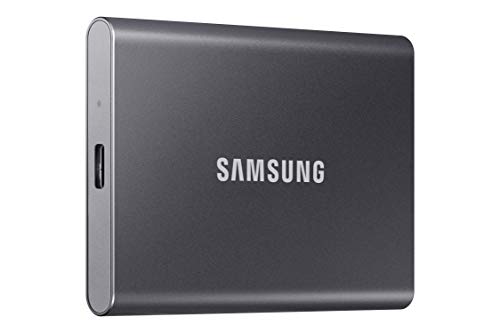
Samsung T7 Portable SSD 1TB Titan Gray, USB 3.2 Gen 2, Up to 1,050MB/s — A fast portable SSD gives slow-laptop owners two wins: permanent offload space for media libraries, and a reliable backup destination before any major fix. Check price on Amazon.
When to Get Professional Repair or Replace It
Get professional help when the drive reports failing health, when the laptop crashes or freezes with hardware error codes, when it runs dangerously hot after cleaning, or when slowness arrived suddenly alongside strange noises. Also use the warranty if you have one — chronic slowness on a new machine is a defect to report, not a personality trait to accept.
Consider replacement when the limits are soldered and structural: very little non-upgradeable memory, a processor several generations behind your software’s needs, or a machine that no longer receives operating system security updates. Money spent upgrading around a hard ceiling is usually better saved toward the next laptop.
Prevention: Keeping It Fast This Time
Restart fully once a week. Keep the startup list and drive space in check as an ongoing habit rather than an annual rescue. Install updates promptly so they do not pile into marathon background sessions. Keep the vents clear and the laptop cool. And keep backups running, because the scariest slow-laptop scenario — the failing drive — stops being scary when your files already exist somewhere else.
The Browser Problem, in Full
On modern laptops the browser deserves its own diagnosis, because for many users the browser is the workload. A browser carrying a hundred tabs is carrying a hundred documents, scripts, and media players, each consuming memory and waking the processor periodically. Tab-discard and sleeping-tab features exist precisely for this; enable them and the browser returns memory from tabs you are not viewing while keeping them one click away.
Extensions multiply the cost: each runs its own background process, and a handful of poorly written ones can consume more than the pages they modify. Audit them with the same ruthlessness as startup programs — if you cannot name what an extension did for you this week, remove it. Ad-heavy pages also tax old hardware disproportionately; a reputable content blocker is a performance tool on an elderly laptop, not merely an aesthetic one.
Finally, consider the nuclear option for a browser that has served for years: a fresh profile. Profiles accumulate corrupted caches and settings drift; exporting bookmarks and passwords, then starting clean, resolves a category of mysterious slowness that no other step touches. It is an hour’s work that feels like a new machine for browser-bound users.
Understanding Bottlenecks With One Graph
The single most useful troubleshooting skill is reading the resource graph during a slow moment and naming the saturated resource. Whichever line — processor, memory, disk, or network — sits pinned at its ceiling is your bottleneck; everything not saturated is innocent. This sounds obvious, yet most slow-laptop folklore consists of applying fixes for resources that were never the problem: adding memory to a disk-bound machine, cleaning a processor-bound machine’s registry.
Watch the graph during three moments: startup, your heaviest regular task, and an idle minute. A healthy laptop idles near zero on all lines. A laptop that cannot idle has a background problem — a process, a sync, a scan, or malware — and the process list sorted by usage names it. A laptop that idles fine but saturates one resource under your workload has told you its upgrade path or its limit.
Write the numbers down before you change anything. After each fix, compare. This tiny discipline converts troubleshooting from superstition into measurement, and it is exactly what a professional does — the difference is only that their bench has more spare parts, not better logic.
Slowness That Is Actually the Network
A laptop can be perfectly healthy and still feel slow when everything it does lives on a network: cloud files that sync before they open, web applications waiting on a distant server, a VPN routing traffic through another city. The diagnostic is simple — if local tasks (opening a saved document, browsing local photos) are fast while anything cloud-shaped crawls, the laptop is innocent and the connection is the bottleneck.
Fixes live in the network layer: work closer to the router or wire in with a cable for large transfers, restart networking gear that has run for months, and let big syncs finish overnight rather than competing with your workday. On work laptops, report the pattern to IT with times and examples; server-side and VPN issues masquerade as hundreds of individual slow laptops until someone aggregates the reports.
The inverse trap also exists: blaming the network for a dying drive. The local-task test separates them in two minutes. Run it before you spend money or file tickets in the wrong direction.
Age-Specific Advice: One, Three, and Six Years Old
A one-year-old laptop that is slow has a software story: bloat, a bad update, a runaway application, or a specification that was wrong on purchase day. Hardware failure is possible but unlikely, the warranty is alive, and the fix list in this guide — especially startup, storage, and the process hunt — resolves nearly every case. Do not accept slowness as the machine’s character; at one year, it is an incident, not an identity.
A three-year-old laptop is at the upgrade crossroads. Its processor is usually still adequate, its battery is aging, and its likely sins are a full drive, memory pressure from grown software, and dust. This is the machine the SSD and RAM upgrades were invented for: diagnose honestly, upgrade the saturated resource, clean the vents, and expect several more good years. Three is the age where money spent is money multiplied.
A six-year-old laptop asks a strategic question. Its processor is several generations behind, its battery is tired, and its software support horizon is visible. Targeted fixes still work — the same list applies — but spend with the horizon in view: an SSD that can move to an external caddy later is a safer investment than parts married to the machine. And if it no longer receives security updates, its next role should be offline or lightly used, however fond of it you are.
Keeping a Fixed Laptop Fixed: The Maintenance Rhythm
Every fix in this guide decays without a rhythm, so install one while the machine feels fast and the habits are cheap. Weekly: a full restart. Monthly: a glance at startup programs, free space, and the browser’s extension list — two minutes, ideally attached to something you already do monthly. Quarterly: vent cleaning with compressed air, a backup restore test, and a look at battery health. Yearly: an honest review of whether the machine still fits the work, while replacement is a plan rather than an emergency.
The rhythm’s secret is that each interval matches a decay rate. Startup bloat accrues per installation; storage creeps per month; dust mats per season; fitness-for-purpose drifts per year. Maintenance scheduled at the decay’s own pace never becomes a rescue operation — and rescues, as this entire guide demonstrates, are just maintenance that was postponed until it hurt.
Write the rhythm where you will see it: a recurring calendar note with the four lines above. The laptop does not need your vigilance; it needs your calendar. Set it once, and the slow-laptop problem — for this machine, at least — is solved permanently.
Slow in Specific Places: A Symptom-to-Cause Field Guide
General slowness is hard to fix because it is not one problem. Slowness with an address — a specific moment, a specific program, a specific pattern — is usually easy. Use this field guide to name yours before you change anything, because each pattern below points at a different fix from the main steps.
Slow to start, fine once it gets going
A laptop that takes ages to reach a usable desktop and then behaves normally is telling a startup story: too many programs launching at once, an old mechanical drive reading them one by one, or an update and security scan colliding with your first coffee. The startup-list fix in the main steps is aimed exactly here, and on a machine with a mechanical drive it can halve the wait. Judge the result honestly after two or three restarts, because the first boot after changes is always the slowest, as the system reorganises itself.
Fast when new in the morning, sluggish by afternoon
Slowness that accumulates across the day is usually memory filling, a browser swelling, or heat building in a machine whose cooling is marginal. The afternoon test is simple: restart at lunchtime for a few days. If the machine is reborn each time, your problem is accumulation, and the cures are the memory-pressure and browser habits covered in this guide, plus a look at temperatures. If a restart changes nothing, the cause is constant rather than cumulative, and you should look at storage space, storage health and background processes that start with the machine.
One program is slow and everything else is fine
Resist reinstalling the whole computer for one application’s sins. Check whether the slowness began with that program’s own update, whether its cache or a single enormous file is the burden, and whether its hardware acceleration setting agrees with your machine; toggling that one setting fixes a surprising number of single-program mysteries, particularly in browsers, editors and media tools. Also check whether the program is slow on a fresh, empty project. If it flies on a new file and crawls on yours, the file, not the laptop, is the patient.
Slow only on battery, fast on the charger
This pattern is a power plan doing its job too enthusiastically, or a battery too tired to deliver what the machine asks. The main guide’s FAQ touches it; the deeper answer is to compare behaviour across the performance modes your system offers while plugged and unplugged, and to read the battery health report. A machine that is only slow unplugged in its most frugal mode is behaving as designed, and the fix is a mode change for the tasks that matter. A machine slow in every unplugged mode, with a battery reporting poor health, is asking for a battery, not a tune-up.
Slow after an update, every time
The hours after a major update are genuinely busy: indexing, optimising and security scanning all queue at once, and judging performance during them convicts an innocent machine. Give a big update a day of normal use and a couple of restarts before troubleshooting. If slowness survives that grace period and dates precisely from the update, the update itself, a driver it replaced, or a program it disturbed is the suspect, and the recovery options in the main steps exist for exactly this case. Keep a restore point habit before major changes and this scenario loses most of its sting.
The Three Hardware Upgrades, Judged Honestly
When software fixes are done and a laptop is still slow, three upgrades present themselves, and their value depends entirely on what your machine currently has.
From mechanical drive to solid-state storage
If your laptop still starts from a spinning mechanical drive, replacing it with solid-state storage is the single largest speed transformation available to any computer, full stop. Starts, program launches, updates and file operations all change character, and owners routinely describe the result as a new machine. It is also the upgrade that most requires care: your data must be cloned or reinstalled and restored, the physical swap ranges from easy to fiddly by model, and on sealed modern machines it may be impossible because the storage is part of the board. Check your exact model’s upgradeability before buying anything, and treat a nearly-full drive of either kind as a problem to fix first, because every drive slows when it has no room to breathe.
More memory, when memory is the proven bottleneck
Memory upgrades obey the rule from this guide’s diagnostic sections: they transform a machine that is swapping and compressing all day, and they do almost nothing for a machine that is not. If your monitoring showed genuine pressure, and your model accepts more memory, the upgrade is usually straightforward and excellent value, especially when it also enables the dual-channel arrangement that helps integrated graphics. If your monitoring showed comfortable memory use, believe it, and spend the money elsewhere.
A new battery as a performance part
Owners rarely file the battery under performance, but a deeply worn battery can cause throttling behaviour, unreliable sleep and the unplugged slowness described above. On a machine that is otherwise sound, a battery replacement restores both portability and consistent performance, and it is often the cheapest of the three upgrades. Check the health report first; a battery reporting a large share of its original capacity is innocent, whatever the machine’s other symptoms.
Keeping It Fast: The Maintenance Rhythm That Actually Sticks
Every owner intends to maintain a fixed laptop; few routines survive contact with real life. The ones that stick are tiny, scheduled and tied to events that already happen. Tie the storage check to the first day of the month: glance at free space while you pay bills, and act only if the drive is crowding. Tie the startup review to every new program you install: when something new asks to launch at startup, decide in that moment rather than in a future audit you will never hold. Tie the restart habit to the working week: a full restart on a chosen morning clears the accumulation described above and installs pending updates on your schedule instead of the machine’s. And tie the backup check to the same monthly moment as the storage check, because a fast laptop with no backup is a fast way to lose things. Four small appointments, none longer than five minutes, are the entire difference between a laptop that stays fixed and one that slowly re-slows over the following year.
The software diet: installing with intent
Laptops rarely slow down because of one bad program; they slow down because of forty reasonable ones, each with its updater, helper and background service. Adopt a simple rule: every program must earn its background presence. Tools you use twice a year do not need to run all year; many offer a portable or on-demand mode, and almost all can be told not to start with the machine. When you uninstall, finish the job by checking the startup list afterwards, because some programs leave their helpers behind like guests who hide at closing time. Browser extensions deserve the same discipline as full programs, because they are programs, running in your most-used application, all day. Audit them whenever the browser feels heavy: keep the ones you use weekly, remove the rest without nostalgia, and notice how often the browser’s mysterious slowness was really an entourage problem.
When Slow Is a Message: Failing Hardware in Disguise
Occasionally, slowness is not a condition but a symptom, and treating it as a tune-up wastes the warning. A storage drive developing faults makes a machine pause in strange, growing ways as it retries reads, and the drive-health check in the main steps is the difference between a planned replacement with your data intact and an emergency. A cooling system failing by degrees makes a machine slower across months as it throttles earlier and harder, and the temperature check catches that too. A battery swelling or failing can produce erratic behaviour that defies categorisation. The pattern that should raise your suspicion is change without cause: a machine that becomes slower across weeks despite no new software, no full drive and no obvious process to blame. That machine is not asking for optimisation. It is asking for diagnosis, and the sooner it gets it, the cheaper the answer usually is.
Malware: the accusation to make carefully
Malware is real, and it does slow machines, but it is accused far more often than it is guilty. The honest sequence is to run the built-in security scan, check for the obvious signs — changed homepages, unfamiliar programs, extensions you never installed — and then, if those are clean, return to the mundane causes, which are statistically far more likely. The modern risk is less the dramatic virus than the grey zone: bundled extras, aggressive updaters and programs that mine your attention and your processor in small print you accepted. Removing those is housekeeping, not heroics, and it is covered by the software diet above.
Work the main steps in order, name your pattern in the field guide, upgrade only what your measurements convict, and keep the four small appointments afterwards. A slow laptop fixed that way tends to stay fixed, because you will have repaired causes rather than symptoms.
Age-Specific Playbooks: One, Three and Six Years In
The one-year-old laptop that already feels slow
A nearly new machine has no excuse of age, so look at what has been added to it: the entourage of installed software, the startup list, the browser’s extensions, and the possibility that it was underspecified for its job from the start, particularly in memory or storage type. Also check the unglamorous basics: a machine still running its first-run indexing, photo analysis and update backlog in its first weeks is not slow, just busy. If a one-year-old machine with sensible specifications is slow after the main steps, involve the warranty while it is strong, because hardware faults in young machines are the maker’s problem and early documentation makes claims easy.
The three-year-old laptop at the crossroads
Three years is where honest arithmetic begins. The typical story is a full drive, a battery at a noticeably reduced health, dust in the cooling, and software weight doubled since purchase. Work the main steps, do the clean and the storage rescue, read the battery report, and then judge the machine fresh: many three-year-old laptops are one solid-state upgrade or one battery away from another three good years. This is also the age where a factory reset, done properly with backups verified first, produces the most dramatic honest improvement, because it removes three years of archaeology in one act.
The six-year-old laptop and the dignity question
At six years, the question changes from how to fix it to how to value it. A six-year-old machine with a solid-state drive, adequate memory and a healthy battery can still be a fine writing, browsing and household computer, and keeping it for those duties is good economics and good sense. The same machine asked to run modern creative suites or the latest games is being asked to be young again, and no tune-up grants that. Match the old machine to light duties or a family member whose needs are light, spend nothing beyond safety and a battery if needed, and put the serious money toward the machine that does the serious work. Dignity, for laptops, is a correct job description.
The Reset, Done Properly: A Careful Walkthrough of the Last Resort
Because the main steps end with a system reset, it deserves a careful expansion. A reset is not one thing: modern systems offer a refresh that keeps your files and reinstalls the system, and a full reset that removes everything. For slowness, the file-keeping refresh cures system-level corruption and accumulated damage while sparing you the restoration marathon, and it should be tried first unless the machine is changing owners. Whichever you choose, the preparation is the same and non-negotiable: verify your backup by opening files from it, note your important sign-ins and licence details, export anything that lives only inside an application, and plug the machine in for the duration. Afterwards, reinstall with intent rather than enthusiasm: restore your files, install the programs you actually use this month, and leave the archaeology unrestored. The reset machine’s first week is its fastest week; the software diet described earlier is what makes the fifty-second week resemble it.
Measuring Success: What Fixed Actually Feels Like
Owners often finish a tune-up unsure whether anything improved, because they never measured the start. Before your next fix session, time three things with your phone: the wait from power button to a usable desktop, the launch of your heaviest program, and the opening of your largest everyday file. Write the numbers down. After the fixes, time them again. The comparison does two kinds of work: it proves which fixes mattered, so you keep those habits, and it exposes wishful thinking, so you stop repeating rituals that never helped. Over a laptop’s life, those little baselines become a health record, and they turn the vague feeling that a machine is getting slower into evidence you can act on, or dismiss, with confidence. Speed, in the end, is not a benchmark number. It is the absence of waiting in the moments you repeat a hundred times a day, and a fixed laptop is simply one that has stopped charging you those moments.
Keep the timings with the laptop’s paperwork, next to the battery health notes and the purchase details. Future troubleshooting, whether yours or a technician’s, starts faster with a history than with a hunch.
A word about other people’s slow laptops
If you are the household’s unofficial technician, this guide scales kindly. Work on other people’s machines in the same order, but add two courtesies: back up before you touch anything, even when the owner waves the suggestion away, and change nothing about how their machine is organised beyond the fixes themselves. A faster laptop that its owner can no longer navigate is not a favour. Note what you removed from the startup list and which programs you uninstalled, and leave the note with the machine. The goal is a relative whose laptop is faster and whose trust in you survives the afternoon, and both are achieved by the same discipline: evidence first, minimal changes, everything documented.
The Honest Limits of Tune-Ups
End with the truth every guide of this kind owes its readers: software fixes recover the performance a laptop has lost, but they cannot add performance it never had. A machine that was entry-level when new will return, after perfect maintenance, to being a healthy entry-level machine. That is not failure; for writing, browsing, study and household work it is sufficiency, and sufficiency maintained is worth more than power neglected. Spend your effort where the evidence points, your money where the bottleneck lives, and your expectations where the machine’s design put them. Do that, and the slow laptop stops being a recurring complaint and becomes what it should have been all along: a tool that keeps up with the person using it.
Quick Wins Ranked by Minutes Spent
For the reader with twenty minutes rather than an afternoon, here is the whole guide compressed into the order of return on time. Restart the machine properly, which costs two minutes and clears a week of accumulation. Empty the obvious storage pressure if the drive is nearly full, five minutes that can transform a crowded machine. Cut the startup list to the programs you recognise and need, five minutes with benefits at every single boot. Remove the browser extensions you cannot remember installing, three minutes that lighten your most-used application. Run the built-in security scan while you make tea, costing attention rather than time. Check the temperature story by using the machine on a hard surface for an hour and noticing the difference. None of these requires skill, tools or money, and together they resolve the majority of everyday slowness complaints that reach repair shops. If the machine is still slow after this twenty-minute pass, your problem is one of the deeper ones this guide covers, and you will pursue it knowing the easy causes are honestly eliminated.
And if the twenty-minute pass does fix it, as it often does, protect the victory with the smallest possible promise: the weekly restart and the monthly glance at storage and startups. Speed kept is cheaper than speed recovered, and the laptop you maintain in minutes will not need rescuing in hours.
When to stop fixing and start shopping
There is a rational end to every tune-up journey, and naming it saves money. Stop when the remaining fix costs a large share of a replacement’s price, when the machine can no longer receive security updates, when its battery, drive and screen are all tired at once, or when your work has simply outgrown its design. At that point the skills from this guide transfer beautifully: you know how to measure a workload, read a bottleneck and judge a specification, which makes you a formidable buyer. Carry the timings and notes from the old machine into the purchase of the new one, and the slow laptop will have taught you the most valuable lesson in this entire subject: how to never be sold the wrong computer again.
Until that day, work the steps, trust the measurements, and enjoy the particular satisfaction of a machine that was written off by everyone except its owner, running well because its owner understood it.
That understanding, more than any single fix in these pages, is what keeps laptops fast.
The five-minute monthly audit, written out
Free space on the drive: comfortably more than a sliver, or act. Startup list: only names you recognise and need, or trim. Battery health: noted, and compared with last month’s figure. Temperatures and fan behaviour: normal for the workload, or investigate. Backup: completed recently, with one file opened from it as proof. Five checks, five minutes, once a month — the entire maintenance philosophy of this guide in a form you can tape inside a cupboard door.
Do the audit on the same day each month and it stops being a chore and becomes a rhythm, like checking the oil in a car you depend on. Laptops reward exactly that kind of unglamorous attention, repaid in years of unremarkable, reliable speed.
Unremarkable, reliable speed is the goal of every fix in this guide, and it is well within reach of the machine already sitting on your desk.
Start with the restart, end with the rhythm, and let the measurements tell you the truth in between.
Your laptop will do the rest, as it was always capable of doing once the real causes were named and removed.
That is the work, and it works.
Keep the notes, keep the rhythm, and keep the machine.
It has more good years in it than the slowness ever suggested.
Give it the afternoon, and it will prove that to you.
Few afternoons of maintenance pay back so reliably.
Begin at step one, and do not skip the measurements.
The measurements are what turn a hopeful tune-up into a certain one, and certainty is what you are really buying with your time.
Spend it once, spend it in order, and the machine will stop spending yours.
That exchange is the best deal in this entire guide.
Take it, and enjoy the quiet speed that follows.
Your future self, waiting less, will be glad you did.
Every boot from now on is the receipt.
Keep collecting them, month after month.
That is what a fixed laptop looks like.
And it lasts, if you let the rhythm do its work.
Related Guides
- best laptops for speed-focused budgets
- best laptops for work
- best laptops for students
- best laptops for programming
- best laptops for under a mid-range budget
- how to speed up a laptop, the full tune-up guide
- how to upgrade the RAM on a laptop
Frequently Asked Questions
Why did my laptop get slow all of a sudden?
Sudden slowness usually has a specific trigger: a major update installing or indexing in the background, a new program that added itself to startup, a drive that just crossed into nearly-full territory, or — less often — malware or a drive beginning to fail. Think about what changed in the last week; the answer is usually there, and the system monitor will confirm it.
How can I tell if my hard drive is failing?
Warning signs include frequent freezes, files that take unusually long to open, new clicking or grinding sounds from a mechanical drive, corrupted files, and health warnings from diagnostic tools. Any of these means back up immediately, before troubleshooting anything else. Drives often decline over weeks, and the backup window closes without notice.
Will a factory reset make my old laptop fast again?
It makes the software new, which cures slowness caused by accumulated programs and settings — often dramatically. It cannot cure hardware limits: a mechanical drive stays slow, small soldered memory stays small, and a failing component keeps failing. Reset after the targeted fixes, with a backup, and judge the result honestly.
Is it worth upgrading a slow laptop or should I replace it?
Upgrade when the bottleneck is a replaceable part — adding RAM to a slotted machine or swapping a hard drive for an SSD are both inexpensive transformations. Replace when the bottlenecks are soldered, the processor is far behind your needs, or repair quotes stack up toward the price of a modern entry laptop that outperforms the old machine in every way.
Why is my laptop slow only when unplugged?
Power plans. Many laptops reduce processor speed on battery to extend runtime, and some aggressive battery-saver settings make the machine feel noticeably weaker. Check your power mode settings — Windows offers performance sliders, and macOS has battery optimization options. A laptop that is slow only on battery with a healthy battery is usually a settings issue, not a fault.
Can a virus make my laptop this slow?
Yes, though plain bloat is more common. Malware that mines cryptocurrency or runs spam operations will consume processor and memory constantly. If your system monitor shows heavy usage from processes you do not recognize, or the fans run hard while the laptop sits idle, run a full scan with your built-in security tool and consider a second-opinion scanner.
Will deleting files make my laptop faster, or is that a myth?
Both, depending on the drive. On a nearly full drive, freeing space genuinely helps, because the system needs working room. On a drive with plenty of space, deleting files changes nothing you can feel. Check the free-space figure first and let it decide.
How often should I restart my laptop?
A full restart once a week suits most people. It clears accumulated memory and background clutter and lets updates complete cleanly. Sleeping the machine between sessions is fine; living on sleep alone for months is where the afternoon slowness creeps in.

