Learning how to protect a laptop means defending it on three fronts at once: physical damage, data loss, and digital attack. A laptop is the easiest computer to drop, spill on, leave in a taxi, or have stolen from a café table — and for many people it holds the only copies of years of photos, work, and financial records. The good news is that real protection is mostly habits and settings, not expensive products, and an afternoon of setup covers nearly all of it.
This guide walks through the physical, data, and security layers in order. Nothing here requires technical expertise, and every step is reversible. Work through it once and your laptop becomes dramatically harder to break, lose, or compromise — and far less catastrophic if the worst happens anyway.
Disclosure: As an Amazon Associate, kajuandouglas.com earns from qualifying purchases. Links to Amazon on this page are affiliate links; they cost you nothing extra. Listing details such as price and availability change often, so check the current Amazon listing before you buy.
What You Need for Complete Protection
For the physical layer you need a padded sleeve or a bag with a dedicated padded compartment, and ideally a hard shell or bumper case if the laptop travels rough. For the data layer you need a backup destination: an external drive, a cloud backup service, or both. For the digital layer you need only the tools already built into your operating system — encryption, a password manager, and automatic updates — plus a few minutes of honest attention.
Decide your threat model before buying anything. A laptop that never leaves a home office needs backup and updates far more than it needs a steel cable lock. A laptop that crosses the city daily needs the physical layer most. Matching protection to your real risks keeps the setup proportional and sustainable.
In this guide
Gear for This Guide
Three verified products cover the physical and backup layers of this guide:

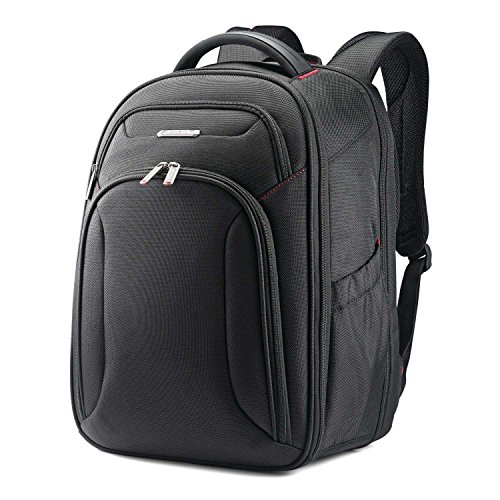
Samsonite Xenon 3.0 Laptop Backpack, 1680D Ballistic Poly, Fits 15.6” Laptop, TSA Compatible, Air Mesh Back Padding, Tablet Pocket, Smart Sleeve, Quick Stash Pocket, Durable & Lightweight – Large — A business-grade backpack with a padded 15.6-inch laptop compartment and a trolley strap — physical protection that also organizes chargers and documents. Check price on Amazon.

Thule 3201989 Crossover 25L Laptop backpack-Black — A rugged 25-litre laptop backpack built for commuting, with a padded compartment that keeps the machine off the ground when the bag is set down. Check price on Amazon.

Samsung T7 Portable SSD 1TB Titan Gray, USB 3.2 Gen 2, Up to 1,050MB/s — A fast portable SSD makes an excellent backup drive: small enough to keep in a drawer away from the laptop, fast enough that backups are painless. Check price on Amazon.
How to Protect a Laptop, Step by Step
Step 1: Give it a padded home for every trip
Never carry a laptop loose in a tote or under your arm. A sleeve adds scratch and bump protection; a bag with a suspended, padded compartment adds drop protection, which is what actually kills machines. Keep the charger in a separate pocket so its prongs and brick do not press into the lid — charger-shaped dents and screen pressure marks are embarrassingly common damage.
Step 2: Set up automatic backups today
Choose the 3-2-1 pattern in miniature: your files live on the laptop, on an external drive or cloud backup, and ideally in one more place. Turn on the built-in tools — File History or a full backup on Windows, Time Machine on a Mac — and let them run automatically. Then test restoring one file. A backup that runs on a schedule and has been tested is the single strongest protection in this entire guide, because it converts theft, spills, and drive failure from catastrophes into inconveniences.
Step 3: Turn on full-disk encryption
Encryption means that if the laptop is stolen, your files are unreadable even if the drive is removed. Enable BitLocker on Windows or FileVault on a Mac, and save the recovery key somewhere separate from the laptop — a password manager or a printed copy at home. Encryption costs nothing in daily use on modern hardware and is the difference between a stolen laptop and a stolen identity.
Step 4: Use a real password and biometrics
Set a strong, unique sign-in password or PIN, turn on fingerprint or face sign-in if your laptop offers it, and set the screen to lock after a few minutes of inactivity. Never leave a signed-in laptop unattended in a public place ‘just for a minute’ — opportunistic theft and snooping take seconds. A cable lock is worth using in offices, libraries, and trade-show booths where the laptop sits for hours.
Step 5: Keep software updated and security on
Turn on automatic updates for the operating system and browser, and leave the built-in security tools enabled. Most real-world compromises exploit software that was already patched — the fix existed, the laptop just had not installed it. Be skeptical of email attachments and download sources, and use a password manager so every account has a unique password; a stolen laptop plus reused passwords is how one incident becomes ten.
Step 6: Protect against spills, heat, and power problems
Keep drinks in closed containers and out of spill range of the keyboard. Use the laptop on hard, flat surfaces so the vents stay clear, and never leave it in a hot car. At a desk, a basic surge protector guards against power spikes. If a spill happens despite everything: power off immediately, unplug, turn the machine upside down to drain, and get it serviced before powering on again.
Common Mistakes That Leave Laptops Exposed
The most common mistake is treating protection as a product rather than a system: an expensive case on a laptop with no backup and no encryption is protected against the least likely disaster and naked against the common ones. The second is backup theatre — a drive that was plugged in once, or a cloud folder that syncs only documents while photos and project files live elsewhere. Sync is not the same as backup, and neither counts until a restore has been tested.
Password mistakes complete the picture: the laptop password written on a sticky note attached to the laptop, the same password as the email account, or no password at all because ‘it is only used at home.’ Homes have visitors, burglaries, and repair technicians. Set the password, lock the screen, and let biometrics make it effortless.
Pro Tips From People Who Have Seen Every Disaster
Label the laptop with a phone number or email on a sticker and in the lock-screen message; honest finders return far more laptops than people expect, but only when contacting the owner is effortless. Photograph the serial number and keep purchase receipts in your cloud storage — invaluable for insurance claims and police reports. Enable the built-in find-my-device feature on Windows or Mac so a lost laptop can be located, locked, or wiped remotely.
For travelers: back up before every trip, carry the laptop in your hand luggage always, and consider a privacy screen in crowded workspaces. For families: give children their own standard user accounts without administrator rights, which blocks a surprising amount of accidental and malicious damage at once.
Travel and Public-Space Protection in Depth
Travel concentrates every laptop risk into a few days: theft, drops, spills, forgotten chargers, hostile networks. Work through the travel layer deliberately. In airports, keep the laptop in your hand luggage and your eyes on the security tray — the X-ray belt is a classic theft point, with one person distracting while another lifts. In cafés, sit with the laptop between you and a wall, use the cable lock if you must step away, or take the machine with you; ‘watch my laptop’ agreements with strangers are not a security control.
Hotel rooms are not safes: if the laptop will not fit the room safe, lock it in your suitcase or carry it. Enable find-my-device before the trip and confirm it reports the machine’s location correctly while you can still fix it. Back up immediately before departure, so the worst case on the road is losing hardware, never work.
On public networks, assume someone is watching the traffic. Use your organization’s VPN or a reputable one of your own for anything sensitive, verify network names with staff before joining, and turn off auto-connect so the laptop stops introducing itself to every hotspot it passes. These habits cost nothing and close the risks that travel actually adds.
Family, Kids, and Shared-Laptop Protection
A laptop shared with family faces different threats: accidental deletion, mystery software, and the creative destruction only children achieve. The protections are structural. Give every user their own account, make only one adult an administrator, and let the built-in parental controls do their quiet work. Standard accounts cannot install system-level software, which blocks both malware and the free-game downloads that bundle it.
Backups matter even more here, because the person who deletes the photo library will not be the person who set up the machine. Automate the backup so no one’s memory is a component of it. A guest account or a dedicated child profile also protects your work files from becoming a drawing application’s canvas.
Physically, a shared family laptop deserves the bumper case and the house rule that laptops and drinks are never carried in the same hands. Most family laptop deaths are spills and drops on the way between rooms — the protection is a habit, taught once and repeated, not a purchase.
Insurance, Warranties, and Knowing Your Coverage
Protection includes financial protection, and many owners discover their coverage only after the loss. Check whether your home or renter’s insurance covers laptops away from home and what the deductible is; for expensive machines, the answer sometimes makes dedicated coverage unnecessary and sometimes reveals a gap worth closing. Manufacturer accidental-damage plans, bought at purchase, are worth their cost for machines that travel daily or live with students — the two populations whose laptops statistically meet the floor.
Know your warranty’s actual terms before you need them: duration, whether service is on-site or mail-in, and whether the battery is covered and for how long. Record the purchase date and keep the receipt in cloud storage. A warranty you cannot prove is a warranty you do not have.
Finally, price your data separately from your hardware in your head. The laptop is replaceable at a known cost on a known day. The data is not — which is why this guide spends more words on backups and encryption than on cases. Protect the irreplaceable thing first; insure the replaceable thing appropriately; and let every other decision follow from that ordering.
Account Security as Physical Protection
Protection thinking usually separates the physical from the digital, but the laptop’s accounts are part of its physical safety: a machine that is stolen is only as dangerous as the sessions signed in on it. Shorten the exposure by keeping browsers signed out of banking and other sensitive services you do not use daily, and by letting the password manager — locked, with its own timeout — hold the keys instead. A stolen laptop full of live sessions is a skeleton key; a stolen laptop full of locked vaults is a paperweight with resale value to the thief and nothing more.
Enable two-factor authentication on the accounts that reset everything else, starting with email and your Microsoft or Apple account, and store recovery codes offline. If the laptop vanishes, your first hour’s work — from another device — is changing the email password, revoking sessions, and remotely locking or wiping the machine. That sequence only works if it was prepared: find-my-device enabled, recovery options current, and the plan known before it is needed.
Teach the household the same reflexes if the laptop is shared. Protection is a property of the system around the machine, and the system includes everyone who touches it. One shared password taped to the lid quietly repeals every other measure in this guide.
Environmental Protection: Heat, Cold, and the Forgotten Hazards
Temperature extremes age laptops invisibly. Heat is the famous one — a laptop left in a summer car can suffer battery damage and screen harm in an afternoon — but cold has its own trap: bringing a freezing laptop indoors and powering it immediately invites condensation on cold internal surfaces. Let a cold machine warm to room temperature before use, the same patience you would give camera gear.
Humidity and dust define the slow hazards. A laptop that lives in a workshop, a kitchen, or a smoky environment inhales its surroundings; the cleaning schedule from the companion guide should shorten accordingly, and the machine should sleep in a closed cabinet rather than open on the bench. Surge protection belongs in this section too: the permanent desk setup deserves a proper surge protector, and the laptop that travels deserves to be unplugged during electrical storms in places with exciting wiring.
None of these hazards announce themselves. They accumulate as shortened battery life, tired fans, and components that fail a year early — which is why protection is a posture rather than a purchase. The laptop you protect environmentally is the laptop that is still fast, quiet, and solvent in year five.
Protecting a Laptop in Real Daily Routines
Protection works best when it disappears into habits you already have. The laptop that survives five years is rarely owned by someone performing elaborate rituals; it is owned by someone whose default routine quietly avoids the common causes of damage. Look at how the machine actually moves through your week. It travels from desk to bag, bag to car, car to meeting room, and each handover is a moment when drops, forgotten zips and spilled drinks happen. Building protection into those handovers matters more than any single accessory.
The two-handed rule and other small physical habits
Most drops happen while carrying a laptop one-handed by its corner, often while also holding a phone, keys or a coffee. The chassis flexes, the grip is weaker than it feels, and a brushed doorway finishes the job. Carrying with two hands, lid closed, sounds almost too simple to mention, yet repair shops see the results of one-handed carries constantly. The same applies to picking a machine up by its screen, which stresses hinges and can crack a panel from the corner inward. Treat the base as the handle, every time, until it is automatic.
Where the laptop sits matters just as much. A machine left on a sofa cushion sinks, overheats and eventually slides to the floor. A laptop on the edge of a kitchen counter lives one elbow away from a fall. Give it a defined parking place at home and at work, away from edges, drinks and the swing of bag straps, and half of everyday physical risk disappears without spending anything.
Cable strain, ports and the slow damage nobody notices
Not all damage arrives in a single dramatic moment. Charging cables yanked sideways loosen ports over months. A USB drive left plugged in during transit becomes a lever that can snap both itself and the socket it sits in. Dust and pocket lint pack into ports and vents, raising temperatures gradually. Once a month, unplug everything, inspect each port, and clear lint gently with a wooden toothpick or a short burst of compressed air. Coil cables loosely rather than wrapping them tightly around the power brick, because tight bends break the internal conductors near the strain relief, which is why so many chargers fail at exactly that spot.
- Remove drives and dongles before the laptop goes into a bag.
- Route the charging cable so nobody can trip over it and drag the machine off a desk.
- Keep magnets in bags and desk toys away from the lid and palm rest area.
- Open the lid from the centre of the top edge, not a corner, to avoid twisting the panel.
Data Protection Beyond a Simple Backup
The earlier steps covered turning backups on. This section is about making sure a backup would actually save you on the worst day, because an untested backup is a hope rather than a plan. Once a year, pick a few important files at random and restore them to a different folder. If that process confuses you or fails, you have learned something valuable while nothing was at stake.
The version history safety net
Modern cloud storage and operating systems keep previous versions of files, and this quietly protects against the most common data disaster of all: your own editing. Overwriting the good version of a document, deleting a folder by mistake, or saving a corrupted file over a healthy one happens far more often than theft. Learn where version history lives in the tools you use daily, and practise restoring yesterday’s version of a test file. Ransomware is the darker version of the same problem, which is why at least one copy of your most important data should live somewhere that is not permanently connected, such as an external drive you plug in weekly and then put away.
Passwords, recovery codes and the account layer
Protecting the hardware means little if the accounts on it are open. Use a password manager so every account can have a unique password without any memorisation burden, and turn on two-factor authentication for email first, because email resets everything else. Print or write down recovery codes for your most important accounts and store them somewhere physically secure at home. Finally, check which devices are signed into your accounts once or twice a year and remove anything you no longer recognise or no longer own, including old phones and laptops you sold or gave away.
Protecting a Laptop You Lend, Share or Give Away
Laptops get lent to partners, children, colleagues and guests, and each loan is a small protection gap. A separate standard user account for other people keeps your files, saved passwords and settings out of reach without any awkwardness. Guests can browse and work in their own space, and anything they download or change stays contained. Before lending the machine for a trip, confirm backups are current, encryption is on, and you know the serial number, so a loss during the loan is an inconvenience rather than a catastrophe.
Preparing a laptop for resale or donation
When a laptop leaves your life permanently, protection runs in the other direction: protecting your data from the next owner. Back up everything first, sign out of every account and deactivate software licences you want to reuse, then use the operating system’s built-in reset with the option that wipes data securely. On modern machines with solid-state storage and encryption enabled, a proper reset that destroys the encryption keys makes recovery impractical. Remove any linked-device entries from your cloud accounts afterwards, and include the charger but never your password. If the drive was ever unencrypted and held sensitive material, removing and keeping or physically destroying the drive is the cautious option, and a bare laptop still has value to a buyer or charity.
Seasonal and Situation-Specific Risks
Summer heat, winter cold and condensation
A laptop left in a hot car can suffer battery damage and, in extreme cases, screen problems, while a machine brought in from freezing weather needs time before use. Cold hardware brought into a warm room collects condensation inside, so let it sit, powered off, until it reaches room temperature. The same patience applies after any flight, where cargo-hold temperatures and rough handling combine. Never turn a machine on immediately just to check it survived; visual inspection first, patience second.
Beaches, workshops and other hostile environments
Sand is abrasive, conductive in the wrong places, and almost impossible to remove fully from a keyboard. If a laptop must work near a beach, a kitchen full of flour, or a workshop, a keyboard cover and a strict no-open-lid-while-eating rule help, and a thorough external clean afterwards is essential. For genuinely rough environments, the honest answer is a cheap sacrificial machine or a tablet in a sealed case rather than your main laptop, because some environments defeat reasonable precautions.
Protection is ultimately a portfolio: physical habits, a tested backup, encryption, sane accounts and a little environmental awareness. No single layer has to be perfect, because the others catch what it misses, and that layered approach is what turns luck into routine.
Maintenance as Protection: Keeping Small Problems Small
Many laptops die from neglect rather than accidents. Heat, dust and a tired battery degrade a machine slowly, and each ignored symptom makes the next failure more likely. A light maintenance rhythm protects performance and lifespan at the same time, and none of it requires opening the case or special skill.
A simple monthly and yearly rhythm
- Monthly: clear the vents and fan intakes with short bursts of compressed air while the machine is off, wipe the keyboard and screen with a dry or barely damp microfibre cloth, and check that your backup actually completed by opening one restored file at random.
- Every few months: review storage space so the drive is not permanently full, uninstall software you no longer use, and look at the battery health figure in your system settings so a decline does not surprise you mid-trip.
- Yearly: photograph the laptop’s condition for insurance records, refresh your note of the serial number and purchase details, test your recovery method for your most important account, and replace a frayed charging cable before it fails or damages the port.
- Before any long trip: run updates a few days early rather than the night before, make a fresh full backup, charge the machine, and confirm you can sign into your accounts from your phone in case the laptop never comes home.
Heat deserves special attention because it is both a performance problem and a longevity problem. A laptop that regularly runs hot on a bed or sofa ages its battery faster and can throttle so often that it feels years older than it is. Using it on a firm surface, keeping vents unobstructed and occasionally lifting the rear edge a little costs nothing and protects the components you cannot replace.
Electrical protection at home and away
Power problems are an underrated cause of laptop death. A surge protector between the wall and your charger is cheap insurance at a fixed desk, especially in areas with storms or unreliable wiring. In hotels and older buildings, plug the charger into the protector rather than directly into a doubtful socket where you can. Never use a charger with a damaged cable, a loose plug or a brick that runs unusually hot or buzzes; a failing charger can damage the charging circuit it feeds. If a machine will sit unused for weeks, charge the battery to roughly half, shut it down fully rather than sleeping it, and store it somewhere cool and dry. Batteries left at full charge in heat, or left empty for months, both lose capacity permanently, and a stored laptop that wakes up with a swollen battery should not be charged or used until it has been checked, because a swollen cell is a safety issue rather than a nuisance.
Digital Hygiene That Protects the Machine Itself
Software threats damage laptops in practical ways: ransomware locks your files, cryptomining malware cooks your hardware, and a compromised browser fills the machine with junk that slows it for years. The protection steps are unglamorous and highly effective when combined.
Downloads, attachments and the discipline of suspicion
Most infections begin with something the user willingly ran: a fake software update, an attachment pretending to be an invoice, or a free download bundled with extras. Protect the laptop by getting software only from the maker’s own site or your system’s official store, by reading installer screens instead of clicking through them, and by treating unexpected attachments as hostile until proven otherwise, even when they appear to come from someone you know, because compromised accounts send convincing mail. Keep the browser itself updated, remove extensions you do not recognise, and give children and guests that standard account mentioned earlier so anything they run cannot quietly take over the whole system.
Public networks without the paranoia
Hotel, cafe and airport networks are shared with strangers, so a few habits matter. Confirm the exact network name with staff rather than joining a similarly named impostor. Turn off automatic connection to open networks, and disable file sharing while you are on them. Modern websites encrypt most traffic by default, which covers everyday browsing well; a reputable virtual private network adds a further layer for work material. When you get home, tell the laptop to forget one-off networks so it does not reconnect to a same-named network later without asking. None of this needs to become anxiety; it is the digital equivalent of locking the car in a public car park.
If the Worst Happens: The First Day After Loss or Theft
Preparation only pays off if you act in the right order when a laptop disappears. Work through these steps calmly and in sequence, because the first hours decide how much of the incident is recoverable.
- Locate and lock: use your phone or another computer to check the device-finding service for your platform, play a sound if it might be nearby, and mark it lost or lock it remotely so the sign-in screen shows your contact details.
- Protect accounts first: from a safe device, change the password on your email account, then your password manager and banking, and sign the lost laptop out of every account that offers a device list.
- Report it: file a police report with the serial number even if recovery seems unlikely, because insurers usually require one and recovered machines are matched by serial.
- Notify and claim: tell your insurer or card provider within their required window, and keep receipts for any replacement you must buy quickly for work.
- Restore and move on: set up the replacement machine from your backup, review what data the lost machine held, and watch accounts for unusual activity for a few weeks.
Notice what is not on that list: panic about your files. If encryption was on and backups were current, the data story is already written, and the incident shrinks to replacing hardware. That is the entire point of the layered approach this guide builds, and it is why the boring steps taken on a quiet afternoon are worth more than any gadget bought afterwards.
A Ten-Minute Protection Audit You Can Repeat
Once or twice a year, run this audit in order and fix anything that fails on the spot. Is full-disk encryption switched on? Did a backup complete in the last week, and can you open one file from it? Are updates set to install automatically? Does the laptop have its own strong sign-in, with a fingerprint or face unlock where available? Do you know the serial number without turning the machine over and squinting? Is the charging cable undamaged? Are the vents clear? Is there a standard account for other people who use the machine? Can you sign into your email and password manager from your phone alone? Nine yes answers mean your laptop is protected in every way that realistically matters; any no is a five-minute fix that removes a whole category of bad day.
Protecting a Laptop at School, at Work and on Site
Different settings create different risks, and naming them helps you counter them. In a school bag, a laptop lives between textbooks, water bottles and sports kit, so a separate padded compartment and a bottle that lives outside the bag are the two highest-value changes. In an office, the risks are quieter: cleaners moving machines, colleagues borrowing chargers that deliver the wrong wattage, and hot-desking that leaves a laptop logged in and unattended. Lock the screen every time you stand up, label your own charger with tape so it comes back to you, and never leave the machine in a meeting room overnight if a locker or drawer is available.
For people who work on building sites, in vehicles or outdoors, vibration and dust dominate. A rugged case helps, but habits help more: close the lid fully before moving the machine so grit cannot grind across the screen, keep it off the ground and out of direct sun on dashboards, and clean the vents more often than the standard rhythm suggests. A laptop used in a van all day also lives on its charger, so check the cable routing where doors and seats move, because a pinched cable is both a failure and a fire risk in waiting.
Protecting the accessories that protect you back
Your backup drive, charger and bag are part of the protection system, and they fail too. A backup drive stored in the same bag as the laptop is stolen or dropped with it, so keep the drive at home or at work, separate from the machine it protects. Chargers deserve a spare at the place you work most, which removes the daily coiling and uncoiling that wears cables out. Bags wear at zips and straps; inspect them occasionally, because the day a strap lets go is the day the laptop meets the pavement. None of this is exciting, and all of it is cheaper than the incident it prevents.
Teaching the Household: Protection for Shared Family Laptops
A family laptop faces enthusiastic users with sticky hands and no fear. Protection here is mostly design rather than rules. Put the machine on a desk or table that is its official home, with drinks allowed only in cups with lids and only on the other side of the desk. Give each person their own sign-in so one person’s downloads and settings cannot harm another’s files, and make one adult account the administrator that approves installations. A simple, agreed rule that the laptop is never carried around the house by its screen, and never used on a bed piled with cushions, prevents the two most common family accidents. Finally, keep the backup boring and automatic, because a household will not maintain a manual routine for long, and the family photo library is usually the least replaceable data in the building.
When Protection Fails Anyway: Repair Decisions That Protect Your Wallet
Even a well-protected laptop can break, and the decisions you make in the first hour protect you from a second, financial injury. Stop using a machine with a cracked screen that is spreading, a hinge that grinds, or a battery that has changed shape; continued use converts a single repair into several. Photograph the damage, note when it happened for insurance purposes, and check warranty and any accidental-damage cover before paying anyone, because a surprising number of repairs are already paid for by a plan the owner forgot. Back up before handing the machine to any repairer if it still runs, and remove or encrypt sensitive material where you can. Ask for the diagnosis and the repair price in writing, and compare it honestly against the machine’s age and replacement cost. A repair that costs a large share of a comparable new laptop’s price, on a machine with a tired battery and an old drive, is often protection money spent in the wrong place. Finally, keep the paperwork: repair records raise resale value and prove the machine’s history to the next owner.
That decision discipline closes the loop of this guide. Protect the body with habits and a decent bag, protect the data with tested backups and encryption, protect the accounts with unique passwords and two-factor sign-in, and protect the budget by knowing your coverage before you need it. A laptop guarded on all four fronts will survive accidents that end identical machines, and when it finally cannot, it will hand its contents safely to its replacement and retire without drama.
The Protection Mistake Almost Everyone Makes Once
Ask repair technicians for the most preventable laptop death and most give the same answer: liquid beside an open machine, in a place the owner considered safe. It is rarely a dramatic spill across the keyboard. It is the mug nudged while reaching for a notebook, the bottle that sweats a ring of water the laptop slowly slides into, or the glass on a higher shelf that drips onto the desk below. The fix is embarrassingly small: drinks live on a different surface, or at least on the opposite side from the hand you reach with, and never behind the laptop where a knocked cup pours straight across the vents. Pair that with the other unglamorous rule in this guide, a backup you have tested rather than merely enabled, and you have removed the two causes behind the majority of laptop funerals: water in the wrong place, and data that existed in exactly one place.
One last habit ties everything together: slow down at the moments of transition. Most damage happens in the ten seconds while a laptop is being picked up, put down, unplugged, packed or handed to someone else. A breath of attention at exactly those moments, repeated daily, is worth more than any accessory in this guide.
Related Guides
- best laptops for travel
- best laptops for students
- best laptops for work
- best laptops for home use
- best laptops for small business
- how to clean a laptop as part of physical care
- how to secure a business laptop
Frequently Asked Questions
Is a laptop case or a sleeve better?
They solve different problems. A sleeve protects against scratches and minor bumps in transit and is enough for careful users. A hard shell or bumper case protects the laptop itself from corner drops and lid pressure and suits students and rough commuters. Many travelers use both: a shell on the machine, carried inside a padded bag compartment.
Do I really need encryption if I have a password?
Yes. A sign-in password alone does not protect the data on the drive: someone with physical access can remove the drive or boot from external media and read unencrypted files. Encryption is what makes the data itself unreadable without your credentials. On modern laptops it is free, built in, and has no noticeable performance cost.
How often should I back up my laptop?
Continuously or daily for the cloud layer, and at least weekly for a local external drive. The right frequency is set by one question: how much work can you afford to lose? If losing a day of work would hurt, daily is the floor. Automate it — a backup that depends on you remembering will eventually be a backup that did not happen.
Are antivirus programs necessary?
The security tools built into current Windows and macOS are solid baselines for most users, kept effective by automatic updates. What matters more is behavior: unique passwords, skepticism about unexpected attachments and links, and software from legitimate sources. Some users add a reputable third-party tool for extra scanning; nobody should pay for scareware that pops up from a web ad.
What should I do immediately if my laptop is stolen?
Use find-my-device from another device or browser to locate, lock, or remotely wipe it. Change your email password first, then banking and other critical passwords, from a safe device, and revoke sessions where offered. Report the theft to the police with the serial number, and notify your insurer. Your preparation — encryption plus backups — is what turns this from an identity crisis into a hardware claim.
Does a screen protector help a laptop?
It can prevent scratches on touchscreens used with a stylus, and matte protectors reduce glare, but they are optional for most clamshell laptops whose screens never touch anything when closed. The bigger screen risk is pressure on the lid in an overstuffed bag. Spend first on the padded compartment; add a protector only if your use case involves pens or rough handling.
Should I register my laptop’s serial number anywhere?
Yes. Keep the serial number in your password manager or a note at home, along with a photo of the purchase receipt. It speeds up insurance claims, police reports and warranty checks, and it proves ownership if a lost machine is recovered.
Is a laptop lock worth using?
A cable lock will not stop a determined thief, but it stops the opportunistic grab in libraries, cafes and shared offices, which is the most common kind of theft. If your laptop has a lock slot and you work in public often, it is cheap deterrence.
How long should a well-protected laptop realistically last?
With sane handling, a healthy battery routine and storage that is not permanently full, most laptops remain pleasant for four to six years of everyday use. Protection does not make a machine immortal; it makes sure wear, rather than a single accident, decides when you replace it.


