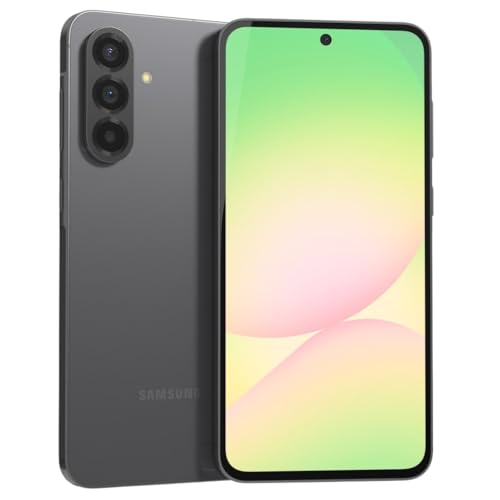
Knowing how to set up a 5g phone means doing the normal new-phone ritual plus one extra layer: making sure the 5G itself is actually switched on, correctly configured, and working on your carrier plan. Plenty of people carry a 5G phone for months on 4G without knowing — a default setting left on the battery-saving option, an old SIM quietly limiting features, or a plan that needs a one-time activation — and the phone never complains, because 4G still works fine.
This guide assumes the phone is new or newly reset and layers the 5G checks into the standard setup flow: activate, transfer, update, then verify the network with a real test in a real place. By the end, you will not just hope the 5G icon means something — you will have seen it perform.
Disclosure: As an Amazon Associate, kajuandouglas.com earns from qualifying purchases. Links to Amazon on this page are affiliate links; they cost you nothing extra. Listing details such as price and availability change often, so check the current Amazon listing before you buy.
Quick answer: activate the SIM or eSIM, complete the normal setup and transfer, install every system and carrier-settings update, set the network mode to 5G Auto or 5G On, confirm your plan includes 5G, then stand in a known coverage area, check for the 5G icon, and run a speed test to prove it.
Gear for This Guide
Verified phones whose setup rewards the steps above, plus the desk charger that powers the process.

Samsung Galaxy S24 Ultra Cell Phone, 256GB AI Smartphone, Unlocked Android, 200MP, 100x Zoom Cameras, Fast Processor, Long Battery Life, Edge-to-Edge Display, S Pen, US Version, 2024, Titanium Gray — Setting up an unlocked flagship like this one, the carrier-settings update step matters most: unlocked phones pull their configuration over the air, and current software is what unlocks the full band behavior. Check price on Amazon.

OnePlus 12R, 8GB RAM+128GB, Dual-SIM, US Factory Unlocked Android Smartphone, 5500 mAh Battery, 50MP Camera, 80W Fast Charging, 2024, Iron Gray — A dual-SIM unlocked model like this OnePlus rewards careful SIM setup — data line selection and per-SIM network modes live exactly where step four points you. Check price on Amazon.
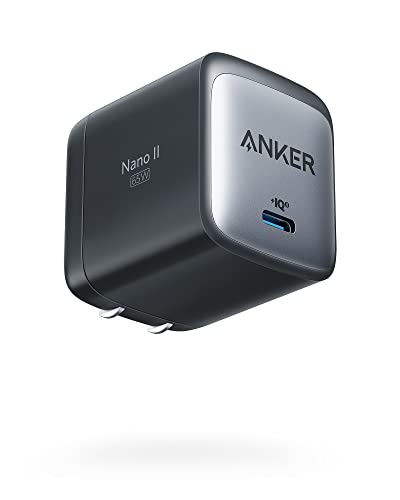
Anker Nano 65W GaN II PPS USB C Charger, Fast Compact Foldable Charger — Setup day is update day, and updates plus transfers drain batteries; a fast GaN charger on the desk keeps the whole process moving without heat or waiting. Check price on Amazon.
In this guide
What You Need
- Your new 5G phone and its charger
- Your old phone for the transfer, with its unlock code
- Your carrier account details, for plan checks or eSIM activation
- Your home Wi-Fi password
- A place you know has 5G coverage — your carrier map will show one
Do the network verification outdoors or near a window in a mapped coverage area. Testing deep inside a concrete building and concluding 5G is broken is the most common false alarm in this entire process.
How to Set Up a 5G Phone: Step by Step
Step 1: Activate the line: SIM or eSIM first
If your carrier gave you a new SIM, fit it before powering on; if you are moving a SIM from your old phone, move it now, while both phones are off. For eSIM, power on, join Wi-Fi, and activate through the carrier app or the QR code they provided. Make a test call and send a test text before anything else — a line that cannot call cannot do data either, and discovering that after the transfer wastes an hour. If activation stalls, carrier support can push it through in minutes; do not wrestle it alone.
Step 2: Run the standard setup and transfer
Follow the setup wizard: language, Wi-Fi, Google account, and the copy-apps-and-data flow from your old phone, by cable for speed. Set your screen lock and fingerprint while you are in the wizard — secure apps will demand it later anyway. This part is identical to any Android setup, and our general setup guide covers it step by step. The 5G-specific work begins once the phone is alive, updated, and holding your data.
Step 3: Install every update, including carrier settings
Go to Settings, System, Software update, and install everything offered, restarting as prompted. Updates frequently include modem firmware and carrier configuration — the invisible software that decides which bands your phone uses and how it talks to towers. Skipping them is the quiet reason some new phones underperform on 5G for weeks. Also update all apps from the Play Store, and if your carrier has a settings or account app, open it once and let it provision anything it offers.
Step 4: Set the network mode to full 5G
Open Settings, Network and internet, then your SIM, and find Preferred network type or the 5G toggle — the wording varies by brand. Choose the full option: 5G On, 5G Auto, or the setting that includes 5G alongside 4G and 3G. Some phones ship in a battery-friendly mode that prefers 4G; that is a legitimate choice for later, but for setup day you want full 5G so you can verify what you bought. Note where this setting lives — it is also the fix in our 5G troubleshooting guide.
Step 5: Confirm your plan actually includes 5G
Open your carrier account — app or website — and check the plan details for 5G access and any tier limits. Most current plans include 5G, but older grandfathered plans and some basic tiers restrict the fastest bands or hotspot use. If your plan needs a change, make it now rather than after a week of confusing speed tests. Also confirm data settings on the phone: mobile data on, data roaming off unless you travel, and no data-saver mode strangling background use during your tests.
Step 6: Verify 5G in the real world
Go to a mapped coverage spot — outdoors, ideally — watch for the 5G icon in the status bar, and run a speed test with a reputable test app or your carrier tool. Compare with a second test on your commute or at your office. Numbers vary enormously by band and congestion; what you are confirming is that mid-band, where available, delivers clearly beyond-4G speeds. If the icon never appears or speeds look like plain 4G everywhere, that is a real finding: work through our 5G-not-working guide, then call your carrier with your test locations in hand.
Step 7: Tune 5G for your battery reality
After a day or two of normal use, check battery behavior. If your routine keeps you on strong 5G, leave everything on full. If you live at the edge of coverage and watch the modem hunt, switch to the Auto or Smart 5G mode that prefers 4G when 5G offers no advantage — your battery will thank you and your experience will barely change. This is a tuning choice, not a failure: the right setting is the one matched to your map, and now you know yours.
Common Mistakes
Testing 5G indoors and declaring it broken
Mid-band and especially millimeter-wave signals fade through concrete, low-emissivity glass, and basements. A failed test from a basement office proves nothing about your phone. Test outdoors in a mapped area first; indoor performance is a separate, legitimate question to explore afterward with realistic expectations.
Skipping the carrier-settings updates
People install the big system update and stop, missing the modem and carrier-configuration updates that follow or hide behind a restart. On a brand-new phone, run the updater until it reports fully current twice in a row — the second check is the one that catches the stragglers that decide your 5G quality.
Leaving an ancient SIM in service
A SIM from the early 4G era can limit network features on some carriers. If your card is many years old, ask the carrier for a fresh one — they are free — or move to eSIM and retire the question forever. It takes one store visit or one app flow, and it removes an entire category of weird behavior.
Judging by the icon alone
The 5G icon can appear when the phone is merely connected to a 5G-capable tower while data actually rides 4G, depending on network configuration and carrier display rules. The icon is a hint; the speed test in a known mid-band area is the evidence. Trust the test.
Factory defaults forever
Setup is not the finish line. After a week, revisit the network mode, the data-saver settings, and your battery stats with real experience behind you. Ten minutes of tuning turns a generic configuration into your configuration — the step that separates a set-up phone from a dialed-in one.
Pro Tips
Run your verification speed tests at your real hours — morning commute, lunch, evening — because congestion patterns matter and a midnight test flatters every network.
Screenshot your working APN and network settings once everything performs. If a future update or reset scrambles them, the screenshot is your restore point.
Turn on Wi-Fi calling during setup if your carrier supports it. At home it will quietly carry calls over your broadband, and your 5G will be there for everything else.
Keep the old phone unreset for a day, as with any setup — the 5G layer adds new variables, and your fallback should stay alive until the new phone has proven itself at home, at work, and on the road.
After Activation: The First-Day Audit That Proves the Setup Worked
A setup is a claim until it is audited, so spend ten minutes on the first day proving yours, in the order the failures usually hide. Confirm the line itself: make a call, receive a call, send and receive a message, and use mobile data with Wi-Fi switched off, because each exercises a different part of the provisioning that activation was supposed to complete. Confirm the number and identity the phone presents are yours, and that voicemail answers and records. Walk the data connection through your real geography at the first opportunity — home, workplace, the commute’s known weak stretch — and note where 5G appears, where 4G carries the load and where nothing does, because that personal coverage map, gathered in week one, is the evidence every later conversation with your carrier will need. Finally, confirm the unglamorous foundations while nothing is urgent: backup shows a completed first run, finding and remote-lock services are active and visible from another device, and the phone’s software and carrier settings stand fully updated after their post-setup settling. A phone audited this way on day one rarely surprises its owner in month six, because its surprises were all invited early, while they were still cheap.
Network Settings, Decoded for Owners Rather Than Engineers
The network menus hide several settings whose names intimidate and whose jobs are simple, and a set-up phone deserves an owner who knows them. The network mode selector decides whether the phone may use 5G at all and how eagerly it prefers it; the automatic modes exist because eagerness costs battery, and they are the right default for almost everyone. Data roaming controls whether the phone will use data on other networks — essential abroad, bill-relevant everywhere, and worth setting deliberately rather than discovering. Wi-Fi calling lets calls ride a strong Wi-Fi network where mobile signal is weak, and enabling it at home cures more call complaints than any other single switch in this guide. The preferred network and carrier settings, refreshed by the carrier-settings updates the main guide insists on, are how your phone learns your provider’s current configuration; skipping them is the digital equivalent of ignoring a change-of-address notice. None of these settings needs revisiting often. They need to be understood once, set deliberately, and left alone — which is the definition of setup as this series uses the word, in phones as in laptops.
Transfer Without Tears: Accounts, Messages and the Two-Factor Trap
The transfer step in the main guide deserves one expansion, because it conceals the commonest setup disaster of the smartphone era. Your accounts’ security increasingly lives on the old phone: authenticator applications, banking approvals, messaging registrations and sign-in prompts all regard the old device as the proof of you. Migrate them deliberately, one service at a time, confirming each works on the new phone before the old one is wiped, traded or handed down — and never surrender the old phone until every account that ever sent it a code has been re-proven on its successor. Keep the old device, charged and intact, for a settling week after the switch even when a trade-in tempts you to surrender it at the till; that week is when the forgotten account, the un-transferred authenticator and the missing message archive announce themselves, while recovery is still a cable rather than a tribunal. Students and professionals alike have lost days to this trap, in direct proportion to the value of what their phones guard. The five extra days of patience cost nothing. The lesson, learned the other way, costs exactly as much as your most important account is worth.
Battery and 5G: Tuning the Relationship Honestly
New owners often meet 5G through their battery gauge before they meet it through a speed test, so set the relationship up deliberately. Understand first that early 5G use can cost power through no fault of the phone: weak or fringe coverage makes radios work harder, hunting and holding signals at the edge of the map, and a new phone’s first days are already its hungriest, with transfers, indexing and updates running their storm. Judge battery only after the settling week, in your real geography. Then tune with the tools the main guide names: the automatic network mode as the sensible default, which lets the phone prefer 5G where it is strong and rest where it is not; Wi-Fi calling and home Wi-Fi carrying the load indoors, where most battery is spent; and per-application data discipline for the services that sync eagerly over mobile data. Resist the folklore in both directions — neither the panic that turns 5G off permanently and wastes the phone you bought, nor the stubbornness that forces the hungriest mode in a fringe area and blames the battery for geography. The tuned middle is not a compromise. It is the technology working as its engineers intended, and it is set once, in setup week, by an owner who understood what the switches were for.
Privacy, Security and Safety Settings for a New Line
A new phone number and a new device arrive together, and both deserve the deliberate five minutes this series keeps prescribing. Set a strong device passcode and biometrics, since the phone is now the key to your accounts, your messages and increasingly your money. Turn on finding, remote lock and remote wipe, and test their visibility from another device while the test is still free. Review which applications receive location, microphone and camera access, granting each what its job requires and no more, because setup week is when permission lists are shortest and habits are formed. Register the number thoughtfully: it will become the recovery route for services that matter, which argues for keeping it stable, protecting the account behind it with your carrier against unauthorised transfer, and treating unexpected messages about your own line with the suspicion this series recommends for every urgent message. None of this is fear. It is the recognition that a modern phone is an identity document that also makes calls, and identity documents are set up carefully, once, by people who intend to keep them.
Travel and Roaming: Setting Up Before the Border
A 5G phone set up well at home can still embarrass its owner abroad, so treat the first trip as part of the setup rather than as an exam. Before departure, confirm with your carrier what your plan does in the destination — included roaming, day passes, or rates that demand a local solution — and set the phone’s roaming switches to match the decision, deliberately, rather than letting the border decide for you. Download the offline essentials while home Wi-Fi is generous: maps of the destination, translation packs, boarding documents, and the carrier’s own application for managing the line from abroad. Know how to reach your carrier from another network and how your two-step verification behaves when your number is roaming, because travel is when account recovery loves to demand the one code you cannot receive. On return, revisit the switches you changed, restoring the home configuration with the same deliberateness. A phone that travels this way stops being a source of border anxiety and becomes what it was bought to be: the same calm, connected tool, in a more interesting postcode.
The First Month: Habits That Keep the Setup True
Setup decays without a light rhythm, and a phone’s first month is when that rhythm is either installed or forgotten. Weekly, let the phone restart when it asks and install the updates that arrive, including the carrier settings whose importance the main guide established; these small maintenances are the difference between a phone that ages gracefully and one that accumulates mysterious behaviours. Once in the first month, revisit the audit: backup current, permissions still sensible, storage with honest headroom, the battery’s behaviour in your real geography understood rather than feared. Check, too, that your old phone’s story is fully closed — accounts migrated, its own data wiped through the proper reset only after the settling week proved nothing was left behind, its trade-in or hand-down completed with paperwork. And file the new phone’s documents — receipt, warranty, carrier account details, the serial identifiers — in the backed-up place this series always recommends, because a phone’s paperwork is needed on exactly the days when searching for it is hardest. A month of this rhythm converts a setup from an event into a state, and states, unlike events, are still true in year three.
Troubleshooting the Setup Itself: The Five Complaints and Their Usual Causes
The phone shows 5G but feels slow
Usually geography or plan rather than device: a low-band signal wearing the 5G icon, a congested cell at a peak hour, or a plan tier managing speeds. Test in another location and at another hour before concluding anything, and compare against the coverage map you gathered in week one.
The phone never shows 5G at all
Work the main guide’s order: network mode actually set to allow 5G, plan confirmed to include it, carrier settings updated, SIM or eSIM current. One of those four is responsible for nearly every case, and all four are checkable in minutes.
Battery drains faster than the old phone
Distinguish the settling storm of the first days from a pattern, then look for fringe-coverage hunting and eager background sync before blaming the radio generation itself.
Calls sound worse than before
Voice rides its own services and settings: carrier settings, Wi-Fi calling behaviour at home, and coverage edges explain most regressions, and each has a named remedy in this guide.
Messages or codes do not arrive
The transfer trap, surfacing: a service still registered to the old number’s device or an account whose migration was never completed. Return to the account-by-account audit while the old phone is still in your drawer — which is, of course, why it is still in your drawer.
Notice what unites the five: none of them is a defective phone, and all of them yield to the same method as every subject in this series — observe the pattern, check the layers in order, change one thing at a time, and keep the record. Setup problems are not a verdict on your competence or the phone’s quality. They are the ordinary friction of a complex system meeting a new owner, and they are, almost without exception, an hour’s methodical work away from being history.
eSIM, Dual Lines and the Two-Number Life
Modern 5G phones increasingly carry two lines at once — a physical SIM beside an eSIM, or two eSIMs — and setup should treat the second line as a deliberate design rather than an accident. Students with a home number and a placement or part-time-work number, travellers pairing a home line with a local data plan, and anyone separating work from personal life all benefit from naming, in the phone’s settings, which line is which: which carries calls by default, which carries data, and how contacts are assigned so a personal call never leaves on the work line by mistake. Set those defaults consciously in setup week, label the lines in words you will understand at midnight in an airport, and confirm that your important accounts’ verification codes are aimed at the number you intend to keep longest. Dual-line capability, configured well, is one of the quiet revolutions of the modern phone — a second identity carried without a second device — and configured carelessly, it is a small machine for generating confusion at borders and in billing. The difference, as ever in this series, is ten deliberate minutes at the beginning.
Accessibility and Personalisation: A Phone Set Up for Its Actual Owner
Finish the setup by making the phone genuinely yours in the ways that outlast novelty. Set text size and display scaling for your eyes at your distances, not for the showroom’s. Configure the accessibility features you use — captioning, hearing support, voice control, magnification — as first-class citizens of the setup rather than as afterthoughts, and test them on a real call and a real video before declaring the phone ready. Arrange the home screen around your day rather than around the manufacturer’s partnerships: the applications you open hourly within a thumb’s reach, the rest filed without guilt. Set notification discipline with the same seriousness as the network settings, because a phone that interrupts constantly has failed its setup as surely as one that cannot find a signal; the batches, silences and exceptions you choose now will govern your attention for years. A phone personalised this way stops feeling like a product and starts feeling like an instrument — tuned, quiet where it should be, immediate where it matters — and that feeling, sustained across the device’s life, is the true deliverable of every step in this guide.
Hotspots, Tethering and Sharing Your Connection Well
A set-up 5G phone is also a small network for other devices, and configuring that role deliberately completes the setup for many owners. Know your plan’s hotspot terms before the day you depend on them — allowances and speed policies vary, and the middle of a broadband outage is the wrong classroom. Set a strong hotspot password rather than accepting any default, name the network recognisably, and learn where its switch lives so enabling it is a reflex rather than a search. Understand the battery arithmetic honestly: a phone serving as a household’s router is spending its own life to do it, so plug it in for long sessions and treat the arrangement as the emergency bridge it is. For students and travellers, this feature quietly justifies the entire 5G purchase on the handful of days it saves a deadline or a journey — which is why it belongs in the setup audit, tested once at home, rather than discovered under pressure with a laptop at low battery and a submission portal open.
The Old Phone’s Afterlife: Trade-In, Hand-Down and Spare
Setup ends, properly, with the predecessor’s fate decided rather than drifted into. If it is traded in, complete the migration audit first, then perform the full reset through the proper settings, remove the device from your accounts and finding services, and keep the paperwork until the credit lands. If it is handed down, the same reset protects both parties — the giver’s data gone, the receiver’s start clean — and a sentence of guidance travels with it: the charger’s whereabouts, the account it will need, the case that fits. If it is kept as a spare, charge it to a sensible level, store it somewhere findable, and remember it exists on the day the main phone meets water, because a household with a working spare treats a phone disaster as an errand. Whichever fate you choose, choose it in setup week, while the migration evidence is fresh. Phones retired deliberately become assets and gifts. Phones retired by drift become drawers full of unresolved accounts — and you have come too far through this guide’s method to let the story end in a drawer.
A Setup Checklist You Can Screenshot
- Line activated and proven: calls both ways, messages both ways, mobile data working with Wi-Fi off, voicemail answering.
- Software and carrier settings fully updated after activation, followed by one complete restart.
- Network mode set deliberately, plan’s 5G inclusion confirmed with the carrier, Wi-Fi calling enabled at home.
- Accounts migrated one by one and re-proven on the new device, authenticators included, before the old phone goes anywhere.
- Backup completed once and finding, lock and wipe services tested from another device.
- Security set: strong passcode and biometrics, permissions reviewed, carrier account protected against unauthorised changes.
- Coverage walked in your real places and noted; battery judged only after the settling week.
- Old phone’s fate decided — traded, handed down or spared — with its reset and paperwork completed properly.
Tick those in order and the setup is not merely finished but verified, which has been this guide’s standard from its first step. A phone set up to that standard disappears into its owner’s life — connected in the right places, quiet in the right hours, ready at the borders and the deadlines alike — and disappearance, as every article in this series eventually concludes, is the highest compliment any technology can earn.
When the Setup Is for Someone Else: Parents, Children and Colleagues
Setting up a phone for another person is a distinct craft, and its rules invert several instincts. Configure for their life, not for yours: their home screen, their text size, their applications, their carrier geography. Resist demonstrating features they did not ask for; instead, complete the invisible foundations flawlessly — activation proven, accounts migrated with their authenticators intact, backup running, finding services on, paperwork filed where they can reach it — because those are the gifts that keep working after your visit ends. Write down, in plain language, the three things they will actually need: how to reach you or support, where the phone’s documents live, and what to do in the first hour if it is lost, following the pattern this series teaches for every device. Then hand it over completely, accounts and all, because a phone set up as an act of care must end as an act of trust. Done this way, setup becomes what it quietly is at its best: not a technical procedure performed on a device, but a person being handed a working connection to their whole life, tested, protected and ready — by someone who took the trouble to do it in the right order.
The Quiet Weeks After: What a Well-Set-Up Phone Stops Asking of You
Measure a successful setup by its silences. The well-set-up phone does not ask you to wonder whether the backup ran, because you proved it and it reports honestly. It does not ask you to decode its signal behaviour in a new town, because you know its modes and your plan. It does not ambush you at a border, in a billing cycle or at an account recovery, because each of those was visited deliberately in the calm of setup week. What remains is the phone as it was always advertised and so rarely delivered: a connection that works, in the places your life happens, at the hours your life keeps, for the years its support promises. That outcome was never going to be shipped in the box. It was assembled, step by audited step, by an owner who understood that setup is not the preamble to owning a phone. It is the first and most consequential act of ownership itself — and you have now performed it the way this series recommends everything be performed: in order, on evidence, and completely.
Keep the screenshot of that checklist somewhere your future self can find it — with the phone’s paperwork, in the backed-up folder this series keeps recommending — because phones, like laptops, eventually get replaced, and the next setup will go twice as fast for the owner who can see, at a glance, exactly what ‘done’ looked like last time. Method, recorded, is the only upgrade that transfers perfectly to every device you will ever own.
The Handover Moment: Declaring the Setup Complete
There is a small ceremony worth performing at the end of any setup, and it takes ninety seconds. Hold the new phone and run, one final time, through the acts of an ordinary day: unlock it the way you will unlock it a thousand times, place a call, send the message, open the application your morning begins with, and glance at the backup’s green, completed state. If each act is unremarkable, the setup is complete — not because nothing can ever go wrong, but because everything ordinary has been proven to go right, in order, by your own hands. Put the old phone in its drawer for its settling week, file the paperwork, and let the new device begin its service without ceremony. Technology set up this way rarely gets thanked, because its whole achievement is to stop being noticeable. Notice it once, now, on purpose — and then enjoy the years in which you never have to again.
That single, deliberate noticing is the owner’s signature on the work — the moment a procedure becomes a possession. Sign it, and let the phone get on with the thousands of unremarkable, essential days it was set up to serve. They are the real product. The setup was just how you made sure of them.
A Note Addressed to the Reader Setting Up at Midnight
If you are reading this with a new phone glowing beside you and a deadline of sleep rather than of work, take the merciful order this guide would give a friend. Tonight: activate, prove the calls and messages, set the passcode and biometrics, start the backup, and put the old phone — un-wiped, charged, intact — in its drawer. That is a complete first act, and nothing in it will punish you for stopping there. Tomorrow, with coffee: the updates, the account-by-account migration, the network settings, the permissions, the coverage walk. Within the week: the audit, the paperwork, the old phone’s fate. Setup done in that order loses nothing to setup done in one heroic sitting, except the errors that fatigue manufactures and haste hides. The phone will keep. The method will keep. Sleep, in fact, is the only item in this entire guide with a genuinely urgent deadline — meet it, and finish becoming the owner of a properly set-up phone in the morning, in order, like everything else this series has ever recommended.
Morning-you, rested and methodical, is the setup technician this guide was written for all along. Trust them with the checklist, trust the checklist with the phone, and trust the phone — activated, updated, migrated, audited and entirely yours — with everything that follows. That chain of trust, built in the right order, is the whole secret. It always was.
And when the next phone arrives, years from now, and the box is open and the evening is young, you will find the chain unbroken: the same order, the same audits, the same calm — because methods, unlike phones, do not need replacing. They only need an owner who learned, once, to set things up properly. That owner, as of this guide’s last line, is you.
So let the checklist rest, the drawer keep its patient spare, and the phone begin. Somewhere in its first week it will save you a journey, a deadline or a small panic, and you may not even notice — which will be the setup’s finest compliment, delivered in its native language of silence. Properly begun, after all, is properly owned, and you have begun properly.
Begin it, then, whenever you are reading this — tonight in the merciful order, or tomorrow in the full one — and let this be the last phone you ever set up by improvisation. The steps are written, the order is proven, and the device in your hand is more patient than its glowing impatience suggests. It can wait for morning. Its owner, rested and ready, is worth the wait.
And if morning brings one small surprise — a setting that wandered, an account that asks to be proven once more, a signal that behaves differently in daylight — receive it as the setup’s final lesson rather than as its failure. Systems this capable are not finished in a day; they are introduced in a day and known across a week, and an owner who expects that rhythm is never ambushed by it. Check the layer, make the one adjustment, note it on the checklist, and carry on: that calm, in miniature, is the entire philosophy this guide was written to install, and it will serve every device you set up for the rest of your connected life.
Keep the morning’s work, in other words, to the standard the checklist sets, and let the phone’s first full day be as unremarkable as its first night was restful. Unremarkable, in the life of a well-set-up device, is not the absence of a story. It is the story — of a tool that asked nothing, missed nothing, and was simply, completely ready.
Related Guides
- best 5g phones for t mobile
- best phones for 5g
- best 5g phones under 200
- best watch for android phones
- best android phones under 100
- how to fix 5g not working on a phone
- how to choose a 5g phone
- how to check coverage for a 5g phone
Frequently Asked Questions
Why does my new 5G phone only show 4G?
Work the checklist in order: are you in a mapped 5G area, outdoors? Is the network mode set to include 5G? Are system and carrier settings fully updated? Does your plan include 5G? Is the SIM current? One of those five answers is almost always no. If all five are yes and the icon still never appears in strong coverage areas, contact your carrier — account provisioning errors happen and are fixable from their side.
What speed should I expect from 5G?
It depends entirely on the band: low-band feels like good 4G, mid-band typically delivers several times typical 4G speeds with bursts far higher, and millimeter-wave in its small pockets can exceed home broadband. Congestion, distance, and your plan tier all move the number. Judge by comparison — run the same test on your old 4G phone in the same spot — rather than against advertising figures measured beside a tower at dawn.
Should I leave 5G on all the time?
For most people, yes, using the Auto or Smart mode that lets the phone choose. On strong coverage the battery cost is small and the speed benefit real. If your daily map is mostly weak-signal fringe, the battery-friendly mode that prefers 4G will serve you better and you will rarely feel a loss. Let your own battery stats after a week decide; the setting is one tap either way, and neither choice is a commitment.
Do I need to change any settings for travel?
Within your carrier home network, no. Internationally, enable data roaming deliberately, understand its cost on your plan, and consider a travel eSIM for data — an area where unlocked phones shine. Your 5G will roam onto partner networks where agreements exist, falling back to 4G gracefully elsewhere. The setup work in this guide travels with you; roaming is a plan question, not a phone question.
What is the difference between 5G Auto and 5G On?
Wording varies by brand, but generally: On (or the maximum setting) prefers 5G whenever any 5G is reachable, while Auto or Smart modes weigh the benefit — using 5G when it is strong and falling back to 4G when 5G is weak enough to cost battery without adding speed. For verification day, use the maximum setting so you see the network at its best; for daily life, Auto is the balanced default most people should keep.
My speeds are fast but calls sound worse. What is happening?
Calls on modern networks ride VoLTE or 5G voice where available, and quality hiccups usually trace to coverage edges or a carrier-settings update not yet installed. Run the updater, test in a strong-coverage spot, and enable Wi-Fi calling at home as a stabilizer. If call issues persist in places your old phone called clearly from, raise it with the carrier with specifics — locations and times — because voice provisioning faults are real and fixable.