Searching how to fix an android phone that will not turn on usually happens with a knot in your stomach, so start with the reassuring fact: a phone that appears dead is very often not dead at all. The most common causes are a deeply drained battery that needs time before it responds, a crashed system frozen on a black screen, or a charging problem — a failed cable, adapter, or port full of pocket lint — that starved the phone while you thought it was charging. True hardware death is on the list, but it is not at the top.
Work through the checks below in order. They are arranged safest and most likely first: charge it properly and wait, force a restart, rule out the screen itself, then move to recovery options. Do not open the phone, do not put it in rice if it got wet — patience and airflow are better — and do not factory-reset anything until you reach the step that explains what that costs. Most readers will have a living phone again by step three.
Disclosure: As an Amazon Associate, kajuandouglas.com earns from qualifying purchases. Links to Amazon on this page are affiliate links; they cost you nothing extra. Listing details such as price and availability change often, so check the current Amazon listing before you buy.
Gear for This Guide
Two verified items that belong in every Android owner drawer — one for diagnosis, one for insurance.

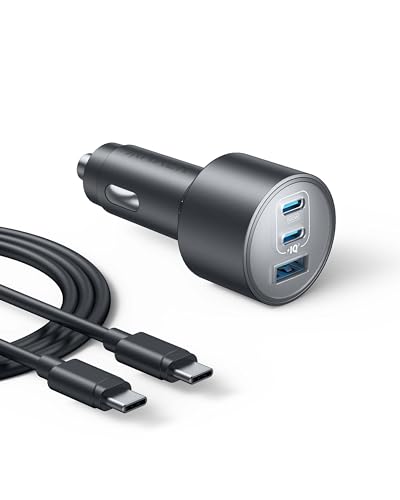
Anker Nano 65W GaN II PPS USB C Charger, Fast Compact Foldable Charger — A reliable modern charger is diagnostic equipment as much as an accessory: ruling out the adapter honestly requires one you trust, and GaN chargers like this run cool and deliver full power. Check price on Amazon.

SANDISK 256GB Extreme microSD Card + Adapter, Up to 190MB/s Read Speeds — Not a fix, but the reason a dead phone need not mean dead data: media kept on a card and backed up survives the phone. Fit one while yours is healthy. Check price on Amazon.
In this guide
Likely Causes, Most Common First
Deeply discharged battery
A battery drained to absolute zero protects itself by refusing to wake until it has sipped enough charge — sometimes fifteen to thirty minutes — and the screen shows nothing meanwhile. This is the single most common cause, especially after a phone sat unused in a drawer or died overnight.
Frozen system on a black screen
The phone is actually on — crashed, with the display dark. It may feel faintly warm, and it will not respond to taps. A forced restart is the cure, and the fact that the screen is black makes people miss that the phone is alive at all.
Charging failure: cable, adapter, or port
Cables fail internally with no visible damage, adapters die, and charging ports pack with lint until the plug no longer seats. The phone slowly starved while its owner believed it was charging, and now has nothing to wake with.
A stuck or failed power button
Buttons wear, cases misalign, and a button that no longer clicks — or that is jammed down by a damaged case — cannot signal a boot. Less common, but easy to check and often cheap to repair.
Water or drop damage
A recent soak or a hard drop can kill a display, a battery connection, or a board. The phone may have worked for hours after the incident and then quit, which makes the connection easy to miss.
Failed update or corrupted software
An update interrupted by a dead battery or lost connection can leave the phone unable to boot. This usually presents as a phone that shows a logo and stops, rather than total darkness — a useful diagnostic distinction.
How to Fix an Android Phone That Will Not Turn On: Step-by-Step Fixes
Step 1: Charge it properly, then wait a full thirty minutes
Use a known-good cable and adapter — ideally the ones that charge another device successfully right now — plugged into a wall outlet, not a laptop port or a car socket. Then walk away for thirty minutes. A deeply drained phone often shows nothing at all during this time, then displays a battery icon or boots as if nothing happened. Impatience defeats this step constantly: five minutes is not a test. If the phone or charger becomes unusually hot, unplug and skip to the professional-help section — heat plus a dead phone is a stop sign, not a puzzle.
Step 2: Force a restart with the hardware buttons
With the phone still plugged in, press and hold the Power button for a full twenty to thirty seconds — far longer than feels reasonable. On many models the combination is Power plus Volume Down held together. This forces a hardware-level restart that works even when the system has crashed completely. A vibration, a logo, or a charging screen all count as life. If you get the logo, let it boot fully and then charge it to a healthy level before using it, because whatever drained or crashed it needs margin to recover.
Step 3: Rule out a dead screen on a living phone
Call the phone from another device. If it rings, vibrates, or makes notification sounds, the phone is alive and the display has failed — a very different, and usually repairable, problem. Also try a flashlight-bright room and look closely: a faint image on a black-looking screen means the backlight died. Alarms going off at their usual times are another tell. If the phone is alive with a dead screen, your data is likely safe; a repair shop can replace the display, and some models can mirror to a TV via USB-C for emergency data access first.
Step 4: Inspect and clean the charging path
Unplug everything and examine the port with a light: packed lint is astonishingly common and prevents the plug seating fully. If you see debris, power the phone off — it is already off — and tease lint out gently with a wooden toothpick or plastic pick, never metal, never force. Try a second cable and a second adapter, and a different outlet. Feel whether the plug now seats with a firmer connection. Then repeat step one charge for fifteen minutes and step two forced restart. Port problems masquerade as dead phones more than any other hardware fault.
Step 5: Boot into recovery mode to test the software
If the phone responds to buttons with a logo or any screen at all, try recovery mode: typically, from off, hold Power plus Volume Up until a menu appears — the exact combo varies by brand, so check your maker support page if the first try fails. Reaching recovery proves the hardware and bootloader live. From here, choose Reboot system now first. Only if a normal boot repeatedly fails should you consider the factory reset option in this menu — it erases everything not backed up, so it is a last resort, and our backup guide exists because of moments like this.
Step 6: Account for water and drops honestly
If the phone got wet, do not charge it and do not press buttons repeatedly: power it off if it is on, remove the case and SIM tray, and let it dry in airflow for at least a day — a fan helps; rice does not meaningfully. Then try the charge-and-restart sequence once. If it dropped hard before dying, internal connections may have loosened; there is no safe home fix for that, and it goes on the repair list. Being honest about the incident history saves you hours of software steps aimed at a hardware problem.
Diagnostic Checklist: What the Signs Mean
Match your phone behavior to a row before acting; the observation is the diagnosis half-done.
| What you observe | Likely cause | Next move |
|---|---|---|
| Nothing at all, phone sat unused for weeks | Deeply drained battery | Thirty-minute charge on known-good gear, then force restart |
| Nothing, but phone feels warm or vibrates when called | Frozen system or dead screen | Force restart; if it rings but stays dark, display repair |
| Battery icon appears but will not boot | Battery too weak or failing | Longer charge; if it never passes the icon, battery replacement |
| Logo appears, then freezes or loops | Software or failed update | Recovery mode reboot; reset only as last resort |
| Died after water exposure | Liquid damage | Dry a full day uncharged, then test once; likely repair |
| Died immediately after a drop | Internal damage | Professional diagnosis — no home fix |
| Gets hot while attempting to charge | Battery or board fault | Stop. Unplug. Professional help — do not retry charging |
When to Get Professional Repair or Replace It
Take the phone to a professional when: it becomes hot while charging or smells unusual — stop using it and have the battery assessed, because a swollen battery is a safety issue, not an inconvenience; it shows no life after a proper thirty-minute charge, a forced restart, and a swapped cable and adapter; it got wet and still will not start after a full day of drying; or it died after a drop with visible damage. Display replacements and battery replacements are routine, reasonably priced repairs that often make far more sense than replacement, especially on a phone whose data you need.
Choose replacement over repair when the repair quote approaches the value of a comparable new phone, when the model no longer receives security updates anyway, or when the board itself has failed. A good shop will tell you honestly which side of that line you are on — and if your data matters, ask about data recovery before authorizing any repair that might replace the board or storage.
Prevention: Keeping It From Happening Again
Avoid deep discharges: batteries are happiest charged before they are empty, and a phone that never hits absolute zero never needs the thirty-minute resurrection ritual.
Keep two known-good charging setups — home and bag — and retire cables at the first sign of flakiness rather than letting a dying cable impersonate a dying phone.
Keep the charging port clean with a monthly glance and gentle lint check, especially if the phone lives in pockets.
Maintain your backup. The difference between a dead phone as an annoyance and as a catastrophe is entirely whether your photos and accounts exist somewhere else — set that up while the phone is alive and cooperative.
First, Establish What ‘Will Not Turn On’ Actually Means
That phrase covers at least four different failures, and each has a different remedy. The phone may be completely dead, showing nothing under any circumstances. The screen may be dead while the phone lives — it vibrates, rings when called, or warms slightly, but displays nothing. The phone may be stuck in a loop, showing a logo, restarting, and showing it again. Or the phone may have a working screen and a battery so deeply discharged that it needs time before it will admit to existing. Spend the first minutes identifying which failure you have, because charging rituals will not fix a dead screen, and screen remedies will not help a phone that simply needs an hour on a charger.
Signs of life worth checking
Call the phone from another device and listen. Plug it in and watch for any charging indicator, however delayed. Hold it in a quiet room and feel for vibration or faint warmth after a minute on charge. Connect it to a computer and see whether anything is recognised. Each small sign narrows the diagnosis: a phone that rings with a black screen has a display problem and its data is probably safe; a phone silent in every test has a power or board problem, and your thinking should shift toward data preservation and repair options.
The Deeply Discharged Battery: Patience as a Procedure
A battery drained completely and left for days or weeks can fall into a state where the phone needs sustained charging before it can show any sign of life, and the charging screen itself may not appear for many minutes. The procedure is boring and effective: use the original charger and cable, plug directly into a wall outlet rather than a strip or a computer port, and leave the phone entirely alone for at least half an hour, ideally longer, resisting the urge to press buttons every few minutes, since each attempt can interrupt the recovery charging. Many phones pronounced dead are simply phones whose owners never gave them an uninterrupted hour. If a different charger is all you have, use a known-good one of decent output; a feeble charger may maintain a deeply discharged battery without ever lifting it over the threshold.
Cables and chargers as suspects, again
Before concluding anything about the phone, eliminate the supply chain with the same discipline as any charging fault: a different cable, a different charger, a different outlet, each known to work with another device. A phone that will not turn on and a cable that quietly died are indistinguishable from the outside, and the cable is cheaper to be wrong about. Inspect the phone’s port for compacted lint preventing the connector from seating, since a phone that has not truly been charging for days presents exactly like a dead phone once its battery empties.
Button Combinations and What They Can and Cannot Do
Most Android phones respond to a long press of the power button — far longer than feels natural, sometimes twenty or thirty seconds — with a forced restart that can free a phone frozen in a state that merely looks dead. A phone whose system crashed into a black screen may revive from this alone. Recovery and safe-mode combinations exist beyond that, varying by brand, and they are appropriate when the phone shows logos or loops. What button combinations cannot do is fix hardware: a failed battery, a damaged board, or a dead display will ignore every combination with perfect consistency, and recognising that consistency early saves an evening of increasingly desperate rituals.
The boot loop and the stuck logo
A phone that reaches its logo and restarts, or sits on the logo indefinitely, has power and a working display; its problem is software failing to load. Causes range from a corrupted update to storage so completely full that the system cannot breathe — a genuinely common cause that surprises people. Leaving a stuck phone for a long while occasionally lets it finish an optimisation it was attempting. Recovery mode, reached by a brand-specific combination, offers cache-clearing and, as a last resort, a factory reset that erases the phone but often revives it. That trade — a working empty phone against a dead full one — should be made deliberately, after cloud backups have been mentally inventoried, not in a panic at midnight.
Protecting Your Data While You Troubleshoot
Throughout hardware troubleshooting, keep asking what the phone holds that exists nowhere else. If your photos and messages back up to your account, a dead phone is an expense and an inconvenience. If they do not, the phone is an archive, and some choices change: a repairer who will attempt board-level diagnosis before suggesting a reset, for instance, becomes worth seeking. Never agree to a reset as a first diagnostic step on a phone holding unbacked-up data, and be wary of any advice sequence that begins with erasure. Data recovery from a truly dead phone is specialist work with specialist prices, which is precisely why the backup conversation belongs before this day, not during it.
When repair, replacement, or retirement is the answer
Take the phone to a reputable repairer when the signs point to battery, port, or display — all replaceable at sensible cost on most models — or when the data justifies professional diagnosis. A swollen battery, recognisable by a screen lifting or a back panel bulging, is a stop-everything case: do not charge it, do not press on it, and take it for safe replacement promptly, because a compromised battery is a genuine hazard and not a troubleshooting project. For an old phone with a board-level failure, weigh repair cost against the phone’s remaining supported life; money spent reviving a phone whose updates have ended buys a device that is still approaching retirement. Whatever you decide, decide with the diagnosis in hand rather than replacing blindly — a surprising share of dead phones are one battery or one honest hour of charging away from working again.
Prevention: Making This Day Less Likely and Less Costly
- Keep backups automatic and verified, so a dead phone is never a lost archive.
- Keep some storage free; a completely full phone risks boot failures after updates.
- Replace a battery that swells, shuts down randomly, or drains erratically before it strands you.
- Use sound chargers and cables, and keep the port clean and dry.
- Install updates on power and Wi-Fi, and never let a phone sit discharged for months in a drawer.
None of this guarantees a phone will never fail — electronics retain that right — but together these habits convert the most common causes of a phone that will not turn on from surprises into managed events, and ensure that if the day comes anyway, it costs you a repair bill rather than your photographs.
Scenarios From the Repair Bench: How These Cases Usually End
Repair technicians meet the same stories weekly, and their endings are instructive. The phone that died after a beach holiday usually carries moisture or sand in its port, and revives after professional cleaning and patience. The phone that died after being dropped on tile, with a flawless-looking screen, often has an internal display failure or a dislodged connector — sometimes a surprisingly modest repair. The phone that died during a software update, plugged in and mid-process, is frequently recoverable through recovery-mode procedures because its hardware never failed at all. The phone that died slowly over months — random shutdowns, erratic percentages, swelling hints ignored — has a battery that finally resigned, and its ending is a battery replacement that the owner wishes had happened at the first symptom. Notice the pattern: most dead phones are not mysteries, they are biographies, and the events of the preceding weeks usually contain the diagnosis.
The drawer phone: reviving devices stored dead
Phones retired to drawers while discharged deteriorate quietly, their batteries sinking below the level their charging circuits enjoy reviving. Months later, pulled out as a spare for a child or a trip, they present as completely dead. The revival ritual is the deep-discharge procedure given time — genuinely hours, on the original charger, undisturbed — and it succeeds often enough that no drawer phone should be pronounced dead on the same day it was plugged in. If it revives, its battery will likely be diminished, which is acceptable for spare duty. If it never revives after a full day, the battery has crossed into replacement-or-recycle territory, and a repairer’s quote will tell you which side of that line the phone’s value sits on.
Water, Drops, and Heat: Incident-Specific Guidance
After water exposure, the rules invert several instincts. Do not charge a wet phone, do not press buttons to check it repeatedly, and do not apply heat to dry it. Power it off if it is on, leave the port to drain and dry in moving air, and give it far longer than feels necessary before testing — a day is not excessive. The folk remedy of burying devices in rice is inferior to plain air and silica gel packets if you have them, and the real enemy is charging while damp, which corrodes contacts under power. A phone that will not turn on after a soaking and a patient drying period needs a technician, because internal corrosion is a clock that cleaning stops and home remedies do not.
After a hard drop, resist the repeated power-button vigil. If the phone shows nothing but the screen is uncracked, the failure may be a connector displaced by impact — a repair, not a ritual. Note whether the phone responds to calls or charging sounds, because a living phone with a dead display is good news for your data and a specific, bounded repair. Heat incidents — the phone left on a dashboard or near a heater that now will not wake — deserve a full cooling period before any conclusion, since protection circuits and batteries both behave strangely when hot, and a phone tested while still warm is a phone misdiagnosed.
Children’s phones and the honesty of small evidence
When the dead phone belongs to a child, gather the small evidence kindly: it was dropped in the sink briefly, it was charged with a friend’s dubious cable, it has been saying its battery was unhappy for weeks. Children’s phones live harder lives and their failures are correspondingly more physical than mysterious. The troubleshooting order does not change, but the prior probabilities do — start with port, cable, and battery, and expect the answer to be hardware with a story attached.
Talking to a Repairer: Getting a Diagnosis Instead of a Guess
Arrive with the biography: when it last worked, what happened around the failure, what you have tested, and — crucially — what data on the phone exists nowhere else. Ask for diagnosis before authorising repair, and ask what the diagnosis will cost if you decline the fix. A good repairer explains the likely causes in order, quotes battery, port, and screen work separately, and warns you honestly when a board-level fault makes repair uneconomic. Be wary of any service whose first and only suggestion is a reset or a replacement phone. If the data matters more than the device, say so in the first sentence, because it changes the repairer’s whole approach from fastest fix to most careful one.
Warranty, insurance, and the paperwork path
Before paying anyone, check the unglamorous alternatives: a phone within its warranty that died without damage is the manufacturer’s problem, and opening it elsewhere can void that. Insurance and card-purchase protections cover more incidents than their holders remember. Carrier and maker support lines, whatever their reputation, sometimes resolve update-related deaths with procedures specific to your model that no general guide can carry. Ten minutes of checking entitlement precedes any spending — the order is warranty, insurance, manufacturer support, independent repair, replacement — and each step is cheaper than the next.
If the Phone Is Truly Gone: Salvage and Succession
Accept the verdict when it comes with a clear diagnosis and an uneconomic quote. Then work the succession properly: your cloud account restores most of your life onto a replacement if backups were running, your carrier moves your number, and your old phone — even dead — should be wiped or physically safeguarded if it holds sensitive data, because a dead phone sold for parts is still a storage device. Ask the repairer about data-return or certified destruction if the phone will leave your hands. Then hold the small ceremony this guide exists to make rarer: set up the replacement’s backups on day one, verified, while the lesson is fresh. The best time to prepare for a phone’s death is the day its successor arrives, smiling and unaware.
The Decision Tree, Walked Slowly From the Top
Everything in this guide can be walked as one calm sequence, and walking it slowly is the difference between a diagnosis and a panic. First, give the phone power it can trust: the original charger and cable, a bare wall outlet, and an uninterrupted half hour, because this single step revives the deeply discharged and exposes the dead cable. Second, attempt the long-press forced restart, holding far beyond comfort, because the frozen-but-alive phone is common and this is its only door. Third, interrogate for signs of life — call it, listen, feel for warmth, connect it to a computer — because the answer divides the world in two: a living phone with a dark screen goes down the display path, where data is safe and repair is bounded, while a silent phone stays on the power path. Fourth, if it shows logos or loops, move to the recovery options appropriate to its brand, understanding that the factory reset at the end of that path trades data for revival and must be chosen, not stumbled into. Fifth, if nothing has answered, stop: the remaining causes are battery, port, board, or display hardware, and they belong to a repairer’s bench, where your biography of the failure — when it died, what preceded it, what you tested — will save real money.
What to tell yourself at each dead end
Each dead end in that tree carries information, and naming it keeps the process rational. A phone that revives on a borrowed charger has acquitted itself and convicted your cable. A phone that charges but will not boot has a software or storage story. A phone that boots to recovery but no further is asking for the reset decision with your backups in mind. A phone inert through every test has not failed you mysteriously; it has narrowed itself to hardware with unusual honesty. Owners who hear the information stop buying chargers at the third dead end and start booking repairs, which is the entire economic point of troubleshooting in order.
Special Populations: Phones of Children, Parents, and the Deceased
Some dead phones arrive carrying more than data. A parent’s phone that will not turn on may hold the only copies of family photographs and the thread of a thousand small messages, and its troubleshooting should begin with the data question — what is backed up, what exists nowhere else — before any step that risks erasure, with repairers chosen for carefulness over speed. A child’s dead phone usually has a physical biography and a simpler heart: fix the hardware, restore the games, and use the occasion to set up the backups that were always intended. The hardest case, a phone belonging to someone who has died, deserves explicit gentleness: resist haste entirely, because accounts, photographs, and messages may carry legal as well as sentimental weight, and the correct first moves are preservation — keep it charged if it lives, do not attempt password guesses that can lock accounts permanently, and seek the platform’s formal legacy processes. In all three cases the technical steps are the same ones in this guide; what changes is the order of values, with preservation ranked above revival, and revival above replacement.
The spare-phone drawer, audited
Households accumulate retired phones, and a phone that will not turn on is often discovered among them at the moment one is needed as a spare. Audit the drawer once a year: charge each retired phone, let it update if it still can, confirm it can make a call, and note its condition honestly on a label. A drawer of maintained spares is a household asset — the loaner for a visiting relative, the backup when a main phone dies, the first phone a child can be trusted with. A drawer of neglected, deeply discharged phones is a small museum of good intentions, most of them unrecoverable by the time they are wanted. The difference is one afternoon a year, and it is the same afternoon that keeps the household’s backups honest.
Prevention, Revisited as a Household System
The households that rarely meet a dead phone treat prevention as a system rather than a hope, and the system is short enough to write on a card kept with the chargers. Backups run automatically and are glanced at monthly. Phones charge from sound equipment, in the open, and are not left discharged in drawers. Batteries that behave erratically are replaced while the phone still works, not after it stops. Updates are installed on power, with storage headroom, on calm evenings. And every phone in the house can be located, locked, and — if the worst arrives — restored onto a replacement from its own backup. That card will never trend on the internet, and it will outperform every dramatic rescue ritual ever published, because the best version of this guide’s problem is the one that never happens, and the second best is the one whose data was never in danger. Everything else — the long presses, the patience, the repairer’s bench — is what remains for the days the system was skipped, and those days, handled in this guide’s order, are survivable too.
The Technician’s Triage: What Happens After You Hand It Over
Understanding what a good repairer actually does with your dead phone demystifies the bill and the wait. The bench sequence mirrors this guide’s order with better tools: known-good power delivery measured rather than assumed, current draw observed as the phone attempts to charge — a reading that distinguishes a dead battery, a shorted board, and a healthy phone refusing to boot within minutes — then substitution of the cheap suspects, battery and charging port, before any board-level work is contemplated. Board diagnosis, where it is offered, proceeds from schematics and microscopes and is priced like the skilled labour it is. A repairer who explains this sequence, and where your phone fell out of it, is a repairer to keep. A repairer who quotes a single large figure without diagnosis is selling you a guess, and guesses are the one commodity this entire subject teaches you to refuse.
Data recovery: the honest odds
If the phone is dead and its data exists nowhere else, ask the recovery question plainly and listen for an honest answer. Where the storage itself is intact and the failure is in power or display, recovery prospects are often good, because the data can be reached once the phone lives or its board is coaxed into a reader’s hands. Where the board’s security components have failed, modern encryption — which protects you magnificently in life — makes recovery genuinely unlikely, and any service promising otherwise at a cheerful price deserves your suspicion. This asymmetry is the final argument of this guide, and it is not really about dead phones: the encryption that guards your data assumes the phone will be maintained, backed up, and replaced on a schedule, and it offers no mercy to the alternative. Honour the assumption while the phone lives, and the recovery conversation will never need to happen.
The Dead Phone as a Teacher
Every dead phone teaches its household one lesson, and the households that learn it cheapest are the ones that write it down: this battery was dying for months first, this cable was borrowed from a dubious source, this backup toggle was off since an update, this phone lived in a steamy bathroom. Add your phone’s lesson to the household’s small stock of knowledge, apply it to the replacement on its first day, and the failure will have purchased something durable. A phone that will not turn on is an unwelcome event and an excellent instructor, and the difference between the two is entirely in whether its story gets read — in the order this guide walked, with patience before spending and preservation before revival — and then remembered.
A Final Walkthrough: The Ten-Minute Version for the Impatient
For the reader who has arrived in the middle of the emergency and will not read the whole guide tonight, here is its essence at marching pace. Plug the phone into its original charger in a wall outlet and leave it entirely alone for half an hour — set a timer, walk away, because this step fails only when it is interrupted. While it charges, fetch a different cable and a different charger that you know work. After the half hour, hold the power button for a full thirty seconds by the clock. If nothing answers, swap the cable, then the charger, and repeat the long press once. Call the phone from another device and listen. Look at the port with a torch. If there is still nothing — no light, no sound, no warmth, no vibration — the phone has told you its category honestly, and the next step is a repairer’s bench, not another hour of rituals. Take it in with its story written down. That is the ten-minute version, and it resolves, one way or the other, the great majority of cases this guide exists for.
Related Guides
- best external hard drive for android phones
- best headset for android phones
- best security app for android phones
- best browser for android phones
- best call recorder for android phones
- how to fix android apps crashing
- how to choose an android phone
- how to set up an android phone
Frequently Asked Questions
How long should I charge a completely dead phone before trying again?
Give it a full thirty minutes on a known-good wall charger before concluding anything, and an hour is not excessive for a phone that sat drained for weeks. Deeply discharged batteries wake slowly by design. If absolutely nothing has appeared after an hour — no icon, no warmth, no vibration on a long power press — the problem is beyond simple discharge, and you should work through the cable, port, and screen checks before paying for any repair.
Will a force restart delete my data?
No. A forced restart is just a hard reboot — the same as holding a computer power button. Your photos, apps, and accounts are untouched. The destructive option is a factory reset from recovery mode, which this guide reserves as a last resort and labels clearly. Anything short of that reset — charging, button holds, recovery-mode reboot — is safe for your data.
My phone shows the logo but never finishes booting. What now?
That is a boot loop or a stalled boot, usually software. Let it sit ten minutes once — first boots after updates can be slow. If it persists, enter recovery mode and reboot from there; if the loop continues, a cache wipe option in recovery (where offered) is non-destructive and worth trying before the factory reset. If a reset also fails to produce a booting phone, the fault is hardware and needs a shop.
The phone got wet yesterday and died today. Is it recoverable?
Possibly — delayed death after water exposure is common, because corrosion and shorts develop over hours. Do not charge it. If it is on, power it off; remove case and SIM tray; dry it in moving air for at least twenty-four hours, then try one charge-and-restart test. Even if it revives, have a shop inspect it, because corrosion continues quietly. And back up everything the moment it breathes — revived water-damaged phones often die a second, final time.
How much is repair versus replacement, roughly?
Without quoting prices — which vary by model and region — the pattern is: battery and charging-port repairs are the economical tier, displays the middle, and board-level faults the point where replacement usually wins. Get the diagnosis first; reputable shops diagnose cheaply or free, and the answer is often the cheap fix. Compare any quote against the phone remaining update life too — repairing a phone whose security support has ended buys hardware without safety.
Can I recover photos from a phone that never turns on?
Often, yes, if the storage itself is intact — which it usually is when the failure is battery, screen, or charging. A repair that restores power, even temporarily, lets you copy everything off. If the board has failed, specialist data recovery exists at specialist prices. The honest lesson is the one this whole site repeats: the time to secure photos is while the phone works, with the three-layer backup in our related guide.
How long should I leave a dead phone charging before giving up on it?
Longer than feels reasonable. A deeply discharged phone — one that ran empty and sat, or was stored discharged — may show absolutely nothing for the first portion of an hour on its original charger, because its battery must climb back to a threshold before the phone can afford to light a screen and announce itself. Give it an uninterrupted half hour at the absolute minimum, and for a phone stored dead for months, give it several hours or overnight before any verdict. Interrupting the attempt every few minutes to press buttons is the commonest way this fix is sabotaged; set it down, set a timer, and let the chemistry work in peace.
Is it safe to keep trying button combinations on a phone that will not turn on?
The standard ones are safe: a long power-button hold performs a forced restart and cannot damage a healthy or a faulty phone, and recovery-mode combinations are designed for owners to reach. What is not safe is improvisation beyond them — opening the device, applying heat, pressing on a swollen battery, or charging a phone you know took on water. If the standard combinations, an honest charging session, and a cable-and-charger swap have all been refused, the phone has given you its answer, and continuing to experiment at home risks converting a repairable fault into a dangerous one. That is the bench’s cue, and taking it is competence, not surrender.
My phone will not turn on but it gets warm when charging. What does that mean?
Warmth is information: energy is arriving and something inside is working — most often a battery accepting charge, sometimes a system alive behind a dead screen. Test the living-phone hypothesis before anything else: call the phone from another device and listen, try the long-press restart, and connect it to a computer to see whether it is recognised. A phone that rings, vibrates, or appears on a computer with a black display has a screen-path fault, which is good news for your data and a bounded, ordinary repair. Warmth with total silence across all those tests points back to the power path, and belongs in the same repair conversation, with the warmth reported — details like that genuinely shorten a technician’s diagnosis.