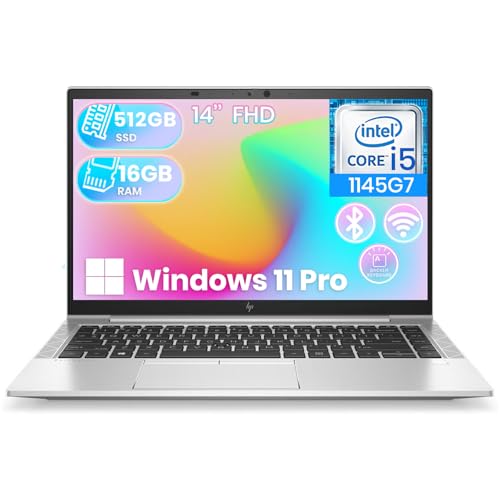
A slow work laptop is not merely annoying — it is a recurring tax on every task, every call, every deadline. Learning how to fix a slow work laptop starts with one difference from home troubleshooting: you may not have administrator rights, and some fixes belong to your IT department rather than to you. This guide separates what any employee can safely do from what to escalate, and orders everything by likelihood — because on work machines, the culprits are usually corporate: sync clients, security scans, VPN overhead, and a browser carrying the entire business on its tabs.
Before changing anything, capture the pattern: is the laptop slow all day, or at specific times — the first hour after sign-in, during calls, at a particular time when scans run? Timing is the fingerprint of scheduled corporate software, and noting it turns a vague complaint to IT into a diagnosable ticket. If the machine is company-managed, keep IT informed; several fixes below are theirs to make.
Disclosure: As an Amazon Associate, kajuandouglas.com earns from qualifying purchases. Links to Amazon on this page are affiliate links; they cost you nothing extra. Listing details such as price and availability change often, so check the current Amazon listing before you buy.
How to Fix a Slow Work Laptop: Likely Causes First
The leading cause is accumulation of work software doing its job simultaneously: cloud file sync indexing large shared folders, endpoint security scanning, a VPN routing everything through a distant office, collaboration apps, and a browser with dozens of tabs standing in for a filing system. Each is legitimate; together they can saturate a modestly specified machine. Second is specification: work laptops bought to a price often carry minimal memory, and modern browser-based work is heavier than the purchasing spreadsheet assumed.
Then the usual hardware stories: a nearly full drive (shared drives and offline files quietly consume it), an aging battery forcing power-saving behavior, dust and heat in a machine that has traveled for years, and — the one to escalate immediately — a drive beginning to fail, which on a work laptop endangers company data, not just your patience.
In this guide
Fixes You Can Do Yourself, in Safe Order
Step 1: Restart properly — most work laptops never do
Work laptops live on sleep: closed at night, opened in the morning, for weeks. Memory leaks and stuck processes accumulate across those cycles, and updates wait for a restart that never comes. Do a full restart, not a lid close, and let the machine sit signed-in for ten minutes while startup processes finish before judging it. Weekly full restarts are the cheapest performance habit in this entire guide.
Step 2: Audit your own startup and background load
Within whatever permissions you have, review which applications launch at sign-in and close the ones you do not need daily. In the system monitor, identify your personal worst offenders — usually the browser, then collaboration tools. You cannot remove company security or management software, and you should not try; but your own additions over the years are fair game and frequently the surprise culprit.
Step 3: Tame the browser, the real operating system of work
If your work is browser-based, the browser is where slowness lives. Enable sleeping tabs, remove extensions accumulated over years (each is a permanent background process), and develop a bookmark-and-close habit for reference tabs. If one specific web application is slow for everyone, that is an IT ticket about the application, not your laptop — report it with specifics rather than suffering it.
Step 4: Free local disk space
Check your system drive’s free space and keep it comfortably above fifteen percent. Offline copies of shared folders are the classic hidden consumer on work laptops: review which folders you have made available offline and prune the ones you no longer need. Clear your downloads folder of the installers and exports of years past. If the drive is full of genuine work data, that is a capacity conversation for IT, armed with your numbers.
Step 5: Manage sync instead of fighting it
Cloud sync clients cause slowness when they try to index or upload enormous changes at once — the first day back from vacation, a giant folder restructure. Pause sync during a video call or a deadline crunch if your client allows it, and let big changes complete overnight plugged in. If sync errors or constant re-indexing persist, escalate: a corrupted sync cache is an IT fix that no amount of local patience cures.
Step 6: Check the power and heat basics
A work laptop that is fast at your desk and slow in meetings may be throttled by battery-saver settings or by heat in a bag-to-meeting lifestyle. Use the balanced power mode, keep vents unobstructed, and blow dust from the vents with compressed air if the machine is yours to maintain. If the laptop is hot and loud while doing nothing, note it for your IT ticket — that pattern suggests a runaway process or a failing fan, both diagnosable.
Diagnostic Checklist: Yours to Fix or IT’s to Fix
Bringing this table’s information to IT — symptom, timing, and what you already tried — gets work laptops fixed days faster.
| Symptom | Likely Cause | Owner |
|---|---|---|
| Slow first hour after sign-in | Startup load, scans, sync catch-up | Note the pattern; IT can stagger schedules |
| Slow during video calls | Browser/app load plus effects and VPN | Yours: close tabs, disable effects; IT: network |
| Everything slow, memory maxed | Underspecified RAM for the workload | IT: upgrade or replace decision |
| Freezes, errors, worsening weekly | Failing drive | IT immediately — company data at risk |
| Fast on charger, slow on battery | Power policy | Yours: power mode; IT if policy-locked |
| Slow only on office network | Network or server issue, not the laptop | IT ticket with times and examples |
When to Escalate, Get Professional Repair, or Replace It
Escalate to IT the same day when you see signs of drive failure — freezes, file errors, strange sounds — because the data at risk is the company’s. Escalate also when slowness follows a pushed update or policy change (you may be the first report of a fleet-wide problem), when security software appears to be malfunctioning, and whenever a fix needs administrator rights you do not have. Guessing at workarounds around corporate security tooling is how small problems become incidents.
Replacement or upgrade is IT’s call, but you can make the case with evidence: a machine whose memory is saturated by the standard workload is underspecified, not misused, and business laptops are usually upgradeable — more memory is a modest, standard intervention. If the laptop is beyond its planned service life and slowness is structural, a documented pattern of lost time is the language refresh budgets understand.
Prevention: Habits That Keep a Work Laptop Fast
Restart fully every week. Keep the startup list and offline folders pruned as an ongoing habit. Let updates and scans complete plugged in rather than postponing them into a worse moment. Keep the drive’s free space healthy, the vents clear, and the browser’s tab count honest. And report small degradations early — work laptops rarely fail suddenly; they decline gradually, and early tickets are cheap ones.
The Specification Conversation: Making the Case With Evidence
When the bottleneck is the machine itself, the fix is a conversation, and conversations go better with evidence than with adjectives. Collect a week of proof: the system monitor’s memory graph during your normal peak, the disk’s free space, the list of tasks that stutter and when. A ticket that says ‘memory saturates daily at 10 a.m. during reporting, here is the graph’ receives a memory upgrade; a ticket that says ‘laptop slow’ receives a questionnaire.
Know the likely outcomes so you ask for the right one. Memory saturation on an upgradeable business laptop is a parts-and-minutes fix — ask for the upgrade explicitly. A saturated processor on an aging machine is a replacement case — ask for the refresh queue and a loaner timeline. A full drive is sometimes your data discipline and sometimes a capacity specification that no longer fits the job; your evidence distinguishes them.
Frame the cost honestly: the organization is already paying for the slowness, in your salaried minutes, every day. A documented ten minutes a day across a year dwarfs the price of the memory module. Professionals who quantify get upgraded; the squeaky wheel in this system is the measured one.
Remote and Hybrid Work: The Home-Office Variables
The work laptop’s environment now includes your home, and home variables masquerade as laptop faults. A laptop that is fast in the office and slow at home may be innocent: home Wi-Fi competing with a household, a VPN path that hairpins traffic, or cloud drives syncing over an asymmetric connection. Test the same task on the same laptop in both places before concluding anything, and test a personal device on the home network as a control.
Home setups also hide ergonomic performance traps: a laptop thermally throttled in a closed cabinet dock, a bargain USB hub between the machine and everything it needs, a monitor configuration forcing the laptop to drive resolutions beyond its comfortable graphics. The bare-laptop test — undocked, on a desk, on the charger — isolates the machine from its environment in five minutes and should precede any escalation.
Where the home environment is the cause, the fixes are yours and they are cheap: ventilation, a wired connection for the heavy hours, a dock that matches the machine. Report genuine network findings to IT with the comparison data; hybrid work made every employee part network technician, and the good reports are the ones with controls and comparisons in them.
Protecting Your Work While the Laptop Struggles
A slow laptop that is also an unreliable laptop is a data risk, and protecting the work comes before fixing the speed. Save compulsively, and save into the locations your organization backs up — company cloud folders and network drives, not the local desktop. The machine that freezes during a deadline week is telling you something; believe it early enough that its failure, if it comes, is an inconvenience rather than a loss.
If slowness is worsening week by week — the failing-drive pattern from this guide’s checklist — treat every day as borrowed: verify your critical files open correctly from their backed-up locations, and escalate with the urgency the pattern deserves. Drives rarely fail at convenient times, and the difference between a close call and a catastrophe is almost always whether the backup was real.
This is also the moment to appreciate the boring systems: the sync that kept your documents elsewhere, the autosave that caught the draft, the spare laptop your team keeps for exactly this week. Speed problems are temporary. Data losses are forever. Prioritize accordingly and the slow work laptop becomes what it should be — a problem to fix, not a threat to fear.
Video Calls: The Workload That Exposes Everything
Video calls deserve their own diagnosis because they stress every subsystem at once — camera, microphone, network, processor-hungry effects, screen sharing — and because their failure is public. A laptop that browses happily can still disgrace itself on a call, and the pattern of the disgrace is diagnostic: audio fine but video stuttering points at processor load or graphics; everything freezing in waves points at network or sync; the fan roaring throughout points at effects and thermal limits working as designed on a machine at its edge.
The mitigations are layered. Close the browser tabs and applications the call does not need — on a marginal machine, the call must win the resource contest by forfeit. Turn off background effects and virtual backgrounds, which are continuous effects workloads disguised as a backdrop. Plug in: battery-saving modes throttle exactly the bursts calls generate. And wire the network when the meeting matters; Wi-Fi contention is the silent partner in most ‘laptop’ call problems.
If calls remain poor on a cleaned, plugged, wired machine, the evidence points at specification — and a laptop that cannot do the company’s basic meeting workload is not a slow laptop, it is a wrong laptop. Document two or three dated examples and escalate on those terms; ‘cannot perform standard duties’ is the sentence refresh budgets are built to answer.
The Two-Week Test: Proving the Fix
Work-laptop slowness has a habit of returning, because its causes — accumulation, schedules, growth — are processes, not events. After applying this guide’s fixes, run a two-week observation: note the slow moments with times, as you did at the start. If the pattern is gone, the diagnosis was right and the maintenance rhythm will hold it. If a pattern survives, it has now been isolated by elimination — whatever remains after startup, browser, storage, sync, and heat are addressed is the true culprit, and it is almost always scheduled corporate software, a specific application, or hardware asking for a technician.
That two-week record is also the perfect escalation document. It converts ‘still slow’ into ‘slow at 9:05 daily during the scan window, memory saturated by these processes, unaffected by restarts’ — a ticket an IT team can act on in one touch. Troubleshooting is a relay: your leg is observation and the user-level fixes, run honestly and documented plainly.
And if the record shows the machine simply working — as it usually does — keep the habits that got it there. The weekly restart, the pruned startup list, the honest tab count: small rents paid on time, in exchange for never paying the moving costs of a crisis again.
Reading the Symptoms: A Diagnostic Map Before You Change Anything
Slow is not one problem, and treating it as one is why so many fixes disappoint. Before changing a single setting, spend one working session noticing when the slowness actually happens, because the timing is the diagnosis. A laptop that is slow only in the first twenty minutes after sign-in is describing startup load, update activity or a sync backlog catching up overnight changes. A laptop that is fast in the morning and miserable by mid-afternoon is describing accumulation: memory filling, browser tabs multiplying, an application leaking resources, or heat building in a machine whose vents are slowly clogging or whose desk position traps warm air. A laptop that is slow only on video calls is pointing at network quality, camera and audio processing load, or a collaboration app fighting with security software. A laptop that is slow everywhere, always, including on a freshly restarted desktop with nothing open, is describing something deeper: a nearly full drive, failing storage, inadequate memory for its current software, or hardware that has reached its limit.
Write the pattern down in ordinary language, with times. That short note transforms every later step. It tells you which fixes in the main guide deserve priority, it stops you wasting an afternoon on storage cleanup when your problem only exists on calls, and if the machine eventually goes to IT, it converts a vague complaint into evidence a technician can act on immediately. Professionals diagnose in exactly this order — observe, localise, then intervene — and home troubleshooting fails mainly when the order is reversed and interventions pile up until nobody knows which one helped, which one hurt, and which one merely coincided with the machine having a better day.
Three quick measurements anyone can take
- Time a cold start to a usable desktop on two separate mornings. A sudden change in that number is more informative than its absolute value.
- Note how much free space the system drive reports, and check again a week later. Shrinking free space explains a surprising share of mysterious slowdowns.
- During a slow moment, open the system’s activity or task view and note the top item by processor, memory and disk. One named culprit beats an hour of guessing.
None of these measurements requires administrator rights or special tools, and together they cover the territory where most work-laptop slowness lives. Keep the notes with dates. A single observation can mislead; a week of observations is a diagnosis, and it is the difference between asking support to guess and handing them a case they can close quickly.
Working With IT Instead of Around Them
On a managed work laptop, the support team is not an obstacle to fixing slowness; they hold half the tools. They can see update failures you cannot, push corrected configurations, check whether your machine missed a policy that fixed this exact problem for everyone else, and authorise the hardware decisions — memory, storage, replacement — that no setting can substitute for. The fastest route to their best help is a ticket that respects their triage: what is slow, when it started, what pattern you observed, what you already tried from the standard steps, and what business impact it is causing, stated plainly without exaggeration. Tickets written that way get solved. Tickets that say only that the laptop is slow join a queue of identical mysteries.
Equally important is what not to do on a managed machine. Do not install third-party cleaner or optimiser utilities, however confident their advertising sounds. On a work device they can conflict with security software, remove things the management system expects, and create a support conversation about the tool instead of about your problem. Do not disable security, backup or management agents to gain speed, even temporarily; any gain is borrowed against a much larger risk, and in regulated work it can become a compliance incident. Do not attempt hardware changes or operating system reinstalls on a machine you do not own. The boundary is simple: settings and habits are yours, the platform is theirs, and nearly every legitimate speed problem can be solved by the two sides each working their half properly.
If slowness persists after a reasonable ticket cycle, escalate through impact rather than volume. Document the meetings affected, the tasks delayed and the workarounds costing time, and ask your manager to attach that business case to the request. Replacement and upgrade decisions in most organisations are budget decisions wearing technical clothes, and a calm, evidenced case about lost working time is the language those decisions are actually made in. This is not gaming the system. It is supplying the information the system needs to rank your machine against every other demand on the same budget.
Special Cases: New Laptop Slow, Old Laptop Suddenly Slow, Everyone Slow
A brand-new work laptop that feels slow usually is not faulty; it is busy being born. First days bring operating system updates, application installs, security enrolment, drive indexing and the synchronisation of months or years of files, all competing for the same resources you are trying to work with. Judge a new machine after that settling period, ideally a week in, and after at least one full restart that was chosen rather than forced. If it remains slow with a light load after settling, report it promptly while it is still a new-device conversation, because early-life faults and misconfigurations are far easier to exchange or correct than the same report made six months later.
An older laptop that becomes suddenly slow after being stable tells a different story, and suddenness itself is the clue. Something changed: an update, a new application, a policy push, a filling drive crossing a threshold, a sync error looping endlessly, or hardware beginning to fail. Work backwards from the change. Support teams think this way instinctively, which is why their first question is always what changed, and why your dated notes from the diagnostic step are so valuable. Gradual slowness across years, by contrast, is usually honest ageing against rising software demands, and its honest answers are the upgrade or replacement conversation rather than another round of settings.
When everyone in a team is slow at the same time, stop troubleshooting laptops. Simultaneous slowness is a shared-system signature: a network problem, an overloaded shared service, a faulty update rolled out widely, or a storage platform struggling. Report it as a team pattern with a shared timestamp. One report describing ten affected people will trigger the right investigation faster than ten individual tickets each describing one slow machine, and it spares everyone an afternoon of personal fixes for a problem that was never inside their laptops at all.
The Maintenance Rhythm That Prevents Most Recurrences
Fixes restore speed; rhythm preserves it. A light monthly routine is enough for most work laptops. Restart fully at least once a week rather than relying on sleep for months at a time, because a real restart completes updates, clears accumulated temporary states and gives sync and security tools a clean start. Once a month, glance at free disk space, remove your own large downloads and obsolete local copies through approved channels, and review which applications open at sign-in with fresh eyes, since software accumulates startup entries the way desks accumulate paper. Once a quarter, check that backup and sync show healthy, current status rather than a quietly paused error, because discovering a stalled backup during a crisis converts a bad day into a disaster.
Physically, keep vents unobstructed, avoid working for long stretches with the machine on soft furnishings that seal its underside, and mention new noises, swelling, or heat changes to support early rather than after failure. None of this is glamorous, and that is precisely why it works. Work laptops rarely become slow through one dramatic fault. They become slow through a dozen small neglects arriving together, and a small, regular rhythm of attention is the exact countermeasure — cheap, boring, and dramatically more effective than any emergency intervention performed in a panic the morning of a deadline.
Browser, Email and the Applications That Eat the Day
For most office workers the browser is the real workplace, and it deserves troubleshooting attention in proportion. A browser carrying forty tabs, a dozen extensions accumulated over years, and several heavy web applications is effectively running a second operating system inside the first. Each extension, including respectable ones, adds startup cost and background activity, and web applications for mail, documents, chat and project tracking each hold memory as long as their tab lives. The honest test is simple: work for an hour in a fresh browser profile or with non-essential extensions disabled and a disciplined tab count, and compare. If the laptop transforms, the machine was never slow; its browser environment had simply grown beyond what its memory could carry gracefully, and the fix is curation rather than hardware.
Email clients deserve the same scrutiny. A desktop mail application holding many years of messages, large attachments cached locally and several accounts can consume surprising storage and spend its mornings synchronising and indexing instead of serving you. Archiving through your organisation’s approved route, letting the web version carry old mail you rarely touch, and reporting a mail database that has grown enormous are all legitimate speed work. Chat and collaboration platforms complete the trio. Running two full collaboration suites because different teams prefer different tools doubles a real load; where you have a choice, choose once, close the other, and let the web version handle occasional contact with the second world.
Virtual meetings concentrate all of this into the most visible hour of the day. Video processing, screen sharing, live captions, recording and background effects are genuinely demanding, and they arrive on top of everything else you have open. Before a major presentation, a restart, a wired network connection where one exists, closing the heaviest unrelated applications, and disabling decorative video effects you do not need will do more for call quality than any other intervention in this guide. If calls remain poor on a machine that is otherwise healthy, the evidence points at network and peripherals, and that is a different, shorter conversation with support than a general complaint about speed.
Storage Health, Memory Pressure and Knowing the Difference
Two internal limits cause most persistent slowness, and learning to tell them apart saves everyone time. Storage pressure announces itself through failed updates, applications complaining about space, sync errors and a system drive shown nearly full; its fix is space, obtained by removing what is genuinely yours to remove and asking support about what is not. Memory pressure announces itself differently: the machine is fine with a few applications and deteriorates as the day and the tab count grow, switching between applications becomes sluggish, and the activity view shows memory fully committed with heavy swapping to disk. Its fix is not cleanup. It is either working lighter — fewer simultaneous heavy applications — or the upgrade conversation, because no setting creates memory that is not installed.
Storage health is the darker third possibility. A drive that is beginning to fail produces slowness with a distinctive flavour: pauses that freeze the whole machine for seconds, files that open slowly or report errors, updates that fail in new places each time, sometimes accompanied by clicking or unusual noise from older mechanical drives. Treat that pattern as urgent rather than annoying. Back up through your organisation’s approved route immediately, before any other troubleshooting, and hand the machine to support with the pattern described. Every other problem in this guide can wait a week. A failing drive is quietly deciding your deadline for you, and the only winning move is to secure the data while the drive can still give it up.
A Realistic Expectation: What Fixed Actually Feels Like
Success in this process rarely looks like a new laptop. It looks like a machine that starts predictably, opens your core applications without ceremony, holds a video call without drama, and stays consistent across the week instead of degrading by Friday. Measure success against your own baseline notes rather than against a colleague’s newer machine or a review benchmark, because a three-year-old work laptop restored to its proper performance is a genuine win: it returns hours across a year and postpones a replacement budget to its proper time. If, after the safe steps, the pattern notes and a fair support cycle, the machine still cannot do the job it is assigned, then the evidence you have gathered is exactly what an upgrade or replacement decision needs, and you can make that case without exaggeration, without conflict, and without another month of quiet frustration. That, as much as any single fix, is what fixing a slow work laptop really means.
Security Software, VPNs and Updates: Living With the Necessary Load
Some of a work laptop’s load is the price of it being a work laptop, and understanding that load prevents futile battles. Security agents watch files and processes continuously, encryption protects the drive, backup and sync tools keep your work survivable, and the VPN encrypts everything you send through it. Each is individually light on a healthy modern machine; together, on an older or underspecified one, they form a permanent background that consumer comparisons never carry. This is why a work laptop with identical specifications to a home machine can honestly feel slower, and why the correct comparison for your machine is against its own past performance and against colleagues’ identical fleet machines, not against a personal laptop bought for entertainment.
Timing explains most friction with this necessary load. Scans, updates and sync surges are often scheduled for predictable moments — first sign-in, a set weekday morning, the return from holiday — and a machine that is slow at those moments and healthy otherwise is behaving as configured, not failing. The productive responses are scheduling ones: start the machine a little before you need it on heavy update days, let a post-holiday sync finish before judging performance, and tell support if a scheduled task regularly collides with your most important meeting, because schedules can often be adjusted centrally. Fighting the tools themselves, by contrast, trades a few minutes of speed for risks your employer carries and you do not want to own.
Updates deserve a final, fair word. The week an update makes your laptop slower is memorable; the incidents that updates silently prevent are invisible, so the ledger feels one-sided. Judge updates across a year rather than a morning. Keep them current, restart when asked within a reasonable window, and report genuine update failures — a machine stuck retrying a broken update is a common, fixable cause of chronic slowness that support can resolve in one intervention once they know it exists. Silence helps nobody: a laptop quietly failing its updates for months is both slow and exposed, and it only needs one honest ticket to be neither.
Peripherals, Docks and Displays: The Slowdown Outside the Laptop
Some slowness blamed on a work laptop lives outside it. A struggling dock can produce flickering displays, dropped network connections and USB devices that vanish and return, all of which feel like a dying computer. A single failing cable can negotiate a network connection at a fraction of its proper speed, turning file work into wading. An external drive beginning to fail can stall the whole system each time an application touches it, and a printer queue jammed with a corrupt job can make an office application appear frozen when it is only waiting politely for a device that will never answer. When slowness has a location — only at your desk, only with one screen, only when printing — suspect the environment before the machine, and test by undocking, disconnecting peripherals one at a time, and working briefly on the laptop alone. Support will ask exactly this, and arriving with the answer halves the conversation.
Home working adds its own external variables that office troubleshooting never faced. A laptop positioned at the far end of a house from the router, competing with a household of streamers and gamers on a basic connection, will present as a slow computer in every cloud application while being perfectly healthy. A wired connection for the working day, a mesh node near the desk, or simply moving the workspace can outperform any internal fix when the bottleneck was never internal. Diagnose the layer before treating it: if local applications fly and only shared, streamed and synced work crawls, your laptop is the messenger, and the message is about the network.
Keep that layered thinking as your closing habit for every future incident. Ask whether the slowness lives in the moment, the application, the machine, the peripherals or the network, and let the answer choose the remedy. Most work-laptop frustration comes not from problems that are hard to fix, but from good fixes applied faithfully to the wrong layer — and that is a mistake you now have the map to avoid.
What to Do While You Wait for a Repair or Replacement
Sometimes the honest outcome of good troubleshooting is a wait: for a part, for a budget approval, for a replacement cycle. Work still has to happen in the meantime, and a deliberate interim plan beats daily improvisation. Ask support about a loan machine for your most demanding days, particularly presentation and deadline days, and keep your essential files in the synced, backed-up locations so switching machines is a sign-in rather than a migration project. On the struggling machine itself, simplify ruthlessly: run one heavy application at a time, prefer web versions of secondary tools, keep the browser to the tabs the current task needs, and schedule your own demanding work for the machine’s best hours, which your pattern notes have already identified. None of this is surrender. It is triage, and it protects your deadlines while the permanent fix makes its way through the system.
Use the wait to prepare the handover too. A replacement machine arrives as a blank; your accounts, your application list, your browser bookmarks and your local preferences are the setup, and listing them in advance turns a disruptive swap day into an hour of routine configuration. Note which files, if any, live only locally — they should not, and the wait is the time to move them — and confirm your backup status one final time before the old machine leaves your desk. People lose work at transitions far more often than during ordinary use, and every protection in this guide converges on the same advice at that moment: know where your work lives, verify it is protected, and let the hardware, fast or slow, become the least important part of the story.
One last scenario deserves naming because it is so common and so rarely admitted: the laptop is fine, but the workload outgrew it. Roles change, a team adopts heavier tools, a spreadsheet becomes a database in all but name, and the machine that was correctly specified three years ago is now honestly undersized for the job it is given each morning. No troubleshooting guide should gaslight a worker out of that conclusion. The steps in this guide exist to separate that true case from the many fixable ones, and when the evidence lands there — healthy drive, adequate free space, disciplined startup, current updates, and still a machine at its limits under your normal load — the professional outcome is a specification conversation backed by your notes. You will have earned it, and more importantly, you will be believed, because you arrived with a diagnosis instead of a feeling.
Keep the notes you made during this process even after the machine feels healthy again. They become the baseline that makes the next incident faster to read, and they are the clearest proof, for you and for support, of what normal looks like for your machine.
And if a colleague inherits either the machine or the problem after you, pass those notes on with it. Fleets run on accumulated knowledge exactly like this, and a two-line record of what was tried and what worked can save the next person the entire investigation you have just completed.
Share the method, finally, with the colleague whose laptop groans loudest in your team, because fleets improve the way households do in this series: one demonstrated fix at a time, passed hand to hand. Show them the restart that actually restarts, the startup list, the free-space check, and the ticket written like evidence. You will have repaid, in ten minutes, every favour your own support team ever did you — and your team’s mornings, collectively, will start a little faster for it.
Related Guides
- best business laptops in the top band
- best business laptops on a budget
- best compact business laptops
- best laptops for work
- best laptops for working from home
- how to upgrade a business laptop
- how to fix a slow laptop, the home version
Frequently Asked Questions
Why is my work laptop slower than my home laptop?
Usually a combination of specification and software load. Work machines are often bought to a strict price with minimal memory, then loaded with security, management, sync, and VPN software that home machines never run. Your workload is also heavier than it looks: browser-based business tools are full applications now. The gap is explainable — and often fixable with a memory upgrade and the cleanup steps in this guide.
Can I speed up a work laptop without admin rights?
Yes — the highest-value fixes need no privileges: full restarts, closing your own startup items and background apps, browser discipline, freeing your own disk space, and managing sync timing. What you cannot and should not touch is company security and management software. If the bottleneck needs rights or hardware, document it and escalate; a good ticket with evidence moves fast.
Why is my laptop slow every morning at the same time?
Scheduled corporate maintenance: security scans, update installations, and sync catch-up commonly run at sign-in or at set hours. The pattern — same time, self-resolving — is the signature. Note it precisely and report it; IT can often stagger or reschedule these jobs, especially if several people report the same window.
Is the VPN making my laptop slow?
It can contribute: routing all traffic through a company gateway adds latency, and some configurations send even cloud-app traffic the long way around. Test by comparing the same task on and off the VPN if policy allows, and report concrete examples. Modern split-tunnel setups reduce this dramatically, so a report with evidence may genuinely change the configuration.
Should I ask for more RAM or a new laptop?
Ask with data. If the system monitor shows memory saturated during your normal workload while the processor has headroom, a memory upgrade is the cheap, correct fix — most business laptops accept one in minutes. If the processor is also saturated, or the machine is past its service life, the honest request is replacement. Either way, evidence beats adjectives in the ticket.
My work laptop freezes and loses my work. What should I do?
Save early and often while you arrange the real fix, and escalate promptly: freezing with data loss suggests failing storage, memory faults, or overheating — hardware territory, not settings. Make sure your files are in the company-backed locations rather than only on the local drive, and tell IT exactly when the freezes happen and what you lose. That machine needs hands, not habits.