Asking how much storage does a student laptop need produces confident answers that age badly, because the honest figure depends on what kind of student you are: the essayist whose world is documents and PDFs, the photographer with a growing archive, the gamer, the data-science student with datasets and virtual machines, or the media student whose video projects eat gigabytes by the afternoon. What can be said generally is that storage fills faster than buyers expect, that a nearly full drive slows the whole machine, and that the difference between enough and not enough is usually one configuration step at purchase. This explainer breaks down where student storage actually goes, sizes each profile honestly, and explains the cloud and upgrade escape routes, so you can buy the right capacity once.
Disclosure: As an Amazon Associate, kajuandouglas.com earns from qualifying purchases. Links to Amazon on this page are affiliate links; they cost you nothing extra. Listing details such as price and availability change often, so check the current Amazon listing before you buy.
How Much Storage Does A Student Laptop Need: What Matters Most
For most students, 512GB is the comfortable answer and 256GB is the workable minimum if your files live largely in the cloud and you do not game or edit video. Choose 1TB if you play modern games, shoot photos or video, work with datasets or virtual machines, or simply want to never think about storage for four years. Whatever you buy, keep a fifth of the drive free; a full drive is a slow drive.
In this guide
What You Need to Know First
- An inventory of your current files: documents, photos, media and games
- Your course profile: text-based, creative, technical or gaming-heavy
- Whether your school provides generous cloud storage with your account
- Whether the laptop model allows a storage upgrade later
- Your habits: disciplined cloud user, or everything on the desktop
The Explanation, Step by Step
Count what the system itself consumes
Before your first essay, the operating system, its updates, the recovery partition and the standard applications claim a substantial slice of the drive, and that slice grows across years of updates. This is why a 256GB laptop never offers 256GB of your life, and why small drives feel tight sooner than the arithmetic suggests. When you size storage, mentally subtract the system’s share first and judge what remains for your files, your applications and your future.
Profile the text-based student
Documents, PDFs, presentations, notes and a browser-based life are genuinely light: years of coursework typically measure in single-digit gigabytes, and even a hoard of journal articles stays modest. For this student, 256GB works with basic tidiness and 512GB removes the topic from thought entirely. Photos from a phone, automatically backed up to the laptop, are the usual surprise that changes the maths, so count your photo library honestly if it lives locally.
Profile the creative and media student
Photography changes everything: a single shoot in RAW format can consume what an essayist uses in a year, and video multiplies it again, with one project easily reaching tens of gigabytes before exports. Music production libraries and design assets behave similarly. Creative students should treat 512GB as their floor and 1TB as the relaxed choice, paired with an external drive or cloud archive for finished projects. Working directly from a nearly full internal drive is where media workflows go to stutter and fail.
Profile the gamer and the technical student
Modern games are storage events, with major titles routinely exceeding 100GB each, so a modest library of three or four current games plus coursework argues for 1TB or a disciplined rotation on 512GB. Technical students meet a different appetite: datasets, development environments, containers and virtual machines each claim serious space, and a single virtual machine image can rival a game install. If either profile is yours, buy capacity generously, because these are the files least suited to living in the cloud.
Use cloud storage as a system, not a slogan
School accounts often include substantial cloud storage, and used deliberately it transforms a smaller drive: current work local, archives and media in the cloud, with selective sync so the laptop holds what this term needs. The failure mode is pretending: enabling sync, never checking it, and discovering before a deadline that files are cloud-only on library Wi-Fi. Learn your client’s offline controls, pin current modules locally, and remember cloud storage is also your backup only if the sync genuinely runs, which you should verify rather than assume.
Plan the escape routes before you need them
Check at purchase whether your model accepts a larger or second internal drive later; upgradeable machines forgive a tight budget today. Know the other exits too: an external solid-state drive for media and archives is fast and cheap, and end-of-term archiving of finished modules to cloud or external storage reclaims space in bulk. The students who suffer are those with a sealed, full drive and no plan. A small drive with a system beats a large drive with chaos, but a large drive with a system beats everything.
Battery Life, Weight and the Campus Day
A student laptop lives in a bag, not on a desk. Every extra few hundred grams is felt on the walk between buildings, and every hour of real battery life is one less hunt for a free outlet in the library. Advertised battery figures are measured under gentle conditions, so treat them as a comparison tool rather than a promise, and favour machines whose owners consistently report a full class day without charging. Screen size is the trade-off that drives weight: larger panels help with split-screen research and spreadsheets, smaller panels travel better and sip power. Charging over USB-C, where offered, is an underrated convenience because one charger can serve the laptop, phone and tablet, and a borrowed charger in a study group is more likely to fit. Judge these daily-life factors with the same seriousness as benchmark numbers, because they decide whether the laptop is present and usable when the work actually happens.
Software, Accounts and Staying Organised From Week One
The first hour with a new student laptop shapes the next four years. Signing in with the account your school issues unlocks its storage, email and app licences, and setting up automatic cloud backup of the documents folder means a lost or broken machine is an inconvenience rather than a lost semester. A password manager removes the temptation to reuse one weak password across the library portal, email and banking. Learn the handful of keyboard shortcuts for your system, set the browser to restore the previous session, and create one folder structure for modules or subjects before the first assignment lands. None of this needs paid software: both Windows and ChromeOS and macOS include backup, sync and note tools that are good enough for coursework. Students who skip setup and improvise usually pay for it later in duplicated files, missed deadlines and frantic searches through downloads folders the night before submission.
Protecting the Machine and the Work on It
Student laptops face risks office machines never meet: crowded bags, shared desks, spilled drinks, borrowed chargers and accommodation where doors are not always locked. Physical protection starts with a padded sleeve or a bag with a suspended laptop compartment, and with the habit of never leaving the machine visible in a parked car or an empty library seat. Digital protection matters just as much: full-disk encryption, a screen lock that engages quickly, current updates and two-step verification on the main accounts cover most realistic threats. Find-my-device features should be switched on before they are needed, and the serial number recorded somewhere separate. Backups complete the picture, because protection is not only about stopping loss but about recovering fast when something still goes wrong. A student who can restore files to a borrowed machine in an hour has effectively insured their grades, not just their hardware.
What Student Work Actually Demands From a Laptop
Student computing looks light on paper and is heavier in practice. A typical day stacks a browser with dozens of research tabs, a word processor, a PDF reader, a video call, a learning platform and music, all at once, often on battery, often on congested campus Wi-Fi. That pattern rewards memory and a responsive solid-state drive far more than raw processor muscle, and it punishes machines with small batteries or dim screens used in bright lecture halls. Reliability is the hidden spec: a laptop that fails during exam week costs far more than the difference between two models. Durability, a keyboard that survives four years of essays, ports that match classroom projectors and a charger that is cheap to replace all belong on the checklist beside the processor. Students also keep machines longer than most buyers, so a model that can accept a memory or storage upgrade later holds its value in a way a sealed, minimal configuration does not.
Worked Examples: Three Students, Three Answers
Consider three first-years buying on the same day. The law student, documents, readings and calls, accumulates perhaps 30GB of her own files across a degree and thrives on 256GB with cloud backup, though 512GB buys her silence on the topic. The computer science student adds development tools, datasets and two virtual machines in year two and a game habit, passing 400GB without noticing; 512GB is his floor and 1TB his comfort. The film student exceeds 512GB in her first year of projects and lives on 1TB internal plus external archive drives, because her files are too large and too active for cloud-first working. Same university, same budget conversation, three correct answers a factor of four apart. Your course profile and your hobbies, not a universal number, set your capacity, and the cheapest time to respect that is in the configuration screen before you pay.
When you are ready to compare complete machines rather than individual settings, start with our roundup of the best laptops for video editing under 1000 and keep our roundup of the best laptops for a student under 500 open in a second tab. Reading a settings guide and a buying roundup side by side stops the most common mistake in this whole topic: changing software or hardware in isolation, without checking whether the rest of the machine actually supports the change you have in mind.
Gear for This Guide
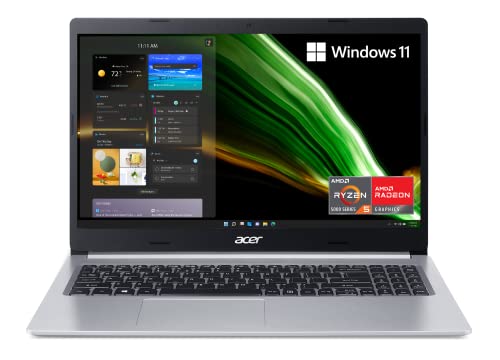
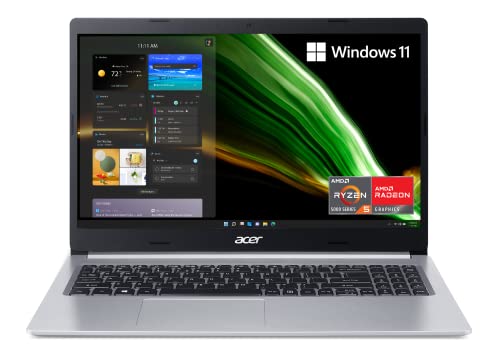
acer Aspire 5 A515-45-R74Z Slim Laptop — acer Aspire 5 A515-45-R74Z Slim Laptop | 15.6″ Full HD IPS | AMD Ryzen 5 5500U Hexa-Core Mobile Processor | AMD Radeon Graphics | 8GB DDR4 | 256GB NVMe SSD | WiFi 6 | Backlit KB | Windows 11 Home. Check price on Amazon before you decide, because configurations and availability change often.

Lenovo IdeaPad Slim 3 – Everyday Laptop – Lightweight – Windows 11-15.6″ FHD – 8GB Memory – 256GB Storage – AMD Ryzen 5 7520U – Abyss Blue — Lenovo IdeaPad Slim 3 – Everyday Laptop – Lightweight – Windows 11-15.6″ FHD – 8GB Memory – 256GB Storage – AMD Ryzen 5 7520U – Abyss Blue. Check price on Amazon before you decide, because configurations and availability change often.

Acer Aspire 5 Slim Laptop — Acer Aspire 5 Slim Laptop, 15.6″ Full HD IPS Display, 10th Gen Intel Core i5-10210U, 8GB DDR4, 256GB PCIe NVMe SSD, Intel Wi-Fi 6 AX201 802.11ax, Fingerprint Reader, Backlit KB, A515-54-59W2, Silver. Check price on Amazon before you decide, because configurations and availability change often.
Common Misconceptions
- Buying 256GB for a gaming or media course because a general guide called it enough for students.
- Letting the drive sit above ninety percent full for months, then blaming the laptop for the resulting slowness.
- Assuming cloud sync means files are available offline, discovered at the worst possible moment.
- Storing the only copy of a growing photo or project archive on the laptop with no backup, whatever its size.
Pro Tips
- Check your current computer or phone storage use before buying; your future habits will rhyme with it.
- End each term by archiving finished modules to cloud or external storage; ten minutes returns gigabytes.
- Games and virtual machines are the files to rotate ruthlessly; documents can stay forever, they weigh nothing.
- If the configuration step to double storage is small at purchase, take it; it is the cheapest capacity you will ever buy.
How This Connects to the Decisions Around It
No specification lives alone, and the idea explained here touches the choices on every side of it. Sizing one component changes what another can achieve, a limit in one pool masquerades as a fault in a different one, and the marketing order of a spec sheet rarely matches the order of real-world importance. That is why experienced buyers read machines as systems: they ask what feeds what, what limits what, and where the ceiling actually sits for their own workload rather than for a benchmark’s. It is also why the cheapest upgrade is so often information, a measurement of your own usage taken before money moves. Carry that habit beyond this topic. Whenever a future purchase or problem presents a single confident number, ask what it leaves out, what it interacts with and what your own evidence says. The explanation you have just read gives you the vocabulary for this subject; the habit gives you every subject that follows it.
Putting It All Together
Keep this explanation beside you the next time a listing, a salesperson or a forum thread tries to reduce the topic to one number, because the pattern you have learned, define the terms, separate the pools and limits that get confused, size for your real habits, and check the escape routes, generalises to almost every specification argument in consumer technology. Numbers describe machines; behaviour over years is what you live with. If a decision still feels unclear, gather the one piece of personal evidence the guide asked for, your actual usage in your actual applications, and let it arbitrate. Manufacturers will keep inventing new headline figures. A buyer who understands the mechanics underneath them stays unhurried, and usually ends up with the right machine at the right configuration the first time.
Counting in the Wild: What a Real Student Drive Looks Like After Two Years
Abstract budgets become honest when you audit a real machine, so consider the anatomy of a typical second-year student’s drive. The operating system and its updates occupy a growing foundation that nobody chose and nobody can evict. The application layer follows: an office suite, a browser carrying its caches, collaboration tools, a reference manager, the course’s specialist software — each modest alone, together a substantial city. Then comes the student’s own geology: this year’s documents are a thin, tidy layer, but beneath them lie last year’s, kept from caution; a downloads folder that functions as an unindexed archive of every reading ever fetched; media — photographs, society videos, a music library, the games — accumulating at the speed of life rather than of study. The audit’s lesson is that storage is rarely consumed by the thing students plan for. It is consumed by sediment: duplicates, caches, forgotten installers, last year’s everything. Which means the answer to this guide’s title question has two halves — buy enough for your profile, and govern what you bought with the termly tidy this series prescribes — because capacity without housekeeping is just a larger room to lose things in.
File Types Decoded: Where the Gigabytes Actually Hide
Not all coursework weighs the same, and learning the heavy file types in your discipline converts storage planning from guessing into arithmetic. Video is the heavyweight champion of student storage: lecture recordings, project footage and exported edits consume space at a rate that surprises every media student exactly once. Photographs in modern phone resolutions accumulate by the thousand across a degree’s social life. Virtual machine images and development environments, the computer science student’s quiet tenants, each occupy the space of a small operating system because that is what they are. Design and architecture files pair large project documents with asset libraries that dwarf them. Game installations are the honest giants of the leisure column. Against these, the classic student artefacts — essays, readings, spreadsheets, presentations — are nearly weightless, which is why two students can give opposite answers to this guide’s question and both be describing their drives truthfully. Weigh your own heavy types, multiply by your realistic accumulation across the course, and the number you need stops being a forum argument and becomes a measurement.
The Cloud, the External Drive and the Laptop: A Three-Tier System
Mature student storage is not a size but a system of three tiers, each with a job. The laptop’s internal drive is the working tier: current modules, live projects, the applications themselves — everything that must be instant and available offline. Cloud storage is the resilience and sharing tier: the backed-up copy of everything that matters, the collaboration space, the archive of finished terms that no longer earns internal speed. The external drive, where one exists, is the vault tier: media archives, completed creative projects, the second physical copy of irreplaceable material, kept somewhere other than the laptop bag. Sized and governed this way, a modest internal drive can serve a heavy student gracefully, because it is only ever asked to hold the present — while a vast internal drive with no system behind it can still fail its owner completely, by holding everything in exactly one place. Buy the tiers in that order of importance: internal capacity for your working present, cloud for your safety, external for your past. The question in this guide’s title, answered properly, was never only about a number of gigabytes. It was about whether your degree’s files have a geography — and geographies, unlike capacities, can be designed for free.
How Much Is Too Much: The Honest Case Against Oversizing
Balance requires the opposite warning, because storage can be over-bought as well as under-bought, and student budgets feel the difference. Capacity beyond your profile’s honest arithmetic buys nothing but headroom you will fill with sediment you did not need to keep, while the same money denied to memory, battery, warranty or backup is a real sacrifice dressed as prudence. There is also a subtle behavioural tax on vast drives: they forgive hoarding, and hoarding is what makes machines unfindable, backups heavy and migrations miserable at graduation. The sweet spot this guide defends is a working margin — your profile’s measured need, plus room for one growth surprise, plus the free-space buffer the system itself requires to breathe — and not a gigabyte of speculative empire beyond it. Students who size this way and govern the result own machines that feel curated in the final year. Students who size by anxiety own warehouses. Be the curator.
When the Drive Fills Anyway: A Calm Recovery Order
Even governed drives fill, usually in deadline season, so keep the recovery order somewhere calmer than your future panic. Begin with the system’s own storage view, which names the largest categories without judgement, and work from its evidence rather than from folder folklore. Evict the truly disposable first: old installers, duplicate downloads, cached media from streaming applications, the previous term’s disposable files. Move the archive second: finished terms and heavy media to the cloud or external tier, verified at the destination before deletion at the source — always in that order, because a move that is really a copy-then-delete is safe, while a move performed carelessly is a loss with extra steps. Uninstall third: the applications the year outgrew. And stop the moment healthy headroom returns, because a full clear-out performed in deadline week is how irreplaceable files get deleted by tired people. The emergency was never really about gigabytes. It was about sequence, and sequence, as ever in this series, is a thing you can decide now and thank yourself for later.
Storage at Graduation: The Migration You Can Prepare From Year One
Every student drive eventually faces the same appointment: graduation, when institutional storage closes, accounts expire and four years of files must emigrate or evaporate. Students who built the three-tier system early meet that appointment with an afternoon’s administration — their archive already in personal cloud or external homes, their institutional copies already mirrored, their keepers already separated from their sediment. Students who let the institution’s storage become their only geography meet it as a crisis scheduled, with grim comedy, for the busiest month of their lives. You cannot know today which files your future self will treasure — the dissertation, certainly; the fieldwork photographs, probably; the first-year essays, more than you expect — but you can know that they will all need a home with your name on it rather than your university’s. Size your laptop for the degree, by all means. But govern its contents for the graduate, who is the person your storage decisions are ultimately made by, and for.
Worked Arithmetic: Three Drives, Audited Honestly
Run the method on three composite students and watch the title question answer itself differently each time, as it should. The essay-based student, two years in, audits a modest drive and finds the system and applications taking the largest share, her own documents a modest slice, readings a respectable one, and — the audit’s only surprise — caches and downloads rivalling her coursework. Her verdict: her current capacity, governed, suffices for the degree; her next purchase of anything storage-shaped should be backup, not space. The media student audits a drive twice the size and finds it three-quarters full of footage, exports and photographs, with coursework a rounding error; his verdict is that the internal drive was never his real archive at all, and his money belongs in the external and cloud tiers, with the internal drive reserved for the current project’s working set. The computing student finds virtual machines and development environments occupying a territory she never budgeted, because nobody told her each one is a small computer squatting inside her computer; her verdict is a larger internal drive at the next purchase and ruthless deletion of dead environments now. Three students, three incompatible answers, one method — which is the strongest evidence this guide can offer that the method, not any number, is the answer it was written to give.
Signs You Bought Too Little, and the Graceful Remedies
Under-buying announces itself honestly if you know its voice: updates that fail for want of space, a system drive perpetually in its final sliver, applications refusing to install their own patches, cloud services pausing because the local staging area is full, and the low, constant friction of deciding what to delete before you can begin. None of these is a character flaw in the owner; they are a specification meeting its future. The remedies ascend in order of disruption. Govern first, with the recovery sequence from this guide, because sediment removal routinely returns a fifth of a drive to its owner. Re-tier second, moving archives to cloud and external homes where they belong. Upgrade third, where the machine’s design permits a larger internal drive — a genuinely transformative remedy on serviceable models. Replace last, and only when the storage ceiling arrives in the company of other final-year problems, because a machine replaced for storage alone, when its owner simply outgrew a number, teaches the most useful lesson in this entire article at the highest available price. Learn it cheaper: measure the profile, fund the margin, govern the result.
Storage for Specific Tribes: Notes for the Edge Cases
The student who records everything
Lecture capture, whether by institution or by personal habit, converts time directly into gigabytes, and a student who records daily should budget storage the way a photographer budgets memory cards: as a consumable with a workflow, not a fixed pool. Keep the current term internally, archive ruthlessly to the cloud or external tier at term’s end, and delete recordings whose notes you have already made with the confidence of a person who knows which artefact actually carries the learning.
The student on a placement year
Professional placements add employer systems, large document sets and sometimes a second digital identity to the machine. Confirm early what the placement expects you to store locally, keep its material in its own clearly bounded folder or account, and remember that its data may carry obligations your coursework never did. Capacity planning here is partly courtesy and partly compliance, and both argue for headroom bought in advance.
The student who games seriously
Treat the games library as a first-class storage citizen with its own budget line, because it will take one anyway. A small number of large titles, rotated deliberately, coexists happily with a degree; an unmanaged library does not, and the rotation habit — finish, archive or uninstall — is simply the termly tidy wearing leisure clothes.
Edge cases settled, the centre holds for everyone else: profile, margin, tiers, governance. Four words that answer a question the internet prefers to argue about forever — because arguing is free, while measuring, as this guide keeps demonstrating, is merely cheap.
The Answer, Assembled: A Decision You Can Make in Ten Minutes
- Profile yourself honestly from the worked examples: text-based, creative and media, or technical and gaming — and take that profile’s range as your starting point, not the internet’s average.
- Add the system’s own appetite and a free-space buffer of at least a fifth of the drive; a full drive is a slow drive, whatever its size.
- Price the tiers together: internal capacity for the present, cloud for safety, external for the archive — and fund them in that order.
- Where the machine allows later upgrades, a tighter start is defensible; where configuration is permanent, buy the final year’s number today.
- Commit to the termly tidy as part of the purchase, because governance is worth as much capacity as money can buy.
Ten minutes, five decisions, and the question that fills forums with anxiety resolves into a number with a method behind it. That method will outlive the number — it will size your next machine, your first work machine, and every drive you govern hereafter — which is why this guide spent its length on profiles, tiers and arithmetic rather than on crowning a single figure. Numbers expire. Methods, like degrees, are yours for life.
What Your Future Self Will Thank You For
Imagine the final term, because storage decisions are really letters to it. Your future self, deep in a dissertation, opens the laptop and finds a drive with room to breathe, an archive that can produce any file from any year in under a minute, a backup whose health was verified before it was needed, and a graduation migration that amounts to an afternoon rather than an excavation. None of that will have happened by luck. It will have happened because a first-year, in a calm week, profiled honestly, bought the margin, built the tiers and kept the tidy — four small acts of foresight whose compound interest is a final year with no storage story in it at all. Storage, handled well, is invisible, and invisibility in infrastructure is the highest praise there is. Buy the number your method gives you, govern what you bought, and then go and fill the drive with the only contents that ever justified it: the work, the photographs and the evidence of a degree being lived at full capacity — in every sense except the drive’s.
A Note on Numbers You Will See Quoted
Forums and advertisements will offer you confident single numbers for this question, and now you can read them the way this guide has taught you to read everything: as profiles in disguise. The small number belongs to the text-based student whose institution stores the world in the cloud for them; the large one belongs to the media student whose footage is their coursework; the enormous one belongs to someone selling drives. None of them is lying, and none of them is you. Your number lives in your audit, your course and your tiers, and the confidence to stand by a measured answer against a chorus of round ones is a genuinely transferable skill — the same confidence that reads a specification sheet for its omissions and a syllabus for its assumptions. A degree, among its many other gifts, is supposed to replace borrowed certainty with earned judgement. It can start, quite reasonably, with the size of a hard drive.
Start earning it tonight with the simplest act in this entire article: open your storage view, look at what is actually there, and write the three largest categories down. That one honest glance converts you from an audience for other people’s numbers into the world’s leading authority on the only drive the question was ever about. Everything else — the tiers, the margin, the tidy — is just that glance, taken seriously and acted on in order.
Storage and Speed Are the Same Conversation
Close with the connection students most often discover too late: the size of your drive and the speed of your laptop are not separate subjects. A drive kept near its ceiling slows updates, throttles the system’s own breathing room, stalls cloud synchronisation and turns every large operation into a negotiation — symptoms owners reliably misdiagnose as age, as the companion troubleshooting guide in this series describes in detail. Which means the margin this guide argues for is not wasted capacity at all. It is performance insurance, bought once and claimed daily, in the currency of a machine that never has to apologise for its own fullness. Size for the profile, keep the fifth free, and your storage stops being a number you chose in a shop and becomes what it should have been all along: the quiet headroom inside which a whole degree comfortably fits.
The Ten-Minute Audit, Performed on Your Current Machine
If you are reading this guide on the laptop you already own, the most valuable ten minutes in it are available immediately. Open the storage view and write down the three largest categories without judging them. Look at the downloads folder’s size and its oldest resident. Check how much of the drive the system itself claims, and how much free space remains against the fifth this guide defends. Then ask the only question that turns an audit into a decision: if this machine had to serve two more years, where would the pressure arrive first? Your answer — media, machines, games, sediment — is your profile, measured rather than imagined, and it prices your next drive more accurately than any recommendation a stranger could offer. Students who perform this audit before shopping buy storage the way engineers buy anything: from evidence, with a margin, once. Students who skip it buy the forum’s number and spend the degree discovering whose life it was sized for.
That glance, repeated at the start of each academic year, becomes the storage audit habit — and habits, as every guide in this series eventually concludes, are worth more than hardware. Capacities date, prices fall, profiles change, but a student who measures before buying and governs after buying will never again stand in a shop, or in a deadline, at the mercy of a number somebody else made up.
And should the audit surprise you — should the sediment outweigh the coursework, or the games outweigh everything — receive the surprise as the gift it is. Drives, like drafts, improve in the editing, and a student willing to look honestly at their own accumulation has already done the hardest part of every storage decision they will ever make: they have stopped guessing.
Guessing, after all, was the only real enemy in this article — of capacity, of budget and of calm. Replace it with a profile, a margin and a system, and the question in the title stops sounding like a riddle the internet argues about and starts sounding like what it always was: a measurement you are perfectly capable of taking yourself.
Take the measurement, then, and trust it in the shop with the same calm you will trust it in the library three years from now. The students whose drives never become a story are not the ones who bought the most storage. They are the ones who bought their own number — and you are about to join them.
Join them with the audit still open on your screen if you can. There is no better moment to decide than the one where the evidence is literally in front of you, categorised and counted — and no worse one than a checkout queue, months later, with a full drive and a deadline doing the deciding instead.
Write your number and its reasoning on the same page as the audit, and file the page with the machine’s paperwork. Future purchases, future arguments and future audits will all begin from that page, and each will be shorter and calmer for its existence — because a measured decision, recorded, defends itself forever, while an unrecorded one must be re-earned at every shop counter for the rest of your life.
That page, in the end, is the real answer to the question in this guide’s title — because it does not merely state how much storage a student laptop needs. It proves it, for one student, with evidence, forever.
Related Guides
- our roundup of the best laptops for engineering students under 1000
- our roundup of the best laptops for programming under 1000
- our roundup of the best student laptops for under 500
- how to protect a student laptop
- how to speed up a student laptop
Frequently Asked Questions
Is 256GB enough for a student laptop?
For a text-based course with cloud-backed files and no gaming or media work, yes, provided you keep modest discipline: archives in the cloud, downloads cleared each term, photos managed. It stops being enough when games, photo or video work, datasets or virtual machines enter your life, and it leaves little slack for the system’s own growth. If your budget allows one upgrade at purchase, storage is often the kindest one to future you. Judge by your profile in this guide, not by the number alone.
Should I choose 512GB or 1TB?
Choose 512GB if your life is documents, browsing, calls and light media with cloud support; it is the current sweet spot for most degrees. Choose 1TB if you game on the laptop, create photo or video work, run technical workloads, keep large offline libraries, or simply know you will never manage storage actively. The premium for 1TB at purchase is usually far smaller than the cost and disruption of upgrading or replacing later, especially on sealed models.
Can I upgrade my laptop’s storage later?
Many Windows laptops allow it, with a standard slot for a larger or additional drive, and it is one of the easiest upgrades in computing. Many thin models and all current MacBooks have sealed storage that cannot be changed after purchase. This is a purchase-day question: read your exact model’s specifications or service manual before assuming. An upgradeable machine forgives a smaller starting drive; a sealed machine demands you size for year four today.
Does a full drive really slow the laptop down?
Yes, through several mechanisms at once: the system needs free space for updates, temporary files and memory swapping, and solid-state drives lose write performance as they approach full. The practical threshold is to keep roughly a fifth of the drive free. Students notice it as a general tiredness, updates failing, apps pausing, that lifts noticeably after a serious cleanup. Storage management is therefore performance maintenance, not just tidiness, which is why this guide treats free space as part of the specification.
Is cloud storage a substitute for a bigger drive?
It is a complement with different strengths. Cloud storage excels at backup, access from any device and archiving finished work, and school accounts make it effectively free. It is weaker for very large active files, offline situations and applications that expect local data. The strongest student setup pairs an adequate internal drive for current work with automatic cloud backup behind it. Framed that way, the question is not cloud or capacity, but how much of each your profile needs.
How much space do games and creative apps take, realistically?
Enough to plan around. Major modern games commonly exceed 100GB each installed, creative suites and their asset libraries claim tens of gigabytes, and a single video project or photo archive grows without asking permission. Three big games can consume a 512GB drive’s usable space alongside a degree’s coursework. If these are your hobbies, count them as first-class citizens in your storage budget rather than surprises, and let the configuration reflect the life you actually lead.