The best non touch screen SSD laptops are for buyers who want a traditional laptop: a screen for looking at, not for touching, and an SSD for speed. A touchscreen adds cost, collects fingerprints, and uses battery, and many buyers never tap the screen at all. A non-touch laptop skips that cost and puts the money into the processor, the memory, or the storage instead, which is a better trade for work and study.
This guide compares six non-touch SSD laptops, and every pick has the words non-touch or non-touchscreen in its product listing, so the buyer can verify the claim on the product page. The shortlist runs from a value Dell with a Core i7 to a premium Lenovo ThinkPad with an OLED display and 32GB of memory, with HP laptops in the middle covering the large screen, the portable 14-inch, and the modern all-rounder. Every pick has an SSD, and each one is judged on the same question: is it a fast, honest non-touch laptop that a buyer can trust to do the work without the touchscreen?
Non-touch is not a compromise. It is a choice, and for many buyers it is the better one. A non-touch display stays clean, the laptop often costs less than the touch version of the same model, and the battery lasts longer without a touch layer to power. This guide treats the non-touch screen as a feature, not a missing one, and picks the laptops that make the most of it.
In this guide
Quick picks: best non touch screen ssd laptops
| # | Product | Where to buy |
|---|---|---|
| 1 | HP OmniBook 5 laptop with non-touch display | Check on Amazon |
| 2 | HP 17 laptop with non-touch display | Check on Amazon |
| 3 | HP EliteBook 640 G11 notebook with non-touch display | Check on Amazon |
| 4 | Dell Inspiron 3593 non-touchscreen laptop | Check on Amazon |
| 5 | Lenovo ThinkPad X1 Carbon Gen 14 with non-touch OLED | Check on Amazon |
| 6 | Lenovo ThinkPad T15 G2 with non-touch display | Check on Amazon |
How the picks were chosen
The shortlist was built from product listings for non-touchscreen laptops with SSDs, then narrowed to six models whose listings state non-touch or non-touchscreen explicitly. Listings that did not say non-touch were left out, even when the model is usually sold without a touchscreen, because this guide only claims what the listing shows. Touchscreen models were excluded, including several that appeared in the searches with touch in the title, and Renewed listings were avoided where a new listing was available.
Each laptop was checked against its listing for the display type, the processor, the memory, the storage, and the features quoted in this guide. Where a listing was short, only the visible facts were used, and anything not shown was left out rather than assumed. The Dell Inspiron 3593 is a 2022 model, and the guide flags that plainly, because buyers should check the condition and the warranty on the product page before ordering.
The six laptops cover the main ways a non-touch laptop is used. The HP 17 suits a desk with its large screen, the EliteBook 640 G11 suits carrying all day at 14 inches, the OmniBook 5 suits a modern all-rounder, the Dell suits a value buy, and the two ThinkPads suit a professional who wants the most memory and the best screen. Buyers who know how they work can pick from the shortlist in minutes, and the comparison table above shows the differences at a glance.
Quick comparison
| Product | Standout feature | Best for |
|---|---|---|
| HP OmniBook 5 Laptop | Ryzen AI 7 with a non-touch 2K display | work and study with a sharp non-touch display |
| HP 17 Laptop | 17.3-inch non-touch display, 16GB RAM | desk work with the largest screen in this guide |
| HP EliteBook 640 G11 Notebook | Core Ultra 7, 14-inch non-touch, latest model | work on the move with a portable 14-inch non-touch laptop |
| Dell Inspiron 3593 Laptop | Core i7 with a non-touchscreen 15.6-inch display | buyers who want a Core i7 and 512GB of storage for less |
| Lenovo ThinkPad X1 Carbon Gen 14 | OLED non-touch display, 32GB RAM | buyers who want the best display and 32GB of memory |
| Lenovo ThinkPad T15 G2 Laptop | Core i7, 32GB RAM, non-touch IPS display | professionals who want 32GB of memory and a large non-touch screen |

HP OmniBook 5 Laptop
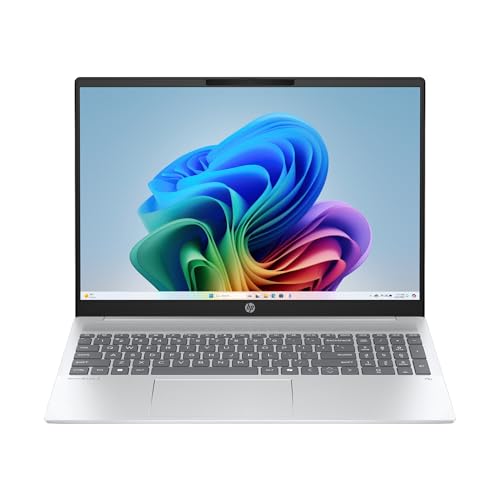
The HP OmniBook 5 is a 16-inch laptop with an AMD Ryzen AI 7 350 processor, 16GB of DDR5 RAM, a 512GB SSD, and a 16-inch 2K (1920×1200) Non-Touch IPS display, running Windows 11. The non-touch display is stated plainly in the listing, which is the point of this guide: a traditional laptop screen that stays clean, costs less than a touch equivalent, and leaves the battery to the work rather than the touchscreen.
Key specifications: Ryzen AI 7 350; 16GB DDR5 RAM; 512GB SSD; 16-inch 2K (1920×1200) Non-Touch IPS display; Windows 11.
In daily use, the OmniBook 5 is the modern all-rounder. The Ryzen AI processor and 16GB of DDR5 memory keep work smooth, the 512GB SSD holds a term's files, and the 2K non-touch display is sharp for documents and video without the fingerprints a touchscreen collects. The 16-inch screen gives room for two windows side by side, which suits writing and research together.
Set the laptop up with the user account, and check Windows Update on the first day so the system is current. Keep the laptop on a flat surface with the vents clear, and set the display scaling so text is comfortable on the 16-inch screen. A sleeve protects the slim body in a bag, and a cloud backup protects the files on the 512GB SSD.
Strengths
- A non-touch 2K IPS display stays clean and costs less than a touch equivalent
- Ryzen AI 7 with 16GB of DDR5 RAM keeps work smooth
- The 512GB SSD holds files locally without leaning on the cloud
Trade-offs
- A non-touch screen cannot be tapped or swiped, which some buyers expect
- The 16-inch size is larger to carry than a 14-inch laptop
- A 2K display uses more power than a Full HD one when pushed hard
The OmniBook 5 fits a buyer who wants a modern, fast laptop with a traditional non-touch screen. It suits work, study, and everyday use where the screen is for looking at, not for touching, and where a clean display matters more than a touchscreen.
Best for: work and study with a sharp non-touch display / Not suited for: buyers who want a touchscreen for tapping and annotating
Check price on Amazon: HP OmniBook 5 laptop with non-touch display

HP 17 Laptop
The HP 17 Laptop is a 17.3-inch laptop with an HD+ Non-Touch display, an AMD Ryzen 5 7430U processor, 16GB of RAM, and a 512GB PCIe SSD, with Wi-Fi 6 and Bluetooth 5.4. The large non-touch screen is the feature: a 17.3-inch display gives the most room in this guide for documents, spreadsheets, and video, without the cost or the fingerprints of a touchscreen.
Key specifications: 17.3-inch HD+ Non-Touch display; AMD Ryzen 5 7430U; 16GB RAM; 512GB PCIe SSD; Wi-Fi 6; Bluetooth 5.4.
In daily use, the HP 17 is the big-screen workhorse. The 17.3-inch display fits a spreadsheet and a document side by side, the 16GB of memory keeps both moving, and the 512GB SSD holds the files. It is a laptop that stays mostly on a desk, where the large screen earns its size, and where the non-touch display means the screen stays clean through a long workday.
Place the laptop on a desk with room for its 17.3-inch footprint, and connect it to Wi-Fi 6 for the fastest wireless. Set the display scaling so text is comfortable at the larger size, and keep the vents clear on a flat surface. A large sleeve or a dedicated laptop bag protects it when it does move.
Strengths
- The 17.3-inch non-touch display gives the most screen room in this guide
- 16GB of RAM and a 512GB SSD cover memory and storage together
- Wi-Fi 6 and Bluetooth 5.4 cover current wireless needs
Trade-offs
- A 17.3-inch laptop is the least portable in this guide
- The HD+ resolution is lower than the Full HD and 2K displays here
- A non-touch screen will not suit buyers who tap and swipe
The HP 17 fits a buyer who works at a desk and wants the largest screen in this guide. It suits spreadsheets, documents, and video on a big display, and a household where the laptop rarely leaves the desk.
Best for: desk work with the largest screen in this guide / Not suited for: buyers who carry a laptop all day or want a touchscreen
Check price on Amazon: HP 17 laptop with non-touch display

HP EliteBook 640 G11 Notebook
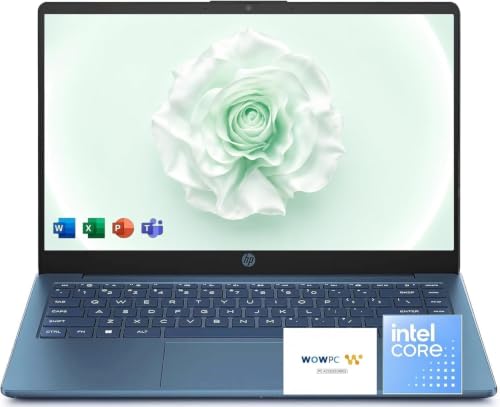
The HP EliteBook 640 G11 is a 14-inch notebook with an Intel Core Ultra 7 155U processor, 16GB of memory, a 512GB SSD, and a Full HD+ Non Touch display, listed as the latest model. The EliteBook is a business-class laptop, built for work that needs reliability, and the 14-inch non-touch screen makes it the most portable pick in this guide.
Key specifications: Intel Core Ultra 7 155U; 16GB memory; 512GB SSD; 14-inch FHD+ Non Touch display (1920 x 1080); latest model.
In daily use, the EliteBook 640 G11 is the professional's laptop. The 14-inch size fits a bag easily, the Core Ultra 7 and 16GB of memory handle work smoothly, and the 512GB SSD holds the files. The non-touch Full HD+ display stays clean and readable, and the business design means the keyboard and the build are made for long workdays rather than for show.
Set the laptop up with the work or personal account, and check Windows Update on the first day. Keep the 14-inch laptop in a sleeve in the bag, and set the display brightness for the room rather than leaving it at maximum. A cloud backup protects the files on the 512GB SSD.
Strengths
- A 14-inch non-touch display makes this the most portable laptop here
- The Core Ultra 7 and 16GB of memory handle work smoothly
- The business-class build is made for long workdays
Trade-offs
- The 14-inch screen is smaller than the 15.6-inch and 17.3-inch displays here
- A non-touch screen will not suit buyers who want to tap and swipe
- A business laptop costs more than a consumer model with the same specification
The EliteBook 640 G11 fits a professional or a student who carries a laptop all day and wants a reliable, portable machine. It suits work on the move, meetings, and a bag that is carried between buildings.
Best for: work on the move with a portable 14-inch non-touch laptop / Not suited for: buyers who want the largest screen or a touchscreen
Check price on Amazon: HP EliteBook 640 G11 notebook with non-touch display

Dell Inspiron 3593 Laptop
The Dell Inspiron 3593 is a 2022 model 15.6-inch Full HD Non-Touchscreen laptop with an Intel Core i7-1065G7 processor, 8GB of RAM, and a 512GB SSD, with HDMI and Wi-Fi. The non-touchscreen display is stated in the listing, and the Core i7 processor gives it more power than the price suggests, making it the value pick in this guide.
Key specifications: 15.6-inch FHD Non-Touchscreen laptop; Intel Core i7-1065G7; 8GB RAM; 512GB SSD; HDMI; Wi-Fi; 2022 model.
In daily use, the Inspiron 3593 is the straightforward laptop. The i7 processor and the 512GB SSD keep work moving, the 15.6-inch non-touchscreen display suits documents and video, and the HDMI port lets it drive a second screen. It is an older model, so buyers should check the product page for the condition and the warranty, but the specification is a strong one for the price.
Check the product page for the condition and the warranty, since this is a 2022 model. Set the laptop up with the user account, and connect it to Wi-Fi for updates. Use the HDMI port for a second screen when writing long work, and keep the vents clear on a flat surface.
Strengths
- A Core i7 processor gives strong performance for the price
- The 512GB SSD holds files locally without relying on the cloud
- HDMI lets the laptop drive a second screen
Trade-offs
- 8GB of RAM is less than the 16GB in the other picks here, so heavy multitasking may slow it
- A 2022 model, so buyers should check the condition and the warranty on the product page
- A non-touchscreen will not suit buyers who want to tap and swipe
The Inspiron 3593 fits a buyer who wants a strong processor and a large SSD for less money, and who accepts an older model. It suits a desk or a home office where the laptop does not need to be the newest, and where the work matters more than the model year.
Best for: buyers who want a Core i7 and 512GB of storage for less / Not suited for: buyers who need 16GB of RAM or the newest model
Check price on Amazon: Dell Inspiron 3593 non-touchscreen laptop

Lenovo ThinkPad X1 Carbon Gen 14
The Lenovo ThinkPad X1 Carbon Gen 14 is a 2026 laptop with a Core Ultra 5 335 processor, an OLED Non-Touch display, a 512GB SSD, and 32GB of LPDDR5X RAM. The OLED non-touch display and the 32GB of memory are the features that set it apart: the OLED screen gives deep blacks and vivid colour for media and design work, and 32GB of memory is twice the amount in most of this guide.
Key specifications: Core Ultra 5 335; OLED Non-Touch display; 512GB SSD; 32GB LPDDR5X RAM; 2026 model.
In daily use, the X1 Carbon Gen 14 is the premium pick. The OLED display makes documents crisp and video vivid, the 32GB of memory keeps many applications open without slowing down, and the ThinkPad keyboard is made for long typing sessions. The non-touch OLED stays clean, and the slim Carbon design makes a 14-inch class laptop that is easy to carry all day.
Set the laptop up with the user account, and adjust the display scaling so text is comfortable on the OLED screen. Keep the laptop in a sleeve in the bag, and set the power plan to balanced so the battery lasts through the day. A cloud backup protects the files on the 512GB SSD.
Strengths
- The OLED non-touch display gives the best picture in this guide
- 32GB of memory is twice the amount in most of the other picks
- The ThinkPad keyboard and slim Carbon design suit long workdays
Trade-offs
- A premium OLED laptop costs more than the other picks here
- The OLED display uses more power at high brightness
- A non-touch screen will not suit buyers who want to tap and swipe
The X1 Carbon Gen 14 fits a buyer who wants the best screen and the most memory in this guide. It suits design work, long typing sessions, and a professional who carries a laptop all day and wants a premium machine.
Best for: buyers who want the best display and 32GB of memory / Not suited for: buyers on a tight budget or who want a touchscreen
Check price on Amazon: Lenovo ThinkPad X1 Carbon Gen 14 with non-touch OLED

Lenovo ThinkPad T15 G2 Laptop
The Lenovo ThinkPad T15 G2 is a 15.6-inch laptop with an Intel Core i7-1185G7 processor, a 512GB SSD, 32GB of RAM, and a Full HD (1920×1080) IPS Non Touch display, running Windows 11 Pro. The 32GB of memory and the non-touch IPS display make it the workhorse of this guide: a large-screen ThinkPad with the memory to keep many applications open and a screen that stays clean.
Key specifications: 15.6-inch laptop; Intel Core i7-1185G7; 512GB SSD; 32GB RAM; FHD (1920×1080) IPS Non Touch display; Windows 11 Pro.
In daily use, the ThinkPad T15 G2 is the reliable large-screen laptop. The i7 processor and 32GB of memory handle work, research, and video calls together, the 512GB SSD holds the files, and the 15.6-inch non-touch IPS display stays readable and clean. Windows 11 Pro adds the business features that a professional user may need, and the ThinkPad build is made for years of daily use.
Set the laptop up with the work or personal account, and check Windows Update on the first day. Keep the laptop on a flat surface with the vents clear, and set the display scaling so text is comfortable on the 15.6-inch screen. A cloud backup protects the files on the 512GB SSD.
Strengths
- 32GB of RAM keeps many applications open without slowing down
- The 15.6-inch non-touch IPS display stays clean and readable
- Windows 11 Pro adds business features for professional use
Trade-offs
- A 15.6-inch ThinkPad is larger to carry than a 14-inch model
- The design is plain and business-like, so buyers who want a stylish look will not find it here
- A non-touch screen will not suit buyers who want to tap and swipe
The ThinkPad T15 G2 fits a professional who wants a large screen, plenty of memory, and a reliable build. It suits work that mixes many applications, long documents, and video calls, and a laptop that will be used every day for years.
Best for: professionals who want 32GB of memory and a large non-touch screen / Not suited for: buyers who want the lightest laptop or a touchscreen
Check price on Amazon: Lenovo ThinkPad T15 G2 with non-touch display
Best Non Touch Screen SSD Laptops: What Matters Most
Confirm the display is non-touch. The listing should say non-touch, non-touchscreen, or non touch, and the buyer should check it on the product page before ordering. Some models are sold in both touch and non-touch versions, and the difference is not always obvious from the model name alone. The listings in this guide state it plainly, and buyers should confirm the same for any other model they consider.
SSD size. An SSD makes the laptop start quickly and feel responsive, and the size decides how much can be kept on the laptop. 512GB is the standard in this guide and suits most buyers, while 128GB needs cloud storage for files. Check the storage size in the listing, and plan for the cloud storage that comes with the laptop.
Memory for multitasking. 16GB of RAM is the right amount for work and study, and the two ThinkPads in this guide have 32GB, which suits a buyer who keeps many applications open at once. 8GB, as in the Dell pick, can feel slow with a heavy workload, so buyers should weigh the saving against the multitasking they actually do. Memory is hard to upgrade later, so buy the amount the work needs from the start.
Screen size and resolution. A 14-inch screen suits carrying all day, a 15.6-inch screen suits a desk and a library, and a 17.3-inch screen suits a desk where the laptop rarely moves. Resolution matters too: Full HD is the standard, 2K is sharper, and OLED gives the best picture. Choose the screen for the work that will be done on it, and for the bag it will be carried in.
Battery life without a touch layer. A non-touch display uses less power than a touchscreen, which can mean a longer battery life from the same battery. The listings in this guide do not all state a battery figure, so buyers should check the product page and plan for a charger in the bag on long days. A laptop that lasts the day is worth more than a slightly faster one that does not.
Build and keyboard for daily use. A laptop that is used every day needs a keyboard that suits long typing sessions and a build that survives a bag. The ThinkPads in this guide are made for that, and the business-class HP is built the same way. A consumer laptop can be just as good for the work, but the keyboard and the build deserve a look before ordering, since they are used for hours every day.
Buying guide: choosing a non-touch SSD laptop
Start with the display type. Confirm the listing says non-touch, and check it on the product page. Some models are sold in touch and non-touch versions, and the model name alone does not always tell them apart. A buyer who orders the wrong version will have a touchscreen they did not want, so the check is worth a minute.
Check the storage and the memory together. A 512GB SSD and 16GB of RAM cover most work and study, while 32GB suits a heavy multitasker and 8GB suits a light workload. Check both figures in the listing, and remember that memory is hard to upgrade later, so the amount bought now is the amount the laptop will have for its life.
Think about the screen size. A 14-inch laptop is the most portable, a 15.6-inch laptop is the middle ground, and a 17.3-inch laptop is a desk machine. Measure the bag and the desk before ordering, and choose the largest screen that will actually be carried. A large screen left at home helps no one.
Check the condition of older models. The Dell Inspiron 3593 in this guide is a 2022 model, and buyers should check the product page for the condition and the warranty. An older model can be a good value, but only when the condition is clear and the warranty is real. If the condition is not stated, choose a newer model instead.
Check the return window and the warranty. A laptop is a major purchase, and a straightforward return policy lets the buyer try it for a week of real work and send it back if the keyboard, the screen, or the speed does not suit. Keep the box until the trial week is over, and register the warranty at setup.
Use the money saved on the touchscreen well. A non-touch laptop often costs less than the touch version of the same model, and the saving can go to more memory, a larger SSD, or a better screen. Compare the non-touch price with the touch price of the same model, and spend the difference on the specification that matters most for the work.
Using and caring for your non-touch laptop
Set the laptop up with the user account on the first day, and check Windows Update so the system is current. A setup done properly on day one saves a scramble later, and a cloud backup set up at the same time protects the files from the start.
Keep the screen clean with a microfibre cloth. A non-touch display stays cleaner than a touchscreen, but dust still builds up, and a gentle wipe keeps it clear. Keep drinks away from the laptop, since a spill on a keyboard is one of the most common ways a laptop ends its life early.
Keep the vents clear. A laptop on a bed or a sofa can overheat, because the vents are blocked by soft fabric. Use the laptop on a flat surface, or on a lap desk, and keep the vents free of dust. A laptop that runs cool lasts longer and stays quieter.
Back up files every week. Copy the work to the cloud storage or an external drive, and check that the backup opens. A lost or damaged laptop is a bad day; a lost laptop with no backup is a lost term or a lost project. The backup takes minutes and is the most important habit in this guide.
Use the keyboard shortcuts. A non-touch laptop is used with the keyboard and the touchpad, so learning the shortcuts for the applications used every day saves time. A few minutes learning the shortcuts for the browser and the document editor pays off every day.
Add a second screen at the desk. A non-touch laptop works well with an external monitor, and a second screen makes long documents and spreadsheets much easier to handle. Connect the monitor by HDMI, set it as an extension of the laptop display rather than a mirror, and put the document on the large screen with the source on the laptop. The laptop screen stays clean and the work spreads across two displays.
Common mistakes to avoid
Ordering the touch version by mistake. Some models are sold in touch and non-touch versions, and the model name alone does not always tell them apart. Check the listing for the words non-touch before ordering, and confirm it on the product page.
Buying 8GB of RAM to save money. An 8GB laptop feels fine on the first day and slows down when many applications are open at once. The saving is small and the frustration lasts the life of the laptop. Buy 16GB from the start unless the workload is genuinely light.
Ignoring the storage size. A small SSD fills up quickly, and a full drive slows the laptop down. Check the storage in the listing, and plan for cloud storage or a larger drive if the files will live on the laptop.
Carrying the laptop without protection. A laptop in a bag with books and a water bottle is one knock away from a cracked screen. A sleeve costs little and protects the laptop every day.
Leaving the laptop on a bed. A laptop on soft bedding overheats, because the vents are blocked, and overheating shortens the life of the machine. Use a flat surface or a lap desk, and keep the vents clear.
Budget and value
The laptops in this guide span a wide range, and the right spend depends on how the laptop will be used. A value Dell with a Core i7 costs less than a premium ThinkPad with an OLED display, and both are good laptops for different buyers. Compare the display, the memory, and the storage first, and the price last.
Value here means a laptop that serves for years per pound spent, not the fastest processor on the box. A non-touch laptop that costs less than its touch twin and puts the saving into memory or storage is better value than a touch model whose screen is never tapped. Buy the specification the work needs, and let the touchscreen go. The money saved is real, and it buys the memory or the storage that the work actually uses every day.
A laptop is used every day for years, so durability matters. The laptops in this guide are mainstream models with support and spares, and keeping the box for the return window and registering the warranty at setup are small steps that protect a major purchase.
Final recommendation
For most buyers, the HP OmniBook 5 is the strongest starting point in this guide: a modern Ryzen AI processor, 16GB of DDR5 memory, a 512GB SSD, and a sharp non-touch 2K display make it the best all-rounder here. Buyers who want the most portable laptop should take the HP EliteBook 640 G11 at 14 inches, while the HP 17 suits a desk with its large screen. The Dell Inspiron 3593 is the value pick for a buyer who wants a Core i7 and 512GB of storage for less, and the two ThinkPads suit a professional who wants the most memory and the best screen: the X1 Carbon Gen 14 for the OLED display and 32GB of memory, and the T15 G2 for a large screen with the same memory. Whichever laptop is chosen, confirm the listing says non-touch, back up files every week, and judge the laptop after a week of real work. A non-touch laptop that fits the desk, the bag, and the workload will be used every day, which is the real test of any laptop, touch or not.
Frequently asked questions
How do I know a laptop is really non-touch?
Check the product listing for the words non-touch, non-touchscreen, or non touch, and confirm it on the product page before ordering. Some models are sold in both touch and non-touch versions, and the model name alone does not always tell them apart. Every laptop in this guide states non-touch in its listing, so the buyer can verify the claim directly.
Is a non-touch laptop cheaper than the touch version?
Usually, yes. A touchscreen adds a touch layer and a digitiser, which cost money, so the non-touch version of the same model is often cheaper. The saving can go to more memory, a larger SSD, or a better screen. Compare the two versions of the same model before ordering, since the difference varies by maker.
Does a non-touch display last longer on battery?
A non-touch display uses less power than a touchscreen, because there is no touch layer to power, which can mean a longer battery life from the same battery. The difference is modest, and the screen brightness and the processor matter more, but the non-touch display does help. Check the product page for the battery figure, and keep a charger in the bag on long days.
Can I still use a stylus with a non-touch laptop?
No, a stylus needs a touchscreen or a digitiser to work, so a non-touch laptop cannot use one. Buyers who annotate documents or draw on the screen should choose a touchscreen model instead. A non-touch laptop is used with the keyboard and the touchpad, which suits typing and pointing rather than handwriting.
Is 8GB of RAM enough for a non-touch laptop?
It depends on the workload. 8GB can feel fine with one application, but it slows down when a browser, a document, and a video call run together. 16GB is the right amount for most work and study, and 32GB suits a heavy multitasker. The Dell pick in this guide has 8GB and suits a light workload, while the other picks have 16GB or 32GB.
More guides from KajuanDouglas
Dell non-touch laptops under 500 dollars SSD laptops under 1000 dollars laptops with 1TB hard drive, not touchscreen