kajuandouglas.com is reader-supported. When you buy through links on our site, we may earn an affiliate commission.
Where to Buy
The search for the best computer cameras for Mac usually begins in embarrassment: a beautiful Apple display, a fast Apple silicon machine, and a built-in camera that makes its owner look like a witness-protection interview. Laptop lids are too thin for good optics, and the camera squeezed into one is a compromise Apple itself routes around with desk accessories and iPhone tricks. An external webcam is how a Mac setup grows up — and the good news is that the Mac, with its universal USB-C ports and mature video apps, is the easiest computer in the world to upgrade this way.
But “works with Mac” hides real distinctions, and this guide is organised around them. Some webcams are citizens of macOS: their settings apps run natively, their firmware updates arrive without a borrowed Windows machine, their exposure and colour controls survive a restart. Others are guests — excellent hardware whose companion software treats the Mac as an afterthought, leaving settings stranded in whatever state a different computer last set them. Both kinds appear below, labelled honestly, because a camera you cannot adjust is only half a camera.
The six picks divide by the work they serve. Two are meeting cameras in the classic mould — one the polished all-rounder, one the friendly USB-C native. One is a small robot that pans, tilts, and zooms to follow a presenter around a room. One is a streamer’s instrument built for controlled light and uncompressed-looking detail. And two are prose-only reference points every Mac buyer should understand before spending anything: the iPhone already in your pocket, which Apple has turned into a superb webcam by software, and a design-led indie camera that shows where the category’s boutique end lives.
There is also a question of taste hiding inside this keyword, and it deserves daylight: how do you want to appear? The Mac’s professional culture prizes a particular look — crisp, bright, unadorned — while creators cultivate warmth, softness, even grain. The picks below lean in different directions, from the Facecam’s unprocessed candour to the StreamCam’s flattery, and neither direction is an error. A buyer who knows their preferred reflection will read the reviews faster and choose better than one shopping by specification alone.
One discipline runs through every review: macOS behaviour was weighted as heavily as image quality. A webcam lives inside FaceTime, Zoom, Teams, Meet, and OBS on a Mac, and its manners there — how fast it wakes, whether it remembers its framing, whether its microphone behaves, whether Center Stage and the system’s own effects cooperate — decide whether its owner loves it in month six. Pixels are the audition; manners are the marriage.
Key Takeaways
- The Logitech Brio 4K is the safest all-round Mac webcam: excellent image, mature macOS software support, and behaviour every meeting app respects.
- The OBSBOT Tiny 2 is the presenter’s camera — a motorised gimbal that tracks you around the room, with gesture and voice control that suit teaching and demonstrating.
- The Elgato Facecam serves streamers and creators who light their desks and want detailed, unprocessed-looking video.
- The Logitech StreamCam is the USB-C native for vertical video and casual creators, happiest in good light.
- Continuity Camera turns an iPhone into a webcam that embarrasses most dedicated hardware — the prose-only benchmark to beat before buying anything.
- The Opal C1, also prose-only here, represents the boutique end: beautiful design and computational polish for those who value both.
Before any of the linked picks, read the Continuity Camera section. If your iPhone qualifies and your desk allows the mount, the best Mac webcam may already be in your pocket — and this guide would rather tell you that than sell you a duplicate.
In this guide
Quick Picks
| Badge | Pick | Why it stands out |
|---|---|---|
| Best Overall for Mac | Logitech Brio 4K | Sharp 4K image, adjustable field of view, and Logitech’s mature Mac software behind it. |
| Best for Presenters and Teachers | OBSBOT Tiny 2 | A gimbal camera that follows you, frames you, and obeys gestures while you teach or demonstrate. |
| Best for Streaming | Elgato Facecam | Detailed, fixed-focus video built for lit desks, OBS workflows, and creators who set their exposure deliberately. |
| Best USB-C Native for Creators | Logitech StreamCam | Plugs straight into a modern Mac, rotates for vertical video, and flatters casual streaming setups. |
| Best Already in Your Pocket (Prose Reference) | Apple Continuity Camera (iPhone) | Your iPhone’s cameras, Desk View included, mounted above the display — the benchmark every pick must beat. |
| Best Boutique Design (Prose Reference) | Opal C1 | A design-led webcam with computational polish, representing the category’s premium indie end. |
One more consideration before the detailed reviews: permanence. A webcam earns its keep by being mounted, aimed, and forgotten — present at the unscheduled call, the quick question, the grandchild’s sudden appearance on screen. The picks divide quietly on this virtue too. The fixed cameras and the iPhone-on-a-stand differ less in their best image than in their readiness at the unplanned moment, and an honest buyer counts their unplanned moments before choosing. A household of spontaneous video calls should weight readiness above brilliance; a studio of scheduled broadcasts should reverse the weighting without a qualm.
The table hides a fork worth naming: hardware you buy once and adjust rarely (the Logitechs), hardware that moves and performs (the OBSBOT), hardware that assumes a creator’s controlled desk (the Elgato), and software that turns a phone into all three (Continuity Camera). Your desk’s reality — fixed or roaming, lit or dim, meetings or broadcasts — chooses the branch before the brand does.
How We Chose These Picks
Every candidate was lived with on a Mac, not merely plugged into one. The tests ran where Mac owners actually meet: FaceTime with family, Zoom and Teams with colleagues, Google Meet through a browser, and OBS for the creator picks. A camera earned marks for waking instantly when a call began, for holding its exposure when a cloud crossed the window, and for remembering — across sleeps, restarts, and app changes — the framing its owner had chosen. Cameras that reset themselves to factory cheerfulness every morning were marked down in the currency owners actually pay: daily irritation.
Software citizenship was audited as a feature in its own right. Does the maker ship a real macOS settings app, signed and current, that runs on Apple silicon without translation layers? Can firmware be updated from the Mac? Do the controls the brochure celebrates — field of view, pan and zoom, white balance — actually exist on macOS, or are they Windows tenants visiting? The answers differ more than the brochures admit, and the reviews below state them pick by pick.
Image quality was judged the way colleagues judge it: on the other end of a call, through real apps and real compression, not only in a pristine local recording. A sensor’s advantage that evaporates inside Zoom’s encoder earns less than a balanced exposure that survives it. Low light received the hardest grading, because home offices are dimmer than their owners admit — the evening call, the north-facing room, the lamp behind rather than beside. Two picks here genuinely handle that world; the others’ reviews say where their light runs out.
Audio was treated as a supporting actor with veto power. A webcam’s microphone will rarely beat a headset or a desk microphone, and this guide does not pretend otherwise — but a camera whose microphone is unusable forces a second purchase on day one, and that was scored. The picks’ microphones range from genuinely serviceable to merely present, and each review says which, because the meeting where your headset battery dies is not hypothetical; it is scheduled.
Two desks were used throughout, because a Mac webcam’s life is split between them: a fixed workstation with an external display, a lamp, and a door that closes; and a laptop on a kitchen table with a window in the wrong place and a household in motion behind it. Cameras that only shone at the workstation were marked as specialists however beautiful their image, and cameras that forgave the kitchen table earned a robustness credit that specifications never mention. Most Mac owners live at the second desk more than they admit, and the picks were ranked by someone who remembered that.
Finally, the prose-only picks were chosen as the category’s two essential reference points: the free one and the boutique one. Any linked pick that cannot justify itself against a phone you already own, or against the design-led alternative at the premium end, does not deserve your money — and saying so is part of the guide’s job.
What Makes the Best Computer Cameras for Mac Genuinely Good?
Begin with the port, because the Mac makes it a philosophy. Modern Macs speak USB-C and little else, so a camera that plugs in natively — no dongle, no adapter chain — starts every morning one failure point ahead. Two picks below are USB-C citizens by design; the others travel with the adapters their owners will inevitably own, and the reviews treat that as the minor, manageable tax it is rather than a scandal.
Next, the software treaty between camera and system. macOS offers its own video personality — Center Stage’s reframing on supported setups, Studio Light, Portrait blur, and system-level effects — and a good Mac webcam cooperates with that layer instead of fighting it. Equally, the maker’s own app must expose the hardware’s controls on macOS itself. The worst Mac webcams are not bad cameras; they are cameras whose brains live in an operating system you do not run. Every pick below was chosen partly for keeping its brain at home.
Resolution deserves a calmer discussion than marketing gives it. A 4K sensor’s real gift to a meeting is not a 4K call — most apps will compress you regardless — but the freedom to crop: a tighter, better-composed 1080p frame cut from a larger canvas, with digital pan and zoom that do not dissolve into mush. Judged that way, the Brio’s headline number becomes a practical tool, and honest 1080p cameras like the StreamCam and Facecam compete on exposure and colour rather than on a number the call will never show.
And the mount is a feature. A Mac setup might be a laptop on a desk, a Studio Display, a monitor arm over a standing desk — and a camera that balances, tilts, and grips across those lives earns its place daily. The picks’ mounting manners are noted in their reviews, because a brilliant camera that slowly slides down a display’s bezel is, in the only sense that matters, a bad Mac camera.

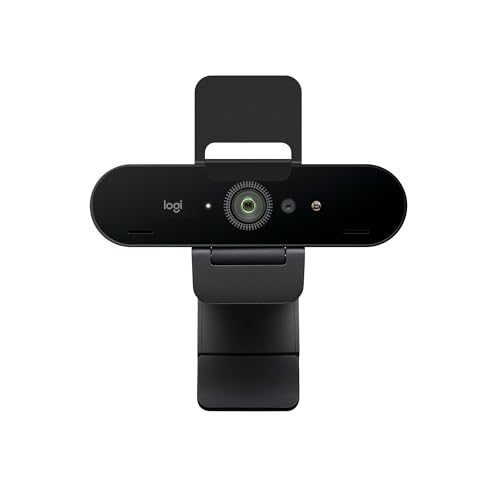
Logitech Brio 4K — Best Overall for Mac
The Brio 4K is the webcam equivalent of a firm handshake: it has been the default recommendation for serious Mac desks for years because it does every part of the job at a high level and argues with nothing. Its 4K sensor delivers the crop-freedom described above — frame wide for the room, tight for the interview, all from one fixed position — and its adjustable field of view lets a single camera serve a solo desk and a two-person sofa call. Exposure and colour are balanced in the Logitech manner: flattering without cosmetics, stable when the light changes its mind.
Its macOS citizenship is the deeper reason it leads. Logitech’s software support on the Mac is the industry’s most committed among the big makers; settings live where a Mac owner can reach them, and the camera’s behaviour across FaceTime, Zoom, Teams, and Meet is the behaviour of a device that has been tested there for years. A privacy shutter, a proper mount with tripod thread beneath, and microphones that acquit themselves respectably when the headset is elsewhere complete a portrait of a camera with no asterisk in daily Mac life.
The honest taxes are age and appetite. The design is a veteran’s, and its low-light performance, while competent, is outshone by newer sensors in the dimmest rooms. It also rewards an owner who sets it up once, properly — field of view chosen, exposure nudged — rather than one who expects magic from defaults. For the Mac desk that hosts a working life of calls, it remains the pick this guide makes without hesitation.
- Sensor: 4K, valued chiefly for crop and framing freedom
- Field of view: adjustable to suit solo or shared framing
- Software: Logitech’s mature, genuinely Mac-native support
- Mount: display grip plus tripod thread underneath
- Microphones: serviceable enough for the headset-less day
Strengths
- The most complete, best-mannered Mac webcam here
- Framing flexibility from one fixed position
- Software support that treats macOS as a citizen
Trade-offs
- Low-light ability is competent, not class-leading
- A veteran design beside newer, sleeker rivals
- Rewards one careful setup session
Best for: professionals whose Mac desk hosts daily meetings. Not suited for: presenters who roam, or the dimmest rooms on the tightest budgets.

OBSBOT Tiny 2 — Best for Presenters and Teachers
The Tiny 2 is the camera for people whose meetings are performances. A two-axis gimbal carries its lens, and the camera watches its owner the way a good camera operator does: stand, walk to the whiteboard, hold a product to the lens, sit again — the framing follows, pans, and zooms with a smoothness that still startles colleagues the first time they see it. Gesture control summons and dismisses the tracking; voice control adjusts it hands-free; for a teacher, a demonstrator, a fitness instructor, or anyone whose desk is a stage, no fixed camera competes.
On a Mac the experience is properly supported: OBSBOT’s software runs natively, the camera behaves inside the standard meeting apps, and its small footprint suits the laptop-and-monitor sprawl of a real teaching desk. Its sensor and processing deliver a detailed, well-exposed image that flatters the moving subject it was built for, and its ability to reframe automatically makes a one-person production look staffed.
The cautions are characterful rather than damning. A tracking camera is a commitment: in a static, seated, all-day meeting life it is machinery without a mission, and its owner pays for motors they never use. Its framing intelligence occasionally needs a human’s correction — a gesture misunderstood, a second person entering the shot — and the presenter who hates being followed should believe that feeling and buy the Brio. For the roaming professional, though, the Tiny 2 is not a novelty; it is the correct tool, and the only one of its kind in this guide.
- Movement: two-axis gimbal with AI subject tracking
- Control: gestures and voice, mid-presentation
- Software: native macOS support from OBSBOT
- Image: detailed and well-exposed for a moving subject
- Character: a camera operator in a matchbox
Strengths
- Follows presenters no fixed camera can serve
- Makes solo teaching and demonstrating look staffed
- Compact enough for a travelling desk
Trade-offs
- Pointless expense for a purely seated meeting life
- Tracking occasionally needs correcting by hand
- Some users simply dislike being followed
Best for: teachers, demonstrators, presenters, and creators who move. Not suited for: static desk workers or the tracking-averse.

Elgato Facecam — Best for Streaming
Elgato builds for the desk that broadcasts, and the Facecam’s priorities announce it: a fixed-focus lens tuned for the distance between a creator and a display, a sensor chosen for clean detail in controlled light, and an ethos of unprocessed honesty — the image arrives without the beautifying smear consumer webcams apply, ready for the streamer’s own lighting and colour decisions. In OBS, where Mac creators increasingly live, it behaves like a native instrument.
Its software story on the Mac requires the honesty this guide promised. Elgato’s camera control tools have historically been Windows-first, and Mac owners should expect a more limited settings experience than the brochure’s fullest version — the camera works excellently in macOS apps, but deep adjustment may mean accepting defaults or setting the camera up with help. That is a real asterisk, and it is why the Facecam is badged for streaming specialists — who will light, frame, and verify it once, deliberately — rather than as the general Mac recommendation.
Within its parish, the virtues are genuine: no autofocus hunting, because the focus is fixed where a seated creator sits; detail that holds up when a stream is watched on a television; and a design that disappears above a monitor. Streamers who light their faces — the single habit that separates professional-looking broadcasts from webcam-looking ones — will find the Facecam the most rewarding sensor in this guide. Everyone else should read its badge literally.
- Lens: fixed focus, tuned for desk distance
- Image: detailed, unprocessed, rewards good lighting
- Workflow: at home in OBS and streaming setups
- Software: macOS settings support more limited than Windows
- Character: a specialist’s instrument, honestly badged
Strengths
- The most detailed creator image here when lit well
- No autofocus hunting, ever
- Built for the OBS-centred Mac streaming desk
Trade-offs
- Mac settings software lags its Windows counterpart
- Fixed focus assumes a seated, set-distance subject
- Unforgiving of dim, careless light
Best for: streamers and creators with lit desks and OBS workflows. Not suited for: casual meeting users or anyone in a dim room.

Logitech StreamCam — Best USB-C Native for Creators
The StreamCam was designed in the USB-C era for the creator the MacBook made: it plugs straight into a modern Mac with no adapter, mounts in landscape or rotates for the vertical frame that social platforms demand, and produces a warm, flattering 1080p image that casual audiences experience as simply looking good. Where the Brio is the professional’s instrument, the StreamCam is the presenter’s friend — compact, cheerful, and aimed at the person filming themselves as much as meeting others.
Its autofocus and auto-framing manners suit the solo creator’s reality: moving between desk and standing position, holding objects toward the lens, recording the quick vertical clip between calls. Logitech’s Mac software support carries over from its sibling — settings a Mac owner can actually reach — and the whole package travels well, being small enough to live in the laptop bag it was clearly designed beside.
Its ceiling is light. In a bright room the StreamCam charms; as the evening draws in, its image softens sooner than the Brio’s, and the creator filming after dark will want a lamp more than a setting. It is also, deliberately, a 1080p camera in a guide whose leader crops from 4K — the framing freedom differs, and buyers who reframe constantly should weigh that. For the vertical-video creator on a modern Mac, in decent light, it remains a sweetly judged piece of design.
- Connection: native USB-C, no adapter on modern Macs
- Orientation: rotates for vertical video
- Image: warm, flattering 1080p for presenting and casual streaming
- Software: Logitech’s Mac support, as with its sibling
- Ceiling: softens early as light falls
Strengths
- The most natural companion to a modern MacBook
- Vertical video without rigging or cropping
- Flattering image for self-filming creators
Trade-offs
- Low-light performance is its honest limit
- No 4K canvas for reframing
- Meeting professionals will outgrow its polish ceiling
Best for: creators filming themselves, vertical video, MacBook-based setups. Not suited for: dim rooms or boardroom-grade meeting demands.
Apple Continuity Camera (iPhone) — Best Already in Your Pocket (Prose Reference)
Apple’s own answer to the Mac’s camera problem is not a camera at all: it is the iPhone you already own, mounted above the display, lending its superb rear cameras to the Mac wirelessly. Continuity Camera delivers an image that embarrasses most dedicated webcams — real depth, real low-light ability, Apple’s processing — and adds a party trick no webcam matches: Desk View, which uses the wide camera to show your desk surface and your face in the same call, a demonstrator’s gift that teachers and reviewers adore.
The requirements are modest — a compatible iPhone, the same account on both devices, a mount — and the experience is woven through macOS: the iPhone appears as a camera in FaceTime, Zoom, and the rest, with Center Stage and Studio Light applying Apple’s own polish. For the Mac owner whose iPhone is recent and whose calls are occasional-to-regular, this prose-only pick is not a compromise; it is arguably the correct first answer, and every linked pick above must justify itself against it — on convenience, on permanence, on the simple fact that a webcam is always there and a phone is sometimes needed as a phone.
That last clause is the honest counterweight. A phone on a mount is a phone unavailable for its other duties, its battery in play, its notifications one setting-slip from the meeting. The professional whose day is six hours of calls buys a dedicated camera for the same reason a chef buys a knife despite owning a multitool. But the buyer with two calls a day and a good iPhone should try Continuity Camera first — this guide insists — and let the linked picks earn the upgrade.
- Source: a recent iPhone’s rear cameras, used wirelessly
- Signature: Desk View shows face and desk together
- Integration: appears natively as a camera across macOS apps
- Cost: a mount; the camera is already owned
- Counterweight: the phone is occupied while it serves
Strengths
- Image quality beyond most dedicated webcams
- Desk View is genuinely unmatched for demonstrating
- Nothing to buy beyond a mount for many owners
Trade-offs
- Your phone is busy being your camera
- Needs a recent iPhone and a mount to shine
- Not a permanent fixture for an all-day meeting desk
Best for: iPhone owners with a moderate call load who want superb quality now. Not suited for: all-day meeting professionals or older-iPhone households.
Opal C1 — Best Boutique Design (Prose Reference)
The Opal C1 represents the road not taken by the giants: a webcam designed like an object of desire, with a prime-lens aesthetic, a substantial machined body, and computational photography ambitions borrowed from the phone world. It exists to prove that the webcam need not be a plastic lozenge — that the camera staring at its owner all day might be beautiful, and that software polish can be a product in itself.
Its Mac story has been part of its identity from the start, the company having courted the Apple ecosystem’s design sensibilities and its creators. Owners praise the image’s character — a look, rather than mere sharpness — and the tactile pleasure of the hardware. The cautions are the boutique’s usual ones: a price that asks design to justify it, a smaller company’s support horizon compared with Logitech’s, and availability that has varied across its life.
It appears here without a link, as the category’s compass point: the direction in which webcams become designed objects with photographic personalities. A buyer unmoved by that direction loses nothing — the Brio will serve them superbly. A buyer moved by it now knows the name to investigate, and knows equally what they are paying for: not more pixels, but more intention.
- Design: machined, object-like, deliberately beautiful
- Image: a photographic character, not just sharpness
- Positioning: the premium indie alternative to the giants
- Support horizon: a small company’s, weighed honestly
- Character: intention as the product
Strengths
- The best-looking webcam an owner will ever mount
- An image with genuine character
- Proof the category can be designed, not just engineered
Trade-offs
- Design carries a premium the image alone does not explain
- Smaller company, smaller support safety net
- Availability has been inconsistent across its life
Best for: design-led creators and Mac desks where objects matter. Not suited for: value buyers or anyone needing a giant’s support network.
Why Exactly Do Built-In Mac Cameras Disappoint?
The physics are unforgiving and worth understanding, because they explain what your money actually buys. A camera’s image quality begins with the size of its lens and sensor — how much light it can gather — and a laptop lid a few millimetres thick permits almost none of either. The built-in camera is a pinhole with a marketing department: adequate in a bright room, grainy and smeared in a real one, and mounted at the worst angle in the house, staring up from below the screen’s hinge line.
Apple knows this, which is why its own ecosystem keeps routing around the limitation — Continuity Camera conscripting the iPhone, effects software polishing what the hardware captures, external displays and stands repositioning the whole machine. The external webcam is simply the direct solution: a lens with room to breathe, a sensor with area to gather, a position at eye level. Every pick in this guide outclasses the built-in camera not by cleverness but by geometry, and the cheapest of them would transform a dim room more than any software setting on the built-in ever will.
There is one honest exception to hold alongside the physics: the newest MacBooks’ built-in cameras are the best Apple has shipped, and an owner whose calls are few, bright, and casual may find the gap narrower than this guide’s premise suggests. The test costs nothing — take a week of real calls, in your real light, and ask a colleague. If the verdict is fine, keep your money and let the picks wait; the guide will still be here when the evening calls begin.
What Does a Week of Real Calls Feel Like on Each Pick?
Give all six the same week: Monday’s team stand-up in grey morning light, Tuesday’s client presentation, Wednesday’s evening call with family overseas, Thursday’s recorded lesson, Friday’s streamed launch. The week, not the spec sheet, is where these cameras separate — because each was designed for a different day of it.
The Brio owns Monday, Tuesday, and Wednesday without drama. The stand-up’s flat light, the presentation’s screen-shared close-ups, the family call’s dimmer room — it handles the professional week like infrastructure, which is the highest compliment infrastructure can earn. Nobody comments on your camera all week, and that silence is the sound of the Brio working. The StreamCam covers the same week more cheerfully and less forensically: colleagues see a warm, likeable colleague rather than a broadcast, and Friday’s vertical clip for the launch’s social post is where it suddenly becomes the week’s most valuable camera.
Thursday belongs to the OBSBOT and the iPhone. The lesson’s whiteboard segment, filmed by the Tiny 2’s patient tracking, looks like a production with an operator; the demonstrator’s hands, shown by Continuity Camera’s Desk View in the same call, look like a feature from the future. The teacher who owns both will struggle to say which impressed students more. The Facecam, quiet all week in meetings it serves adequately, becomes Friday’s protagonist: the streamed launch, lit deliberately and framed in OBS, carries a detail and a seriousness that make the channel look funded.
And the Opal spends the week being noticed — the only camera here about which colleagues ask “what is that?” — which for some owners is a cost and for others is precisely the point. Six cameras, five days, and a complete map of the Mac webcam world: infrastructure, cheerfulness, tracking, transmission, telephony, and jewellery. Your week already knows which of those it is.
How Do macOS Video Effects and Third-Party Cameras Get Along?
Apple has spent recent years building a video personality into macOS itself — Portrait blur, Studio Light, Center Stage reframing, and presenter overlays that float your image over a shared screen. A Mac buyer deserves to know how that layer interacts with a purchased camera, because the answer decides several settings and one or two purchases.
The effects are applied by the system to whatever camera feeds it, which means a good external camera and Apple’s processing compose rather than compete: the Brio’s clean sensor gives Studio Light something worth lighting, and the StreamCam’s warm image takes Portrait blur gracefully. The friction arrives with double reframing — a camera performing its own auto-framing while Center Stage performs Apple’s — and the cure is the discipline from the setup section: choose one reframer, disable the other, and let a single intelligence own the frame. The OBSBOT is the honourable exception, since its physical tracking is a different art from digital reframing; even there, the wisest owners let the gimbal move and keep the system’s hands off the crop.
Continuity Camera sits inside this layer rather than beneath it — it is the layer’s native citizen, with Desk View and Apple’s effects designed together — which is one more reason the iPhone trial comes first in this guide’s advice. The boutique and streaming picks, by contrast, ask to be judged raw: the Facecam’s unprocessed honesty is a deliberate refusal of the system’s cosmetics, and in OBS that refusal is a feature. Knowing which side of that line your work lives on — polished by the system, or authored by you — is the last piece of self-knowledge this purchase requires.
How Do the Six Picks Compare on a Mac Desk?
| Pick | Image character | Mac software | Movement | Best desk |
|---|---|---|---|---|
| Logitech Brio 4K | Sharp, balanced, croppable | Mature and native | Fixed, adjustable view | The professional meeting desk |
| OBSBOT Tiny 2 | Detailed, presenter-focused | Native | Tracks and follows | The teaching stage |
| Elgato Facecam | Detailed, unprocessed | More limited on Mac | Fixed focus, fixed frame | The lit streaming desk |
| Logitech StreamCam | Warm, flattering 1080p | Native Logitech support | Rotates for vertical | The creator’s MacBook |
| Continuity Camera | Phone-grade, superb | Apple’s own | Desk View trick | The iPhone owner’s desk |
| Opal C1 | Characterful, designed | Indie, Mac-courting | Fixed | The design-led desk |
There is a temptation, reading any comparison of webcams, to hunt for the row with no weakness. This table’s honesty is that no such row exists: the tracker costs what stillness saves, the streamer’s detail demands light the meeting camera forgives, the phone’s brilliance is borrowed from another device’s day. What the table offers instead is alignment — each row’s strength pointed at a real desk somewhere in the Mac world. Shopping from it is less like ranking cameras and more like recognising your own furniture in print.
The column to study is the second: on a Mac, software citizenship separates the citizens from the guests. Every camera here produces a fine picture in a screenshot; the ones whose settings, updates, and manners live natively in macOS are the ones still pleasing their owners when the screenshot is a year old.
How Should You Set Up a Webcam on a Mac Properly?
Position before settings. The camera belongs at eye level, an arm’s length away, with its lens looking very slightly down at you — the geometry of a person sitting across a desk. A laptop camera fails partly on angle alone, gazing up from the keyboard; an external camera on a display’s top edge, or on a small tripod behind it, corrects the posture of every call you will ever take. Spend the first ten minutes on a stack of books if you must; the improvement is larger than any in this guide’s product list.
Light comes second, and it outranks resolution. Face a window or a lamp; never sit with bright light behind you, which turns every camera in this guide into a silhouette machine. A modest lamp at two o’clock, slightly above eye line, will make the StreamCam look professional and the Brio look broadcast. The evening call rewards the same discipline — one warm light in front beats three ceiling lights behind.
Audio deserves its sixty seconds in the setup. Run one test call with the webcam’s microphone and one with your usual headset, and let a colleague grade both without knowing which is which. Many owners discover their headset is worse than they assumed and the camera’s microphone better; a few discover the reverse and are grateful to learn it before the interview rather than during. Either way, decide your default deliberately, set it in the apps you use most, and write the choice down — the setting you chose on purpose is the one you will not fumble for at the start of a call.
Then set the camera’s manners once, in its Mac app where one exists: choose the field of view that frames your shoulders and a margin of room, fix the exposure if your light is constant, and turn off any automatic framing that duplicates what macOS or the meeting app is already doing — two reframing systems arguing produces a seasick audience. Finally, make a test call to a forgiving friend and ask the only question that matters: not “is it sharp?” but “do I look like myself on a good day?” Adjust until the answer is yes, then leave the settings alone for a season.
What Mistakes Do Mac Owners Make When Buying a Webcam?
An honourable mention among mistakes belongs to the adapter fumble: buying a USB-A-era camera for a USB-C-only Mac and discovering the mismatch at the top of a call. The picks here were chosen with modern ports in mind, and the survivors of older generations in a drawer can be rehabilitated with a single good adapter — but the time to learn which you own is the evening before the interview, not the minute of it.
The first is buying resolution and ignoring citizenship: a spectacular sensor whose settings live in a Windows-only app becomes, on a Mac, a camera frozen at its defaults. Check the macOS software before the sensor — this guide’s second column exists because the mistake is so common. The second is forgetting the phone: owners of recent iPhones regularly buy a mid-range webcam inferior to the Continuity Camera they already own, a purchase a single test call would have prevented.
The third is lighting amnesia — blaming the camera for a room’s darkness and replacing it with a pricier camera that suffers identically. The fourth is microphone surprise: assuming the webcam’s microphone matches its lens, and discovering in the first important call that it does not. And the fifth is buying the tracker for a seated life or the fixed camera for a roaming one — the movement question, answered honestly at purchase, is worth more than any specification in the table above.
Should a Serious Mac User Skip Webcams and Use a Real Camera Instead?
Every Mac desk eventually hears the suggestion: a mirrorless camera, an HDMI capture device, a lens with real depth — the full creator rig. It is a legitimate road, and this guide’s honesty requires marking where it begins. A dedicated camera as a webcam delivers an image no pick here can match: shallow depth, cinematic colour, low-light grace. It also delivers a workflow — dummy batteries or mains power, overheating considerations on some models, a capture device, cables, a camera that must be switched, framed, and focused like the instrument it is.
The dividing line is whether the camera is your job or your tool. For the professional streamer whose face is the product, the rig repays its ceremony daily, and the Facecam in this guide is the honest halfway house — creator detail without the capture chain. For everyone whose camera serves meetings, lessons, and family, the webcam’s instant wake and zero ceremony are not conveniences; they are the feature that decides whether the good image actually happens at 9 a.m. on a wet Tuesday. Buy the rig when the audience pays for the difference; buy the webcam when the difference would be spent on friction instead.
How Long Should a Mac Webcam Serve, and What Ages First?
A webcam has no moving parts to wear out — the OBSBOT’s gimbal excepted — so its lifespan is decided by software and standards rather than mechanics. What ages is the treaty around it: the settings app abandoned by its maker, the meeting platform that changes its requirements, the macOS release that retires an old plug-in. This is the deepest argument for the big makers’ citizenship and for Apple’s own solution: Logitech’s decade of Mac support and Continuity Camera’s place inside the operating system are longevity features, worth real money to an owner who keeps hardware for years.
The practical signs of a camera ageing well are boring and therefore reliable: firmware updates that still arrive, a settings app that opens on the current macOS without complaint, a mount that has not loosened, a cable that has not frayed at the strain relief. An owner can extend all of them — coil the cable loosely, mount the camera once and leave it, update the firmware when the app offers — and a camera so treated should serve across two laptops. Budget for that horizon when comparing prices: the camera that costs more and serves six years is cheaper than the bargain replaced in two, a piece of arithmetic this category’s shoppers chronically postpone.
Which Pick Fits Which Mac Setup?
The MacBook-on-a-desk worker, hopping between home and office, belongs with the StreamCam or the iPhone: both travel, both forgive a borrowed desk, both assume the laptop is the centre of the world. The Studio Display or iMac professional, whose desk is a fixed post and whose calls are the job, belongs with the Brio — or with the Tiny 2 if the job involves standing up from that post. The creator’s desk, with its lights and its OBS scenes, belongs with the Facecam; the designer’s desk, where every object is chosen, with the Opal. Setups, like weeks, choose cameras more honestly than shoppers do — describe yours accurately and this guide’s table reads itself.
Final Recommendation
Every recommendation in this guide was earned on a Mac, in Mac apps, under Mac light — which is the only tribunal this keyword recognises. Start with the free answer: if you own a recent iPhone, mount it and take a week’s calls on Continuity Camera. If the trial convinces you that a dedicated camera should hold the post permanently, the Logitech Brio 4K is this guide’s recommendation for the professional Mac desk — complete, well-mannered, and supported like a citizen. Teachers and presenters should go directly to the OBSBOT Tiny 2 and its following eye; streamers with lit desks, to the Elgato Facecam and its honest detail; vertical creators, to the Logitech StreamCam. And the design-led buyer now knows the Opal C1’s name and its price of admission.
A closing thought on value, because this category invites overspending: the difference between the built-in camera and any pick here is a transformation; the differences among the picks are refinements. Buy the transformation gratefully and the refinement soberly, matching it to the week of calls you actually live. The colleague whose camera everyone praises is rarely the one who spent the most — they are the one whose light, angle, and manners were set once, properly, and then left alone.
Whichever you choose, spend the following half hour on position and light before spending another penny on hardware. A Mac desk’s camera problem is usually a geometry problem wearing a shopping list — solve the geometry, and even the humblest pick in this guide will make you look like the colleague everyone is glad to see arrive in the call.
Frequently Asked Questions
Does a webcam help with Apple’s Center Stage and other effects?
It gives them better raw material. The system effects process whatever the camera sends, so a sharper, better-exposed feed produces cleaner reframing and more convincing light correction. Just avoid running a camera’s own auto-framing at the same time as Center Stage; one reframer at a time keeps the picture calm, as the setup section above explains.
Do all USB webcams work with macOS without drivers?
Nearly all modern webcams present themselves as standard USB video devices, so the picture appears in FaceTime, Zoom, and the rest with no driver at all. What varies is the layer above: the settings app, firmware updates, and special features. That layer is where Mac citizenship is won or lost, and it is why this guide audits software alongside sensors.
Is 4K worth it if my meetings are in Zoom or Teams?
Indirectly, yes. The call itself will be compressed well below 4K, but the larger sensor lets you crop a tight, composed frame without losing clarity, and gives digital pan and zoom something to work with. Buy 4K for framing freedom, not for the number — and know that a well-lit 1080p camera beats a dim 4K one on any call.
Can I use my iPhone as a Mac webcam all day?
You can, and Continuity Camera handles it gracefully, but weigh the occupation of your phone: calls, messages, and battery all share the device now mounted above your display. Occasional and regular callers thrive on it; the professional in back-to-back meetings usually graduates to a dedicated camera like the Brio for permanence.
Why does my expensive webcam still look bad in the evening?
Because webcams are small-sensor devices drinking from your room’s light, and evening rooms are dim. The cure is a lamp in front of you, not a costlier camera — every pick in this guide improves more from one well-placed light than from a tier’s jump in price. Fix the light first; then judge the camera.
Will a webcam improve how I sound as well as how I look?
Modestly, at best. The picks’ microphones range from serviceable to merely present, and none rivals a headset or a desk microphone for a voice that matters. Treat the webcam as the picture purchase; if your calls are important, budget for audio separately — or sit closer, in a softer room, and let the better microphones here cover the ordinary day.
Can one webcam serve both my MacBook and my desktop Mac?
Easily — these are standard USB cameras, and the only friction is physical: unclipping and re-mounting. Owners who switch daily often give the travelling MacBook the StreamCam or the iPhone, and keep a Brio permanently mounted at the desktop, rather than migrating one camera between two posts. Two modest cameras, each at home, beat one excellent camera in transit.
Which pick is best for teaching or demonstrating products?
The OBSBOT Tiny 2 for anything where you move — its tracking keeps you framed at the whiteboard and the workbench alike. For desk-bound demonstrating, Continuity Camera’s Desk View, showing your face and your hands’ work simultaneously, is a feature no dedicated webcam here matches; the Brio is the permanent-installation alternative.
Related Guides
The Mac has always promised that the computer should disappear and the work remain. A good webcam keeps that promise in the one place the built-in camera breaks it — the small rectangle where your face meets your colleagues — and the right pick, set up once and then forgotten, is the one that lets the machine vanish again.
Keep exploring with our guides to the best conference cameras for classrooms, the best webcams for streaming and content creation, and the best desk lighting for video calls.