kajuandouglas.com is reader-supported. When you buy through links on our site, we may earn an affiliate commission.
Where to Buy
Honesty first, because this keyword deserves it: QNAP does not sell a line of cameras of its own, and no camera in our verified pool wears a QNAP badge. What QNAP sells is the recorder — a NAS running Surveillance Station or QVR Pro, waiting on your network for cameras that speak open languages. So the best cameras for use with qnap are really the best cameras in our pool at speaking those languages: ONVIF profiles and RTSP streams that a network recorder can discover, record, and keep on your own disks, under your own roof, without a subscription deciding when old footage disappears.
That framing changes the shopping completely. A famous brand with a polished app can be a terrible QNAP citizen if its video never leaves the vendor’s cloud, while a modest camera with a proper RTSP stream and local recording habits can serve a NAS household for a decade. Every pick below was therefore interrogated on one central question — will you talk to a recorder you own? — and the answers vary more than the marketing pages suggest, which is exactly why this guide exists.
Read the rankings as a spectrum rather than a podium. At one end sit cameras that genuinely stream to a QNAP today through documented open standards. In the middle sit cameras whose local recording and export habits make them good neighbours in a NAS household even when the integration takes a little configuration. At the far end we include one popular battery camera with a plain warning label, because households keep buying it for QNAP projects it cannot actually serve, and an honest guide should intercept that mistake before the receipt rather than after.
Why route cameras through a NAS at all? Three reasons recur in every household that does it. Retention: a drive bay keeps months of footage where cloud plans keep days. Privacy: the hallway camera’s stream can stay inside the home network. Consolidation: the same box that stores family photos and media can hold the security archive, searchable from one interface instead of five vendor apps. If those reasons sound like your reasons, the picks below were ranked for you, in descending order of how directly they deliver them.
A last expectation before the names: consumer cameras and a QNAP make a capable partnership, not a professional surveillance rig. You will not get the deep camera catalogue of a dedicated NVR ecosystem or the analytics of enterprise software. What you get is honest, self-hosted recording of the places that matter — door, driveway, nursery, workshop — at consumer prices, with footage that belongs to you. For most homes, that trade is not a compromise. It is the entire point.
Everything that follows assumes a reader who already owns, or is about to own, the NAS itself. If the recorder is still a plan rather than a box, buy it first and let its supported recording application and channel terms shape the camera list; cameras are the flexible half of this partnership, and the NAS is the half that will still be in the cupboard, quietly archiving, when today’s camera models are two generations old.
Key Takeaways
- QNAP records cameras through open standards, so ONVIF and RTSP support matter more than brand fame in this category.
- The TP-Link Tapo C210 is the most straightforward QNAP partner here, with documented stream access and pan-tilt coverage indoors.
- eufy’s two indoor picks suit NAS households through local-first recording habits and stream options in their app ecosystems.
- Battery cameras trade continuous NAS recording for placement freedom; treat them as motion-event cameras, not 24/7 witnesses.
- Closed cloud cameras, however popular, cannot hand their footage to Surveillance Station — check the badge notes before buying.
In this guide
Quick Picks
| Badge | Pick | Why it stands out |
|---|---|---|
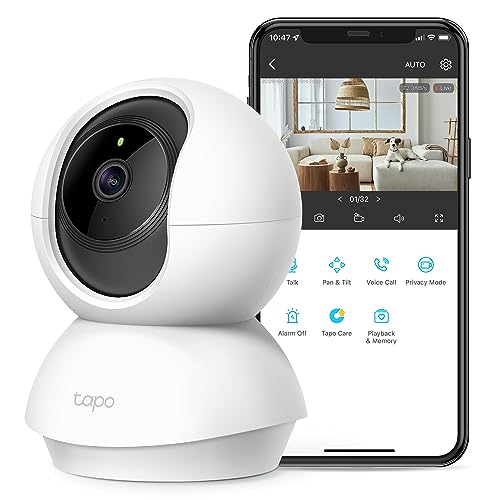
| Most Direct QNAP Partner | TP-Link Tapo C210 | Pan-and-tilt indoor coverage with the open-stream behaviour a NAS recorder actually needs. |
| Best Local-First Indoor Pick | eufy Indoor Cam E220 | Rotating indoor camera from a brand built around keeping footage at home. |
| Sharpest Indoor Picture | eufy 4K Indoor Camera E30 | High-resolution indoor detail for households that want faces and number plates to survive the zoom. |
| Best Value Sentinel | Wyze Cam v4 | Colour night vision and local recording in a small camera that can watch several rooms affordably. |
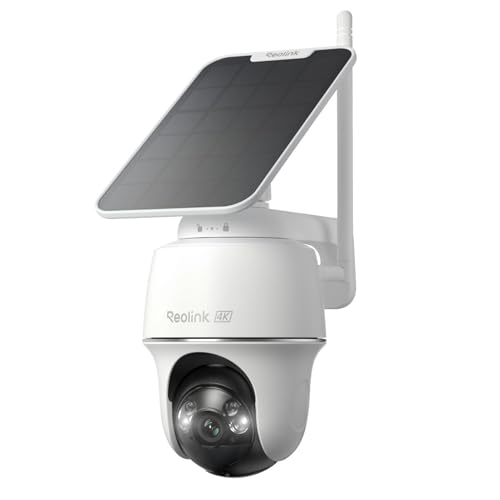
| Best Wire-Free Placement | REOLINK Argus PT Ultra | Battery pan-tilt freedom for gates and gardens where no cable will ever reach. |
| Popular — Read the Caveat | Blink Outdoor 4 | A fine cloud camera that does not feed a QNAP; included so hybrid households buy it knowingly. |
How We Chose These Picks
Evaluation began at the protocol level, before image quality entered the conversation. For each candidate we asked whether its maker documents an RTSP stream or ONVIF support, whether recording can run to local storage without a cloud plan, and whether the app treats the owner’s network as a first-class destination or as an afterthought. Cameras whose documentation answered those questions clearly rose; cameras surrounded by forum workarounds and firmware lotteries were marked down, however pretty their daylight footage.
Household realism shaped the rest of the judging. A QNAP typically lives in a cupboard, a study, or a rack corner, and its cameras live everywhere else — which makes Wi-Fi behaviour at real household distances a genuine criterion, alongside night performance in a dark hallway and the dignity of a camera’s motion alerts at 3 a.m. We favoured models whose sensitivity can be tuned, because a NAS recording a month of moth-triggered nothing is a storage bill, not a security system.
Longevity thinking closed the process. Self-hosters keep hardware for years, so we weighed how a camera behaves if its vendor’s cloud vanished tomorrow: local recording that continues, streams that remain reachable, settings that live in the device rather than in an account. No consumer camera scores perfectly on that bleak little test, but the ranking below reflects the attempt honestly — including where a pick’s score is the reason for its warning badge.
What Does a QNAP Actually Need From a Camera?
Two acronyms carry the whole answer. ONVIF is the discovery and control standard: it lets QNAP’s recording apps find a camera on the network, learn its capabilities, and in many cases steer a pan-tilt model or configure its stream. RTSP is the delivery mechanism: the actual river of video flowing from camera to NAS, hour after hour. A camera offering both is a citizen. A camera offering RTSP alone can usually still be recorded through a manual stream address. A camera offering neither is a guest who will only talk through its own app, and no recorder setting can change its mind.
Finding those features requires reading like a detective, because marketing pages lead with resolution and night vision, not protocols. Dig into the support pages and the app settings of any candidate: stream options, NAS or RTSP toggles, and ONVIF switches often live several menus deep, sometimes behind a firmware update. The picks below were chosen partly because their makers acknowledge these features in the open rather than leaving them as folklore.
One more distinction saves confusion in product listings: a camera advertised as supporting a memory card, a vendor cloud, and “NAS” in the same breath may mean three very different depths of support — a proprietary backup to one brand of NAS, a standards-based stream any recorder can use, or merely the ability to copy clips across manually. Only the middle meaning serves a QNAP project, and it is identified by those two acronyms, ONVIF and RTSP, appearing in the manufacturer’s own technical pages. Everything else is a rumour with good graphic design.
Licences form the other practical gate. QNAP’s recording apps include a small number of camera channels and sell additional ones, so a six-camera plan should count licences alongside disks. Households routinely budget for cameras and storage, then discover the software line item at setup. Knowing it in advance turns an unpleasant surprise into a planned, modest cost of doing the thing properly.
Bandwidth and storage arithmetic finish the picture. Each continuous stream consumes network capacity and disk space in proportion to its resolution and frame rate, around the clock, whether or not anything interesting happens. Sensible QNAP households record main streams at event time and lighter sub-streams continuously, or record continuously at tuned-down settings for quiet rooms. The cameras below were favoured when they let owners make those adjustments gracefully instead of forcing one appetite on every location.
A note on expectations for readers arriving from cloud cameras: a NAS system asks a little more of its owner at setup and repays it with a decade of not asking for a subscription. The first evening involves addresses, channels, and retention sliders; the evenings after that involve nothing at all, which is the correct distribution of effort for infrastructure. If a friend describes their cloud camera as “easier,” agree with them about the first evening and ask about the next three hundred.
Households also ask whether the NAS must be a powerful one. For a handful of consumer channels, the honest answer is that recording is a lighter duty than the media serving and file work most QNAP units already perform without complaint. Transcoding, analytics, and a dozen simultaneous viewers are what strain a small NAS — not four cameras writing their streams to disk in an orderly queue. Buy the NAS your household’s other jobs justify, and let the cameras ride along.
Surveillance Station or QVR Pro — Does the Choice Change the Camera?
Mostly, the camera list stays the same; the experience around it changes. Surveillance Station is the long-standing bundled application many QNAP owners already have, with a familiar channel model and broad camera compatibility. QVR Pro is the newer, more modular platform, designed around containerised deployment and a more modern interface, and it is where QNAP’s development energy visibly concentrates. Both speak the same open standards to cameras, so a model that streams honestly to one will generally serve the other.
Where the choice bites is in planning. Check your NAS model’s supported application and its channel licensing before cameras arrive, because migrating a working setup between platforms mid-project is nobody’s idea of a weekend. Owners of older NAS units may find one application offered and not the other; owners of newer units should start with QVR Pro and only look back if a specific camera misbehaves there.
Mobile viewing differs enough to mention. Both ecosystems provide companion apps for checking cameras away from home, and both keep the footage itself on your disks — the viewing is remote, the storage is not. Households escaping cloud subscriptions usually find that distinction is the whole prize: you can check the driveway from another country while the recording itself never leaves the cupboard under the stairs.
It is also worth deciding, before the boxes arrive, who in the household is the system’s keeper. NAS surveillance rewards a single curator: one person who knows the addresses, holds the passwords, performs the twice-yearly audit, and gets the phone call when a channel goes quiet. Shared vague ownership is how systems decay into a camera nobody can log into and a recorder nobody updates. Appoint the keeper, write the essentials down somewhere sensible, and the setup will outlive several generations of phones.
Which of the Best Cameras for Use With QNAP Belongs at Your Door?

TP-Link Tapo C210 — Most Direct QNAP Partner
Start the QNAP conversation with the camera that makes it easiest. The Tapo C210 is an indoor pan-and-tilt model from a networking company, and its networking manners show: TP-Link documents local stream access for its Tapo line, the app exposes the settings a NAS owner goes hunting for, and the camera behaves like a device that expects to live on a managed home network rather than inside a walled garden. For a first Surveillance Station or QVR Pro channel, that cooperativeness is worth more than a sharper lens.
Coverage is the second argument. A pan-tilt camera in a hallway, living room, or workshop sweeps a space that would otherwise need two fixed cameras, and when the recorder can steer or schedule that movement, one modest device watches a whole floor’s comings and goings. Night vision carries the after-dark shift credibly, motion tracking follows a subject across the room for event clips, and local card recording provides a belt-and-braces copy when the network has a bad day.
Owners should still go in with eyes open about class limits. This is an indoor camera in a plastic housing, not a weatherproof sentinel, and its Wi-Fi link is only as strong as the router’s reach into the room it watches. Two-way talk serves a quick word with a delivery driver or a teenager, not a conversation. Judged as what it is — an affordable, standards-friendly indoor eye that a QNAP can genuinely record — it leads this list without much argument.
Deployment advice from NAS households converges on one habit: give the C210 a fixed address on the network, whether by router reservation or static setting, before adding it to the recorder. Streams that survive router reboots without the recorder losing the camera are the difference between a system and a hobby. Set up kindly, this Tapo becomes the channel nobody thinks about again, which in surveillance is the highest available praise.
- Type: indoor pan-and-tilt, Wi-Fi
- Streams: documented local stream access for recorder use
- Storage: microSD local recording as backup
- Night: infrared night vision with motion tracking
- Audio: two-way talk through the app
Strengths
- The least-friction first channel for a QNAP recorder
- One camera sweeps a whole room
- Local card copy survives network outages
Trade-offs
- Indoors only; keep it out of the weather
- Wi-Fi range decides its reliability
- Plastic build matches its modest class
Best for: QNAP owners adding a first indoor channel for a hallway, living room, or workshop. Not suited for: outdoor mounting or sites needing a wired, weather-sealed camera.
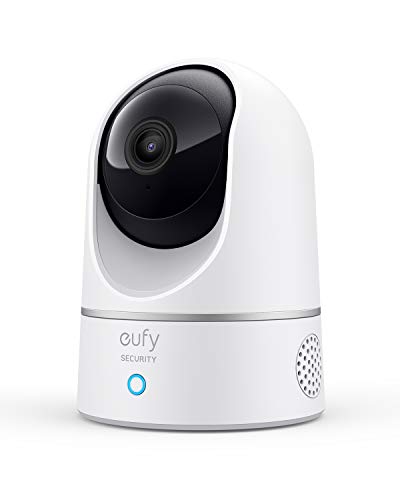
eufy Indoor Cam E220 — Best Local-First Indoor Pick
eufy built its name on a promise the QNAP crowd instinctively likes: your footage stays home. The Indoor Cam E220 carries that philosophy in a rotating body that can pan to follow movement across a nursery, a studio flat, or a shop counter, and its ecosystem has historically offered stream and NAS-oriented options inside the app for owners who want recordings landing on their own hardware. Philosophy plus plumbing is a rare combination at this level, and it earns the E220 its place near the top.
Daily behaviour pleases in small ways. The picture is detailed enough to identify a face across a room rather than merely detect a person, subject tracking turns the head smoothly instead of snapping, and pet and person detection help keep the alert stream meaningful. Two-way audio is clear enough for the classic use cases — soothing a dog, greeting a child home from school, telling a courier where the parcel box lives.
Integration homework is the honest caveat. Stream options in consumer ecosystems can move between app versions and firmware releases, so the QNAP owner should enable and verify the camera’s stream settings on day one, while the return window is open, rather than discovering a changed menu in month three. That advice applies to every app-centric camera in this guide; the E220 simply rewards the homework more reliably than most.
Placement versatility rounds out the case. Shelf, wall, or ceiling mounting all work, the rotating head forgives imperfect aim, and the camera’s size keeps it visually quiet in a living space. Households building a multi-room setup often standardise on one model to keep apps and settings uniform, and this eufy is the indoor candidate here most often chosen for that standardisation — a boring virtue that system owners learn to prize.
- Type: indoor pan-and-tilt with subject tracking
- Storage: local card recording, cloud optional
- Detection: person and pet awareness
- Audio: two-way talk
- Mounting: shelf, wall, or ceiling
Strengths
- Local-first philosophy matches NAS ownership
- Tracking head covers a room gracefully
- Uniform model for multi-room standardising
Trade-offs
- Verify stream settings after firmware changes
- Indoor-only housing
- Advanced options live inside the app
Best for: NAS households wanting several indoor rooms covered by one cooperative model. Not suited for: buyers who refuse any app involvement on principle.
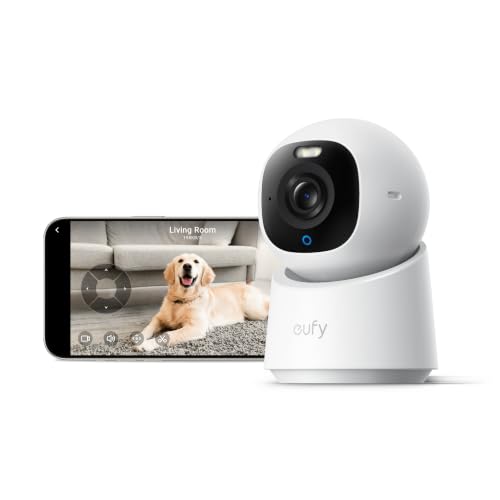
eufy 4K Indoor Camera E30 — Sharpest Indoor Picture
Resolution is not everything in surveillance, but at a till point, a workshop bench, or a front window watching a driveway, detail is the difference between footage that describes an event and footage that identifies one. The E30 is eufy’s detail-first indoor camera, and in a QNAP household it plays a specific role: the high-clarity channel covering the one location where you would actually zoom into a recording and expect the zoom to repay you.
That role comes with a storage conversation the NAS owner must have honestly. Higher resolution streams fill disks faster, always, and a QNAP makes the cost visible in a way cloud plans hide. The sensible pattern is asymmetric: run the E30 at full appetite on the important view, let quieter rooms record lighter streams, and set retention by location rather than by a single global rule. QVR Pro and Surveillance Station both accommodate that thinking; the E30 simply makes it necessary sooner.
Beyond sharpness, the camera shares its sibling’s local-first instincts and app-based stream options, with the same day-one verification advice applying. Its low-light behaviour benefits from the resolution headroom — digital zoom into a dim corner retains more usable detail — though no indoor camera at this level turns night into day, and a small amount of honest light near the watched area remains the cheapest image-quality upgrade available.
Who should skip it? Rooms where nothing identifiable ever happens: a hallway that merely confirms the cat’s rounds does not need this channel’s appetite. The E30 earns its disks at doors, desks, counters, and cots — the places where, on the one bad day in a thousand, somebody will pause a recording, lean toward the screen, and ask who, exactly, that was.
- Type: high-resolution indoor camera
- Role: detail channel for doors and counters
- Storage: local card plus NAS-oriented workflow
- Night: strong low-light detail for its class
- Audio: two-way talk
Strengths
- Zooming into recordings actually answers questions
- Local-first ecosystem habits
- Makes one important view count
Trade-offs
- Full-quality streams eat disk space
- Overkill for quiet, low-value rooms
- Stream options need day-one verification
Best for: the single most important indoor view in a QNAP household — entrance, till, or workshop bench. Not suited for: blanketing every room regardless of storage budget.

Wyze Cam v4 — Best Value Sentinel
Every multi-camera household discovers the arithmetic of the third and fourth room: coverage ambitions multiply faster than budgets. The Wyze Cam v4 exists for that arithmetic. It is a compact indoor-outdoor-capable camera with colour night vision that genuinely impresses after dark, local card recording, and a price class that lets a NAS household watch the garage, the side path, and the spare room without a family meeting about money.
Its relationship with recorders needs the honest paragraph. Wyze has moved features between app tiers and firmware over the years, and stream access has had a winding history in its ecosystem, so the QNAP owner should treat this as a camera whose local recording is the guarantee and whose NAS integration is a verify-on-arrival project. Many households run Wyze units happily as self-contained sentinels alongside a QNAP that records the primary standards-friendly channels — a division of labour this guide endorses rather than disguises.
Within that role, the v4’s talents are real. Colour night vision changes after-dark footage from grey theatre into usable evidence, the small body mounts almost anywhere, and weather resistance lets it live under an eave watching a gate. Motion and sound detection are eager — tune them, or the app will narrate your household’s every moth — and the ecosystem’s accessories extend it into spots and floods for darker corners.
Consider the v4 the coverage extender of a QNAP-centred system: not the channel you build the recorder around, but the one that fills the gaps the budget left, records locally without complaint, and asks for very little in return. Systems thinking beats brand purity, and a hybrid that watches everything beats a purist setup that watches two rooms beautifully and the garage not at all.
- Type: compact indoor/outdoor camera
- Night: colour night vision
- Storage: microSD local recording
- Build: weather resistant for sheltered outdoor spots
- Role: affordable extra coverage
Strengths
- Several rooms covered for one premium camera’s budget
- After-dark colour footage impresses
- Local recording keeps it self-sufficient
Trade-offs
- NAS streaming is a verify-first project
- Detection eagerness needs tuning
- Ecosystem features shift between tiers
Best for: filling in garages, paths, and spare rooms around a QNAP-centred setup. Not suited for: being the sole camera a recorder depends on.

REOLINK Argus PT Ultra — Best Wire-Free Placement
Some of the most valuable camera positions in a property are precisely the ones no cable will ever reach: the far gate, the barn corner, the bottom of a long garden. The Argus PT Ultra answers that geography with battery power, pan-and-tilt movement, and high-resolution footage, asking only for a Wi-Fi signal and an occasional recharge or a solar companion. In a QNAP household it is the outpost camera — and outposts play by different rules, which this entry will not pretend otherwise.
Battery cameras sleep. That single fact governs everything: they wake for motion, record the event, and rest again, which conserves power beautifully and rules out the continuous 24/7 stream a NAS recorder dreams about. Reolink’s battery line has historically been app-and-card centred rather than recorder centred, so verify the current model’s stream provisions before promising it a channel in QVR Pro. Many owners sensibly run it as a self-contained event camera whose card holds the gate’s story, while the QNAP records the wired and mains-powered positions continuously.
Judged on its own terms, the hardware is compelling. The picture is sharp enough to read a number plate at gate distance in good light, the pan-tilt head sweeps a yard from one mounting point, colour night modes help where a porch light or spotlight cooperates, and the weather sealing shrugs at seasons. Person and vehicle detection reduce the classic battery-camera curse of a hundred clips of swaying branches.
Buy it, then, for the position nothing else can serve, and budget its limitations into the system design rather than discovering them during an incident review. A QNAP archive is only weakened by pretending an event camera is a continuous witness; it is strengthened by placing each kind of camera where its nature helps. The far gate belongs to this Reolink. The front door belongs to a camera that never sleeps.
- Type: battery pan-and-tilt, outdoor
- Power: rechargeable battery, solar option
- Recording: motion events to local card
- Detection: person and vehicle awareness
- Build: weather sealed for exposed positions
Strengths
- Watches positions no cable can reach
- Sharp daylight detail at distance
- Smart detection saves battery and patience
Trade-offs
- Sleeps between events; no continuous stream
- Recorder integration must be verified per firmware
- Recharging is a recurring chore without solar
Best for: gates, barns, and garden corners in a wider QNAP household system. Not suited for: any position that must be recorded continuously.

Blink Outdoor 4 — Popular, With a QNAP Caveat
This entry exists because the Blink Outdoor 4 is one of the most bought outdoor cameras in the world, and a steady stream of its owners eventually ask why their QNAP cannot see it. The answer is architectural: Blink is a closed cloud system. Its cameras talk to Blink’s sync module and Blink’s servers, footage lives in that ecosystem, and there is no ONVIF profile or RTSP stream for Surveillance Station or QVR Pro to record. No setting, licence, or forum incantation changes that, and any guide implying otherwise is wasting your weekend.
Why include it at all? Because hybrid households are real. Plenty of homes run a QNAP recording their main cameras while a pair of Blinks guard a shed and a side gate through the Blink app, each system doing what it was built for. The Outdoor 4 is genuinely good at its own job: battery life measured in seasons rather than weeks, weatherproof simplicity, quick installation anywhere, and alerts that arrive promptly. Bought knowingly for that separate role, it disappoints nobody.
The failure mode is only ever the mistaken purchase — the box bought specifically to feed a NAS, discovered at setup to speak no language the NAS understands. If that is the purchase you were about to make, redirect the money to the Tapo or eufy picks above and let the QNAP project proceed. If instead you want an independent, low-maintenance watcher for a spot outside the recorder’s remit, Blink’s little sentinel remains a rational, even shrewd, buy.
Think of this entry as the guide keeping its promise from the introduction: the ranking is a spectrum of QNAP citizenship, and the bottom of a spectrum is information too. A list that only flattered every product would be advertising. This one would rather lose a sale than have you lose a Saturday to a camera and a recorder that were never going to speak.
- Type: battery outdoor camera, closed ecosystem
- Power: very long battery life
- Recording: Blink cloud or local sync-module storage
- QNAP link: none — no ONVIF or RTSP
- Role: independent coverage outside the NAS system
Strengths
- Battery endurance few rivals approach
- Installs anywhere in minutes
- Excellent at its own closed-system job
Trade-offs
- Cannot be recorded by a QNAP, full stop
- Footage lives in Blink’s ecosystem
- Full features lean on a subscription
Best for: hybrid households wanting an independent watcher for a shed or side gate. Not suited for: any plan that involves your QNAP recording it.
Continuous Witnesses and Event Cameras: The Comparison
| Pick | Power | QNAP relationship | Recording style |
|---|---|---|---|
| TP-Link Tapo C210 | Mains | Direct stream partner | Continuous-capable plus card backup |
| eufy Indoor Cam E220 | Mains | Stream options in app | Continuous-capable, local-first |
| eufy 4K Indoor Camera E30 | Mains | Stream options in app | High-detail continuous, disk-hungry |
| Wyze Cam v4 | Mains | Verify streaming on arrival | Local card sentinel |
| REOLINK Argus PT Ultra | Battery | Event outpost, check firmware | Motion clips to card |
| Blink Outdoor 4 | Battery | None — closed cloud | Clips in Blink ecosystem |
Power source predicts recording style more reliably than any logo on the box. Mains-powered cameras can stream all day to the NAS because their energy is unlimited; battery cameras ration themselves into event clips because physics insists. When you sketch a system, assign continuous duty only to cameras with a plug, and let battery models guard the places where an event clip is genuinely enough — a gate opening, a shed door, a delivery at the far end of the plot.
Storage planning follows from that division. Continuous channels consume predictable disk per day, so retention becomes simple arithmetic against your drive bays; event cameras consume almost nothing and keep their own archives on card. The QNAP’s gift is that both kinds of footage can be reviewed within one household routine, even when only the first kind physically lives on the NAS.
How Should the Network Be Arranged for NAS Recording?
Cameras and recorder should meet on the friendliest possible terms: same local network, strong signal at each camera position, and addresses that do not wander. Reserve each camera’s address in the router so the recorder’s channel settings survive reboots, power cuts, and the router’s own whims. A stream that breaks monthly because an address changed hands is the most common — and most preventable — failure in home NAS surveillance.
Wi-Fi load deserves respect as channels multiply. Each continuous stream is a permanent conversation on your wireless network, and older routers feel four of them the way a small kitchen feels four simultaneous cooks. Where a camera position sits near a network point, prefer any wired option the hardware allows; where it does not, a mesh node or a stronger access point near the cameras pays for itself in stream stability. Test the actual position with a phone’s signal readout before drilling anything.
Segmentation is the grown-up option worth mentioning for security-minded households: many routers can place cameras on a guest or IoT network so the cameras can reach the NAS but not wander the rest of the home’s devices. It takes an extra hour at setup and some care with addresses, and in return a compromised camera becomes a much smaller story. QNAP ownership tends to attract exactly the people who enjoy that hour.
How Much Storage Does a Camera Channel Really Eat?
Numbers discipline this decision better than adjectives, so think in rates rather than resolutions. A continuous stream is a tap that never closes: even a modest flow, multiplied by twenty-four hours and then by the month of retention you promised yourself, becomes a volume that surprises almost everyone the first time. Households routinely discover that the difference between keeping a fortnight and keeping a season is not a setting but a drive bay. Run your own arithmetic with the recorder’s estimates before the cameras arrive, using the quality you actually intend, not the quality you mention to sound frugal.
Frame rate is the quiet lever in that arithmetic. Entrances deserve smoothness, because identifying a walking person benefits from it; a quiet storeroom does not need cinema fluidity to prove the boxes are undisturbed. Dropping a low-value channel’s frame rate can halve its appetite while losing almost nothing of evidentiary worth. Resolution cuts behave similarly: the step down from maximum to merely high often saves more disk than it costs in usable detail, especially at night, where sensor noise was eating the extra pixels anyway.
Sub-streams offer the elegant compromise most consumer cameras support: a full-quality main stream for events and live viewing, a lighter companion stream for continuous archiving. The recorder watches the light stream all month; when an alert matters, the important footage exists at the quality the moment deserved. Setting this up takes an extra ten minutes per camera and routinely doubles or triples practical retention — the closest thing surveillance offers to a free lunch.
Retention policy deserves one deliberate sentence in every household: decide, per camera, how old footage may become before the system overwrites it, and write the decision down. Entrances might merit a season; the garden, a fortnight; the storeroom, until the disk needs the room. QNAP’s tools will enforce whatever you decide — the failures happen in households that never decided, and discover the default only while looking for a recording that has already been recycled.
Where Should Each Camera Actually Go?
Placement is a negotiation between three competing goods: the view you want, the light that exists, and the network that reaches. The perfect angle at the edge of Wi-Fi range produces the worst footage of the three compromises, because a struggling stream drops exactly the frames that matter. Walk the position with a phone first, check the signal honestly, and let a slightly less cinematic angle on a strong connection win. Surveillance history is written by cameras that stayed connected.
Height changes a camera’s testimony. Mounted too high, an entrance camera records the tops of heads and the choreography of hats; at roughly door-frame height or a little above, it records faces, which is what an incident review will ask for. Indoors, a shelf-height camera in a living room feels like a witness, while a ceiling-corner camera feels like an audit — choose per room whether the goal is identification or overview, because the mounting follows from the answer.
Light direction quietly decides night performance. A camera aimed toward a bright window or a porch lamp spends its exposure budget on the lamp and renders the visitor as a silhouette; the same camera repositioned so light falls on the subject’s side of the scene produces a face. Infrared has its own manners: it reflects fiercely off nearby walls and glass, so a camera inches from a white wall will blind itself politely every night. Ten minutes of after-dark testing, before the ladder goes away, prevents a season of ghost footage.
Finally, respect the watched. Cameras pointed at neighbours’ windows or a shared path create friction that no footage justifies, and several jurisdictions have views about it. Angle for your own threshold, mask privacy zones where the recorder supports them, and tell household members and regular visitors where the cameras are. A system everyone understands protects the house; a system people discover protects nothing but a grudge.
What Mistakes Do QNAP Owners Make When Adding Cameras?
Buying the camera before checking the protocol leads the list, and this guide’s Blink entry exists because of it. The fix costs two minutes: search the model’s support pages for ONVIF or RTSP before the box is opened, and treat forum promises as rumours until your own firmware confirms them. Retailers’ return windows are the safety net — verify integration in week one, not month two.
Under-buying storage follows. Continuous recording is gloriously indifferent to your retention hopes; it fills what exists at the rate the settings dictate. Do the arithmetic before the cameras arrive, set per-camera retention deliberately, and remember that the same NAS may be holding the family archive. A surveillance volume that evicts the photo library teaches the lesson at maximum price.
Licence surprise is the third classic: discovering at channel three that the recorder wants additional licences is a rite of passage best skipped by reading your application’s channel terms first. Finally, neglecting time synchronisation produces footage whose timestamps disagree with reality by enough to matter during an incident review. Let the NAS and cameras share a time source, and the archive stays legally and practically coherent.
How Do You Keep a NAS Camera System Safe and Sane Over Years?
A recorder full of household footage is worth protecting like the archive it is. Keep the QNAP’s own firmware and recording applications current, use a strong, unique password on the NAS itself, and turn on the built-in protections against repeated login attempts. Remote viewing should travel through QNAP’s relay or a VPN you control rather than through ports opened casually to the internet — the difference between checking your driveway from holiday and inviting the world to try the door.
Camera firmware deserves the same discipline, applied with a self-hoster’s caution: update deliberately, one camera at a time, and re-verify the stream settings afterwards, because consumer updates occasionally rearrange the very menus this guide sent you hunting through. A channel that vanishes after an update is almost always a setting that moved, not a conspiracy — but you will be glad you kept notes of each camera’s address, stream path, and credentials in the NAS’s own documentation habit.
Backups raise a question cloud refugees find bracing: the NAS is now the single copy of the footage. For most households that is acceptable — surveillance archives are working records, not heirlooms — yet the NAS itself often holds the family archive too, which absolutely merits a separate backup. Keep the two conversations distinct: camera disks optimised for retention and overwrite, precious data protected by an actual backup strategy, and never let the first quietly consume the second’s space.
Review the system twice a year with fresh eyes. Walk each channel’s live view, confirm the night picture still resembles the night picture you approved, check that retention matches the policy you wrote down, and clear the spider’s web that has certainly been commissioned across one of the outdoor lenses. Systems fail by drift more often than by drama; a half-hour audit is the entire cure.
Final Recommendation
Build the system around the TP-Link Tapo C210 if you are starting from zero: it is the pick most likely to be recording to your QNAP within the hour, and its pan-tilt coverage makes one channel feel like two. Add the eufy Indoor Cam E220 for additional rooms where local-first manners matter, and reserve the eufy E30 for the single view where detail will one day be interrogated. Those three, on mains power, form a continuous-recording core that Surveillance Station or QVR Pro can genuinely run.
Extend outward with clear eyes: Wyze Cam v4 units fill secondary rooms as self-recording sentinels, the Reolink Argus PT Ultra stands watch where cables cannot go, and a Blink Outdoor 4 — if you buy one at all — guards its own separate post inside its own app, knowingly. A QNAP household built on that honesty will still be recording, on your disks and your terms, long after cloud plans have raised their prices and rewritten their terms twice.
Can the Same Setup Serve a Small Shop, Office, or Rental Property?
Up to a point, yes, and the point is worth locating precisely. A small shop with a till, a stockroom, and a back door maps neatly onto the household pattern: an E30-class camera on the counter view, Tapo-class coverage for the floor, retention set with the till’s importance in mind. The QNAP sits in the office, the footage stays on the premises, and the owner reviews incidents from the same chair where the accounts are done. For many micro-businesses, that is not a compromise system; it is the first system that has ever fit their scale.
Rental properties draw a bright ethical and legal line that this guide will state plainly: cameras belong on exteriors and shared entrances where occupants expect them, never inside a tenant’s private living space, and disclosure belongs in the rental agreement, not in a drawer. Landlords who follow that line find a NAS setup genuinely useful for the unglamorous incidents of property management — the disputed damage at checkout, the fly-tipped rubbish, the gate left open — with footage held on their own hardware rather than a tenant-facing cloud account.
Offices add users, and users add permissions. QNAP’s recording platforms allow different accounts different views, which matters when the cleaner, the manager, and the owner should not all browse the same archive. Set those permissions at installation, while the system is small and the politics are theoretical. Retrofitting access control onto a system everyone has browsed freely for a year is a meeting nobody enjoys.
Growth is the honest limit. A business heading toward a dozen cameras, multiple sites, or formal compliance requirements should graduate to dedicated surveillance hardware and treat the QNAP era as a well-spent apprenticeship. The cameras ranked here can begin that journey at the most important positions; they were never pretending to be an enterprise catalogue, and a guide that respected you would not let them pretend.
Frequently Asked Questions
Can a QNAP record any Wi-Fi camera?
No, and the distinction is the subject of this entire guide. The NAS records cameras that offer ONVIF or RTSP streams; cameras sealed inside a vendor cloud, however excellent, cannot be added as channels. Always confirm stream support in the manufacturer’s own documentation for the exact model, because sibling models in the same range can differ.
How many cameras can one QNAP handle?
It depends on the NAS model’s processing headroom, the recording application’s channel licensing, and the resolution you demand from each stream. A modest home unit comfortably runs a handful of household channels at sensible settings; pushing every camera to maximum quality multiplies CPU and disk load. Start with the positions that matter, measure, then expand.
Does recording to a NAS remove the need for the camera’s app?
Usually not entirely. Most consumer cameras still want their app for setup, firmware, and some settings, even when the NAS does the recording. The practical goal is not app abolition but footage ownership: the archive lives on your disks, reviewable through QNAP’s tools, whatever happens to any vendor’s service later.
Should cameras record continuously or only on motion?
Continuous recording catches the seconds before an event, which motion triggers often miss, and it simplifies review into a timeline rather than a clip hunt. Motion recording saves disk and suits battery cameras by necessity. Many households blend them: continuous for entrances, motion for quiet rooms, events for the far gate.
What happens to recordings if the internet goes down?
In a properly arranged local setup, remarkably little changes: cameras keep streaming across the home network to the NAS, and the archive keeps growing. Remote viewing pauses until the connection returns, and cloud-dependent features sulk, but the core promise of self-hosting is precisely that an outage at a provider — or at your ISP — does not blind your house.
Is a camera’s microSD card still useful once a NAS records it?
Yes, as the understudy. If the network fails or the NAS is down for maintenance, the card copy covers the gap on models that record locally in parallel. Reviewing an incident occasionally means pulling a card, but as insurance it is cheap and effective — provided you fit a card rated for continuous video duty.
Do I need a special hard drive for surveillance recording?
Drives rated for surveillance or NAS duty are built for exactly this life: continuous writing, around the clock, in a warm enclosure, for years. A desktop drive pressed into the same service will often work — right up until it doesn’t, usually at an inconvenient hour. Given that the footage is the point of the entire system, the modest premium for drives designed for the workload is among the soundest money in the whole project.
Can I mix these cameras with an existing doorbell or alarm?
Usually, peacefully, as neighbours rather than as one merged system. A video doorbell keeps its own app and its own chime; the QNAP records the cameras it can speak to; the household develops one checking routine that visits both. Attempts to force every device into a single interface tend to end with the least open product dictating the terms, which is how households drift back into subscriptions they built a NAS to escape.
What should I check first when a channel stops recording?
Work from the boring end: is the camera powered and visible on the network, did its address change, did a firmware update move its stream settings, and is the disk simply full under a retention policy doing its job too well? In home systems, one of those four explains nearly every silence. The dramatic explanations — recorder failure, camera death — are real but rare, and they will still be there after the boring checks have had their five minutes.
Related Guides
Keep building the self-hosted house with our companion reading: best cameras for plex server for the media-server side of the same cupboard, best cameras for uv imaging for a very different kind of specialist brief, and best cameras for vacations for the camera that leaves the house entirely.