kajuandouglas.com is reader-supported. When you buy through links on our site, we may earn an affiliate commission.
Where to Buy a Broadcast Camera, and Why Your Audience Judges in Three Seconds
Online broadcast is a strange hybrid craft: part television studio, part bedroom desk, judged by viewers who grew up on broadcast polish and forgive nothing. The best cameras for online broadcast are not simply the sharpest sensors money can buy. They are the cameras that make a live picture feel calm, lit, intentional — the difference between a stream people settle into and a video call people endure. Viewers decide within seconds, long before your content gets its chance, whether the picture in front of them feels professional.
That judgement rests on unglamorous foundations. A camera for broadcasting must hold focus on a moving presenter without pulsing, expose a face evenly when a window brightens behind it, deliver clean colour under household lighting, and connect to streaming software without a ritual of drivers and restarts before every show. Six cameras follow, tested against exactly those demands: plug-and-play webcams, an AI-tracking camera, and two mirrorless bodies for broadcasters ready to run a small studio.
Budget honesty matters in this category more than most. A beginner broadcaster with a modest webcam and good light will outperform a flagship mirrorless body under a bare ceiling bulb every single stream, so this guide keeps returning to the hierarchy that actually governs the picture: light first, placement second, camera third. The picks are ordered to help you climb that hierarchy sensibly rather than to upsell you past your lighting.
There is also a working-life dimension. Broadcasters stream for hours, daily, in rooms that double as bedrooms and offices. Cameras that run cool, start instantly, remember their settings and survive being knocked by a cat mid-show earn a loyalty that specification tables never explain. Reliability across a hundred ordinary Tuesdays is the real professional feature in this category.
Formats differ, and the list respects that. A talking-head educator, a fast-moving gaming streamer, a musician broadcasting rehearsals and a professional running paid webinars all appear below, because online broadcast now contains multitudes and a single recommendation would serve none of them well.
One promise before the picks: nothing here requires a broadcast engineering degree. Every camera on the list can be producing a respectable live picture within an evening of unboxing, and the guide sections explain the small set of settings and habits that separate a polished channel from a promising one.
Key Takeaways
- Light and placement beat sensor size: fix those first and every camera here looks twice its price.
- The Logitech Brio 4K remains the benchmark plug-and-play broadcast webcam for a reason.
- The OBSBOT Tiny 2 follows you around the room, which changes what a solo broadcaster can present.
- Mirrorless picks like the Sony ZV-E10 II reward broadcasters ready for lenses, lights and a studio corner.
- Clean HDMI or reliable USB output matters more than headline resolution for live work.
- Your camera should start, focus and expose correctly with zero fiddling before every show.
In this guide
Quick Picks
| Camera | Badge | Why it made the list |
|---|---|---|
| Logitech Brio 4K | Best all-round broadcast webcam | Crisp 4K imaging, dependable autofocus and the most painless setup in the business. |
| OBSBOT Tiny 2 | Best tracking camera for solo presenters | A motorised gimbal and AI tracking keep you framed while you stand, pace and demonstrate. |
| Elgato Facecam | Best for streamers who tweak | A fixed-focus, studio-minded webcam with deep manual control and uncompressed-feeling image quality. |
| Logitech StreamCam | Best for vertical and social broadcast | A compact webcam that rotates for vertical video and keeps auto-framing simple for creators. |
| Sony ZV-E10 II | Best mirrorless for growing channels | An APS-C creator camera with superb autofocus, lens choice and a background-defocus look webcams cannot fake. |
| DJI Osmo Pocket 3 | Best for broadcasting beyond the desk | A gimbal-stabilised pocket camera with a large sensor that streams from studios, streets and stages alike. |
How Did We Judge Cameras Built for Live Audiences?
We imagined each camera at work rather than on a test bench: a presenter leaning in for emphasis, standing to demonstrate, glancing down at notes, lit by a window that refuses to stay the same brightness for an hour. Cameras were scored on how gracefully they handle those ordinary betrayals — autofocus that re-acquires without a visible hunt, exposure that drifts rather than jumps, and colour that keeps skin looking like skin under mixed household bulbs.
Connection behaviour carried heavy weight. A broadcast camera lives inside software — OBS, conferencing platforms, learning portals — and must be recognised instantly, hold its settings between sessions, and never demand a firmware adventure five minutes before airtime. We favoured cameras with mature companion apps, sensible default profiles and outputs that streaming tools treat as first-class citizens.
We also weighed the upgrade path. Many broadcasters start with a webcam and grow into a mirrorless studio, so cameras that teach good habits — manual control when wanted, honest monitoring, standard mounts — scored above sealed boxes that become e-waste the moment ambition grows. The list is designed so that your first pick can become your second camera rather than your mistake.
Comfort during long sessions was the final lens: heat build-up, fan noise near a microphone, indicator lights that distract, and mounts that sag halfway through a three-hour stream all counted against otherwise capable cameras. Live work is endurance work, for the equipment as much as for the presenter.
A final criterion was honesty of image. Some cameras flatter with aggressive processing that collapses the moment lighting changes; others show the room as it is. For broadcasters building a long-term relationship with an audience, we favoured the honest cameras paired with good light over the flattering cameras paired with hope — trust, once the audience notices processing artefacts, is hard to re-earn.
Which Broadcast Cameras Deserve Your Channel?

Logitech Brio 4K — Best all-round broadcast webcam
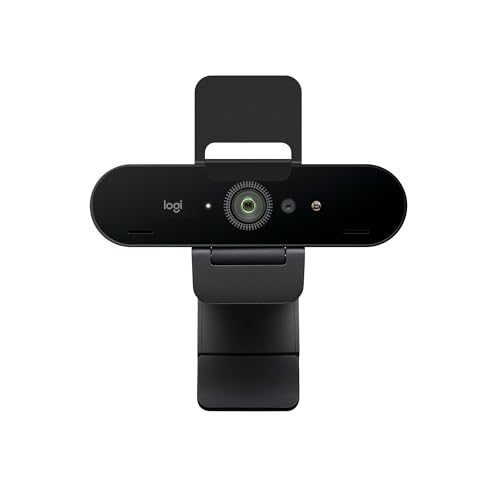
The Brio 4K is the camera that made ‘webcam’ stop being an insult in broadcast circles. Its 4K sensor gives streaming software a generous picture to crop, downscale and sharpen, and the resulting 1080p stream — which is what most audiences actually watch — carries a clarity that integrated laptop cameras cannot approach. For the broadcaster who wants to unbox, mount, and look professional by tonight’s show, this remains the shortest honest path.
Its autofocus deserves the praise it routinely gets, because live presenters move: they lean toward the lens for a punchline, rock back laughing, hold products up to the camera. The Brio tracks those movements with a calm confidence, refocusing without the visible breathing and hunting that makes viewers seasick. Exposure behaves the same way, adjusting in gentle steps when a cloud crosses your window instead of lurching between bright and dark.
Field of view choice is a quietly professional touch. A wide view suits a presenter who gestures and demonstrates; a tighter crop turns the same desk into an intimate talking-head studio and hides the laundry chair. Switching between framings in the companion app lets one camera serve a lecture channel on weekdays and a cosy podcast on weekends without moving a single piece of furniture.
Consider the working week of a real broadcaster: the camera starts with the computer, joins the streaming software without complaint, and its privacy shutter answers the low-grade anxiety of living where you work. Small reliabilities like these compound. Across hundreds of shows, the Brio’s reputation rests less on any single specification than on the complete absence of stories about the day it misbehaved.
Placement advice specific to this camera: mount it at eye level or a fraction above, never on the laptop lid looking up, and give it one decent light source at roughly forty-five degrees to your face. The Brio’s sensor rewards that modest effort disproportionately — viewers routinely assume Brio broadcasters own far more expensive rigs than they do.
Who should skip it? Broadcasters who need to stand, walk and demonstrate across a room will outgrow any fixed webcam, and those chasing a cinematic shallow-focus look need a larger sensor and real lenses. For the enormous middle — educators, interviewers, commentators, professionals on calls that matter — the Brio is the reference point against which everything else here is measured.
Longevity is the closing argument. Logitech supports its flagship webcams with software updates for years, the mount fits standard tripods as happily as monitor tops, and the camera holds a healthy second-hand value when a growing channel eventually promotes it to second-camera duty. It is the rare tech purchase that ages like furniture rather than like fruit.
A word for employers and institutions, because the Brio has become quiet infrastructure in that world too: it is the camera universities issue to lecturers and firms issue to client-facing staff, precisely because its failure mode is boredom. When a hundred remote presenters must all look acceptable with zero individual tuition, the Brio’s combination of forgiving autofocus, sensible defaults and a privacy shutter is the closest thing the category has to a standard issue.
Second-hand and longevity notes complete the picture. The Brio’s long production life means mounts, cables and advice are everywhere, its firmware has matured through years of updates, and a used unit from a careful owner is a legitimate budget route into this list’s top tier. Few webcams can be recommended used without caveats; this one mostly can.
- Type: 4K USB webcam
- Strength in brief: autofocus and exposure you can forget about
- Mount: monitor clip plus tripod thread
- Software: mature companion app with framing controls
Strengths
- Instantly professional picture with almost no setup
- Calm autofocus and exposure during movement
- Adjustable framing for different show formats
Trade-offs
- Fixed position limits standing presentations
- Needs decent light to show its best
- No lens upgrade path as your channel grows
Best for: Talking-head broadcasters, educators and professionals who stream from a desk.
Not suited for: Presenters who move around a room or want a filmic blurred background.

OBSBOT Tiny 2 — Best tracking camera for solo presenters
Every solo broadcaster knows the tyranny of the chair: the fixed webcam decides where the show happens, and the show shrinks to fit. The Tiny 2 abolishes that tyranny with a motorised gimbal and tracking that follows you as you stand, step to a whiteboard, demonstrate a product on a side table or simply pace while thinking. The camera operator you could never afford turns out to be a small robot with excellent manners.
The tracking itself is the headline, but the implementation details are what make it broadcast-grade. Movement is smooth rather than robotic, the framing keeps a sensible headroom as you move, and gesture and voice controls let you start, stop and reframe the tracking without walking back to the keyboard mid-sentence. A teacher broadcasting a lesson can move between desk, board and demonstration bench in one unbroken take, and the lesson feels produced rather than captured.
Picture quality stands up to the gimmick. The sensor is generous for a webcam, low-light behaviour is respectable for evening streams from ordinary rooms, and the 4K output gives production software the same cropping freedom as the Brio. Autofocus, freed from tracking duty by the gimbal’s work, stays locked on your face rather than the bookshelf you just walked past.
There is a learning curve, honestly stated. The Tiny 2 rewards an evening of rehearsal: learning where its tracking confidence fades, how it handles a second person entering the frame, and which gestures you will actually use under pressure. Broadcasters who invest that evening describe a small revelation; those who unbox it live on air sometimes spend their first show negotiating with it, which is a production meeting your audience did not ask to attend.
Desk reality check: the gimbal needs a little clearance to swing, and its intelligence is wasted in a purely seated, static show where a simpler webcam would do. It also becomes the most recognisable object on your desk, which some presenters love and others find distracting. Match the tool to the format: movement is its entire argument.
For fitness instructors, music teachers, cooking demonstrators, makers and anyone whose broadcast is a performance rather than a lecture, the Tiny 2 is not an upgrade to a webcam — it is a different category of freedom. That is why it sits on this list: it changes what one person alone in a room can plausibly broadcast.
Support and software continue to improve through updates, and the camera doubles as a remarkably capable meeting camera on rest days. Buy it for the movement, keep it for the polish, and rehearse once before the audience arrives.
Multi-person formats deserve a specific mention. When a guest joins you in the room — a co-host, an interviewee, a student — the Tiny 2 can widen its framing to hold both faces rather than slavishly following one, and a hand gesture hands the camera’s attention from presenter to guest. Solo broadcasters who occasionally become duos will find this the difference between a camera that copes and a camera that collaborates.
There is also a confidence effect that users report consistently and specifications cannot capture: knowing the framing is being handled frees the presenter’s mind for the material. Teachers gesture more, demonstrators demonstrate more, and the broadcast gains the physical energy that seated shows struggle to fake. Equipment that changes the performance, not just the picture, is rarer than equipment that merely records it.
- Type: 4K webcam on a motorised gimbal
- Strength in brief: AI subject tracking with gesture control
- Mount: desk stand and tripod options
- Software: app control plus voice and gesture commands
Strengths
- Frees presenters from the chair completely
- Smooth, production-feeling camera movement
- Strong sensor for a tracking camera
Trade-offs
- Costs more than fixed webcams
- Needs rehearsal to shine
- Overkill for seated talking-head shows
Best for: Teachers, demonstrators and performers who broadcast on their feet.
Not suited for: Seated presenters whose format never leaves the desk.

Elgato Facecam — Best for streamers who tweak
The Facecam comes from streaming culture rather than office culture, and it shows in every decision. Where office webcams automate everything and hide the controls, the Facecam hands the broadcaster a proper control room: manual exposure, white balance you can lock, and settings that save to the camera itself so your look survives reboots, software changes and the move to a second computer. For a streamer whose face is the brand, that permanence is worth more than automation.
Fixed focus sounds like a limitation until you understand the design intent. With no autofocus motor hunting during a stream, the picture stays exactly where you set it — sharp across the zone a seated presenter actually occupies, immune to the focus pulsing that plagues lesser webcams when a hand waves or a pet crosses the background. Set your chair position once, focus the zone once, and the camera never thinks again, which is precisely what live work wants from it.
The image character flatters broadcast use: contrast and colour tuned for skin under artificial light, and a sensor that behaves well in the dim, LED-washed rooms streamers actually inhabit. Paired with Elgato’s lighting ecosystem it forms a coherent studio language, though it performs perfectly respectably alongside any other brand’s lights.
Its demands are the mirror of its virtues. The Facecam expects a broadcaster who will spend twenty minutes dialling in a look and then defend it — it is not the camera for a household computer shared by five people with five ideas about settings. It also assumes a seated, desk-based format; like the Brio, it watches a chair, not a room.
Streamers building a recognisable visual identity will appreciate the discipline it imposes. Locked white balance means your skin tone does not drift between Tuesday’s stream and Thursday’s; saved settings mean a Windows update cannot redecorate your channel overnight. In a medium where audiences bond with consistency, the Facecam is less a camera than a promise that tonight will look like last night, only better lit.
Choose it when you are ready to graduate from ‘good webcam’ to ‘my setup’, and when the word control sounds like a feature rather than a chore. It is the enthusiast’s webcam, priced and built accordingly, and it makes the broadcasters who master it look like they hired a technician.
One practical note: give it a strong key light and it will repay you like a camera twice its class. Starve it of light and its honest, unprocessed image will show the darkness plainly. The Facecam does not flatter bad rooms; it rewards good ones, which is the correct professional bargain.
Pairing advice, since this camera lives inside an ecosystem: it sits naturally alongside a key light from the same stable and a streaming deck for scene control, but nothing about it requires brand loyalty. What it requires is a broadcaster willing to treat the image as a designed asset — the same discipline that produces a channel’s intro graphics and set dressing. If you already think that way about everything else on screen, the Facecam simply extends the logic to your face.
A small operational pleasure worth recording: because its settings live on the camera, moving between a streaming PC and a laptop for a guest appearance keeps your look intact. Broadcasters who work across machines — a studio rig and a travel setup — will understand immediately why that matters, and why webcam veterans speak about this feature the way photographers speak about a favourite lens.
- Type: fixed-focus streaming webcam
- Strength in brief: full manual control saved on-device
- Mount: monitor clip plus tripod thread
- Software: Camera Hub with deep image controls
Strengths
- Settings persist on the camera itself
- No autofocus hunting, ever
- Image tuned for streamers’ lighting
Trade-offs
- Manual setup required to shine
- Fixed focus suits one chair position
- Premium price among webcams
Best for: Streamers building a consistent, recognisable on-screen look.
Not suited for: Shared computers or anyone wanting zero setup.

Logitech StreamCam — Best for vertical and social broadcast
Broadcasting no longer happens only in landscape. Short-form platforms, vertical livestreams and social-first shows have made the 9:16 frame a professional format, and the StreamCam was designed for that world before most rivals noticed it existed. Its mount rotates between horizontal and vertical in a click, and the camera’s auto-framing keeps a solo creator centred in either orientation without a production meeting.
The picture is honest 1080p with the good sense to prioritise smoothness: at the frame rates live platforms favour, motion looks fluid and faces stay natural, which matters more to a scrolling viewer than raw pixel counts. For the creator broadcasting a morning show to a phone-holding audience, the StreamCam’s output feels native to the platform rather than cropped from a television frame that never wanted to be there.
Auto-framing deserves a precise description, because it is the feature that sells the camera. Within its field of view, the StreamCam can follow your face digitally, reframing as you shift in your chair or lean toward a product. It is not the Tiny 2’s physical tracking — the camera itself never moves — but for seated creators it delivers much of the same freedom at a gentler price and with zero moving parts to rehearse.
The design courts creators in small ways: a mount that clamps a monitor or screws onto a tripod, a USB-C connection that modern laptops accept without a dongle hunt, and a look that reads as equipment rather than office surplus. It disappears into a creator’s desk setup in a way bulkier broadcast gear never quite manages.
Limits, plainly: the smaller sensor asks for decent light, the digital framing crops your resolution when it zooms, and serious studio builders will eventually want interchangeable lenses. The StreamCam is not a destination camera for a growing broadcast business; it is an exceptionally well-aimed starting camera for the social era, and it knows it.
Buy it if your audience lives on their phones, if your format mixes a landscape show with vertical clips from the same chair, or if you are equipping a first studio and want the money left over for the light that will make any camera look good. In that budget conversation, the StreamCam argues its case persuasively.
It also travels well — tossed in a bag for a broadcast from a hotel desk or a friend’s studio, it sets up in moments and asks for nothing but a USB port and a window. Creators whose studio is wherever they are will find that portability quietly decisive.
Education is a natural home for this camera that its marketing undersells. A tutor broadcasting to students on phones gets vertical framing for the social clips that advertise the lessons, landscape framing for the full sessions, and auto-framing that forgives a small, crowded teaching desk. Schools and independent tutors equipping a first streaming corner could do far worse than standardising on a camera this forgiving.
Its weaknesses, revisited with a buyer’s eye, are mostly about ceilings rather than floors: you will not grow it into a studio centrepiece, and its low-light picture will always trail the mirrorless picks. But ceilings matter only when you reach them, and the StreamCam’s floor — the worst broadcast it will ever give you — is higher than many rivals’ best. For a first camera, that is the right way around.
- Type: 1080p webcam with rotating mount
- Strength in brief: vertical video and auto-framing
- Mount: monitor clip, tripod thread, rotates 9:16
- Connection: USB-C
Strengths
- Native vertical broadcasting
- Auto-framing for solo creators
- Compact and travel-friendly
Trade-offs
- 1080p ceiling in a 4K world
- Digital framing costs resolution
- Wants good light for its best picture
Best for: Social-first creators mixing landscape shows and vertical streams.
Not suited for: Studio builders planning a lens-based setup.

Sony ZV-E10 II — Best mirrorless for growing channels
There comes a point in a channel’s growth when the audience starts describing the picture as ‘cinematic’, and that point almost always coincides with a mirrorless camera arriving on the desk. The ZV-E10 II is the most sensible version of that arrival: a compact APS-C body designed for creators, with Sony’s formidable subject autofocus, a vari-angle screen for self-framing, and an E-mount lens shelf deep enough to grow a studio on for a decade.
The look it unlocks is the famous one — a presenter in crisp focus against a softly dissolved background — but the professional gains run deeper than blur. Real lenses mean real choices: a wide prime for a small room, a fast standard zoom for events, a long lens for a stage. Colour depth improves, low-light streams from evening rooms stop looking like soup, and the broadcast acquires the visual authority that makes sponsors and students take the channel seriously.
Sony built creator-specific kindnesses into this body. Product-showcase autofocus jumps focus to an object held toward the lens and returns to your face when you lower it — a feature beauty, tech and craft broadcasters will use in every single show. The defocus switch offers the blurred-background look at a button press for those who have not yet learned aperture, and the whole camera is designed to be operated by the person in front of it, not a crew behind it.
Honesty about the step up: a mirrorless broadcast rig is a system, not a gadget. You will need a capture solution or the camera’s USB streaming mode, a dummy battery or reliable power for long shows, a mount that puts the lens at eye level, and the patience to learn exposure properly. The bill, fully told, is the body plus those companions. Broadcasters who budget for the system get a studio; those who budget for the body alone get a frustrating month.
Heat and endurance, the traditional mirrorless streaming anxieties, are well managed here for typical show lengths, especially at the resolutions streaming platforms actually use. Set the camera up once — picture profile, white balance locked to your lights, focus mode chosen — and it becomes as repeatable as any webcam, with a ceiling several classes higher.
The upgrade logic is the final persuasion. The ZV-E10 II you buy for tonight’s stream becomes the second angle when a full-frame body eventually takes the main chair, and its lenses, batteries and habits transfer upward within the same system. Nothing about the purchase is a dead end, which cannot be said for most broadcast gear.
Choose it when the channel has an audience, a format and a future — and when you are ready for your picture to stop looking like a very good call and start looking like a programme.
Lens choice, the question every new owner asks first: begin with the versatile kit zoom to learn your framing habits, then let your format choose your first prime — a wide bright lens if your room is small and your style intimate, a portrait-length prime if you present against a background worth melting. The discipline is to buy lenses for the show you actually make. Your second year of streaming will tell you more about your lens needs than any guide can.
For broadcasters who also shoot away from the desk — events, interviews, B-roll for the channel — the ZV-E10 II doubles as a genuinely capable production camera, which changes the purchase maths. It is not a webcam replacement plus a toy; it is the channel’s entire imaging department in one small body, and priced against that job description it looks less like an indulgence and more like consolidation.
- Type: APS-C mirrorless, interchangeable lenses
- Strength in brief: autofocus and the creator feature set
- Screen: vari-angle for self-framing
- Streaming: USB streaming plus HDMI workflows
Strengths
- The cinematic look webcams cannot reproduce
- Product-showcase focus for demonstrators
- A lens ecosystem to grow into
Trade-offs
- A system purchase, not a single gadget
- Setup and learning curve are real
- Long shows need a power solution
Best for: Growing channels ready to build a small studio around real lenses.
Not suited for: Beginners who need to broadcast well tonight with zero learning.

DJI Osmo Pocket 3 — Best for broadcasting beyond the desk
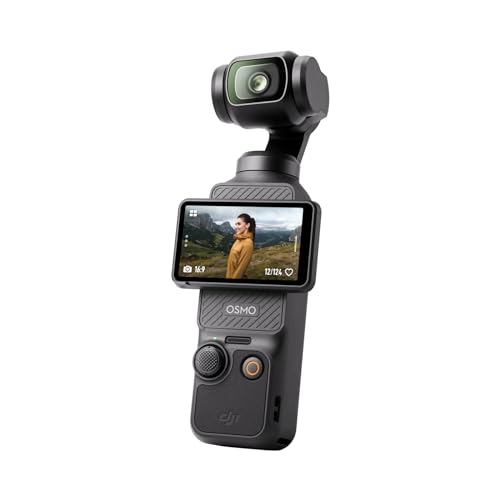
Some broadcasts refuse to sit at a desk: the workshop tour, the market walkthrough, the backstage interview, the conference floor report. The Osmo Pocket 3 exists for those shows — a camera and a mechanical gimbal fused into something the size of a chocolate bar, stabilising movement so completely that walking footage looks like it was shot from a rail. For mobile broadcasters it is less a camera than a permission slip to leave the studio.
The sensor is the surprise inside the small body: a 1-inch chip that sees in the same league as premium compacts, delivering low-light performance and colour that embarrass most webcams while the gimbal irons out the footsteps. Face tracking keeps a walking presenter framed and focused, the rotating screen flips between horizontal broadcast and vertical social formats, and the whole device starts in the time it takes to unfold it — which is to say, before the moment passes.
As a desk camera it moonlights respectably: connected as a webcam, parked on a mini tripod, the Pocket 3 gives a small studio a stabilised, wide, high-quality main picture, and its gimbal tracking follows a presenter who stands and moves within a modest radius. Many creators buy it for the road and discover it has quietly become their best camera at home as well.
Audio, broadcasting’s neglected half, gets unusual respect here: the DJI microphone ecosystem pairs wirelessly, so a presenter can walk away from the camera with a lapel mic still delivering clean voice. Anyone who has tried to broadcast a workshop tour on a webcam’s built-in microphone will understand that this feature alone can justify the device.
Compromises are physical rather than optical. The field of view is fixed and wide — there is no zooming into a distant stage — the battery is internal and finite on long mobile days, and the gimbal, though tougher than it looks, asks for a case and a little respect. It is a specialist’s instrument that happens to be friendly, not a toy that happens to be capable.
For the broadcaster whose content is a place — a kitchen garden, a restoration workshop, a neighbourhood, a festival — the Pocket 3 changes the economics of the whole channel. One person, one pocketable device, broadcast-quality pictures from anywhere with a signal. That sentence was science fiction a decade ago; it is now a purchasing decision.
Buy it as your mobile division, or as the main camera for a movement-based format, and pair it with the humble discipline of spare power and a lens cloth. The gimbal will handle the walking. You handle the story.
Venue work shows the Pocket 3 at its most persuasive. A broadcaster walking a trade-show floor or a festival site can hold it at arm’s length, narrate to the lens, flip to the exhibits and back, and produce footage that a phone on a gimbal stick struggles to match for stability and sound. Event organisers increasingly treat such coverage as professional media, because on the audience’s screen, that is exactly what it is.
Desk broadcasters should not overlook its quietest trick: used as a fixed webcam it offers a wide, stabilised, high-quality angle that makes an excellent second view — the workshop bench, the instrument, the whiteboard — while a conventional camera holds the face. Channels that add a Pocket as the B camera often find viewers commenting on production values that ‘suddenly’ improved, when what actually improved was the variety of the pictures.
- Type: gimbal camera with 1-inch sensor
- Strength in brief: stabilised mobile broadcasting
- Screen: rotating, vertical and horizontal
- Audio: pairs with DJI wireless microphones
Strengths
- Walking footage that looks professionally tracked
- Large sensor in a pocketable body
- Excellent wireless audio options
Trade-offs
- Fixed wide lens, no zoom
- Internal battery limits long days
- Gimbal needs basic care
Best for: Mobile broadcasters, tour-givers and workshop channels.
Not suited for: Presenters needing telephoto reach or all-day fixed studio duty.
How Do the Six Broadcast Options Stack Up?
| Camera | Badge | Standout trait | Watch out for |
|---|---|---|---|
| Logitech Brio 4K | Best all-round broadcast webcam | The benchmark for effortless quality | Feed it light or waste its sensor |
| OBSBOT Tiny 2 | Best tracking camera for solo presenters | A camera operator in a webcam’s body | Rehearse the tracking before showtime |
| Elgato Facecam | Best for streamers who tweak | Control and consistency above all | It will not rescue a dark room |
| Logitech StreamCam | Best for vertical and social broadcast | Built for the phone-shaped era | Digital zoom is not optical zoom |
| Sony ZV-E10 II | Best mirrorless for growing channels | The graduation camera | Budget for power, mount and capture too |
| DJI Osmo Pocket 3 | Best for broadcasting beyond the desk | The studio that walks | Plan power for long mobile shows |
What Lighting Makes the Biggest Difference to a Live Picture?
One light, correctly placed, transforms any camera in this guide more than an upgrade to the next model would. The classic arrangement is a key light at roughly forty-five degrees to your face and slightly above eye level, large or diffused enough to wrap rather than glare. Facing a window achieves the same geometry for free during daylight hours, which is why so many polished-looking streamers are simply people who turned their desk around.
Kill the competition next: overhead ceiling lights carve shadows into eye sockets, and a bright window behind you turns your face into a silhouette the camera cannot rescue. Close the curtains, switch off the downlights, and let your one deliberate light do the whole job. Viewers will describe the result as a better camera. Let them.
How Should You Set Exposure, Focus and White Balance for a Show?
Live broadcasting rewards locked settings over clever automation once your lighting is deliberate. Fix white balance to your lights so your skin tone cannot drift mid-show, set exposure for your face rather than the room, and choose the focus behaviour that suits your format — continuous face tracking for movers, a fixed zone for seated presenters with a Facecam-style setup. Automation is a wonderful safety net and a poor pilot; give it the emergencies, not the whole flight.
Rehearse the exact failure you fear: stand up, hold a product close, have someone open the door and flood the background with hall light. Watch what your camera does. Every behaviour you discover in rehearsal is one your audience will never have to watch you discover live.
What Does a Sensible Broadcast Audio Setup Look Like?
Audiences abandon bad audio long before bad video, so the camera is only half the broadcast. Any microphone close to your mouth — a lapel mic, a desk arm with a USB microphone, even wired earbuds in an emergency — will outperform every camera-mounted microphone on this list, because physics rewards proximity above price. The cameras here were chosen partly for how gracefully they accept external audio or defer to a separate microphone in your software.
Treat the room as part of the microphone: soft furnishings, a closed door, and a fan switched off during the show do more for broadcast audio than most equipment purchases. Do a thirty-second test recording before every session and actually listen to it. That single habit separates broadcasters from people who merely own broadcast equipment.
How Do You Choose Between a Webcam and a Mirrorless Rig?
Ask what your format demands in a year, not what your ambition demands tonight. If the show is a seated presenter and a screen share, the webcams here will serve for years and the money saved buys the lighting and audio that audiences actually perceive. If the format is growing toward demonstrations, multiple angles, events or a studio that must impress sponsors in person, the mirrorless route stops being vanity and becomes infrastructure.
The hybrid path is legitimate and common: start with the Brio or Facecam, add light, add audio, and let the channel’s revenue argue for the ZV-E10 II when the time comes — at which point the webcam becomes the overhead or guest angle and nothing was wasted. Broadcast empires are built in that order far more often than they are bought in one order.
What Should You Check in the Ten Minutes Before Going Live?
Run the same pre-flight every time: framing and focus confirmed on the actual streaming software’s preview, not the camera app; audio levels spoken at show volume, including a laugh, because laughter is where levels clip; background scanned for the laundry, the address on the parcel and the colleague who does not know they are visible; notifications silenced; water within reach. Ten unglamorous minutes, identical every show, are the difference between a broadcaster and a gambler.
Keep a small note of your known-good settings somewhere physical. Software updates, borrowed laptops and helpful relatives all reset things, and the note turns a pre-show panic into a two-minute restoration. Professional studios call this a settings bible. Yours can be an index card; the principle is identical.
What Frame Rate and Resolution Should You Actually Broadcast At?
Match your settings to your content rather than to your camera’s maximum. Talking-head formats look composed and professional at moderate frame rates, while fast gaming, sport commentary and energetic demonstration benefit from the smoother motion of higher frame rates, at the cost of more light demanded by the camera. Resolution follows the same logic: a clean, well-lit 1080p stream impresses viewers more than a noisy 4K one, every time, on every platform.
Run one private test stream at each candidate setting and watch it back on a phone, because that is where your audience lives. The settings that survive that viewing — faces clear, motion natural, no exposure pumping as you move — are your settings, whatever the specification sheet promised. Broadcast is an empirical craft; the test stream is its laboratory.
Which Mistakes Make Good Cameras Look Amateur on Air?
The most common is the upward angle: a camera perched on a laptop at desk height, filming its owner from below against a ceiling. No sensor survives that geometry with dignity. Raise the camera to eye level — a stack of books has launched more professional-looking channels than any lens — and half the amateur impression evaporates before a single setting changes.
Buying resolution and starving light runs a close second. A 4K camera in a dim room produces four thousand pixels of murk, faithfully. Broadcasters who reverse the spending — modest camera, deliberate light — look expensive; those who do not, look like a ransom video regardless of budget. This guide’s ordering of priorities is not a stylistic preference; it is the physics of the medium.
Leaving every setting on automatic is the quiet third mistake. Auto exposure that breathes with every cloud, white balance that wanders between warm and cool mid-sentence, autofocus hunting during the emotional climax of your story — each is a small tax on the audience’s trust, and they compound. Lock what your lighting allows you to lock.
Neglecting the background completes the classic set. The camera sees everything: the unmade bed, the confidential whiteboard, the window that will silhouette you at sunset. A two-minute background audit — or a tighter framing that excludes the chaos — is production design at its cheapest, and audiences read a composed background as competence before you have said a word.
Finally, skipping the test recording. Every broadcaster has a story about the show that streamed the wrong scene, the muted microphone, the camera frozen on a title card for forty minutes. A sixty-second private rehearsal catches nearly all of them. The professionals are not luckier than you; they are simply rehearsed.
And the meta-mistake beneath them all: upgrading the camera to fix a problem the camera did not cause. Blurry pictures blamed on lenses that turned out to be dirty, dull pictures blamed on sensors that turned out to be ceiling lights, echo blamed on microphones that turned out to be bare walls. Diagnose before you spend. The cheapest broadcast upgrade is usually a cloth, a lamp or a cushion.
Final Recommendation
If a single recommendation must stand, the Logitech Brio 4K is the camera we would hand to a new broadcaster with a show to run this week: it asks the least, delivers the most forgiving picture, and leaves the budget where it belongs — in light and audio. The Facecam serves the tweaker, the StreamCam the social-first creator, and the Tiny 2 the presenter whose show refuses to sit down.
The ZV-E10 II and Osmo Pocket 3 mark the two directions a channel can grow: deeper into a studio, or outward into the world. Neither is a starting point so much as a second act, and both reward the broadcaster who arrives with lighting habits already formed on a humbler camera.
Whichever you choose, remember the order of operations that this entire guide reduces to: light the face, frame with intention, lock the settings, test the audio, and then — only then — worry about the camera. The broadcasters audiences trust are not the ones with the longest equipment lists. They are the ones whose picture never gives the audience a reason to think about equipment at all.
One last encouragement for the broadcaster reading this with a show already scheduled and a camera not yet chosen: audiences forgive a humble picture far more readily than an absent one. Start with the camera your budget and your room can support tonight, learn its manners across ten real broadcasts, and upgrade from knowledge rather than from anxiety. Every polished channel you admire began exactly that way.
Related guides
Frequently Asked Questions
Is 4K necessary for online broadcast?
Rarely for the stream itself — most platforms and viewers live at 1080p — but a 4K sensor helps by giving you clean downscaling and room to crop or reframe in software. Treat 4K as production headroom, not as a viewer-facing feature, and never let it outrank lighting in your budget.
Can I use a mirrorless camera as a webcam directly?
Modern creator cameras like the ZV-E10 II offer USB streaming modes that computers accept as a webcam, and HDMI capture devices provide the other route. Either way, plan power for long sessions and confirm your streaming software sees the camera before show day, not during it.
Why does my expensive camera look worse than my phone?
Almost always light and angle. Phones apply aggressive computational polish to dim rooms; dedicated cameras show the room honestly. Add one soft key light, raise the camera to eye level, and the dedicated camera’s larger sensor reclaims its advantage immediately.
What is the best camera for broadcasting while walking around?
The DJI Osmo Pocket 3, because its mechanical gimbal removes the shake that makes walking footage unwatchable, while its face tracking keeps you framed. The OBSBOT Tiny 2 covers the smaller radius of a room; the Pocket covers the world outside it.
Do I need a capture card?
Only for cameras without a USB streaming mode, or for multi-camera productions using HDMI switching. Single-camera broadcasters on this list can start without one and add it when the production genuinely outgrows USB.
How do I stop autofocus from hunting during my show?
Give the camera a clear, well-lit face to hold, avoid busy backgrounds directly behind you, and use face or eye priority modes where offered. If your format is a fixed seated position, a fixed-focus design like the Facecam removes the problem by construction.
Can one camera serve meetings and broadcasts?
Yes — every webcam here doubles as an excellent meeting camera, and the mirrorless and gimbal picks can serve with their USB modes. Many broadcasters run one quality camera for everything and simply keep two saved profiles: natural for meetings, polished for the show.
How long will a broadcast camera stay relevant?
Longer than most technology, because platforms change slowly and a clean 1080p picture ages gracefully. Buy for your format’s next two years, keep the firmware and software current, and expect the camera to be the last part of your setup that needs replacing.
Should I buy a ring light or a panel light first?
A panel or softbox-style light placed to one side models a face more naturally than a ring light’s flat, frontal wash, and serves more formats as your channel grows. Ring lights have their niche in beauty and close-up work. For general broadcasting, one soft directional light is the purchase that changes everything else.
Related Guides
Broadcasting pulls in neighbouring skills quickly, and these companion guides continue where this one stops: our guide to lighting a home studio on a budget the best USB microphones for streamers a beginner’s walkthrough of streaming software settings