kajuandouglas.com is reader-supported. When you buy through links on our site, we may earn an affiliate commission.
Where to Buy a Camera for Your MacBook, and the Continuity Question to Answer First
Anyone pricing the best cameras for macbooks in the current era starts with a question that did not exist a few years ago: your iPhone is already a superb webcam. Apple’s Continuity Camera turns a recent iPhone into a Mac’s camera with no cable, complete with portrait lighting tricks and a desk view. So this guide answers honestly — it explains which MacBook owners should simply use the phone in their pocket, and which needs a dedicated camera beats: the all-day meeting professional, the streamer, the teacher, the creator who wants a lens the phone cannot imitate.
Where to buy: every linked name below leads to that model’s Amazon listing, where current versions and bundles can be checked before ordering. Compatibility notes matter more than usual in this category, so each verdict states plainly how its camera behaves with macOS — whether it is truly plug-and-play, which controls live in an app, and where an Apple silicon or Intel difference changes the answer.
The dedicated cameras divide by ambition. Premium webcams — the Brio, the OBSBOT, the Facecam, the StreamCam — connect over USB, appear instantly in FaceTime, Zoom and Teams, and ask nothing of the user beyond a mount. Mirrorless cameras take the scenic route: the ZV-E10 II and the Pocket 3 bring large sensors and real lenses or gimbals to a Mac desk, trading simplicity for an image that makes colleagues ask what changed.
macOS has opinions about cameras, and this guide respects them. Apple’s system treats USB cameras as standard video devices. That is why the webcams here just work — but their finer controls, the field-of-view choices and firmware updates, live in each maker’s companion app, and those apps vary in how lovingly they treat the Mac. A camera whose settings reset at every reboot, or whose app lags a macOS generation behind, taxes its owner weekly, and the verdicts below say which is which.
Desk View deserves its own sentence, because it is the feature MacBook owners ask about first. Continuity Camera’s party trick — showing the desk surface and the face in one frame, using the iPhone’s wide lens and computation — has no exact equivalent in dedicated cameras, though the OBSBOT’s tracking and the Pocket 3’s gimbal imitate parts of it. If your work is demonstrating objects on a desk, read the relevant verdicts closely; they were written with your hands in mind.
Finally, the built-in camera question, answered without cruelty: recent MacBook built-in cameras are respectable for casual calls, and this guide is not an argument that everyone must upgrade. It is an argument that people whose work is substantially on camera — whose credibility, classroom or channel sits inside that little window — are underserved by respectable, and that the right dedicated camera is a professional instrument rather than a gadget.
Key Takeaways
The Mac desk briefing, in six lines:
- Continuity Camera is the free benchmark — a dedicated camera must beat your iPhone, not your laptop’s lens.
- Logitech’s Brio 4K is the default upgrade: instant macOS manners and a wide, crop-friendly picture.
- OBSBOT’s Tiny 2 tracks a standing presenter, the one trick neither Apple nor fixed webcams can match.
- Elgato’s Facecam locks exposure and focus into a repeatable, studio-like call picture.
- Sony’s ZV-E10 II brings a real lens and sensor to the Mac desk for creators who present on camera.
- DJI’s Pocket 3 is the presenter’s gimbal camera — it follows you, and doubles as a vlogging rig.
In this guide
Quick Picks
Six Mac-friendly cameras, from the sixty-second USB upgrade to a mirrorless desk production.
| Camera | Badge | Why it earns its place here |
|---|---|---|
| Logitech Brio 4K | Best All-Round MacBook Webcam | Plug-and-play polish with adjustable framing that every Mac app recognises instantly. |
| OBSBOT Tiny 2 | Best for Presenters Who Move | A gimbal head that keeps teachers and demonstrators framed while they stand and gesture. |
| Elgato Facecam | Best Locked-Down Call Picture | Fixed focus and manual control for a home-office picture that never drifts. |
| Logitech StreamCam | Best for Vertical and Desk Content | A compact USB-C camera that rotates for the vertical clips Mac creators publish. |
| Sony ZV-E10 II | Best Image Quality With a Mac | Interchangeable lenses and a large sensor, via USB streaming or a capture card. |
| DJI Osmo Pocket 3 | Best Gimbal Camera for Creators | A stabilised camera that works as a Mac webcam and walks out the door as a vlog rig. |
How Did We Judge the Best Cameras for MacBooks Against the iPhone in Your Pocket?
Continuity Camera set the bar, so we judged against it directly. A dedicated camera earned its place only by beating the iPhone on at least one axis that matters — permanence (always mounted, always ready, never needed for a phone call), stamina (no battery anxiety across a meeting day), tracking, image depth, or the simple professionalism of a device that is visibly a camera. Models that merely matched a phone’s convenience at a real price were cut.
macOS behaviour was tested as a daily experience rather than a spec: does the camera appear instantly in FaceTime and the browser-based meeting tools, do its settings survive sleep and reboot, does its companion app run natively and politely on current macOS, and does the Mac remember it as the default? A camera that wins the first call and loses the fortieth — after an update, a hub change, a forgotten setting — has failed the platform’s actual test.
The hub reality got its own weight. MacBook owners live through docks and dongles, and cameras differ in how gracefully they survive that path: some demand a direct port, others ride any decent hub without complaint. Each verdict notes its pick’s tolerance, because a camera that only works plugged straight into the laptop is a camera that will fail on the morning of the important call, when the dock is full and the clock is not.
We also judged the picture as colleagues perceive it: through Zoom’s and Teams’ compression, on a laptop screen, in a window a few inches wide. Laboratory sharpness matters less there than exposure stability, colour that flatters under office light, and a field of view that frames a person rather than their entire domestic situation. The verdicts keep returning to that little window, because that is where these cameras earn their living.
Upgrade path closed the judging: firmware support, the maker’s record with macOS updates, and whether the camera remains useful if its owner later streams, teaches or records. A Mac desk evolves; the camera should not be the first thing it outgrows.
Continuity Camera or a Dedicated Camera: How Should a Mac Owner Decide?
Use the iPhone if your camera life is a few calls a week, you like its picture, and the phone can spare the hours. Continuity Camera’s quality is genuinely high, its Desk View is unique, and its price is a mount. The arrangement’s costs are practical rather than photographic: the phone is occupied, its battery cycles, incoming calls interrupt the fiction that it is a webcam, and the setup ritual — mount, unlock, position — repeats at every single call.
Buy a dedicated camera when the ritual itself is the problem, when the calls are the job, or when you need what a phone cannot do: a lens’s depth of field, a gimbal’s tracking, a camera that is simply always there, framed and lit, when the meeting starts early. The professionals in this guide’s audience usually describe the purchase not as an image upgrade but as the removal of a daily friction — and they are right. That is why the verdicts weigh permanence alongside pixels.
Why Does My Expensive Camera Look Ordinary in Zoom?
Because the meeting app is the final lens, and it is a cheap one. Zoom and Teams compress aggressively, cap resolution according to plan and network, and apply their own processing to every participant equally. A better camera still wins inside that pipeline — cleaner source material compresses more gracefully, and good exposure survives where a struggling webcam’s noise turns to mush — but it wins by margins, not miracles, and anyone promising a cinematic transformation inside a nine-person gallery view is selling something.
The practical response is to optimise what survives: light the face properly, choose the camera’s cleanest mode rather than its highest number, turn off the app’s aggressive filters, and sit at a distance where the framing flatters. Then accept the genre. A board call is not a broadcast; the goal is to be the clearest, calmest window in the grid, and every pick in this guide achieves exactly that when its owner does the lighting half of the work.
Which Cameras Earn a Permanent Place on a Mac Desk? The Six Picks in Detail
Tested against macOS manners, hub reality and the iPhone benchmark — in that order, every time.

Logitech Brio 4K — Best All-Round MacBook Webcam
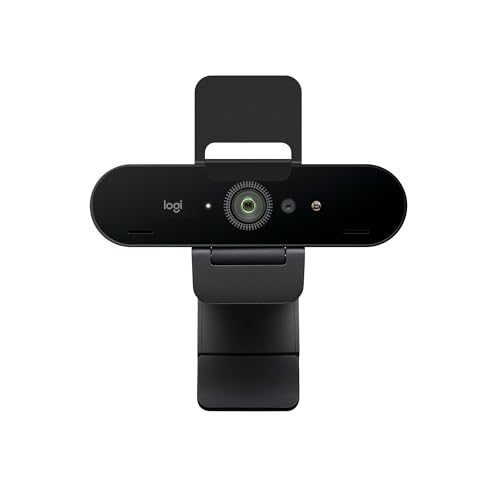
The Brio is the answer most MacBook owners are actually looking for: a camera that plugs in, appears everywhere, and makes every call look considered. macOS recognises it instantly across FaceTime, Zoom, Teams and the browser tools, with no driver and no drama, and its 4K sensor gives Mac software a picture with room to spare — crop in for a tighter frame, or use its adjustable field of view to choose between a portrait framing and a wider two-person or whiteboard-including shot.
Its behaviour across a working week is its real specification. The Brio wakes from the Mac’s sleep without sulking, holds its settings, rides a decent USB hub without complaint, and its companion software — Logitech’s settings tools run properly on macOS — exposes framing and image controls without demanding attention daily. Autofocus keeps a seated presenter sharp through normal movement, and its exposure judgement under ordinary office light is calm and flattering.
Against the iPhone benchmark, the Brio’s case is permanence and posture. It is mounted, framed and ready at 9 a.m. without occupying the phone; it does not ring during the board call; and its wider field of view serves the two-person and demonstration framings Continuity Camera handles awkwardly. Its picture, inside meeting compression, is the grid’s reliable best — not cinematic, simply composed, which is the correct ambition for the context.
Honest limits: it wants light like every small-sensor webcam, its 4K headline is mostly a cropping resource rather than a meeting resolution, and its microphone is a backup rather than a plan. Pair it with the MacBook’s own surprisingly decent microphone or a USB mic, light the face with the window or a small panel, and the Brio completes the standard professional Mac desk — the one against which everything fancier must justify itself.
A detail Mac owners specifically appreciate: the Brio’s privacy shutter and its tidy cable behaviour suit the laptop-and-dock lifestyle, travelling between desk and meeting room without a tangle, and its mount grips a MacBook’s thin lid as happily as an external monitor. It is the least regrettable purchase in this guide — the camera nobody has ever needed to apologise for buying.
Longevity seals the verdict. Logitech supports its flagship webcams across macOS generations with a steadiness that smaller brands rarely match, and the Brio’s used and refurbished market makes even the cautious route into it inexpensive. For the MacBook owner who wants the question settled rather than explored, settle it here.
A second Brio is a surprisingly common Mac-desk purchase: one lives on the home monitor, one travels in the laptop bag, and because the settings philosophy is identical, the picture matches across both desks. Consultants who split the week between home and client sites describe the pair as the end of camera logistics — every room they present in already knows their face, framed the same way, lit by the same judgement.
- Type: 4K USB webcam
- macOS: instant recognition, native settings app
- Framing: adjustable field of view
- Mount: lid, monitor or tripod
- Role: the default professional upgrade
Strengths
- Always mounted, always ready.
- Settings survive the working week.
- Wide framing serves two people.
Trade-offs
- Wants good light to flatter.
- 4K is for cropping, not calls.
- Microphone is only a backup.
Best for: professionals whose week is meetings and who value zero ritual.
Not suited for: creators chasing a filmic, blurred-background image.

OBSBOT Tiny 2 — Best for Presenters Who Move
The Tiny 2 does the one thing no fixed camera — and no iPhone on a mount — can do: it follows you. Its motorised gimbal pans and tilts to keep a standing presenter framed, tracking through gestures, whiteboard turns and product demonstrations with a smoothness that reads, on the other end of the call, as production rather than novelty. For teachers, coaches, trainers and anyone whose MacBook work involves standing up, it changes the category of what a call can be.
macOS manners are strong: the Tiny 2 presents itself as a standard camera to every Mac application, while OBSBOT’s companion software — a proper Mac citizen — adds the intelligence: tracking zones, gesture control, preset positions the camera swings to on command. A lecturer can frame the desk, the board and their own face as three presets and conduct the class like a small television studio, alone, from across the room.
Picture quality sits at the premium end of webcams, with a larger sensor than most and autofocus that commits decisively to a moving subject. Its voice control answers the presenter’s oldest problem — how to start, stop and reframe without returning to the keyboard mid-demonstration — and in a quiet room it works with a reliability that stops feeling like a gimmick by the third lecture.
Set against Continuity Camera, its argument is motion and autonomy: the iPhone shows a desk brilliantly but watches a fixed stage, while the Tiny 2 directs a moving one, all day, without consuming the phone. Its costs are the guide’s highest webcam price and a tracking intelligence that needs a rehearsal — two people crossing in frame can confuse a handover, and busy backgrounds occasionally seduce it. Presenters who rehearse once, in the room they teach in, get a colleague-grade camera operator for the price of a peripheral.
Desk View envy deserves a direct answer: the Tiny 2 cannot replicate Apple’s computational top-down desk trick, but its tilt range and presets cover the practical version — swing down to the document, hold, swing back — under the presenter’s control rather than an algorithm’s. For most teaching, that directed honesty beats the trick, because the camera looks where the teacher points, every time.
It also moonlights gracefully: the same tracking that serves a lecture frames a standing desk workout call, a music lesson, a cooking demonstration for the family. MacBook owners who present in any form will find the Tiny 2 the most capability per square inch of desk in this entire guide.
- Type: gimbal tracking webcam
- macOS: standard camera plus native app
- Movement: pan and tilt subject tracking
- Control: gestures, voice, presets
- Role: the solo presenter’s operator
Strengths
- Follows a standing teacher faithfully.
- Preset positions direct the lesson.
- Frees the iPhone, all day.
Trade-offs
- Premium price among webcams.
- Tracking needs one rehearsal.
- Two-person handovers can hesitate.
Best for: teachers, trainers, demonstrators and standing-desk presenters.
Not suited for: seated callers who never leave the chair.

Elgato Facecam — Best Locked-Down Call Picture
The Facecam approaches the Mac desk from the studio direction: a fixed-focus lens set for desk distance, no autofocus to pulse during a serious conversation, no built-in microphone to pretend with, and manual control over exposure and colour through Elgato’s Camera Hub software, which Mac users will find properly at home on macOS. Set it once, in your light, and every call for the next year opens on exactly the picture you approved.
That repeatability is a professional asset with a specific flavour: colleagues read consistency as competence. The manager whose window is identically framed and lit at 9 a.m. daily looks, in the grid, like the person who has their operation together — an unfair inference the Facecam is happy to manufacture. Its image at desk distance is sharp and honest, with skin rendered naturally under the panel lights its streaming audience typically owns.
Against the iPhone, the Facecam’s case is control. Continuity Camera’s computational look — its smoothing, its studio-light effects — is flattering but Apple’s, adjusted on Apple’s terms. The Facecam hands the dials to the owner: exposure locked against a bright window, white balance set for the room’s actual lamps, field of view chosen and kept. Mac users who chafe at automated everything will recognise the philosophy as their own.
Its disciplines are real: fixed focus means the framing is the desk chair’s world, and wandering presenters should buy the OBSBOT instead; the absence of a microphone is principled but absolute, so a USB microphone joins the invoice; and its picture, like all webcams, improves dramatically with a light it does not include. Within its habitat — the permanent, lit, seated desk — it is the most set-and-forget professional picture in this guide.
Streamers will note it is the same camera that anchors the streaming guide’s desk, and the double life is genuine: the Facecam that runs the workday’s calls runs the evening’s broadcast without a setting changed, because both jobs are the same job — a locked, lit, honest face at arm’s length. Mac owners whose evenings include a channel get two instruments for one purchase.
One macOS note for the meticulous: Camera Hub’s firmware updates and saved profiles make the Facecam unusually well-behaved across system updates, holding its configuration where lesser webcams reset to factory cheerfulness. On a platform that updates as often as macOS, that memory is a feature, and Elgato’s Mac support record earns the trust this guide places in it.
- Type: fixed-focus USB webcam
- macOS: Camera Hub, native and stable
- Focus: fixed at desk distance
- Microphone: none, by design
- Role: the repeatable studio call picture
Strengths
- Identical picture every morning.
- Manual control, saved permanently.
- Doubles as a streaming camera.
Trade-offs
- Needs a separate microphone.
- Seated desk is its whole world.
- Light is the owner’s homework.
Best for: managers, consultants and streamers with a permanent lit desk.
Not suited for: mobile presenters or microphone minimalists.

Logitech StreamCam — Best for Vertical and Desk Content
The StreamCam is the Mac creator’s webcam — the one designed by people who noticed that a MacBook’s camera output no longer ends at the call. It rotates in its mount to shoot true vertical video for the short-form platforms, connects over USB-C in a way that feels native to modern MacBooks, and produces a clean, face-tuned Full HD picture that every Mac application accepts without a murmur. For the user whose work splits between meetings and content, it is the natural citizen of both.
Its call picture is honest mid-premium: autofocus that keeps a seated creator sharp, exposure tuned for faces in home light, and a compact body that mounts on a MacBook lid without overwhelming the screen’s balance. It will not out-resolve the Brio’s 4K sensor in a crop, and in the meeting grid the difference is invisible; what colleagues see is a bright, stable, well-framed colleague, which is the entire requirement.
The vertical rotation is the headline that keeps mattering. A creator can finish a call, rotate the camera, and film the day’s short-form piece at the same desk with the same light — no phone transfer, no second setup, the file already on the Mac where the edit lives. That workflow compression is worth more to a working creator than any single specification in this guide, and no other pick replicates it as simply.
Its caveats are age and appetite: the StreamCam’s design is a few years old, its low-light behaviour is webcam-normal rather than remarkable, and USB-C purity means older docks and hubs occasionally need a thought. None of that dents its role. In a guide of specialists, the StreamCam is the content-creator’s generalist — the camera for the MacBook whose owner teaches, meets and publishes from the same chair.
Teachers of practical subjects find a second use: as the desk camera in a two-camera Mac setup, mounted overhead for hands and objects while the MacBook or another webcam holds the face. Its size and mount make that rig trivial, and its colour consistency with Logitech’s other cameras keeps the cut between angles calm. Paired with the Brio as the face camera, it builds the small studio this guide’s readers keep describing in emails.
Value completes the case: the StreamCam routinely costs less than the premium pair above it while covering more of a creator’s actual week. MacBook owners should buy capability they will use weekly over capability they will admire monthly, and by that arithmetic the little Logitech is one of the soundest purchases on this page.
- Type: compact USB-C webcam
- macOS: instant, native-feeling connection
- Orientation: rotates for vertical video
- Mount: lid-friendly, overhead-capable
- Role: the meeting-and-content double agent
Strengths
- Vertical clips without a phone.
- Ideal overhead desk camera.
- Covers a creator’s whole week.
Trade-offs
- Full HD in a 4K conversation.
- Low light is ordinary webcam class.
- USB-C only, mind older hubs.
Best for: creators, teachers and anyone publishing vertical video from a Mac.
Not suited for: buyers wanting maximum call resolution headroom.

Sony ZV-E10 II — Best Image Quality With a Mac
When a MacBook’s owner is the product — the coach whose face sells the course, the creator whose channel records in the same room as the calls — the ZV-E10 II is the ceiling-raiser. A large APS-C sensor and interchangeable lenses produce the blurred-background, dimensional image that no webcam or phone computation honestly imitates, and through a capture card, or its own USB streaming mode for simpler setups, that image arrives in the Mac’s applications with its quality intact.
Mac integration is the question this pick must answer, so plainly: as a USB streaming device it appears to macOS as a standard camera at reduced specification — convenient for calls — while the full-quality route is HDMI into a capture card, which the Mac then treats as the camera. Either way the workflow is established and reliable, but it is a workflow, with cables and a powered camera, and buyers should want the image enough to keep that small ceremony.
The rewards justify ceremony for the right owner. Eye-tracking autofocus holds a presenter through an entire webinar without a thought; Sony’s colour flatters skin under office light; the lens catalogue lets the desk’s look evolve from the kit zoom to a fast prime whose background separation becomes a channel’s visual signature. Between calls, the same body records the course, the vlog and the product film, so the Mac desk’s camera budget consolidates into one serious instrument.
Costs, stated as a set: the body, a lens, continuous power, a mount that holds real weight, and the capture card for full quality. Heat across very long sessions asks for the sensible configuration and airflow any streaming guide prescribes. None of this is hidden, and none of it matters to the owner whose income is on camera — for them the ZV-E10 II is not an extravagance but the correct tool, and this guide’s webcams are the compromise.
Against Continuity Camera the comparison is almost unfair in both directions: the iPhone is effortless and genuinely good, the Sony is effortful and genuinely better, with a lens’s depth that computation approximates but does not equal. Mac owners should choose by how their audience pays them. If the picture is the pitch, buy the Sony. If the picture is the meeting, buy the Brio and spend the difference on light.
One practical Mac note: recordings land on the camera’s card in full quality even while the USB feed serves the call, giving presenters a clean local copy of a webinar for editing — a professional workflow the webcams cannot offer, and the reason so many course creators end their camera search exactly here.
Mac owners in Apple’s ecosystem should note the workflow homecoming: footage from the ZV-E10 II drops into Final Cut and the Photos ecosystem as happily as into any other editor, and the camera’s colour profiles can be matched to an iPhone’s clips for mixed projects. The Sony does not fight the platform; it simply out-shoots the phone while cooperating with everything the phone connects to.
- Type: APS-C interchangeable-lens mirrorless
- Mac route: USB streaming or HDMI capture
- Focus: eye-tracking for presenters
- Recording: full quality to card simultaneously
- Role: the creator’s desk production camera
Strengths
- An image no webcam can imitate.
- Webinars record locally in full quality.
- Lens choice becomes a signature.
Trade-offs
- Setup ceremony every session.
- Full quality needs a capture card.
- Total kit cost is the guide’s highest.
Best for: coaches, course creators and streamers whose face is the business.
Not suited for: callers wanting to plug in and forget.

DJI Osmo Pocket 3 — Best Gimbal Camera for Creators
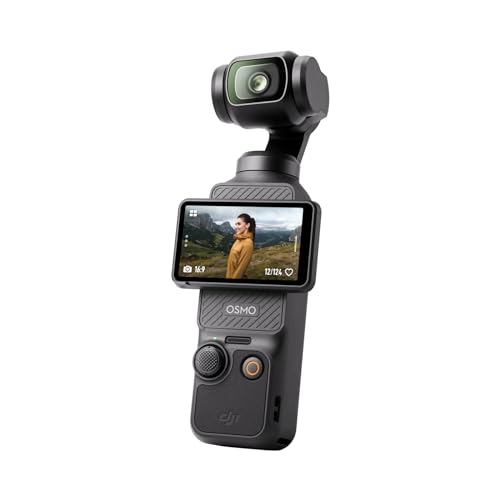
The Pocket 3 is the guide’s beautiful anomaly: a complete gimbal-stabilised camera, small enough for a jacket, that connects to a MacBook as a webcam and then leaves the desk to film the world. Its three-axis gimbal keeps the picture floating-smooth whether it is mounted by the Mac for a call or walking a market for a vlog, and its one-inch sensor produces an image with a depth and low-light calm that embarrasses every true webcam in these pages.
As a Mac camera its party trick is following. The Pocket 3’s subject tracking rotates the gimbal to keep a presenter framed as they move around a desk, a kitchen or a workshop — a pocketable echo of the OBSBOT’s act, performed by a camera that also shoots the weekend. In webcam mode it presents to macOS as a standard camera, and DJI’s ecosystem of wireless microphones pairs with it for creators who record as much as they call.
The desk ritual is its honest tax: it must be mounted, its gimbal wakes with a small ceremony, and a full meeting day asks for USB power rather than its internal battery. Its field of view as a webcam takes its shape from its vlogging lens — wide and immersive — which flatters a room tour more than a tight corporate headshot, though its digital framing options narrow the view respectably. Presenters who move and create will forgive all of this; seated executives should buy the Brio.
What they get in exchange is the only camera here that is two entire products. The call camera that tracked your product demonstration at noon is the travel camera that filmed the evening’s street market at seven, in the same quality, from the same pocket. For MacBook owners whose work and life both happen on camera, that consolidation has a logic no webcam can argue with.
Image character deserves a paragraph of its own: the Pocket 3’s sensor and DJI’s colour produce footage with a polish that clients notice, and its low-light behaviour extends a creator’s working day into the blue hour without a lighting rig. Face-tracking keeps a walking presenter centred and exposed correctly. That is why so many solo creators treat it as a cameraman rather than a camera.
Buy it as a creator first and a webcam second, and it will delight in both roles. Buy it as a webcam alone, and its ceremony will eventually annoy — the guide’s verdicts are consistent on this point across all six picks: match the instrument to the life, and a Mac desk, like any workplace, rewards the honest match above the impressive specification.
For real-estate walkers, language teachers and anyone whose Mac work involves showing spaces, the Pocket 3’s walking shots are a professional category of their own: a property tour, a workshop walkthrough or a studio visit filmed in one smooth take, then presented live or uploaded from the same device. No webcam in this guide can leave the desk to do that job, and no phone gimbal assembles as fast.
- Type: gimbal-stabilised pocket camera
- Mac route: USB webcam mode
- Sensor: one-inch class, strong at dusk
- Tracking: gimbal follows the presenter
- Role: the call-and-create two-in-one
Strengths
- Webcam by day, vlog rig by evening.
- Gimbal tracking for moving presenters.
- Image depth webcams cannot match.
Trade-offs
- Wake-up ceremony for every call.
- Wants USB power for long days.
- Wide view flatters tours, not headshots.
Best for: mobile creators, demonstrators and travelling presenters.
Not suited for: seated professionals wanting a silent, permanent fixture.
How Do the Six Fit a Mac Desk?
All six work with a MacBook; they differ in ritual, and ritual is what a working week feels.
| Camera | Route to macOS | Standout trait | Watch out for |
|---|---|---|---|
| Logitech Brio 4K | Direct USB | Permanent, framed, zero fuss | Needs light and a real mic |
| OBSBOT Tiny 2 | Direct USB plus app | Tracks a standing presenter | Rehearse the tracking once |
| Elgato Facecam | Direct USB plus Camera Hub | Locked, repeatable studio picture | Bring your own microphone |
| Logitech StreamCam | Direct USB-C | Rotates for vertical content | Full HD is the ceiling |
| Sony ZV-E10 II | USB streaming or capture card | Filmic image, local recording | A setup ritual each session |
| DJI Osmo Pocket 3 | USB webcam mode | Gimbal tracking, travels anywhere | Ceremony and wide framing |
What About the MacBook’s Built-In Camera — Is It Really Not Enough?
For a great many owners it is enough, and this guide’s honesty requires saying so at length. Recent MacBook built-in cameras handle casual calls, family chats and internal stand-ups perfectly respectably, especially in good light. The upgrade case is specific: external monitors that leave the laptop closed or off-axis, all-day camera work, presentations and teaching, content creation, and rooms whose light the little lens cannot forgive. If none of those sentences describes your week, spend the money on a chair.
There is also the posture argument, quietly the strongest one for desk workers: a camera on the external monitor or a small tripod sits at eye level, ending the up-the-nostrils built-in angle and the laptop-hunch that accompanies it. Ergonomists and physiotherapists prescribe the elevated screen; the dedicated camera is what makes the elevated screen possible on calls. Health, in the end, may justify what vanity could not.
How Long Will a Dedicated Mac Camera Stay Relevant?
Longer than the laptop it serves, if history is a guide. The USB video standard these webcams speak changes slowly, and a good webcam routinely outlives two MacBooks; the mirrorless and gimbal picks, being cameras first, age on photography’s slower clock rather than computing’s. The risks are software-side — a companion app abandoned by its maker. That is why this guide weighted each brand’s macOS support record as heavily as its optics.
Buy accordingly: the established makers’ flagships are the conservative money, the specialists are the capability money, and both are better value than a cheap camera replaced twice. A Mac desk is a five-year environment. Equip it like one, and the camera question, once answered properly, stays answered — which is the real luxury this category sells.
How Do You Light a Mac Desk So Any of These Cameras Look Expensive?
Face a window if the room allows it, or place a modest panel light where the window would be — slightly above eye level, angled down a few degrees, close enough to be soft. That single source does more for a MacBook call than the difference between any two cameras in this guide, because meeting software compresses detail but preserves the modelling that good light creates. A dim background, a metre or two behind you if the room allows, completes the professional illusion.
Then lock what can be locked. Automatic exposure that breathes every time a cloud crosses is the amateur tell in an otherwise senior grid; the Facecam’s manual discipline is the extreme version of a habit every owner here can practise in their camera’s settings. Set the picture in your real light, save it, and let the meeting be about the meeting — the entire point of a permanent desk camera.
How Should You Set Up macOS for a Dedicated Camera?
Choose the camera once, everywhere: in FaceTime’s settings, in each meeting app’s preferences, and in the browser’s site permissions for web-based tools, so Monday’s first call does not open on the built-in lens while you perform the settings tour live. Keep the companion apps updated alongside macOS itself — the week a system update lands is the week stale camera software chooses to be discovered — and keep a direct cable handy even if a hub carries the camera daily, as the diagnostic that settles every argument.
Audio deserves the same one-time care: select the microphone deliberately rather than accepting the camera’s by default, because several picks here have no microphone at all and macOS will happily route your voice to a silent device with total confidence. A thirty-second test recording in QuickTime, played back before the important call, is the cheapest insurance in this entire guide.
How Do You Run a Two-Camera Setup on One MacBook?
Two USB cameras give a Mac desk the presenter’s favourite trick: a face angle and a desk angle, switched live. The StreamCam overhead plus the Brio on the face is this guide’s natural pairing, and macOS handles both as separate devices that teaching and streaming software can assign to scenes. The disciplines are bandwidth — spread the cameras across the Mac’s ports or a powered hub’s buses — and light, since the desk surface needs its own small source or the hands work in the face light’s shadow.
Rehearse the switch until it is a keystroke rather than a search, and label the cameras in the software with names that mean something at speed. A two-camera lesson that fumbles its angles teaches only the fumbling; the same lesson, directed calmly, feels like a production several times its budget. Start with the second camera on recorded lessons, where mistakes are editable, and promote it to live calls when the choreography is boring.
Which Mac Camera Mistakes Do Owners Keep Making?
Buying resolution for a pipeline that discards it is the first. A 4K webcam’s value on a Mac desk is cropping headroom and future-proofing, not the meeting’s actual transmitted picture, which the app will compress to its own ceiling regardless. Owners who understand that buy the Brio happily for the right reasons; owners who expect a 4K transformation inside Zoom blame a good camera for a platform’s arithmetic.
Ignoring the hub is the second. The camera that worked on the shop’s direct connection stutters through an elderly unpowered hub sharing a bus with two drives and a monitor, and the owner concludes the camera is faulty on the morning of the interview. Test the exact chain — hub, cable, port — the day the camera arrives, keep a known-good direct cable in the drawer, and the mystery category of ‘webcam issues’ mostly evaporates.
Forgetting audio is the third, and the Facecam’s honesty about it should be contagious. macOS will route sound to whatever was selected last, cameras with microphones are rarely the best microphones in the room, and the MacBook’s own array is often better than a webcam’s. Decide the microphone deliberately, test it in QuickTime, and the most common professional embarrassment — the silent, miming first minute — leaves your repertoire permanently.
The last mistake is buying against the iPhone without meeting it. Continuity Camera is free, already owned and genuinely capable; a dedicated camera should be bought to beat it on a named axis — permanence, tracking, depth, stamina — not from a vague sense that a product must outperform a feature. Owners who name their axis choose well from this guide. Owners who cannot name one should mount the iPhone, bank the money, and revisit the question when the axis appears.
What Does the Ideal Mac Desk Setup Look Like in Practice?
It looks boring, which is the point. A camera at eye level on the monitor, framed once and never again; a light that switches on with the desk; a microphone whose position is marked by habit; a Mac that wakes to find every device exactly where yesterday left it. The first call of the day opens on a picture that took zero decisions, and the professional impression that picture makes is really an impression of the system behind it — calm, prepared, permanent.
Build toward that boring ideal in the order this guide implies: position first, light second, the camera third, and the finer controls last. Every pick above can anchor the finished desk; they differ only in which extra talent — tracking, rotation, depth, travel — rides along with the permanence. Choose the talent your week will actually use, install the system once, and let the Mac desk disappear into the work it was built for.
Final Recommendation
Start with the honest default. Most MacBook professionals should buy the Brio, light the desk, and close the question for five years. Presenters who move should take the Tiny 2’s tracking; control-minded desk owners, the Facecam’s locked picture; creators who publish vertically, the StreamCam’s rotation. When the picture itself is the product, step up without guilt to the ZV-E10 II’s lens or the Pocket 3’s travelling gimbal, and enjoy being the window everyone in the grid quietly envies.
And if none of those needs is truly yours yet, mount the iPhone with a clear conscience. The best camera for your MacBook is the one matched to the work — this guide’s six are simply the matches that survive contact with a real working week, a real hub, and a real macOS update, which is the only testing that ever mattered.
Related guides
Frequently Asked Questions
Will these cameras work with FaceTime and the browser meeting tools?
Yes — the webcams here present themselves to macOS as standard video devices, so FaceTime, Zoom, Teams, Meet in a browser and the rest all see them without drivers. The mirrorless Sony joins through USB streaming or a capture card, and the Pocket 3 through its webcam mode; both then behave as ordinary cameras to every app. If an app ever opens on the wrong camera, the fix is its own video settings menu, where the device is chosen once and remembered.
Do I need a capture card for the Sony ZV-E10 II on a Mac?
Only for its full quality. USB streaming mode is enough for calls and casual streaming, at reduced specification, with the virtue of one cable. The capture card route — HDMI out of the camera, USB into the Mac — delivers the body’s real picture for recording-grade webinars and streams. Many owners start on USB and add the card when their channel’s ambitions justify it; the camera supports the growth without being replaced.
Why does my camera stop working through my USB hub?
Bandwidth and power, usually in that order. Cameras are continuous, unforgiving USB citizens, and an unpowered hub sharing its bus with drives and displays can starve one into stuttering or vanishing after sleep. Remedies in order: a powered hub, a shorter quality cable, a different port, and — for diagnosis — a direct connection to the MacBook, which settles whether the camera or the chain is at fault. The Brio and Facecam are among the more hub-tolerant picks here; the direct-cable drawer habit serves them all.
Can I use Desk View without an iPhone?
Not Apple’s version — Desk View is a Continuity Camera feature built on the iPhone’s wide lens and Apple’s processing. Dedicated cameras answer differently: the OBSBOT’s presets tilt down to the desk on command, the StreamCam works overhead as a second camera, and the Pocket 3’s gimbal looks down and tracks. For most teaching, a directed view of the desk beats an automatic one, but if your work is unboxing-style top-down demonstration all day, the iPhone’s trick remains a genuine reason to keep it in the setup.
Which of these is best for recording courses on a Mac?
The ZV-E10 II, for its local full-quality recording, lens choice and eye-tracking across long lessons — with the Pocket 3 as the mobile alternative for creators who teach in several locations. Among pure webcams, the Facecam’s locked exposure and the Brio’s cropping headroom serve talking-head courses well. Whichever you choose, record a full lesson as a rehearsal before enrolment opens; course production punishes untested chains at exactly the scale of your launch week.
Will a dedicated camera slow my MacBook down?
No — the cameras here either deliver a ready video feed over USB or, in the mirrorless case, hand encoding to your streaming software, which is the same load any source imposes. Very high-resolution webcam modes add a modest stream of data the Mac handles without noticing. If a Mac ever feels burdened on calls, the culprits are likelier to be the meeting app’s own effects, a dozen browser tabs, or a hub negotiating badly — in roughly that order of probability.
Can I use two of these cameras at once on a Mac?
Yes — macOS accepts multiple USB cameras, and streaming or teaching software can switch between them as scenes. Keep the pair on separate ports or a powered hub to protect bandwidth, set each camera’s role in the app’s preferences, and test the full arrangement before a live session. The Brio plus StreamCam pairing described in this guide is the common pattern: face and desk, one keystroke apart.
When does using an iPhone as a webcam beat buying a separate camera?
Occasional callers usually win with the phone route, because Continuity Camera turns a device already in your pocket into a sharp webcam without another purchase, cable drawer or learning curve. Image quality from a recent iPhone embarrasses most laptop cameras, and the desk view trick adds a second angle for showing sketches, products or paperwork. Daily presenters feel the drawbacks first, since the phone becomes unavailable for messages, authentication codes and quick notes while it sits clamped above the screen. Long calls warm the handset and drain its battery, making a plugged-in dedicated camera the calmer choice for teaching days or back-to-back meetings. Households sharing one Mac benefit from a permanent camera that simply stays in place, sparing everyone the ritual of mounting and pairing before each call. Borrow the phone arrangement for a fortnight of real meetings before deciding, noting every moment you reached for the handset and found it busy being your camera. Buy dedicated hardware only when those interruptions repeat, and the purchase becomes a response to evidence rather than desk envy.
Related Guides
Complete the Mac desk with USB microphones that make MacBook calls sound professional, arrange the light with desk lighting for video calls: small rooms, real budgets, and compare the free route honestly in Continuity Camera: a complete guide for iPhone and Mac owners.