Working out how to fix 5g not working on a phone starts with defining not working, because three different problems share that complaint. Sometimes the 5G icon never appears anywhere. Sometimes it appears but speeds are plainly 4G-class. And sometimes 5G connects, then drops, stutters, or drains the battery like it is powering a small city. Each pattern has different likely causes, and the good news is that the overwhelming majority trace back to settings, software, SIM, or plan — all fixable from your chair — rather than a broken phone.
Before touching anything, run the cheapest diagnostic in this guide: go outside, in a place your carrier map shows as covered, and look. Building interiors defeat mid-band signal so reliably that half of all 5G-is-broken reports are really architecture reports. With that confirmed, work the steps in order — they run from the two-minute toggles to the carrier call you make armed with evidence.
Disclosure: As an Amazon Associate, kajuandouglas.com earns from qualifying purchases. Links to Amazon on this page are affiliate links; they cost you nothing extra. Listing details such as price and availability change often, so check the current Amazon listing before you buy.
Gear for This Guide
Verified gear for the troubleshooting bench and for the replacement verdict, if it comes to that.
Anker Nano 65W GaN II PPS USB C Charger, Fast Compact Foldable Charger — Not a network fix, but the companion every troubleshooting session deserves: updates, resets, and test circuits drain batteries, and a fast GaN charger keeps the patient alive while you work. Check price on Amazon.

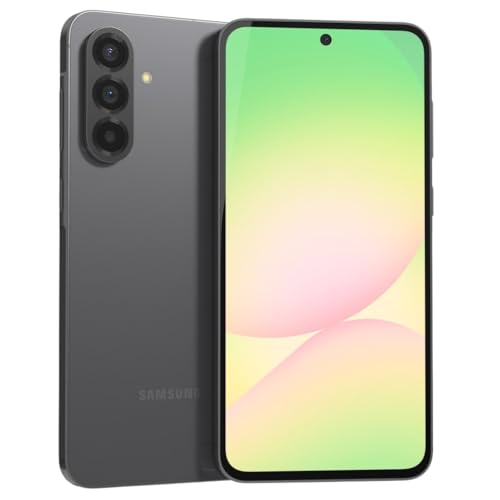
OnePlus 12R, 8GB RAM+128GB, Dual-SIM, US Factory Unlocked Android Smartphone, 5500 mAh Battery, 50MP Camera, 80W Fast Charging, 2024, Iron Gray — If your diagnosis ends at the phone itself, this unlocked dual-SIM model is the sensible replacement profile — broad bands, current software, and a second SIM slot for the side-by-side test that proves faults. Check price on Amazon.
In this guide
Likely Causes, Most Common First
You are not actually in mid-band coverage
The most common cause of all: your location has low-band 5G (which feels like 4G), or no 5G, whatever the nationwide map in the advertisement implied. Coverage is an address-level fact, and indoor locations subtract heavily from it.
Network mode is set to a 4G-preferring option
Phones ship or get set — sometimes by a battery-saving choice made months ago and forgotten — to modes that prefer LTE. The phone obeys perfectly and never reaches for 5G, and the owner blames the network.
Software or carrier settings are out of date
Modem firmware and carrier configuration arrive through system updates. A phone several updates behind can mishandle bands, cling to the wrong layer, or miss a network feature entirely — a software problem wearing a hardware costume.
The plan or account lacks full 5G provisioning
Older plans, some basic tiers, and plain account errors can leave a line provisioned for 4G-era service. The phone and tower are willing; the account paperwork is not.
An old SIM is limiting the line
SIMs from the early 4G era occasionally lack what a modern line needs on some carriers. Rare, real, and cured free at any carrier store or by moving to eSIM.
A case, a VPN, or data-saver is interfering
Metal-heavy cases can dull reception at the margins, VPNs can throttle or route speed tests oddly, and data-saver modes can strangle the very traffic you are testing with. Individually minor; collectively a classic wild-goose chase.
How to Fix 5G Not Working on a Phone: Step-by-Step Fixes
Step 1: Verify location like a scientist
Check your carrier coverage map for your exact address and tier, then test outdoors at that address and at one other mapped location — a main street or a friend address across town. Watch the status bar for the 5G icon and run a speed test at each spot. If 5G appears and performs at even one location, your phone works, and your problem is coverage at the places that failed — a completely different conclusion, reached in ten minutes. Record the results; every later step, and any carrier call, runs on this evidence.
Step 2: Toggle the radios: airplane mode and restart
Turn Airplane mode on for twenty seconds, then off. This forces a fresh network registration and clears a stuck connection state more often than any other single action in mobile troubleshooting. If the icon still hides, restart the phone fully. These two moves sound like support-script filler because they are in every support script — they earned their place by ending a large fraction of all mobile network complaints, including this one.
Step 3: Set the network mode to full 5G
Open Settings, Network and internet, your SIM, and find Preferred network type or the 5G setting. Select the maximum option — 5G On, or the choice listing 5G first among the network generations. If you find it set to a 4G/LTE-preferred or battery-saving mode, you have very likely found your culprit; someone, possibly past-you, chose battery over speed. Leave it on full 5G for your testing, then decide later whether an Auto mode suits your daily map better.
Step 4: Install every update, then check again
Go to Settings, System, Software update, and install everything, restarting as asked — then check a second time, because carrier-settings and modem updates sometimes queue behind the main one. Update your carrier app if one exists. Software is the invisible half of your radio; a phone current on patches behaves measurably differently on modern networks than the same phone six updates behind. Retest outdoors afterward, same spots as step one, so you are comparing like with like.
Step 5: Interrogate the plan, the SIM, and the account
Open your carrier account and confirm the plan includes 5G access at the tier you expect — and that your line shows as a 5G device line. If your SIM predates your last two phones, replace it: free at a carrier store, or switch to eSIM in settings or the carrier app and delete the variable permanently. If everything looks right and 5G still never appears in proven coverage, call the carrier and ask them to check the line provisioning — account-side errors are invisible from the phone and instantly fixable from their console.
Step 6: Strip the variables: case, VPN, data-saver
Test once with the case off — especially if it contains metal or a magnetic plate positioned over the phone back. Disconnect any VPN and retest, since VPN routing can make a fast connection test slow. Turn off Data Saver and any battery mode that restricts background or network behavior during tests. One variable at a time, one outdoor retest each: you are running an experiment, and changing three things at once teaches you nothing about which one mattered.
Step 7: Reset network settings — the deep clean
If 5G still refuses, reset network settings: Settings, System, Reset options, Reset mobile network settings (wording varies). This wipes saved Wi-Fi networks, Bluetooth pairings, and network preferences back to factory — annoying to rebuild, harmless to data, and genuinely effective against corrupted network configuration that no toggle reaches. Reconnect to your Wi-Fi, re-pair essentials, set the network mode to full 5G once more, and run your outdoor test circuit a final time before concluding the problem lives outside the phone.
Diagnostic Table: Symptom to Suspect
Find your row first. The table is the shortcut version of the whole article.
| Symptom | Most likely suspect | Your move |
|---|---|---|
| No 5G icon anywhere, ever | Network mode, provisioning, or SIM | Steps 3, 4, then 5 — in that order |
| 5G icon appears, speeds feel like 4G | Low-band connection or congestion | Test outdoors at a mapped mid-band address; check the band if curious |
| 5G works outdoors, dies indoors | Building attenuation — physics | Wi-Fi calling at home; weight low-band in future carrier choices |
| 5G connects then drops repeatedly | Fringe coverage or outdated modem software | Update everything; Auto mode may serve you better than full 5G |
| 5G fast but battery drains hard | Weak-signal modem strain | Smart/Auto 5G mode; the network, not the phone, is the cost |
| Worked yesterday, gone today | Outage or a settings change | Check carrier outage reports; airplane toggle; restart |
When to Get Professional Repair or Replace It
Call the carrier — with your step-one evidence in hand — when 5G never appears in verified coverage with settings correct, updates current, and the account confirmed. At that point the fault is provisioning, a tower issue, or a defective radio, and all three are theirs to fix or replace under warranty. Escalate to a hardware service visit if the phone also fails on another carrier SIM or trial eSIM where a known-good phone succeeds side by side; that comparison is the cleanest proof of a hardware fault that exists, and shops and carriers both respect it.
Replace rather than repair when the phone is out of warranty with a confirmed radio fault and the quote nears replacement value — or when the model has aged out of security updates anyway, making any repair a stay of execution rather than a cure. A working 4G-only life is also a legitimate choice for a phone whose owner lives beyond mid-band maps; not every fault needs fixing at any price.
Prevention: Keeping It From Happening Again
Keep system and carrier settings updated automatically — most 5G weirdness is old software meeting a young network, and the updates are the peace treaty.
After any settings spring-cleaning or battery-optimization spree, glance at the network mode. The 4G-preferring toggle is the most common self-inflicted 5G outage there is.
Know your map. Save your carrier coverage result for your addresses, and recheck after moves or job changes — half of prevention is simply not expecting mid-band where none was ever promised.
Keep the SIM current. When you change phones, take the carrier fresh SIM or eSIM rather than faithfully migrating a card old enough to have opinions.
Looking More Closely at the Details That Decide It
Most discussions of diagnosing a phone that will not use 5G properly, in a safe and logical order stay at the level of headlines, yet the outcome is usually decided by smaller details that only appear once you live with the decision. Three of those details deserve attention before anything else: cases or surroundings that weaken an already marginal signal, signal hunting that drains the battery and heats the phone, and low-band connections that are working but feel unremarkable. None of them looks dramatic on a specification sheet. Software updates matter more than their changelogs suggest, since modem firmware and carrier settings updates quietly repair band and registration bugs, because modem firmware hides inside updates people postpone for weeks.
Start with cases or surroundings that weaken an already marginal signal. And keep the habit of testing in a known-good place first, which converts most future panics into five-minute checks, because modem firmware hides inside updates people postpone for weeks. Congestion imitates failure at busy hours, so repeat the test early in the morning before concluding anything is broken, so note the time of day, since congestion keeps office hours. Battery saver and low data mode deserve the same suspicion, especially after an update quietly re-enabled them.
Points to keep in mind
- Judge cases or surroundings that weaken an already marginal signal in your own setting before trusting a general verdict.
- Treat signal hunting that drains the battery and heats the phone as a first-order factor, not a footnote.
- Use the phone for a full normal day before declaring victory.
Then consider signal hunting that drains the battery and heats the phone. Indoor faults vanishing at windows are physics, not handset defects, so note the time of day, since congestion keeps office hours. A phone that connects to 5G but stalls under load may be clinging to a distant cell, and moving a few metres can prove the point instantly. Keep notes as you go, one line per change with the result, because changing three settings at once teaches you nothing about which one mattered, because modem firmware hides inside updates people postpone for weeks.
Finally, weigh low-band connections that are working but feel unremarkable alongside the first two rather than in isolation. Until then, work the steps in order and let each result choose the next step for you. A mature decision about 5G fault diagnosis names that trade-off out loud. Keep the phone updated after the fix, because the same modem bugs are exactly what maintenance releases exist to close, so screenshot the working settings once you find them.
How This Plays Out in Real Situations
Abstract advice becomes useful when it meets a real household, so consider a dual-SIM user whose work line behaves differently from the personal line. Congestion keeps office hours, so test early to acquit it, so screenshot the working settings once you find them. A VPN has ended more 5G investigations than any tower fault, so screenshot the working settings once you find them. Test somewhere 5G definitely works before blaming the phone itself, so screenshot the working settings once you find them.
Contrast that with a phone that showed 5G before an update and now stays on 4G. A full normal day of use is the only verdict that counts. When the swap blames the phone in a known-good location with a known-good SIM, a repair conversation is justified and your evidence will speed it up. This is why copying a friend’s conclusion about 5G fault diagnosis so often disappoints: the friend optimised for a life that is not quite yours, with rooms, routines and patience that differ from your own.
Points to keep in mind
- When 5G stops working, change one setting at a time so the actual culprit reveals itself.
- Follow another owner’s fix order to find candidates, then prove each step on your own phone.
- Toggle airplane mode on for thirty seconds, then off again.
A third pattern appears with a traveller returning from abroad to a phone stuck in odd network behaviour. Retest the original failing task in the original place afterwards, so screenshot the working settings once you find them. If 5G works in town but never at home, the phone is probably healthy and the home address simply lacks the layer you expected, so screenshot the working settings once you find them. One change at a time, logged honestly, beats frantic menu-diving every time.
There is also the quieter case of a new handset that has never displayed 5G at home or work. The stubborn minority usually trace back to account provisioning, which is why involving the carrier earlier beats a third evening of menus. When that day passes without a dropout, the fault is fixed in the only sense that matters, because modem firmware hides inside updates people postpone for weeks. Name the exact symptom precisely before touching any setting today, because modem firmware hides inside updates people postpone for weeks.
A Practical Method You Can Repeat
When opinions conflict, a repeatable method settles the question of diagnosing a phone that will not use 5G properly, in a safe and logical order better than another hour of reading. The method has four moves. First, verify which SIM is the default data line on dual SIM phones. Second, gather evidence in that exact setting. Third, change or compare one variable at a time. Fourth, change one variable at a time and log the result of each.
In practice that means actions such as these: change one setting at a time and note the result before moving on; compare with another handset on the same carrier at the same spot; and test outdoors in known coverage to separate location from handset faults. Each is deliberately unglamorous. The SIM swap test separates account faults from handset faults cleanly. Switch the VPN off for one test run, because an overloaded VPN server has ended more 5G investigations than any tower fault. Then use the phone normally for a day before declaring victory, since intermittent registration faults love to return after an hour of confidence.
Points to keep in mind
- keep screenshots and times ready if you need to raise the issue with the carrier
- restart and toggle radios before reaching for deeper resets
- back up important information before any reset that removes network settings
Equally important is what to record. Useful notes for 5G fault diagnosis include the date and time, the place, what else was happening at the time, and a simple verdict in your own words. If 5G returns but battery drains unusually, watch whether the phone is hunting between cells at a fringe, which is a location problem wearing a battery costume. Reset network settings last, not first, in the whole repair sequence, and the swap test will tell you which side of the counter to argue with.
Check the plan’s 5G access before dismantling any phone settings. Heat throttles radios just as surely as it throttles processors, so screenshot the working settings once you find them. Most people do not need more information about 5G fault diagnosis; they need their own information, gathered calmly in their own setting, and this method is simply a way of collecting it without drama.
Living With the Decision Over Time
The first week with any choice about diagnosing a phone that will not use 5G properly, in a safe and logical order is a poor predictor of the first year. An ancient SIM can quietly cap what a modern phone joins. Start any 5G fault by naming the symptom precisely, because no icon at all, an icon with no data and data that crawls are three different faults with three different fixes, which is why one change at a time beats three hopeful changes together.
Long-term satisfaction usually rests on unexciting qualities connected to VPN, data-saver and private-relay features shaping test results and SIM age and account provisioning behind a missing 5G service. The airplane mode toggle fixes more faults than any menu, so screenshot the working settings once you find them. Data saver modes, VPNs and private relay services can throttle or reroute traffic in ways that feel like a broken 5G connection, so screenshot the working settings once you find them. Access point name settings occasionally corrupt or mismatch after updates or SIM swaps, and comparing them with the carrier’s published values takes minutes.
Points to keep in mind
- After fixing it, schedule monthly software updates, since stale firmware revives many 5G faults.
- Owners who fixed 5G once often say a carrier settings update, not hardware, was responsible.
- Repeat these checks after every major system update, travel abroad, or SIM card swap.
Maintenance deserves a plan rather than good intentions. A borrowed SIM separates phone faults from account faults in one move, since your SIM in another phone and another SIM in yours cannot both blame the same side. Field test mode turns guessing into diagnosis, showing whether the phone can see a 5G cell at all and how strong and clean that signal is, so screenshot the working settings once you find them. In the context of 5G fault diagnosis, that plan mainly means keeping an eye on a factory reset as a last resort rather than a first response before it turns into a bigger problem.
Finally, disable the VPN and data saver for one clean test run. Moving home, changing work, a new household member or a new device can all reorder the priorities around 5G fault diagnosis. Field test figures turn vague complaints into actionable support evidence, so screenshot the working settings once you find them. Heat throttles radios as well as processors, so a phone that loses 5G in a hot car mount may recover completely once it cools.
Mistakes to Avoid and Signs You Chose Well
Most faults yield to the toggle, restart, setting or SIM. One is this: testing through a VPN and treating the result as raw network performance. Another, just as common, is the opposite excess — assuming a missing icon always means a broken phone. And a third, quieter error is leaving 5G disabled after a temporary workaround and forgetting to recheck. A VPN has ended more 5G investigations than any tower fault. A second SIM or dual SIM setup can confuse the data path, with the phone honouring the wrong line’s restrictions until the default data SIM is set correctly.
Avoiding them does not require expertise, only a pause. What happens with your SIM in a borrowed phone, and with a borrowed SIM in yours, the swap that separates account from handset? Have you checked the preferred network type, the data switch and the plan itself before suspecting the hardware? What am I assuming about a factory reset as a last resort rather than a first response that I have not verified? Ten minutes of hostile questioning, aimed at your own favourite option, is the cheapest insurance available in the whole process of diagnosing a phone that will not use 5G properly, in a safe and logical order.
Points to keep in mind
- Update the system software and the carrier settings separately.
- Judge success by quiet, ordinary evidence over several weeks.
- Try small corrections before concluding that replacement is necessary.
How will you know the decision was right? Watch for ordinary evidence: whether calls, messages and data all work, not just a speed test; whether the icon and behaviour change in a known strong-coverage spot; and whether the fault follows the phone, the SIM or the location when you swap variables. None of these announces itself with fanfare. Back up or note your Wi-Fi passwords before that reset, because the inconvenience people remember is rejoining networks, not the reset itself. If the fault began with an update, search the carrier and manufacturer forums for the version number before resetting anything, because you may not be alone.
Reset network settings last, not first, in the whole repair sequence. Many disappointments with 5G fault diagnosis yield to a small correction — a setting, a position, a habit, an accessory — rather than a complete replacement. Field test figures turn vague complaints into actionable support evidence. Check which line is set as the default for mobile data whenever two SIMs or eSIMs share the phone. Indoor faults vanishing at windows are physics, not handset defects.
One More Round of Checks Before You Settle
A phone that sees no 5G cell in a strong area points toward settings, SIM or account, while a phone that sees a weak cell points toward coverage. It concerns temporary mast work or local outages that mimic a handset fault and carrier settings and software updates changing radio behaviour, two aspects that reveal themselves slowly. Resetting network settings is the nuclear option that earns its place late in the process, wiping saved Wi-Fi and Bluetooth pairings along with the fault. The humble airplane mode toggle remains the fastest first step, forcing the phone to drop its current registration and negotiate a fresh connection with the network.
Test somewhere 5G definitely works before blaming the phone itself. A setup for 5G fault diagnosis is a household system, not a personal gadget, and other people’s routines will find edges yours never touches. Document the working settings with a screenshot, so the next update or reset cannot take the solution away from you. When the swap blames the account, only the carrier can fix it, and your notes about when the fault started become the valuable thing, because modem firmware hides inside updates people postpone for weeks.
Points to keep in mind
- Read the serving cell and signal figures in field test mode.
- Note the exact fix that restored your 5G, taped inside a drawer for next time.
- Check the plan includes 5G access before blaming the handset.
Then stop optimising. The goal is not merely a returning icon but a connection that survives your normal day, at home, at work and on the road between them. A full restart does what the toggle cannot, clearing stuck radio states and half-finished network handovers that survive for days. Retest the original failing task in the original place afterwards. That swap test is the single most informative step in this whole guide, and it takes less time than most settings menus, so screenshot the working settings once you find them. With 5G fault diagnosis, that stopping point usually arrives once whether the fault follows the phone, the SIM or the location when you swap variables stops changing from week to week.
Worked Examples That Make the Trade-Offs Concrete
Name the exact symptom precisely before touching any setting today. Imagine a dual-SIM user whose work line behaves differently from the personal line. Check the plan’s 5G access before dismantling any phone settings, so screenshot the working settings once you find them. Yet the binding constraint in that picture is usually cases or surroundings that weaken an already marginal signal, and no amount of spending elsewhere relaxes it. Data itself must be switched on and not exhausted, because a spent allowance or a carrier-side throttle can imitate a 5G failure almost perfectly.
What to watch for
- Compare APN values with the carrier’s published settings.
- Repeat the test early in the morning to rule out congestion.
- Reseat the physical SIM, or re-add the eSIM profile cleanly.
Now change one variable: imagine a phone that shows the icon yet stalls whenever a large download starts. Congestion imitates failure at busy hours, so repeat the test early in the morning before concluding anything is broken. This is the single most transferable lesson in the whole subject of diagnosing a phone that will not use 5G properly, in a safe and logical order: context is not a detail around the decision, it is the decision. Location decides whether there is a fault at all, so test outdoors on a street where 5G is known to work before condemning the handset.
A third example works as a warning. Picture a household that skipped the early checks, committed quickly, and spent the following month applying fixes for ignoring account or plan problems because the handset is new and then for opening the device or attempting repairs that belong to a qualified technician. Heat throttles radios just as surely as it throttles processors. The cost was not only money; it was confidence. The airplane mode toggle fixes more faults than any menu. Indoor faults that vanish at the window are coverage physics rather than handset defects, and Wi-Fi calling is the honest remedy at home.
Use these examples as templates rather than stories. When that day passes without a dropout, the fault is fixed in the only sense that matters. And keep the habit of testing in a known-good place first, which converts most future panics into five-minute checks. Look at the plan before the phone, as some plans exclude 5G access or reserve it for particular tiers, and no handset setting can override an account restriction. Applied to 5G fault diagnosis, the detail that most often changes the conclusion is dual-SIM rules that limit which line can use 5G.
A Decision Flow When You Feel Stuck
Indecision about 5G fault diagnosis usually means two good criteria are pulling in opposite directions, not that you lack information. When that happens, stop researching and start ranking. Change one variable at a time even when it feels slow, since the methodical path usually reaches the answer before the frantic one. Check the preferred network type setting next, since a phone set to 4G only, or left in an unusual mode after travel, will never find 5G until the setting allows it, and log the result in one line before you touch anything else.
What to watch for
- Retest the original failing task in the original place.
- Swap SIMs with a borrowed phone to isolate the fault side.
- If resets and updates both fail, suspect the SIM or account provisioning before replacing hardware.
Next, apply a simple elimination pass connected to temporary mast work or local outages that mimic a handset fault. Cases and mounts rarely block modern antennas outright, but a metal-heavy case changed at the same time as the fault deserves one test without it, and the swap test will tell you which side of the counter to argue with. This pass is often brutal and always useful. Congestion keeps office hours, so test early to acquit it, and field test figures shorten any carrier call dramatically.
Then test the survivors against whether calls, messages and data all work, not just a speed test and how another SIM or handset behaves in the same place in your own setting, on the same day if you can, so conditions stay comparable. Most faults yield to the toggle, restart, setting or SIM, so screenshot the working settings once you find them. An eSIM profile can carry the same problem in software form, and deleting and re-adding the profile fixes a surprising share of stubborn cases, and the swap test will tell you which side of the counter to argue with.
Is the fault a missing 5G icon, an icon with no working data, or data that connects and then crawls, since each symptom starts in a different place? A fault that affects every phone on the account at the same address is a network story, whatever the first support script suggests. Give the carrier specifics when you call, the addresses, times, field test readings and steps already tried, and the call shortens dramatically. For 5G fault diagnosis, the easiest option to live with is usually the one that handles temporary mast work or local outages that mimic a handset fault with the least fuss.
Seasonal, Household and Long-Term Angles Worth Planning For
Conditions change across the year, and a decision about diagnosing a phone that will not use 5G properly, in a safe and logical order that is tested in only one season carries hidden risk. A physical SIM that predates 5G sometimes limits what the phone can join, and carriers will usually replace an ancient SIM free when asked. When did the carrier last reprovision the line, and is the SIM old enough to predate the network it is now asked to join?
What to watch for
- Consider whether heat, a thick case, or basement rooms coincide with your 5G dropouts seasonally.
- Write the recovery steps plainly enough that a tired family member could follow them alone.
- Keep your carrier support number saved, because repeated 5G outages eventually need network-side help.
Households also change from inside. Reseat a physical SIM with the phone off, because a slightly shifted contact produces intermittent faults that look exactly like network problems. That swap test is the single most informative step in this whole guide, and it takes less time than most settings menus, and field test figures shorten any carrier call dramatically. When you evaluate 5G fault diagnosis, spend one minute imagining the least technical person in your life facing it alone. That minute is a surprisingly accurate quality test.
An ancient SIM can quietly cap what a modern phone joins, so screenshot the working settings once you find them. A local outage imitates it better still, and the carrier’s status page or a neighbour on the same network settles that question in minutes, so screenshot the working settings once you find them. Most users should let the carrier reprovision the line rather than editing APN values by hand, since a single wrong field breaks data entirely. Keep the phone updated after the fix, because the same modem bugs are exactly what maintenance releases exist to close. With 5G fault diagnosis, the recurring effort worth counting most honestly is the effort tied to cases or surroundings that weaken an already marginal signal.
Finally, think about the exit before you need it. After your fix, did the original failing test pass in the original place, or only somewhere more convenient? Software updates matter more than their changelogs suggest, since modem firmware and carrier settings updates quietly repair band and registration bugs. That is not pessimism; it is what turns one purchase into accumulated household knowledge, so the next decision about 5G fault diagnosis starts from experience instead of from a search box.
Questions Worth Asking Before You Spend Anything
The SIM swap test separates account faults from handset faults cleanly, so screenshot the working settings once you find them. First: does the problem vanish early in the morning, which would convict congestion rather than any setting on the phone? On many phones the carrier settings update arrives separately from the main system update, so check for both rather than assuming one covers the other. Solutions chosen for a life-shaped problem age far better than solutions chosen for a catalogue-shaped one, especially with 5G fault diagnosis.
What to watch for
- Restart the phone fully before changing any deeper setting.
- Reset network settings only after noting your Wi-Fi passwords.
- Test outdoors at a location where 5G definitely works.
Second: what evidence do I already have? A full normal day of use is the only verdict that counts, so screenshot the working settings once you find them. One change at a time, logged honestly, beats frantic menu-diving every time, because modem firmware hides inside updates people postpone for weeks. Data saver modes, VPNs and private relay services can throttle or reroute traffic in ways that feel like a broken 5G connection. Most 5G faults yield to the early steps, the toggle, the restart, the setting, the SIM, and reaching the reset should feel like the exception. For 5G fault diagnosis, that existing evidence usually includes what you already know about a factory reset as a last resort rather than a first response in your own setting.
Third: is a VPN, data saver or battery saver quietly rerouting or throttling the connection you are trying to diagnose? After any successful fix, repeat the original failing test in the original place, because a fix that only works somewhere else has fixed nothing. A choice with a calm answer to that question, involving steps like keep screenshots and times ready if you need to raise the issue with the carrier, is worth more than a choice with a slightly better specification and no answer at all. If 5G works in town but never at home, the phone is probably healthy and the home address simply lacks the layer you expected.
Fourth, and last: who else should have a say? Decisions about diagnosing a phone that will not use 5G properly, in a safe and logical order often affect people who were not in the room when the research happened, and their late objections can sink an otherwise sound setup. Battery saver and low data mode deserve the same suspicion, especially after an update quietly re-enabled them, which is why one change at a time beats three hopeful changes together. Document the working settings with a screenshot, so the next update or reset cannot take the solution away from you, because modem firmware hides inside updates people postpone for weeks.
Related Guides
- best 5g phones for t mobile
- best phones for 5g
- best 5g phones under 200
- best weather app for android phones
- best android phones for business
- what is 5g and do you need it
- 5g bands explained
- how to choose a 5g phone
Frequently Asked Questions
Why does my phone show 5G but test at 4G speeds?
Because the icon reports the connection family, not the band. On low-band 5G — the coverage layer — speeds are 4G-class by design. Congestion, indoor attenuation, a VPN, or a deprioritized plan tier can produce the same result on any band. Test outdoors in a mapped mid-band area with VPN off; if speeds jump, your phone was never broken — it was reporting geography. If they never jump anywhere, work the steps: mode, updates, SIM, plan.
Can a phone case really block 5G?
A case cannot block a strong signal, but at the margin — fringe coverage, a hand over the antenna lines, a case with metal or a magnetic mount plate — it can tip a borderline connection down a layer. That is why the case-off test is in this guide: not because cases are a common cause, but because the test costs thirty seconds and eliminates a variable that otherwise haunts the whole diagnosis. Everyday plastic and silicone cases are innocent; test anyway.
What does resetting network settings delete?
Saved Wi-Fi networks and passwords, Bluetooth pairings, and mobile network preferences — you will rejoin Wi-Fi and re-pair your earbuds and car. It does not touch photos, apps, accounts, or messages. It is the deepest network fix available to you and the correct last step before involving the carrier, because corrupted network configuration is real and no lesser toggle reliably reaches it. Screenshot any custom APN settings first if you ever set them.
My 5G worked until an update. Now it does not. What happened?
Occasionally an update resets a preference — network mode is the usual one — or ships a modem quirk that a follow-up patch fixes. Check the network mode first, then check for a further update; staying current is the cure as often as the cause. If the timing is exact and your settings are clean, search your carrier or manufacturer support forum for your model: a known issue will be visible there within days, usually with a fix date attached.
Should I just turn 5G off and use 4G?
If your addresses lack mid-band and your battery suffers from the modem hunting, yes — that is a rational configuration, not a surrender. Plenty of owners in low-band country run LTE-preferred modes happily. Revisit the choice when your map changes or your phone does. The only wrong answer is leaving the phone in a mode by accident; whichever mode you run, run it on purpose, knowing what it trades.
How do I prove to my carrier that the problem is real?
Bring the evidence this guide builds: dates, times, and addresses of outdoor tests in mapped coverage; the speed results; your phone model, software version, and patch date; and the steps already taken — mode checked, updates installed, SIM current, network settings reset. Support conversations transform when the caller has done the script in advance. If a second phone on the same account works at the same spot, say so — that comparison isolates the fault better than any adjective.
How much troubleshooting time should I allow before calling my carrier?
For most households, a focused week of ordinary use tells you more than a month of occasional reading about diagnosing a phone that will not use 5G properly, in a safe and logical order. A local outage imitates it better still, and the carrier’s status page or a neighbour on the same network settles that question in minutes. An eSIM profile can carry the same problem in software form, and deleting and re-adding the profile fixes a surprising share of stubborn cases.
What should I try first if a fix works briefly, then 5G drops again?
Return to the simplest explanation before replacing anything. Recheck the basics connected with dual-SIM rules that limit which line can use 5G, repeat your most reliable test in your most familiar setting, and change one variable only. Then use the phone normally for a day before declaring victory, since intermittent registration faults love to return after an hour of confidence, so screenshot the working settings once you find them.
Is upgrading my plan or phone worth it to restore working 5G?
Only when the higher tier improves something your own routine actually stresses, such as network-mode settings that quietly prefer 4G. When the swap blames the account, only the carrier can fix it, and your notes about when the fault started become the valuable thing. Cases and mounts rarely block modern antennas outright, but a metal-heavy case changed at the same time as the fault deserves one test without it.