The chromebook vs windows laptop for students choice looks like a simple price comparison and is actually a question about what kind of computer your course needs you to own. Chromebooks run ChromeOS: fast, simple, secure and inexpensive machines built around the browser, with superb battery life and almost no maintenance. Windows laptops run the full traditional desktop: every application your department might name, every peripheral, every game, at prices from budget to premium. For a browser-based course the Chromebook is often the smarter buy even for students who could afford more. For a course with named desktop software, the Windows machine is not a preference but a requirement. This comparison works through coursework, apps, battery, longevity and total cost so you can match the platform to your actual timetable.
Disclosure: As an Amazon Associate, kajuandouglas.com earns from qualifying purchases. Links to Amazon on this page are affiliate links; they cost you nothing extra. Listing details such as price and availability change often, so check the current Amazon listing before you buy.
Chromebook Vs Windows Laptop For Students: What Matters Most
Choose a Chromebook if your course lives in the browser and documents, you value battery life, simplicity and low price, and you do not need named desktop applications. Choose Windows if your course lists specific software, you need full desktop versions of creative or technical tools, you want to game, or you need one machine to cover unknown future requirements. When in genuine doubt, Windows is the safer default; when your course is confirmed browser-based, the Chromebook is the smarter spend.
| Criterion | Option A | Option B |
|---|---|---|
| Coursework in the browser | Excellent | Excellent |
| Named desktop software | Cannot run it | Runs everything |
| Battery life | Consistently a full campus day | Varies widely by model |
| Maintenance | Automatic updates, minimal upkeep | More updates and housekeeping |
| Price pattern | Low, with few extras needed | Wider range; quality floor costs more |
In this guide
What to Compare Before You Decide
- Your course’s software list, checked before any other comparison
- Whether you need full desktop applications or their web versions suffice
- Your budget including the years you expect the machine to serve
- How you take notes and whether offline work matters on your commute
- Whether you already rely on specific Windows-only tools or games
The Comparison, Criterion by Criterion
Compare how coursework actually runs on each
Most student work, essays, research, learning platforms, email, slides and video calls, runs identically well on both, because it lives in a browser or a mainstream app. The difference appears at the edges: full desktop Office features, specialist statistics, engineering, design and development tools, and some exam or proctoring software assume Windows. List the five tasks you will do weekly and test each against both platforms honestly; the platform that covers all five without workarounds wins this round, and for many humanities and social science students that is genuinely either.
Weigh battery life and daily carrying
Chromebooks are the battery champions of student computing, routinely covering the longest campus day, and they tend to be light and quick to wake. Windows laptops span a wide range: good models match a full day, budget models may not, so judge the specific machine rather than the platform. Both wake fast and charge over USB-C in most modern designs. If your days are long and outlets are scarce, the Chromebook’s consistency here is a real, daily advantage rather than a spec-sheet nicety.
Judge longevity and the support horizon
Chromebooks receive automatic updates until a published end date, often many years from manufacture, but when that date passes the machine stops receiving security updates and should be retired; buy the newest model you can so the clock starts late. Windows laptops are supported as long as their hardware runs a supported Windows version, and they can usually be repaired and upgraded along the way. A well-bought Windows machine commonly serves a whole degree and beyond; a Chromebook bought new can too, provided its update horizon extends past your graduation.
Compare total cost like an adult
Chromebooks win the sticker comparison decisively and need fewer accessories and no security software purchases. Windows machines cost more at the quality level a degree deserves, but they consolidate more roles: coursework, gaming, creative hobbies and part-time work software in one device. Factor what each replaces. A student who would otherwise buy a Chromebook plus a console plus software subscriptions may find the Windows laptop the cheaper household. A student with a desktop at home may find the Chromebook the perfect campus-only tool at a fraction of the cost.
Check offline life and peripherals
Chromebooks have improved offline enormously, with documents, media and many Android apps working away from Wi-Fi, but the platform still assumes connectivity in a way Windows does not. Long train commutes and patchy student housing Wi-Fi are worth an honest thought. Windows also wins peripheral breadth: any printer, scanner, lab instrument or elderly projector just works. Chromebooks handle mainstream printing and USB devices well, but the obscure departmental gadget is a Windows story waiting to happen.
Decide by your uncertainty level
If your course is confirmed browser-based for its whole duration, the Chromebook’s simplicity, battery and price are decisive and you should enjoy them without platform anxiety. If there is any meaningful chance of desktop software, a placement with employer systems, or a change of direction, Windows absorbs that uncertainty completely. Students who switch courses, and many do, are the strongest argument for the flexible platform. Buy for the degree you might have, discounted by how sure you are of the degree you planned.
Protecting the Machine and the Work on It
Student laptops face risks office machines never meet: crowded bags, shared desks, spilled drinks, borrowed chargers and accommodation where doors are not always locked. Physical protection starts with a padded sleeve or a bag with a suspended laptop compartment, and with the habit of never leaving the machine visible in a parked car or an empty library seat. Digital protection matters just as much: full-disk encryption, a screen lock that engages quickly, current updates and two-step verification on the main accounts cover most realistic threats. Find-my-device features should be switched on before they are needed, and the serial number recorded somewhere separate. Backups complete the picture, because protection is not only about stopping loss but about recovering fast when something still goes wrong. A student who can restore files to a borrowed machine in an hour has effectively insured their grades, not just their hardware.
What Student Work Actually Demands From a Laptop
Student computing looks light on paper and is heavier in practice. A typical day stacks a browser with dozens of research tabs, a word processor, a PDF reader, a video call, a learning platform and music, all at once, often on battery, often on congested campus Wi-Fi. That pattern rewards memory and a responsive solid-state drive far more than raw processor muscle, and it punishes machines with small batteries or dim screens used in bright lecture halls. Reliability is the hidden spec: a laptop that fails during exam week costs far more than the difference between two models. Durability, a keyboard that survives four years of essays, ports that match classroom projectors and a charger that is cheap to replace all belong on the checklist beside the processor. Students also keep machines longer than most buyers, so a model that can accept a memory or storage upgrade later holds its value in a way a sealed, minimal configuration does not.
Battery Life, Weight and the Campus Day
A student laptop lives in a bag, not on a desk. Every extra few hundred grams is felt on the walk between buildings, and every hour of real battery life is one less hunt for a free outlet in the library. Advertised battery figures are measured under gentle conditions, so treat them as a comparison tool rather than a promise, and favour machines whose owners consistently report a full class day without charging. Screen size is the trade-off that drives weight: larger panels help with split-screen research and spreadsheets, smaller panels travel better and sip power. Charging over USB-C, where offered, is an underrated convenience because one charger can serve the laptop, phone and tablet, and a borrowed charger in a study group is more likely to fit. Judge these daily-life factors with the same seriousness as benchmark numbers, because they decide whether the laptop is present and usable when the work actually happens.
Software, Accounts and Staying Organised From Week One
The first hour with a new student laptop shapes the next four years. Signing in with the account your school issues unlocks its storage, email and app licences, and setting up automatic cloud backup of the documents folder means a lost or broken machine is an inconvenience rather than a lost semester. A password manager removes the temptation to reuse one weak password across the library portal, email and banking. Learn the handful of keyboard shortcuts for your system, set the browser to restore the previous session, and create one folder structure for modules or subjects before the first assignment lands. None of this needs paid software: both Windows and ChromeOS and macOS include backup, sync and note tools that are good enough for coursework. Students who skip setup and improvise usually pay for it later in duplicated files, missed deadlines and frantic searches through downloads folders the night before submission.
Who Each Platform Suits, Student by Student
The Chromebook suits the organised browser-native student: humanities, social sciences, business and many health courses where the stack is documents, research, presentations and calls; younger students whose schools issue Chromebooks and whose habits are already formed; and anyone buying a second, campus-only machine. It also suits the student who wants computing to disappear, no maintenance, no update anxiety, nothing to configure. The Windows laptop suits the technical and the uncertain: engineering, computing, design, data and lab sciences with named software; students who game; students whose part-time jobs use desktop tools; and anyone who wants one machine to survive a change of plans. Neither verdict insults the other platform. The failures come from mismatches: the engineering student marooned with a Chromebook in week two, and the essay-writer who spent triple for power and software breadth they never touch.
When you are ready to compare complete machines rather than individual settings, start with our roundup of the best laptops for work under 1000 and keep our roundup of the best laptops for engineering students under 1000 open in a second tab. Reading a settings guide and a buying roundup side by side stops the most common mistake in this whole topic: changing software or hardware in isolation, without checking whether the rest of the machine actually supports the change you have in mind.
Gear for This Guide

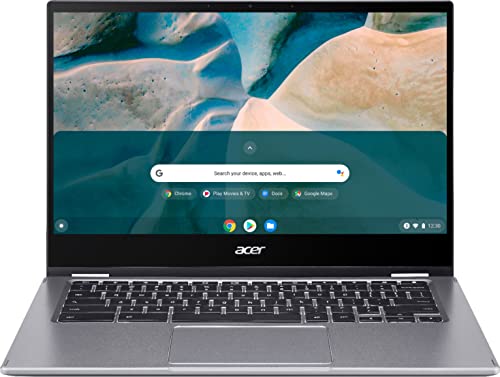
Acer Chromebook Spin 514 Convertible Laptop — Acer Chromebook Spin 514 Convertible Laptop, 14” Full HD Touchscreen Ryzen 3 3250C, 4GB DDR4 Memory, 64GB eMMC Flash Memory. Check price on Amazon before you decide, because configurations and availability change often.

Acer Aspire 5 Slim Laptop — Acer Aspire 5 Slim Laptop, 15.6″ Full HD IPS Display, 10th Gen Intel Core i5-10210U, 8GB DDR4, 256GB PCIe NVMe SSD, Intel Wi-Fi 6 AX201 802.11ax, Fingerprint Reader, Backlit KB, A515-54-59W2, Silver. Check price on Amazon before you decide, because configurations and availability change often.
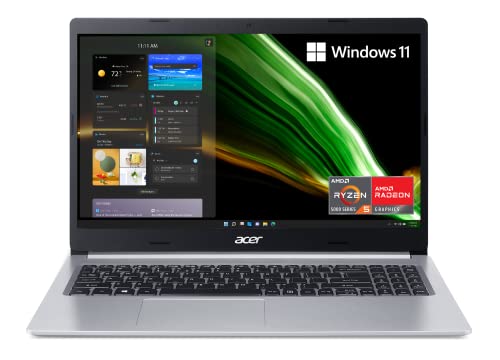
acer Aspire 5 A515-45-R74Z Slim Laptop — acer Aspire 5 A515-45-R74Z Slim Laptop | 15.6″ Full HD IPS | AMD Ryzen 5 5500U Hexa-Core Mobile Processor | AMD Radeon Graphics | 8GB DDR4 | 256GB NVMe SSD | WiFi 6 | Backlit KB | Windows 11 Home. Check price on Amazon before you decide, because configurations and availability change often.

Acer Chromebook 315 Laptop — Acer Chromebook 315 Laptop, 15.6″ FHD, Intel Celeron N4500, 4GB RAM, 128GB | (64GB eMMC + 64GB SD Card), Numeric Keypad, Home, Student, Long Battery Life, Webcam, USB C, Wi-Fi, Chrome OS, Sleeve, Purple. Check price on Amazon before you decide, because configurations and availability change often.
Common Mistakes
- Assuming a Chromebook runs Windows programs because it can open the websites of those programs.
- Buying an older, discounted Chromebook without checking how many update years remain on it.
- Choosing Windows at the very bottom of its price range, where machines can be slower and shorter-lived than a good Chromebook.
- Ignoring the course software list because a friend on a different course said their platform was fine.
Pro Tips
- Check your exact Chromebook model’s automatic update expiry date on the manufacturer’s support page before buying.
- Students with a capable desktop at home get exceptional value from a Chromebook as the campus machine.
- If your course is borderline, ask the department directly; they answer this question every year and know their software.
- Windows buyers on a budget should prioritise memory and storage over processor tier for student work.
How to Break a Tie When the Scores Feel Even
When a comparison stays balanced after honest scoring, break the tie with three practical tests rather than more research. First, the regret test: imagine discovering a year from now that you chose wrong, and notice which wrongness stings more, because that reveals which advantage you actually valued. Second, the ecosystem test: total the accessories, software and habits each option disrupts or preserves, since switching costs are real even when they are boring. Third, the trial test: handle both options physically if you possibly can, in a shop or through a generous returns window, because five minutes of hands-on evidence routinely outweighs five hours of comparison articles, including this one. If the tie survives all three tests, choose the option with the better warranty, the easier return path or the stronger resale, and stop researching. At that level of closeness, the decision has stopped being about the products and become about permission to finish, which this paragraph hereby grants.
Putting It All Together
If you are still torn after working through the criteria, return to the two questions that settle most of these decisions in practice: which option covers your non-negotiable tasks without a workaround, and which one fits the places and postures where you actually spend your computing life. Score those honestly and the remaining differences are usually smaller than the anxiety around them. Both options in this comparison are mature, capable products with millions of satisfied owners, which means the risk is not buying a bad device; it is buying the other person’s right device. Choose yours, configure it generously enough to last, and spend the energy you saved on the work and play the machine was bought for.
Scenario Head-to-Heads: Six Students, Two Platforms
The essay-based humanities student
Reading, writing, research databases and long documents define this degree, and both platforms serve it — which makes the deciding factors battery, weight, keyboard and price rather than capability. The Chromebook’s simplicity and endurance flatter the library-centred version of this life; the Windows machine answers with the full desktop word processors and reference tools some departments quietly assume. Verdict: Chromebook where the course’s tools are confirmed browser-based; Windows where any doubt about desktop requirements survives the check.
The business and data student
Spreadsheets with ambition, statistics packages and the occasional database push this decision toward Windows in most real curricula, because the teaching materials, add-ins and exam environments were built there first. A Chromebook can follow through web versions further than its reputation suggests, but the student is then perpetually translating instructions written for another platform. Verdict: Windows, unless the specific course has demonstrably rebuilt itself around the browser.
The computer science student
Development environments, local toolchains and virtualisation make this the clearest verdict in the set: a Windows laptop — or a machine chosen for computing outright — is the native country, while a Chromebook serves as a secondary, note-and-browsing device at best. Verdict: Windows, and treat any Chromebook in this life as a companion rather than the main machine.
The creative and media student
Neither platform is the creative industry’s first home, but between the two, Windows carries the full desktop creative applications while the Chromebook carries capable web and mobile-class editors for lighter work. The verdict follows the course’s software list with unusual strictness, because creative tools are the least substitutable in this entire comparison. Verdict: read the list, then decide; do not let either platform’s marketing answer a question only the syllabus can.
The school pupil moving up
For younger students whose school itself issues or mandates a platform, continuity is a feature: the device the school supports, teaches on and examines through is the device to buy, and for a great many schools that is the Chromebook, with its management, durability and price engineered for exactly that world. Verdict: follow the school’s ecosystem until the student reaches a level where their own course requirements take over the decision.
Exams, Proctoring and Institutional Systems in Practice
The least glamorous and most decisive section of this comparison concerns the software institutions impose rather than the software students choose. Examination and proctoring tools, lockdown browsers, specialist submission systems and placement or laboratory platforms each carry platform requirements that are not negotiable at the moment of use. Chromebooks have made genuine inroads here — many schools run entire examination programmes on them — but university-level proctoring and specialist departmental tools still frequently assume a full desktop operating system. The only safe procedure is the one this series repeats until it becomes reflex: obtain your course’s and institution’s requirements in writing before purchase, including the examination arrangements, and treat any platform that fails a single mandatory item as eliminated, whatever its other virtues. A laptop that cannot sit your exams is not a bargain at any price; it is a loan of somebody else’s machine waiting to be begged in the most stressful week of your year.
Total Cost Across the Degree, Counted Fairly
Compare baskets, not stickers. The Chromebook basket is usually the device, a case and little else, since its software world is largely included and its management effort minimal — but add the cost of the contingency it may require: the occasional need for a desktop application it cannot run, answered through campus machines, a borrowed laptop or, in the worst case, a second device. The Windows basket is the device in a configuration sized for four years, the case, backup, and the modest maintenance attention its flexibility demands. Priced across the whole degree, the Chromebook’s advantage is real but narrower than the shelf gap, and it inverts entirely for the student who discovers in year two that their course needed Windows all along. The cheapest platform, as ever in this series, is the one that matches the course completely the first time — which is why the software check precedes the price check in every honest version of this decision.
Offline Life, Printing and Peripherals: The Unfashionable Tests
Brochures compete on highlights; student life is decided by plumbing. Offline, the platforms’ philosophies show plainly: the Windows laptop treats local work as its native state, with every application and file available in a tunnel, a cottage or a network outage, while the Chromebook has steadily improved its offline document and media handling yet still assumes connectivity as its centre of gravity. Students whose lives include long offline stretches — commutes, rural homes, fieldwork — should weight this section heavily. Printing tells a similar story of convergence with different centres: both platforms print to modern network printers respectably, while the long tail of older departmental printers, specialist devices and USB-only hardware remains friendlier to the full desktop system. Peripherals follow the same gradient: mainstream devices work everywhere, while the unusual instrument, the legacy scanner, the specialist controller belongs to the Windows world’s driver depth. None of these tests will ever headline an advertisement, and any one of them can dominate a particular student’s actual year — which is why this guide insists on running your own plumbing checks before the highlights are allowed to vote.
Longevity and the Support Horizon, Platform by Platform
Each platform ages on its own clock, and a degree-length purchase must read both clocks before choosing. Chromebooks carry a defined update horizon set at manufacture, after which security updates end however healthy the hardware remains; a bargain model bought late in its cycle can therefore expire mid-degree, and checking that end date is as essential as checking its memory. Windows laptops receive operating system support on the industry’s longest conventions, and their practical retirement is usually set by hardware wear and rising software demands rather than by a calendar — but their security depends on the owner’s update discipline in a way the Chromebook’s automatic regime never asks. The Mac is not in this comparison, yet the principle generalises across this series: a student laptop must be supported for the whole course it was bought to serve, and the support end date, where one exists, is a specification as real as the screen. Buy the horizon, not just the machine.
Switching Later: What Changing Your Mind Costs
Reassure yourself with the exit costs, because they are lower than the anxiety suggests. Moving from Chromebook to Windows mid-degree strands remarkably little: your files live in cloud documents that follow you, your habits transfer, and the Chromebook retires gracefully into household browsing and travel duty. Moving from Windows to Chromebook strands more, because desktop applications and local workflows do not follow, which is why that direction is usually a post-degree lifestyle choice rather than a mid-course correction. Knowing the asymmetry should relax the first decision rather than distort it: the Chromebook’s risk is a capability discovered missing, recoverable by adding a machine; the Windows machine’s risk is complexity never needed, recoverable by ignoring it. Choose for the course in front of you, verified in writing, and let the exits look after themselves — they are cheaper than the worry spent on them in advance.
What Teachers and Institutions Would Tell You If You Asked
Ask, because their answer is data no review can supply. Lecturers and school IT teams watch hundreds of students attempt the same coursework on both platforms every year, and their collective experience has a texture worth hearing: which platform generates the fewest desperate emails in assessment week, which survives the institution’s own systems without translation layers, which they would buy for their own child starting your exact course. Their answers will not be unanimous, and they should not override your written requirements check — but a strong institutional lean is evidence about the local reality your degree will inhabit, including the Wi-Fi quirks, printing fleet and software contracts of your specific campus. Students treat this research as a five-minute conversation during an open day or a help-desk visit. It is among the highest-value five minutes in the entire purchase, because it replaces the internet’s global generalities with your institution’s particular truth.
The Verdict Framework: Deciding in the Right Order
- First, the veto: obtain the course and examination software requirements in writing, and eliminate any platform that fails a mandatory item.
- Second, the horizon: confirm the specific model’s support end date covers the whole course, with margin.
- Third, the day: judge battery, weight and keyboard against your longest real teaching day, not against a showroom impression.
- Fourth, the basket: price the complete setup — device, case, backup, contingencies — across the whole degree.
- Fifth, the preference: only now let familiarity, ecosystem and enjoyment cast their legitimate votes.
Run the decision in that order and the platform war dissolves into administration, which is what it always should have been. The students who regret this purchase are almost never the ones who chose the losing platform in some global sense; they are the ones who ran the order backwards, letting preference speak first and discovering the veto in November. Run it forwards, and either machine — the simple, enduring Chromebook or the capable, flexible Windows laptop — becomes the right one, because it will have been matched to the only syllabus that matters: yours.
Accessibility and Learning Support on Both Platforms
Students who use accessibility features should run this comparison with their own requirements as the first filter rather than the last, because the platforms’ support, while strong in both cases, differs in texture. Both offer magnification, screen reading, dictation, captioning and keyboard adaptations as built-in citizens rather than add-ons. The Chromebook’s uniformity can be an advantage here: the experience is consistent across every model and managed easily by schools, so a student moving between home and school machines meets the same tools in the same places. The Windows world’s advantage is depth and legacy: a longer history of specialist third-party tools, switch devices and department-specific software, and a larger pool of institutional expertise. The only reliable test is personal: spend real time with your actual features on your actual shortlist, ideally with your institution’s learning-support team involved early, because they will know which platform their own provision — loan devices, training, exam arrangements — is built around. Accessibility is not a tie-breaker in this guide’s framework. For the students it concerns, it is the framework, and both platforms deserve to be judged at that level of seriousness.
Environmental Considerations and the School-Fleet Effect
A brief, practical word on footprint, because these platforms genuinely differ in their material culture. Chromebooks’ modest hardware, long automatic support within their defined horizon and huge school-fleet presence have created a strong refurbishment and hand-down ecosystem; a retired school Chromebook begins second lives in households by the million. Windows laptops, more various in build, include the business ranges that are the refurbishment market’s backbone — repairable, parts-rich and supported for years beyond their first owners. In both worlds the greenest choice available to a student is the same: buy a machine that fits the whole course, keep it in service for that whole span, and pass it on in working order rather than replacing it mid-degree on a whim. Fit, again, is the specification that quietly governs cost, satisfaction and footprint at once — which is why this comparison, for all its platform detail, keeps returning to a syllabus, a support date and a teaching day as its decisive evidence.
Two Students, One Corridor: A Closing Illustration
On the same corridor of the same hall, two first-years unbox their choices in the same week. One carries a Chromebook: her course is browser-based and proud of it, her school used the same platform, her bag is light, her battery outlasts the library, and her only concession all year is a campus desktop for one specialist afternoon her department had told her about in advance — in writing, because she asked. The other carries a Windows laptop: his engineering modules assume it, his spreadsheet work is heavy, his gaming is honestly budgeted, and his only concession is the housekeeping discipline the platform asks, which he pays gladly for the capability it buys. Neither envies the other by Christmas, because neither bought a platform; both bought a verified fit between a syllabus and a machine. That is the entire secret this comparison exists to transmit, and it is available to every reader willing to run five ordered questions before running a payment card.
Questions to Ask in the Shop, Word for Word
Bring the framework with you, translated into sentences a salesperson can answer. What is this exact model’s update end date, and where is it published? Does the configuration in front of me match the one in the review I read, in memory, storage and screen? What does the warranty cover in this town, and where does the machine physically go if it fails in term? For the Chromebook: show me my course’s core tools running, here, on this machine, including the examination or lockdown software if it is installed for demonstration. For the Windows machine: is the memory or storage upgradeable later, by whom, and does upgrading affect the warranty? Finish with the bag test — machine, charger, case, your books, your shoulders, the walk you will actually do — because platforms are compared on paper but carried in person. A shop that welcomes those questions is selling you a fit; a shop that hurries past them is selling you a platform, and you now know the difference well enough to walk toward the former with your money still in your pocket and your degree’s requirements still in charge.
The One-Week Test for the Genuinely Torn
If the framework leaves you honestly split — the course permits both, the baskets are close, the corridor illustration could be you in either room — borrow the decision from experience rather than from further reading. Spend structured time on each platform doing your actual tasks: a morning’s notes, a research session, a document built from scratch, the institution’s systems visited, a video call taken. Note where friction appeared, because friction at hour two becomes resentment at month six, and note where each machine disappeared, because disappearance is the highest praise student equipment ever earns. Where borrowing is impossible, a returns window used honestly and promptly is the same test conducted at home. What you are measuring is not which platform is better — this guide has spent its length dismantling that question — but which platform’s particular compromises land on the parts of your life that can spare them. That measurement exists nowhere on the internet. It exists only in your week, and a week is a fair price for four years of fit.
After the Purchase: Living Well on Either Platform
The comparison ends at the till, but its value compounds in how you inhabit the choice. On a Chromebook, inhabit the simplicity fully: let the automatic updates and cloud documents do their quiet work, keep local storage curated, and rehearse the institution’s contingency route for desktop-only tasks once, before you need it, so it is a known corridor rather than a rumour. On a Windows laptop, inhabit the capability responsibly: keep the update and housekeeping rhythm this series teaches, configure memory and storage headroom before the course grows into them, and resist installing the entire internet in the first month. On either, back up like the degree depends on it, protect the machine as its own guide describes, and stop reading platform comparisons entirely. The students who thrive on both platforms share that final trait exactly: they converted a purchase into a settled tool early, and spent the attention they saved on the education the tool was bought to serve. That conversion — not the logo on the lid — is the real verdict of this comparison, and it is entirely within your power to deliver it.
Deliver it, then, and let the corridor fill with both machines in peace. Years from now, what will matter is not which platform a stranger on the internet crowned, but that your laptop was charged in the library, honest in the exam hall and silent in every crisis that never happened — because its owner asked five questions in the right order, once, at the beginning. Ask them, and this comparison has done for you everything a comparison can.
One last encouragement for the reader still hovering between the two baskets at the till: the difference between a good decision and a perfect one, in this comparison, is smaller than the difference between a decision made this week and one made in the first week of term. Choose the verified fit, protect the setup days that follow, and begin your course with the question already closed behind you. Closure, at the start of a degree, is worth more than optimality — and unlike optimality, it is actually available.
That closure has a sound worth describing, because students recognise it instantly: it is the sound of a laptop lid opening in the first seminar to a machine that is simply ready — charged, updated, carrying the right tools for the course it was matched against. No platform guarantees that sound. A method does, and you have just finished learning it.
Ask them in the shop, ask them of the institution, ask them of the students a year ahead of you — and then enjoy the rarest outcome in student technology: a purchase that never needs to be thought about again, because it was thought about properly, once, in the right order, at the right time.
Thought about properly, once, is the whole ambition — for the platform, for the purchase, and for every guide in this series that a student might read in the last calm weeks before term. The degree ahead is the main event. Arrive at it with the laptop question already answered, and you have given yourself the rarest freshers’ advantage of all: nothing left to buy, and nothing left to blame.
Keep your five answers, once written, with the machine’s paperwork, because they are the purchase’s true receipt — the one that explains, to a future self wondering in year three why this platform was chosen, that it was not chosen at all in the casual sense. It was derived, from a syllabus and a support date and a teaching day, and derivations do not need defending. They only need reading.
Read it once in year three, smile at the student who wrote it in the calm before term, and then get back to the work both of you share.
Related Guides
- our roundup of the best laptops for a student under 500
- our roundup of the best laptops for video editing under 1000
- our roundup of the best laptops for college student under 800
- how much storage does a student laptop need
- how to speed up a student laptop
Frequently Asked Questions
Can a Chromebook run Microsoft Office for essays?
Yes, through the web versions of Word, Excel and PowerPoint and through your school’s Microsoft account, which covers essays, coursework spreadsheets and presentations comfortably. What you give up is the full desktop feature depth: advanced referencing tools, complex macros, some add-ins and certain formatting corners. For the overwhelming majority of undergraduate work the web versions are complete. If your course teaches advanced desktop Office features explicitly, that is a named-software situation and points to Windows.
What about exams and proctoring software on a Chromebook?
It varies by institution and by exam platform: some support Chromebooks fully, others require Windows or a Mac, and a few lend machines for exactly this reason. This is a question for your university’s exam office before you buy, not after. If your degree involves regular remotely proctored exams on your own machine, treat their platform requirements as course requirements and buy accordingly. Many students never face the issue, but discovering it in exam week is the worst version.
How long will a Chromebook last a student?
A current model bought new at the start of a degree should serve three to four years of coursework easily, with the caveat of its fixed update expiry date, which you should confirm extends beyond your final year. Hardware-wise the machines are simple and durable, batteries age gracefully under light loads, and there is little to slow down. The platform’s discipline is buying new and checking the date, rather than hunting last year’s bargain whose clock is already running.
Can I play games on a Chromebook?
Lightly. Android games, browser games and cloud gaming services all work, and cloud gaming on a good connection is surprisingly capable. Traditional PC gaming, Steam libraries and demanding local titles belong to Windows. If gaming is a major part of your student life rather than an occasional break, that alone settles the platform question for most buyers. If your gaming lives on a console or phone, it should not distort the laptop decision at all.
Is a Windows laptop harder to maintain?
Somewhat, in honest terms: more updates to manage, security software to keep current, and more ways for software clutter to accumulate. Modern Windows is far better behaved than its reputation, and an hour of setup discipline covers most of it. ChromeOS genuinely is simpler, updating itself invisibly and resisting most malware by design. For a student who wants zero maintenance, that simplicity is a legitimate deciding factor, not a laziness footnote.
My school used Chromebooks. Should I just continue?
Familiarity is a real asset in freshers’ week, and if your university course is browser-based, continuing is entirely rational. The trap is assuming university requirements mirror school ones; departments introduce desktop software without consulting your habits. Do the two-minute course software check, and if it comes back clean, buy the platform you already know with confidence. Your future self will thank you for checking rather than assuming, in whichever direction the answer falls.