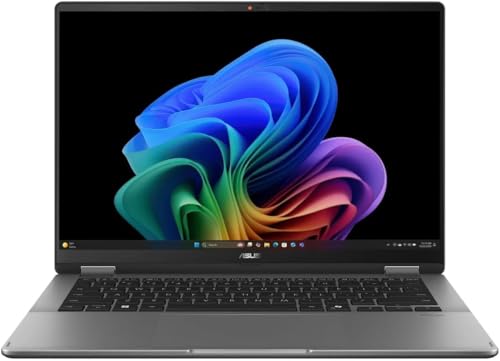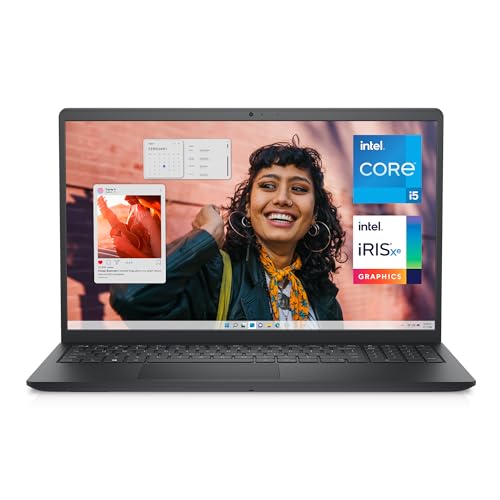
The touch screen laptop vs regular laptop question is usually asked at the shelf, with a small price gap between two otherwise similar machines and a decision needed on the spot. It deserves better than a guess, because the differences reach further than tapping a screen: touch models are typically glossy where regular models may be matte, carry a small weight and battery cost for the digitiser, open the door to pen input and convertible forms on some designs, and change how you interact with the machine in specific, predictable moments. Regular laptops answer with better value in screen quality or battery at the same money and a surface that shrugs off bright rooms. This comparison maps where each genuinely wins, so the shelf decision becomes a reflection of your week rather than the salesperson’s enthusiasm.
Disclosure: As an Amazon Associate, kajuandouglas.com earns from qualifying purchases. Links to Amazon on this page are affiliate links; they cost you nothing extra. Listing details such as price and availability change often, so check the current Amazon listing before you buy.
Touch Screen Laptop Vs Regular Laptop: What Matters Most
Choose touch if you will annotate, draw, present standing, read in tablet or tent modes, or simply navigate faster by tapping in casual use, and if the model offers a proper active pen for writing. Choose a regular laptop if your work is typing at a desk, you value matte screens in bright light, maximum battery or the best panel quality for the money. The deciding evidence is your own habits, not the feature list.
| Criterion | Option A | Option B |
|---|---|---|
| Input | Fingers, gestures and often an active pen | Keyboard, trackpad and mouse |
| Screen finish | Glossy, vivid, reflective near windows | Often matte options, readable anywhere |
| Weight and battery | Small extra cost for digitiser and glass | Slightly lighter and longer-running at same price |
| Best tasks | Annotating, presenting, reading, casual taps | Typing, precision work, gaming |
| Price pattern | Premium buys the input layer | Premium buys screen, battery or storage |
In this guide
What to Compare Before You Decide
- A week’s honest audit of how often you would tap, write or fold the screen
- Whether pen input matters, and whether the touch model has a true active pen
- Your typical lighting: bright offices and windows versus controlled rooms
- The battery and weight figures of the exact two models in front of you
- What else the price difference buys on the regular model: screen, storage or memory
The Comparison, Criterion by Criterion
Compare interaction in the tasks you actually do
Touch wins specific moments: scrolling and zooming documents, tapping through presentations, signing forms, annotating readings, casual browsing on the sofa and any pen work. A trackpad or mouse wins sustained precision: spreadsheets, text editing, design detail and gaming. Most knowledge work is typing-led, which is why regular laptops satisfy most owners, while students, teachers, field workers and artists feel touch’s absence daily. Score your own top five tasks rather than imagining a generic user, because this criterion decides the comparison and it is entirely personal.
Weigh the screen itself, not just its touch layer
Touch panels are glossy, which makes colours punchy in controlled light and reflections troublesome near windows, while many regular laptops offer matte finishes that stay readable anywhere. Touch models also concentrate spending on the digitiser that could otherwise buy brightness or colour accuracy. Compare the two exact panels for brightness and finish in your typical lighting. A regular laptop with a superior matte screen is the better display for many desk workers, while a bright touch panel in a dimmer home office loses nothing and gains the input options.
Account for weight, battery and build honestly
The digitiser, glass and reinforced lid of a touch model add modest weight and draw modest power, and convertibles add hinge engineering on top. The differences are small between sibling models but real across a carrying day and a battery day. Regular laptops at the same price can therefore offer a larger battery or a lighter chassis. None of this is decisive alone; it simply means touch should be bought for use, because its costs are continuous while its benefits arrive only in the moments you actually touch.
Consider pen and form as the real upgrade path
Plain finger touch on a clamshell is a convenience. The transformative version of this category is the active pen and the convertible hinge: handwriting, sketching, marking up documents and presenting in tent mode are capabilities a regular laptop cannot imitate at any price. If your interest in touch is really interest in those, skip the touch clamshell and compare convertibles directly. If your interest is only tapping, be honest that a good trackpad covers much of it, and let price and screen quality decide.
Judge long-term life with the machine
Touch screens collect fingerprints that need regular gentle cleaning, glossy panels show every smudge, and a cracked touch display is typically the expensive repair on any laptop. Regular machines age more anonymously. On the other side, touch owners consistently report the feature becomes invisible infrastructure: they stop noticing they use it until a non-touch machine feels oddly indirect. Longevity of delight versus simplicity of upkeep is a fair summary, and your temperament, tidy or unbothered, is legitimate evidence in the choice.
Caring for a Touch Screen and Its Hinges
A touch panel is the most handled surface on any laptop, so it collects skin oil, dust and the occasional splash, and it is also the most fragile and expensive part to replace. Clean it powered off, with a dry or barely damp microfibre cloth, never with household glass sprays that can damage coatings, and never by pressing hard on one spot. The hinges on a convertible work harder than on any other laptop style, cycling through laptop, tent, stand and tablet positions, so open and close the lid from the centre, keep crumbs and grit away from the hinge line, and avoid carrying the machine by its screen corner. Cases and sleeves matter more here too, because pressure on the lid in a crowded bag flexes the glass. Treat the pen as part of the machine: store it in its slot or loop so its tip is protected, and replace worn tips before they scratch. Gentle habits add years to a mechanism that cannot be serviced cheaply.
Touch Settings, Calibration and Accessibility
Modern operating systems rarely need manual calibration, because panels leave the factory aligned and the system compensates automatically, but the settings around touch still reward attention. Sensitivity, palm rejection behaviour, pen button assignments, flick and gesture controls and the on-screen keyboard all live in the pen and touch settings, and five minutes there can fix annoyances owners tolerate for years. Accessibility options deserve a look even if you do not need them daily: larger touch targets, touch feedback visuals and hold-to-right-click timing make the machine friendlier for anyone sharing it. When touch misbehaves, the cause is usually software rather than the panel itself: a disabled device in the device manager, a driver update that stalled, a screen protector lifting at one corner, or moisture on the glass. Work through settings, drivers and a clean, dry screen before assuming hardware failure, because genuine digitiser faults are the least common explanation and the most expensive one to chase first.
How Touch and Pen Input Actually Work on a Laptop
A touch laptop replaces the simple display of a regular machine with a layered panel: the screen itself, a digitiser that senses finger or pen position, and protective glass on top. Capacitive sensing reads the tiny electrical change a fingertip causes, which is why gloves and ordinary pens do not register, while active pens communicate their own position, pressure and tilt to a dedicated digitiser layer. That distinction explains most buying confusion: a screen that works beautifully with a finger may offer only crude pen input, and handwriting or drawing quality depends on the pen technology, not the display resolution. Palm rejection is software and sensor work combined, letting you rest a hand on the glass while writing. Hinges complete the system on convertibles, either folding a full 360 degrees or detaching entirely, and each design trades rigidity, weight and port layout differently. Judge a touch laptop by the input method you will actually use, because finger navigation, note-taking and illustration are three different requirements wearing one label.
Where Touch Genuinely Helps, and Where It Does Not
Touch earns its place in specific moments: scrolling long documents in tablet mode on a train, annotating a PDF with a pen during a lecture, sketching an idea before it fades, signing a form without a printer, or presenting while standing and tapping through slides. It is less convincing at a desk, where reaching forward to a vertical screen tires the arm and smudges the panel, and where a good touchpad or mouse is faster for precise work. Battery and weight also pay a small tax for the digitiser and glass, and glossy touch panels reflect more light than matte regular screens. The honest test is your own week: count how often you would fold the machine back, pick up a pen or tap rather than click. If those moments are daily, touch is a feature you will use for years. If they are hypothetical, a regular laptop with a better screen or larger battery for the same money may serve you better.
Who Each Option Suits, in Plain Terms
The touch laptop suits the annotator and the mover: students who mark readings and write equations, teachers and presenters who work standing, field and retail staff who tap through interfaces, artists and note-takers with a pen, and sofa browsers who use the machine like a big tablet. The regular laptop suits the desk professional and the value hunter: writers, analysts, programmers and gamers whose hands live on keyboard, trackpad and mouse, who work in bright rooms, and who would rather the budget became screen quality, battery or storage. Notice how rarely the verdict turns on the technology’s quality; both are mature and good. It turns on posture and habit. Buy the input system your body already uses, and either machine will feel like the obvious choice within a week, which is the surest sign the comparison was answered correctly.
When you are ready to compare complete machines rather than individual settings, start with our roundup of the best touch screen laptops for photoshop and keep our roundup of the best work laptops for under with touch screen open in a second tab. Reading a settings guide and a buying roundup side by side stops the most common mistake in this whole topic: changing software or hardware in isolation, without checking whether the rest of the machine actually supports the change you have in mind.
Gear for This Guide

Dell Inspiron 3530 Laptop – 15.6-inch FHD (1920 x 1080) Touchscreen Display — Dell Inspiron 3530 Laptop – 15.6-inch FHD (1920 x 1080) Touchscreen Display, Intel Core i5-1335U, 16GB DDR4 RAM, 512GB SSD, Intel Iris Xe Graphics, Windows 11 Home – Carbon Black. Check price on Amazon before you decide, because configurations and availability change often.

HP Pavilion 15.6″ FHD Touchscreen Laptop — HP Pavilion 15.6″ FHD Touchscreen Laptop, Intel 13th Gen Core i7-1355U Processor, GeForce MX550 Graphics, Wi-Fi 6, Backlit Keyboard, HDMI, Webcam, Windows 11 Home, Blue (32GB RAM | 1TB SSD). Check price on Amazon before you decide, because configurations and availability change often.
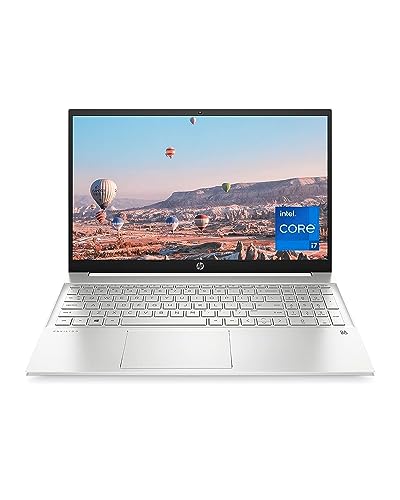
HP Pavilion 15 Laptop — HP Pavilion 15 Laptop, 11th Gen Intel Core i7-1165G7 Processor, 16 GB RAM, 512 GB SSD Storage, Full HD IPS Micro-Edge Display, Windows 11 Pro, Compact Design, Long Battery Life (15-eg0025nr, 2021). Check price on Amazon before you decide, because configurations and availability change often.
Common Mistakes
- Buying touch for a desk-only workflow and paying its costs daily for benefits collected never.
- Rejecting touch on principle when your work is annotation and presenting, then fighting PDFs with a mouse for years.
- Comparing a glossy touch panel under shop lights without considering your bright home office windows.
- Assuming touch automatically means pen support, when many touch clamshells offer fingers only.
Pro Tips
- In a shop, perform your real tasks on both: open a document, scroll, zoom, sign, annotate, then type a paragraph.
- If you choose touch, budget for the pen at purchase where handwriting matters; it is the feature’s best half.
- Matte-finish fans who want touch can look for the rarer anti-glare touch panels, which do exist on some business models.
- Students should check whether their note-taking app of choice shines with a pen before paying the convertible premium.
How to Break a Tie When the Scores Feel Even
When a comparison stays balanced after honest scoring, break the tie with three practical tests rather than more research. First, the regret test: imagine discovering a year from now that you chose wrong, and notice which wrongness stings more, because that reveals which advantage you actually valued. Second, the ecosystem test: total the accessories, software and habits each option disrupts or preserves, since switching costs are real even when they are boring. Third, the trial test: handle both options physically if you possibly can, in a shop or through a generous returns window, because five minutes of hands-on evidence routinely outweighs five hours of comparison articles, including this one. If the tie survives all three tests, choose the option with the better warranty, the easier return path or the stronger resale, and stop researching. At that level of closeness, the decision has stopped being about the products and become about permission to finish, which this paragraph hereby grants.
Putting It All Together
If you are still torn after working through the criteria, return to the two questions that settle most of these decisions in practice: which option covers your non-negotiable tasks without a workaround, and which one fits the places and postures where you actually spend your computing life. Score those honestly and the remaining differences are usually smaller than the anxiety around them. Both options in this comparison are mature, capable products with millions of satisfied owners, which means the risk is not buying a bad device; it is buying the other person’s right device. Choose yours, configure it generously enough to last, and spend the energy you saved on the work and play the machine was bought for.
Scenario Head-to-Heads: Who Wins Your Actual Day?
The commuter who reads and replies on the move
On trains and in queues, the touch machine earns small victories constantly: scrolling long documents with a thumb, tapping through mail triage, signing the occasional form without hunting for a scanner, flipping into tent mode to watch a briefing video on a fold-down tray. The regular laptop counters with a lighter bag and a longer day away from the charger. Verdict: if your commute involves real reading and annotation, touch wins the hours; if it involves mostly typing in a seat with a table, the regular machine’s efficiency wins them back.
The student taking mixed notes
Lectures that mix typed text, equations, diagrams and annotated slides are the touch category’s strongest ground, provided the machine is a proper pen convertible rather than a touch-only clamshell. Typed notes alone, however, are faster and better organised on either machine with a keyboard, and a regular laptop plus paper notebook remains a rational, proven system. Verdict: pen convertible for genuinely mixed media; otherwise save the money and carry the lighter regular laptop.
The home worker on video calls all day
Desk-bound work neutralises most touch advantages. The screen sits beyond comfortable reach, the keyboard and mouse do the real work, and the touch layer’s costs — glare from a glossy panel under home lighting, a small weight and price premium — are paid for features used mainly to tap an occasional dialog box. Verdict: regular laptop, and spend the difference on the camera, microphone and monitor that calls actually reward.
The creative who sketches and edits photos
Here the comparison dissolves into a different purchase: a pen-first convertible is a creative tool, a regular laptop is a production station, and many creatives eventually own the workflow across both. Forced to choose one, the pen machine wins on versatility for sketching, retouching with a pen and annotating, while the regular machine wins on sustained heavy editing with large files and external displays. Verdict: follow the pen if drawing is central; follow the station if editing volume is central.
The Glossy Screen Question, Examined Properly
Almost every touch laptop ships with a glossy display, and almost every regular laptop offers a matte option, so this comparison quietly includes a referendum on reflections. Glossy panels deliver deeper contrast and more saturated colour in controlled light, which is why they dominate showrooms. Matte panels surrender a little of that richness and repay it every day in bright offices, near windows and under mixed home lighting, where reflections stop competing with your work. Touch adds a second glossy cost: fingerprints are not a cosmetic footnote on a screen you operate by touching, but a recurring maintenance reality, manageable with the cleaning routine described elsewhere in this series and never entirely eliminable. Buyers who work in bright, uncontrolled light should weight this section heavily. It is possible to love everything about a touch machine in the shop and be worn down by its mirror by month three, and equally possible to find the whole question trivial in a shaded home office. Your rooms, not the internet’s opinions, hold the answer.
Ownership Over Four Years: Wear, Repairs and Resale
Long-term ownership tilts this comparison in ways first impressions hide. The touch machine’s screen carries a double duty, so a cracked panel costs more and removes more, and its hinge — especially on convertibles — works harder than a clamshell’s. Against that, touch and convertible machines often hold their appeal longer for second-hand buyers, because their versatility suits the mixed, unpredictable use of a household’s second computer. The regular laptop’s ownership story is quieter: cheaper screens, simpler hinges, and a larger pool of independent repair experience. Batteries age identically in both, so serviceable battery replacement is worth the same emphasis in either camp. The fair summary is that the regular laptop is the lower-risk ownership proposition, while the touch laptop’s extra risk is bounded, insurable, and — for users who genuinely use its modes — repaid in daily utility rather than in resale arithmetic.
Myths on Both Sides, Retired
Touch advocates claim the keyboard is dying; a decade of predictions has left it entirely alive, because long-form writing, coding and data work reward keys in ways no glass has matched. Touch sceptics claim nobody uses laptop touch; anyone who has watched a convertible owner annotate, present or sign through a working week knows otherwise. Regular-laptop loyalists claim touch always ruins battery life and weight; modern implementations have narrowed both penalties to the point where specific models matter more than categories. Convertible enthusiasts claim one device can fully replace a laptop and a tablet; the tablet half of that promise remains a compromise in weight and app refinement, as the companion comparison in this series explores honestly. Strip the myths away and a calmer truth remains: these are two mature answers to two different weightings of the same needs, and your weighting — measured in your tasks, your rooms and your bag — is the only verdict that will still look right in year three.
Switching Costs If You Choose Wrong
Reassuringly, a wrong choice here is recoverable, and knowing the exit costs in advance makes the decision lighter. Moving from a touch machine to a regular one strands little: your files, accounts and peripherals transfer, the pen becomes a drawer item, and the only real loss is the premium you paid for modes you stopped using. Moving the other way strands slightly more, because handwriting archives and pen workflows built in particular applications may not follow you gracefully, and a mid-life change usually means a new machine rather than an upgrade. Either way, the cost of being wrong is measured in modest money and mild annoyance, not in trapped data or a ruined workflow — which is exactly why this guide keeps returning you to a short, honest trial of your real tasks. Fifteen minutes of truthful testing is cheaper than either exit, and it is available before you spend anything at all.
Ergonomics Across a Working Week
Reach is the ergonomic fact touch marketing rarely mentions. A laptop screen sits at arm’s length behind a keyboard, which is a fine distance for viewing and a poor one for repeated touching: sustained tapping and swiping at that range produces the tired shoulder researchers nicknamed long ago, and it is why experienced touch-laptop owners use fingers for brief, occasional interactions at a desk and save extended touch work for tablet, tent or presentation modes where the screen comes to them. Judged that way, the touch clamshell’s ergonomics are honest for its real pattern — mostly keyboard work, punctuated by touch — while the convertible’s modes exist precisely to fix the reach problem when touch becomes the main event. The regular laptop avoids the question entirely and pairs naturally with the ergonomic desk setup of raised screen and separate keyboard. None of these is a disqualification. They are geometries, and the right choice is the geometry your posture will thank you for in year two, which is a far better question than which device wins a demonstration.
What Each Choice Says About the Next Five Years
Buy the regular laptop and you are betting your tasks stay recognisably as they are: documents, browsing, calls, media, with input through keys and pointer. It is a bet most desk-centred workers win comfortably. Buy the touch machine and you are buying optionality: the ability to sign, annotate, present, read in tablet mode and adapt to tasks you have not met yet, at a modest premium in weight, glare management and screen care. Optionality is worth paying for when your role, studies or family life are in motion, and worth skipping when your routine is settled and satisfying. That framing — stability versus optionality — cuts through the specification noise more cleanly than any single feature comparison in this guide, and it explains why two thoughtful people can read the same evidence, choose opposite machines, and both be right for the five years ahead of them.
Resale, Handing Down and the Second Life of Each Machine
Both machines cascade well, but to different second owners. A retired touch convertible becomes a household’s beloved flexible spare: kitchen recipes in tent mode, children’s homework with a pen, a travel machine that reads like a tablet at night. Its versatility is precisely what a mixed-use second life rewards. A retired regular laptop becomes the dependable administrative spare: the tax-and-documents machine, the student’s backup, the relative’s first computer, valued for its simplicity and its keyboard rather than its modes. Neither second life is better; they simply confirm the first-life verdict. Devices tend to be handed down for the same qualities they were bought for, so if you already know which second life your household would use more, you have quietly answered the first-life question as well.
The Decision, Compressed Into Five Questions
- Will I write or draw by hand at least weekly? If yes, a pen convertible is not a luxury but the tool itself.
- Do I present, teach or annotate live in front of others? If yes, touch modes earn their keep in public, repeatedly.
- Is my work desk-bound, keyboard-led and call-heavy? If yes, the regular laptop spends your money where your hours actually go.
- Do I work in bright, reflective spaces for long stretches? If yes, weigh matte screens and glare with unusual seriousness.
- Is my routine settled, or changing? Settled favours the efficient regular machine; changing favours the touch machine’s optionality.
Answer those five in order, without negotiating with yourself, and the comparison resolves for most readers before any specification is consulted. What remains — configuration, warranty, the shop test — is execution, and the rest of this series exists to help you execute it well. The category debate was never really touch versus no touch. It was always your life, described honestly, versus two good machines waiting to be matched to it.
Battery Life in the Real World of Each Design
Specification sheets treat battery as a single number; ownership treats it as a pattern, and the two designs spend their charge differently. The touch machine pays small, continuous taxes: the digitiser layer, a typically brighter glossy panel working against reflections, and on convertibles the mechanical compromises that limit battery size in slim, folding chassis. The regular machine, freed from those taxes and often offered with matte, efficiency-tuned panels, tends to convert the same battery capacity into more working hours, and its range usually includes the long-endurance models that road professionals standardise on. Yet workload dominates design: a touch machine doing reading and notes can outlast a regular machine doing video calls and heavy multitasking, because the screen and radios, not the touch layer, are the great consumers in most lives. Judge battery as you judge everything in this comparison — against your longest realistic day, in your applications, at your brightness — and treat any category-level claim, including this paragraph’s, as a tendency to verify rather than a law to obey.
Repairability and the Screen-Centric Risk
One asymmetry deserves direct statement. On a regular laptop, the most common hardware failures — battery wear, keyboard faults, storage and memory issues on serviceable models — are comparatively cheap and often independent of the display. On a touch machine, the display assembly concentrates cost and function: it is simultaneously the screen, the input surface and, on convertibles, part of the folding mechanism, so its failure is the expensive one, and its protection — case, care, accidental damage cover where the maths suits your risk — deserves a line in the purchase rather than a hope. This is not an argument against touch; it is an argument for buying touch with your eyes open, budgeting its one concentrated risk the way you would insure any valuable, fragile, essential tool. Owners who do so enjoy the category’s benefits without its one sharp edge ever drawing blood.
Software and Updates: Does Touch Age Differently?
Both machines run the same operating systems and age under the same update policies, but touch adds components to the ageing story: digitiser drivers, pen firmware and mode-transition software that must all survive each major system update in step. In practice, mainstream touch laptops from established makers navigate updates as reliably as their regular siblings, because the touch stack is now a standard part of the platform rather than an exotic addition. The practical difference appears at the far end of support life, where an older touch machine whose pen or mode software stops being maintained can lose polish in its special features while remaining a perfectly good ordinary laptop — a graceful degradation the regular machine never needs, since it had fewer special features to lose. Count that as a small, honest point for simplicity, and balance it against the years in which those special features, fully supported, were the reason you reached for the machine every day.
Close the comparison where it began: with your hands, your rooms and your tasks. The regular laptop is the refined answer to a settled, keyboard-led life, and it will serve that life with fewer compromises, fewer costs and fewer surprises. The touch laptop is the adaptable answer to a life that mixes typing with handwriting, desks with sofas, and presenting with reading, and it repays its small premiums every time a mode change turns the machine you have into the machine the moment needs. Neither verdict needs the other to be wrong — and a buyer who understands that has already made the most important part of the decision correctly.
A Worked Example: Two Colleagues, Two Correct Answers
Consider two colleagues with identical budgets starting identical jobs. The first spends her days in documents, data and video calls, travels twice a month to the same regional office, and reads on paper by preference. She buys the regular laptop: lighter in her bag, matte screen in the bright regional office, the savings spent on memory and a warranty, and she never once reaches toward her screen expecting it to respond. The second teaches part of each week, annotates constantly, signs documents daily, and reads reports in tablet mode on the train. He buys the pen convertible, pays its small premiums knowingly, insures its screen, and uses every mode it owns before the first month ends. Interviewed a year later, each is mildly puzzled by the other’s choice and entirely satisfied with their own — which is not a contradiction but the definition of a comparison done properly. The machines did not decide. Their described lives did, and yours will too, if you let it speak first and shop second.
Price Tiers: What the Premium Buys at Each Level
At the modest end of the market, the touch premium buys the digitiser and little else, and the surrounding compromises — dimmer screens, humbler builds — can make the regular equivalent the wiser spend. In the middle, where most readers should shop, the premium buys genuinely integrated touch and pen systems on machines whose fundamentals are already sound, and this is the tier where the comparison is fairest and the touch case strongest. At the premium end, the question changes character: the best convertibles are flagship laptops in their own right, and the comparison becomes less about touch versus no touch than about which flagship interpretation of a portable computer suits a life that can afford either. The practical rule is to compare within a tier, never across one: a mid-range touch machine against the mid-range regular machine you would otherwise buy, with pen, case and cover included in its column. Cross-tier comparisons manufacture winners; within-tier comparisons reveal them.
One final, practical tiebreaker for the genuinely undecided: borrow, where you can, for a weekend rather than an hour. A friend’s convertible, a workplace pool machine, a generous returns window used honestly — any of them will let your real routine vote. Track, without forcing it, how many times you touched the screen for a purpose, how often the modes changed your posture or your possibilities, and whether the glossy panel ever entered your thoughts. A weekend of unforced evidence outweighs a month of reviews, because this comparison was never about the category. It was about the frequency of touch in one particular life, and only that life can supply the number.
Treat the result of that weekend as binding, even — especially — if it contradicts the machine you expected to prefer. Buyers who let evidence overrule expectation in this category report the highest satisfaction in either camp, because both camps are good. The only reliably wrong answer here is the unexamined one: touch bought as a spec-sheet trophy and never used, or dismissed unread by a hand that would have loved it. Examine honestly, choose once, and then stop comparing — the machine you chose, used fully in the modes or the simplicity you bought it for, is the right machine by the only definition that survives contact with real life.
Notice, too, that both colleagues in the worked example stopped researching after they bought, and that discipline is part of the outcome. Comparison has a natural terminus: the moment your described life has picked its machine. Everything after that point — the other camp’s new releases, the seasonal arguments, the forum certainties — is entertainment wearing the clothes of diligence. Close the tabs, learn your machine’s modes or its shortcuts properly, and let a year of your own evidence accumulate. It will be worth more, when the next purchase eventually comes, than every review you might read between now and then.
That patience has one more dividend worth naming: your next comparison, years from now, will start from data instead of debate. You will know your touch frequency, your glare tolerance, your mode habits and your battery reality as measured facts, and the entire question this guide has explored will collapse into a short, confident configuration exercise. Good decisions compound exactly like that — each honest purchase teaching the next — and few categories reward the compounding as visibly as this one.
So the comparison ends, appropriately, without a trophy. It ends with a description — of your tasks, your light, your bag and your hands — and two good machines waiting to be matched against it. Write the description honestly and the matching does itself, which is the closest thing buying advice ever gets to a guarantee.
Bring the same generosity to the friend who chose the other camp and is quietly doubting it in month two. Remind them what their own evidence said in the shop, lend them this guide’s perspective on the modes or the simplicity they bought, and let a year of their own use cast the deciding vote. Comparisons end; ownership, properly supported, tends to vindicate itself.
Related Guides
- our roundup of the best laptops for artists under 500
- our roundup of the best touch laptops for gaming under 600
- our roundup of the best laptops for students under 750 touch screen
- 2 in 1 laptop vs tablet
- what is a 2 in 1 laptop
Frequently Asked Questions
Does a touch screen make a laptop slower or less responsive?
No. The digitiser is an input layer, not a performance tax on the processor, and touch models use the same chips, memory and storage as their regular siblings. The measurable costs are a little weight, a little battery and the glossy finish, not speed. Any performance difference between two shelf models comes from their ordinary specifications, so compare those as you normally would and treat touch as an input decision layered on top.
Can I disable touch if I stop using it?
Yes, on Windows the touch input can be disabled in the device settings, and the machine then behaves exactly like a regular laptop, which is also a useful troubleshooting step for ghost touches. You cannot remove the weight or the gloss, but the feature itself is fully optional in daily life. This reversibility softens the buying risk: a touch buyer who goes off the feature loses little, while a regular buyer who discovers they needed a pen has no equivalent switch to flip.
Is a touch screen more fragile than a regular one?
The panel is glass-fronted and is the most expensive single part on most laptops of either kind when cracked. Touch models are not dramatically more fragile in normal use, but convertible hinges and tablet modes expose the screen to more handling, and a cracked digitiser can add touch faults to the visual damage. A sleeve, sensible handling and accidental damage cover if you are accident-prone are the practical answers for both types, weighted slightly heavier for the convertible you will fold daily.
Do professionals actually use laptop touch screens?
In specific professions, constantly: educators marking work, healthcare and field staff using tap-led software, retail and hospitality interfaces, presenters, and artists and designers with pens. In desk-bound professions, usage drops to occasional taps and many owners forget the capability exists. Both patterns are rational. The mistake is buying from another profession’s verdict; the usage data that matters is your own week’s, which is why this comparison keeps returning you to your habits.
Will touch drain my battery noticeably?
Slightly, through the digitiser and the bright glossy panel, and you can disable touch input if you ever need to squeeze a long day. In sibling-model comparisons the gap is real but rarely decisive, typically a modest fraction of a day’s use rather than hours. Battery champions exist on both sides. If endurance is your first priority and touch is speculative, the regular model is the coherent buy; if touch is definite, choose the touch model with the strongest tested battery in its class.
What if I mainly want to take handwritten notes?
Then you are not really shopping this comparison; you are shopping convertibles with active pens, which is a different and more specific decision covered by our touch buying guide. A touch clamshell with a passive stylus will disappoint handwriting quickly, with poor palm rejection and no pressure sensitivity. Budget for the pen system as the main event, test handwriting in your actual note app in the shop if you can, and let the laptop fundamentals follow behind that verdict.