Learning how to fix a projector with no signal is mostly a process of proving which link in a short chain has failed: source, cable, input or the projector own settings. The projector is telling you the truth: at the input it is watching, no usable signal is arriving. That message appears when a source is asleep, a cable is loose or too long, the wrong input is selected, or a device is outputting a format the projector cannot accept, and each cause has a distinct test.
Work through the steps in order, because they run from the thirty second checks to the conclusive ones, and change one thing at a time so you know what fixed it. Every step is a safe home user step with menus, cables and restarts. Projectors contain no user serviceable parts for signal faults, so if the final tests clear every external link, the repair section explains the professional route and the information to take with you.
Disclosure: As an Amazon Associate, kajuandouglas.com earns from qualifying purchases. Links to Amazon on this page are affiliate links; they cost you nothing extra. Listing details such as price and availability change often, so check the current Amazon listing before you buy.
Quick answer: In short: wake the source and confirm it is on, select the correct input manually, reseat the cable at both ends, restart source then projector in order, swap in a short known good cable, test a second source, and set the source output to a standard resolution the projector accepts.
Likely Causes, Most Common First
- Source asleep, off or on the wrong output: The most common cause by far: the laptop, streamer or console is asleep, off, or sending its picture to another display, while the projector waits correctly.
- Wrong input selected: The projector is watching HDMI two while the cable sits in HDMI one, or an automatic input search has settled on an inactive port.
- Cable problems: Loose connectors, damaged cables, and long or poor quality runs that cannot carry higher resolution signals reliably, especially at longer lengths.
- Resolution or format mismatch: The source outputs a resolution, refresh rate or HDR format the projector or that port cannot accept, so the projector reports no signal rather than a bad picture.
- HDMI handshake failure: The devices fail to negotiate after a hot plug, a power cut or a software update, and a full restart in the right order is required to clear it.
In this guide
How to Fix a Projector With No Signal: Step-by-Step Fixes, in Safe Order
Step 1: Wake and verify the source device
Confirm the source is genuinely on, awake and playing something, using its own indicators and, if possible, another display or its built in screen. Wake laptops from sleep and check their display output key or settings, because a laptop happily showing its own screen may not be sending anything to the projector. Consoles and streamers should be restarted once if they were left in standby, since a stuck standby output is a classic no signal cause.
Step 2: Select the input manually and wait
Use the projector remote or panel to select the exact input your cable uses, by name and number, rather than relying on automatic source search, which can miss waking devices. Wait ten full seconds after selecting, because projectors and sources negotiate more slowly than televisions, and impatient switching can interrupt a handshake that was about to succeed. If the projector offers an input list showing detected connections, use it to confirm which ports it believes are live.
Step 3: Reseat the cable at both ends
Power down, then unplug the HDMI cable at the projector and at the source, inspect both connectors for bent pins, dust or damage, and reconnect them firmly until they seat fully. A connector that looks plugged in can sit a millimetre short and pass nothing. Route the cable without sharp bends or tension, and if it runs through a wall plate, adapter or switcher, note that every intermediate connection is another suspect to eliminate in a later step.
Step 4: Restart in order: source first, then projector
With the cable seated, switch everything off at the wall for a full minute. Power the source on first and let it fully start, then power the projector and select the input. This order lets the source announce itself to a listening projector and clears handshake memory on both sides. Many stubborn no signal cases end here, particularly after power cuts, hot plugging cables between devices, or a software update on either side of the cable.
Step 5: Swap in a short, known good cable, direct
Connect the source to the projector with a different, short HDMI cable, directly, bypassing switchers, wall plates, receivers and adapters entirely. If the picture appears, reintroduce the original path one element at a time until the culprit reveals itself, then replace that element permanently. Long cable runs deserve special suspicion at higher resolutions: a run that carried an older device happily may not carry a newer, higher bandwidth signal, and the failure looks exactly like a dead projector.
Step 6: Test a second source and set a standard output
Connect a different source device to the same input and cable. If it displays, the projector and cable are healthy and the original source is the fault. On that source, set its output explicitly to a standard resolution and refresh rate your projector lists as supported, such as a basic high definition output, rather than automatic or maximum settings. A source that jumped to an unsupported format after an update or a display change will return to life the moment its output matches what the projector can accept.
When to Get Professional Repair or Replace It
Seek professional help if no source works on any input with a known good short cable, if the projector menus themselves fail to appear, or if inputs work intermittently with any cable movement at the projector port, which suggests a damaged connector or internal fault. Do not open the projector: there are no user serviceable signal components, and internal parts present safety risks. Take your test notes, which sources and cables you proved, to the technician; conclusive home testing like this removes most of the diagnostic bill.
How to Prevent It Happening Again
Leave sources on standard or projector matched output settings rather than maximum automatic, unless you change displays often.
Use the shortest, good quality HDMI cables that reach comfortably, and avoid chaining adapters and switchers you do not need.
Restart the full chain at the wall after power cuts or software updates, source first, before assuming a fault.
Label cables and inputs once the system works, so a moved cable is obvious at a glance next time.
Special Chains: Receivers, Switchers and Long Runs
Every device between the source and the projector is a translator, and translators have limits. An older receiver may pass a picture happily at one resolution and refuse the higher format a new console requests, presenting exactly as a projector fault. A switcher added for convenience can negotiate formats down to its own ceiling. The bypass discipline in the steps, source direct to projector with a short cable, is not busywork: it is the only test that separates the projector from its entourage, and it should be performed before any conclusion about the projector itself is drawn.
Long runs deserve their own suspicion because they fail by degrees. A cable run that carried yesterday signal at the edge of its capability can fail today after a source update raised the format, a connector oxidised slightly, or a bend tightened behind furniture. The symptom, no signal or a signal that drops under bright, complex scenes, imitates electronics failure faithfully. Replacing the run, or re specifying it for the distance and format with an appropriate active solution, is a cable decision, and it is cheaper than every alternative conclusion you might reach first.
When the Projector Menu Will Not Appear Either
The menu test divides this fault in two. If the projector menus display normally while sources report no signal, the projector display chain is alive and the hunt stays in the external chain where this guide keeps it. If even the menus are absent, check the obvious with fresh eyes: power at the wall, the lens cap, a brightness or blank screen function accidentally engaged, and the remote batteries if the unit will not respond. A projector that was blanked or muted by a stray remote press has embarrassed many careful troubleshooters.
If power is confirmed, the cap is off, and the unit shows no menu, no indicator behaviour and no fan response, the fault has left the territory of this guide. That is a power or main board matter for a professional, and no cable routine will change it. The value of the home steps is precisely that they let you say so with evidence, listing what was proved and when, which is the difference between a diagnostic fee and a repair that starts on the first visit.
Real-World Scenarios and Examples
Abstract advice lands differently in real rooms. These scenarios apply the guidance above to the situations readers describe most often.
- The film club no show: Guests present, screen blank. Wake the source, select the input by name, wait the full ten seconds; most public failures are a sleeping laptop and an impatient switcher.
- The new console silence: Worked with the old machine. The new output format exceeds the old cable run or the receiver ceiling; direct short cable test, then set a standard output.
- The classroom classic: A different teacher, a different laptop, no picture. The input list shows the live port; selecting it by name ends the incident and the lesson starts.
- The after storm fault: Power cut overnight, nothing works in the morning. Full wall drain, restart source first, and the handshake that the surge scrambled is renegotiated cleanly.
- The intermittent evening drop: Signal vanishes during bright scenes on a long run. The run is at its limit; the short cable test proves it and a properly specified replacement ends it.
Gear for This Guide
No purchase is needed to fix a signal fault, but these verified examples show the standard input layouts the tests in this guide assume.

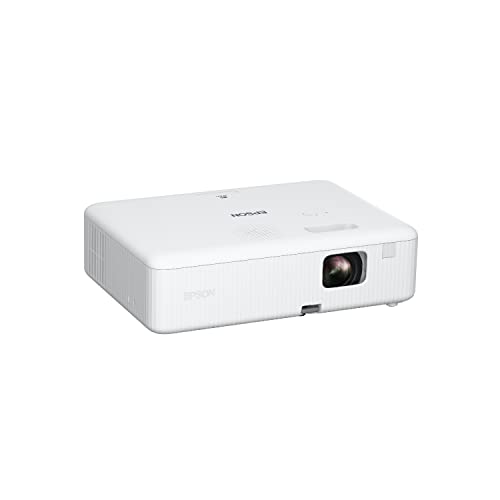
Epson EpiqVision Flex CO-W01 Portable Projector 3-Chip 3LCD Technology — A portable projector with a built in speaker and standard HDMI input, the kind of unit these direct cable tests are designed around. Check price on Amazon.

Epson Home Cinema 1080 3-Chip 3LCD 1080p Home Theater Projector — A living room projector example with the usual dual HDMI layout, useful for the second input and second source tests in this guide. Check price on Amazon.
A Diagnostic Order That Finds the Fault Fastest
Random cable swapping sometimes fixes a no-signal fault and teaches you nothing, so the next occurrence starts from zero again. A fixed diagnostic order — source, cable path, projector settings, then the projector itself — isolates the faulty layer in minutes and leaves you knowing what was wrong.
Step one: prove the source is sending anything
Connect the source to a television or monitor with a short cable you trust. If it shows nothing there either, the projector was never the problem: check the source’s output settings, wake it properly from sleep (some laptops need a key combination to activate an external display), and confirm a streaming stick is actually powered — sticks plugged into a projector’s low-power USB port are a classic silent failure, since the port may supply enough to light an LED but not enough to run the stick under load. Use the stick’s own mains adapter whenever one is available.
Step two: simplify the path to one cable
Remove everything between source and projector: no AV receiver, no switcher, no splitter, no wall plate, no adapter. One known-good cable, source to projector, correct input selected manually rather than by auto-search. If the picture returns, reintroduce the removed devices one at a time until the fault returns with one of them; that device, or the cable feeding it, is your culprit. This divide-and-conquer step is the single most productive move in no-signal troubleshooting, because complex chains fail at their joints, and the joints are exactly what simplification removes.
Step three: interrogate the projector’s settings
With a simple path in place, work the projector’s own options: force the specific HDMI input instead of relying on auto-detect, try the other HDMI port (ports differ — one may support a newer standard or be the only one wired for certain features), and look for an HDMI format or EDID setting offering a standard or compatibility mode. That compatibility mode exists precisely for sources that negotiate badly; it trades away the highest bandwidth features for a handshake almost anything can complete. Also disable HDMI CEC control features temporarily, since a misbehaving control signal from another device can leave an input in a confused state that a clean, CEC-off test cuts through.
Handshake and HDCP Failures in Depth
What the handshake actually does
When a source connects, it reads the projector’s capability data — resolutions, refresh rates, colour formats, audio support — and the two agree a format before any picture flows; separately, copy protection authenticates the path for commercial content. A no-signal message with a working menu means the projector is alive but the negotiation failed or never started. This is why a games console menu may appear while a film app stays black (the protection layer failed, not the video), and why an old cable can pass a desktop at modest settings but fail the moment a film demands more bandwidth and stricter protection.
Sequencing: the order you switch on matters
Negotiations happen at power-up and at input changes, and some combinations only succeed in one order. The reliable sequence is display first, fully awake, then any receiver or switcher, then the source last, giving each a few seconds. If your system only fails when everything starts together from a smart plug or a single remote macro, you have found a sequencing problem, and the cure is staggered power-up or a few seconds of delay in the macro — not new hardware. Conversely, a system that worked for months and fails after a source firmware update may need the reverse: the updated source may now open with a format the projector rejects, cured by setting the source’s output to a fixed, supported resolution instead of automatic.
Resolution and refresh mismatches that look like no signal
A source set to a resolution or refresh rate the projector does not support often produces exactly the same no-signal screen as a dead cable. PCs are the usual suspects after a graphics setting change, and consoles after being moved from a high-end television to a more modest projector. The fix is to set the output on a display that works — or via the source’s safe-mode or low-resolution boot option — to a widely supported format such as 1080p at 60Hz, reconnect, confirm the picture, and only then explore higher settings one step at a time, retreating the moment the screen stays black.
Long Cable Runs and Installed Systems
Why the install worked at 1080p and fails at 4K
Ceiling installs often hide the real culprit: a long passive cable that carried yesterday’s signal happily and cannot carry today’s. Bandwidth demand multiplies with resolution, refresh rate and colour depth, and a cable run near its limit fails intermittently — picture at menus, dropouts when a bright, complex scene raises the data rate. If your no-signal fault arrived with a new source or a settings upgrade rather than out of nowhere, suspect the run before the projector. The durable fixes are an active or fibre-optic cable rated for the full format, or moving the source close to the projector and running control, not video, across the room.
Wall plates, couplers and other quiet saboteurs
Every coupler and wall plate in a run is a small signal loss and a possible corrosion or looseness point years later. Installed systems that fail after working for years often trace to a plate connection that has crept or oxidised. During diagnosis, bypass the in-wall path entirely with a temporary cable across the floor; an ugly cable that works is diagnostic gold, because it condemns the installed path in one step. Replace or re-terminate the faulty segment rather than the whole run where you can, and label both ends — the next troubleshooter, probably you, will be grateful.
Receivers and switchers as the middleman problem
An AV receiver repeats and re-negotiates the signal, which makes it both a suspect and a tool. Receivers have their own HDMI format settings per input, their own firmware quirks, and a passthrough behaviour when in standby that may not match their behaviour when on. Test the projector with the receiver fully on and set to the right input, then with the source direct. If direct works and receiver-fed fails, the receiver’s input format setting is the first place to look, followed by its firmware, before blaming cables that have already proven themselves in the direct test.
Preventing the Next No-Signal Evening
- Label inputs and cables at both ends; half of all no-signal panics are the right source on the wrong input.
- Keep one known-good short cable with the projector kit as your diagnostic standard.
- Power streaming sticks from mains, not from the projector’s USB port.
- Fix source output settings to formats the projector definitely supports instead of leaving everything on automatic.
- Strain-relieve long cables so their own weight is not slowly pulling them from ceiling-mounted ports.
- Note what changed whenever the fault follows an update, a new device or a moved console — the change is the clue.
No-signal faults feel catastrophic because the screen gives you nothing to work with, but they are among the most tractable problems in a projection setup: the chain has few links, each can be tested in isolation, and the fault is almost always a connection, a setting or a negotiation rather than a dead projector. Work the layers in order, change one thing at a time, and the picture comes back — along with the knowledge of exactly where it went.
Intermittent Signal: The Fault That Comes and Goes
A picture that drops for a few seconds and returns is a different fault from a picture that never arrives, and it deserves its own method, because its causes live in margins — connections that almost hold, cables that almost carry the format, heat that almost matters.
Dropouts during bright or busy scenes
If the picture blanks momentarily during explosions, bright transitions or fast action but holds at menus and still scenes, the signal chain is failing at peak data rates. The cable run — especially a long passive one, or one passing through couplers and plates — is operating at its limit, and the demanding scenes push it over. The confirming test is to lower the source’s output format a step (a lower resolution, refresh rate or colour depth) and replay the same scene: stability at the lower format condemns the chain’s bandwidth, and the durable cures are a better cable, a shorter path, or an active or fibre solution for long runs.
Dropouts as the evening wears on
Faults that arrive after an hour suggest heat: a source, receiver or the projector itself drifting as it warms, a cable connector expanding minutely in a warm ceiling void, or a streaming device in an enclosed cabinet cooking itself into resets. Note the timing honestly — time from switch-on to first dropout is diagnostic data — and test with cabinet doors open, devices given air, and the same content. If ventilation postpones the fault, you have found its neighbourhood, and the fix is airflow and placement rather than replacement.
Dropouts when other equipment switches
If the picture blinks when a fridge cycles, a light is switched or another HDMI device wakes, suspect the control channel and power rather than the video itself: CEC commands from a waking device can force an input re-negotiation, and marginal power can dip a sensitive device. Disabling CEC selectively, separating the projector’s power from heavy cycling loads, and ensuring every device in the chain runs its proper supply rather than a borrowed low-power port, together cure most of this family. Log which appliance or event coincides; the pattern is the diagnosis.
Source-Specific Playbooks
Laptops and PCs
Computers add operating-system display logic to the chain: duplicate-versus-extend modes, per-display resolution and refresh settings, and graphics drivers that remember old displays. When a laptop shows its own screen and nothing else, work its display settings deliberately — detect the display, set it to extend or duplicate knowingly, and set a resolution and refresh the projector definitely supports before exploring higher. After driver updates, expect saved profiles to reset; a projector that worked last month and not after an update usually needs its settings re-made, not its cable replaced.
Consoles and media players
Consoles moved between displays carry the old display’s settings with them, including formats the projector cannot show; their safe-mode or display-reset procedures exist for exactly this journey, and learning yours before you need it saves an evening. Media players and streaming sticks add network theatre to the diagnosis — a stick showing its home screen has signal, whatever the app then fails to stream — so separate “no picture at all” from “this service will not play” before touching the projector chain at all.
Receivers, soundbars and switches in the middle
Any device passing the signal through can originate the fault: its input format setting, its firmware, its standby passthrough behaviour, or simply being off when the system design assumed it awake. The bypass test remains king — source direct to projector — and once the middleman is condemned, its own menus usually hold the answer, most often an HDMI format option per input that needs to match the source’s ambitions, or a firmware update that specifically addresses handshake stability with newer sources.
When It Really Is the Projector
Signs that point inside
Suspect the projector itself when every source and cable fails on one input but works on another (a damaged port — check for bent pins or a port loosened by years of cable weight), when all inputs fail identically with known-good everything, or when the fault follows physical events: a move, a knock, a lightning storm nearby. Port damage is the most repairable of these and the most commonly caused by unsupported long cables hanging from ceiling-mounted units — strain relief is prevention and cure in one.
Resets and firmware, used carefully
A factory reset of the projector’s settings is a legitimate late step — it clears the accumulated oddities of years of menus — but record your picture settings first, because the reset takes them too, and a reset should never be the first step while simpler causes stand untested. Firmware updates deserve the same discipline: update when the maker documents a fix matching your symptom or your source combination, follow the power instructions exactly, and never interrupt one. An interrupted update can convert a projector with a signal problem into a projector with no signs of life at all.
The service conversation
If the projector is condemned by elimination — known-good source, cable and settings, all inputs, after a reset — then the remaining causes are internal and belong to a service centre. Bring your diagnostic notes: what was tested, what worked where, when the fault began and what changed. A good technician starts where your notes end instead of re-charging you for the elimination you already did, and a warranty claim supported by that record is a shorter conversation. Most no-signal stories do not end here — they end at a cable, a setting or a sequence — but the ones that do end here end faster for owners who arrive with evidence.
No Signal in Special Environments
Classrooms and meeting rooms
Shared spaces add human variables: the previous user changed the input, a presenter cable lives in the ceiling, and three adapters chain between the wall and the laptop. The fixes that work in these rooms are systemic — a labelled, single, known-good presenter cable at the table; the projector locked to auto-input-search if it behaves, or to the one input everyone uses; and a laminated card with the three-step check (source awake, correct input, cable seated at both ends) that resolves most incidents before IT is called. Design the room so the commonest fault is the easiest check.
Outdoor and temporary setups
Garden cinemas and borrowed halls multiply connectors and extension leads, and every join is a suspect. Build the chain at home first, coil by coil, and bring the diagnostic short cable as a matter of kit. Power everything from one strip where possible so sequencing is a single switch, and expect the first power-up outdoors to need the display-first sequence done deliberately. Temporary setups fail socially before they fail electrically — someone trips a cable loose — so route and tape runs as part of the setup, not as an afterthought.
After a power cut or storm
Systems that wake wrong after an outage usually suffer sequencing and state confusion rather than damage: devices that booted in the wrong order, a receiver stuck mid-handshake, settings lost where a device’s memory depended on standby power. The cure is a full, ordered restart from cold — everything off at the wall, then display, then middlemen, then sources, each given its moment. If the fault survives a clean ordered restart and a bypass test, then consider that the event caused real harm and move to the service conversation with the timeline as your evidence.
The Ten-Minute Drill, Committed to Memory
Everything in this guide compresses into a drill worth rehearsing once while the system is healthy, so that the evening it fails, your hands know it. One: menus on screen — the projector lives. Two: force the correct input manually. Three: wake and verify the source on another display if one is near. Four: one known-good cable, source direct to projector, nothing between. Five: compatibility mode or a fixed, modest output format on the source. Six: power sequence from cold, display first, source last. Seven: reintroduce the chain one device at a time. Most no-signal faults surrender by step four; nearly all by step six; the remainder arrive at step seven already half-diagnosed. Keep the drill and the short cable together, and the blank screen loses its power to ruin an evening — it becomes ten minutes of method, followed by the film.
Cable Care: The Unglamorous Prevention
Most no-signal faults are born months before they appear, in how cables were treated at installation. HDMI connectors are not load-bearing: a long cable hanging from a ceiling projector’s port slowly worries the socket loose and stresses its own plug, until one evening the handshake fails. Support long runs so their weight lands on a clip or a shelf, not on the port. Give every connector a gentle bend radius rather than a right angle crushed behind a unit, because the conductors inside resent the crease and fail intermittently before they fail completely — and intermittent is the most expensive kind of failure to diagnose. Keep spare length coiled loosely rather than kinked into a drawer. And when a cable is condemned by your bypass test, retire it completely rather than returning it to the spares box, because a known-bad cable in circulation is a future evening’s fault already scheduled. Cables are the cheapest component in the chain and the cause of most of its failures; treating them as consumables with a service life, rather than as permanent infrastructure, is the mindset that keeps signal problems rare.
Teaching the Household the Two-Minute Version
A system only you can revive is a system that fails whenever you are away. Teach the household the short form: projector menus visible means it is alive; check the source is awake and playing; check the input name against the label on the cable; reseat the one cable at both ends; if all fails, switch everything off at the wall, count to ten, and power up display first, source last. Write it on a card that lives with the remote. Most incidents end inside those five steps, and the ones that do not will at least have been pre-diagnosed by the time you are consulted — the household will report which step failed, which is the diagnosis half-made. Reliability, in a family system, is a social achievement as much as a technical one.
Building a System That Rarely Loses Signal
The final lesson of every no-signal saga is architectural: reliable systems are designed, not lucky. Their traits are consistent enough to copy. Few devices in the chain, each doing one job. Cables short enough or good enough for the format they carry, supported so their weight never reaches a port. Sources set to fixed, known formats instead of optimistic automatic modes. A power sequence that someone thought about once, embodied in a single switch or a labelled order. Labels everywhere a future hand will reach. And a known-good spare cable in the kit, because the chain’s weakest link should always be replaceable in the dark, by feel, in under a minute. None of this costs much; all of it is decided at installation, in calm, rather than during a failure, in frustration. If you are building or rebuilding a setup, build it to this pattern and the no-signal screen becomes a story you tell about other people’s projectors. If you are inheriting a system, retrofit the pattern one trait at a time — labels this week, cable support next, the spare cable always — and watch the incidents thin out until the drill in this guide is something you remember rather than something you use.
No Signal After Moving House or Rearranging the Room
Moves and rearrangements generate a distinctive family of signal faults, because everything was unplugged by definition and reassembled from memory. The classic errors: the receiver’s inputs landed in different sockets than the projector’s input labels expect, a cable that ran to the projector now runs to a recorder, the long cable and the short cable swapped roles, and a source left outputting the format of the television it met in the previous house. The cure is to rebuild the chain on paper first — source, cable, middleman, projector, in the order signal flows — and then verify the physical system against the paper, socket by socket, rather than troubleshooting the assembled guess. Twenty minutes of method against a diagram beats an evening of swaps, and the diagram, kept with the manuals, becomes the system’s permanent map: the next move, the next helper, the next fault all start from it. Most home technology fails socially before it fails electrically; documentation is how a household’s knowledge survives its own rearrangements.
A Note for Anyone Inheriting Someone Else’s System
Inherited systems — in a bought house, a new job, a family handover — arrive without their history, and their first no-signal fault should be treated as an introduction rather than a breakdown. Before fixing anything, map the system as found: photograph every connection, label every cable at both ends, note which input each source uses and what the power order appears to be. That survey, done in calm, converts an alien installation into your system, and most inherited faults dissolve during it — the unlabelled input, the cable in the wrong socket, the device nobody knew was in the chain. Fix what the survey reveals, keep the map you made, and the next fault, whenever it comes, will meet an owner instead of a stranger.
Related Guides
- best speakers for projectors
- best projectors for gaming under 1000
- best projectors for home theater under 300
- best projectors under 1000 for home theater
- best projectors for movies under 300
- projector lumens explained
- what is throw ratio on a projector
Frequently Asked Questions
Why does my projector say no signal when everything is plugged in?
Because plugged in is not the same as communicating. The usual reasons are the source being asleep or sending its picture elsewhere, the projector watching a different input, a connector seated a fraction short, a cable that cannot carry the signal format, or a failed handshake between the devices. The projector message is accurate: at the selected input, nothing usable is arriving. Work the chain in order: wake the source, select the input manually, reseat the cable, restart source then projector, and swap the cable. One of those steps resolves the great majority of cases.
How long should I wait after selecting an input?
Give it a full ten seconds, longer than feels natural. Projectors negotiate with sources more slowly than televisions, and switching away early can abort a handshake that was about to complete, making a healthy system look faulty. Select the input by its exact name, confirm the source is awake and playing, and wait. If your projector shows an input list with detected devices, use it as evidence: a port the projector believes is empty points at the source or cable, not the projector settings.
Can an HDMI cable be too long for a projector?
Yes. HDMI signal quality degrades with length, and the higher the resolution and refresh rate, the shorter the reliable distance for a passive cable. A long run that worked with an older, lower resolution source can fail completely with a newer device, presenting as no signal. The diagnostic is a short cable connected directly: if the picture appears, the long run is the fault. Permanent long runs may need a higher quality cable, a different routing, or an active or fibre solution specified for the distance and format.
My laptop screen works but the projector shows no signal. Why?
The laptop is probably not sending output to the projector port, or is sending a format the projector rejects. Check the laptop display output toggle or display settings and set it to duplicate or extend explicitly. Then set the output resolution for the projector display to a standard value the projector supports. Restarting the laptop with the cable already connected and the projector on and waiting also helps, because the laptop then detects the projector cleanly during start up rather than as a hot plug surprise.
Does the order I switch devices on really matter?
Yes, more with projectors than with televisions. Switching the source on first and letting it fully start, then powering the projector and selecting the input, gives the cleanest handshake, because the source is ready to announce its formats the moment the projector asks. After power cuts, cable changes or updates, a full wall power drain for a minute followed by this order clears negotiation failures that survive ordinary standby restarts. It costs two minutes and ends a large share of stubborn no signal reports.
When is no signal a fault in the projector itself?
When the evidence has eliminated everything else: multiple known good sources, a short known good cable connected directly, every input tried, correct manual input selection, and restarts in order, with still no picture, while the projector menus do appear normally. If the menus also fail, the projector has a more fundamental problem. At that point professional diagnosis is correct, and your notes from these tests will save the technician time, because you have already proved the entire external chain is innocent.
Why does my projector say no signal only with one device?
Because the fault lives in that device’s output or its negotiation with the projector: its resolution or refresh setting, its HDMI format, or its own port. Prove it by connecting the device to a television; then set its output to a widely supported format such as 1080p at 60Hz and reconnect. Device-specific faults almost never indict the projector.
Can a cable work for years and then cause no signal?
Yes. Cables fail gradually — connectors loosen, conductors fatigue at bends, contacts oxidise — and a new source demanding more bandwidth can expose a cable that was already marginal. This is why the known-good short cable test exists: it separates a tired cable from every other suspect in one step.
The picture comes back if I unplug and replug the cable. What is failing?
The handshake, most likely: replugging forces a fresh negotiation that succeeds where the automatic one stalled. Work the sequencing and compatibility-mode steps in this guide, check for firmware updates for the source and projector, and inspect the connector for looseness — a port that needs frequent reseating is telling you it is wearing out.