Knowing how to transfer data to an android phone calmly is the difference between an exciting upgrade day and a weekend of account recovery. The transfer tools built into modern Android are genuinely good — photos, messages, apps, and settings move in one flow — but they have edges: authenticator apps, banking enrollments, and a few app-specific vaults need manual attention, and a partial transfer looks exactly like a complete one until you go looking for a three-year-old photo thread.
This guide covers the three real scenarios: Android to Android, iPhone to Android, and the rescue case where the old phone is damaged or already gone and your backup is all you have. Whichever is yours, the golden rules never change — charge both phones, use a cable when you can, and verify before you wipe anything.
Disclosure: As an Amazon Associate, kajuandouglas.com earns from qualifying purchases. Links to Amazon on this page are affiliate links; they cost you nothing extra. Listing details such as price and availability change often, so check the current Amazon listing before you buy.
Quick answer: for Android to Android, use the setup wizard with a cable and your Google backup. From iPhone, connect by cable during setup and let the wizard pull messages, photos, and contacts, then handle paid apps and authenticators manually. If the old phone is gone, restore from your Google account backup and Google Photos, and re-enroll banking and two-factor apps one by one.
Gear for This Guide
Verified storage that makes transfer day safer: stage a copy before you move anything.

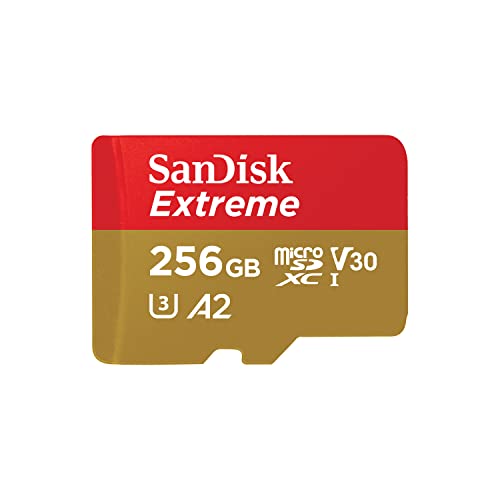
SANDISK 256GB Extreme microSD Card + Adapter, Up to 190MB/s Read Speeds — If your photos live on a microSD card, a fresh fast card in the new phone — copied from the old card on a computer — is the cleanest media move, and the old card becomes an instant archive copy. Check price on Amazon.
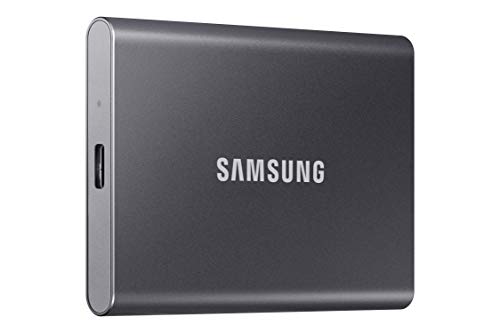
Samsung T7 Portable SSD 1TB Titan Gray, USB 3.2 Gen 2, Up to 1,050MB/s — A portable SSD like the Samsung T7 makes a perfect transfer-day staging area: copy the old phone folders to it first, and you hold an independent backup before anything moves. Check price on Amazon.
In this guide
What You Need
- Both phones charged, with unlock codes
- A cable that fits both phones — USB-C to USB-C for most modern pairs, or the cable that came with the new phone
- Your Google account password and, for iPhone switchers, your Apple ID password
- Wi-Fi for the downloads that follow any transfer
- A written list of critical apps: banking, authenticator, work, messaging
If your old phone screen is broken but the phone still powers on, do not despair and do not rush: a USB hub with a mouse, or your brand repair shop, can often get you one good unlock — which is all a transfer needs. Try that before declaring the data lost.
How to Transfer Data to an Android Phone: Step by Step
Step 1: Prepare the old phone first
On the old phone, connect to Wi-Fi, plug in, and run a fresh backup: on Android, Settings, Google, Backup, Back up now; trigger a manual chat backup inside your messaging apps too, because their last automatic one may be days old. Update the old phone system software if an update is waiting — transfers go smoother between current versions. Charge it past half. This preparation step is the one everyone skips and the one that decides whether the transfer includes this morning messages or last Tuesday ones.
Step 2: Start the new phone and choose copy apps and data
Power on the new phone, connect to your home Wi-Fi, and when the wizard asks, choose to copy apps and data from your old device. Sign in with the same Google account. If the old phone is unavailable, choose the cloud backup option instead and pick your most recent backup — the wizard will show its date and size, so pick deliberately rather than tapping the first entry. Everything after this step depends on this choice being right, so read the screen even if you are eager.
Step 3: Connect the cable and select everything
When prompted, connect the two phones with the cable — for iPhone switchers, this is the moment to plug in the old iPhone and unlock it, tapping Trust if asked. Select all data types: apps, photos and videos, messages, call history, contacts, and settings. A cable moves a full phone far faster and more reliably than wireless, especially with big video libraries. If no suitable cable exists, wireless works — just keep both phones plugged into chargers, near the router, and untouched until it finishes.
Step 4: Wait it out, then verify like a skeptic
Transfers report success generously. Verify personally: scroll your photo library to its oldest photos and its newest; open three message threads, including a group chat; check call history; count nothing — spot-check the extremes, because failures hide at the ends of libraries. Open your email and confirm folders and search work. Only after this inspection do you move to the manual leftovers, and the old phone stays fully intact, unreset, until a full day of normal use has passed on the new one.
Step 5: Rebuild what never transfers: authenticators and banking
Authenticator apps generally do not move their codes — open yours on the old phone and use its transfer or export feature if it has one, or re-enroll each account on the new phone using the old codes while you still have them. Banking apps need fresh sign-in and often device registration by design; that friction is a security feature, not a bug. Work accounts may require your employer enrollment flow. Do all of this with the old phone beside you, because approval prompts love to arrive on the device you are retiring.
Step 6: Handle the iPhone switcher extras
Coming from iPhone, a few extra threads dangle. Turn off iMessage on the old iPhone or deregister your number with Apple, or texts from iPhone users may keep routing to the dead iMessage account instead of your new phone — the classic switcher complaint. Paid iOS apps do not transfer; note your essentials and find their Android versions. Photos in iCloud move via the wizard cable flow or a Google Photos upload from the iPhone first. Apple Watch does not pair with Android, so plan its replacement or resale separately.
Step 7: Move the physical and the forgotten
Transfer the SIM or activate eSIM, and do not forget the microSD card if your media lives on one — or copy its contents if the new phone has no slot. Check the Downloads folder, voice recordings, and any files in a file-manager app; these stragglers miss automated transfers surprisingly often. Pair your Bluetooth accessories fresh rather than expecting pairings to move. Then live on the new phone for a day before resetting the old one — the final safety margin that costs nothing and saves everything.
Common Mistakes
Resetting the old phone at the store
Trade-in counters encourage it, and it is how authenticator access and un-backed-up photos die. Politely decline, take the old phone home, verify everything over a day, then reset and return or mail it yourself. Any legitimate trade-in process tolerates this; your data does not tolerate the alternative.
Trusting the success screen
Transfer complete means the tool finished, not that your oldest photos or your group threads survived. The five-minute verification in step four — extremes of the photo library, three message threads, email search — catches the partial transfers that otherwise surface months later as permanent losses.
Forgetting iMessage deregistration
Switchers who skip this spend weeks missing texts from every iPhone user they know, because those messages route to an iMessage account attached to a phone in a drawer. It takes two minutes on the old iPhone with the SIM still in, or via Apple deregistration page afterward. Do it during setup, not after the complaints start.
Moving the SIM first and wondering where codes went
Verification codes and carrier prompts go to the number, and during setup they may land on whichever phone currently holds the active SIM. Keep the SIM in the old phone until the transfer and account sign-ins are done, then move it as one of the final steps — the order that keeps every prompt reachable.
Assuming the microSD card moved itself
Photos on a card in the old phone are not part of most transfer flows, and people discover the gap when the old phone is already reset and the card formatted by its new owner — themselves. Physically move the card or copy it explicitly; do not let it be an assumption.
Pro Tips
Take screenshots of your old home screens and app drawer before starting. If an app fails to reinstall, the screenshot is your inventory of what to fetch manually.
Do the transfer in the evening at home. Overnight, the new phone finishes app updates, photo indexing, and cloud sync on Wi-Fi and charger, and greets you finished rather than busy.
Keep a short written list of accounts as you sign back in — banking, email, authenticator, work. Next upgrade, that list turns a half-day project into an hour.
If the old phone is being handed to a family member, reset it only after your day of verification, then help them set it up fresh with their own account — never just hand over your signed-in phone.
Choosing Your Transfer Method by Situation
There are three broad routes to a new Android phone: a direct cable transfer during setup, a wireless transfer during setup, and restoring from a cloud backup. Cable is fastest and most complete, and it is the right choice when you have both phones in hand and an hour of patience. Wireless suits people without a suitable cable and moves most things well, simply slower. Cloud restore is the route when the old phone is gone, broken, or already traded — which is precisely why the backup habits covered elsewhere matter: a cloud restore can only return what was actually backed up, and it returns it at the speed of your internet connection rather than a cable.
What transfers, what limps, and what stays behind
Photos, contacts, messages, call history, most apps, and many settings travel well through the standard flows. Banking apps arrive but require re-enrolment, by design. Authenticator codes frequently require manual migration inside the authenticator app itself. Some app data — game progress in titles that never adopted cloud saves, downloads inside streaming apps, locally recorded audio — may not come across. Knowing this map in advance turns transfer day from a series of small betrayals into a checklist: after the bulk move, you work a short list of known exceptions instead of discovering them over the following month.
From iPhone, From Old Android, and From a Computer
Moving from an iPhone follows the same shape with a few specific courtesies: disable iMessage before or immediately after switching, so messages from iPhone-using friends do not keep routing to a service you no longer use; move photos through a cloud library or a cable flow that the setup offers; and expect subscriptions and app purchases to stay with their original store, meaning some paid apps must be bought again. Moving from an older Android is the smoothest path, especially within the same brand, whose enhanced transfer tools often carry extras such as home-screen layouts and deeper settings. Moving from a computer copy is the fallback of last resort and works best for media and documents rather than app states.
Timing, battery, and the patience budget
Transfers fail socially before they fail technically: people start them at midnight, in a shop, or twenty minutes before leaving the house. Schedule yours for a calm evening at home. Both phones charged or plugged in, stable Wi-Fi, and no deadline. Large photo libraries can take a long while, particularly wirelessly, and an interrupted transfer usually restarts rather than resumes gracefully. Put the phones side by side, start the process, and leave them alone; checking every few minutes and waking screens does not speed anything and occasionally disrupts it. The transfer is done when the new phone says so, not when the progress bar looks close.
After the Transfer: The Verification Pass
Do not erase, trade, or return the old phone on transfer day. Spend the first week verifying against a list: spot-check photo counts in a few albums, open your messaging threads with the people who matter, confirm contacts search finds everyone, and open each banking, payment, and authenticator app to complete its re-enrolment while the old phone is still available as a fallback for codes. Test a call and a text. Pair the car and the earbuds. This pass feels tedious and is the entire difference between a transfer that is done and a transfer that merely happened.
Hunting the stragglers
Some things hide. Loyalty and transit apps may hold balances tied to the old device. Two-factor prompts for work accounts may route through an app you forgot existed. Downloaded files, voice memos, and documents saved inside individual apps deserve a deliberate sweep of the old phone, folder by folder and app by app, during that first week. Keep a note on the new phone titled for the purpose and jot each straggler as you find it; by the end of the week the note should stop growing, which is your signal that the migration is genuinely complete and the old phone can be reset with a clear conscience.
Special Situations Worth Planning For
A broken old phone changes the problem: if the screen is dead but the phone lives, a cable to a computer or an external display may rescue data; if the phone is entirely dead, your cloud backup is the whole story and the transfer becomes a restore. A transfer for a parent or child deserves extra time and a gentler pace, plus written passwords and a photograph of their old home-screen layout so the new phone can be arranged to feel familiar — familiarity is a feature for someone who finds change stressful. Dual-SIM and work-profile users should verify both lines and the work container explicitly after transfer, because those are the areas automated flows most often handle partially.
When to start fresh instead
A clean start — restoring only contacts, photos, and messages, then installing apps deliberately — suits phones that were slow, cluttered, or troubled, because a full transfer faithfully imports the clutter too. The cost is an evening of re-signing-in and reconfiguring. The benefit is a phone that feels new in behaviour as well as hardware. If your old phone’s problems were software-shaped, choose the fresh start; if it was healthy and beloved, transfer fully and keep the continuity. Either way, choose on purpose, before setup begins, rather than discovering mid-flow which one you are doing.
The Transfer-Day Checklist
- Both phones charged, stable Wi-Fi, a calm hour protected from interruption.
- Passwords and two-factor access reachable before you begin.
- A fresh backup of the old phone completed and its timestamp verified.
- iMessage disabled if you are leaving an iPhone.
- Authenticator migration planned app by app, not assumed.
- Old phone kept intact for a full week of verification afterwards.
- Straggler note started on the new phone and reviewed at week’s end.
Followed in order, this turns the most dreaded day in phone ownership into a mildly boring evening — which is exactly what a good transfer should be.
Transfer Troubleshooting: When the Flow Stalls, Skips, or Lies
Transfers misbehave in recognisable ways, and recognising them saves both time and temper. A transfer that appears stalled at one percentage for a long while is usually moving a large video library through a slow wireless link rather than truly stuck; watch whether the numbers change across ten patient minutes before intervening, and switch to a cable without regret if patience runs out. A transfer that completes cheerfully but is missing messages usually means the messaging application’s own backup was never part of the flow — restore it from inside that application, where its backup lives. Missing photographs often turn out to live in folders the transfer did not consider albums, such as downloads or application-specific media folders, and a file manager on the old phone finds them in minutes. An application that arrives but opens empty is generally waiting for its own sign-in or its cloud sync to complete. An application that does not arrive at all may simply be incompatible with the new phone’s system version, which the store page will confirm in one visit. None of these is a catastrophe; all of them feel like one at midnight, which is why transfers belong to calm evenings.
The verification-code traffic jam
Transfer day generates a blizzard of sign-ins, each demanding a code, and the codes arrive simultaneously on the old phone, in email, and inside authenticator applications. Work through the jam methodically rather than quickly. Keep the old phone charged, connected, and beside you for the entire first week. Treat its SIM and its number as authoritative until every important account has been re-anchored to the new device, and only then move the number across if it has not moved already. If an authenticator application is your source of codes, migrate it deliberately, using its own transfer feature where it offers one, before anything is wiped anywhere — because regenerating every account’s two-factor enrolment from scratch, one support desk at a time, is the single most tedious recovery in consumer technology, and it is almost always avoidable with twenty planned minutes.
Accounts That Span Devices: Watches, Cars, Homes, and Money
Some of your digital life is anchored to devices beyond the phone, and transfer day is when those anchors must be re-set. A watch paired to the old phone must be unpaired and re-paired, with its health and activity data syncing through its own account rather than the phone transfer. Earbuds remember the old phone fondly and may need their pairing reset before they behave gracefully with the new one. The family car knows the old phone by name and will keep trying to greet it at every start. Speakers, lights, and televisions at home hold the old phone as a trusted controller inside their applications. Budget an evening during the first week for this re-anchoring round; it is nobody’s favourite task, and it is precisely the difference between a new phone that feels integrated into your life and one that feels like a polite stranger in your own house. Subscriptions and purchases belong to the same round: anything bought through the old phone’s store stays with that store’s account, so moving within Android preserves them, while arriving from another platform means re-subscribing through the new store and cancelling the old arrangements in the same sitting — because forgotten duplicate subscriptions are the cockroaches of personal finance, surviving everything and billing monthly.
Managed phones and accessibility continuity
If the phone is managed by an employer or a school, the transfer rules change and the IT department becomes a character in the story. Managed devices may restrict what can move, require the new phone to be enrolled before the old one is surrendered, or wipe the old device on a schedule you do not control — so contact IT before transfer day, not during it, and clarify what personal material may live on the device and where it should go first. For users who rely on accessibility configurations, the transfer’s success is measured in those settings rather than in photographs: screen-reading rates, magnification gestures, hearing-aid pairings, and custom touch accommodations sometimes travel with the account backup and often must be rebuilt by hand. Note or photograph the old phone’s accessibility settings before beginning, rebuild them in the very first session, and test each against the real tasks it supports. A transfer that moves ten thousand photographs but loses a carefully tuned screen-reader setup has failed its user exactly where it matters most.
The Week-After Audit and the Proper Goodbye
Schedule a deliberate second pass one week after the transfer, distinct from the first days’ spot checks. Open every application in the drawer once; the ones demanding forgotten passwords announce themselves now, while the old phone still exists as a recovery path. Compare the photo library’s earliest and latest items against the old phone’s counts. Confirm that the new phone’s own backup has completed at least one full run, because a new phone that is not yet backing up is a new risk wearing a success story’s clothes. Check storage, too, since transfers sometimes duplicate media, and reclaiming that space early prevents the slow confusion of a new phone that is mysteriously half full. Only when this audit is clean should the old phone be retired, and retirement has an order: sign out of accounts, remove the device from trusted lists and finding services, unpair it from watches and cars, then factory reset it, and only then sell it, gift it, recycle it, or drawer it as a spare. Gifting within the family deserves the same rigour plus kindness — set it up fresh for its new owner rather than handing over your digital ghost, accounts and all.
Transfer Wisdom, Condensed for the Fridge Door
- The transfer is a week, not an event: bulk move, verification pass, straggler hunt, audit, retirement.
- The old phone is your safety net until the audit is clean; never surrender, trade, or erase it early.
- Authenticators, banking, and subscriptions migrate by hand or not at all — plan them by name, in advance.
- Accessibility settings and work profiles are transfers within the transfer; test them explicitly, not hopefully.
- The new phone’s first completed backup is the true finish line, not the appearance of its home screen.
Follow that shape and changing phones becomes what it should always have been: a mildly administrative week in which nothing you love is ever at risk, at the end of which the new phone is not merely populated with your data but truly, completely yours — and the old phone can leave with a clear conscience on both sides of the handover.
The Emotional Side of Transfer Day, Taken Seriously
It is worth admitting that transferring phones is stressful in a way out of proportion to its technical difficulty, because a modern phone is not an appliance — it is a diary, a wallet, a photograph album, a key ring, and a correspondence archive wearing a glass coat. The fear people feel at the transfer screen is the rational fear of losing pieces of a life, and it deserves respect rather than brisk reassurance. The practical answer to that fear is the structure this guide has built: a verified backup before anything moves, an old phone kept intact for a week afterwards, a written list of the things that migrate by hand, and an audit before anything is erased. Structure is what turns an act of faith into a procedure. If you are transferring for someone else — a parent, a partner, a friend who trusts you — narrate the structure as you go, because their calm depends on understanding that nothing irreversible happens until the audit says so. The most reassuring sentence in all of consumer technology is a true one: we can undo almost everything except an erasure, so we erase last, together, when the list is finished.
When the new phone is a gift: transferring without spoiling
A special case deserves its own note: the phone bought as a gift, which its giver wants to present ready to use. Resist completing the transfer before the giving, because accounts, fingerprints, and verification codes belong to the recipient’s presence, and a phone pre-loaded with someone’s life but locked to hurried setup choices serves nobody. The generous version of the gift is the phone, a case, and your company for the transfer evening — your patience during the code blizzard is worth more than a wrapped shortcut. Prepare by ensuring the recipient’s old phone is backed up in the days before, discreetly if the gift is a surprise, by suggesting a general tidy-up. Then the giving includes the migration, done properly, with tea. Recipients remember that evening fondly, which no pre-configured handset has ever achieved.
A Final Word on Keeping the Old Phone’s Number and Identity Straight
One last administrative thread runs through every transfer and tangles more of them than any technical step: the phone number and the accounts anchored to it. Messaging identities, banking verifications, delivery services, and two-factor systems all treat your number as a root of trust, so any transfer that also changes numbers — a new contract, a move between carriers — must be planned as two projects, not one. Keep the old number alive until every anchored account has been re-pointed, test the important ones with real sign-ins, and only then let the old line lapse. Where the number stays the same, the transfer is simpler, but the audit remains: a week after the move, deliberately sign out and back into your three most important services, proving the new phone — not the old one’s lingering sessions — is now the trusted device. Identity, unlike photographs, does not transfer itself. It is handed over, account by account, by an owner who knows where it lives.
Transfer Day in Different Households: Three Small Stories
In the first household, the transfer is a parent’s, performed at a kitchen table with the adult child narrating each step. The photographs arrive, the messages arrive, and the moment that matters is not technical at all: it is the parent video-calling a sibling on the new phone, unassisted, twenty minutes after the audit, because the home screen was arranged to mirror the old one and familiarity did the rest. In the second household, the transfer is a teenager’s first own phone, and the migration is deliberately partial — contacts, photographs, and music move, while the accumulated chaos of a childhood tablet does not — so the new phone begins life as a fresh start with an inheritance, which is exactly what its owner wanted without knowing how to ask. In the third household, the transfer follows a loss: the old phone is at the bottom of a harbour, and the entire migration is a cloud restore onto a replacement, which works because the backups were automatic and verified, and the household’s grief is confined to a handset rather than extending to three years of photographs. Three transfers, three shapes, one common skeleton: preparation, patience, audit, and an old phone — or its backup — treated as sacred until the new one had proven itself.
What the stories teach that checklists cannot
Notice what decided success in each story. Not the cable, not the transfer application’s elegance, not the new phone’s speed. In the first, it was respect for familiarity. In the second, it was a deliberate decision about what deserved to move. In the third, it was a habit formed years earlier by someone who could not have known which day it would save. Transfers are won before they begin — in the backup settings, in the planning conversation, in the refusal to hurry — and the technology, given that preparation, is the easiest part of the day. Hold that order and every future transfer in your household inherits it, because the stories become the family’s method, retold at kitchen tables long after the specific phones are forgotten.
The Transfer, Remembered as It Should Be
Months from now, you will not remember the progress bars, and you should not. You will remember whether anything precious went missing — and if this guide’s shape was followed, the answer will be nothing, and the transfer will have faded into the category of tasks that were smaller than their reputations. That fading is the goal. A transfer done properly is a mildly boring, completely safe administrative week, after which the new phone simply is your phone, carrying your life entire: every photograph, every thread, every account, every small arrangement of your days. Boring, safe, and complete is not a modest ambition for moving a life between devices. It is the whole ambition, achieved.
Transferring When the Old Phone Is Already Gone
Sometimes the transfer begins in the worst configuration: the old phone lost, stolen, or dead beyond revival, and the new phone empty in your hand. What happens next is decided entirely by decisions made months earlier. If backups were automatic and verified, the restore rebuilds the large majority of a life — photographs, contacts, messages where the applications allowed, application lists, settings — and the losses are confined to the known exceptions: authenticators to re-enrol, banking to re-register, the downloads folder’s ephemera. If backups were aspirational, the restore rebuilds a skeleton, and the household’s photographs exist only in the copies other people hold — which is why families that share albums liberally discover, on this day, that their sharing was an accidental backup system of real value. Either way, work the same order: restore the cloud backup first, sign into the core accounts, re-enrol the financial and authenticator applications deliberately, and keep a written list of everything discovered missing, because some of it will surface in unexpected places — a laptop’s downloads, a partner’s album, an email attachment — across the following weeks.
Reporting, locking, and the lost phone’s paperwork
When the old phone is lost rather than merely replaced, the transfer runs in parallel with a small security operation that should not wait for the new phone to be fully dressed. Locate or lock the device through the finding service from any browser; if location fails, mark it lost so it displays your contact details and protects its contents; inform your carrier so the line can be protected; and change the passwords of the accounts that matter most, beginning with the email account that anchors all the others’ recovery. Only then settle into the restore at leisure. The order matters because the new phone’s convenience can wait an hour and a lost phone’s exposure cannot — and because every one of those steps is easier from a calm desk than from a pavement, which is where the temptation to skip them is strongest.
The Transfer as a Household Skill
Families perform this task on a rhythm — upgrades, breakages, first phones, hand-me-downs — and the households that suffer least are the ones that have converted it into a shared skill with a written method. Keep the method where the chargers live: the preparation list, the order of operations, the audit, the retirement steps, and the hard rule about erasure coming last. Add each transfer’s lessons to it in a line or two, so the document ages into the family’s accumulated wisdom about its own accounts and quirks. The next transfer then begins from experience rather than from a search engine, and the one after that is performed by someone you taught. Technologies change their cables and their menus; the shape of a careful migration — prepare, verify, move, audit, retire — does not change, and a household that owns the shape owns the task forever.
The Transfer Kit: Assembling It Once
Households that transfer well keep a small, permanent kit, and assembling it once pays at every future phone change. In it: one cable you trust completely, labelled as the transfer cable and never lent to the household’s general cable economy; a note card with the order of operations from this guide; the family’s setup log, updated after each migration; and a written list of the accounts that always need manual migration — the authenticators, the banks, the subscriptions — personalised to your household and revised after every transfer. Keep the kit where the chargers live. When the next phone arrives, the kit turns the first evening from improvisation into procedure, and procedure, in a task whose only real dangers are haste and erasure, is worth more than any cable’s speed. The kit is this guide, made physical.
The promise you make the next owner of your old phone
One last refinement of the retirement ritual deserves emphasis because it is so often skipped: when the old phone passes to another person, it should arrive as a clean, supported, honestly described device — reset, removed from your accounts, its remaining update life stated aloud, its battery’s character described without salesmanship. That is the promise. It costs nothing, it protects the recipient, and it protects you, because a phone still half-attached to your accounts is a thread leading back into your life. Cut the threads kindly, completely, and in the right order, and the transfer story ends the way it should: two people, two phones, no loose ends anywhere.
Related Guides
- best cleaners for android phones
- best chargers for android phones
- best photo stick for android phones
- best earbuds for android phones
- best prices for android phones
- samsung vs pixel android phones
- android vs ios for beginners
- stock android vs one ui
Frequently Asked Questions
How long does a transfer take?
A cable transfer of a moderately full phone typically finishes in fifteen to forty minutes; a large photo and video library over wireless can take several hours and is best left running plugged in. The clock that matters is not the transfer bar but the full job — updates, sign-ins, authenticator and banking re-enrollment — so budget an unhurried evening and you will finish relaxed instead of mid-task.
Can I transfer if my old phone is broken?
If it powers on and unlocks — even with a cracked screen, using a USB mouse or an external display on models that support it — a normal transfer usually works. If it cannot unlock, your cloud backup is the path: restore from your Google backup and Google Photos during setup, accept that app-specific data without its own backup is gone, and re-enroll secure apps fresh. A reputable repair shop can sometimes revive a phone just long enough for one transfer.
Will my WhatsApp or other chat history move?
Chats move when the app own backup is current — run a manual backup on the old phone immediately before transferring, and the restore on the new phone will offer it at first sign-in. Between Android phones this is routine; from iPhone, use the transfer flow the app itself supports during setup, connected by cable. Verify your longest and most precious thread personally before resetting anything.
Do my paid apps transfer?
Between Android phones on the same Google account, yes — purchases live on your account, and apps reinstall without repaying. From iPhone, no: app stores are separate economies, and paid iOS apps must be rebought on Android if you want the paid tier. Make your essentials list before switching so the few repurchases are a decision, not a surprise.
Why are some photos missing after transfer?
The usual causes are photos that lived only on a microSD card nobody moved, device folders excluded from backup, or a wireless transfer interrupted and reported as done. Check the old phone gallery directly, compare its total photo count with the new phone, and copy any gap by cable or card. This is precisely why the old phone stays unreset for a day — gaps found early are recoverable.
Should I transfer at the store or at home?
At home, almost always. You get your own Wi-Fi, your chargers, your computer for staging copies, and no queue pressure to tap through prompts. Store staff can help with SIM and carrier activation, which is genuinely useful — then take both phones home and do the data work at your kitchen table with this guide open. Your future self, verifying photos calmly, thanks you.
How long does a phone transfer usually take?
The bulk move takes from well under an hour by cable for a modest library to several hours wirelessly for a large one, and planning for the longer end is what keeps transfer day calm. The honest total, though, is a week: the move itself, a day or two of spot checks as real life exercises the new phone, a straggler hunt through the applications that migrate by hand, and a final audit before the old phone is retired. Most of that week is ordinary phone use with a notebook handy, not labour — but the week exists, and transfers planned as an hour are the ones that end with an erased old phone and a missing something.
What will not transfer automatically to my new phone?
Expect to migrate a short list by hand: authenticator codes, which often need their own transfer process inside the authenticator application; banking and payment applications, which re-enrol on the new device by design; subscriptions and paid applications when you are arriving from a different platform’s store; downloads stored inside individual applications, such as offline media; and the arrangements of devices around the phone — watches, cars, earbuds, and smart-home controllers — which re-pair rather than transfer. None of these is difficult. All of them are miserable when discovered late, which is why this guide insists on planning them by name before the bulk move begins.
When is it safe to erase or trade in my old phone?
After the audit, and not a day before: you have opened every application once, compared the photo library’s counts, confirmed the new phone’s own backup has completed a full run, re-anchored your number and your important accounts, and watched a full week of real life fail to surface a straggler. Then retire it in order — sign out, remove it from trusted lists and finding services, unpair the accessories, factory reset, and only then sell, gift, recycle, or drawer it. Erasure is the single irreversible act in the entire process, and the whole method exists to make sure it happens last, calmly, with a finished list in your hand.