Figuring out how to speed up an android phone starts with a comforting truth: most slow phones are not dying, they are cluttered, nearly full, or running one badly behaved app. Android needs free storage to breathe, apps accumulate background habits over years, and a single social or shopping app gone rogue can make a healthy phone feel ancient. The fixes below are ordered from most effective to most drastic, and the first four solve the majority of cases without deleting anything you care about.
Work through the steps in order and test after each one — you want to know which fix worked, both for satisfaction and because a phone that slows down again in a week is telling you something specific. Everything here uses built-in settings; you do not need cleaner apps, booster apps, or anything that promises miracles with a rocket icon. Those apps are, ironically, a common cause of the problem.
Disclosure: As an Amazon Associate, kajuandouglas.com earns from qualifying purchases. Links to Amazon on this page are affiliate links; they cost you nothing extra. Listing details such as price and availability change often, so check the current Amazon listing before you buy.
Quick answer: free up storage until at least 15–20 percent is empty, restart the phone, update Android and your apps, find and tame the app eating battery and background resources, clear cache only for misbehaving apps, and treat a factory reset as the last resort — after a full backup.
Gear for This Guide
Two verified accessories support the fixes above: storage relief and healthy charging.

SANDISK 256GB Extreme microSD Card + Adapter, Up to 190MB/s Read Speeds — On phones with a microSD slot, moving photos and video to a fast card like this is the quickest honest way to reclaim internal storage — the single most effective speed fix in this guide. Check price on Amazon.

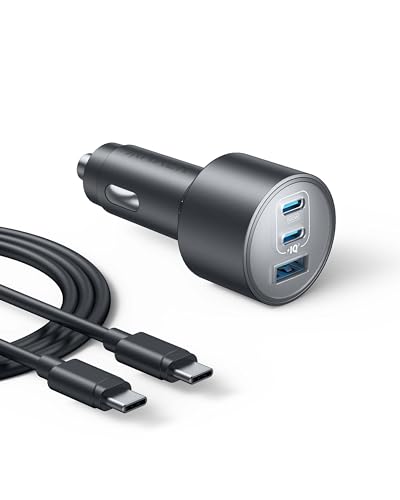
Anker Nano 65W GaN II PPS USB C Charger, Fast Compact Foldable Charger — An aging battery plus a weak old charger is a common hidden cause of heat and throttling; a modern GaN charger delivers steady power without excess heat. Check price on Amazon.
In this guide
What You Need
- About twenty minutes and your charger
- Your Google account password, in case any step asks you to sign back in
- A note of when the phone feels slow: all day, after updates, when hot, or in one particular app
- A recent backup, if you plan to go as far as the later steps
Before changing anything, note your storage figure: Settings, then Storage. If free space is in single digits, that is very likely your whole problem, and step one alone may transform the phone.
How to Speed Up an Android Phone: Step by Step
Step 1: Restart the phone — properly
It sounds too simple, and it fixes an embarrassing percentage of slowdowns. A restart clears temporary memory, stops runaway processes, and gives the system a clean start after weeks of uptime. Use the Restart option from the power menu rather than a quick off-and-on, and give the phone two minutes after booting before judging — it finishes background housekeeping first. If your phone feels fast after every restart and slow again within days, that pattern points at a specific app misbehaving, which step five will hunt down.
Step 2: Free up storage until a fifth of it is empty
Android slows sharply as storage fills, because the system and apps need working room for caches, updates, and temporary files. Delete downloaded files you forgot about, clear out messaging-app media folders — years of forwarded videos hide there — offload photos to cloud or a computer, and uninstall apps you have not opened in months. The built-in Files app and the Storage settings screen both offer safe suggestions. Aim for at least 15 to 20 percent free. On phones with a microSD slot, moving media to the card achieves the same breathing room.
Step 3: Update Android and every app
Performance fixes ship constantly, and a phone several updates behind can carry known bugs that were fixed months ago. Install any pending system update, then open the Play Store and update all apps. Pay special attention if the slowdown began right after an update — occasionally a fresh update needs a day of background optimization, or a follow-up patch. Either way, being current is the baseline every other troubleshooting step assumes, and skipping it wastes time chasing problems that no longer exist on current software.
Step 4: Remove cleaner, booster, and duplicate security apps
Apps that promise to speed up your phone mostly do the opposite: they run constantly, show ads, kill apps that Android then relaunches — using more battery and time than leaving them alone — and sometimes create the very lag they claim to cure. Android has solid built-in memory and security management. Uninstall third-party boosters, RAM cleaners, and battery savers, keep at most one reputable security app if you use one at all, and let the system do its job for a day before judging the result.
Step 5: Find the app that is actually misbehaving
Go to Settings, then Battery, and look at usage since last full charge. An app you barely use sitting near the top is your suspect. Do the same in Storage to find apps with enormous caches. For a suspect app: update it, then clear its cache in Settings, Apps, that app, Storage. If it still misbehaves, uninstall and reinstall it fresh. Social, shopping, and free-game apps are the usual offenders. If the phone is fast in Safe Mode — which disables third-party apps — you have proof the cause is an app, not the phone.
Step 6: Tame background activity and animations
Restrict background battery use for apps that do not need to be alive all day: shopping, games, and news apps can check in when you open them instead of constantly. In Developer options — enabled by tapping the build number seven times, and only if you are comfortable there — reducing animation scales to 0.5x makes any phone feel noticeably snappier, because you wait less for transitions. It changes feel, not true speed, but feel is most of what frustrates people. Skip any deeper developer settings; the gains are not worth the risk.
Step 7: Check the battery health and heat
A worn battery cannot deliver steady power, and phones protect themselves by slowing down — especially older devices or ones that get hot. If your phone is slow mainly when the battery is low, hot, or a few years old, a battery replacement at a reputable shop can restore performance more honestly than any software trick. Heat also throttles the processor directly: a thick case on a hot day, or charging while gaming, will slow any phone. Remove the case while charging and notice whether everyday speed improves.
Step 8: Factory reset — the last resort that works
If the phone is still slow with storage freed, apps tamed, and software current, a factory reset returns it to a known-clean state and is genuinely effective. Back up everything first — photos, messages, app data — using the backup step in our related guides, and list your essential apps and sign-ins. After the reset, restore selectively: reinstall the apps you truly use rather than a full clone of the old clutter, or you will rebuild the problem. Judge the phone for a day in this clean state before concluding the hardware itself is finished.
Common Mistakes
Clearing every app cache at once
Cache exists to make apps faster; wiping all of it forces every app to rebuild, making the phone slower for days and achieving nothing. Clear cache only for a specific app that is misbehaving or bloated. The one-tap clear-everything habit comes from old advice that modern Android has made obsolete.
Installing a booster app to fix lag
This adds a permanent background process, ads, and aggressive app-killing that fights the operating system. When a booster kills an app and Android relaunches it, you pay the startup cost twice. The phone almost always runs better the day the booster is uninstalled.
Ignoring a nearly full storage warning
People delete one video, gain a few hundred megabytes, and wonder why nothing improved. The system needs a meaningful margin — think a fifth of total storage — to update apps, cache comfortably, and avoid constant housekeeping. Half-measures here produce no result and a false conclusion that the phone is hopeless.
Resetting before backing up
A factory reset is the right final step and the wrong first one. Done without a verified backup, it trades a slow phone for an empty one. Always confirm photos and messages exist somewhere else — cloud or computer — before you touch the reset button.
Assuming slow means broken
Most slowdowns are software and storage, both fixable for free in under an hour. Replacing a phone for a problem that step one or two would have solved is the expensive outcome this guide exists to prevent. Exhaust the free fixes first; then, if the hardware truly is done, you replace it with a clear conscience.
Pro Tips
Restart weekly. A scheduled weekly restart — many phones offer it in settings — prevents the slow creep of background weirdness and takes zero effort once set.
Keep the home screen honest. Widgets that constantly refresh, especially news and weather stacks, cost background resources all day. Keep the ones you read; remove the decoration.
Watch storage like a fuel gauge. A quick monthly glance at Settings, Storage, and deleting the downloads folder prevents the full-storage slowdown from ever returning.
Judge speed after updates fairly. Phones re-optimize apps in the background after a system update and can feel sluggish for a few hours. Give it a day on the charger before concluding an update hurt performance.
Diagnose Before You Optimise: What Slow Actually Means
Phones feel slow in at least four distinct ways, and each has a different cure. Apps may open slowly, which points to storage pressure or an ageing drive. The interface may stutter while scrolling, which points to background load or a struggling processor under heat. Apps may reload instead of resuming, which points to memory pressure. Or everything may be fine until one particular app misbehaves, which points to that app rather than the phone. Spend two minutes identifying which slowness you have, because the generic advice to clear everything and restart wastes effort when your actual problem is a single bloated app or a battery saver throttling the whole system.
The five-minute health check
Check storage first: a phone with nearly full storage slows measurably, because the system needs working room for caches, updates, and temporary files. Check battery health if your phone reports it, because a degraded battery can trigger performance limits. Check whether slowness arrived suddenly after an update or an app install, which gives you a suspect, or crept in over a year, which suggests accumulation. Finally, restart the phone and observe it fresh: if it feels quick after a restart and degrades over days, something is accumulating — an app leaking memory, a runaway sync, a widget misbehaving — and your hunt is for a culprit, not a cure-all.
Storage: The Highest-Return Fix
Freeing storage is the closest thing this topic has to a universal remedy. Aim to keep a comfortable margin free rather than a sliver. Work through the large categories the storage screen shows you: downloaded videos and podcasts you have finished, duplicate photos from messaging apps that save every received image, offline maps for trips long past, and the downloads folder, which is a museum of forgotten attachments on most phones. Cloud photo backup lets you remove local copies safely once you have verified the backup on another device. Uninstall apps you have not opened in months; you can reinstall any of them in a minute if the need ever actually arrives, and for most it never does.
Caches: what to clear and what to leave alone
Clearing an individual app’s cache helps when that app is bloated or behaving oddly, and it is safe — the app rebuilds what it needs. Clearing every cache on the phone as a ritual is pointless; the caches refill, and the phone feels slower while they do, because caching exists to make things faster. The exception is a browser or social app whose cache has swollen to absurd size, where a clear genuinely reclaims space. Treat cache clearing as a targeted tool for a named app with a named problem, not as a weekly ceremony, and be deeply suspicious of cleaner apps that promise to do this for you — many are advertising vehicles that consume the very resources they claim to free.
Background Load, Bloat, and Battery Savers
Every app that syncs, tracks, and refreshes in the background takes a small tax. Individually trivial, collectively they are the difference between a phone that flies and one that wades. Review which apps are allowed to run unrestricted in the background and restrict the ones that have no business working while you are not looking at them — shopping apps, games, and most social apps top the list. Disable or uninstall preinstalled apps you never use where the system allows it. Then check the opposite failure: an aggressive battery saver or a third-party battery app throttling everything, including the apps you are actively using, can manufacture slowness that feels like hardware age. If your phone became slow when you installed a battery optimiser, uninstall the optimiser.
Widgets, launchers, and live wallpaper
Home-screen widgets poll for updates, launchers vary enormously in efficiency, and live wallpapers consume a steady trickle. None is forbidden, but if your phone is struggling, simplifying the home screen is a legitimate diagnostic: remove widgets for a day and see whether the stutter follows them. A heavy third-party launcher on an older phone is a frequent hidden cause, and returning to the stock launcher for a test costs nothing. Animations can also be reduced in developer or accessibility settings, which does not make the phone faster in reality but makes it feel more responsive — a distinction worth being honest about, and a perfectly valid comfort on an ageing device.
Updates, Resets, and Knowing When They Help
Install system updates. Occasionally an update causes a temporary slowdown while the phone re-indexes and optimises apps, which settles within a day or two of normal use and charging; judging an update in its first hours misleads many people into blaming it permanently. App updates matter too, since a single badly behaved app version is a common cause of sudden slowness, and the fix often arrives quietly as another update. If one app is the problem and updates do not cure it, clearing its data or reinstalling it usually does — after confirming anything precious in it is backed up.
The factory reset, used honestly
A factory reset is the nuclear option and it genuinely works when slowness is accumulated software grime, because the phone returns to a clean state. It is also genuinely disruptive: everything must be backed up, signed back into, and reconfigured. Reserve it for when targeted fixes have failed, and treat it as a half-day project with verified backups, not a casual experiment. If a phone is still slow immediately after a clean reset with only essential apps installed, the limitation is hardware or battery, and no further software ritual will change that verdict.
When Slow Means Old: Honest Endpoints
There comes a point where a phone’s processor, memory, and storage speed simply sit below what current apps assume. Games and camera features written for newer hardware will never run well, and security updates may have ended, which is a stronger reason to replace than slowness alone. Before replacing, though, a battery replacement can be surprisingly rejuvenating on a phone whose only faults are stamina and the throttling a tired battery triggers. Weigh that modest intervention against replacement cost, especially if the screen and cameras still serve you. And if you do replace, the habits in this guide — storage margin, background discipline, suspicion of cleaner apps — will keep the new phone fast for years longer than the old one stayed fast.
A maintenance rhythm that prevents most slowness
- Monthly: glance at storage and remove one large forgotten item — a video, a finished download, an unused game.
- Quarterly: review background permissions and uninstall three apps you no longer open.
- After major updates: give the phone a day before judging performance, then restart once.
- Always: keep automatic updates on for apps and system, and keep a storage margin free.
- Never: install cleaner, booster, or battery-saver apps that promise miraculous speed.
Performance Myths That Waste Your Weekend
Begin by retiring the folklore, because it consumes the very hours the real fixes need. Task-killer applications that promise to free memory make phones slower, not faster: the system deliberately keeps memory occupied with the applications you use, because memory in use is memory doing its job, and the constant cycle of killing and relaunching costs more time and battery than it ever returns. Cleaner applications modelled on old desktop thinking have no Android equivalent worth your trust, and many are advertising vehicles that consume the resources they claim to liberate. Manually closing every application after each use fights the system’s design and achieves nothing beyond slower reopenings. Even the beloved fresh restart deserves honest framing: it genuinely helps, clearing transient states and finishing pending work, which is exactly why it misleads — if your phone needs restarting every day to feel acceptable, the restart is masking a cause, most likely an application leaking memory, a sync account stuck in a failure loop, or storage so tight the system cannot breathe. Use the restart as a diagnostic instead of a habit: if speed decays predictably across two or three days, examine what you used heavily in that window, and check the battery usage list, where the culprit usually sits near the top with a share of the day it did not earn.
Network slowness wearing a performance costume
Many phones condemned as slow are actually waiting — on networks. Applications that feel sluggish while loading feeds, messages, photographs, and maps may be innocent clients of a struggling connection: a router entombed in a cupboard, a congested evening network shared with a street of streamers, a data plan throttled after its allowance, or a virtual private network adding its detour to every single request. Test before treating. Load the same application on a different network, or run a quick speed check, and compare the behaviour. A phone that flies on café Wi-Fi and crawls at home has indicted the home network, and its remedies — router placement, a restarted router, a firmer conversation with the provider — live entirely outside the phone. Within a given network, the browser is its own performance world: dozens of open tabs accumulated over months burden memory and battery, and heavy pages punish older phones particularly. Closing ancient tabs and choosing the lighter official application for a service you visit constantly — or, where the application is the bloated one, its mobile web version — can transform the felt speed of a phone whose owner lives online. Perceived slowness is very often just the sum of the three heaviest applications you use, and those deserve individual scrutiny before the phone as a whole is sentenced.
Hardware Realities: Heat, Ageing Storage, and Tired Batteries
Phones throttle when hot, by design, and a phone in a thick case, in a warm climate, navigating and charging simultaneously on a car dashboard spends much of its life throttled — performing below its specification for sound physical reasons. If your phone is brisk in the morning and sluggish by afternoon, suspect heat and usage patterns before software. Storage ages as well: flash memory that is nearly full behaves worse than the same memory with room to work, because the system needs free space for caches, updates, and its own housekeeping, and a phone run permanently at the edge of full is a phone performing with a handicap its owner imposed. Batteries complete the trio of honest hardware causes. A battery that can no longer sustain its voltage under load invites the system to limit performance rather than risk a sudden shutdown, so a phone can be slow because its battery is tired even while its processor remains perfectly willing. On a phone that is otherwise sound and still supported, a battery replacement is therefore a performance intervention and not merely a stamina one — a fact that surprises owners who had budgeted the phone as finished.
Reading the battery usage screen like a detective
The battery screen is the most underused diagnostic in the whole system. It ranks what consumed the day, and performance problems leave fingerprints all over it: an application with hours of background activity that you never opened, a system process working abnormally hard, a messaging application holding the phone awake through the night. Any entry that surprises you is a lead worth following. Restrict that application’s background activity, update it, or remove it for a day and observe the difference. Checked monthly, this one screen catches the slow accumulation of misbehaviour before it hardens into the phone’s personality, and it converts the vague complaint of slowness into named suspects with named remedies — which is the moment troubleshooting stops being folklore and becomes method.
Interface Settings and the Honest Idea of Felt Speed
Some slowness lives in the interface layer rather than the machinery, and it can be addressed there without pretending otherwise. Reducing animation scales makes transitions complete sooner, which many users experience as speed even though the underlying work takes the same time — a legitimate comfort on older hardware, found in accessibility or developer settings depending on the brand. Lowering an extremely high screen resolution, on phones that offer the choice, eases the graphics load in games and heavy scrolling. Switching off always-on displays and raise-to-wake reduces the background wakefulness that nibbles at responsiveness and battery alike. None of these measures cures a genuinely struggling phone, and this guide will not pretend they do; but layered over the real fixes — storage margin, background discipline, the culprit application removed — they shape how the phone feels in the hand, and felt speed is, in the end, the only speed a user ever experiences.
The light-application strategy for older phones
For a phone at the edge of its abilities, choosing lighter versions of your main services is a strategy, not a surrender. Many services offer streamlined applications or excellent mobile web versions that demand a fraction of the flagship application’s resources, its storage, and its background appetite. Email, social feeds, news, and reference services survive the translation gracefully; maps and camera-heavy services less so. A deliberate hybrid life — the full applications for the two services you love, light versions for everything else — can return an ageing phone to genuine comfort. It is also the honest preparation for a phone’s retirement years: as a household spare, a child’s first device, or a dedicated music and podcast machine, roles in which a curated, light load lets old hardware shine at the few things it is still asked to do.
Deciding It Is Done: The Replacement Threshold
Replacement becomes the honest answer when several lines cross at once: security updates have ended, the battery needs replacing, storage cannot hold your life even after honest clearing, and applications you depend on have begun requiring newer systems than the phone can run. Any one of those lines alone has a remedy, and this guide has given them; together they describe a phone whose remaining service will be a series of small defeats, each individually tolerable and collectively exhausting. When you do replace, carry the diagnostic habits with you, because they are worth more than any single phone: the new phone’s speed in its third year will be decided by the storage margins, background discipline, and myth resistance you practise from its very first week. Slowness is rarely a phone’s character. It is usually a history — and histories can be written differently the second time.
The Weekend Rescue: A Complete Session, Start to Finish
For a phone that has drifted into general slowness, here is the full rescue performed in one sitting, in the order that wastes no effort. Back up first, briefly and verifiably, because every rescue deserves a safety net. Restart the phone and let it settle for ten minutes while it finishes whatever it was postponing. Check storage and free a comfortable margin, using the storage screen’s own categories: the forgotten downloads, the finished podcasts, the duplicate photographs, the game untouched since spring. Update everything — the system, then every application — because the session should end on the newest code available, not the oldest. Open the battery usage screen and interrogate its top entries; restrict or remove the one application whose background appetite surprises you. Review the applications allowed to run without restriction and demote the shoppers, games, and gossips. Remove the cleaner, booster, or battery-saver application if one is aboard, since the rescue does not need a saboteur. Finally, use the phone normally for the rest of the day before judging, because systems optimise themselves after updates and a verdict delivered in the first hour convicts the innocent.
What the rescue cannot do, said plainly
If the phone emerges from that complete session still slow in its basic movements — opening settings, answering the dialler, switching between two light applications — then the limitation is hardware, battery, or age, and further software rituals are superstition. At that point the honest options are the battery replacement, if the phone is otherwise supported and loved, or replacement planning conducted at leisure. There is dignity in recognising the endpoint: the rescue’s purpose was never to make an old phone young, but to return it to the best version of itself and to tell you, with evidence, whether that version is enough. For a great many phones it is enough — the accumulated grime was the problem, and the grime is gone.
Speed and the Household: When the Slow Phone Is Not Yours
Sooner or later, the person who has learned this guide becomes the person asked to fix a relative’s phone, and the social technique matters as much as the technical one. Begin by asking what slow means to them and watching them use the phone for two minutes, because their slowness and yours may be different diseases: the parent whose phone is fine but whose home Wi-Fi is dreadful, the teenager whose storage is a museum of videos, the partner whose phone carries a cleaner application installed by a well-meaning advertisement. Fix the actual disease, explain each step as you take it so the fix becomes their knowledge, and resist the temptation to reorganise their entire digital life in one visit — a phone rearranged by a visitor is a phone its owner can no longer find anything on. Leave them with the three habits that prevent recurrence: keep storage breathing room, let updates happen, and never install anything that promises to make the phone faster. Those three sentences, remembered, are worth more than the afternoon’s surgery.
The teacher’s checklist for a family visit
- Watch them use the phone before touching it; diagnose their slowness, not yours.
- Check storage, updates, and the battery usage screen, in that order, narrating as you go.
- Remove one culprit together and let them feel the difference themselves.
- Write the three habits on paper and leave the paper with the phone’s charger.
- Arrange their backups while you are there, with permission, and verify one restore point exists.
The Philosophy of Fast Enough
End where all performance conversations should end: with the recognition that a phone’s job is to disappear into a life. A phone is fast enough when you stop noticing it — when applications open inside the rhythm of your intention, when the camera is ready before the moment passes, when the battery and the speed together ask nothing of your attention. Most phones, rescued from accumulated grime and matched honestly to their owners’ demands, reach that state and hold it for years. The pursuit beyond it — benchmark scores, split-second comparisons, the newest chip’s promise — belongs to hobbyists, and it is a fine hobby, but it should not be confused with the needs of a life. Rescue your phone, restore its margin, and then go and use the time you saved on something the phone was only ever meant to serve.
Games, Cameras, and the Two Heaviest Doors in the House
Two activities punish an ageing phone beyond all others, and they deserve individual strategies rather than general hope. Games expose every weakness at once — processor, graphics, memory, heat, storage — and an old phone asked to run a new flagship game is being asked a genuinely unfair question. The fair strategies are to choose games whose ambitions match the hardware, of which there are thousands of excellent ones; to lower in-game graphics settings deliberately rather than letting the phone struggle at defaults; to play plugged in and un-cased when heat is the limiter; and to accept that one or two showcase titles are simply the next phone’s territory. Cameras punish differently: modern photography is computation, and an old phone’s camera slows in capture, processing, and gallery rendering even though its lens has not changed. Keeping the gallery’s local cache healthy, storage roomy, and background competition low during a day of heavy photography — a wedding, a holiday — returns a responsiveness that feels like a camera upgrade. In both cases the principle is the same: match the demand to the machine you have, tune the two heaviest doors individually, and the rest of the house feels faster for it.
Storage triage for photographers and message-hoarders
Two tribes fill phones fastest and should triage first. Photographers accumulate burst sequences, near-duplicate shots, and videos kept for one good frame; a quarterly hour with the library — favourites marked, duplicates deleted, the archive copied to real storage and verified — returns gigabytes and speed together. Message-hoarders carry years of group-chat media that their messaging applications downloaded silently; most such applications can show their storage by conversation, and clearing the three heaviest threads’ media, after saving the handful of treasures deliberately, is the single largest storage recovery available to most phones. Both tribes share one rule afterwards: set the messaging and camera applications’ automatic downloads to ask, or to Wi-Fi only, so the triage is an event rather than a lifestyle.
The Speed Journal: Measuring Your Own Phone Honestly
Owners who keep one small habit never argue with themselves about whether the phone is slower or they are imagining it: a speed journal, kept in the notes application, with a line after every intervention — the date, what was done, and the storage figure before and after. Memory is a biased witness in performance matters, swayed by mood, weather, and one bad morning; the journal is not. It also reveals the household pattern across phones: which applications bloated on the last phone and will bloat on this one, which habits preceded each decline, and therefore which disciplines are worth keeping permanently. Data about your own devices, however humble, beats general advice however expert — and gathering it costs one line, four times a year, in an application you already own.
The Compound Interest of Small Disciplines
None of the disciplines in this guide is dramatic alone: a storage margin kept, a background list pruned quarterly, an update allowed to land, a culprit application removed the week it misbehaves, a cleaner application never installed. Their power is compound. A phone whose owner practises them does not experience the slow decline that makes other owners shop for replacements in year two; it experiences a plateau, year after year, at the speed it had when its grime was last cleared — which, with these habits, is a speed it never really loses. That plateau is the real prize on offer, worth more than any single rescue: not a fast phone, but a phone that stays fast, in a household that has stopped thinking about phone speed at all. Attention, paid in small regular instalments, is the cheapest performance upgrade ever sold, and the only one that transfers free to every phone you will ever own.
A note left on the fridge
If the whole guide had to fit on one note, it would read: keep space free, let it update, fire the apps that gossip in the background, suspect the network before the phone, and measure before you mourn. Pin it where the chargers live. It will outlast this phone, and the next one will be faster for it from its first week — because the fastest phone is not the one with the finest processor, but the one whose owner never lets it get slow.
Related Guides
- best android phones for under 400
- best android phones for under 500
- best phones for under 200 android
- best sennheiser headphones for android phones under 100
- best games for android phones
- how to back up an android phone
- how to transfer data to an android phone
- samsung vs pixel android phones
Frequently Asked Questions
Why did my phone get slow after an update?
Updates trigger background re-optimization of every app, which can take hours and temporarily uses storage and battery. A minority of updates also introduce real bugs, which follow-up patches fix — so stay current rather than avoiding updates. If slowness persists beyond two days with storage freed and a restart done, work through the app-hunting step; an app that dislikes the new system version is the usual culprit.
Does clearing cache delete my photos or messages?
No. Clearing an app cache removes temporary files only — thumbnails, preloaded content, working data the app can rebuild. It does not touch your photos, messages, or account. Clearing app storage or data is the stronger action that does reset an app to fresh-install state, so use cache first and data only when you are ready to sign in and set that app up again.
What is Safe Mode and should I try it?
Safe Mode runs the phone with only built-in apps active, which makes it a perfect test: if the phone is fast in Safe Mode, a third-party app is your problem. Enter it from the power menu by long-pressing Power off on most Android phones. You lose nothing by testing, and the result tells you whether to hunt apps or suspect the system or hardware.
How much free storage do I really need?
Aim for at least 15 to 20 percent of total storage free as a working rule. On a 128GB phone that is roughly 20 to 25GB — enough room for app updates, caches, camera bursts, and system housekeeping without constant pressure. If you chronically cannot stay above that line, your next phone needs a bigger storage tier or a microSD slot; that is a buying lesson, not a personal failure.
Will a factory reset definitely fix it?
A reset fixes every software cause — clutter, corruption, misbehaving apps — because it removes all of them. If the phone is still slow in a clean state with only built-in apps, the cause is hardware: a worn battery, failing storage, or a processor that modern apps have simply outgrown. That clean-state test is valuable either way, because it tells you a replacement is justified rather than guessed.
Are expensive phones immune to slowing down?
No, though they resist it longer with faster storage, more memory, and longer update support. They still fill up, still collect badly behaved apps, and their batteries still age. The steps in this guide apply at every tier — the difference is that a well-kept mid-range phone often outlasts a neglected flagship in day-to-day smoothness.
Will a factory reset definitely make my phone fast again?
It will make the phone exactly as fast as its hardware, battery, and current software allow — no faster, and that distinction is the honest answer. If your slowness was accumulated software grime, a reset feels miraculous. If it was an ageing battery throttling the system, a full storage technology straining, or a processor that current applications have simply outgrown, the reset phone will be slow again within the week, wearing a clean shirt. Treat the reset as the final diagnostic as much as a remedy: a phone still slow immediately after it, with only essentials installed, has given you a hardware verdict, and you can stop spending evenings on software rituals.
Do cleaner and booster applications actually work?
No — and the honest ones among them do nothing that the system does not already do better, while the dishonest ones consume resources, display advertising, and occasionally cause the very instability their owners blame on the phone. Android manages its own memory and caches deliberately; an application that constantly kills and clears is fighting the system’s design and charging you battery for the privilege. The storage screen, the battery usage list, and your own uninstall button are the only cleaning tools this guide endorses, because they act on real causes — space, background load, culprit applications — rather than performing theatre about them.
How much free storage does my phone actually need to stay fast?
There is no universal number, but the principle is a comfortable margin rather than a sliver: enough room that updates install without negotiation, caches breathe, and the system never has to choose between your photographs and its own housekeeping. In practice, owners who keep roughly a tenth or more of their storage free rarely meet storage-driven slowness, while phones run permanently within a whisker of full exhibit it constantly. If your phone cannot hold that margin even after honest clearing — the finished downloads, the duplicate photographs, the abandoned games — the storage itself has become the phone’s defining limitation, and that fact belongs in the replacement conversation.