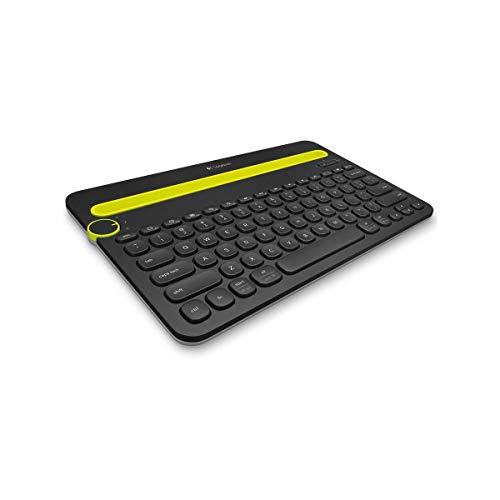
Knowing how to pair a tablet keyboard saves the frustration of a new accessory that sits blinking while nothing happens. The process is genuinely simple — put the keyboard in pairing mode, find it in the tablet’s Bluetooth settings, tap to connect — but the details differ between Bluetooth keyboards, connector-powered cases that need no pairing at all, and multi-device keyboards that remember several hosts.
This guide walks through pairing on iPads, Android tablets and Windows tablets, explains the lights and buttons involved, covers switching between devices, and finishes with the fixes for the handful of ways pairing commonly fails. If your keyboard is already paired but misbehaving, the troubleshooting steps near the end are written for you too.
Disclosure: As an Amazon Associate, kajuandouglas.com earns from qualifying purchases. Links to Amazon on this page are affiliate links; they cost you nothing extra. Listing details such as price and availability change often, so check the current Amazon listing before you buy.
Quick Answer
Charge or power the keyboard, turn it on, and hold its Bluetooth or pairing button until its light blinks. On the tablet, open Settings, then Bluetooth, ensure Bluetooth is on, and tap the keyboard’s name when it appears. Type the short code if asked and press Enter. Connector-powered keyboard cases skip all of this: attach them and they simply work.
In this guide
What You Need
Very little, but have it ready:
- The keyboard, charged or with fresh batteries: most pairing failures trace back to a nearly flat keyboard.
- Your tablet with Bluetooth on: and its passcode handy if settings ask for it.
- The keyboard’s manual or model name: pairing buttons and channel keys differ between brands.
Gear for This Guide
Multi-device keyboards like these verified models make the channel steps below concrete:
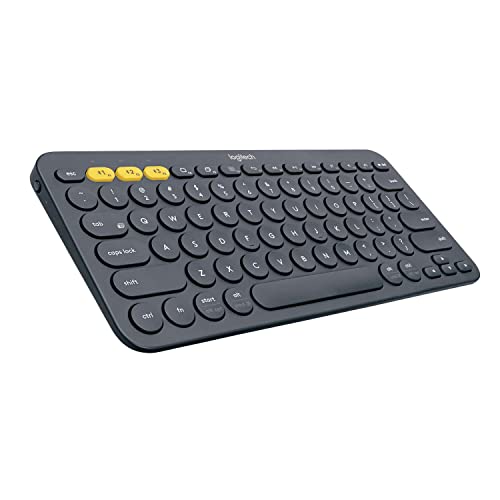
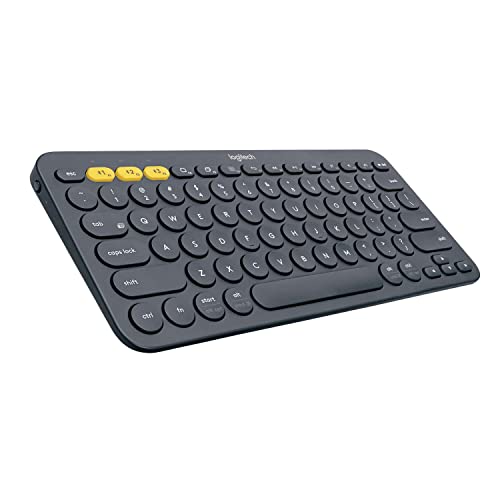
Logitech K380 Multi-Device Bluetooth Keyboard – Windows, Mac, Chrome OS, Android, iPad, iPhone, Apple TV Compatible – with Flow Cross-Computer Control and Easy-Switch up to 3 Devices – Dark Grey — the K380 is a good pairing example: its Easy-Switch keys hold three separate pairings, so one keyboard serves a tablet, phone and computer without re-pairing. Check price on Amazon.

Logitech Pebble Keys 2 K380s Wireless Bluetooth Keyboard – Tonal Graphite — the Pebble Keys 2 follows the same pattern with Bluetooth channels you select per device, exactly the workflow described below. Check price on Amazon.
How to Pair a Tablet Keyboard, Step by Step
Step 1: Charge and power on the keyboard
Give a new or long-stored keyboard a charge first, or fit fresh batteries. Low power is the silent cause of keyboards that appear in the Bluetooth list but fail to connect, or connect and drop minutes later. Turn the keyboard on and check that its power light behaves as the manual describes — a steady or slow-blinking light usually means on but not yet in pairing mode.
Step 2: Put the keyboard into pairing mode
Most keyboards enter pairing mode by holding a dedicated Bluetooth button, or the Fn key plus a numbered channel key, for a few seconds until the indicator blinks rapidly. Multi-device keyboards pair per channel: choose the channel you intend for this tablet first, then hold to pair. A rapid blink is the universal signal that the keyboard is advertising itself; without it, the tablet will never see the keyboard, however often you refresh the list.
Step 3: Open Bluetooth settings on the tablet
On an iPad: Settings, Bluetooth. On Android: Settings, Connected devices or Connections, Bluetooth. On Windows: Settings, Bluetooth and devices. Confirm Bluetooth is switched on. The tablet scans continuously while this screen is open, and your keyboard’s name — its model name or brand — should appear under available devices within a few seconds. Stay on this screen; leaving it can pause discovery on some tablets.
Step 4: Tap to connect and confirm the code
Tap the keyboard’s name. Some keyboards ask you to type a short numeric code on the keyboard itself and press Enter — this proves you are pairing the right device and is normal, not an error. Others connect with no code. Within a few seconds the status changes to Connected, and the keyboard’s light usually turns solid briefly or stops blinking. Type a sentence in any app immediately to confirm, including a few numbers and symbols.
Step 5: Set the keyboard’s platform mode and language
Many universal keyboards have an iOS/Android/Windows mode switch or key combination that aligns their shortcut keys with your tablet; set it now or the media and command keys will behave oddly. Then check the tablet’s keyboard language setting matches the physical layout printed on your keys, or characters like @ and quotation marks will land in unexpected places. These two settings cause most ‘my keyboard types wrong characters’ complaints, and both are one-minute fixes.
Step 6: Pair additional devices on other channels
If your keyboard supports multiple channels, repeat the process for your phone or computer on the remaining channels. Afterwards, switching is a single key press per device. Label channels mentally by order — tablet first, phone second — and the habit forms quickly. Note that a keyboard can only be actively typed on one device at a time; the channels are a switch, not a splitter.
Step 7: Know the connector-case shortcut
If your keyboard attaches through the tablet’s smart connector — the row of small contacts on the tablet’s edge or back — there is no pairing at all. Clean the contacts with a dry cloth if the keyboard is not recognised, attach it firmly, and it should work instantly and draw power from the tablet. Recognition problems with connector cases are almost always dirty contacts or a case fitted to the wrong tablet generation.
When Pairing Fails: The Fixes That Work
Work in this order. First, charge the keyboard and move it within a metre of the tablet, away from USB hubs and other interference. Second, on the tablet, tap the keyboard’s old entry and choose Forget This Device, then re-pair from scratch — stale pairing records cause more failures than hardware does. Third, restart both devices; a restarted Bluetooth radio clears a remarkable number of ghosts. Fourth, check the keyboard is not still connected to a nearby phone or laptop it paired with earlier, because many keyboards connect to their last host automatically and will not advertise while connected. If it pairs with other devices but never this tablet, check for tablet system updates before suspecting the keyboard.
Common Mistakes When Pairing
The most common mistake is skipping pairing mode and wondering why the keyboard never appears in the list. Next is pairing while the keyboard is nearly flat, producing a connection that dies mid-sentence. People also forget a keyboard to fix one problem, then pair it to the wrong channel on a multi-device board and conclude it is broken. And many ‘wrong character’ complaints are simply a language-layout mismatch in settings, not a faulty keyboard at all.
Pairing on Each Platform: The Fine Differences
On iPads, paired keyboards appear under Settings, Bluetooth, and once connected you can adjust modifier keys and check the keyboard’s battery from the batteries widget. iPadOS also offers Full Keyboard Access for navigating the interface by keys, worth knowing if you plan keyboard-first use. If an iPad shows the on-screen keyboard while the physical one is connected, a key combination or the keyboard icon in the shortcut bar usually summons or dismisses it — the physical keyboard has not disconnected.
On Android tablets, pairing lives under Connected devices, and the input settings let you choose the physical keyboard’s language layout and enable shortcuts; Samsung tablets add their own keyboard settings when using Samsung accessories, including the desktop mode behaviours. Android also lets multiple input methods coexist, so if typing produces unexpected autocorrect behaviour, the on-screen keyboard’s settings may still be governing text entry — check there before blaming the hardware.
On Windows tablets, pairing is under Bluetooth and devices, and the keyboard simply becomes the system keyboard with all standard layout settings applying. Windows users should check the language indicator in the taskbar when characters surprise them — layout switching shortcuts are easy to trigger accidentally and produce exactly the ‘broken keyboard’ symptom of swapped symbols.
Keeping Pairings Healthy Over Time
Pairings decay for mundane reasons: system updates reset Bluetooth caches, keyboards get paired to a new device and forget an old channel’s manners, batteries fade. The maintenance habit is simple — if a keyboard misbehaves after any update or change, forget and re-pair before deeper troubleshooting; it takes two minutes and resolves the majority of post-change weirdness. Keep each device on its own channel on multi-device boards, and re-pair in a fixed order after any reset so your muscle memory of which channel is which stays true.
Name discipline helps in crowded homes: several identical keyboards appear in Bluetooth lists as identical model names, which is how people pair to a partner’s keyboard across the room. Pair in proximity, confirm by typing immediately, and where the platform allows renaming, give your keyboard a distinguishing name. In offices and classrooms, this is not pedantry — it is the difference between a working morning and a farce.
Finally, remember the keyboard in your update routine: some smart keyboards receive firmware updates through the tablet maker’s app or the tablet’s settings, improving exactly the connection reliability this guide is about. A keyboard that has never been updated since purchase may be several fixes behind its best behaviour.
Security Notes Worth Thirty Seconds
Bluetooth pairing creates a trusted relationship, so pair at home rather than in public spaces, and decline any pairing request you did not initiate — a prompt appearing uninvited is not your keyboard asking twice. When you sell or give away a keyboard, forget it on your tablet and clear its pairings where the model supports it, so it does not reconnect to your devices from its new home and type into your documents from across town — rare, amusing once, and entirely avoidable.
Pairing Games Controllers, Pens and Other Extras
The same Bluetooth routine pairs the rest of a tablet’s entourage, and the habits transfer. Game controllers pair per platform with their own button combinations and benefit from the same forget-and-repair cure when they misbehave. Active pens differ: most pair automatically or through the maker’s app rather than the Bluetooth list, and a pen that will not pair often needs charging first — pens sit in drawers and arrive flat even more reliably than keyboards do. Headphones and speakers follow the keyboard pattern exactly, including the multi-device claiming problem, where the speaker across the room silently owns your keyboard’s channel habits — no, but it will own your tablet’s audio until you disconnect it, which is the same species of confusion.
The meta-lesson is that pairing is a system, not an event: devices remember, compete and go stale together. A household that understands channels, records and the forget-and-repair reset can operate any Bluetooth accessory it will ever buy, which is why this guide teaches the model rather than merely the steps.
A Note for Classroom and Office Fleets
Pairing at scale has its own rules. Label keyboards and tablets as pairs, pair them in a low-traffic moment rather than thirty-at-once in a room full of advertising devices, and record which channel belongs to which host on the label itself. Most fleet pairing misery is identity confusion, not technology failure, and labels are cheaper than troubleshooting. Where the platform offers management tools, locking Bluetooth settings after pairing prevents the curious from unpairing the fleet one lesson at a time.
Looking More Closely at the Details That Decide It
Most discussions of pairing a tablet keyboard reliably, and keeping that connection healthy afterwards stay at the level of headlines, yet the outcome is usually decided by smaller details that only appear once you live with the decision. Three of those details deserve attention before anything else: battery level affecting whether a keyboard advertises itself properly, firmware and tablet updates occasionally changing Bluetooth behaviour, and operating-system keyboard settings for language, layout and modifiers. None of them looks dramatic on a specification sheet. Together, those three checks decide whether the keyboard reconnects without fuss every morning or keeps demanding attention.
Start with battery level affecting whether a keyboard advertises itself properly. A keyboard with a tired battery may appear in the Bluetooth list one moment and vanish the next, so charge is a connection variable, not just a power detail. Judge the battery question by charging the keyboard fully once and repeating the exact pairing attempt that failed, so charge is the only thing that changed. Note whether the pairing light behaved differently once the keyboard was charged.
Points to keep in mind
- Judge battery level affecting whether a keyboard advertises itself properly in your own setting before trusting a general verdict.
- Treat firmware and tablet updates occasionally changing Bluetooth behaviour as a first-order factor, not a footnote.
- Name the compromise in one line, such as instant connector use against Bluetooth freedom.
Then consider firmware and tablet updates occasionally changing Bluetooth behaviour. Update day is when this surfaces, as tablet updates tighten Bluetooth permissions or rename familiar settings. Test the pairing again after the next update lands and after a restart, because those are the moments when a previously healthy Bluetooth link quietly changes its behaviour. A pairing that only survives while nothing updates, restarts or sleeps will disappoint anyone whose tablet lives through ordinary weeks rather than a single careful setup afternoon.
Finally, weigh operating-system keyboard settings for language, layout and modifiers alongside the first two rather than in isolation. Every remembered device adds convenience and another possible claimant for the keyboard’s attention. A mature decision about keyboard pairing names that trade-off out loud. Once you say out loud that you value instant reconnection over multi-device freedom, or the reverse, the settings and models worth considering narrow themselves quickly.
How This Plays Out in Real Situations
Abstract advice becomes useful when it meets a real household, so consider a student switching one keyboard between a tablet in class and a laptop at home. For that student, the question is whether switching channels takes one remembered key press or a fresh pairing ritual. Start by making one channel work perfectly with one device, and only add the second host once the first reconnects reliably from sleep. Students here routinely find one keyboard with labelled channels beats carrying two boards between classes.
Contrast that with a connector case that works instantly for one tablet generation but not another. With a connector case the priorities invert, with contact alignment suddenly worth more than Bluetooth freedom. A connector that seemed like a limitation can become the whole story for one tablet, while Bluetooth freedom matters little if the case never leaves that tablet. This is why copying a friend’s conclusion about keyboard pairing so often disappoints: the friend optimised for a life that is not quite yours, with rooms, routines and patience that differ from your own.
Points to keep in mind
- During pairing, keep the tablet and keyboard close together and dismiss other nearby Bluetooth devices first.
- Copy a pairing routine that worked for someone else, then confirm it survives your own restarts.
- Judge the keyboard by your daily reconnect, not by the one complicated multi-device day.
A third pattern appears with an office tablet that must forget an old shared keyboard before accepting a new one. In a shared office the tablet cannot keep offering itself to the old keyboard, so forgetting the stale record comes first. For that office, removing the old keyboard from the tablet’s list before the new one arrives prevents the morning of failed handovers and duplicated names. If that sounds familiar, put a clean device list and clear channels ahead of extra shortcut rows.
There is also the quieter case of a user whose keyboard pairs successfully but types symbols in the wrong places. Nothing has failed outright for that user, yet every accented character lands somewhere unexpected and the keyboard feels faintly untrustworthy. A symbol that lands one key to the left, a layout that resets after updates, and a shortcut row that speaks the wrong system language can quietly sour a working connection. Calling it a layout problem points to the language setting, while a pairing problem points to the device list.
A Practical Method You Can Repeat
When opinions conflict, a repeatable method settles the question of pairing a tablet keyboard reliably, and keeping that connection healthy afterwards better than another hour of reading. The method has four moves. First, write the pairing job plainly: one desk tablet, one keyboard shared with a laptop, or a family tablet. Second, gather evidence in that exact setting. Third, change or compare one variable at a time. Fourth, judge the pairing by whether it survives your written routine, restarts, sleep and updates included, rather than by the first successful connection.
In practice that means actions such as these: set the language and hardware layout immediately after the first successful connection; label multi-device channels so you remember which host lives where; and pair close to the tablet with other nearby Bluetooth hosts temporarily out of the way. Each is deliberately unglamorous. None of those habits needs an engineer, only the Bluetooth screen, a charged keyboard and ten honest minutes. Worked through in that order, the habits turn a mysterious connection into a small set of named behaviours you can predict and repeat. Change the channel, the layout setting and the device list together, and you will never know which one cured the wandering symbols.
Points to keep in mind
- charge first, then enter pairing mode deliberately rather than just switching on
- test a few sentences, shortcuts and the trackpad before putting the packaging away
- remove an old record on both sides when a reconnection keeps failing
Equally important is what to record. Useful notes for keyboard pairing include the date and time, the place, what else was happening at the time, and a simple verdict in your own words. Across a week of notes, the pattern that emerges is usually about timing: which device wakes first, which channel gets claimed, which update changed the behaviour. Those dated observations are also exactly what a support agent needs to believe that a keyboard pairs with your phone yet never with your tablet.
Allow the reconnect test a few mornings rather than declaring victory after one pairing. That patience pays by replacing repeated pairing rituals with a connection routine the whole household can perform without thinking. Most people do not need more information about keyboard pairing; they need their own information, gathered calmly in their own setting, and this method is simply a way of collecting it without drama.
Living With the Decision Over Time
The first week with any choice about pairing a tablet keyboard reliably, and keeping that connection healthy afterwards is a poor predictor of the first year. In week one the pairing feels fresh, no update has landed, and no other room has claimed the keyboard yet. Picture month six instead: two updates landed, three devices claimed the keyboard, and reconnection feels automatic or starts arguments.
Long-term satisfaction usually rests on unexciting qualities connected to connector keyboards that skip Bluetooth entirely and pair by attaching and Bluetooth channels that let one keyboard remember several devices. Those unglamorous qualities decide whether the keyboard feels like part of the tablet or like a peripheral that must be negotiated with every morning. When you judge a pairing, weight wake behaviour and channel memory above the setup screenshots, because you will live with the mornings long after the reviewer has boxed the keyboard up. Ask a colleague who has shared one keyboard between tablet and laptop for a year which channel habits they still rely on every day.
Points to keep in mind
- Recheck the pairing after system updates, because updates occasionally forget previously trusted Bluetooth accessories.
- Owners pairing several devices say labelling each keyboard profile prevents classroom and office confusion.
- Re-pair from scratch whenever you change tablets, reset network settings, or lend the keyboard away.
Maintenance deserves a plan rather than good intentions. Fold topping up the battery, glancing at the device list and checking channels into one weekly moment. Five monthly minutes with the device list prevent the stale-record tangle that makes a healthy keyboard look faulty. In the context of keyboard pairing, that plan mainly means keeping an eye on firmware and tablet updates occasionally changing Bluetooth behaviour before it turns into a bigger problem.
Finally, expect your next tablet, laptop or update to reshuffle what a healthy pairing looks like. Moving home, changing work, a new household member or a new device can all reorder the priorities around keyboard pairing. A pairing routine that was perfect for one tablet is not a failure when a new laptop joins and the channels need rethinking. With your channel notes in hand, that reshuffle becomes a quick re-pairing in a known order rather than a morning of Bluetooth archaeology.
Mistakes to Avoid and Signs You Chose Well
Three pairing errors show up in support threads so often that they deserve plain names before you troubleshoot. One is this: forgetting that a nearly flat keyboard battery can imitate a Bluetooth fault. Another, just as common, is the opposite excess — trying to pair while another device silently claims the keyboard first. And a third, quieter error is pairing at a distance through furniture and walls on the first attempt. None of the three needs technical training, only a slower minute before the next pairing attempt. Each error begins the same way, with one vivid moment, a single successful pairing, a confident forum post, a hopeful restart, standing in for weeks of ordinary mornings.
Avoiding them does not require expertise, only a pause. Before re-pairing, ask the hostile version: what else could claim this keyboard first, and have I actually removed the stale record? Have I tried pairing anywhere except beside the router, including the room where the keyboard lives? What am I assuming about stale pairing records that block a fresh connection until they are removed that I have not verified? Ten minutes of hostile questioning, aimed at your own favourite option, is the cheapest insurance available in the whole process of pairing a tablet keyboard reliably, and keeping that connection healthy afterwards.
Points to keep in mind
- Put your leading theory through that hostile cross-test before the reset becomes final.
- Judge success by quiet, ordinary evidence over several weeks.
- Try small corrections before concluding that replacement is necessary.
How will you know the decision was right? Watch for ordinary evidence: whether the correct device answers when several hosts are nearby; how easily another household member can follow your channel notes; and stability of the connection across a full working session. None of these announces itself with fanfare. Success looks quiet: the correct host answers on the right channel, a partner can follow your notes unaided, and a full session passes without a single dropout. That absence of daily negotiation is what you were actually pairing for, and it outranks any Bluetooth version number printed on the side of the box.
If the reconnect notes point the other way, begin with the tiniest adjustment that answers the actual symptom. Many disappointments with keyboard pairing yield to a small correction — a setting, a position, a habit, an accessory — rather than a complete replacement. Work through those small corrections first, adjusting channel choice, layout settings or device order before blaming the keyboard. Save replacement for structural mismatches: a keyboard that cannot remember your devices, a connector for another generation, or a radio failing everywhere. That calm order, small corrections before structural verdicts, saves more replacement keyboards than any single pairing tip here.
One More Round of Checks Before You Settle
There is one last check that seasoned multi-device users run even when a pairing already feels healthy, and it is worth borrowing before you call it settled. It concerns the confirmation code step that proves you connected to the right device and pairing mode as a distinct state the keyboard must enter before it can be found, two aspects that reveal themselves slowly. Deliberately wake the keyboard in your busiest Bluetooth room, with phone, laptop and tablet all awake, and watch which host it chooses and how long certainty takes. You are not hunting for reasons to re-pair it; you are mapping exactly how much wake delay or channel confusion you can happily live with for years.
Tell whoever shares the keyboard what you learned about its channels, its layout setting and its wake habits. A setup for keyboard pairing is a household system, not a personal gadget, and other people’s routines will find edges yours never touches. Their attempts will find the confusing channel you memorised and the layout trap you stopped noticing, far cheaper than quiet complaints. Agree the house rules together, which channel belongs to which device, which layout the symbols follow and who charges it, and leave them on a note inside the case lid.
Points to keep in mind
- Probe the wake delay, channel switch and busy-room reconnect once on purpose, rather than mid-meeting by accident.
- Write the pairing key combination on a small label underneath, saving future hunting through manuals.
- Stop re-pairing once your weekday mornings reconnect without a thought.
Then stop optimising. Past a certain point, another evening spent re-pairing a healthy keyboard is an evening not spent writing, and recognising that point is part of pairing well. If your morning reconnects, channel notes and session checks all say the link works, let it wake, connect and type without further supervision. Save the saved attention for genuinely broken things, like a frayed charging cable or dying tablet battery. When a new device, a new update or a new desk arrives, your channel notes will turn that fresh pairing into a short, calm routine. With keyboard pairing, that stopping point usually arrives once whether sleep and wake behaviour feels predictable after a week of use stops changing from week to week.
Worked Examples That Make the Trade-Offs Concrete
Work through the shared office tablet slowly, because the old keyboard changes the answer completely. Imagine an office tablet that must forget an old shared keyboard before accepting a new one. The instinct is to delete everything and start again, as if a clean list could compensate for a keyboard still claimed elsewhere. Yet the binding constraint in that picture is usually interference and distance during the first connection attempt, and no amount of spending elsewhere relaxes it. That office story only resolves once the stale record is forgotten honestly, because every later pairing attempt hangs on that old claim.
What to watch for
- Name what limits the office tablet first, stale record or busy airwaves, before comparing fixes.
- Restate the office tablet’s limits with your own device list and rooms before trusting the moral.
- If the same pairing complaint keeps returning, the device list itself is the problem, not your technique.
Now change one variable: imagine a user whose keyboard pairs successfully but types symbols in the wrong places. The same two devices remain, yet the wrong-characters user ranks the causes oppositely, because the symptom changed the exam. This is the single most transferable lesson in the whole subject of pairing a tablet keyboard reliably, and keeping that connection healthy afterwards: context is not a detail around the decision, it is the decision. When a forum post praises a reset, translate its verdict into your device list, your channels and your tablet model before letting it influence the diagnosis.
A third example works as a warning. Picture a household that skipped the early checks, committed quickly, and spent the following month applying fixes for skipping the layout setting and blaming the keyboard for wrong characters and then for pairing at a distance through furniture and walls on the first attempt. Each quick fix, a Bluetooth toggle, a hopeful restart, a retyped code, helped for a day before the record problem returned. The cost was not only money; it was confidence. By the time the stale record was finally admitted, the family had stopped trusting their own pairing attempts altogether. The three examples in this guide are there to break that cycle: test records, channels and layout on your own devices before frustration changes hands.
Use these examples as templates rather than stories. Swap in your own device list, your own channels and your own rooms, and run the office reasoning again with those facts. If swapping in your device list flips the winning fix, your household’s hosts, not the forum, are the real decision-makers. If the same routine wins for the tablet, the laptop and the shared office in your notes, you have found the rare pairing habit that fits a whole household. Applied to keyboard pairing, the detail that most often changes the conclusion is automatic reconnection behaviour when a keyboard wakes from sleep.
A Decision Flow When You Feel Stuck
Indecision about keyboard pairing usually means two good criteria are pulling in opposite directions, not that you lack information. When that happens, stop researching and start ranking. Write the healthy-pairing criteria as a ranked list, clean records, clear channels, correct layout and patient wake behaviour, and refuse to let a later forum post reorder it. Ranking feels pedantic for a minute, then suddenly the tangle of causes separates into those that block your top criterion and those that merely slow your fourth.
What to watch for
- Rank records, channels and layout before you let another thread load.
- Cut any theory that fails on charge or records, then cross-test whatever survives.
- If two tablets compete for the keyboard, assign each its own Bluetooth channel permanently.
Next, apply a simple elimination pass connected to the confirmation code step that proves you connected to the right device. Cut ruthlessly on the genuine deal-breakers, a record that will not clear or a channel that will not hold, because those flaws will greet you every single morning rather than merely looking awkward in a settings list. This pass is often brutal and always useful. What survives is a pair of suspects you can cross-test properly, and that small honest list is where confidence comes from.
Then test the survivors against stability of the connection across a full working session and how easily another household member can follow your channel notes in your own setting, on the same day if you can, so conditions stay comparable. Score the reconnect and the channel switch straight after each test, while your memory still holds which host answered and how long certainty took. Owners are routinely surprised how a written reconnect score contradicts the verdict they carried out of the setup screen, because mornings remember the typical wake better than heads remember the dramatic fix.
If two suspects still tie on records and channels, break the tie on housekeeping: which fix survives a restart, and which one a visiting grandparent could repeat unaided? Ties between two plausible causes are genuinely common, because most connection faults share the same first three symptoms. Apply the tied fix your notes prefer and start writing, rather than spending another week hunting a difference your mornings will never feel. For keyboard pairing, the easiest option to live with is usually the one that handles the confirmation code step that proves you connected to the right device with the least fuss.
Seasonal, Household and Long-Term Angles Worth Planning For
Conditions change across the year, and a decision about pairing a tablet keyboard reliably, and keeping that connection healthy afterwards that is tested in only one season carries hidden risk. Routers move, neighbours add networks, and holiday homes offer crowded airwaves, so a pairing tested only in a quiet study has not met your real year. You cannot rehearse the whole year in advance, but you can ask the travel question out loud: will this pairing survive a crowded holiday home, a restarted router and a tablet that slept for a week?
What to watch for
- Test pairing outdoors and in busy offices, where crowded Bluetooth environments behave quite differently.
- Have the least confident user pair it unaided once, while you watch without helping.
- Keep the charging cable with the keyboard, since most pairing failures are simply flat batteries.
Households also change from inside. A pairing arranged by one confident adult will be inherited by channel-switching children, tablet-borrowing partners and waking grandparents, each with different habits. The setups that survive that inheritance are the ones a newcomer can wake, switch and type on without a briefing, with the channels labelled, the layout set and a small note for the pairing button. When you evaluate keyboard pairing, spend one minute imagining the least technical person in your life facing it alone. That minute is a surprisingly accurate quality test.
There is also a cost missing from the receipt: the weekly attention a pairing demands in charging, channel-checking and list-tidying. Beyond the first connection, count what the pairing will ask of you weekly: a charge here, a channel check there, a device list kept honest. A pairing that needs its device list tidied weekly will quietly fail in a household that thinks about settings monthly, whatever its first connection promised. Matching that attention rhythm to your household matters as much as matching the keyboard to the tablet. With keyboard pairing, the recurring effort worth counting most honestly is the effort tied to interference and distance during the first connection attempt.
Finally, think about the exit before you need it. When this keyboard retires or meets a tablet it cannot remember, how will its records be cleared or its role handed on? Keeping the channel notes, noting the layout setting, and saving the discovered pairing order make that change a calm errand. That is not pessimism; it is what turns one purchase into accumulated household knowledge, so the next decision about keyboard pairing starts from experience instead of from a search box.
Questions Worth Asking Before You Spend Anything
Four honest questions, answered before any settings screen opens, prevent most of the expensive pairing mistakes this guide exists to avoid. First: what connection problem am I solving, stated as a symptom and a moment rather than a brand or Bluetooth version? If that statement names a product, rewrite it until it names your morning wake, your channel switch, your shared office or the classroom hour instead. Solutions chosen for a life-shaped problem age far better than solutions chosen for a catalogue-shaped one, especially with keyboard pairing.
What to watch for
- Describe the connection problem as a symptom, a device list and a daily pattern.
- List the hosts, channels and rooms this keyboard must serve, and mark the unknowns plainly.
- Ask whoever shares the tablet, the channels or the office before the list is cleared.
Second: what evidence do I already have? Most owners already know their device list, channels and wake habits better than any forum does. You know which laptop wakes first, which room crowds the airwaves, which channel nobody remembers and which child will press the pairing button for fun. Writing that local knowledge down before the settings screens open protects it from forum confidence and hopeful restarts. Where your knowledge has gaps, name the test that fills each one, a cross-pairing here, a channel switch there, because an unnamed assumption about records is how mornings get ruined. For keyboard pairing, that existing evidence usually includes what you already know about firmware and tablet updates occasionally changing Bluetooth behaviour in your own setting.
Third: when an update, new device or flat battery disturbs this pairing next year, what exactly will I do first? Pairings drift predictably: records accumulate, systems update, channels get reassigned, batteries tire and households acquire new devices. A choice with a calm answer to that question, involving steps like test a few sentences, shortcuts and the trackpad before putting the packaging away, is worth more than a choice with a slightly better specification and no answer at all. A pairing that can be rebuilt, re-labelled and re-tested calmly is resilient, even though no settings screen prints that word.
Fourth, and last: who else should have a say? Decisions about pairing a tablet keyboard reliably, and keeping that connection healthy afterwards often affect people who were not in the room when the research happened, and their late objections can sink an otherwise sound setup. Ask the household early, in plain words: here is the pairing problem, here is the routine I favour, and what about its channels, layout or wake delay would annoy you by half-term? The family may keep the very same routine, but they will follow its channels, respect its list and forgive its wake delay because they helped design it, while an imposed routine gets blamed for every bad morning.
Related Guides
- best Bluetooth keyboards for a 9.7 inch tablet
- best tablets for writing
- best tablets for work
- best tablets for productivity
- how to choose a tablet keyboard
- how to fix a tablet keyboard that will not connect
- how to clean a tablet keyboard
Frequently Asked Questions
Why does my keyboard not appear in the Bluetooth list?
It is almost always not in pairing mode — hold the Bluetooth or channel key until the light blinks rapidly. Also confirm the keyboard is charged and not already connected to another nearby device, since a connected keyboard stops advertising itself. Move closer to the tablet and keep the Bluetooth settings screen open while it scans.
Do I need to pair a keyboard case that attaches magnetically?
If it connects through the tablet’s smart connector, no pairing is needed: it works on contact and is powered by the tablet. If the case is a Bluetooth model that merely holds the tablet physically, pairing is required exactly as with a separate keyboard. The product description will say which type it is.
Can one keyboard work with my tablet and my phone?
Yes, if it is a multi-device model with separate channels — pair each device on its own channel and switch with a key press. A single-channel keyboard can also move between devices, but you must forget and re-pair each time, which gets tedious quickly. Multi-device keyboards exist precisely to remove that chore.
My keyboard types the wrong characters. What is wrong?
The tablet’s keyboard language setting does not match the physical layout printed on your keys. Change the input language in the tablet’s keyboard settings to your layout. Also check the keyboard’s platform mode (iOS/Android/Windows) if shortcut keys misbehave. The hardware is almost certainly fine.
Why does my keyboard keep disconnecting?
Start with charge: a low keyboard battery causes exactly this. Then check distance and interference, forget and re-pair the keyboard, and make sure it is not being claimed by another device you own when that device wakes. If drops continue after updates and re-pairing, our linked troubleshooting guide works through the deeper causes.
How do I unpair or reset a keyboard pairing?
On the tablet, open Bluetooth settings, tap the information icon beside the keyboard’s name and choose Forget This Device. On the keyboard side, many models reset pairings by pairing a new device over the channel, or via a key combination in the manual. Forgetting on the tablet alone is sufficient for most fresh starts.
How long should I test a new pairing before trusting it daily?
For most households, a focused week of ordinary use tells you more than a month of occasional reading about pairing a tablet keyboard reliably, and keeping that connection healthy afterwards. Test the pairing across a restart, a busy-room wake and one full session, keep the dated notes, and then commit. Stretching that trial into a second month rarely changes which routine wins; it usually just postpones the writing the pairing was fixed for.
What should I clear first if my keyboard pairs, then keeps dropping?
Return to the simplest explanation before replacing anything. Recheck the basics connected with automatic reconnection behaviour when a keyboard wakes from sleep, repeat your most reliable test in your most familiar setting, and change one variable only. If the rebuilt pairing still drops, wanders or mis-types on that calm re-test, the fault is in the record or the radio, and your notes will point at the exact device to clear.
Is a pricier multi-device keyboard worth it for easier pairing?
Only when the higher tier improves something your own routine actually stresses, such as interference and distance during the first connection attempt. If your notes show the real friction is a claiming laptop, paying more for a board with a newer radio will not move the number that matters. Measure any pricier keyboard against those notes, channel by channel and wake by wake, not against its smoothest demonstration.