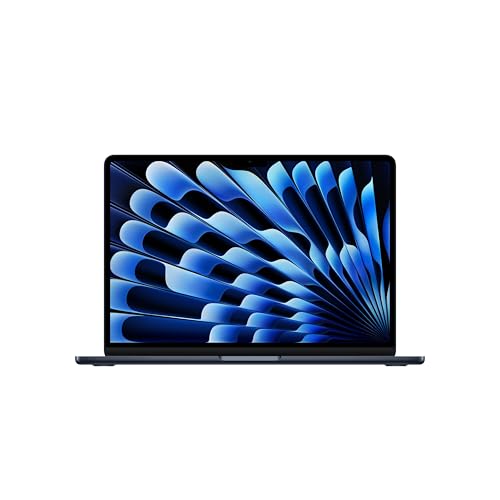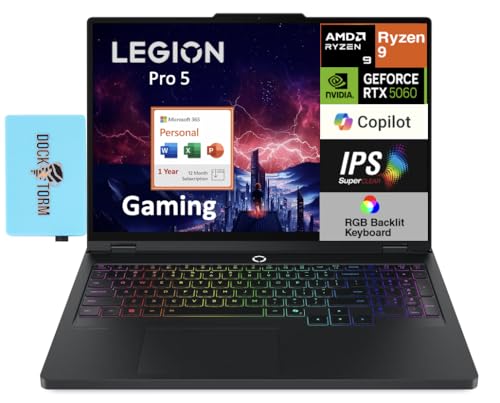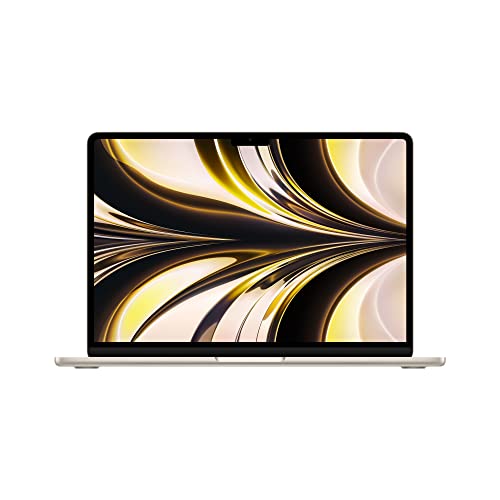
The macbook vs windows laptop for students debate generates more heat than light because both camps argue from their own course, budget and phone. The truthful version is narrower: both platforms run the everyday student stack beautifully, both offer machines that last a degree, and the decision is made by three practical factors, your course’s software requirements, your total budget including longevity, and the ecosystem you already live in. MacBooks bring outstanding battery life, screens, build and resale value at premium prices with limited configuration choice. Windows laptops bring breadth: every price point, gaming, upgradeability, and the specialist software many technical courses assume. This comparison weighs those factors in student terms so the choice becomes arithmetic rather than tribal.
Disclosure: As an Amazon Associate, kajuandouglas.com earns from qualifying purchases. Links to Amazon on this page are affiliate links; they cost you nothing extra. Listing details such as price and availability change often, so check the current Amazon listing before you buy.
Macbook Vs Windows Laptop For Students: What Matters Most
Choose a MacBook if your course software supports macOS, you value battery life, build quality and resale value, you live in Apple’s ecosystem, and the budget reaches the 16GB configuration. Choose Windows if your course names Windows software, you game, you need specific ports or upgrades, or your budget is limited, where Windows offers far more machine per pound. Neither is the wrong laptop for essays, research and calls; course requirements rule first.
| Criterion | Option A | Option B |
|---|---|---|
| Battery and build | Class-leading on current models | Matches at the premium end, varies below |
| Course software | Check macOS support first | Widest compatibility |
| Gaming | Limited catalogue | The natural home of PC gaming |
| Upgrades after purchase | None; choose configuration carefully | Often possible on many models |
| Value pattern | Premium price, strong resale, long life | More machine per pound at student budgets |
In this guide
What to Compare Before You Decide
- Your department’s software list and any platform guidance it gives
- Your real budget, including the memory and storage configuration you would actually buy
- The phone and services you already use daily
- Whether gaming matters to you beyond browser games
- How long you intend to keep the machine, since longevity changes the value maths
The Comparison, Criterion by Criterion
Let course software veto before preference speaks
Some engineering, architecture, business analytics and specialist science software is Windows-only or runs materially better there, and running Windows on a modern Mac is no longer the simple fallback it once was. Creative courses often lean the other way, with macOS well supported in design, music and media departments. Read your department’s guidance literally and email them if it is ambiguous. A platform your required software dislikes will tax you every single week, and no battery life compensates for a workaround that fails before a deadline.
Compare battery, build and the daily carry
Current MacBooks set the standard for student battery life and are light, rigid and pleasant to type on, with excellent screens and speakers for media work. Windows matches this at its premium end and offers more variety below it, including larger screens, touch and pen options and gaming models. Judge specific models: a well-chosen Windows ultraportable rivals a MacBook’s daily experience, while a budget Windows machine does not. Both platforms punish careless buying; only one punishes it at every price below premium.
Do the honest money calculation
A MacBook costs more up front, in the configuration a degree deserves, but holds value remarkably and commonly serves five years, which narrows the annual cost gap. Windows offers capable student machines at prices Apple does not compete with, plus education deals across dozens of brands. Include the extras in both columns: dongles and hubs where ports are few, software subscriptions, accidental damage cover, and the resale or trade-in value at graduation. The cheapest purchase and the cheapest four years are often different machines.
Weigh gaming and hobbies without embarrassment
If PC gaming matters to you, Windows is the straightforward answer: the catalogue, the hardware choice and the upgrade paths all live there, and a mid-range Windows gaming laptop doubles as a formidable coursework machine. Mac gaming has improved for a slice of titles but remains the limited option. Conversely, if your creative hobbies are music production, photography or video, both platforms are excellent and your existing software licences and collaborators’ choices matter more than the badge. Be honest about how you spend evenings; the laptop serves those too.
Score the ecosystem you already inhabit
An iPhone owner gains real conveniences from a Mac: messages and calls on the laptop, instant file sharing, shared photo libraries and unlocking tricks that remove daily friction. A student embedded in Windows and Android services gains the equivalent continuity there, plus easier compatibility with university systems that often assume Windows. Ecosystem value is personal and cumulative; switching platforms for a degree is perfectly possible, but price the learning curve and the accessory churn into the decision rather than pretending they are free.
Decide configuration with the future in view
Whichever platform wins, buy for the degree’s end, not its start. On a Mac that means choosing 16GB of memory and adequate storage at purchase, because neither can be added later. On Windows it means the same discipline where models are sealed, or exploiting upgradeable models to stage the spend. The configuration decision outlives the platform decision in daily impact: a generous Windows machine serves better than a starved MacBook, and vice versa, every single day of the course.
What Student Work Actually Demands From a Laptop
Student computing looks light on paper and is heavier in practice. A typical day stacks a browser with dozens of research tabs, a word processor, a PDF reader, a video call, a learning platform and music, all at once, often on battery, often on congested campus Wi-Fi. That pattern rewards memory and a responsive solid-state drive far more than raw processor muscle, and it punishes machines with small batteries or dim screens used in bright lecture halls. Reliability is the hidden spec: a laptop that fails during exam week costs far more than the difference between two models. Durability, a keyboard that survives four years of essays, ports that match classroom projectors and a charger that is cheap to replace all belong on the checklist beside the processor. Students also keep machines longer than most buyers, so a model that can accept a memory or storage upgrade later holds its value in a way a sealed, minimal configuration does not.
Battery Life, Weight and the Campus Day
A student laptop lives in a bag, not on a desk. Every extra few hundred grams is felt on the walk between buildings, and every hour of real battery life is one less hunt for a free outlet in the library. Advertised battery figures are measured under gentle conditions, so treat them as a comparison tool rather than a promise, and favour machines whose owners consistently report a full class day without charging. Screen size is the trade-off that drives weight: larger panels help with split-screen research and spreadsheets, smaller panels travel better and sip power. Charging over USB-C, where offered, is an underrated convenience because one charger can serve the laptop, phone and tablet, and a borrowed charger in a study group is more likely to fit. Judge these daily-life factors with the same seriousness as benchmark numbers, because they decide whether the laptop is present and usable when the work actually happens.
Software, Accounts and Staying Organised From Week One
The first hour with a new student laptop shapes the next four years. Signing in with the account your school issues unlocks its storage, email and app licences, and setting up automatic cloud backup of the documents folder means a lost or broken machine is an inconvenience rather than a lost semester. A password manager removes the temptation to reuse one weak password across the library portal, email and banking. Learn the handful of keyboard shortcuts for your system, set the browser to restore the previous session, and create one folder structure for modules or subjects before the first assignment lands. None of this needs paid software: both Windows and ChromeOS and macOS include backup, sync and note tools that are good enough for coursework. Students who skip setup and improvise usually pay for it later in duplicated files, missed deadlines and frantic searches through downloads folders the night before submission.
Protecting the Machine and the Work on It
Student laptops face risks office machines never meet: crowded bags, shared desks, spilled drinks, borrowed chargers and accommodation where doors are not always locked. Physical protection starts with a padded sleeve or a bag with a suspended laptop compartment, and with the habit of never leaving the machine visible in a parked car or an empty library seat. Digital protection matters just as much: full-disk encryption, a screen lock that engages quickly, current updates and two-step verification on the main accounts cover most realistic threats. Find-my-device features should be switched on before they are needed, and the serial number recorded somewhere separate. Backups complete the picture, because protection is not only about stopping loss but about recovering fast when something still goes wrong. A student who can restore files to a borrowed machine in an hour has effectively insured their grades, not just their hardware.
Who Each Platform Suits, in Student Terms
The MacBook suits the student whose course is platform-neutral or Mac-friendly, who carries the machine all day, values battery life and build, plans to keep it beyond graduation, and ideally already owns an iPhone. Arts, humanities, law, medicine, social sciences and most business students sit squarely here, as do music and media creators. The Windows laptop suits the student with named Windows software, the gamer, the tinkerer who wants upgrades and ports, the buyer on a strict budget, and the student whose part-time work or placements run on Windows systems. Both descriptions are compliments. The classic regrets are symmetrical: the engineering student fighting software workarounds on a beautiful Mac, and the essayist who bought a heavy, short-battery Windows machine because it was cheap in September and miserable by November. Requirements first, then budget over the whole degree, then ecosystem: in that order, this famous argument mostly settles itself.
When you are ready to compare complete machines rather than individual settings, start with our roundup of the best laptops for college student under 800 and keep our roundup of the best laptops for college student under 700 open in a second tab. Reading a settings guide and a buying roundup side by side stops the most common mistake in this whole topic: changing software or hardware in isolation, without checking whether the rest of the machine actually supports the change you have in mind.
Gear for This Guide
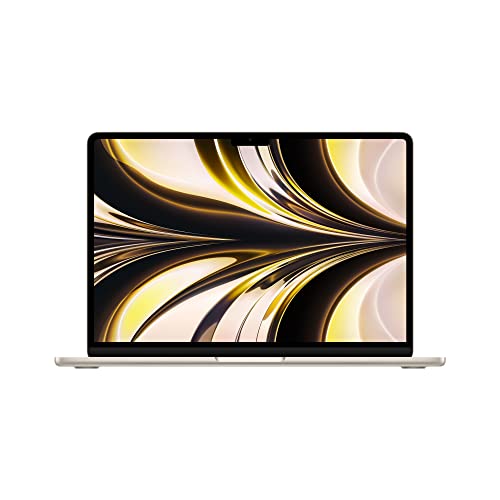
Apple 2022 MacBook Air Laptop with M2 chip: Built for Apple Intelligence — Apple 2022 MacBook Air Laptop with M2 chip: Built for Apple Intelligence, 13.6-inch Liquid Retina Display, 8GB RAM, 512GB SSD Storage, Backlit Keyboard, 1080p FaceTime HD Camera; Starlight. Check price on Amazon before you decide, because configurations and availability change often.

Apple 2024 MacBook Air 13-inch Laptop with M3 chip: Built for Apple Intelligence — Apple 2024 MacBook Air 13-inch Laptop with M3 chip: Built for Apple Intelligence, 13.6-inch Liquid Retina Display, 8GB Unified Memory, 256GB SSD Storage, Backlit Keyboard, Touch ID; Space Gray. Check price on Amazon before you decide, because configurations and availability change often.
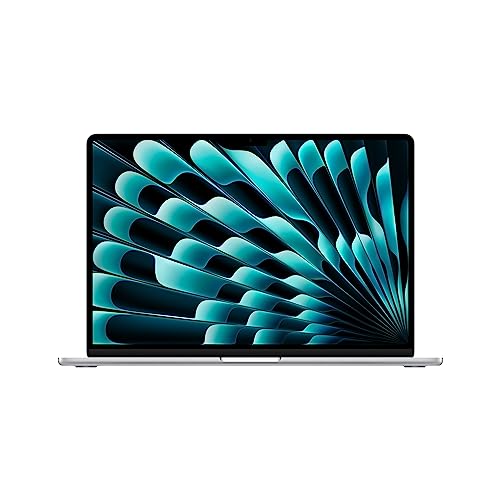
Apple 2023 MacBook Air Laptop with M2 chip: 15.3-inch Liquid Retina Display — Apple 2023 MacBook Air Laptop with M2 chip: 15.3-inch Liquid Retina Display, 8GB Unified Memory, 256GB SSD Storage, 1080p FaceTime HD Camera, Touch ID. Works with iPhone/iPad; Silver. Check price on Amazon before you decide, because configurations and availability change often.
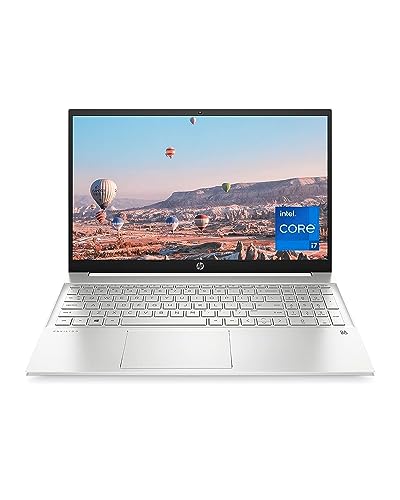
HP Pavilion 15 Laptop — HP Pavilion 15 Laptop, 11th Gen Intel Core i7-1165G7 Processor, 16 GB RAM, 512 GB SSD Storage, Full HD IPS Micro-Edge Display, Windows 11 Pro, Compact Design, Long Battery Life (15-eg0025nr, 2021). Check price on Amazon before you decide, because configurations and availability change often.
Common Mistakes
- Buying the base MacBook configuration for a four-year degree without checking whether its memory and storage will age well.
- Assuming Windows can be installed easily on a modern Mac to rescue a software incompatibility.
- Comparing a premium MacBook against the cheapest Windows laptops and declaring a platform verdict from mismatched hardware.
- Ignoring your course’s stated platform guidance because a friend’s different course had no requirements.
Pro Tips
- Apple’s education pricing and back-to-school offers materially change the Mac calculation; never price a MacBook at full retail as a student.
- Windows buyers should compare across brands aggressively; the same money buys very different machines in different weeks.
- Whichever you choose, spend the leftover on the warranty, a sleeve and backup storage before any other accessory.
- If you are truly torn and your course allows both, choose the one whose keyboard and screen you preferred in your hands in a shop.
How to Break a Tie When the Scores Feel Even
When a comparison stays balanced after honest scoring, break the tie with three practical tests rather than more research. First, the regret test: imagine discovering a year from now that you chose wrong, and notice which wrongness stings more, because that reveals which advantage you actually valued. Second, the ecosystem test: total the accessories, software and habits each option disrupts or preserves, since switching costs are real even when they are boring. Third, the trial test: handle both options physically if you possibly can, in a shop or through a generous returns window, because five minutes of hands-on evidence routinely outweighs five hours of comparison articles, including this one. If the tie survives all three tests, choose the option with the better warranty, the easier return path or the stronger resale, and stop researching. At that level of closeness, the decision has stopped being about the products and become about permission to finish, which this paragraph hereby grants.
Putting It All Together
If you are still torn after working through the criteria, return to the two questions that settle most of these decisions in practice: which option covers your non-negotiable tasks without a workaround, and which one fits the places and postures where you actually spend your computing life. Score those honestly and the remaining differences are usually smaller than the anxiety around them. Both options in this comparison are mature, capable products with millions of satisfied owners, which means the risk is not buying a bad device; it is buying the other person’s right device. Choose yours, configure it generously enough to last, and spend the energy you saved on the work and play the machine was bought for.
Scenario Head-to-Heads: Six Students, Two Platforms
The humanities and social sciences student
Writing, reading and research dominate, and both platforms excel — so the decision falls to battery, build, ecosystem and budget honesty. The MacBook’s endurance and trackpad flatter long library writing days; the Windows field answers with choice at every price and configuration. Verdict: genuinely open, and therefore the perfect case for the tie-breaking questions later in this guide.
The engineering and computing student
Course software rules here with little sentiment: development tools, engineering packages and laboratory systems have platform allegiances that vary by department and must be checked individually, with several traditional engineering disciplines still assuming Windows outright. Verdict: the department’s list decides, and students who let preference overrule it buy a second machine’s worth of workarounds.
The business and data student
Spreadsheet culture is the quiet decider: the full desktop spreadsheet experience, its add-ins and the teaching materials built around them have historically centred on Windows, though the Mac versions have closed much of the gap for ordinary coursework. Verdict: Windows for the spreadsheet-heavy tracks unless your specific course confirms its materials are platform-neutral; Mac entirely viable where they are.
The creative student
Design, film, music and photography courses often carry explicit platform cultures — sometimes an institutional standard, sometimes a teaching team’s assumption — and the creative industries beyond university have their own strong Mac tradition in several disciplines. Verdict: follow the course’s stated standard first and the discipline’s working culture second; this is the one scenario where matching the room is a professional skill rather than a fashion choice.
The gamer who studies
Honesty resolves this one quickly: the Windows ecosystem carries the games library, the graphics hardware range and the upgrade culture, while the Mac is a study machine that games incidentally. Verdict: Windows, bought with the gaming specification declared openly in the budget rather than smuggled into a study purchase.
Configuration Permanence: The Decision Inside the Decision
The platforms differ in a way that outlasts every benchmark: what can be changed after purchase. On the Mac side, memory and storage are chosen at the till for the machine’s whole life, which converts configuration from a detail into a four-year commitment and argues for buying the capacity the final year needs, however stern the arithmetic feels in September. On the Windows side, the field divides — many models allow storage and sometimes memory upgrades later, rescuing a tight first-year budget, while the slimmest designs have adopted the same permanence as the Mac. The student buyer’s rule follows directly: whatever platform you choose, price the configuration your final year requires, and where the design forbids upgrades, treat under-configuration as the most expensive saving available to you. A degree is a long time to live inside a decision made to save a modest sum in freshers’ week, and storage and memory are precisely where that time is felt.
Support, Repair and the Campus Reality
Ownership support has a geography. The Mac offers a single, predictable route: the maker’s own stores and authorised network, consistent pricing structures, and an ecosystem your institution’s help desk will know well. The Windows world offers a thousand routes: manufacturer services of varying quality, independent repairers in every town, and parts ecosystems that can make an older machine astonishingly economical to keep alive. Neither is simply better. The Mac’s predictability suits the student who wants one phone number and no research; the Windows world’s diversity suits the student — or the student’s family — comfortable shopping for service and valuing repairability. What matters is deciding in advance which world your temperament and your town support, because the middle of a crisis in exam season is the worst possible moment to discover that your chosen platform’s nearest help is a postal journey away.
Battery Life in the Wild: Beyond the Quoted Figures
Both camps quote battery figures gathered in conditions no student inhabits, so translate them into your own geography before comparing. The relevant unit is the teaching day: lectures with note-taking, library hours with research and writing, the seminar with its video call, and the evening’s work in a shared house where sockets are contested territory. Modern Mac laptops have built a genuine reputation for sustaining that whole arc on a charge, which changes behaviour — the charger stays home, the bag lightens, the socket hunt disappears. The Windows field contains both the machines that match that endurance and the powerful, hungry models that never promised it, which is why this comparison must be run model against model rather than logo against logo. Whichever platform you favour, buy for the longest day your course actually schedules, at the brightness your eyes actually use, with the applications your modules actually run — and treat any figure gathered in a laboratory, including the flattering ones for your preferred side, as a tendency to verify rather than a promise to bank a deadline on.
The Second-Hand and Refurbished Routes on Both Platforms
Student budgets make the used market a first-class citizen, and the platforms behave differently there. A refurbished Mac from a reputable channel offers a predictable machine with a known support horizon — check the remaining years of operating system updates as rigorously as the battery health, since the calendar, not the chassis, usually retires these machines. The Windows used market is vaster and more various: refurbished business laptops are its aristocracy, built for service and sold with real warranties, while consumer bargains of unknown history are its gamble. On both platforms the rules from this series apply unchanged — verified sellers, workable returns, battery health in writing, update horizon confirmed — and on both, a well-bought refurbished machine routinely serves a degree better than a fragile new bargain. The platform decision and the new-versus-used decision are independent axes; settle the platform against your course first, then hunt value within it, and never let a seductive used price smuggle you onto the wrong platform for your syllabus.
Ecosystem Gravity: Phones, Tablets and the Services Around You
Your laptop does not live alone, and the gravitational pull of your other devices is a legitimate — though deliberately last-ranked — factor in this comparison. The Mac’s integration with its sibling phone and tablet is genuinely excellent: messages, calls, clipboard, file hand-offs and photo flows that remove a dozen small frictions from a student’s day, every day. The Windows world answers with breadth rather than depth: strong integration with the dominant office and cloud services most institutions run on, companion applications for both major phone platforms, and the freedom to mix makers across every category you own. The discipline this guide recommends is ordering: let course software veto first, let configuration and battery speak second, and only then let ecosystem gravity cast its vote — because gravity is a pleasure multiplier on a machine that already fits your degree, and a consolation prize on one that does not. Students who reverse that order buy delightful ecosystems attached to the wrong tool, and spend four years enjoying the hand-offs between a phone and a laptop that cannot run their coursework.
The Tie-Breakers: When the Course Allows Either
For the fortunate courses where both platforms pass every requirement, the decision descends to honest personal arithmetic, and this guide offers the tie-breakers in the order they tend to matter. Battery and weight first, because they are felt hourly: the machine that survives the teaching day unplugged and rides light in your actual bag will be loved in a way no benchmark can argue with. Keyboard and trackpad second, tested in person where possible, because your degree will be typed on them. Budget truth third: the same money buys different things in each world — simplicity and finish on one side, configuration headroom and variety on the other — and neither is a rip-off; they are different allocations, and yours should match your course’s appetite. Existing ecosystem fourth, for the reasons of gravity already given. And last, the unquantifiable pull — which machine makes you want to open it and begin — which is not a frivolous criterion across four years of mornings, provided it is only ever allowed the final vote and never the first.
What Graduates Say: The View From the Far Side
Graduates’ reflections on this choice share a striking pattern: almost none of them remember the processor, and almost all of them remember the friction. Mac owners remember battery that ended socket anxiety and machines that felt new in the final year; they also remember the configuration they under-bought and could never change. Windows owners remember choice — the exact machine for the exact budget, the repair done cheaply in a strange town, the upgrade that bought a final year — and they remember the discipline the platform asked of them in updates and housekeeping. Nobody, on either side, remembers wishing they had spent more on excitement and less on memory, storage, warranty and backup, which is why this series keeps steering student budgets toward the unglamorous columns regardless of platform. Listen to the far side of the degree when you can, because it is the only focus group that has actually run your experiment to completion — and its verdict is that the platform matters less than the fit, the configuration and the care, in that order, every single time.
Resale, Handing Down and the Graduate Transition
The end of the degree is part of the purchase, and the platforms part company there in instructive ways. Mac laptops have historically held resale value with unusual stubbornness, which converts a well-kept student machine into a meaningful contribution toward a graduate’s next chapter — provided its configuration was bought generously enough to still be desirable, one more echo of this guide’s permanence argument. Windows laptops hold value more variously: business-grade models cascade beautifully into second lives and family service, while consumer models depreciate toward their usefulness rather than their price, which is no disgrace for a machine that served its degree fully. Both platforms demand the same graduation ritual before any sale or hand-down — full backup verified, accounts signed out, the device removed from your finding and management services, and a proper factory reset — performed in that order, calmly, because data incidents cluster at transitions exactly as this series keeps warning. Plan that ritual when you buy, keep the box and paperwork if you can, and the machine’s second life becomes a small dividend on a decision made four years earlier.
Confidence to Close: Making the Decision and Stopping
Every comparison in this series ends with the same mercy: permission to stop. Once the course veto has spoken, the configuration is priced for the final year, the battery matches the teaching day and the tie-breakers have voted, the remaining distance between your finalists is smaller than the cost of another fortnight’s research — measured in the setup week you will not get back and the calm you will not start term with. Choose, buy, set the machine up with the care the companion guides describe, and transfer your loyalty from the decision to the degree. Students do not remember, in the end, whether they won an argument about platforms. They remember whether the machine was charged, backed up and ready on the mornings that mattered — and that outcome, on either side of this famous divide, is decided by fit and care rather than by logos. Pick your side on evidence, then go and prove it right.
Two Students, One Library: A Closing Illustration
Picture the final term, and two students working late in the same library. One is on the Mac bought in freshers’ week with its memory chosen for this exact year; it is unplugged, unbothered, and will be sold in June for a sum that starts its owner’s next chapter kindly. The other is on a Windows machine chosen with equal care from the refurbished business ranks, upgraded once along the way, repaired once cheaply in town, and destined for a younger sibling’s degree next. Ask either of them whether they chose the right platform and you will get the same answer in different accents: they chose the right fit, configuration and care, and the platform was simply the uniform those decisions wore. That is the mature end of this famous comparison — not a winner, but a method — and a student who has absorbed the method can walk into either ecosystem, at any budget, in any year, and come out with the machine their degree deserved.
Questions to Ask in the Shop, Word for Word
Carry the framework in as sentences. For the Mac: is this the exact configuration — memory and storage — I am pricing, and do you have it in stock, since I cannot change either later? What will this machine’s operating system support horizon be, in years, from today? For the Windows machine: which parts can be upgraded later, by a service centre or by me, and what does the warranty say about it? For both: where does this machine go, physically, when it breaks in term, and what is the realistic turnaround students here experience? Can I type a full paragraph, work the trackpad precisely, and carry the complete bag — machine, charger, case — before I decide? End with the paperwork question: what proof of purchase and warranty documentation will I hold, and can it be emailed to the backed-up address I actually keep? Shops that answer those questions patiently are selling fits rather than platforms, and a student armed with them will hear, in the answers, the last evidence this comparison needs — the sound of a purchase becoming a plan.
The One-Week Test for the Genuinely Torn
Where the framework ends in an honest tie, stop reading and start touching. Borrow, visit, or use a returns window in good faith, and put each finalist through your real syllabus: a lecture’s notes, a library session at your working brightness, your heaviest document, your course’s defining application, a video call from your actual room. Keep two columns of notes — friction and disappearance — because those are the quantities a degree is actually made of, and the machine with the emptier friction column at the end of a truthful week is your answer, whatever the internet’s scoreboard says. This test has a discipline of its own: same tasks, same hours, no shopping for new criteria midweek, because a test whose goalposts move measures only your mood. Run it fairly and it will not merely pick a laptop. It will teach you your own working pattern so precisely that every equipment decision after this one — and there will be decades of them — becomes shorter, calmer and cheaper than the last.
After the Purchase: Living Well on Either Platform
Inhabit the choice completely, because half-inhabited platforms are where regret breeds. On the Mac, learn the trackpad gestures and the ecosystem hand-offs until they are reflexes, set the machine’s backup running on day one, and keep a respectful eye on the storage you chose, curating it termly rather than meeting its limits mid-dissertation. On the Windows machine, keep the housekeeping rhythm this series prescribes, learn which of its thousand customisations genuinely serve your work and leave the rest at their defaults, and keep the upgrade map — what can be added, when, by whom — filed with your paperwork against the year it becomes relevant. On either, protect the machine, back up the work, and retire from the comparison threads forever. The degree does not grade your platform loyalty. It grades the work the platform carried, and a machine chosen on evidence and then used with full commitment carries that work as well as any machine on earth — which was, from the first section of this guide to this last one, the only claim worth defending.
Defend your own choice that way when the corridor debates begin, as they will every September: not with a logo, but with a fit you can describe — the course checked, the configuration honest, the battery matched to the day, the care already running. Debates about platforms are recreation. Decisions about fit are education. You have made the second kind, and the machine on your desk, whichever uniform it wears, is about to spend four years proving it.
One last encouragement, equally true on both sides of the divide: the distance between a good choice and a perfect one here is smaller than the distance between choosing this week and choosing in the panic of the first week of term. Close the question while the choosing is calm, guard the setup days that follow, and let the degree — not the debate — have the rest of your attention. It has earned the priority, and so, now, has your machine.
That is the note to carry into the shop and, frankly, into every technology purchase after this one: fit first, configuration honestly, care always, logos last. A student who buys that way once tends to buy that way for life — and tends, not coincidentally, to be the person whose machines are still serving faithfully long after louder purchases have been replaced.
Carry that method out of the shop and into the degree, and the famous divide shrinks to its true size: a preference, honoured honestly, between two mature platforms — either of which, fitted and cared for as this guide describes, will carry a student to graduation without ever becoming the story. The work is the story. It always was.
Arrive at the first seminar with the question closed behind you, then, and let the machine — whichever one your evidence chose — do the only job either platform was ever really selling: disappearing, day after day, into the work of a degree being properly lived. That disappearance is the trophy. Both camps’ best machines award it equally, to the students who chose them on purpose.
Choose on purpose, then, and let purpose be the last word the comparison hears from you. The library at midnight does not ask which platform you are on. It asks whether your machine is charged, your work is backed up and your next paragraph is coming — and on every one of those questions, a well-fitted laptop of either persuasion answers like a champion.
Keep your tie-breaker notes with the paperwork, too, because they are the decision’s memory — the record that lets a future you, courted by a newer model in a later September, distinguish a genuine improvement in fit from the mere glamour of the new. Decisions with memories age well. Decisions without them get remade annually, at full price, by people who once swore they had settled the question.
Related Guides
- our roundup of the best laptops for engineering students under 1000
- our roundup of the best laptops for programming under 1000
- our roundup of the best laptops for video editing under 1000
- how to speed up a student laptop
- how to choose a student laptop
Frequently Asked Questions
Are MacBooks worth the extra money for students?
For students who keep them four to five years, often yes: the battery life, build quality, screen and resale value repay the premium across a long ownership, and education pricing closes part of the gap. The worth evaporates if you buy the minimum configuration and outgrow it in year two, or if your course needs Windows software. Judge the specific configured machine over its whole service life, not the entry price on the advertisement.
Can I run Windows software on a MacBook if my course needs it?
Sometimes, through virtualisation tools that run Windows inside macOS, which handles many business and productivity applications well on current Macs. It is not a universal rescue: demanding technical, engineering or graphics-heavy software may run poorly or not at all, and some licensing and exam tools refuse virtual machines. If a required application is Windows-only and central to your degree, buy the Windows laptop. Treat virtualisation as a bonus for occasional needs, not a plan.
Which is better for battery life, really?
Current MacBooks are the benchmark, routinely covering a long campus day of mixed student work with margin. The best Windows ultraportables approach that standard, while budget and gaming Windows models fall well short. Always judge the individual model’s tested battery life rather than the platform’s reputation, and remember that how you use the machine, screen brightness, video calls, heavy software, moves any laptop’s real figure substantially.
Do employers and placements expect Windows?
Many workplaces run Windows, and placement software in fields like engineering, finance and healthcare frequently assumes it. That said, universities design courses knowing students own both platforms, and departments flag genuine requirements in their guidance. If your degree includes placements with specified systems, weight that guidance heavily. For general graduate employability, skills transfer between platforms far more easily than students fear; nobody’s career turns on their student laptop’s operating system.
Should I match my laptop to my phone?
It is a tiebreaker with real daily value, not a rule. The iPhone and Mac combination genuinely removes friction in messaging, calls, file transfer and photo access, and the Windows and Android pairing offers its own continuities. If platform requirements and budget leave you undecided, ecosystem comfort is a legitimate decider because you will feel it hourly. It should never override a course requirement or force a configuration you cannot afford to keep for the degree.
What configuration should a student MacBook or Windows laptop have?
Treat 16GB of memory as the degree-proof standard on both platforms, with storage at 512GB if you can manage it and 256GB as the workable minimum paired with cloud habits. On a Mac these choices are permanent, so they deserve budget priority over cosmetic upgrades. On Windows, prefer models that let you upgrade later if money is tight today. Processor tier matters least for coursework; both platforms’ current mid-range chips are more than sufficient for student work.