Disclosure: As an Amazon Associate, kajuandouglas.com earns from qualifying purchases. Links to Amazon on this page are affiliate links; they cost you nothing extra. Listing details such as price and availability change often, so check the current Amazon listing before you buy.
People often search for “how to pair with a phone a smartwatch” while staring at a watch that insists it cannot find the phone sitting right next to it. Pairing is normally a two-minute job — but it depends on a chain of small conditions: the right companion app, Bluetooth switched on, the two devices close together, and no previous pairing getting in the way. When any link in that chain breaks, the process fails in ways that look mysterious but are almost always simple.
This guide walks through the standard pairing process for the major watch families, the preparation that makes it succeed first time, and the fixes for the handful of errors that account for nearly every failed pairing.
Quick answer: Install the watch’s companion app on your phone, charge the watch, turn the phone’s Bluetooth on, and keep the devices side by side. Start pairing from inside the companion app (not the phone’s Bluetooth list), confirm the code matches on both screens, sign in, and allow the permissions the app requests. If a previous pairing exists, remove it from both devices before retrying.
How to Pair With a Phone a Smartwatch
In this guide
Gear for This Guide

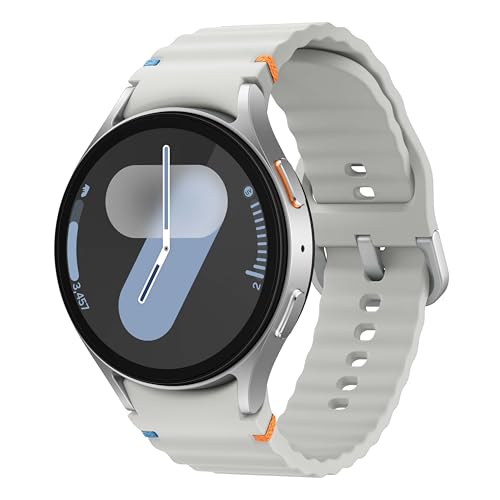
Apple Watch Series 10 GPS — Pairs with iPhone through the Watch app using the camera-scan method described below. Check price on Amazon.

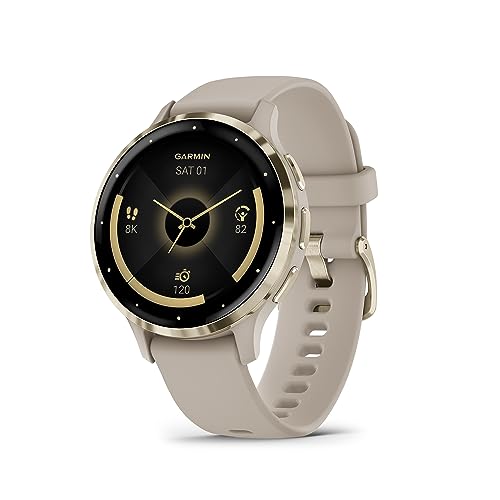
Garmin Venu Sq 2 GPS Smartwatch — Pairs through Garmin Connect on iPhone or Android — the cross-platform pattern. Check price on Amazon.
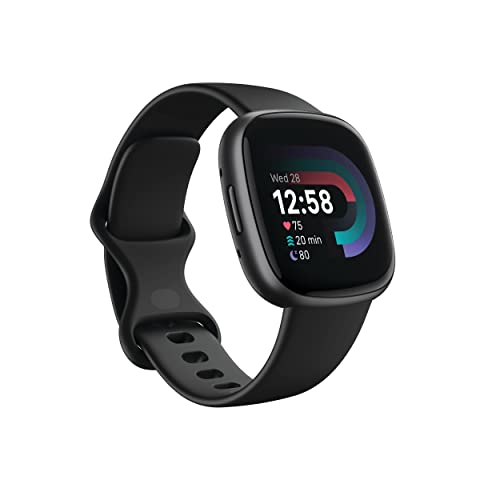
Google Fitbit Versa 4 Fitness Smartwatch — Pairs through the Fitbit app, with an account sign-in as part of the flow. Check price on Amazon.
What You Need Before You Pair
- A compatible phone — Apple Watch needs an iPhone; other watches need a phone meeting their app requirements.
- The correct companion app installed: Watch (iPhone), Galaxy Wearable, Garmin Connect, Fitbit, or the brand’s own app.
- Bluetooth switched on, and the phone connected to Wi-Fi or mobile data for sign-in and updates.
- The watch charged to at least half, ideally on its charger during pairing.
- Both devices in the same room, within a metre of each other.
Compatibility deserves one honest check before anything else, because no technique fixes an impossible pairing: confirm your phone model and its operating-system version meet the watch’s requirements on the manufacturer’s page. Pairing failures blamed on Bluetooth are sometimes a five-year-old phone meeting a brand-new watch. If your phone qualifies, the rest of this guide will get you paired.
Step 1: Prepare the Phone
Install the companion app and sign in (or create the account) before touching the watch — account sign-ins are where pairing flows stall, with verification emails and passwords, so get them done while nothing is timing out. Update the app if an update is waiting. Turn Bluetooth on and leave it on; if your phone asks for location permission for the app, grant it, because on Android especially, Bluetooth device discovery is tied to that permission and pairing silently fails without it.
If this watch was ever paired to another phone — a hand-me-down, a replacement phone upgrade, a refurbished unit — it must be unpaired or reset first. A watch bonded to one phone will not present itself properly to another. The reset option lives in the watch’s own settings under system or general, and doing it deliberately now is faster than discovering it mid-pairing.
Step 2: Start Pairing From the App, Not the Bluetooth List
Power the watch on (on its charger is fine) and follow its on-screen prompt, which will direct you to the companion app. In the app, choose the option to add or set up a new device. Apple Watch offers the camera method — point the iPhone at the watch’s pairing animation — with a manual code as backup. Other brands show the watch in a discovered-devices list inside the app; select it there. Deliberately do not pair from the phone’s system Bluetooth menu: watches paired that way often end up half-connected, visible to the phone but invisible to the app that must manage them.
Step 3: Confirm the Code and Grant Permissions
Both screens will show a pairing code or ask you to confirm the same number appears on each — check it genuinely matches before confirming, since that check is what prevents pairing to a neighbour’s identical watch in a busy household or office. Then work through the permission requests: notifications access if you want phone alerts on the wrist, contacts and calendar if you want them shown, location for weather and workout routes. You can decline optional ones and change your mind later in settings; accept the ones your intended use needs so the watch works as expected from day one.
The app will then sync settings, faces and apps, and usually offer a software update. Let the update run with the watch on its charger and the phone nearby. First syncs can take several minutes and look idle; interrupting them is how watches end up in odd half-configured states. When the app declares setup complete, the pairing itself is done — the customisation in how to set up a smartwatch is what turns a paired watch into your watch.
Step 4: Verify the Connection Properly
Do not trust the ‘connected’ label alone — test the link. Send yourself a message and watch it arrive on the wrist. Open the weather or find-my-phone feature from the watch and confirm the phone responds. Walk to the edge of the watch’s comfortable range (usually the next room) and back, and confirm it reconnects by itself. A pairing that passes these tests is a pairing you can rely on; one that only looks connected will fail you at the first inconvenience.
When Pairing Fails: the Fixes That Cover Almost Everything
Work through these in order. Restart both devices — the oldest advice in technology because it clears the transient states that cause most pairing failures. Toggle the phone’s Bluetooth off and on. Check the watch is not still bonded to another phone. Remove any existing entry for the watch in the phone’s Bluetooth device list (‘forget this device’) and in the companion app, then pair fresh. Confirm the companion app is the latest version and the phone’s operating system is up to date. Move away from crowded radio environments if you can — a desk surrounded by a dozen Bluetooth devices is a harder room to pair in than a quiet one.
If the watch appears in the app but pairing stalls at the same point repeatedly, reset the watch to factory settings from its own menus and begin again; a clean watch pairs cleanly. Persistent failure after a reset, on a compatible phone, with the current app, is the point to contact the manufacturer’s support or the seller — especially for a new watch, where a replacement is a reasonable outcome. The dedicated troubleshooting guide, how to fix a smartwatch that will not pair, goes deeper on watches that paired before and have stopped.
Common Mistakes When Pairing a Smartwatch
- Pairing from the phone’s Bluetooth settings instead of from inside the companion app, producing a half-connected watch.
- Skipping the app sign-in until mid-pairing, so the flow stalls on verification steps.
- Trying to pair a watch that is still bonded to a previous phone.
- Pairing across a room or through walls — Bluetooth setup wants the devices side by side.
- Declining the Android location permission the app needs for Bluetooth discovery, then troubleshooting the ‘invisible’ watch.
Pro Tips for a Connection That Stays Connected
After pairing, keep the companion app updated and resist ‘forgetting’ the watch in Bluetooth settings during unrelated troubleshooting — that severs the bond the app depends on. If you change phones, use the app’s transfer or unpair flow rather than simply signing in on the new phone; watches moved properly keep their settings and history. And if you own two phones, accept that the watch belongs to one of them: smartwatches are single-phone companions, and fighting that design causes most multi-phone pairing grief. New owners continuing from here should read what a smartwatch can do for what the watch can actually do once paired, and shoppers still deciding can compare platforms in smartwatches picked for Android phones.
Pairing a Second-Hand or Gifted Watch
A watch that has had a previous owner needs one extra step before anything in the main guide: it must be released from the previous owner’s account. On the watch itself, a factory reset from the system settings clears its settings, but some platforms also tie the watch to the owner’s account as an anti-theft measure — Apple calls its version Activation Lock — and that lock can only be removed by the previous owner signing in or removing the watch from their account. If you are buying or receiving a used watch, ask the giver to unpair it from their phone properly while you are together; that single act performs the unpairing, the reset and the account release in one flow, and saves you a support conversation later.
Once released, treat the watch as new: charge it, update it during setup, and pair from the companion app exactly as the main steps describe. A used watch that pairs cleanly and updates fully is a sound purchase; one that cannot be released from a previous account should go back to its seller, because that lock is doing its intended job.
Keeping the Pairing Healthy Afterwards
A successful pairing deserves light maintenance. Keep the companion app updated, since pairing reliability fixes arrive quietly in app updates. When your phone gets a major operating-system update, open the companion app once afterwards and confirm the watch is connected and syncing — updates occasionally shuffle permissions, and catching that on day one beats discovering a week of unsynced activity. Avoid installing beta operating systems on the phone your watch depends on unless you accept pairing quirks as the price of early access; watch companions are historically among the last things beta software treats kindly.
Finally, know the difference between a disconnection and an unpairing. A watch that shows disconnected because you walked out of range will reconnect by itself when you return — leave it alone. Only reach for the forget-and-repair sequence when the watch stays disconnected in the same room after a restart of both devices. Most pairing ‘problems’ reported by owners are range events mistaken for bond failures, and the cure for those is simply walking back to your phone.
What Pairing Actually Does Behind the Scenes
Understanding the machinery makes the failures less mysterious. Pairing creates a trusted Bluetooth bond: the two devices exchange keys and remember each other, so future connections are automatic and encrypted. On top of that bond, the companion app establishes its own relationship — syncing your account, settings, faces and health data — and registers for the phone’s notification stream. This two-layer structure explains the classic symptom patterns: a watch can be Bluetooth-connected yet app-disconnected (calls show, sync fails), or app-happy yet missing notifications (a phone permission, not a bond, is at fault). When you troubleshoot, ask which layer is broken before reaching for the nuclear option of re-pairing, because half of all ‘pairing problems’ live entirely in the permissions layer and can be fixed in a settings page in under a minute.
Pairing in Difficult Environments
Some rooms fight pairing: offices dense with Bluetooth devices, homes with several phones and tablets all hunting for accessories, trade-show floors. The countermeasures are simple. Move the phone and watch away from the crowd for the five minutes pairing takes. Temporarily switch off Bluetooth on nearby devices you own, so the watch is not claimed by the wrong one mid-handshake — a watch that pairs to the tablet in the next room is a comedy that writes itself weekly. And if a household has two identical watches, pair them one at a time, with the other powered off, then name each in its app so future confusion has labels to work with.
After Pairing: the Five-Minute Health Check
Close the process properly with the checks that prove the bond is real: a notification arriving on the wrist, a workout syncing to the app, the find-my-phone ping working in both directions if supported, and a walk to the far end of your home and back to watch the connection drop and recover gracefully. Then set the watch’s name, confirm automatic updates are on for the app, and note the date — if pairing ever fails in future, knowing it worked until a specific phone update or a specific trip is the clue that halves the troubleshooting. Pairing is a beginning, not a result; these five minutes convert it into a foundation.
Frequently Asked Questions
Why does my phone not find my smartwatch?
The usual causes are the watch not being in pairing mode, the companion app lacking Bluetooth or location permission, or the watch still being bonded to another phone. Start pairing from inside the companion app with the devices side by side, grant the permissions, and reset the watch if it was previously paired elsewhere.
Can I pair a smartwatch with two phones?
Not simultaneously in any useful way — smartwatches bond to one phone at a time. Moving to a new phone means unpairing from the old one (or using the app’s transfer flow) and pairing fresh. Some owners keep a watch paired to a work phone and accept that their personal phone stays out of the arrangement.
Do I pair through Bluetooth settings or the app?
Always through the companion app. Pairing from the system Bluetooth menu can leave the watch connected at Bluetooth level but unmanaged by its app, which breaks notifications, syncing and updates. If you have already paired that way, forget the device in Bluetooth settings and pair again from the app.
My watch paired before but will not reconnect. What changed?
Common culprits are a phone update resetting permissions, the watch being connected to another device, or a stale Bluetooth bond. Toggle Bluetooth, restart both devices, and if needed, forget and re-pair. Our dedicated guide to a smartwatch that will not pair works through the reconnection cases step by step.
Can I pair an Apple Watch with an Android phone?
No. Apple Watch pairs only with iPhone. Android users should choose a Wear OS, Garmin, Fitbit or other Android-compatible watch. There is no workaround or app that changes this, so check platform compatibility before buying rather than after a failed pairing.
How close do the phone and watch need to be to pair?
Side by side — within a metre, ideally on the same desk with the watch on its charger. Pairing involves several exchanges that are less reliable at range, and a weak first bond can cause later dropouts. Once paired, the normal working range is much wider, typically covering a home’s adjoining rooms.
What Pairing Actually Builds: Accounts, Permissions and Trust
Pairing feels like a single event — a code, a confirmation, a cheerful success screen — but it actually constructs several relationships at once, and understanding them explains both the permissions the process requests and the failures it can suffer. Understanding is not academic here: owners who know what pairing builds troubleshoot it in minutes when it breaks, while owners who experienced it as magic are helpless before its first refusal.
The foundation is the Bluetooth bond, a cryptographic introduction in which phone and watch exchange keys and agree to trust each other, which is why the confirmation code matters and why a watch bonded to one phone resists another until the bond is formally dissolved. Above the bond sits the companion application’s relationship: the app becomes the watch’s manager, translator and supply line, fetching data, delivering notifications and holding settings the watch’s small screen could never comfortably edit. Above that sits the account layer, tying the watch to your identity in the platform’s cloud, which is what lets a replacement watch inherit your configuration and what makes a second-hand watch refuse you until its previous owner’s account releases it.
Permissions are the visible surface of this construction. The app asks for notifications, location, contacts, calendar and activity data not from appetite but because each permission is a pipe the watch’s features drink from: no notification access, no wrist alerts; no location permission, no independent run mapping; no contacts, no caller names. Granting thoughtfully — everything the features you want require, nothing idly — is the security-conscious middle path, and the pairing moment is when to walk it, because permissions granted in a rush are rarely revisited, while permissions understood are a system you control.
Pairing With a New Phone: Migration Without Tears
The pairing most owners eventually face is not the first but the second: a new phone arrives, and the watch must move house. Handled in the right order, migration is a calm half hour; handled in the wrong order — old phone traded in, wiped or lost first — it becomes the single most common pairing crisis in the category.
The governing principle is to unpair from the old phone while you still have it, because unpairing through the companion app does three kindnesses at once: it creates a fresh backup of the watch’s settings, it dissolves the bond cleanly, and it releases any account activation lock that would otherwise bar the new phone at the door. Then pair with the new phone as this guide describes and accept the offered restore, and faces, settings and history reassemble as if the watch had simply changed pockets. If the old phone is already gone, the path still exists — reset the watch itself, clear its account lock through the platform’s process where required, and pair fresh — but it costs the backup and some history, which is why the order matters and why this section exists to be read before the trade-in, not after it.
While migrating, expect the small second wave of reconnections: payment cards must usually be re-added and re-verified on the new pairing for security reasons, downloaded music may need to return, and notification permissions must be granted afresh to the new phone’s app. Budget the half hour honestly, do it at home on Wi-Fi with both devices charged, and the migration joins the category of tasks that are only ever awful when they are improvised.
Pairing in Difficult Cases: Old Watches, New Phones and Version Gaps
Not every pairing joins contemporaries. Watches outlive phones, phones outpace watches, and the pairing of a several-year-old watch with a brand-new phone — or the reverse — exposes the category’s quiet compatibility frontier, where versions of operating systems and companion apps must still speak each other’s language.
The failure signature is distinctive: each device works alone, both are healthy, yet the app cannot find the watch, or finds it and fails late in the process, or pairs and then refuses to sync. The remedies are version hygiene in both directions — update the phone, update the watch if it can be updated while unpaired through any standalone route the maker provides, and update the companion app, whose current version is often the bridge built precisely for this gap. Check the maker’s stated compatibility for the specific watch generation against the phone’s system version before assuming defect; a watch whose platform has ended support for new phone systems is not broken, it is finished, and knowing that early saves a weekend of ritual restarting.
Where the gap is bridgeable, patience with order helps: app first, then phone system, then watch, restarting both devices between major updates so each layer settles before the next is asked to trust it. Where it is not bridgeable, the honest options are the ones this guide’s troubleshooting spirit always ends with: keep the old pairing alive on the old phone for the watch’s remaining duties, or retire the watch to a household member whose phone still speaks its language. Compatibility is a relationship with a lifespan, and pairing problems at the frontier are usually that lifespan announcing itself rather than anything you did wrong.
After Pairing: Proving the Connection Across a Real Day
A pairing that succeeds on the setup screen has passed an introduction, not an audition, and the difference matters because several of the connection’s duties only occur in the wild: the first time the phone leaves the room, the first call, the first workout, the first night. A deliberate first-day proof, woven into ordinary life rather than staged, confirms the pairing as infrastructure rather than as a ceremony.
Leave the phone in another room and walk the house: the watch should report disconnection gracefully and reconnect without ceremony when you return, and that reconnection — not the initial pairing — is the event you will rely on a thousand times. Take one real call on the wrist, send one reply, and let one workout record and sync before you trust the pipeline with a race or a journey. Charge both devices that night and confirm in the morning that the watch’s view of the day matches the phone’s: sleep, activity and notifications in agreement are the signature of a healthy bond.
If any of these proofs fail, you are troubleshooting a young pairing with this guide’s fixes while the context is fresh, rather than discovering the gap weeks later in front of an audience. And if they all pass, do the final kindness pairing deserves: note the date and any quirks of the process in your setup record, because the next pairing — new phone, replacement watch — will go faster for the memory, and the connection you proved today will simply disappear into your life, which is what successful technology does.
Pairing Etiquette and Security: The Watch as a Key to Your Life
A paired watch is a trusted extension of your phone, which means it inherits a share of your digital life: it can display your messages, answer your calls and, with payments configured, spend your money. Pairing is therefore also a security event, and a few habits keep it one you control.
Pair at home, on your own network, with devices you own, and treat the confirmation code as what it is — a check that the device in your hand is the device on your wrist, not a formality to approve blindly wherever it appears. A pairing request you did not initiate, on either device, should be refused and investigated rather than accepted in a distracted moment. Keep the watch’s own lock enabled so a lost or borrowed watch does not become an open window into your notifications, and understand your platform’s lost-device tools before you need them: how to mark the watch lost, how to suspend its payment cards, and how to erase it remotely, all of which live in the same companion app that paired it.
When the watch’s service ends — sale, gift, trade-in — unpair it properly and erase it, dissolving the bond and the account lock so its next owner starts clean and your data leaves with you. The second-hand market’s saddest devices are locked watches whose previous owners skipped this minute of courtesy, and the pairing system’s whole design assumes the minute will be taken. Take it, and the trust pairing builds remains an asset for the watch’s whole life rather than a liability at its end.
Understanding Bluetooth Range and Behaviour in Daily Life
Most pairing anxiety after setup day is really range anxiety in disguise, and a clear picture of how the connection behaves across a home dissolves most of it. The watch and phone maintain their bond across a typical room or two, with walls, floors, metal appliances and the human body itself all taxing the signal; the connection is designed to drop and recover gracefully rather than to cling at all costs, so brief disconnections — the watch showing its disconnected icon while the phone charges in the kitchen and you garden — are the system working, not failing.
What matters is the recovery: a healthy pairing reconnects within moments of returning to range, syncs what accumulated meanwhile, and never asks you to participate. Test that recovery deliberately in the first days, as the earlier section advised, because a pairing that pairs beautifully and reconnects badly is only half built, and its fault — usually a stale bond, a battery-saving setting strangling the app, or an operating system update’s new permissions — is far easier to fix while the setup is fresh in your mind. Where the platform offers a Wi-Fi fallback that keeps the watch reachable through your home network when Bluetooth range ends, enabling it turns most range drama into a non-event, and cellular models extend the same grace to the whole covered world.
Arrange your charging geography with the connection in mind: phone and watch charging in the same room keeps them bonded overnight, so backups, updates and syncs happen while you sleep, and the morning starts with both devices in agreement. A watch that charges in a distant room from its phone still charges, but it spends the night as an island, and small desyncs accumulate. Pairing, in other words, is not finished when the code is confirmed; it is finished when the geography of your home has been arranged so the bond can do its quiet work unobserved, which is the state every later section of your life with the watch will silently assume.
Pairing Two Watches, or One Watch Across a Busy Household
Households complicate pairing in predictable ways: two watches in one home, one person with a work watch and a dress watch, a child’s watch managed from a parent’s phone. Each arrangement works, provided the bonds are kept as distinct as the devices themselves and nobody treats Bluetooth as a shared household utility that sorts itself out.
Most platforms allow several watches paired to one phone, with one active at a time and switching handled in the companion app — a system built for the rotation owner, provided each watch is named clearly in the app so settings and backups never blur together. Two people’s watches in one home pair to their own phones without interference, but setup day deserves care: pair one watch at a time, with the other out of the room or powered down, because a phone hunting for a watch in a room containing two discoverable watches is a small comedy that ends with someone bonded to the wrong wrist. The confirmation code exists precisely for this; read it against the watch in your hand, every time.
Family management setups, where a parent pairs and administers a child’s or relative’s watch from their own phone, are the deliberate exception to the one-person-one-phone pattern, and they should be built through the platform’s family features rather than improvised with shared accounts. Built properly, the managed watch gets its own identity, contacts and limits, the manager gets appropriate oversight, and the arrangement can be dissolved cleanly when the child graduates to their own phone — another pairing migration, handled by the same unpair-first discipline this guide has recommended throughout. Households that treat pairing as identity, rather than as plumbing, avoid nearly every tangle the category offers.
When Pairing Fails at the Last Step: Sync, Accounts and the Half-Built Bond
The cruellest pairing failure is the one that arrives after apparent success: the devices declare themselves paired, yet data does not flow — notifications never arrive, workouts never sync, the app shows a watch that the wrist insists is a stranger. This half-built state has its own short list of causes, distinct from the cannot-find-each-other failures, and working it in order resolves most cases without the nuclear option of starting over.
Begin with the account layer. The companion app must be signed in, the watch must be claimed by that account, and any previous owner’s release must be complete; a watch still tied to another account can pair its Bluetooth while refusing its data, which is precisely the half-built symptom. Next, audit the permissions the pairing granted, because a single declined permission — notifications, background refresh, location — amputates one function while leaving the bond looking healthy, and the fix is a settings visit rather than a re-pairing. Then check the quiet saboteurs: battery-saving modes that freeze the companion app, data restrictions, and the phone’s habit of offloading an app it thinks you do not use, which a watch app opened only during setup can easily become.
If the half-built state survives those checks, the orderly restart — both devices off and on, then the app opened and left open while the first sync completes — resolves a surprising share, because first syncs are heavy and easily interrupted by sleep, range or impatience. Give that first sync an unglamorous setting: both devices charged, side by side, on home Wi-Fi, with twenty unhurried minutes. Only if the state persists after all of this should you unpair and rebuild, and when you do, the rebuild usually succeeds precisely because the account and permission faults were already found and fixed — the re-pairing was never the medicine, merely the moment the medicine was finally allowed to work.
Pairing, done with this understanding, stops being a lottery and becomes what it was designed to be: a brief, deliberate introduction between two devices that then get on with years of quiet cooperation. The code, the permissions, the proofs and the notes are all in service of that disappearance — and a connection you never think about is the surest sign the introduction was made properly.
Pairing and Accessibility: Setting Up the Bond for Every Kind of User
Pairing flows are designed for an imagined standard user, and real users deserve a word about bending the process to actual hands, eyes and ears. The companion app on the phone is the accessible surface: its larger text, voice control compatibility and familiar gestures make it the right place to perform every step the process allows there, reserving the watch’s small screen for confirmations only. Where a code must be read or matched, a family member or the phone’s own accessibility tools can bridge the moment without diminishing the owner’s independence in everything that follows.
For wearers with limited dexterity, the physical choreography matters: pair at a table, devices resting on a cloth so nothing slides, chargers connected so nothing needs holding, and no time pressure, because pairing has no clock worth respecting. For wearers with low vision, enable the phone’s screen reader before starting and let it narrate the app’s steps; the process is patient and will wait. The goal is a bond owned by its wearer in fact as well as in settings, and an extra ten unhurried minutes at pairing is how that ownership is established for the whole life of the watch.
The Pairing Record: One Paragraph That Saves Every Future Pairing
End the pairing the way this site’s guides end every configuration: with a record. One short paragraph in your setup notes — the date, the phone, the watch, the account used, any quirk the process showed, and where the backup lives — converts every future event from archaeology into administration. New phone, replacement watch, a family member’s identical crisis at a holiday gathering: the record answers before the questions finish forming.
It takes ninety seconds to write while the memory is fresh and it is unobtainable at any price a month later, which makes it the highest-value step in this entire guide measured by effort. Pairing is an introduction; the record is how you guarantee you will never have to make the same introduction twice, blind, under pressure, with a queue of life waiting behind it.
And when the next device arrives — as, in this category, it reliably does — you will meet its pairing screen as an old hand: charged devices, quiet room, app open first, code checked against the wrist, permissions granted with intent, proofs run across a real day, record written before bed. What was once a small ordeal becomes a familiar half hour, and that transformation, from anxiety to routine, is the real product this guide has been selling all along.
Trust, once established between the two devices, extends naturally to a third party: you, the owner, who stops wondering whether the watch got the message, recorded the run or will ring when it matters. That trust is the true deliverable of a careful pairing, and it compounds silently across every day the bond holds.
It is worth pausing, finally, on how recent this small ritual is. A generation ago, a watch needed nothing from any other object on Earth; it was wound, set and worn in complete independence. The paired smartwatch trades that independence for a flow of information no standalone device could offer, and the pairing process is the toll gate between the two philosophies. Passing through it thoughtfully — understanding the bond, the account and the permissions rather than merely surviving them — is how a modern owner keeps the old virtue of self-reliance inside a connected device: not by refusing the connection, but by comprehending it well enough that it never owns them instead.
Comprehended that way, the connection becomes a tool like any other: inspected, maintained, occasionally repaired, and otherwise forgotten in favour of the life it was connected to serve.
So pair carefully, prove the connection across one honest day, write the record, and then forget the machinery entirely. The watch will remember the phone, the phone will remember the watch, and you will be free to remember only the things that were worth connecting them for in the first place.
Every experienced owner was once a beginner staring at a confirmation code, and every beginner who works through the process deliberately becomes, by the end of it, the experienced owner someone else will call when their own pairing falters — knowledge, like the connection itself, is meant to be shared onward.
Begin the next pairing — and there will be a next one — from that position of knowledge, and it will take half the time and none of the worry of the first.
There is a reason the industry calls it pairing rather than connecting, and the word earns its keep over years of service: two devices, introduced properly, that learn each other’s habits, cover each other’s absences and present a single, calm face to their owner. Honour the introduction, and the partnership will honour you back, quietly, thousands of times, in moments too small to notice and too numerous to count — which is precisely what good technology has always promised and so rarely, without a little care at the start, actually delivered.
Pair once, pair properly, and the rest is simply life with a well-introduced companion on your wrist.
And that, in the end, is all pairing ever asked of you: a careful beginning.
The rest takes care of itself, daily, from then on.
Related Guides
Can I pair my smartwatch with a tablet instead of a phone?
Sometimes, but with limits. Some companion apps run on tablets and can pair a watch, yet features that depend on the phone — calls, messages, cellular identity — will be missing or reduced, and some platforms require a phone outright. A tablet pairing can suit a child or a home-based user, but check the specific combination before relying on it as the main arrangement.
Why does pairing keep asking me to confirm a code?
Repeated code prompts usually mean the bond is not being saved: one device forgets the pairing as fast as the other creates it. Restart both devices, make sure neither still holds a stale entry for the other in its Bluetooth list, and pair again from inside the companion app with both devices charged and close together. If it persists, check for system updates on both sides.
Does pairing drain the battery on either device?
The pairing process itself, with its searching, updating and syncing, uses noticeable power, which is why this guide recommends starting charged or on chargers. Once paired, a healthy connection costs very little; a connection that repeatedly drops and re-pairs, however, can drain both devices, and unusual battery loss is often the first symptom of an unstable bond worth fixing.