Disclosure: As an Amazon Associate, kajuandouglas.com earns from qualifying purchases. Links to Amazon on this page are affiliate links; they cost you nothing extra. Listing details such as price and availability change often, so check the current Amazon listing before you buy.
Knowing how to set up a smartwatch well takes about twenty minutes, and it decides whether the watch becomes a quiet helper or a buzzing distraction you abandon in a drawer by February. Out of the box, most watches default to notifying you about everything, tracking more than you care about, and draining their battery on features you never asked for — the setup is where you take charge of all three.
This guide covers the full first setup in order: charging and pairing, the essential settings to change immediately, choosing a watch face that works for you, taming notifications, setting up activity and sleep tracking, and the finishing touches like payments and music.
Quick answer: Charge the watch, install its companion app on your phone, pair them and accept updates. Then immediately: choose which apps may notify you, set your activity goals to something realistic, pick a legible watch face with the complications you actually check, add your payment card if you will use it, and set your sleep schedule so the watch stops lighting up at night.
How to Set Up a Smartwatch
In this guide
Gear for This Guide

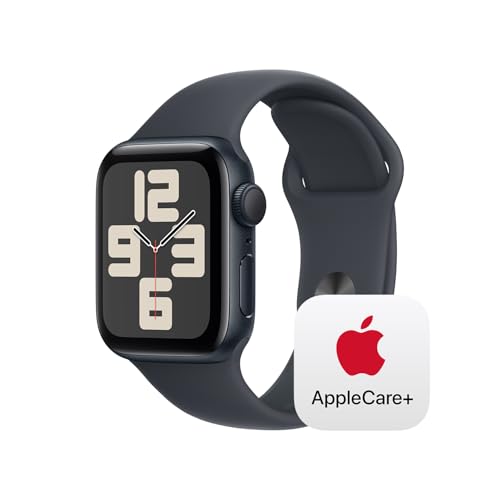
Apple Watch SE (2nd Gen) GPS 40mm — A friendly first smartwatch whose setup runs through the Watch app on iPhone. Check price on Amazon.

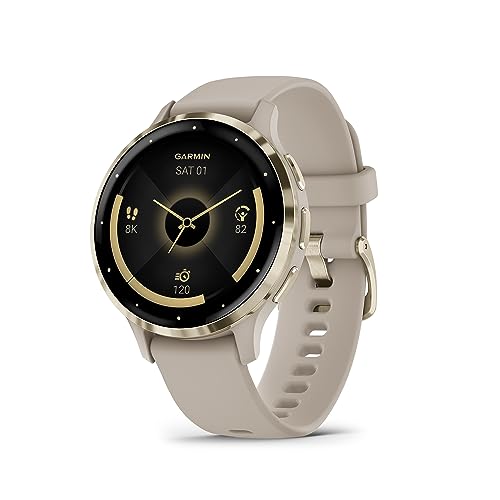
Garmin Venu Sq 2 GPS Smartwatch — Sets up through Garmin Connect on either phone platform — a good example of the cross-platform routine. Check price on Amazon.
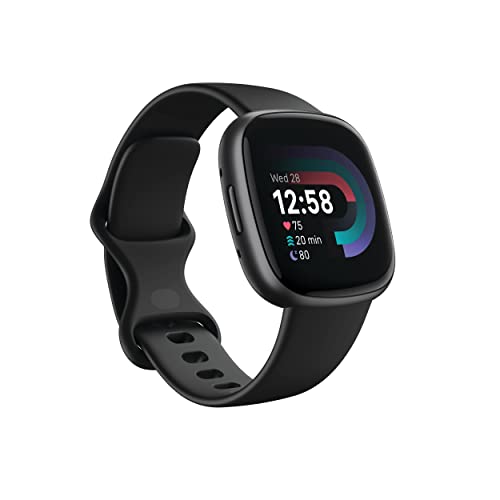
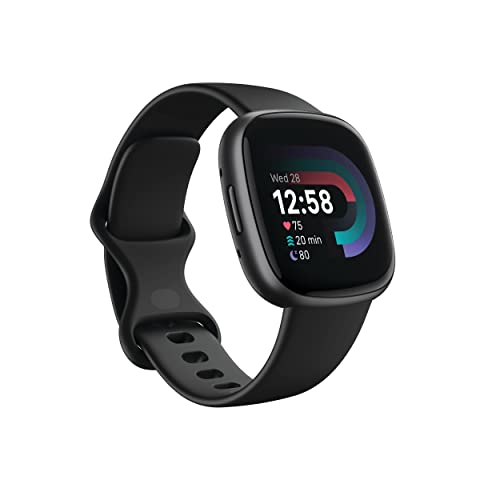
Google Fitbit Versa 4 Fitness Smartwatch — Sets up through the Fitbit app, with its setup weighted toward activity and sleep tracking. Check price on Amazon.
What You Need Before You Start
- Your phone, charged, with Bluetooth on and connected to Wi-Fi.
- The watch’s charging cable and a power source — start with a full charge if you can.
- Your phone account details (Apple ID, Google or brand account) and your Wi-Fi password.
- Twenty unhurried minutes — setup interrupted halfway is how pairings go wrong.
Install the companion app before you unbox if you like: Watch app on iPhone for Apple Watch, Galaxy Wearable for Samsung watches, Garmin Connect for Garmin, the Fitbit app for Fitbit and Pixel Watch. Having the app ready means the watch’s pairing prompt leads somewhere immediately, rather than the two devices waiting on each other while you hunt through an app store.
Step 1: Charge, Power On and Pair
Put the watch on its charger and let it power on there; most watches begin setup automatically and ask you to bring the phone close or to scan an animation or code with the phone’s camera. Follow the companion app’s prompts, keep the two devices within arm’s reach of each other throughout, and do not wander off — a pairing that loses its connection mid-handshake is the most common cause of a failed first setup, and the fix is simply starting the pairing again with the devices side by side.
Sign in with the account the app asks for, agree to the location and notification permissions the watch genuinely needs (location for weather and workout maps; notifications if you want phone alerts on your wrist), and let any software update install before you start customising. Updates during first setup are normal and worth waiting out — customising a watch that then updates and rearranges itself is wasted work. If pairing itself refuses to complete, how to fix a smartwatch that will not pair is the dedicated rescue guide.
Step 2: Set the Basics — Time, Wrist and Units
Confirm the watch knows which wrist it is on and which way the crown or buttons face; this affects screen orientation and gesture controls. Set your units (kilometres or miles, 24-hour or 12-hour time) and check the time zone follows your phone. Enter your basic profile details the app requests — height, weight, birth year — because activity and calorie estimates are calculated from them; rough honesty gives better estimates than flattering numbers. These details stay between you and your account and simply make the watch’s everyday numbers more meaningful.
Step 3: Choose a Watch Face That Earns Its Place
Pick a face you can read at a glance in bright light, then add only the complications you will actually glance at — the slots that show weather, your next calendar event, activity progress or a timer. A face crowded with eight data fields is a dashboard you will never read; three or four well-chosen ones become reflexes within a week. Most watches let you save several faces and swipe between them, so set up a work face and a weekend face rather than compromising one face for both lives.
While you are in display settings, decide on always-on display if your watch offers it: it is convenient and looks like a proper watch, but it is one of the largest battery costs, and raise-to-wake is fast enough for most people. Set screen brightness to the lowest level that stays readable outdoors — your battery will thank you every single day.
Step 4: Tame Notifications Before They Tame You
This is the most important step in the whole setup. By default, the watch mirrors your phone’s notifications, which for most people means a wrist that buzzes scores of times a day. Go through the notification list in the companion app and allow only what deserves your wrist: messages and calls from people, calendar alerts, perhaps banking and delivery updates. Turn off social media, news and shopping apps without mercy — you can check those on your phone like everyone else. A watch that buzzes rarely is a watch whose buzz you still notice in month six.
Set quiet hours or a sleep schedule so the watch stops waking you — and itself — at night, and learn the theatre or do-not-disturb mode’s location before you need it in a cinema or meeting. Notification discipline is also a battery feature: every buzz is a screen wake, a vibration motor and a radio conversation with your phone.
Step 5: Set Up Activity, Workouts and Sleep
Set your daily activity goals to levels you can hit on a good normal day — a goal you reach four days a week motivates; a heroic goal you never reach teaches you to ignore the watch entirely. Tell the watch which workouts you actually do so they are one tap away, and check that auto-detection for walks and runs is on if you like credit for unplanned activity. Wear the watch snugly — a notch tighter than all-day wear — during workouts, since a loose watch reads heart rate poorly as it slides around.
For sleep tracking, confirm the watch will be worn at night (many people need the smaller case or a softer strap for this to be comfortable), set your sleep schedule so notifications hush, and plan the charging slot that makes nightly wear possible — typically while you shower and get ready in the morning. Treat sleep and heart-rate information as wellness trends to notice patterns in, which is how these features genuinely help, rather than as medical readings.
Step 6: Add Payments, Music and the Finishing Touches
If your watch supports contactless payments and your bank supports the system, add your card now, while setup mode lasts — wrist payments are the feature owners consistently rate as the pleasant surprise of smartwatch life, and adding a card later somehow never happens. Download or sync a workout playlist if you exercise with the watch alone, arrange your app grid or list so your five real apps are first, and set up emergency information and fall or crash features if your watch offers them and you want them active.
Finish with a tour of the physical controls: what the crown scrolls, what each button does, how to reach the torch, the water-lock if you swim, and the find-my-phone ping, which will rescue your phone from sofa cushions for years. Then wear the watch for a full day before changing anything else — half of setup wisdom is knowing what actually needs adjusting, and you only learn that by living with it. The watches in smartwatches picked for battery life all reward this same first-day discipline, and if you are still choosing between models, how to choose a smartwatch covers the decision itself.
The First Week: What to Adjust After Living With It
Setup is not finished on day one; it matures over the first week as the watch reveals your real patterns. Around day three, review your notification statistics if the app offers them — you will find one or two apps buzzing far more than you expected, and they can be demoted. Check which watch face complications you actually glance at and swap the decorative ones for useful ones. Around day seven, look at your activity data honestly: if your step goal has been missed every day, lower it to a level that stretches you slightly; the watch’s motivational power depends on goals that feel reachable on a good day.
Battery behaviour also declares itself in week one. Note when the watch actually runs low relative to your charging slot, and adjust the always-on display or brightness if the routine does not fit. A setup that survives week one unchanged will usually serve for the life of the watch, which is why this short review is worth the ten minutes it takes.
Setting Up a Second Watch or a Replacement
When you replace a watch, the setup is shorter but has its own traps. Unpair the old watch properly through the companion app first — this preserves your data cleanly and releases the old watch to be sold or gifted without your accounts attached. Most platforms offer to restore settings, faces and apps from a backup of the old watch during the new setup; accept the offer, then still walk through the notification list once, because a restore faithfully restores the notification habits you meant to fix. If you are switching platforms entirely — Apple to Android or the reverse — expect a manual rebuild of faces and settings, and export or screenshot anything from the old app you want to keep, since health histories do not always travel between ecosystems.
Setting Up for Exercise and the Outdoors
If the watch will train with you, spend five setup minutes here. Arrange your primary workout screen to show the three numbers you actually use mid-session — typically duration, heart rate and pace or distance — large enough to read at a glance on a moving wrist. Set auto-pause preferences for activities where you stop at lights or gates, or leave it off for continuous efforts, but decide consciously rather than inheriting a default. Download your home area’s offline maps if the watch supports them, pair your earbuds to the watch now rather than at the trailhead, and confirm the watch records a short test walk around the block with a sensible route line before you trust it with a race.
Water users should find the water-lock or swim mode before the first pool session and practise starting it with wet hands in the shower at home — a small rehearsal that prevents the classic poolside fumble. Runners who train at night should set the screen’s night brightness and check that the torch, if fitted, is one gesture away.
Privacy and Security Settings Not to Skip
A watch displays your messages on a wrist that other people can see, so make two deliberate choices during setup: whether message previews show content or merely the sender, and whether the watch unlocks features only when worn and unlocked. Set a passcode if your watch holds payment cards — most require one for payments anyway — and confirm the watch locks when removed from your wrist. Review which apps may access your location and health data in the companion app, granting what your use needs rather than everything requested by default. None of this is paranoia; it is the same hygiene you would apply to a phone, applied to the device that sits visibly on your arm in public.
Teaching the Watch to a Family Member
If you are setting up a watch for a parent or child, add patience and subtraction to this guide. Set up fewer features, not more: calls, messages, activity, and the safety features, with everything else hidden or removed where the platform allows. Write the three gestures that matter — answer a call, call for help, charge the watch — on a card that lives by the charger. Schedule the charging slot into their existing routine rather than inventing a new one. A family watch set up humbly and used daily beats a fully featured one abandoned in a drawer, and the setup choices that produce that outcome are almost all subtractions.
Frequently Asked Questions
How long does it take to set up a smartwatch?
About fifteen to twenty-five minutes, including pairing, signing in and any first software update. The customisation in this guide — notifications, faces, goals — adds a few minutes more and is worth doing immediately, because defaults are set to showcase features rather than to suit your life.
Do I need my phone to set up a smartwatch?
Yes, in almost all cases. A smartwatch is set up and managed through a companion app on a phone, and most features depend on that connection. LTE models can work more independently after setup, but the initial pairing and configuration still run through the phone.
Why is my new watch’s battery draining so fast?
First-day drain is normal: updates, syncing, setup activity and your own exploring all cost power, and some watches calibrate over the first days. If drain persists, the usual causes are an always-on display at high brightness, too many notifications waking the screen, and background features you never use — all adjustable in the steps above.
Should I let every app send notifications to my watch?
No — that is the fastest route to hating the watch. Allow people and time-sensitive alerts (messages, calls, calendar, banking, deliveries) and silence the rest. You can add an app back later in seconds if you miss it, but almost nobody does.
Can I set up a smartwatch for a child or parent without their phone?
The watch needs a phone account to pair with. Some platforms offer family setup modes that let you manage a watch for a family member from your own phone — Apple Watch has such a mode for compatible cellular models. Otherwise, the watch must pair with the wearer’s own phone.
What should I do first if setup goes wrong?
Restart both the watch and the phone, bring them close together with Bluetooth on, and start the pairing again from the companion app. If a half-finished pairing is stuck, remove or forget the watch in the phone’s Bluetooth list and in the app, then retry. Persistent failures on a brand-new watch are a support or exchange conversation, not a personal failing.
Setting Up Health and Wellness Features Thoughtfully
The setup steps in this guide cover activity and sleep configuration mechanically; this section covers the judgement behind them, because a watch’s wellness features can be a gentle companion or a small tyrant depending entirely on how thoughtfully they are set up in the first week.
Begin with goals you would set for a friend. Step and activity targets should be reachable on a normal day and stretchable on a good one, not calibrated to your most heroic week of the year. Every platform lets you adjust these, and the setup moment is when to do it, because defaults are written for an average person who does not exist. A goal met most days builds the habit of wearing and glancing; a goal missed daily trains you to ignore the watch, and an ignored watch is an expensive bracelet.
Decide deliberately about reminders. Movement prompts, stand reminders and breathing nudges are genuinely helpful to some owners and quietly infuriating to others, and the difference is knowable in advance if you are honest about your temperament and your job — a surgeon, a teacher mid-lesson and a driver all have hours when the wrist must stay silent. Set quiet hours and focus modes during setup, not after the first embarrassing buzz in a meeting, and remember that every feature can be revisited; setup is a first draft, not a contract.
Treat the numbers as companions, not judges. Sleep and activity summaries are most useful as trends across weeks — am I moving more than last month, sleeping more consistently — rather than as daily verdicts, and setting up the weekly view as your default glance makes that framing automatic. Owners who adopt the trend view keep their watches for years; owners who chase daily perfection often abandon both the targets and the watch. Comfort framing is not softness; it is what makes the data sustainable.
Accessibility and Readability Settings Worth Your Ten Minutes
Setup is the moment to make the watch genuinely yours at the level of the senses, and the accessibility settings buried in every platform repay a deliberate pass, whether or not you consider yourself their intended audience, because many of them are simply good ergonomics wearing a category label.
Text size and boldness decide whether notifications are glanceable or squinted at, and the right setting is the one you can read at arm’s length, in motion, in bright daylight — test it by the window, not at the desk. Display timeout and wake behaviour decide how long information stays available after you raise your wrist; a slightly longer display time transforms usability for anyone who reads slowly, checks the watch while carrying things, or wears it over a sleeve in winter. Haptic strength deserves the same personal calibration: alerts you cannot feel are decoration, while alerts set to maximum can startle through a quiet room, and the middle that suits your wrist, your clothing and your life is discoverable only by wearing.
Owners with limited vision, hearing or dexterity will find deeper tools — zoom, voice feedback, mono audio routing, adjusted touch accommodations — and the setup hour is when to explore them with the phone’s larger screen as the control panel, testing each against a real notification rather than a settings-page preview. Family members setting up a watch for a parent should treat this section as the main event: a watch configured for its wearer’s actual eyes, ears and hands will be worn and loved, while one left at defaults may be quietly abandoned in a drawer within the month, taking its safety features with it.
Setting Up for Travel: Time Zones, Offline Maps and Airplane Realities
A smartwatch travels better than almost any gadget you own, provided setup anticipates the journey. Most of the work is five minutes at home, and all of it is painful to improvise in an airport.
Confirm that automatic time-zone updating is on, and know how your watch behaves when the phone is in airplane mode: the watch should keep time, alarms and downloaded music independently, and a quick home test — phone in airplane mode, watch on wrist, walk to the garden — proves the arrangement before it matters. Download the music, podcasts and, where supported, the maps for your destination while on home Wi-Fi, because the watch’s small storage fills by intention, not by accident, and hotel networks are a poor place to discover an empty library before a morning run in a strange city.
Set up the payment method and verify it with a small purchase before departure if you intend to rely on wrist payments abroad, and check whether your card and destination cooperate, since acceptance varies. Add the travel complications that earn their place — a second time zone for home, the weather for where you are going, a translation shortcut if your platform offers one — and remove them again when you return, so the watch face stays a tool for the life you are living rather than a museum of trips. Finally, pack the charger in hand luggage and note that a watch is one of the easiest devices to keep alive while travelling: its battery sips, a short top-up during a shower restores a day, and a well-set-up watch becomes the traveller’s most dependable instrument precisely because it asks so little.
The Second Week Audit: Setup Is a Draft, and This Is the Edit
No setup survives contact with real life unchanged, and the owners who love their watches in month six are the ones who scheduled the edit. Two weeks after first setup, sit down with the phone app for fifteen minutes and audit with evidence: which notifications actually reached your wrist, and which of them earned it; which watch face complications you genuinely glance at; which features you have not opened since setup day.
Prune without sentimentality. Every notification source that annoyed you twice gets silenced or demoted to the phone; every complication you never read is replaced by one you might; every goal that proved fantasy is reset to the honest figure your two weeks of data suggests. Add the things experience requested: the timer shortcut you kept reaching for, the contact you kept wishing was a favourite, the focus mode your evenings needed. This audit is where the watch stops being a product you configured and becomes an instrument you play.
Then leave it alone. The opposite failure of the never-edited setup is the endlessly tweaked one, where the watch face changes weekly and no arrangement lasts long enough to become habit. After the second-week audit, let the setup settle for a season; your glances will automate, your charging rhythm will groove itself, and the watch will complete its transformation from new gadget to unnoticed companion — which is, and always was, the definition of a successful setup.
Backups, Resets and the Setup You Only Do Once
The least glamorous setup task is the one that saves all the others: making sure your configuration can survive the watch being replaced, repaired or reset. Modern platforms back up watch settings to the phone or the account automatically in most cases, but automatically is a word worth verifying rather than trusting, and five minutes in the companion app confirms whether a backup exists, when it was taken and what it covers.
Know, before you ever need it, how a restore works on your platform: whether unpairing creates a fresh backup, whether a new watch offers your old configuration during its setup, and which elements — faces, notification choices, activity history — travel and which must be rebuilt. Owners who learn this during a calm setup afternoon execute a replacement in minutes; owners who learn it in a shop, with a dead watch in hand, rebuild from memory and lose the careful calibration this guide has built.
While you are in these menus, locate the reset options and understand their levels: restarting, which clears nothing; resetting settings, which keeps data; and full erasure, which returns the watch to factory state for sale, gifting or service. Knowing the ladder in advance prevents the classic panic error of erasing a watch that only needed a restart, and it completes the setup properly. A watch is set up not when its face first lights, but when its owner can configure it, calibrate it, back it up and recover it — after which it can be, happily, forgotten about for months at a time.
Setting Up Payments, Passes and the Wallet on Your Wrist
Contactless payment is the feature owners most often describe as unexpectedly transformative, and also the one most often left unconfigured because setup day felt long enough already. Completing it during the first week, deliberately, is worth the ten minutes, because the first time you pay with a queue behind you is the wrong time to discover an unverified card.
Add your cards through the companion app, complete each issuer’s verification step — which may involve a code or a call — and then make one small, calm purchase to prove the whole chain works: card, watch, terminal, and your own confidence in the gesture. Set the security behaviour knowingly: most platforms require a wrist-detection lock so the watch stays authorised only while worn, and understanding that design explains the occasional request to re-enter your code after taking the watch off. Add transit cards, loyalty passes and event tickets where your platform supports them, and the watch begins its second career as the thing you tap, show and board with, while the phone stays in the pocket it increasingly deserves to stay in.
Know the limits before you rely on them. Acceptance varies by country, issuer and terminal; some cards in a phone wallet cannot join a watch wallet; and a watch with a flat battery pays for nothing. Keep a fallback for important journeys, and treat wrist payment as a convenience layer over your normal arrangements rather than a replacement for them, at least until its reliability in your own routine has been proved across a season of ordinary days.
Family and Shared Setup: Watches for Children and Parents
Setting up a watch for someone else is a distinct discipline, because the wearer did not choose the device, may not own the phone it wants, and will judge it entirely by whether it respects their routines. Done well, it is one of the kindest technology gifts available; done carelessly, it is a buzzing obligation on a beloved wrist.
Start with the wearer’s day, not the feature list. For a parent, the valued features are usually large text, fall and emergency calling where available, medication and appointment reminders they helped choose, and a very short list of notifications — family calls and messages, not the internet’s whole output. For a child, the centre of gravity is communication with approved contacts, location features the family has discussed openly, school-hours silence configured with the school in mind, and durability against a life of playgrounds. In both cases the setup conversation matters as much as the setup itself: features experienced as care by one wearer feel like surveillance to another, and the difference is consent and explanation, not technology.
Configure conservatively and schedule the same second-week audit this guide recommends for your own watch, conducted with the wearer: what annoyed, what helped, what is missing. Set charging up as a household ritual with a fixed home for the charger, because a gifted watch that is always flat is a gift of guilt. And respect the exit: if the wearer simply does not take to it after a fair trial, the successful setup includes graciously taking it back, because the goal was never the watch. It was the person.
Troubleshooting the First Forty-Eight Hours
Nearly every new watch generates one small panic in its first two days, and nearly every panic has a known, harmless cause that setup knowledge dissolves. The battery that drains alarmingly on day one is usually indexing, updating, learning and being played with constantly by its delighted owner; judge battery life from day three, in normal use, before concluding anything. The watch that feels warm during its first charge and update is doing heavy work in a small body and should simply be left to finish.
Notifications that arrive twice, or not at all, are the second classic: the phone and watch divide alerting between them according to rules — typically the watch alerts when the phone is locked, the phone when it is in use — and apparent duplication or silence usually means those rules working as designed in an arrangement you had not pictured. Read your platform’s alerting logic once, adjust the few sources that genuinely misbehave, and resist rebuilding the whole configuration around day-one impressions. Missing activity or sleep data in the first days is the third: sensors calibrate, permissions for background tracking may need one confirmation, and a single night proves nothing. Give the systems their settling period, verify permissions once, and let the trends accumulate. A watch, like its owner, deserves a fair first week before judgement.
Setting Up Music, Podcasts and Phone-Free Exercise
For many owners the watch’s finest hour is the run, walk or gym session where the phone stays home, and that hour only works if setup prepared it. The preparation is a small supply operation: choose what the watch carries, because its storage is finite and its connection, away from the phone, is only what you loaded or what a cellular model can fetch.
Download deliberately. A running playlist, a few podcast episodes and one emergency playlist you never tire of cover most people’s phone-free life; sync them over Wi-Fi while the watch charges, and verify them with the phone switched off before the first outing, because discovering an empty library at the park gate converts a run into a errand. Pair your earbuds to the watch itself — not merely to the phone — and test the pairing at home, since Bluetooth relationships are per-device and the watch-to-earbud link is the one the run depends on. Learn the media controls with gloves or sweaty hands in mind: which button pauses, how volume is reached, and how to skip without looking, because mid-run is no classroom.
Set the workout screens while you are there. Every platform lets you choose which figures a workout displays, and the default set rarely matches what any individual actually watches: distance and pace for one runner, heart-rate zone and time for another, almost nothing for the walker who prefers the scenery. Configure one honest screen rather than four impressive ones. Finally, decide what the watch should do if the exercise runs long and the battery runs short — which features to shed, which alerts matter — because a watch that dies mid-route loses the whole recording, and a five-minute setup decision at home is what stands between that small tragedy and a completed, satisfying log of the day you outran your own expectations.
Your Setup Notes: The Page Future You Will Thank You For
Close the setup the way professionals close any configuration job: with a short written record. Note the choices that were deliberate and would be tedious to rediscover — your notification rules and their exceptions, your watch face and its complications, your activity goals and quiet hours, your payment cards’ order, your accessibility settings, and where the backup lives. Photograph the watch face as arranged. The record takes ten minutes on setup day, when every decision is fresh, and it converts every future event — a replacement watch, a reset, a new phone, a family member asking how yours works so well — from a reconstruction project into a lookup.
Store the notes with the phone’s other setup information rather than in a notebook that will be lost, and revisit them at the second-week audit to correct the entries reality revised. This small clerical act is the difference between a setup and a system, and it is the last step because it protects all the others. A watch configured with this much care, and documented with this much foresight, stops being a gadget you own and becomes part of the quiet infrastructure of your days — which is what a smartwatch, set up properly, was always supposed to be.
Set it up once, set it up thoughtfully, audit it once with two weeks of evidence, and then let the watch recede into the background of a life it quietly organises. That recession is not the absence of technology; it is technology finished properly, and it is available to anyone willing to spend one unhurried hour at the beginning instead of a hundred irritated minutes spread across the years that follow.
Setting Up Focus Modes and Quiet Hours So the Watch Respects Your Life
The single setup decision that most determines whether a smartwatch feels like an assistant or an interruption is how it behaves during the hours when your attention is promised elsewhere: sleep, work that demands presence, family time, worship, performances, driving. Every modern platform offers focus or do-not-disturb modes that can follow a schedule, follow the phone’s own modes, or be summoned manually, and configuring them during setup — rather than after the first buzz at a funeral-quiet moment — is a kindness to yourself and everyone around you.
Work in layers. Set the sleep schedule first, with the wind-down behaviour you actually want: a dimmed face, alerts silenced except for the people and alarms you name, and a morning report gentle enough to start the day with information rather than judgement. Then build the work mode around your real calendar rather than a generic nine-to-five, letting genuinely urgent contacts through while the rest queue silently for the phone. Add the personal mode for evenings and weekends if your life has that shape, and test each mode once by triggering it deliberately, because a focus mode you have never seen working is a hope, not a setting.
Coordinate the watch with the phone so the two tell one story: a focus mode that silences the phone while the watch keeps buzzing is a loophole your attention will fall through nightly. Most platforms can mirror the phone’s modes automatically, and choosing mirroring, then overriding only where the wrist genuinely deserves different rules, gives you a system with one logic instead of two competing ones. Set up this way, the watch learns the household’s deepest rule — that attention is precious and mostly promised — and becomes the rare device that protects your focus more often than it spends it.
That, in the end, is the whole philosophy of a good setup compressed into one sentence: configure the watch around the life, in the life’s own order of importance, and the technology will take care of itself — quietly, reliably, and almost entirely out of mind, which is exactly where the best tools have always lived.
Everything after setup day is simply living with the result, and the measure of the hour you spent is how rarely you think about it: a watch that is charged when you reach for it, quiet when it should be, helpful when it counts and invisible the rest of the time has been set up exactly right.
Trust the process you have built: charge it in its place, wear it without thinking, audit it once a season against your notes, and let a small, well-configured computer on your wrist do the quiet work of making ordinary days run measurably more smoothly than they used to.
It is, when you think about it, a remarkable amount of help from something that weighs less than the strap of an ordinary handbag.
Setup complete, properly, is the moment the gadget becomes yours — and stays that way, through updates, new phones and new seasons, because its foundations were laid with care.
Now go and live the days it was configured for.
Related Guides
Should I wear my new smartwatch to bed the first night?
You can, but expect the first night’s sleep data to be rough while the watch learns your patterns and while you adjust to wearing it. Many owners prefer to spend the first day on setup and daytime wear, then start sleep tracking on the second or third night once the strap fit and notifications are settled, so a buzzing alert does not define the first night’s experience.
What should I do about the software update that appears during setup?
Let it install, ideally while the watch is on its charger and connected to Wi-Fi. New watches often ship with older software, and the update may be required before pairing completes smoothly or before certain features appear. It can take a while; starting setup with the watch charged and unhurried time available avoids the temptation to interrupt it.
Can I set up a smartwatch without creating another account?
Usually the watch needs the account of its platform or its companion app to sync, back up and download apps, and that account is what lets a replacement watch restore your settings later. If you are setting up for a family member, platform family-setup options exist on some ecosystems that let you manage their watch from your account without handing over yours.