Knowing how to set up an android phone properly takes about forty-five unhurried minutes, and it pays you back every day you own the device. A rushed setup is how people end up locked out of banking apps, missing years of photos, or fighting a battery that drains for no obvious reason. The order matters: transfer and verify everything before you wipe or hand down the old phone, set up security while you are sitting somewhere calm, and postpone the fun customization until the essentials are proven working.
This walkthrough assumes you are moving from an older phone — Android or iPhone — to a new Android device, and it flags the few steps where brands differ. Keep your old phone charged and nearby, have your Wi-Fi password and Google account password handy, and do not throw away any packaging until the new phone has survived its first full day.
Disclosure: As an Amazon Associate, kajuandouglas.com earns from qualifying purchases. Links to Amazon on this page are affiliate links; they cost you nothing extra. Listing details such as price and availability change often, so check the current Amazon listing before you buy.
Quick answer: charge both phones, connect the new one to Wi-Fi, sign in with your Google account, run the built-in transfer with a cable for speed, then verify photos, messages, banking, and authenticator apps before touching the old phone. Set a screen lock and fingerprint, turn on Find My Device and automatic backup, install updates, and only then personalize.
Gear for This Guide
Setup day is also accessory day: these verified items solve the two most common first-week gaps, a missing charger and tight storage.
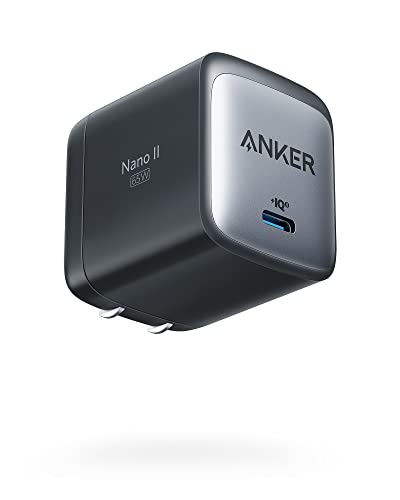
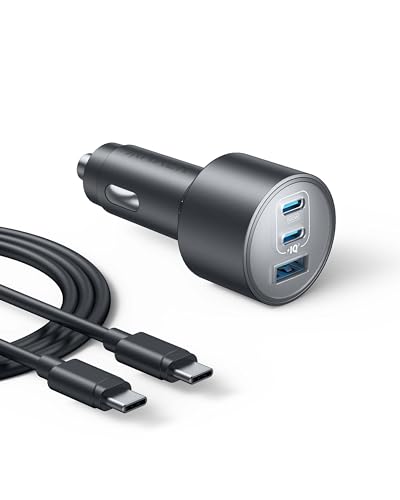
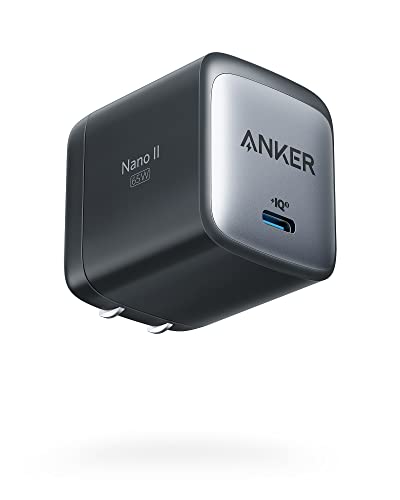
Anker Nano 65W GaN II PPS USB C Charger, Fast Compact Foldable Charger — Many new phones ship without a charger. A compact 65W GaN USB-C charger like this covers fast charging for modern Android phones and doubles as a laptop charger when you travel. Check price on Amazon.

SANDISK 256GB Extreme microSD Card + Adapter, Up to 190MB/s Read Speeds — If your new phone has a microSD slot, fitting a fast card during setup — before the transfer — gives photos and video somewhere roomy to land from day one. Check price on Amazon.

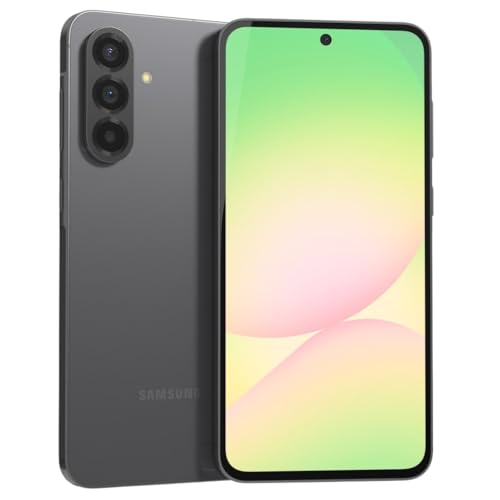
Samsung Galaxy S24 Ultra Cell Phone, 256GB AI Smartphone, Unlocked Android, 200MP, 100x Zoom Cameras, Fast Processor, Long Battery Life, Edge-to-Edge Display, S Pen, US Version, 2024, Titanium Gray — Setting up a flagship like this one, spend your extra minutes on the stylus features, the manufacturer account backup, and the extended update settings — the extras are the point of the tier. Check price on Amazon.
In this guide
What You Need
- Your old phone, charged, with its unlock code
- A USB cable that fits both phones (or patience for a slower wireless transfer)
- Your home Wi-Fi name and password
- Your Google account email and password, plus access to any two-factor prompts
- A SIM card tool if your new phone uses a physical SIM, or your carrier details for eSIM activation
- A notebook or second device for jotting down which apps need manual sign-in
Do the setup at home, not at the store counter and not on a train. You want your own Wi-Fi, your own charger, and no time pressure — most setup regrets happen when someone taps through a prompt just to get the line moving.
How to Set Up an Android Phone: Step by Step
Step 1: Charge both phones and update the old one
Start with both phones above half charge; a transfer that dies mid-way is the classic first-day disaster. On the old phone, install any pending system updates and run a fresh backup — on Android, that is Settings, then Google, then Backup; on an iPhone, run an iCloud or computer backup. This guarantees the data waiting to move is current, including the messages and photos from this morning, not just from the last automatic backup days ago.
Step 2: Insert the SIM or activate eSIM, then power on
If your new phone uses a physical SIM, move it from the old phone with the eject tool while both are off, or fit the new SIM your carrier provided. For eSIM, follow the carrier activation — usually scanning a QR code or using the carrier app once the phone is on Wi-Fi. Power on, choose your language and region, and connect to your home Wi-Fi. Confirm you can load a web page before going further; setup downloads are large and a flaky connection turns a smooth process into an evening of retries.
Step 3: Sign in with your Google account
Use the same Google account as your old Android phone if you have one — it carries your contacts, calendar, photos library, app list, and Wi-Fi passwords. Expect a verification prompt sent to your old phone or email; this is where having the old device beside you matters. If you are coming from an iPhone, sign in with your existing Google account or create one, and be ready to move data with the transfer tool in the next step rather than expecting iCloud content to appear on its own.
Step 4: Run the transfer — cable beats wireless
When the setup wizard offers to copy apps and data, choose the cable option if you have a cable that fits both phones. A wired transfer of a full phone typically finishes in a fraction of the wireless time and is more reliable with large photo and video libraries. Select everything: apps, photos, messages, call history, and settings. Then let it run without using either phone. Switching from iPhone works too — the wizard handles messages, photos, contacts, and most free apps, though paid apps and some app data need manual attention afterward.
Step 5: Set your screen lock and biometrics
Choose a PIN or password you do not use anywhere else, then enroll your fingerprint and, if offered, face unlock. Do this now, not later: your screen lock protects the password reset paths for your entire digital life, and several apps — banking especially — will refuse to work properly until a secure lock exists. Add a second fingerprint from your other hand; it sounds trivial and rescues you constantly when one hand is wet, gloved, or holding a coffee.
Step 6: Verify the things that would hurt to lose
Before any celebration, open your photo library and scroll to your oldest and newest photos. Open your messages and check recent threads. Open your banking app, email, and authenticator app and complete their sign-ins — several authenticator and banking apps do not transfer automatically and need re-enrollment, which is exactly why the old phone stays untouched until this step passes. Check contacts for a few key people. Only when all of that works is the transfer actually done.
Step 7: Install system updates and turn on protection
New phones often ship with older software. Go to Settings, then System, then Software update, and install everything offered, restarting as asked. Then confirm three protections are on: Find My Device, so a lost phone can be located and locked; automatic backup to your Google account; and Play Protect app scanning. These take two minutes now and are miserable to wish for later. If your manufacturer offers its own account for extra features, that is optional — the Google layer is the essential one.
Step 8: Restore your apps and sign in methodically
Most apps reinstall automatically from your account, but nearly all need a fresh sign-in, and some — messaging apps with their own backups, work apps managed by an employer — have their own restore flow. Work down your app list in one sitting with your notebook, ticking each off. Work or school accounts may require your IT department enrollment steps; do those while you still have the old phone for approval prompts. Resist deleting anything from the old phone until every single app on the new one opens and works.
Step 9: Personalize, then live with it for a day
Now the enjoyable part: home screen layout, wallpaper, ringtone, notification preferences, and quiet hours. Set notification rules generously at first, then tighten over the first week as you learn which apps actually deserve to interrupt you. After twenty-four hours of normal use — calls, photos, messages, apps all confirmed — you can factory-reset the old phone for trade-in or hand-me-down. Keep the new phone box and receipt until the return window closes.
Common Mistakes
Wiping or trading in the old phone too early
The number one setup catastrophe. Authenticator codes, banking enrollments, and one photo library that only existed locally have all been lost this way. The old phone stays fully intact — not reset, not traded, SIM history preserved — until the new phone has passed a full day of real use with every account verified.
Skipping the screen lock until later
Later becomes never, and an unlocked phone with your email on it is a master key: anyone holding it can reset passwords for your bank, shopping, and social accounts. Five minutes of enrollment during setup protects everything else you are about to sign into.
Transferring over weak Wi-Fi
A big wireless transfer on a congested network stalls, retries, and occasionally produces a partial photo library that looks complete. Use the cable, or at minimum sit near the router with both phones plugged in. Check the oldest photos afterward — missing early photos are the tell-tale sign of an incomplete transfer.
Forgetting app-specific backups
Some chat apps back up to their own cloud on their own schedule, and the backup that transfers may be days old. Open your important messaging apps on the old phone, trigger a manual backup, then start the transfer. The same applies to notes apps, voice recorders, and any app where your data lives outside your Google account.
Accepting every default notification
A new phone with forty apps all allowed to buzz will train you to ignore your phone entirely within a week. Set the important ones — calls, messages from people, calendar, banking alerts — during setup, and leave promotional notifications off from the start rather than cleaning up later.
Pro Tips
Screenshot your old home screens before you start. Rebuilding your layout from a picture is ten times faster than remembering where everything lived.
Write down which apps needed manual sign-in as you go. Next upgrade, that list is your personal checklist and cuts setup time in half.
Set up a charging spot and a spare cable where the phone will actually live. Battery habits formed in week one tend to stick for the life of the phone.
Turn on automatic system and app updates now. Security patches only protect you if they install, and automatic updates are the difference between a protected phone and a hopeful one.
Before You Tap Anything: A Fifteen-Minute Preparation
Setup goes smoothly when the preparation happens first. Charge both phones — the old and the new — because a transfer that dies mid-way creates exactly the half-migrated mess people fear. Connect to a stable home Wi-Fi network rather than a café or hotspot connection. Have your account passwords reachable, ideally in a password manager on another device, because setup day is when two-factor prompts arrive in a flurry and being locked out of your own accounts mid-transfer is the most common setup-day derailment. Finally, decide deliberately what will move: everything, or a curated fresh start. Both are legitimate; drifting into a fresh start by accident is not.
SIM, eSIM, and the order of operations
If your carrier uses a physical SIM, moving it is simple, but consider doing the data transfer first while the old phone still has full service, so verification codes arrive where your apps expect them. With eSIM, follow your carrier’s transfer flow, which often works during setup itself; if it does not, a carrier app or a quick call completes it afterwards. Do not erase or trade in the old phone on setup day under any circumstances. Keep it intact for at least a week, because something — a loyalty app, a two-factor seed, a photo folder — always surfaces later, and an unerased old phone turns that discovery into a two-minute fix instead of a loss.
The First Hour: Accounts, Updates, and Security Foundations
Once the transfer completes, resist the urge to start using the phone immediately. Run system updates first, including any waiting security patches, because setting up on outdated software means configuring things that an update may rearrange. Then work through the security foundations while your motivation is high: set a strong screen lock, enrol your fingerprint and face unlock, confirm that device-finding services are switched on, and review which accounts are signed in. Setup day is when security is easiest — the phone is in your hand, the passwords are out, and ten minutes now prevents a lost-phone panic later.
Two-factor authentication deserves its own pass
Authenticator apps are the classic setup-day casualty. Some transfer cleanly; many deliberately do not, because their whole purpose is being tied to one device. Open every important authenticator and account security page during your first week, confirm codes work on the new phone, and save fresh backup codes somewhere safe that is not the phone itself. Do the same for banking apps, which often need re-enrolment, and for messaging apps whose chat backups restore separately. Treat this as a scheduled task, not an afterthought: a quiet half-hour with a list beats a locked account on a day when you urgently need it.
Making the Phone Yours: The Configuration Pass
With foundations set, shape the phone around your habits. Arrange the home screen by frequency, not by category aesthetics: the apps you open twenty times a day belong within thumb reach, and everything else can live in the drawer. Set up your notification preferences now, app by app as prompts arrive during the first days, choosing silence by default and sound only for people and things that genuinely interrupt. Notification discipline configured in week one is the single largest quality-of-life improvement most people can make, and it is far easier to build on a fresh phone than to retrofit onto years of accumulated permissions.
Accessibility and comfort settings people forget
Explore display comfort early: text size, display scaling, and dark theme are personal settings that affect every minute of use, and setting them now means your eyes judge the phone fairly. If you use hearing aids, prescription accessibility features, or one-handed modes, configure them during setup rather than discovering them months later. Set your emergency information and emergency contacts, which take two minutes and matter enormously on the one day they are needed. Add your medical details if you are comfortable doing so; first responders genuinely check.
Photos, Backups, and Proving They Work
Turn on photo backup and then prove it works: take a photo, open the backup service on a computer or the web, and see it arrive. This two-minute verification is the difference between a backup and a hope. Repeat the thinking for messages and app data — confirm the backup schedule in settings shows a recent successful run. Many people discover a backup was never actually running only on the day they need it, which is the worst possible day to learn it. Setup day is when verification is cheap.
The old phone’s second life
After a week or two of confidence, decide the old phone’s fate deliberately. Kept as a spare, it wants a charge every few months and its accounts signed out or kept intentionally. Given to a family member, it wants a full reset after you have confirmed your data lives safely on the new device. Traded in or sold, it wants the same reset plus removal from your account’s device list and any device-finding service. What it should not do is sit in a drawer still signed into everything, a small unmonitored door into your accounts.
Week One: The Settling-In Checklist
- Confirm every banking, payment, and authenticator app opens and works on the new phone.
- Check that photos taken on the new phone appear in your backup on another device.
- Pair the accessories you use daily — car, earbuds, watch — and test each once.
- Review app permissions for location, microphone, and camera; revoke what surprises you.
- Set your charging routine and any battery-protection options you want from day one.
- Test an outgoing call, a text, and mobile data with Wi-Fi off, so carrier issues surface early.
- Write down where your backup codes and passwords live, and tell a trusted person the system exists.
Setup is not finished when the home screen appears; it is finished when a bad day — a lost phone, a locked account, a dead battery far from home — would be an inconvenience rather than a crisis. The extra hour that gets you there is the best-value hour in the phone’s whole life.
Common setup mistakes and their easy avoids
Skipping the transfer and planning to move things manually later almost always means later never comes for something that mattered. Granting every permission prompt the maximum because decision fatigue set in creates privacy debt that is tedious to unwind. Buying a case and screen protection after the first drop is a classic sequencing error; order them with the phone. And erasing the old phone in the shop, under time pressure, is the one irreversible mistake in the whole process — everything else on this page can be redone, that one cannot.
Setting Up for Specific Lives: Parents, Children, Work, and Travel
A phone being set up for a parent wants a different first hour from a phone set up for its own owner. Enlarge the text and display scaling before anything else, because every later step is easier to follow on a screen the parent can read comfortably. Place the handful of essential applications — calls, messages, camera, the family chat, maps — on one calm home screen, and remove or hide everything that generates confusing prompts and update demands. Set up the emergency contacts and medical information together, aloud, so the parent knows they exist and how a helper would find them. Configure photo backup and then demonstrate it: take a photograph together and show it arriving in the family album on another screen, because that single demonstration teaches the system more durably than any lecture about clouds. Finally, write down on paper, kept somewhere sensible at the parent’s home, the account address and where the password lives, because the parent will need it on a day when you are not there and the phone is being unhelpful.
A child’s first phone wants its boundaries configured while enthusiasm is at its peak and negotiation is easy: the family supervision tools linked to a parent’s account, application installations requiring approval, content filters set to the child’s age, a bedtime schedule agreed as a household rule rather than imposed mid-argument months later, and location sharing explained honestly as a safety feature the whole family uses. A phone carrying work wants the separation between employment and life respected from day one: work applications inside the work profile, work notifications scheduled so employment cannot colonise every evening unless the job genuinely requires it, and the employer’s requirements — encryption, screen lock strength, update policy — confirmed before personal data mingles with managed data. The traveller’s setup, done at home on calm Wi-Fi, installs and signs into the airline, maps with offline areas downloaded, translation, and banking applications before departure, and adds a travel eSIM that can be tested at the kitchen table and simply switched on at landing. Each of these is the same phone wearing a different life, and the configuration hour is where that life gets decided — which is why setup deserves an unhurried evening rather than the shop counter’s ten minutes.
Dual SIM and two-line sanity
If the phone carries two lines, setup day is when to label them clearly inside the settings, choose which line handles mobile data, and set calling preferences for important contacts where the phone supports it, so the work line stops answering personal calls by accident and the personal line stops paying for work data. Record which number each important service believes is yours — banks and messaging accounts are frequently anchored to a number their owner forgot choosing years ago — and update the ones that point at a line you are retiring. Two-line phones fail socially, not technically: every confusion they cause was a labelling decision skipped during setup, and every one of those decisions takes less than a minute to make properly at the start.
The Privacy Pass: Permissions Decided Before Habits Form
Setup day offers a privacy opportunity that never returns in such convenient form: deciding permissions before habits and dependencies form around them. Walk through the permission manager once, category by category — location, camera, microphone, contacts, photographs — and ask of each application whether its request matches its actual job. A torch application wants nothing at all. A maps application wants location, but perhaps only while it is in use rather than always. A social application can live contentedly with access to selected photographs rather than the entire library, and granting the narrower access costs you nothing in daily use. Set location precision to approximate for applications that need a neighbourhood rather than an address. Review the advertising and personalisation settings if you prefer less tracking, knowing the advertisements remain but follow you less precisely. Above all, treat notifications as what they are — small permissions to interrupt your life, granted by default to any application that asks — and grant them deliberately, to people and services that genuinely deserve to interrupt you.
An accounts audit while the passwords are out
A new phone is also the natural moment to audit the accounts themselves, because the passwords are already out and the motivation is already high. Enable two-step verification on every important account that lacks it. Update recovery email addresses and phone numbers that still point at addresses and lines you abandoned years ago, since a recovery path to a dead inbox is no recovery path at all. Review the list of devices your accounts trust and remove the phones and computers you no longer own. Check where you have used your main account to sign into other services, and consider which of those deserve their own separate passwords. This work is unglamorous and its payoff is outsized: most account compromises in ordinary life exploit stale recovery paths, reused passwords, and forgotten trusted devices — not brilliant hacking — and setup day is the one sitting in which a household’s entire account hygiene can be lifted at once.
The Applications Pass: Installing Deliberately, in Waves
Resist the urge to restore every application the old phone accumulated over its years. Install in waves instead: the daily essentials first, then live a full day, then add only what you genuinely missed. This natural experiment reveals which applications were habits and which were furniture, and many phones run better for their entire lives because setup day imposed one honest audit. For each application you do install, complete its own configuration before moving on — sign in, set its backup or sync behaviour, and decide its notifications — because half-configured applications are the seeds of future confusion, each one a small mystery of missing messages, absent photographs, or a balance that does not appear. Large games and media libraries can download overnight on Wi-Fi rather than competing with the transfer and the updates for the evening’s bandwidth and your patience.
Widgets, routines, and the small automations that repay daily
Once the foundations settle, a few small automations repay their setup minutes every single day: a bedtime routine that silences the phone, dims the screen, and sets the morning alarm; a driving mode that announces messages and replies that you are driving; a work-hours arrangement that hides distracting applications until the evening. Widgets earn their home-screen place only for information you genuinely glance at repeatedly — the calendar, the weather, the family photograph frame — and each widget costs a little of the screen’s calm, so add them one at a time across the first week rather than decorating the phone completely on day one. The goal of the whole configuration pass is a phone that feels inevitable: everything where your thumb expects it to be, nothing asking questions you have already answered, and nothing demanding attention it has not earned.
When Setup Goes Wrong: Recovery Without Panic
Transfers stall, accounts lock, updates interrupt — setup day has a failure folklore, and most of it defuses calmly. A stalled transfer is usually still moving something large, or restarts cleanly if both phones stay powered, close together, and patient; the cloud-backup route exists as the unhurried fallback when the direct route misbehaves. A locked account is a patience exercise by design: recovery flows are deliberately slow in order to frustrate thieves rather than owners, and working through the official process on a computer, with identification ready, succeeds far more often than repeated frantic attempts on the phone itself. A phone that misbehaves immediately after setup almost always yields to the simple sequence of restart, system update, and suspicion directed at the one application installed most recently. Through all of it, keep the old phone intact and charged, because it is simultaneously your backup, your verification-code receiver, and your proof that nothing is truly lost while it still works.
The setup log: two minutes that save future hours
Before declaring setup finished, write a short log in your notes or password manager: the date, which accounts were moved, where the authenticator backup codes now live, which applications needed manual migration, and anything deliberately left for later. Every future event in this phone’s life — a loss, a replacement, a midnight lockout, a family member’s identical crisis — begins with questions this log answers instantly. It feels excessive on a calm setup evening, with everything working and dinner waiting. It feels like genius on every subsequent occasion, and there will be subsequent occasions, because phones are replaced on a rhythm of years and unaided memory is not a records system.
Setting Up the Invisible Layer: Defaults, Search, and Your Data Trail
Beneath the visible setup sits an invisible one that shapes the phone’s whole life: its defaults. The default browser, the default messaging application, the default assistant, the default keyboard — each is a small sovereignty decision about which company’s services mediate your daily actions, and setup day is when they are cheapest to make deliberately. Keyboards deserve particular attention, because everything you type passes through yours; choose one from a maker you trust, configure its autocorrect temperament before it learns your patience the hard way, and check whether its personalisation sync is a convenience you want. Review the search and discovery settings inside your main account as well: the activity controls that govern what is saved, the ad personalisation toggles, and the auto-delete options that can quietly erase old activity on a schedule you choose. None of these settings announces itself during the cheerful part of setup, and all of them together decide how much of a trail the phone keeps — a decision worth making once, consciously, rather than inheriting by default forever.
Email, calendars, and the accounts beyond the main one
Most lives contain more accounts than the headline one: a work mailbox, an old personal address that still receives important mail, a shared family calendar, a school account for a child’s schedule. Setup day is when to gather them deliberately, deciding which mailboxes earn a place on the phone and which remain web-only, which calendars display and in what colours, and which accounts may send notifications at all. A phone that begins life showing three calendars colour-coded and two mailboxes with different notification rules will feel organised for years; a phone that accumulates accounts by accident across months will feel chaotic in exactly the same small ways, every day. The gathering takes twenty minutes. The chaos it prevents is permanent until someone pays the twenty minutes later, with interest, while troubleshooting a missed appointment.
The Handover Test: Could Someone Else Use This Phone in an Emergency?
A well-set-up phone passes a test its owner rarely thinks to run: a trusted person, handed the phone in an emergency, could call for help, find the emergency contacts, read the medical information, and reach the one application that matters — without knowing the owner’s system. Run the test mentally once setup is complete. The emergency information is reachable from the lock screen. The most important contact is findable in seconds. The phone’s owner can be identified and the device returned if it is lost, through the lock-screen message or the finding service. These features take minutes to configure and are almost never configured, because setup day feels like a beginning and emergencies feel theoretical. They are the same day, separated by luck. Finish the setup by making the phone survivable — for its worst day, not just its first one.
Setup as a Gift You Give Your Future Self
Every element of a thorough setup is a letter to a future self who will be busy, tired, or in trouble. The verified backup writes to the self whose phone is in a lake. The authenticator migration writes to the self locked out of a bank account on a deadline. The emergency information writes to a self who cannot speak for themselves. The setup log writes to the self replacing this phone in three years, who will perform the whole migration in half the time because the map exists. Seen that way, the setup hour is not a tax on the excitement of a new phone; it is the excitement’s insurance policy, and the premium is paid once, in comfort, at the kitchen table. Owners who understand this stop rushing setup and start enjoying it as the moment the phone becomes truly theirs — configured, secured, backed up, and ready not just for its first day but for its worst one.
The one-week-later letter
Complete the ritual a week after setup by writing the log’s final entry: what surprised you, what you changed after living with the phone, and what you would do differently next time. File it where the next setup will find it. Phone replacement is a rhythm of modern life, and the households that treat each setup as a lesson recorded, rather than an ordeal repeated, find that every successive phone is easier to adopt than the last. The new phone in your hand is the beneficiary of every previous setup’s wisdom — provided somebody wrote it down. Be that somebody, this time, in the log’s last two minutes.
The Setup Audit: Reviewing Your Own Work at One Month
A month after setup, when the phone has become furniture and its novelty has worn away, perform the audit that closes the process honestly. Walk the home screen and ask of every application whether it has earned its place in the month just lived; the ones that have not can go without ceremony. Review the notifications that actually arrived and silence the categories that cried wolf. Check the backup screen’s date, the storage level’s trend, and the battery’s report of which applications have been busy in the background. Confirm the authenticators all still open, the emergency information is current, and the setup log’s promises — the stragglers to migrate, the settings to revisit — have been kept. This half-hour converts a good setup into a verified one, and it catches, while they are still small, every species of drift that otherwise accumulates into the mysterious slowness and clutter of a phone’s middle age.
Teaching setup to the next person in the family
The final proof of a good setup is that its method can be handed on. When the next family member’s phone arrives, your setup log becomes their checklist, your order of operations becomes their calm evening, and your mistakes — each one recorded — become their shortcuts. Households develop institutional knowledge exactly this way, one documented setup at a time, until phone replacement stops being a family emergency and becomes a family routine with a kettle involved. That transformation, from dread to routine, is the true product of everything in this guide; the phone in your hand is merely where it happened most recently.
Setup for the Long Life of the Phone
Look at the finished setup once more, this time as the foundation of everything the phone will become. The accounts are anchored, with recovery paths that point at living addresses. The backups run and have been witnessed running. The authenticators live here now, with their codes stored safely elsewhere. The home screen reflects a life rather than a showroom. The permissions were granted by a person, deliberately, one by one. The emergency information waits, quietly, for a day everyone hopes never tests it. None of this will trend, photograph, or impress a soul — and all of it together is the difference between a phone that serves its owner for years without incident and a phone that generates a small crisis every season. Setup is the least glamorous hour of a phone’s life and the most consequential one, which is why this guide gave it an evening, a checklist, a log, and an audit. The phone is ready. So, now, are you.
Related Guides
- best android phones for under 250
- best android phones for under 300 dollars
- best android phones for under 350 dollars
- best android phones for under 400
- best android phones for under 500
- how to speed up an android phone
- how to back up an android phone
- how to transfer data to an android phone
Frequently Asked Questions
How long does setup actually take?
The transfer itself ranges from fifteen minutes for a light phone over a cable to over an hour for a huge photo library over Wi-Fi. Budget another thirty minutes for updates, sign-ins, and verification. Doing it unhurried at home, most people are fully finished in about an hour — and that hour prevents the account-recovery headaches that consume whole weekends.
Will my text messages move from iPhone to Android?
Yes, the setup wizard transfers message history when you connect the phones by cable and follow the prompts, including most group threads. A few caveats: messages sent during the transfer window can be missed, and some carrier-specific features differ. Keep the iPhone active until you have confirmed recent conversations are present on the Android phone, and ask frequent contacts to start fresh threads if anything looks odd.
What does not transfer automatically?
Authenticator apps usually need manual re-enrollment, banking apps need fresh sign-in and sometimes device registration, work profiles may need IT enrollment, and in-app purchases from another platform store do not carry over. Some app data — game saves without cloud sync, downloaded media inside apps — also stays behind. This is normal, not a failure, and it is why verification before wiping the old phone is the golden rule.
Should I set up eSIM or use a physical SIM?
Either works. eSIM is convenient for travel and dual-line use and cannot be lost, while a physical SIM is trivially moved between phones — handy if you swap devices or hand yours to a family member in an emergency. If your carrier supports both, choose based on how often you change phones. The setup steps in this guide are identical either way after activation.
My apps are stuck downloading. What should I do?
Check that you are on Wi-Fi, that the phone is plugged in, and that you have free storage — a nearly full phone pauses installs silently. Then open the Play Store download queue and confirm nothing is waiting on a prompt. A restart clears most stuck queues. If one app refuses, uninstall and reinstall just that app rather than disturbing the rest of a transfer that otherwise worked.
When can I reset my old phone?
After a full day of normal use on the new phone: calls made, photos taken and confirmed backed up, banking and authenticator apps working, messages flowing. Then sign out of your accounts on the old phone, remove the SIM and memory card, and factory-reset it. If you are trading it in, that reset is also what protects your data — do it yourself, personally, rather than trusting anyone else to do it.
How long should setting up a new Android phone actually take?
Budget an unhurried evening rather than a number of minutes. The data transfer itself may take anywhere from a short while to a couple of hours depending on how much you own and whether it travels by cable or wirelessly, and the configuration that follows — accounts, authenticators, backups verified, permissions decided, emergency information entered — deserves another focused hour across the first day or two. Rushing setup does not save the time; it merely relocates it into future evenings of lockouts, missing photographs, and archaeological password recovery, each far more expensive than the calm hour would have been.
Should I set up the phone as new or copy everything from my old one?
Copy everything if your old phone was healthy, organised, and beloved, because continuity is valuable and the transfer tools are good. Start fresh — restoring only contacts, photographs, and messages, then installing applications deliberately — if the old phone was slow, cluttered, or troubled, because a full transfer faithfully imports the clutter along with the treasures. Either choice is respectable; the only wrong one is drifting into a fresh start by accident, discovering weeks later that something you loved lived only in an application you never reinstalled. Decide before setup begins, and keep the old phone intact for a week either way.
What is the one setup step people most regret skipping?
Verifying the backup. Owners skip it because the toggle says on and the phone feels finished, and they discover the truth — that the account was full, the toggle was reset by an update, or the photographs were never included — on the day the phone is lost, which is the worst day to learn anything. The verification takes two minutes: take a photograph, then find it in your backup from another device. Close behind it in the regret rankings are the authenticator migration and the emergency information, both ten-minute tasks on setup day and both miserable to reconstruct later.